
Page Templates in GT Page Blocks Builder
GT Page Blocks Builder provides two page templates for classic WordPress themes. Page Blocks Builder keeps the theme header and footer; Full Page Builder gives your sections control of the visible page.
Choose Full Page Builder for the downloadable course demos because they include their own navigation and footer. A block theme needs an appropriate template from its own Site Editor instead.
Page Blocks Builder Template
Template slug: page-blocks-builder.php
This is the standard template. It keeps your theme’s header and footer but removes layout constraints that would prevent sections from going full-width.
What it does.
- Calls
get_header()to include your theme’s header. - Renders a
<main>element with the classpage-blocks-main. - Runs the standard WordPress loop and calls
the_content(). - Calls
get_footer()to include your theme’s footer.
The template injects CSS that.
- Removes
max-width,padding, andmarginfrom.page-blocks-main. - Hides the page title (
.entry-title,.page-title,.post-title). - Removes width constraints from
.site-content,.content-area, and.entry-content.
This means your Page Block sections can span the full viewport width while your site’s navigation, footer, and other theme elements remain intact.
Full Page Builder Template
Template slug: page-blocks-full-builder.php
This template removes everything. No header, no footer, no theme chrome. You get a blank HTML document with just WordPress’s head scripts and footer scripts.
What it does.
- Outputs a minimal HTML document with
<!doctype html>,<html>,<head>, and<body>tags. - Calls
wp_head()andwp_footer()so your SEO plugins, analytics scripts, and other head/footer hooks still work. - Adds the body class
page-blocks-full-builder. - Renders a
<main>element withpage-blocks-mainthat contains the post content.
The template injects CSS that.
- Zeroes out
marginandpaddingon the body. - Removes layout constraints from
.page-blocks-main.
Use this template when you want complete control over the page layout, including custom headers and footers built as Page Block sections.
Template Auto-Selection
When you open the visual builder for a post that doesn’t have a template set (or is set to “Default”), the plugin automatically assigns the “Page Blocks Builder” template. This ensures your sections render full-width immediately without requiring manual template selection.
On classic themes, the auto-selection only happens when the current template is empty or “default.” If you’ve already chosen a specific template (including the Full Page Builder template), the plugin won’t override your choice.
Choosing a Template
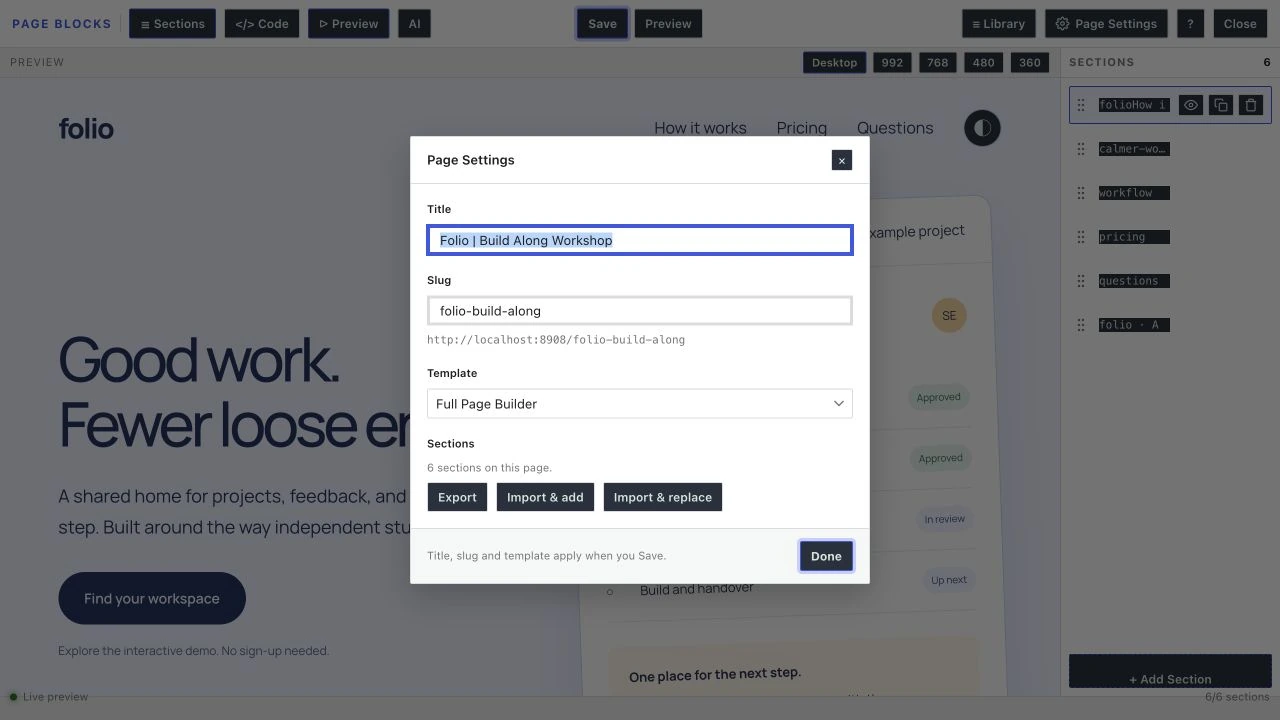
Open Page Settings in the visual builder, choose the template, select Done and Save. You can also use the page template control in Gutenberg when your theme exposes these choices.
Supported Post Types
Both templates declare support for a wide range of post types via the Template Post Type header.
- post
- page
- product
- snippet
- ebook
- study_notes
- deal
- fluent-products
- landing_page
- portfolio
- event
- course
- lesson
This list covers common custom post types. If your post type isn’t listed, the template may not appear in the template selector for that post type. The visual builder itself works on any post type that’s enabled in the plugin settings, regardless of template availability.
When to Use Which Template
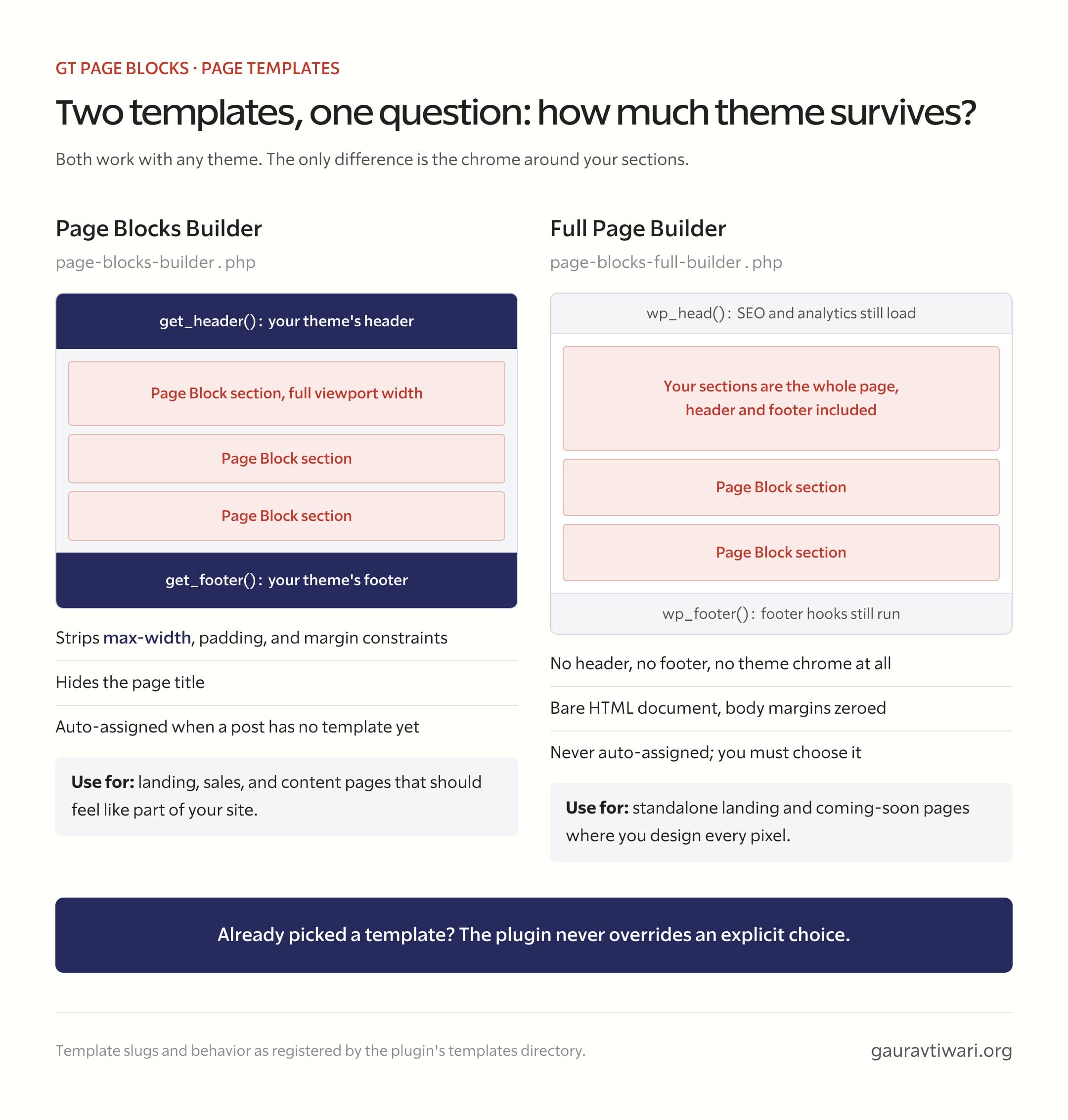
Use the Page Blocks Builder template when you want full-width sections but still want your site’s header and footer. This is the right choice for most landing pages, sales pages, and content pages that should feel like part of your site.
Use the Full Page Builder template when you need complete control. This is ideal for standalone landing pages, coming-soon pages, or any page where you want to design every pixel from scratch, including the header and footer.
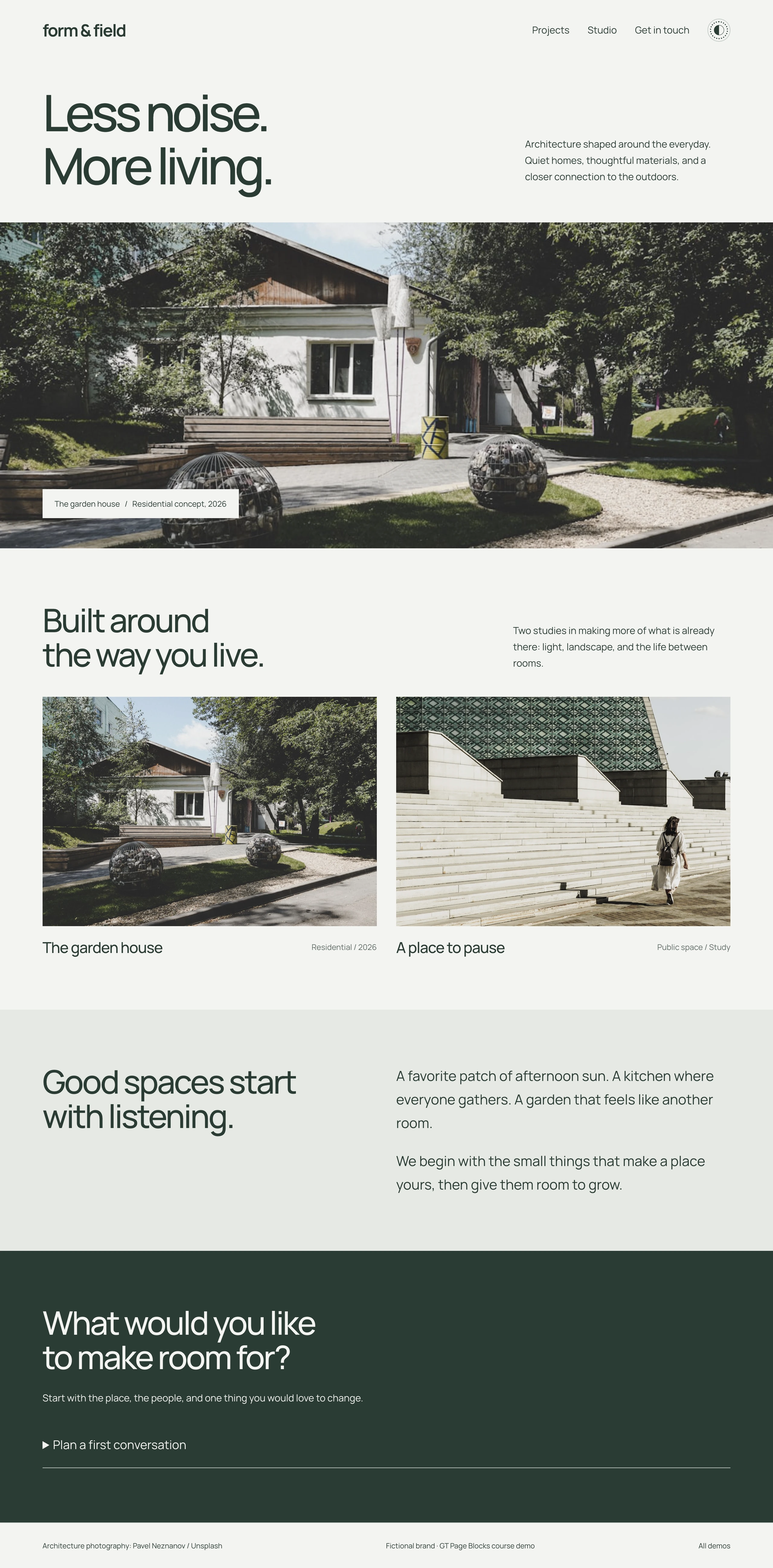
A Full-Width Architecture Page
The Form & Field JSON contains its own navigation and footer, so it pairs with Full Page Builder under a classic theme.
A blank canvas does not mean no theme styles load. A theme can still style buttons, typography or form elements, so use distinctive wrapper classes and inspect conflicts where they occur.
In stock 3.0.0, assigning a plugin page template to the static homepage can interfere with the root builder request. Keep the homepage on a normal theme template while using the separate demo pages, or resolve that template-selection conflict before making a demo the homepage.
Quick answers to common questions:
Which template should I use for a landing page?
For the course demos, use Full Page Builder with a classic theme because the demos contain their own header and footer. Use Page Blocks Builder when the page should keep the theme header and footer. Block themes need their own suitable Site Editor template.
What are theme regions in 2.6.0?
Assignable slots (header, hero, before/after content, sidebar, footer, 404) where library blocks render via gt_pb_region() calls. A hybrid theme can be little more than region calls, with all actual markup managed as library blocks in the admin.