
How to Build a Full-Width Page Without Fighting Your Theme
Your hero section is supposed to run edge to edge, and on the live page it sits in a 720-pixel column with the page title stacked above it. The usual fix is a pile of !important rules that break again with the next theme update.
To build a full-width page in WordPress without fighting your theme, you give the page a template that drops the theme’s content container. The theme still loads its styles, but your sections get the full browser width, and the page title only shows if you put one in.
GT Page Blocks Builder ships 2 templates for this. One keeps your theme’s header and footer, and one removes everything around your content. You pick either from the builder or from the page editor.
I’ll explain which to pick, how to set it and how to keep the theme’s own styles from creeping into your sections.
Before You Start
- A page built with GT Page Blocks Builder, or a draft you’re about to build. How to Build a Landing Page with HTML, CSS and JavaScript Inside WordPress covers the first steps.
- Know your theme type. A classic theme uses Appearance → Customize. A block theme uses Appearance → Editor. The first template below works only on classic themes.
Pick the Right Template
The 2 templates solve different problems:
| Template | Header and footer | Page title | Content width | Themes |
|---|---|---|---|---|
| Page Blocks Builder | Your theme’s | Hidden | Full width | Classic themes only |
| Blank canvas (no header or footer) | None | None | Full width | Classic and block themes |
Choose Page Blocks Builder for a sales page or a long-form landing page that should still feel like part of your site, with the same menu and footer. It removes the content width, padding and title that classic themes wrap around the page.
Choose Blank canvas (no header or footer) for a page that stands on its own: a launch page, a webinar sign-up or a template that brings its own header. WordPress still loads its head and footer code, so your analytics, SEO tags and plugin scripts keep working.
Set the Template
- Open the page in the builder and click Page settings in the top bar.
- Under Template, pick one of the 2 templates.
- Click Done. The preview redraws with the new layout.
- Click Save. The template only applies when you save.
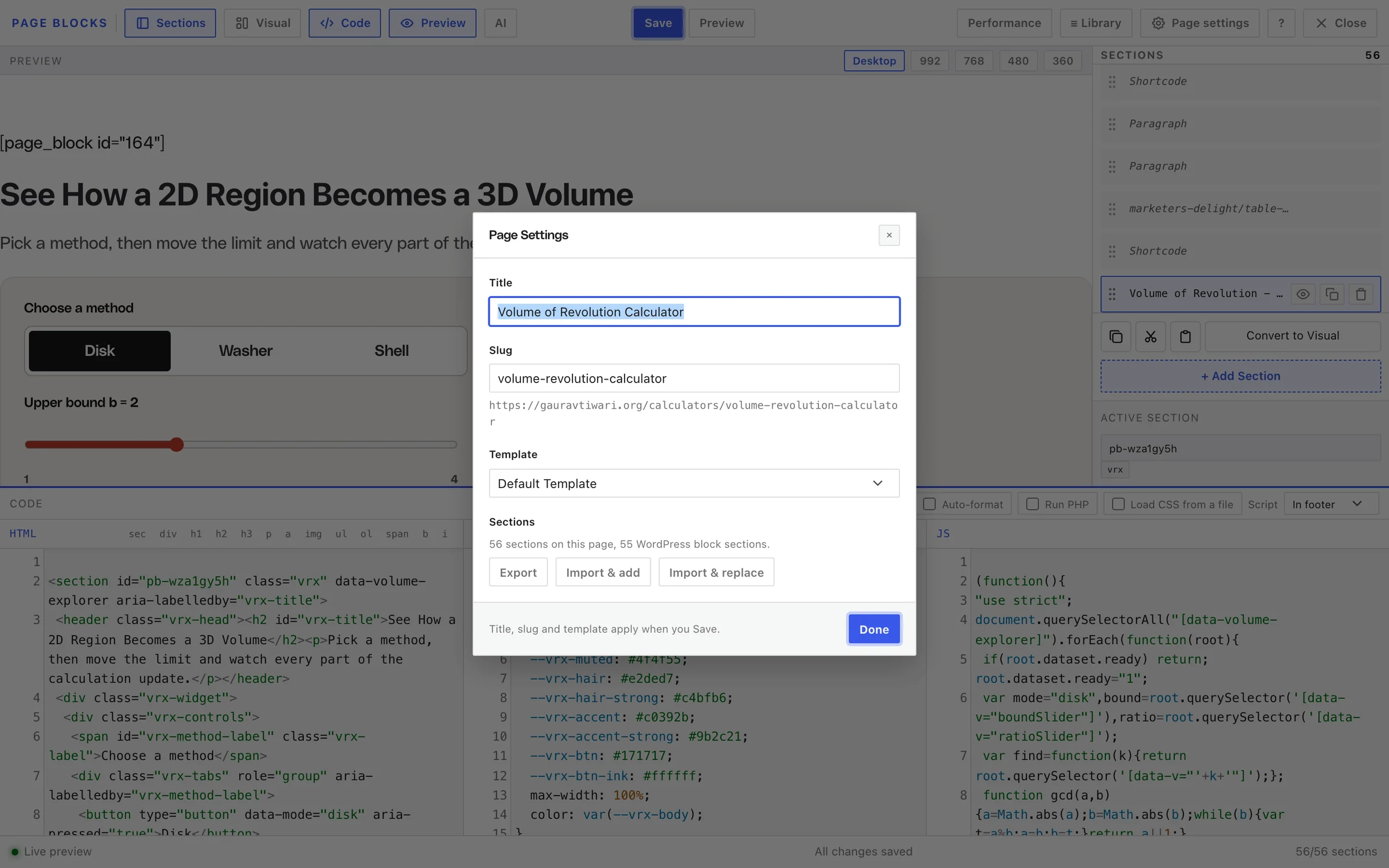
You can also set it in the WordPress page editor, under Template in the page’s settings panel. Both places change the same setting.
New pages keep Default Template until you choose one, so pick it before you judge how the page looks.
Stop Theme Styles from Leaking In
A template removes the theme’s layout, but not its stylesheet. Your theme’s heading sizes, link colors, button styles and paragraph margins still apply to your sections. The builder preview loads the same theme styles, so you’ll see the conflicts there first.
These habits keep your sections predictable:
- Wrap each section in a named element, such as
<section id="hero" class="lp-hero">, and start every CSS rule with it..lp-hero h1beats the theme’sh1without!important. - Set the basics on the wrapper. A font family, color and line height on
.lp-herostop the theme’s body styles from showing through. - Reset the margins you care about. Themes often add bottom margins to paragraphs and headings.
.lp-hero h1, .lp-hero p { margin: 0 0 1rem; }puts you back in control. - Name classes uniquely. A class like
.buttonor.containerprobably exists in your theme too. A short prefix such aslp-avoids the clash.
Section CSS isn’t scoped automatically. A rule written for one section applies to the whole page, and that’s why the prefix habit matters.
Use the Optional CSS Layers With Care
Page Blocks → Settings → Frontend CSS has 3 optional layers: Semantic Reset, Typography and Utility Classes. They make sections look consistent across themes, but the reset and typography load on every page of your site once they’re on, not only on builder pages.
On a site whose theme you’re happy with, keep them off and style the sections yourself. They suit sites where most pages are built with GT Page Blocks Builder anyway.
When Your Theme Is a Block Theme
Block themes only get Blank canvas (no header or footer) from the plugin. To keep the theme’s header with full-width sections, use one of these:
- Your theme’s own full-width or “no title” template, if it ships one. Most block themes do, under Appearance → Editor → Templates.
- A custom template you make in the Site Editor, with the header, a Post Content block set to full width and the footer.
In the default template, the builder preview copies your block theme’s content layout and padding, so what you see in the builder matches the live page.
Check It Works
- Open the page logged out and drag the browser from narrow to wide. Sections should reach both edges on a large screen.
- Look for a stray title. Page Blocks Builder hides
.entry-title,.page-titleand.post-title. If your theme uses another class, hide it in the first section’s CSS. - Check for a sideways scrollbar. It usually means one element is wider than
100%. Find it with your browser’s inspector.
Common Messages
| Message | What it means | Fix |
|---|---|---|
| This theme offers no page templates. | The theme lists no templates for this post type | Use Blank canvas, or check the post type is enabled under Enable Builder On |
| The current template is unavailable with this theme. Choose an available template before saving. | The page used a template the active theme doesn’t have | Pick a template from the list, then save |
| Page Blocks Builder is missing from the list | You’re on a block theme | Use Blank canvas or your theme’s own template |
| The page title still shows | Your theme uses a title class the template doesn’t hide | Hide that class in the first section’s CSS |
What It Won’t Do
- It doesn’t unload your theme’s stylesheet. Even on Blank canvas, theme CSS loads and can style your sections.
- It doesn’t scope section CSS. Prefix your rules, as shown above.
- It doesn’t change other pages. Templates apply per page. Only the optional CSS layers are site-wide.
All template details are in Page Templates in GT Page Blocks Builder. With a clean full-width canvas, How to Add a Calculator or Pricing Toggle to a Page adds something interactive to it.