
GT Page Blocks Builder Settings
GT Page Blocks Builder settings live under Page Blocks > Settings. They control builder-enabled post types, optional frontend CSS, AI providers and preview customization.
The course demos supply their own styles and JavaScript. You can leave provider keys empty while working through the manual editing and import exercises.
Page Blocks Builder Settings
Open Page Blocks > Settings. The visual builder and Gutenberg block share content, but these options serve different purposes.
- Enable Builder On controls frontend builder access for post types. Posts and Pages are enabled by default; the Gutenberg block is registered globally.
- Semantic Reset, Typography and Utility Classes add optional frontend CSS. The demo exports contain their own CSS.
- AI Integration stores provider keys and the default model. Manual editing and imports work without them.
- Preview Customization adds preview-only CSS, head HTML or footer JavaScript. It does not deploy that code to the public page.
- Delete data on uninstall removes the library and its revisions when the plugin is deleted. Leave this off when you want to keep the library.
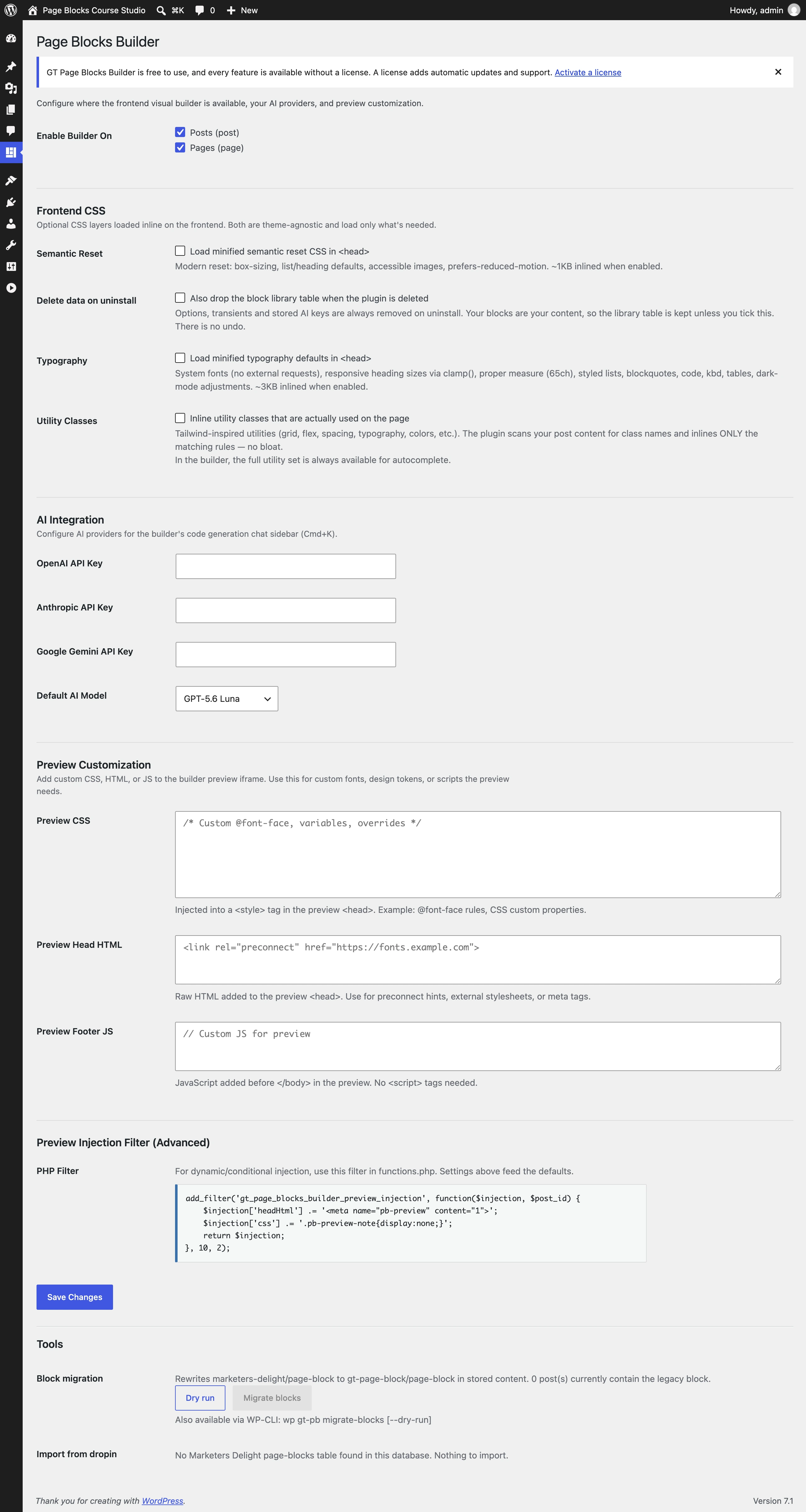
The post-type filter is gt_page_blocks_builder_post_types. The preview filter is gt_page_blocks_builder_preview_injection; its older md_ alias remains for compatibility.
Page Blocks License
Location: Page Blocks > License
This page manages your plugin license for automatic updates.
License States
Inactive. No license key has been entered. You’ll see a text field to enter your key and an “Activate License” button. A link to purchase a license is shown below.
Active. Your license is valid. The page shows a masked version of your key (first 4 and last 4 characters visible, the rest replaced with asterisks) and a “Deactivate License” button. If your license has an expiration date, it’s shown. Lifetime licenses are labeled as such.
Expired. Your license has expired. The page shows a warning with the expiration date, a “Renew License” button linking to the purchase page, and a field to enter a new license key if you’ve already renewed.
License Verification
The plugin verifies your license in two ways.
On activation. When you enter a key and click Activate, the plugin contacts the license server to validate the key, register the activation for your site URL, and store the activation hash.
Weekly cron check. A scheduled WordPress cron event runs once per week to verify the license is still valid with the remote server. If the license has been revoked or expired, the local status is updated accordingly.
Automatic Updates
When a valid license is active, the plugin hooks into WordPress’s plugin update system. It checks the license server for new versions every 12 hours (cached via a transient). When an update is available, it appears on the standard WordPress Plugins > Updates page and can be installed with one click.
Admin Notices
When you’re on a post editing screen or the plugin settings page without a valid license, you’ll see a dismissible notice.
- Inactive license: An info notice suggesting you activate your license.
- Expired license: A warning notice suggesting you renew.
These notices don’t appear on the license page itself to avoid redundancy.
Add AI Later
Complete a manual section edit before adding an AI provider. You should know which section is selected and how to save or undo its changes.
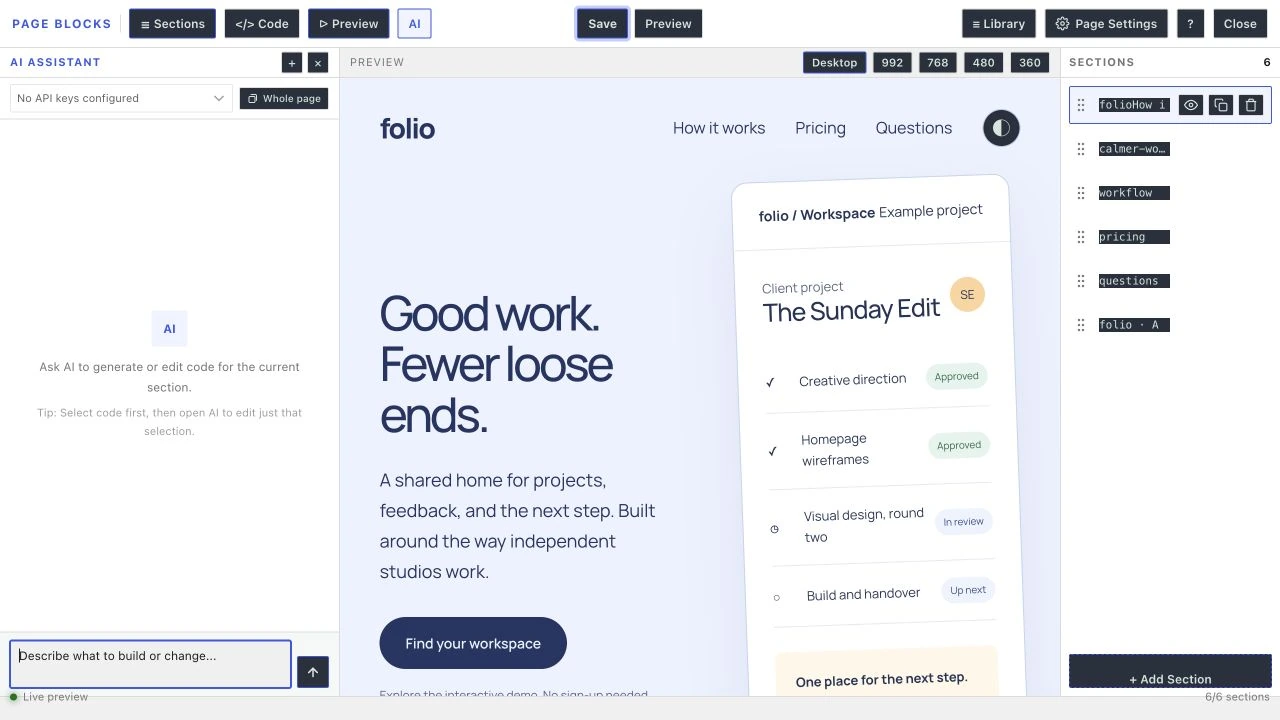
An OpenAI API key belongs in the local provider field, not in page markup or a downloadable JSON file. Adding a key is a separate step from importing any of these demos.
Quick answers to common questions:
What do the three frontend CSS toggles do?
Semantic Reset supplies baseline element styles, Typography supplies text defaults and Utility Classes supplies matching utility rules. They are independent options. The course JSON demos contain their own CSS and do not need these toggles to reproduce their layouts.
Which post types can use the builder?
Posts and Pages are enabled by default. Page Blocks Settings and the gt_page_blocks_builder_post_types filter control access to the frontend builder. The Gutenberg block itself is registered globally.