
How to Build a Landing Page with HTML, CSS and JavaScript Inside WordPress
You can write the landing page in an afternoon of HTML and CSS. Getting it into WordPress is the slow part. A Custom HTML block can strip your scripts, and a visual page builder wants you to rebuild every section with its own widgets.
To build a landing page in WordPress from HTML, CSS and JavaScript, you write the page as a stack of sections, each with its own HTML, CSS and JS. You see every change in a live preview, save the sections as normal blocks in the page and publish it like any other page.
GT Page Blocks Builder is my code-first page builder for WordPress. Each section is a gt-page-block/page-block block with 3 code panes, and the frontend builder puts those panes next to a live preview of your real page. It’s free, and a license only adds automatic updates and support.
I’ll take you from an empty page to a published one. The builder’s controls are listed one by one in GT Page Blocks Visual Builder.
Before You Start
- GT Page Blocks Builder 4.2 or newer, on WordPress 6.0+ and PHP 8.1+.
- An administrator or editor account. Admins and editors can save
<script>tags. Authors and contributors can open the builder, but WordPress filters scripts out of what they save. - Your page in code, or at least a plan of its sections: a hero, features, pricing, an FAQ and a call to action.
Turn On the Builder for Pages
The builder works on posts and pages by default. Check it before you start, especially on a site with custom post types.
- Go to Page Blocks → Settings.
- Under Enable Builder On, make sure Pages (page) is ticked. Tick any custom post type you also want to build with.
- Click Save Changes at the bottom.
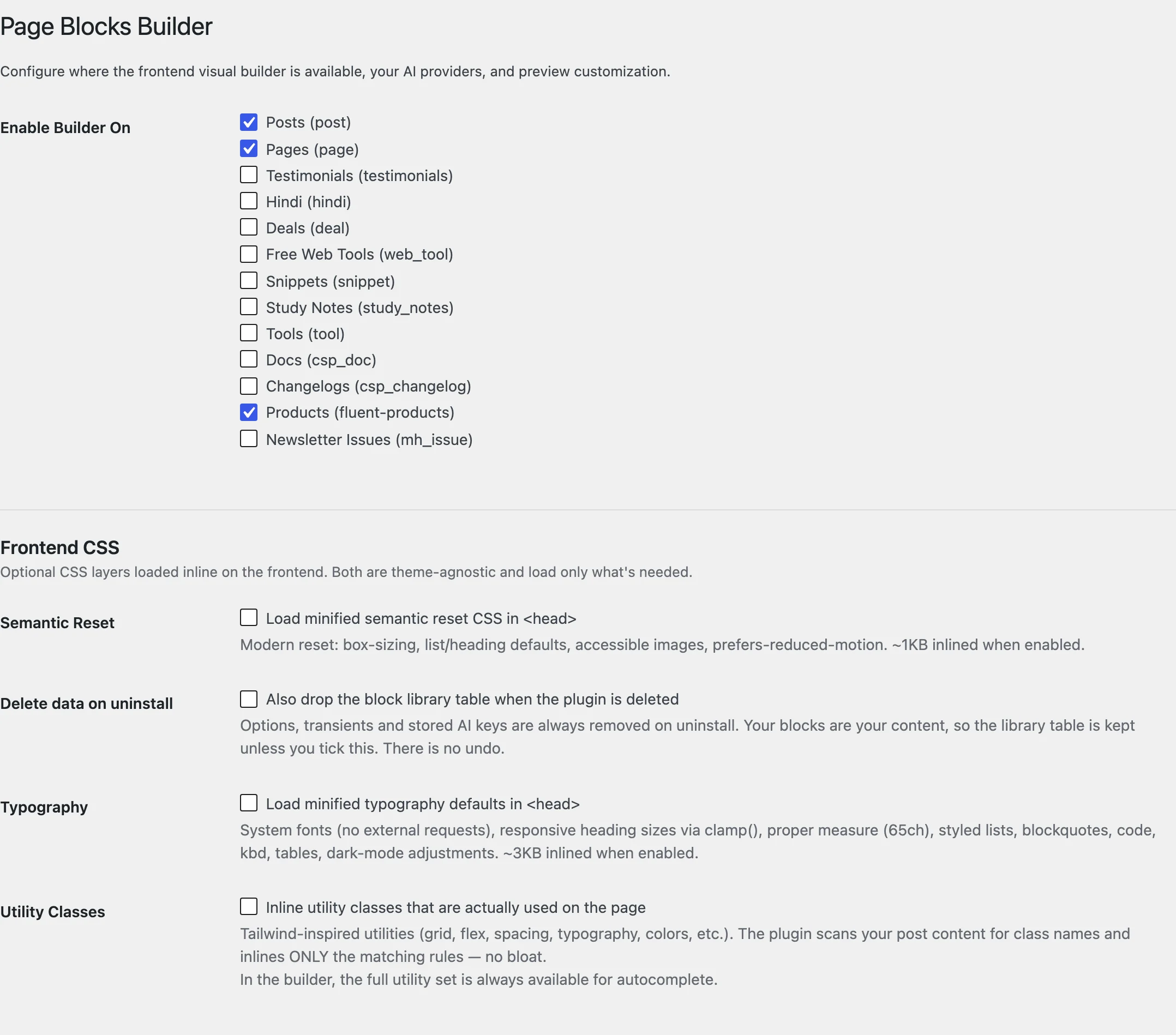
Leave the 3 Frontend CSS options off for now. They load a reset, typography defaults and utility classes on every page, and a landing page usually brings its own styles.
Open the Builder
- Go to Pages → Add New, type a title and click Save draft. The builder needs a saved page to work on.
- Click Open Page Blocks in the page’s status panel on the right.
The builder opens on the front end of your site, with your theme’s header, footer and styles around the preview. You can also open it from any page you’re viewing: Page Blocks Builder sits under Edit in the admin bar.
On a new page, the canvas shows Start your page with 2 choices. Choose a section inserts a starting layout, and Start blank gives you an empty section.
Write Your First Section
The builder opens in Visual mode, where you edit text and images on the canvas. For hand-written code, switch modes.
- Click Code in the top bar. The HTML, CSS and JS panes open under the preview.
- Click + Add Section, or press ⌘+N on a Mac (Ctrl+N on Windows).
- Write the section’s markup in HTML, its styles in CSS and any behavior in JS.
- Watch the preview. HTML and JS changes render right away, and CSS changes follow a second later.
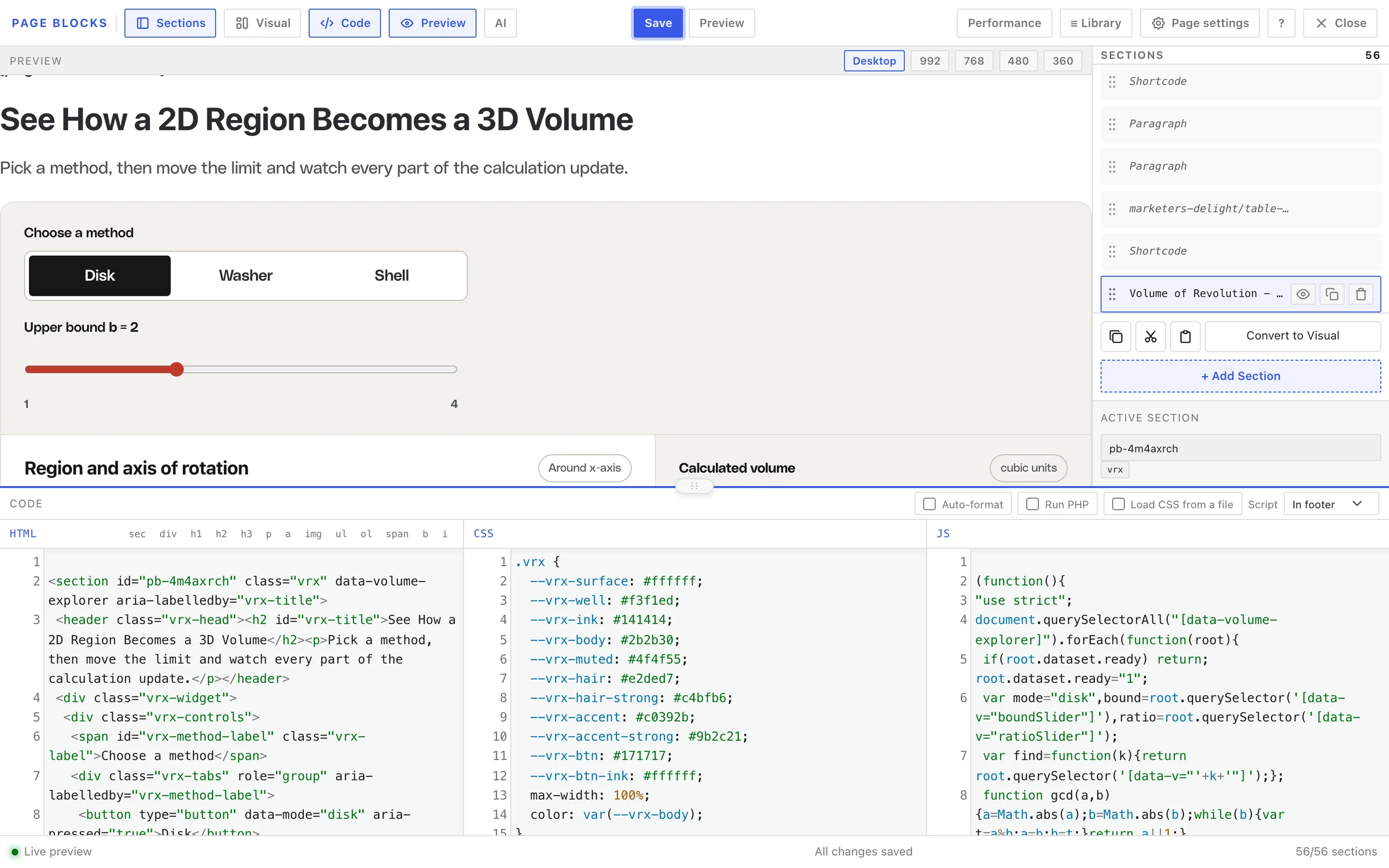
A few editor helpers save typing:
- Emmet in HTML. Type
section.hero>h1{Launch}+pand press Tab to expand it. - Snippet buttons. The row above the HTML pane inserts
sec,div,h1toh3,p,a,img,ul,ol,span,bandi, and wraps any text you selected. - Class hints in CSS. Press Ctrl+Space in the CSS pane for class names from your section’s HTML and your theme.
Each section’s outer element gets an ID such as id="pb-4m4axrch" if you didn’t give it one. Give your sections your own IDs and classes, such as <section id="pricing" class="lp-pricing">, so your CSS and JS have stable names to target.
Build Out the Page
Repeat for each part of the page. The Sections list on the right is where you arrange them:
- Reorder by dragging a section, or with Alt+↑ and Alt+↓.
- Rename by double-clicking a section’s name.
- Duplicate or Delete with the icons on the selected row.
- Check widths with Desktop, 992, 768, 480 and 360 above the preview.
Every section has its own options in the bar above the code panes:
- Script places the JS In footer, which is the default, or Inline, right after the section.
- Load CSS from a file saves that section’s CSS as a cached file instead of inline styles.
- Defer CSS appears once file loading is on. Use it for sections below the fold only.
- Auto-format adds paragraph tags to blank lines. Leave it off for hand-written HTML.
Shortcodes in your HTML run whether Auto-format is on or off.
Pick a Template and Save
Landing pages usually look best without the theme’s page title and content width. Choose a template before the first save.
- Click Page settings in the top bar.
- Under Template, pick Blank canvas (no header or footer) for a page with nothing from your theme around it, or Page Blocks Builder to keep the theme’s header and footer on a classic theme.
- Click Done. The template applies when you save.
- Click Save, or press ⌘+S. The status bar reads “All changes saved”.
How to Build a Full-Width Page Without Fighting Your Theme explains both templates and when each one fits.
Publish the Page
The builder saves content, title, slug and template, and it has no Publish button. Publishing stays in WordPress.
- Click Close in the builder. It takes you to the page on your site.
- Open the page in the WordPress editor. Your sections show up as Page Block blocks.
- Set the featured image and SEO details as you normally would.
- Click Publish.
You can keep editing in either place afterwards. The builder and the block editor read the same blocks.
Check It Works
- Open the page logged out, in a private window, at 3 widths.
- View the source. Your sections’ CSS sits in one
<style id="gt-page-block-css">tag in the<head>, and footer scripts sit in one<script>tag before</body>. - Open the browser console. No red errors means every section’s footer JS ran.
The builder preview loads your theme’s styles but not its scripts. Anything that depends on a theme script, such as a slider in the header, only works on the real page.
Common Messages
| Message | What it means | Fix |
|---|---|---|
| You do not have permission to access the Page Blocks Builder. | The post type isn’t enabled, or you can’t edit this page | Tick the post type under Enable Builder On, or ask an editor |
| Save your template or pattern changes before opening Page Blocks. | The editor has unsaved template changes | Save them, then click Open Page Blocks again |
| Your page could not be saved. Resolve the editor notice and try again. | The editor couldn’t save the page first | Fix what the editor notice says, then retry |
| This page changed in another editor. Copy any unsaved work, then reload before saving. | Someone saved the page elsewhere while you worked | Copy your changes, reload the builder and apply them again |
| Open Page Blocks is greyed out | The page has never been saved | Click Save draft first |
What It Won’t Do
- It doesn’t scope your CSS. A
.buttonrule in one section styles every.buttonon the page. Prefix selectors with the section’s ID or class. - It doesn’t publish. Status changes happen in the WordPress editor.
- It doesn’t isolate footer scripts. All In footer JS on a page runs from one script tag, so a syntax error in one section can stop the sections after it. Check the console after each script you add.
When your design starts as a finished HTML or Tailwind file, How to Turn an HTML or Tailwind Template into a WordPress Page shows how to split it into sections.