
How to Reuse One Section Across Many Pages
The same call-to-action box sits at the bottom of 40 posts, and the offer in it just changed. If each post has its own copy, you’re opening 40 posts, and the one you miss keeps showing last month’s price.
To reuse one section across many pages, you save it to a shared library and place a link to it, not a copy, on each page. The pages render the library version at load time, so one edit in the library changes every page that uses it.
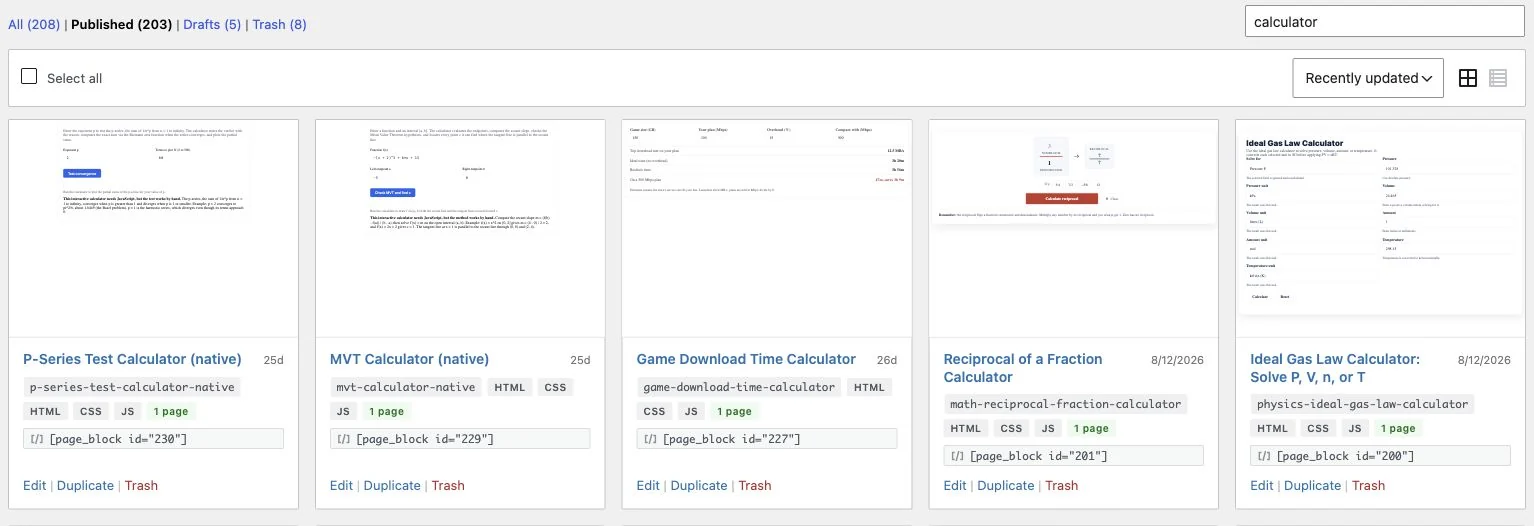
GT Page Blocks Builder keeps that library under Page Blocks → All Page Blocks. A library block has its own HTML, CSS and JS. You can place it 3 ways: as a linked section, as a [page_block] shortcode or at a fixed position in your theme.
Before you start placing it, it is wise to decide whether each page should follow future edits. That one choice decides between a linked section and a copy.
Before You Start
- An administrator account. Creating and editing library blocks needs
manage_options. - The section’s code, either on a page you’ve built or ready to paste.
Save the Section to the Library
You can save a section from a page you’re already building, or create one from scratch.
From the builder:
- Open the page in the builder and select the section in the Sections list.
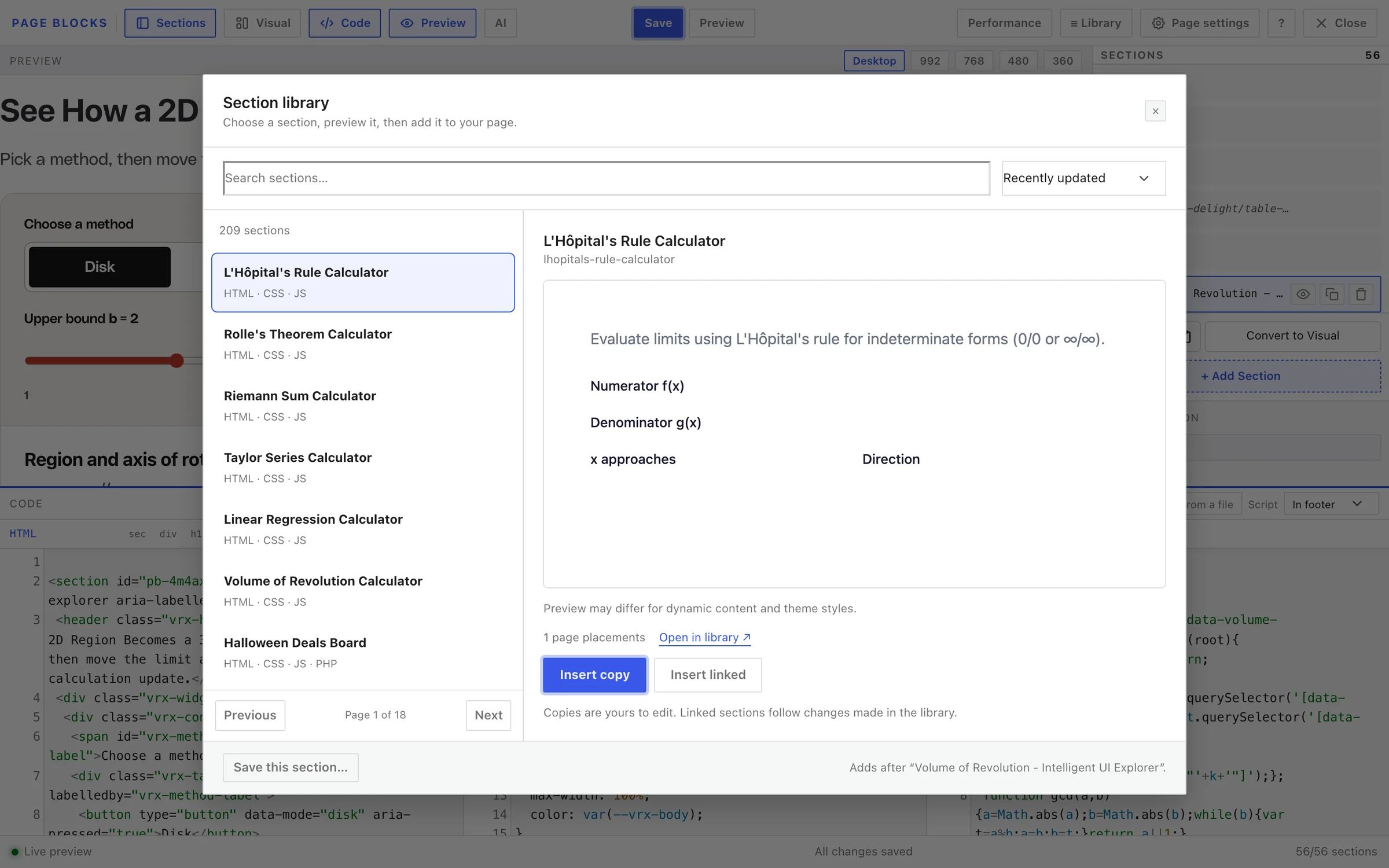
- Click ≡ Library in the top bar.
- Click Save this section… at the bottom of the Section library dialog, then Save to library.
From wp-admin:
- Go to Page Blocks → Add New.
- Give it a title and paste the code into the HTML, CSS and JavaScript tabs.
- Set Status to Published and click Create.
Only published library blocks show on your pages. A draft block renders nothing, which is handy while you’re still working on it.
Choose Linked or Copy
Every place you add a library block offers both options:
| Option | What the page stores | Follows library edits | Edit it on the page |
|---|---|---|---|
| Insert linked in the builder, Link in the block editor | A reference to the library block | Yes | No, edit it in the library |
| Insert copy in the builder, Copy code in the block editor | The block’s code at that moment | No | Yes |
Use linked for anything that should stay identical everywhere: a sign-up form, an offer box, a footer CTA. Use a copy when the section is a starting point and each page will change it.
Place It as a Linked Section
In the builder:
- Select the section the new one should follow.
- Click ≡ Library, search for your block and click it to preview it.
- Click Insert linked, then Save.
The section shows its library number, such as #164, in the Sections list, and its code is read-only on the page. If one page needs its own version, click Detach a copy, and that page gets an editable copy that no longer follows the library.
In the block editor: add a Page Block, click Browse library in its toolbar, find the block and click Link.
Place It with a Shortcode
The shortcode works anywhere shortcodes run, including classic content, widgets and other page builders:
[page_block id="164"]
[page_block slug="footer-cta"]
The slug form is safer when you move content between sites, because IDs differ from site to site. Each library card shows its shortcode, and the edit screen’s Usage box lists both forms. Add conditions="yes" to make the shortcode follow the block’s display conditions.
Place It in Every Page Automatically
For a section that belongs on a whole group of pages, such as a banner after every blog post, let the block place itself.
- Open the block under Page Blocks → All Page Blocks → Edit.
- Under Hook Position, pick a Position, such as After The Content or wp_footer (before </body>).
- Set a Priority if several blocks share the position. Lower numbers come first.
- Under Display Conditions, pick Post Types, Page Types or Specific Post IDs. Leave them empty to show the block everywhere.
- Click Update.
Conditions combine with AND between groups and OR inside a group. Ticking Posts under Post Types and Category Archives under Page Types shows nothing, because no page is both a post and a category archive.
The Theme region positions, such as Theme region: Hero, only appear where your theme calls gt_pb_region(). On a theme that doesn’t, use a hook position.
Edit Once, Update Everywhere
- Go to Page Blocks → All Page Blocks and click Edit on the block.
- Change the code and click Update.
Every linked section, shortcode and position picks up the change on its next page load. Copies stay as they were.
Each update stores the previous version, and the edit screen keeps the latest 25 under Revisions. Restore brings an older one back, and the version you replaced becomes a revision too.
Check It Works
- Look at Used on. Each library card shows how many pages use the block. “Unused” means nothing on the site places it.
- Open 2 pages that use it, logged out, after an edit. Both should show the change.
- Purge your page cache if they don’t. GT Page Blocks Builder doesn’t clear page or CDN caches itself, so cached pages keep the old version until they expire.
Common Messages
| Message | What it means | Fix |
|---|---|---|
| Not saved: another page block already uses that slug. Change the slug and save again. | Library slugs are unique | Pick a different slug |
| The block shows nothing on a page | The library block is a draft or in the trash | Set Status to Published |
| Code lives in the library – unlink to edit it here | You tried to edit a linked section on the page | Edit it in the library, or unlink it |
| A hook position shows on the wrong pages | The display conditions are empty or too wide | Add Post Types or Page Types conditions |
What It Won’t Do
- It doesn’t update copies. Only linked sections, shortcodes and positions follow library edits.
- It doesn’t clear caches. Purge your page cache after an important edit.
- It doesn’t let editors change library code. Library blocks need an administrator, which keeps shared code in fewer hands.
Linking and unlinking from the block editor is covered in The GT Page Blocks Gutenberg Block. Some shared sections need a page without the theme’s container around them, and How to Build a Full-Width Page Without Fighting Your Theme handles that.