
How to Add a Calculator or Pricing Toggle to a Page
A monthly and yearly pricing switch is about 20 lines of JavaScript. Getting those 20 lines onto a WordPress page is the hard part. The block editor strips scripts for some users, and a snippets plugin puts the code far away from the markup it controls.
To add a calculator or pricing toggle to a page, you write it as one section with its HTML, CSS and JS side by side. The builder runs the script in its live preview while you work, and the live page runs the same script from the footer.
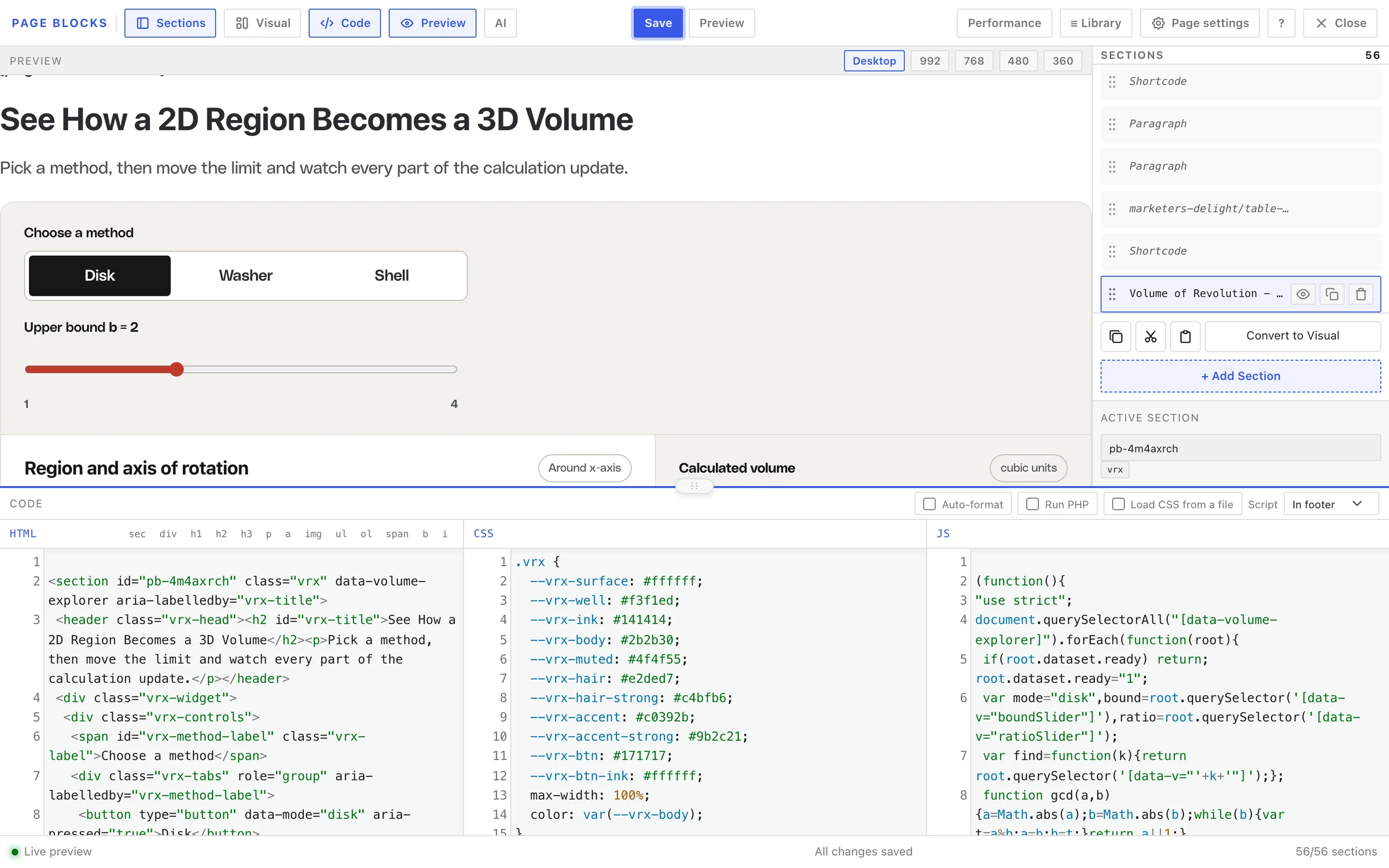
GT Page Blocks Builder treats JavaScript as a first-class part of each section. The volume of revolution calculator in the screenshot further down is one section built exactly this way.
I’ll build a pricing toggle with you, then cover what changes for a calculator and the 3 habits that keep scripts from clashing.
Before You Start
- An administrator or editor account. These roles can save
<script>code. WordPress filters scripts out of what authors and contributors save. - A page open in the builder in Code mode. How to Build a Landing Page with HTML, CSS and JavaScript Inside WordPress covers opening it.
Build a Pricing Toggle
Step 1: Click + Add Section and double-click the new section to name it “Pricing”.
Step 2: Paste the markup into HTML:
<section id="pricing" class="lp-pricing" data-pricing>
  <div class="lp-pricing__switch" role="group" aria-label="Billing period">
    <button type="button" data-period="monthly" aria-pressed="true">Monthly</button>
    <button type="button" data-period="yearly" aria-pressed="false">Yearly</button>
  </div>
  <div class="lp-pricing__plan">
    <h3>Pro</h3>
    <p class="lp-pricing__price" data-monthly="$29 a month" data-yearly="$290 a year">$29 a month</p>
  </div>
</section>
Step 3: Add a style for the active button in CSS:
.lp-pricing__switch button[aria-pressed="true"] { background: #111; color: #fff; }Step 4: Paste the script into JS and leave Script on In footer:
(function () {
  function init() {
    document.querySelectorAll('[data-pricing]').forEach(function (root) {
      if (root.dataset.ready) return;
      root.dataset.ready = '1';
      var buttons = root.querySelectorAll('[data-period]');
      buttons.forEach(function (button) {
        button.addEventListener('click', function () {
          var period = button.dataset.period;
          buttons.forEach(function (b) { b.setAttribute('aria-pressed', String(b === button)); });
          root.querySelectorAll('[data-monthly]').forEach(function (price) {
            price.textContent = price.dataset[period];
          });
        });
      });
    });
  }
  if (document.readyState === 'loading') {
    document.addEventListener('DOMContentLoaded', init);
  } else {
    init();
  }
})();
Step 5: Click Yearly in the preview. The price should change to “$290 a year”. Then click Save.
Add more plans by repeating the lp-pricing__plan block. Each price only needs its own data-monthly and data-yearly values, and the script picks them up.
Why the Script Is Written This Way
Three details in that script are doing important work:
- The readiness check at the bottom. The builder adds section scripts to its preview after the page has loaded, when
DOMContentLoadedhas already fired. A script that only waits for that event works on the live page and does nothing in the preview. Checkingdocument.readyStateruns it in both. - The wrapper function. All In footer scripts on a page run from one combined script tag. Wrapping your code in
(function () { ... })();keeps its variables to itself, so 2 sections that both declarevar totaldon’t overwrite each other. - The data attributes and
dataset.ready. The script finds its section bydata-pricing, not by an ID, so a duplicated section works too. Thereadyflag stops it from attaching the click handlers twice.
The builder gives each section’s outer element an ID such as pb-4m4axrch if you don’t write one, and a duplicated section gets -copy added to the first ID. Code that targets your own attributes and classes doesn’t care about either.
Build a Calculator
A calculator uses the same shape with different events. The changes are small:
- Listen to
inputevents on the form fields, so the result updates as the reader types or drags a slider. - Read numbers with
valueAsNumberon number and range inputs, and treatNaNas “not filled in yet”. - Write the result to an
<output aria-live="polite">element, so screen readers announce it. - Keep the formula in one function, such as
function monthlyPayment(principal, rate, months), so you can test it in the console.
A calculator that needs data from your database, such as live prices, is a different case. GT Page Blocks Builder can run PHP in a section. It’s off by default and needs constants in wp-config.php. PHP Execution in GT Page Blocks Builder explains the setup and the risks.
Load a Library When You Need One
Most toggles and calculators need no library. For a chart or a math renderer, add the library’s script tag at the top of the section’s HTML:
<script src="https://cdn.jsdelivr.net/npm/chart.js@4.4.4/dist/chart.umd.min.js"></script>Then set that section’s Script to Inline, so your code runs right after the library tag in the page. A footer script would also work, but inline keeps the order obvious.
Check It Works
- Test in the preview, at Desktop and 360 widths.
- Save, then open the page logged out and test it again.
- Open the browser console. A red error in one section can stop the footer scripts that come after it, so a clean console matters on pages with several interactive sections.
- Use the keyboard. Tab to each button or field and use it without a mouse.
When It Doesn’t Work
| Symptom | Likely cause | Fix |
|---|---|---|
| Works on the live page, dead in the preview | The script waits for DOMContentLoaded only | Use the document.readyState check shown above |
| Works in the preview, dead on the live page | Another section’s footer script has an error | Open the console, fix that error first |
| The script vanished after saving | The account can’t save scripts | Save as an administrator or editor |
| A duplicated section doesn’t respond | The script targets the original section’s ID | Target a data attribute or class instead |
| Clicks fire twice | The script ran twice on the same section | Add the dataset.ready check |
What It Won’t Do
- It doesn’t wrap or isolate your JavaScript. Scope it yourself with the wrapper function.
- It doesn’t load your theme’s scripts in the preview. A section that depends on a theme script only works fully on the live page.
- It doesn’t validate the formula. Test a calculator against 3 or 4 results you’ve worked out by hand before you publish it.
If a script ever freezes the builder or breaks a section, How to Recover a Section You Broke walks through every way back.