
How to Recover a Section You Broke
You deleted the wrong section, an AI reply rewrote more than you asked for, or a script you just pasted froze the preview. The page looked fine 5 minutes ago, and now you need that version back.
To recover a broken section, you pick the way back that matches where the change is. Unsaved changes come back with undo or the builder’s draft recovery, and saved changes come back from WordPress revisions or a JSON export.
A script that freezes the builder is the odd one out. You fix it from the block editor instead.
GT Page Blocks Builder keeps several safety nets for this, and most of them work without any setup. The one habit worth adding is an export before big changes, which I’ll cover below.
Start with the first section that matches your situation.
Before You Start
Work out 2 things first, because they decide the fix:
- Did you click Save after the mistake? If not, everything you need is still in the builder or in your browser.
- Is the section linked to the library? A section with a number such as #164 in the Sections list lives in the library, and its history is there too.
Undo a Change You Just Made
The builder keeps an undo history for the whole page while it’s open:
- ⌘+Z on a Mac (Ctrl+Z on Windows) undoes adding, deleting, duplicating, moving, pasting, importing and converting sections. ⌘+Shift+Z redoes.
- Inside a code pane, the same keys undo your typing in that pane. That history resets when you switch to another section.
- After an AI reply, click Undo on the reply itself. It puts the section back exactly as it was before that reply.
The page-level history lives in memory, so it’s gone once you reload or close the builder. Use it before you do either.
Restore an Unsaved Draft
The builder saves a draft in your browser 5 seconds after each change, and again when you leave the page. If the tab crashed or you closed it without saving, nothing is lost yet.
- Open the same page in the builder, in the same browser, logged in as the same user.
- Read the prompt: “An unsaved draft was recovered. Restore it?”
- Click OK to bring the draft back. The status bar reads “Recovered draft · unsaved changes”.
- Check the sections, then click Save.
Clicking Cancel deletes the draft and opens the saved page, so only cancel when you’re sure. The draft sits in that browser alone, so a different browser or computer won’t offer it.
Roll Back a Saved Page
Once you’ve saved, the builder’s undo and draft can’t help. WordPress can, because each builder save updates the page like any other edit.
With WordPress revisions:
- Open the page in the WordPress editor.
- Open Revisions from the page’s settings panel.
- Slide back to the version before the mistake and compare the 2 sides.
- Click Restore This Revision.
Pages keep revisions by default. If your host or wp-config.php turns them off, the JSON export below is your backup.
With a JSON export:
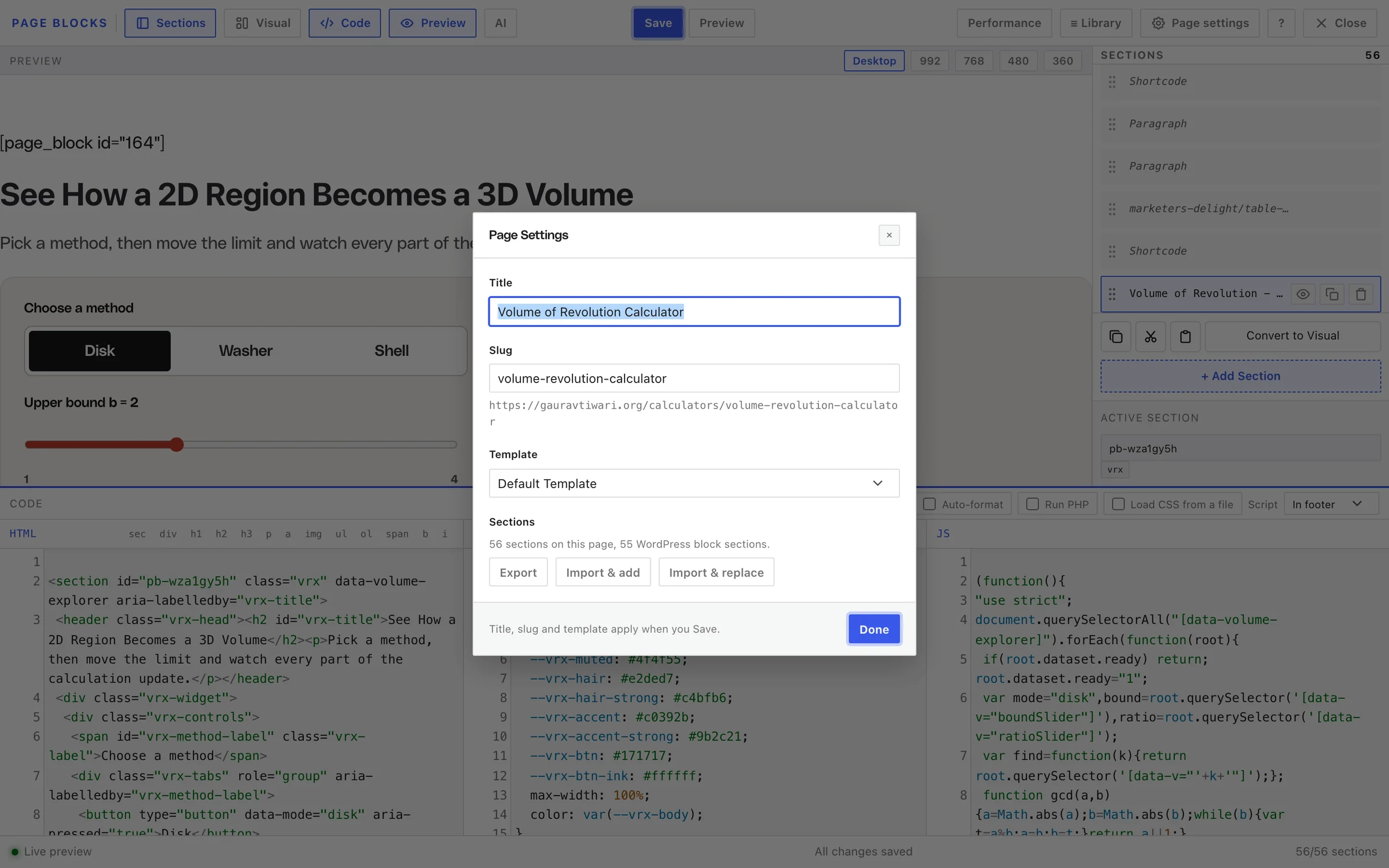
- Before a big change, open Page settings in the builder and click Export. You get a file such as
page-blocks-pricing.jsonwith every section. - To go back, open Page settings, click Import & replace and choose that file.
- Confirm the prompt, check the page and click Save.
Roll Back a Library Section
Library blocks keep their own history, apart from the pages that use them.
- Go to Page Blocks → All Page Blocks and click Edit on the block.
- Find Revisions on the edit screen. It lists the latest versions, and the plugin keeps 25 per block.
- Click Restore next to the version you want and confirm.
The version you replaced becomes a revision too, so a restore can be undone the same way. Every page that links to the block shows the restored version on its next load.
Fix a Script That Freezes the Builder
A loop that never ends in a section’s JS can lock up the preview, and with it the builder tab. Hiding the section doesn’t help for long: Hide section stops it in the preview only, and it still runs on the live page.
Fix the code from somewhere that doesn’t run it:
- Close the frozen tab.
- Open the page in the WordPress editor.
- Open the editor’s options menu (the 3 dots) and choose Code editor.
- Find the broken
gt-page-block/page-blockblock and correct or delete its"js"value. The code sits inside the block comment, where WordPress escapes quotes as\u0022and angle brackets as\u003cand\u003e. - Click Save, then reopen the builder.
If the JS is long, it’s quicker to restore the revision from before the script went in, then paste a fixed version in the builder.
When the Live Page Breaks but the Builder Doesn’t
All In footer scripts on a page run from one combined script tag. A syntax error in one section can stop the scripts of every section after it.
- Open the live page and its browser console.
- Click the location next to the first red error. The code around it tells you which section it came from.
- Fix that section’s JS in the builder and save.
Switching a fragile section’s Script to Inline also isolates it while you work on it, because inline scripts run in their own tag.
Common Messages
| Message | What it means | Fix |
|---|---|---|
| This page changed in another editor. Copy any unsaved work, then reload before saving. | The page was saved somewhere else while you worked | Export your sections, reload and import what you need |
| A newer version of this page has been saved. Export your draft in Page settings, then reload the page to review and combine your changes. | Your recovered draft is older than the saved page | Export the draft first, then reload and compare |
| Refusing to save an empty document. | Every section was deleted | Undo, or import a backup |
| Refusing to save: this page has 3 block(s) the builder cannot edit but the save only accounted for 2. Reload the builder and try again. | The save would drop blocks the builder doesn’t manage | Reload the builder and save again |
| Preview could not refresh. Canvas editing is paused until it loads. | The preview failed to render | Click Retry preview, then check the last code you changed |
Any failed save ends with “Your draft is kept. Use Save to retry.”, so nothing is lost while you sort it out.
What It Won’t Do
- It has no safe mode. The builder runs section scripts in its preview as soon as it opens, which is why a freezing script gets fixed from the block editor.
- It doesn’t keep undo history across reloads. Use the draft prompt or revisions after a reload.
- It doesn’t back up pages to the server by itself. WordPress revisions and your own JSON exports are the backups.
The autosave and recovery details are in Autosave and Draft Recovery in GT Page Blocks Builder, and other fixes are in Troubleshooting GT Page Blocks Builder.