
GT Page Blocks Builder Preview System
GT Page Blocks Builder previews use an iframe to show your sections with the available theme styles. Ordinary inline sections render in the browser; formatting or PHP settings can trigger a server-rendered preview.
A preview helps you edit, but it does not reproduce every page-level condition. The distinction becomes visible with linked library blocks, third-party styles and interactive content.
How the Preview Works
The preview constructs a full HTML document and sets it as the iframe’s srcdoc. The document includes, in order.
- Theme stylesheet
<link>tags. - Theme inline styles (global styles, classic theme styles).
- Preview injection head HTML (if configured).
- A helper CSS rule that hides sticky share widgets.
- Injected CSS from the preview injection filter.
- Section CSS combined into a
<style>tag. - Head JavaScript from the preview injection filter.
- Inline JavaScript from sections with jsLocation set to “inline”.
- Body start HTML from the preview injection filter.
- Section HTML content.
- Theme scripts (jQuery, theme JS files).
- Footer JavaScript from the preview injection filter.
- Footer JavaScript from sections with jsLocation set to “footer”.
- Body end HTML from the preview injection filter.
Theme Asset Collection
The visual builder automatically discovers and loads your theme’s CSS and JavaScript files into the preview.
Stylesheets
The builder collects theme stylesheets from three sources.
Explicit theme styles. The child theme’s style.css and parent theme’s style.css are always included. Additionally, any CSS files found in the theme’s css/ and assets/css/ directories (recursively) are included.
Page stylesheets. Any <link rel="stylesheet"> tags on the builder page whose URLs match the theme directory are collected.
Inline styles. Any <style> tags with IDs containing “global-styles”, “classic-theme-styles”, or starting with “theme” are collected.
Scripts
Theme JavaScript files and jQuery (from wp-includes/js/jquery/) are collected from the page’s script tags and included in the preview.
Client-Side vs. Server-Side Preview
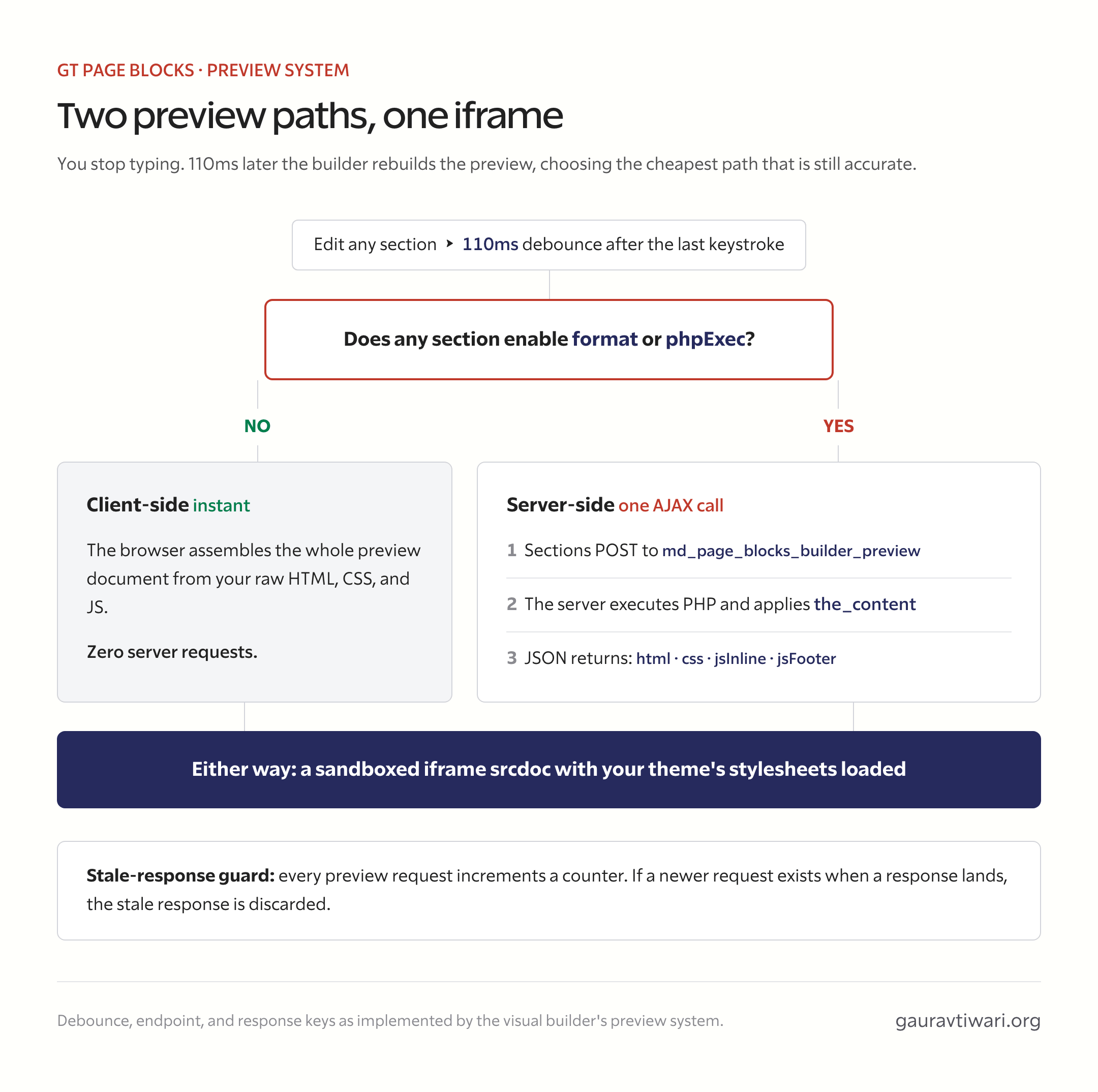
The preview uses two rendering modes depending on section settings.
Client-Side Preview
When no section has format or phpExec enabled, the preview is built entirely in the browser. The raw HTML, CSS, and JavaScript from your sections are assembled into the preview document without any server request. This is instant.
Server-Side Preview
When any section has format or phpExec enabled, the builder sends the sections to the md_page_blocks_builder_preview AJAX endpoint. The server processes the content (executing PHP, applying wpautop()) and returns the rendered output as JSON.
POST /wp-admin/admin-ajax.php
action=md_page_blocks_builder_preview
post_id=123
pb_nonce=abc123
sections=[{"content":"...","css":"...","js":"...","format":true,"phpExec":false}]
The response contains.
{
    "success": true,
    "data": {
        "html": "rendered HTML output",
        "css": "minified CSS",
        "jsInline": "inline JavaScript",
        "jsFooter": "footer JavaScript"
    }
}
The builder then inserts this rendered output into the preview document in place of the raw section content.
Preview Debouncing
In the visual builder, preview updates are debounced by 110ms. This means rapid typing doesn’t trigger a preview rebuild for every keystroke. The preview is only rebuilt 110ms after you stop typing.
In the Gutenberg block editor, the preview updates reactively when block attributes change, using React’s effect system.
Preview Request Tracking
Both the visual builder and the Gutenberg block use request ID tracking to prevent stale responses. Each preview request increments a counter. When the response arrives, it checks whether the counter has advanced (meaning a newer request was made). If it has, the stale response is discarded.
Viewport Controls
The visual builder’s preview canvas includes viewport control buttons.
- Desktop renders the preview at full width (no constraint).
- 992 constrains the preview iframe to 992px wide.
- 768 constrains to 768px.
- 480 constrains to 480px.
- 360 constrains to 360px.
The iframe resizes to the selected width with max-width: calc(100% - 24px) to maintain a small margin. The active viewport button is highlighted.
Collapsed Sections
In the visual builder, sections can be “collapsed” (hidden from the preview). Collapsed sections are excluded from the preview document but are still saved when you save. This lets you temporarily hide sections to focus on specific parts of the page during development.
Preview in Gutenberg
The Gutenberg block editor also supports preview mode for individual Page Blocks. Click the eye icon on a block’s toolbar to switch to preview mode. The block shows an iframe with the rendered output, including theme stylesheets. Click the pencil icon to return to editor mode.
When format or phpExec is enabled on the block, the Gutenberg preview also uses server-rendered content via the same AJAX endpoint.
Check Layout and Behavior Separately
A narrow screenshot checks layout. Clicking an interface control checks behavior. Both matter for an interactive section.
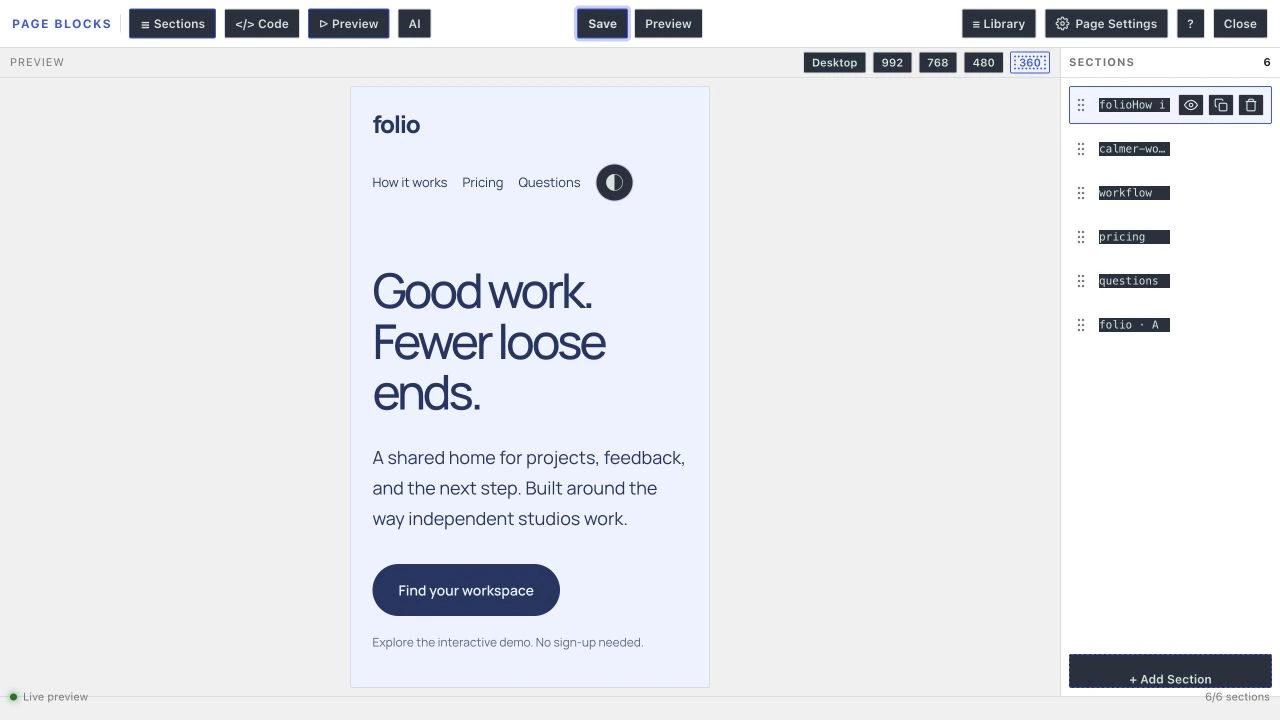

The dark-mode controls inside these demos are authored JavaScript and CSS. They should not be confused with a built-in visual-builder control.
Linked Library Preview Limitation
In stock 3.0.0, the browser-only visual preview can omit linked library sections because the server-preview trigger checks formatting and PHP flags rather than the library reference.
The inline course exports avoid that dependency. A server preview can resolve the linked source, but enabling Auto-format merely to force that path can change paragraph markup. Do not treat that workaround as a permanent styling fix.
Quick answers to common questions:
Is the preview the real frontend rendering?
Not in every case. Ordinary inline sections use a browser-built preview, while formatting or PHP can request server rendering. Page-level styles, query context and the linked-block issue in stock 3.0.0 can make a preview differ from the frontend.
Why does my preview differ from the published page?
Check whether the section is linked, which template is assigned, and whether the preview has the required CSS. Check cached output only after confirming that WordPress holds the expected saved content.