
How to Generate a Page Section with AI
A blank code pane is a slow way to start a pricing table or an FAQ. You know what the section should do, but writing the first 80 lines of markup, styles and toggle logic takes longer than deciding what goes in it.
To generate a page section with AI, you describe the section in the builder’s AI panel, and the AI writes its HTML, CSS and JavaScript into the section’s code panes. You see the result in the live preview, ask for changes in plain words and keep editing the code by hand whenever you like.
GT Page Blocks Builder has this AI panel built in. It works with your own OpenAI, Anthropic or Google Gemini key. Each request carries your theme’s CSS variables and class names, so the section matches your site instead of a generic demo.
The code is still yours. The AI writes it once, and from there it’s ordinary HTML, CSS and JS in the same panes you’d use anyway.
Before You Start
- An API key from at least one provider: OpenAI, Anthropic or Google Gemini. Each provider bills you for what you use.
- An administrator account. AI generation needs the
manage_optionscapability by default. - A page open in the builder, with Code mode on. How to Build a Landing Page with HTML, CSS and JavaScript Inside WordPress covers opening it.
Add Your API Key
- Go to Page Blocks → Settings and scroll to AI Integration.
- Paste your key into OpenAI API Key, Anthropic API Key or Google Gemini API Key. You can add all 3.
- Pick a Default AI Model. The list covers the GPT-5.6 models, the Claude 5 models plus Claude Haiku 4.5, and Gemini 3 Flash.
- Click Save Changes.
Your keys stay on the server. The builder only learns which providers have a key, and the model list inside it shows only those.
Generate a Section
- In the builder, click + Add Section to start an empty section.
- Click AI in the top bar, or press ⌘+K on a Mac (Ctrl+K on Windows). The AI Assistant panel opens on the left.
- Check the model at the top of the panel.
- Describe the section in Describe what to build or change… and press Enter.
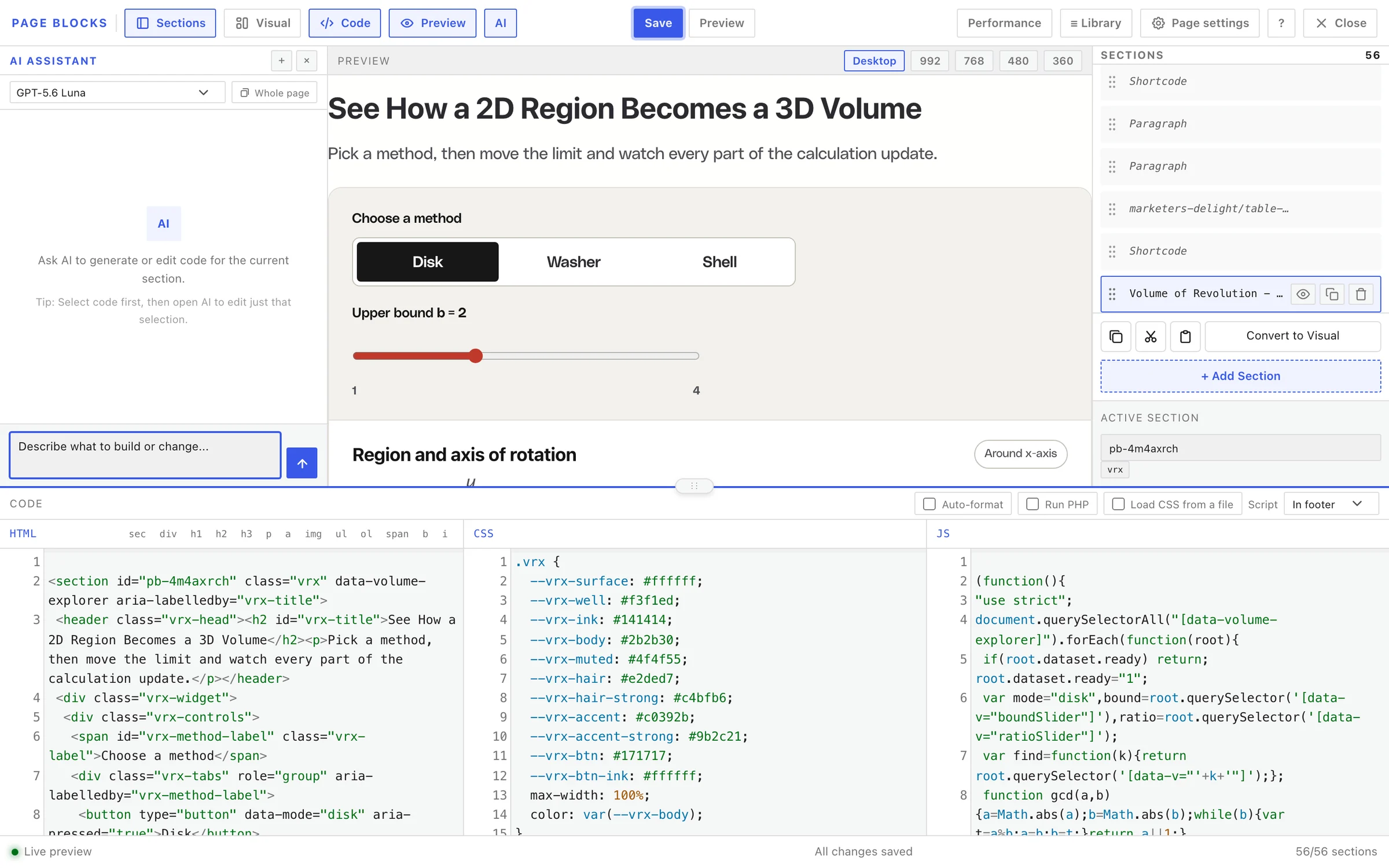
A good prompt names the content, the layout and the behavior, for example:
A pricing section with 3 plans: Starter $9, Pro $29 and Agency $79 per month.
A monthly and yearly toggle; yearly is 2 months free.
Highlight Pro. Use the theme's colors. Cards stack on mobile.
The reply lands in the section on its own. The AI writes the HTML and adds its CSS and JS at the end, and the builder moves those into the CSS and JS panes. The message then reads “Applied to HTML, CSS and JS”, with Show code to see what it wrote.
Refine It in the Same Chat
The panel remembers the conversation, so follow-ups can be short:
- “Make the Pro card’s button full width.”
- “Add a 30-day refund note under the cards.”
- “The toggle should remember the last choice.”
Without a selection, the AI receives the whole code of the pane you’re in and returns the whole pane, edited. That makes the active pane matter:
- To change the markup, click into the HTML pane before you ask.
- To change only the styles, click into CSS first, then ask.
- To change only the behavior, click into JS first.
I’d leave code unselected when you ask for a change. The AI then sees the full section and sends the full section back, which is the most reliable way to edit.
Every reply has an Undo button. It puts the section back exactly as it was before that reply, so you can try a bolder change without worrying.
Match the Rest of the Page
Two controls help a new section fit in:
- Whole page sends every section’s HTML, CSS and JS with your prompt, up to about 60 KB. Turn it on when you ask for something like “a testimonials section in the same style as the features above”.
- New chat, the + button, clears the conversation. Start one when you move to a different section, so old instructions don’t leak into the new one.
Your theme’s CSS custom properties and up to 200 of its class names go with every request anyway. If your theme defines --color-primary, the AI tends to use it instead of a made-up hex value.
Check It Works
- Click Save. AI replies change the builder only until you save, like any other edit.
- Test the behavior in the preview, such as the pricing toggle, then at 360 pixels wide.
- Read the JS once. The AI is told to write plain JavaScript without jQuery, and a quick read catches a selector that doesn’t match your markup.
Common Messages
| Message | What it means | Fix |
|---|---|---|
| No API key configured for Openai. Add it in Settings > Page Blocks Builder. | The chosen model’s provider has no key | Add the key under Page Blocks → Settings → AI Integration, or pick another model |
| No API keys configured | No provider has a key | Add at least one key |
| You do not have permission to use AI generation on this site. | Your account isn’t an administrator | Ask an administrator, or have a developer allow your role with the gt_pb_ai_capability filter |
| AI request timed out after 120 seconds. Try again, reduce prompt/context size, or switch to a faster model. | The provider took too long | Turn off Whole page, shorten the prompt or pick a faster model |
| AI returned an empty response. Try again or switch the model. | The model sent nothing back | Send again, or switch models |
| Not applied – this section is not editable here. | The section is linked to the library | Edit it in the library, or detach a copy first |
What It Won’t Do
- It doesn’t publish anything. Replies change the open section, and you save and publish as usual.
- It doesn’t edit linked library sections. Those live in the library and are edited there.
- It doesn’t write PHP. Sections it writes are HTML, CSS and JS.
- It doesn’t know your business. Prices, claims and links come from your prompt, so check every number before you save.
- Each reply is capped at 4,096 tokens of output, which is plenty for one section but not a whole page at once.
If you’d rather work from your own AI agent, such as Claude Code or Cursor, Page Blocks → AI agents explains the Site Agent route. Once a generated section is right, How to Reuse One Section Across Many Pages shows how to save it to the library.