
How to Use Claude Code: The 5 Workflows I Run Every Day
Learning how to use Claude Code gets much easier when you stop treating it as a chatbot that happens to live in a terminal. It is a project agent. It can inspect a directory, follow repository rules, run tools, edit files, and carry a task from diagnosis to a reviewed result.
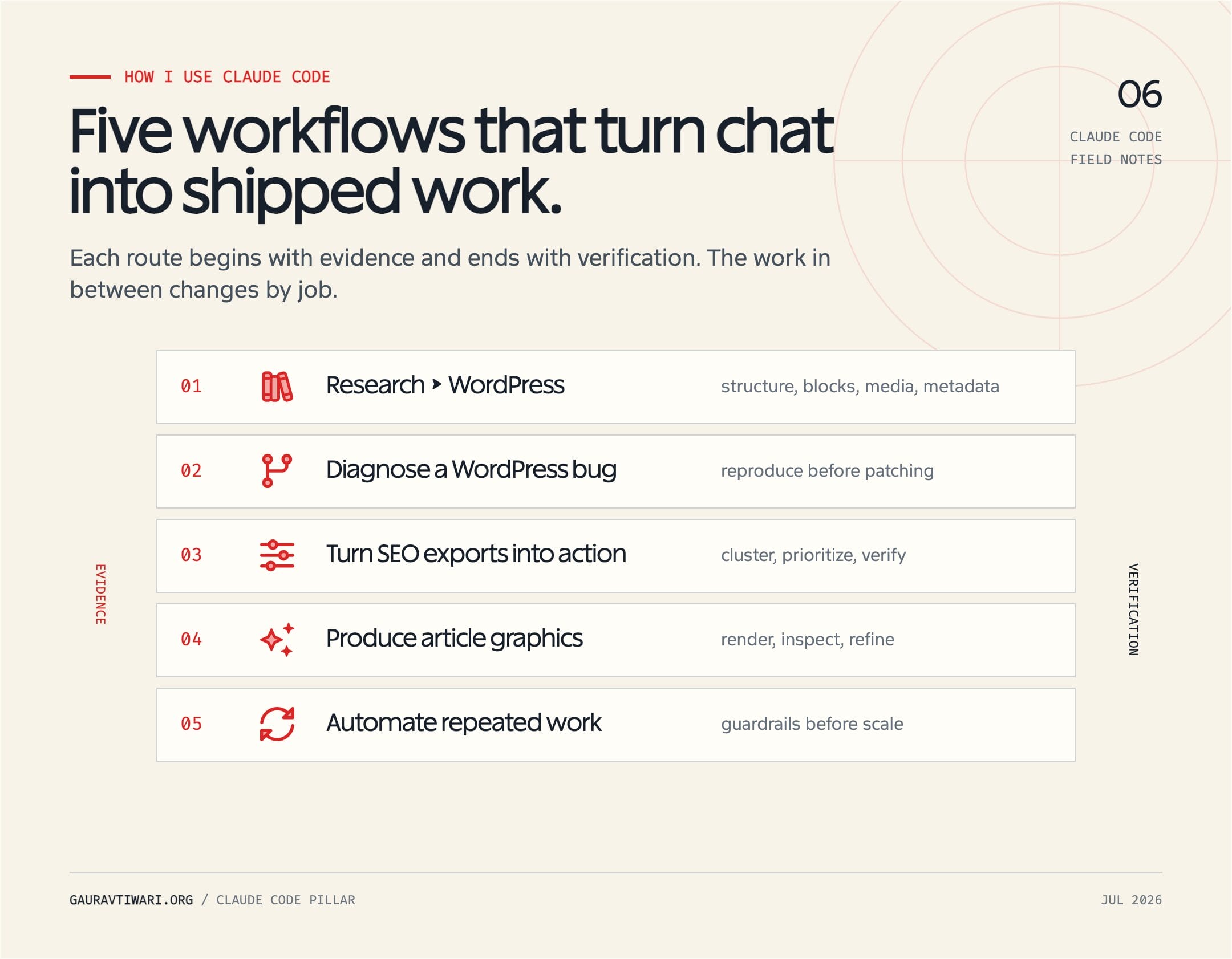
I use that wider definition in my own work. Code is one part of it. The same agent also helps me prepare WordPress content, investigate SEO data, check generated graphics, and turn repeated manual work into scripts. The five workflows below are the patterns that matter. They are not staged prompt tricks. Each one starts with evidence, limits the scope, and keeps consequential actions behind approval.
What Claude Code Is and Is Not
Claude Code is an agentic interface to Claude that works with local and remote projects. Knowing how to use Claude Code well means understanding that working model. The terminal CLI has the broadest feature set, but Anthropic also provides integrations for the Claude desktop app, Visual Studio Code, Cursor and other VS Code forks, JetBrains IDEs, the web, and mobile handoff. The interface changes. Claude still receives project context, selects tools, asks for permission when required, and reports the work.
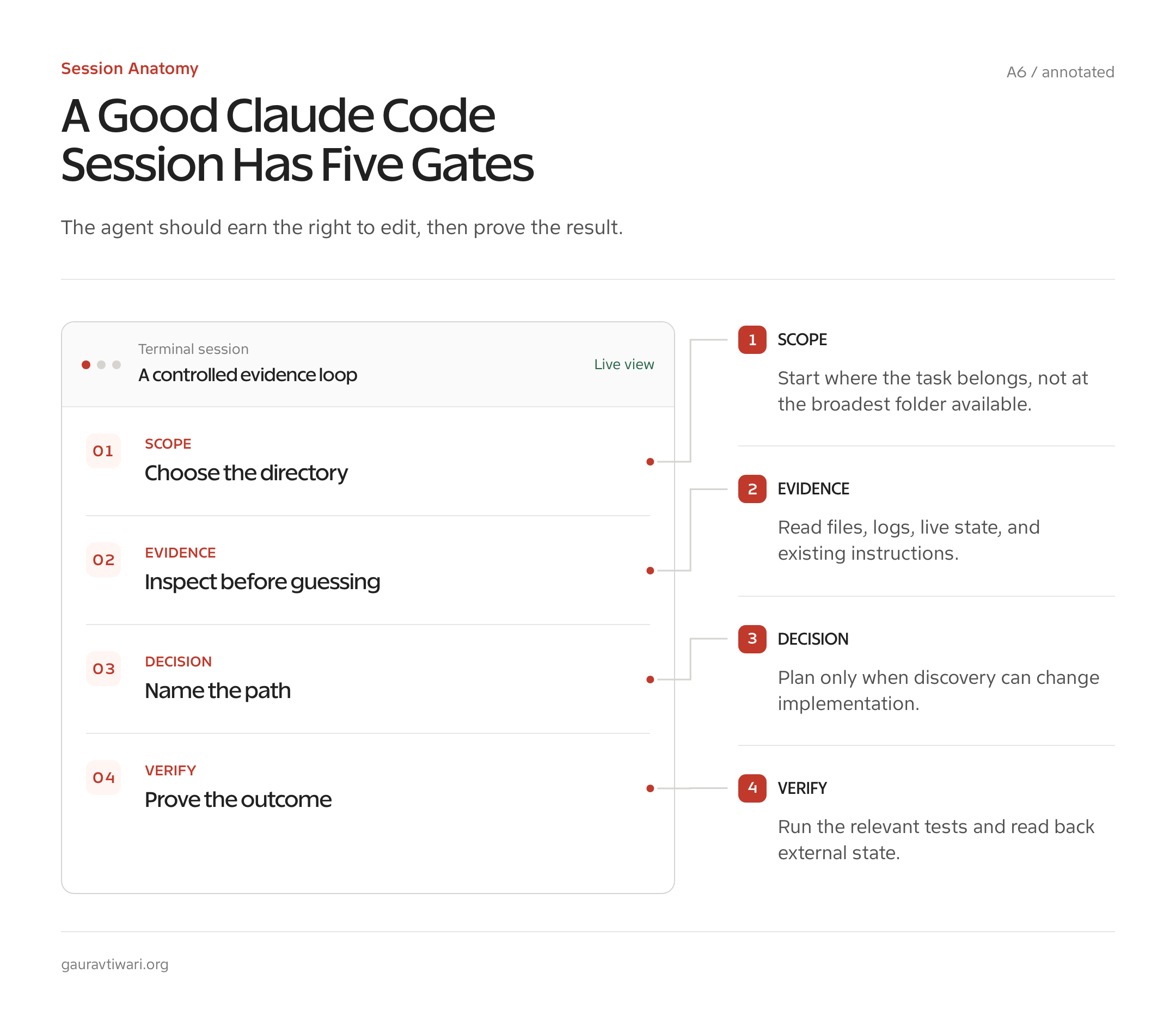
It is not an autonomous employee, an infallible code reviewer, or a substitute for a backup. It can misunderstand an ambiguous instruction, preserve the wrong pattern, run a valid command against the wrong environment, or create a polished explanation for a weak change. The useful skill is not writing a magical prompt. It is giving Claude a bounded problem, relevant evidence, a definition of done, and an approval boundary.
The terminal is still my preferred interface because my work already touches Git, PHP, WP-CLI, Node.js, shell scripts, content files, and image assets. I can ask Claude to inspect all of those without moving snippets into a separate chat. The official platform overview is useful if you prefer inline IDE diffs or the desktop app’s visual sessions.
Start in the smallest correct directory
The directory where you launch Claude becomes the initial project scope. Starting at your home directory gives the agent far more files to discover and far more chances to touch the wrong thing. Start at the repository root, or inside a narrower worktree when the task allows it:
cd path/to/project
claude
You can later use /cd path/to/another-directory inside the session. That preserves the conversation and prompt cache while changing the working directory. I still prefer a fresh session when the new directory represents a different project or trust boundary.
Know which account and model are doing the work
Claude Code is included with Pro, Max, Team, and Enterprise plans, not the Free plan. Console and supported cloud-provider accounts use metered API billing. An ANTHROPIC_API_KEY environment variable can override subscription authentication, so check it if your expected plan usage turns into API charges.
Use /model to open the model picker rather than relying on an old model alias from a tutorial. Availability depends on the account, deployment, and current product policy. I reserve the strongest model available to me for unfamiliar architecture, complicated planning, and hard debugging. Routine file transformations and bounded edits usually do not need the most expensive option.
Five Concepts That Make Claude Code Useful
If you are learning how to use Claude Code, begin with context, instructions, tools, permissions, and checkpoints. Most beginner frustration comes from ignoring one of these five and blaming the model for a workflow problem.
1. Context is a budget
Every file Claude reads, command result it receives, instruction it loads, and message you exchange consumes context. More context is not automatically better. Give Claude the files that can change the decision. Ask it to search before reading entire directories, and avoid pasting a 5,000-line log when the last 100 lines contain the error.
Use /compact when a valuable session has become long. It summarizes the conversation and frees room while retaining the working thread. Add an instruction when necessary, such as /compact preserve the accepted file list, validation commands, and unresolved risks. Use /clear when the next task is unrelated. A clean context often beats dragging yesterday’s assumptions into today’s bug.
2. Instructions should resolve project-specific decisions
Claude loads project guidance from CLAUDE.md or .claude/CLAUDE.md. Put stable rules there: the build command, formatting policy, publishing boundary, protected files, test expectations, and architectural conventions. Do not fill it with generic statements such as “write high-quality code.” Claude cannot verify what that means.
A useful rule is observable: “Run the smallest relevant PHPUnit test after changing PHP” or “Create WordPress posts as drafts and never publish without approval.” Keep project instructions concise. If a workflow needs a long procedure, move it into a project skill under .claude/skills/ and invoke it only when relevant.
3. Tools turn language into work
Claude can read and edit files, search text, run shell commands, inspect Git changes, call skills, and connect to external services through MCP. The tool result becomes evidence for the next decision. That is why “check the failing test and fix the cause” is better than pasting a fragment and asking for a guess.
You can also give Claude temporary context with @path/to/file. Type ! to run a shell command yourself without asking Claude to phrase it. These shortcuts keep the session grounded. They do not grant unlimited authority; tool permissions still apply.
4. Permissions are workflow design
A permission prompt is not friction to eliminate at any cost. It is a decision about which action can be safely repeated. Allow read-only Git commands if you use them constantly. Deny secret files. Keep deployment, publishing, deletion, package release, remote database changes, and paid external calls behind a prompt.
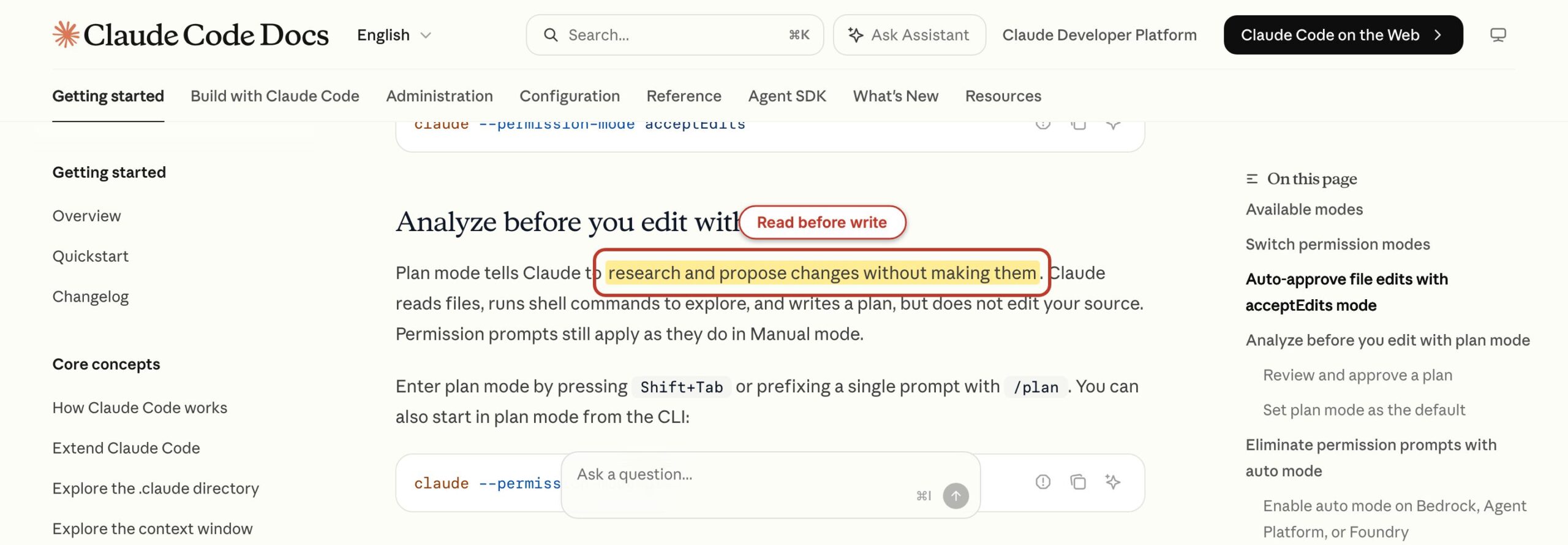
Open /permissions to inspect the current rules. Press Shift+Tab to cycle between the normal mode, Accept Edits, and Plan Mode. Use Accept Edits only after the task is well bounded. Use Plan Mode when Claude should inspect and propose before modifying source files. Anthropic’s permissions reference documents the deny, ask, and allow order.
5. Checkpoints make experimentation recoverable
Claude Code records file checkpoints during a session. Press Escape twice to open rewind options when a direction goes wrong. You can restore code, restore the conversation, or summarize from a selected point. This is useful, but it is not a replacement for Git. Commit or stash a clean baseline before a risky change, and inspect git diff before accepting the result.
A good task has its own stopping points: diagnose, propose, edit, validate, review. Those checkpoints prevent the agent from converting a reasonable investigation into a broad rewrite you did not request.
Five Real Claude Code Workflows From Daily Use
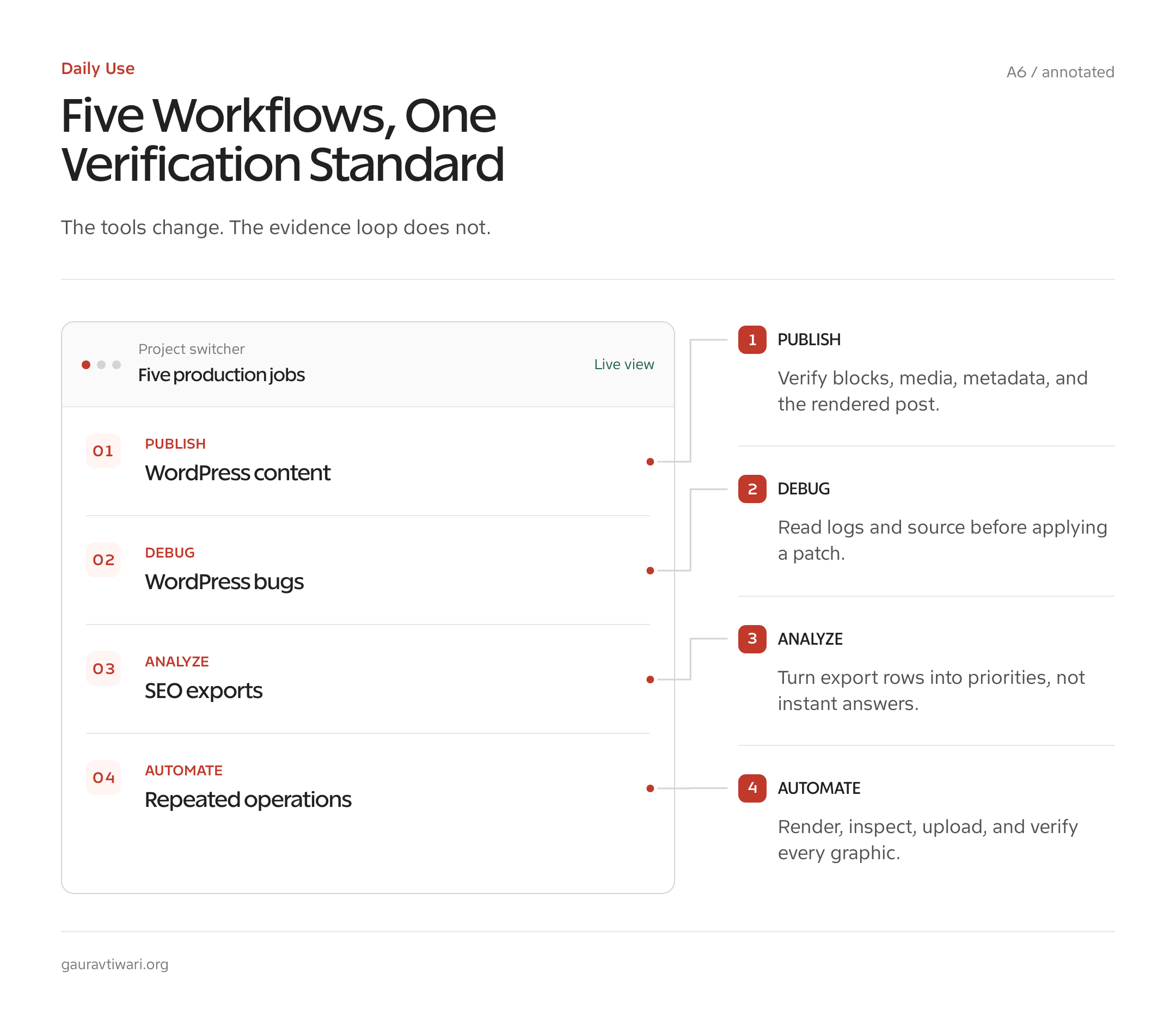
This is the practical core of how to use Claude Code: start with a concrete artifact, ask Claude to inspect before changing, define a boundary, and require a check that can fail. The artifacts differ, but the discipline does not.
Workflow 1: Move researched content into WordPress
My writing work is file-based before it is WordPress-based. A topic begins with a brief, research, outline, draft, and quality pass. Claude Code can inspect that whole chain inside one repository, preserve the approved structure, convert the final draft to Gutenberg blocks, and prepare a draft payload. The advantage is continuity. The final block markup still traces back to the same research and rules.
I begin by naming the inputs and the non-negotiable constraints:
Read AGENTS.md, the approved brief, research, outline, and draft.
Audit the draft against the quality checklist before editing.
Preserve approved headings and WordPress shortcodes.
Convert the accepted draft to valid Gutenberg markup.
Validate block JSON, nesting, links, and FAQ schema.
Prepare a WordPress draft only. Do not publish.
The first pass should report gaps, not silently fill them. If a price lacks a current source, Claude should flag it. If a personal example is not in the source material, it should not manufacture one. If an internal link is not in the published index, it stays out. That is how I keep an agent from turning a controlled editorial system into confident filler.
The second pass can edit and serialize. I ask for mechanical checks after the write: visible word count, heading order, link attributes, JSON parsing for every Gutenberg comment, and the expected ACF FAQ keys. Only after the local artifact passes do I allow a draft API request. For a deeper editorial gate, my content creation checklist covers the decisions that an automated validator cannot make for you.
- Best input: approved local brief, sources, outline, and draft.
- Approval boundary: WordPress authentication, upload, metadata changes, and publishing.
- Proof of completion: valid local Gutenberg file plus a verified WordPress draft.
- What does not work: asking Claude to research, invent experience, write, format, upload, and publish in one unchecked prompt.
Workflow 2: Diagnose a WordPress bug before patching it
A WordPress bug often crosses PHP, JavaScript, database state, plugin hooks, caching, and theme output. Claude Code is useful because it can search the repository and run targeted checks without asking me to paste each file. It is dangerous for the same reason. A vague request such as “fix the checkout” invites a broad edit before the cause is known.
I separate diagnosis from implementation:
Investigate the reported checkout failure without editing files.
Find the entry point, relevant hooks, recent changes, and existing tests.
Reproduce the failure with the smallest safe command available.
Return the likely cause, evidence, affected files, and a minimal fix plan.
Do not change database state or contact production services.
Plan Mode fits this first stage. Claude can read files and run read-only shell commands while it builds the proposal. Once the evidence points to one cause, I approve the smallest patch and require a focused test. If the repository has no automated test for that path, Claude should give me a manual reproduction checklist instead of claiming the bug is fixed.
The review step is where the agent earns trust. Ask it to show the diff, explain why unrelated files did not need changes, and list compatibility assumptions about WordPress, PHP, WooCommerce, or the affected plugin. A valid patch that breaks an older supported PHP version is still a bad patch.
- Best input: reproducible symptom, error output, environment versions, and repository access.
- Approval boundary: edits, dependency changes, database writes, and production access.
- Proof of completion: failing behavior reproduced, focused test passing, and reviewed diff.
- What does not work: accepting a plausible code change when the original failure was never reproduced.
Workflow 3: Turn SEO exports into an actionable audit
SEO audits involve more than asking a model to review a homepage. I use exports from crawlers, Search Console, analytics, internal-link indexes, and WordPress metadata. Claude Code can write small scripts to normalize those files, join records by canonical URL, find contradictions, and produce a ranked issue list with the underlying rows attached.
The prompt should define the business question before the columns:
Inspect the CSV files in audit/input without modifying them.
Document the columns and likely join keys.
Find published URLs with impressions but weak click-through,
pages with no internal links, conflicting canonicals, and missing titles.
Write a repeatable analysis script and save the findings as CSV.
For every recommendation, include the source rows that support it.
This produces two useful artifacts: a script I can rerun next month and a findings file I can filter. The model’s prose is secondary. The rows are the proof. I ask Claude to report unmatched URLs and duplicate keys because a clean-looking join can quietly discard half an audit.
MCP can add live site context after the offline analysis. A WordPress MCP server can expose posts and site data through controlled tools, while a Rank Math integration can surface SEO fields. My guide to WP MCP explains the WordPress side, and my Rank Math MCP Server walkthrough covers the metadata use case. I still keep bulk edits behind review because a correct API call can apply a bad recommendation at scale.
- Best input: dated exports with stable URL columns and documented source systems.
- Approval boundary: live metadata updates, redirects, canonical changes, and content deletion.
- Proof of completion: reproducible script, reconciliation totals, and source rows for each finding.
- What does not work: letting the model rank issues without traffic, indexing, business, or content context.
Workflow 4: Produce and check article graphics
Article graphics have technical constraints that language models tend to forget: exact dimensions, safe margins, legible type, consistent colors, transparent backgrounds, file-size limits, and meaningful alt text. Claude Code is useful as the coordinator around the image tool. It can read the article and brand rules, write a compact visual brief, organize assets, run conversion commands, inspect dimensions, and check that the article references the final media-library URL.
I give it a constrained output contract:
Read the accepted article and visual rules.
Propose one graphic that explains a relationship prose handles poorly.
Specify its purpose, dimensions, text, hierarchy, colors, and alt text.
Use the repository's approved image workflow.
Check the final dimensions, format, file size, and visible text.
Do not upload or modify the article until I approve the rendered asset.
The important part is rendering and inspection. Source SVG can be syntactically valid while text clips outside the canvas. A PNG can have the expected dimensions and still be unreadable on a phone. I open the result, ask Claude to inspect it if the interface supports images, and compare it against the brief. The image does not pass because a command exited with zero.
After approval, Claude can prepare the WordPress media upload, set alt text, and replace a local reference with the media-library URL. Hotlinking an external image is not an acceptable shortcut. The useful automation is not generating more decoration. It is keeping the brief, file, alt text, and article placement consistent.
- Best input: accepted article, visual purpose, brand constraints, and target dimensions.
- Approval boundary: generation cost, media upload, and article changes.
- Proof of completion: inspected rendered asset, verified metadata, and correct media-library placement.
- What does not work: producing decorative graphics before deciding which reader problem the image solves.
Workflow 5: Turn a repeated task into safe automation
The best automation task is one you have already performed manually enough times to recognize its failure modes. I use Claude Code to inspect the current steps, separate decisions from mechanics, write a script for the mechanical portion, and add a dry-run mode before any external write.
For example, a content inventory may need to scan local Gutenberg files, extract titles and internal links, compare them with a published index, and report missing destinations. Claude can build that as a local command with deterministic output. It should not automatically rewrite every article on the first run.
Map the current manual inventory steps from the docs and scripts.
Separate read-only analysis from WordPress writes.
Implement only the read-only phase first.
Add --dry-run, structured logs, clear exit codes, and a fixture test.
Run it against the fixture, then a small real sample.
Report assumptions and stop before any remote update.
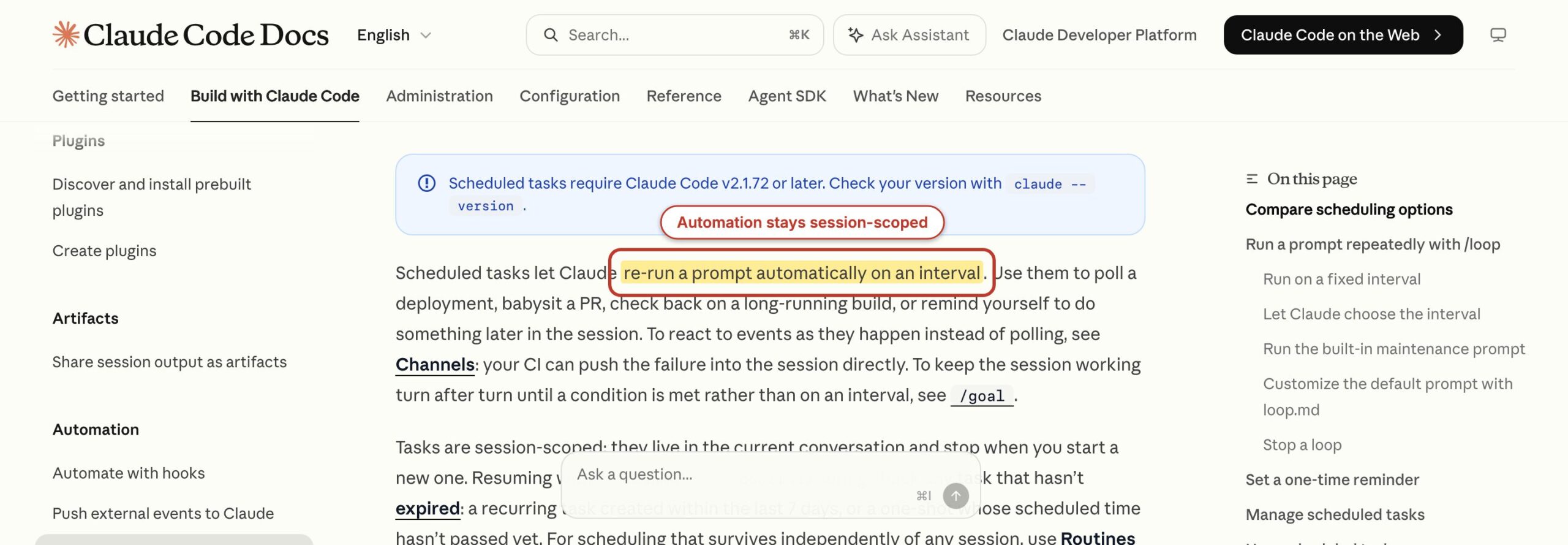
Claude Code now has several scheduling surfaces, and they are not interchangeable. /loop 5m check the test run and summarize changes repeats a prompt inside the current CLI session. It only works while that session remains running and expires after seven days. Web Routines created with /schedule run in Anthropic’s cloud. Desktop scheduled tasks run locally through the app. GitHub Actions fit repository events and CI. Choose the scheduler based on where credentials, files, and human review belong.
For unattended automation, I prefer a narrow script and a conventional scheduler over a permanently open conversational agent. Claude Code can write, test, and maintain that script. The scheduler should then run predictable code with logs and exit statuses. Keep the agent involved where judgment is useful, not where determinism is available.
- Best input: documented manual steps, sample inputs, and known failures.
- Approval boundary: credential use, remote writes, recurring schedules, and notifications.
- Proof of completion: fixture tests, dry-run output, logs, and a small controlled sample.
- What does not work: automating an unstable process before anyone can describe the correct result.
10 Claude Code Commands and Habits Worth Learning
You do not need to memorize the whole command reference. These ten cover most of my normal sessions. The exact list available to you can vary with plugins, skills, account features, and version, so type / to search current commands.
| Command or habit | What it does | When I use it |
|---|---|---|
claude | Starts an interactive session in the current directory | Any multi-step project task |
claude -p "..." | Prints a non-interactive result for scripts or pipelines | Bounded analysis with controlled input and output |
/plan | Starts a planning pass without source edits | Unfamiliar or multi-file changes |
/permissions | Shows and changes tool rules | When prompts are too broad or too permissive |
/compact | Summarizes a long conversation to free context | When one task still matters but the session is crowded |
/clear | Starts a new conversation while keeping prior sessions resumable | Before an unrelated task |
/resume | Opens a session picker or resumes a named session | Returning to paused work with its context |
/doctor | Diagnoses configuration and can propose cleanup with approval | Slow startup, duplicated instructions, or excessive tool context |
@path | Adds a file or directory reference with autocomplete | Pointing Claude to the decisive artifact |
Escape | Stops the current response or tool call without erasing completed work | When scope drifts or a command is heading the wrong way |
Two additions deserve a note. /usage shows session usage and plan information; /cost and /stats are aliases. A dollar estimate is billing-relevant for API users, while subscription users should read their plan limits instead. /model opens the model selector, and /effort adjusts supported reasoning effort. Use both as task controls, not status symbols.
Make one habit non-negotiable: ask for evidence
End implementation prompts with an observable check: a test command, parsed JSON, a screenshot you inspect, a diff, a row count, or a rendered page. “Looks good” is not validation. Neither is a long summary of what Claude intended to do.
I also ask Claude to name what it did not verify. That sentence catches missing browsers, unavailable services, skipped tests, stale credentials, and assumptions about production data. It is one of the cheapest improvements you can make to an agent workflow.
What Is New in Claude Code
Claude Code now extends well beyond its original terminal-only workflow. The useful additions are visual sessions, browser interaction, scheduled work, and coordinated agents. Each feature expands what the agent can touch, so each one also needs a clearer boundary.
Desktop, IDE, and browser options
The Claude desktop app on macOS and Windows includes a Code workspace with parallel sessions, worktree isolation, integrated terminal output, plans, diffs, task panes, subagent views, and an embedded preview browser. That browser can display local development servers, static HTML, PDFs, and images, then help verify the work. It is different from unrestricted general web browsing.
Visual Studio Code and JetBrains integrations keep Claude beside the editor. Selected code becomes context, file mentions use @, and proposed plans or diffs can appear inside the IDE. I prefer these interfaces for fine review and the terminal for repository-wide work. There is no need to choose one permanently.
Claude in Chrome can connect a CLI session to a signed-in Chrome or Edge browser for navigation, form interaction, console inspection, and visual verification. Start with claude --chrome or use /chrome. It requires a supported direct Anthropic plan and current browser extension. Treat browser actions as external effects. Claude pauses for sensitive steps such as CAPTCHA rather than pretending those barriers do not exist.
Agent teams and scheduled work
Agent teams let a lead session coordinate several independent Claude Code teammates with separate context windows and a shared task list. The feature is experimental, disabled by default, and currently CLI-focused. It can help when research, implementation, and tests are independent enough to run in parallel. It wastes context when several agents need the same files or must wait on one another.
Scheduling now spans CLI loops, cloud Routines, desktop tasks, and CI. The official scheduled-tasks guide explains the persistence and environment differences. Do not choose a scheduler because its command is shorter. Choose it based on where the task must run, how it receives credentials, and who reviews the result.
A current note about Fable 5 access
Fable 5 access changed during 2026, so older Claude Code advice can be wrong. Anthropic suspended access for all users on June 12, 2026, and restored Fable 5 globally on July 1, 2026. Pro, Max, Team, and selected Enterprise users received included access through July 7; after that date, Anthropic said Fable would be available through usage credits. Check /model and your current plan before building a workflow around it.
During the evaluation window, I used Fable whenever it was available, but I do not make a workflow depend on one model label. The durable part is the evidence, permissions, file structure, and validation. A stronger model can improve judgment. It cannot rescue an undefined task.
Beginner Mistakes to Avoid
The biggest Claude Code mistakes happen before the first edit. Users launch from an oversized directory, give a vague objective, approve broad permissions, and then judge the model by the mess. Fixing the task design usually improves the outcome faster than switching models.
Starting with a result instead of evidence
“Improve this site” is not a task. Ask Claude to inspect a defined surface, report the current behavior, and identify the files or data behind it. Then choose the change. The agent should not invent both the problem and the solution.
Combining unrelated work in one session
A session that begins with a PHP bug, moves to a newsletter, and ends with server configuration carries irrelevant assumptions into every turn. Use /clear or start a new session. Resume the old session only when its context is still an asset.
Approving broad shell access to stop prompts
A blanket allow rule makes the interface quieter by removing the moment when you would catch a wrong path or dangerous flag. Approve stable read-only patterns. Keep destructive, remote, and expensive commands narrow. Permission bypass belongs in an isolated disposable environment, not a normal home directory.
Accepting tests Claude could not run
If a browser, service, dependency, or credential is unavailable, Claude should say so. A code review can establish that a change is plausible. It cannot establish runtime behavior without the runtime. Ask for the exact command, exit result, and skipped checks.
Letting generated prose hide weak work
Claude can produce a convincing summary after an incomplete task. Read the diff and the artifacts, not only the handoff. The same rule applies to content. My guide to stopping AI slop explains why specificity, proof, and editorial judgment matter more than smooth sentences.
Use Claude Code as a Project Agent
The best way to learn how to use Claude Code is to choose one real project and one bounded outcome. Start in the correct directory. Ask Claude to inspect the evidence. Use Plan Mode if the change crosses several files or an unfamiliar system. Approve the smallest implementation, then require a check you can independently inspect.
Once that loop works, turn the repeated instructions into CLAUDE.md rules or a project skill. Add MCP only when live external context solves a known problem. Add scheduling only after the manual workflow is stable. This is slower than granting every permission on day one, but it produces work you can trust and automation you can maintain.
What is Claude Code used for?
Claude Code is used for project work that combines files, commands, tools, and reasoning. Common uses include coding, debugging, content preparation, data analysis, repository maintenance, browser verification, and repeatable automation.
Do I need to be a programmer to use Claude Code?
No, but you should understand the files and external actions involved in your task. Non-programmers can use Claude Code for content, research, data, and operations while keeping edits, publishing, and paid actions behind approval.
What is the best first Claude Code command?
Change into a small trusted project directory and run claude. Ask it to inspect the project instructions and explain the relevant files before requesting an edit.
How do I stop Claude Code during a task?
Press Escape to stop the current response or tool call. Completed work remains. Press Escape twice to open rewind options when you want to restore code or conversation state from a checkpoint.
Can Claude Code work with WordPress?
Yes. It can inspect themes and plugins, run local WordPress tools, prepare Gutenberg content, and connect to controlled WordPress services through MCP or REST APIs. Keep production writes and publishing behind human approval.
Should I use Plan Mode for every task?
No. Plan Mode helps with unfamiliar, multi-file, risky, or ambiguous tasks. A small obvious edit often needs only a direct request and focused validation. Planning always uses time and model context, so it should reduce a real risk.
Can Claude Code run unattended?
It can run non-interactively, repeat prompts in a live session, use cloud or desktop scheduling, and participate in CI. Unattended work should have narrow permissions, controlled credentials, deterministic checks, logs, and no unreviewed destructive or paid actions.