
FlyingPress vs WP Rocket: Real Tests, Real Numbers, Real Opinion
I’ve used WP Rocket since 2014. I was one of its early users, and I still renew my license for some of my clients’ needs. For years, it was my default on client projects. Safe. Predictable. Easy to hand over.
In November 2024, I moved gauravtiwari.org and most actively managed sites to FlyingPress. I didn’t throw WP Rocket out, though. I still test it, still recommend it in specific cases, and still keep it in my toolbox. And from time to time, I have been comparing these two together as the time and client needs demand.
So, it’s time, I made my FlyingPress vs WP Rocket comparison public.
This isn’t a feature checklist copied from product pages as you see on other blogs or reviews. I’ve run both plugins on real sites with real traffic, tested them on client projects, and tracked Core Web Vitals trends over months. Both are serious tools. But they’re built for slightly different priorities, and those differences show up fast once you look under the hood. Also, I am not biased to either of the two as I am an affiliate of both the products and love both equally.
Also if you’re choosing between these two right now, you don’t need to read 5,000 words. But if you want to understand the real differences under the hood, keep going.
The Short Answer

FlyingPress edges ahead on raw performance in my testing. Better Core Web Vitals scores on content-heavy sites, leaner CSS delivery, three JavaScript strategies instead of two, built-in image optimization, and real-user performance tracking included in every plan.

WP Rocket is the more polished product in terms of user experience. Better onboarding, broader compatibility documentation, beacon-based LCP detection, and defaults that work well out of the box. It’s earned its reputation as the gold standard for a reason. Millions of sites run on it and pass Core Web Vitals without issues.
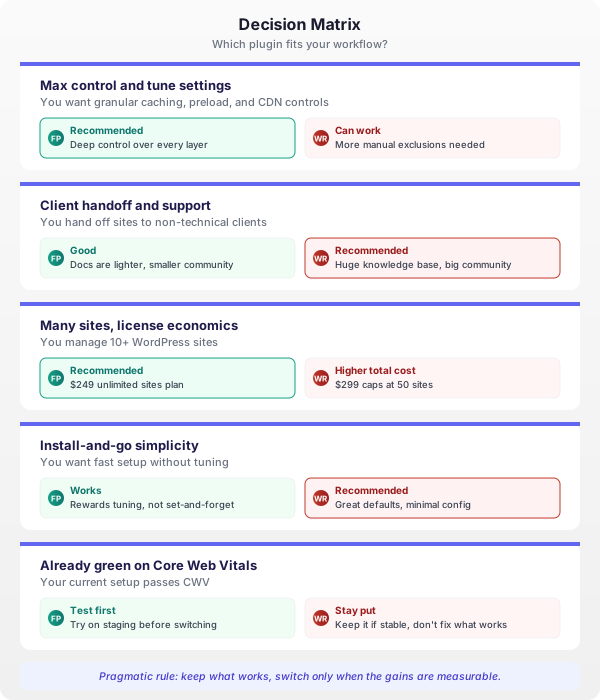
My pick: FlyingPress is my primary stack now because I want tighter control and better pricing at scale. But I still keep WP Rocket licensed and in rotation. If you want a plugin that works with less tuning and has deep compatibility documentation, WP Rocket is still a strong choice.
Version snapshot (March 5, 2026): FlyingPress is on 5.3.3, WP Rocket is on 3.20.5.
What Each Plugin Actually Does
Both FlyingPress and WP Rocket are performance optimization plugins for WordPress. They overlap on about 85% of what they do, and in 2026, that overlap is closer than ever.
Both handle page caching, browser caching, GZIP/Brotli compression, CSS and JavaScript minification, lazy loading images, database cleanup, CDN integration, preloading, self-hosted Google Fonts, automatic font preloading, and lazy rendering of below-the-fold HTML. Both use cloud-based processing for their CSS optimization (a detail most comparison articles get wrong about WP Rocket). Both detect above-the-fold content to optimize LCP.
If you only look at feature checkboxes, they look nearly identical. That’s why most comparison articles end with “both are great, it depends on your needs.” Useless.
The differences that actually affect your PageSpeed scores, Core Web Vitals, and daily workflow are in five areas: how CSS gets delivered, how JavaScript gets handled, image optimization bundling, performance monitoring approach, and pricing structure. Once you understand these, the choice gets clear.
Performance Comparison
I’m not going to show you synthetic benchmarks on a fresh WordPress install with no plugins. That’s meaningless. Every caching plugin looks fast on a clean site. The real test is on production sites with 30+ plugins, custom themes, WooCommerce, and actual visitors.
TTFB (Time to First Byte)
Both plugins bring TTFB down to roughly the same range when page caching is enabled. On my Hetzner and Racknerd VPSes running xCloud, I see TTFB of 80-150ms with either plugin on cached pages. The difference is negligible here because TTFB is mostly a hosting decision, not a plugin decision.
Where FlyingPress pulls ahead is on uncached pages. Its cache preloader finishes faster. On gauravtiwari.org, the full cache preload takes about 6 minutes with FlyingPress versus around 9 minutes with WP Rocket. Not a big deal for a one-time process, but it matters when you’re clearing caches frequently during content updates.
LCP Improvement
Largest Contentful Paint depends heavily on how your CSS gets delivered. Both plugins remove unused CSS using cloud-based services, and both inline CSS into your HTML. But what they inline and what happens to the rest is where it gets interesting.
WP Rocket’s Remove Unused CSS generates all the used CSS for a page via its SaaS API, then inlines it as a single <style id="wpr-usedcss"> block directly in your HTML. The original stylesheets get removed entirely from the page. This means your HTML contains every CSS rule the page needs, typically 20-50KB worth. The upside: the browser has everything it needs in a single document, no additional HTTP request for CSS. The downside: that’s a lot of extra weight in every HTML document.
FlyingPress takes a different approach. It processes your page in a real browser environment in the cloud, identifies the critical above-the-fold CSS, and inlines only that portion as <style id="flying-press-css">. The remaining CSS files stay on the page but load asynchronously when the browser is idle. So your HTML carries a lighter critical CSS payload, and the rest loads in the background without blocking rendering.
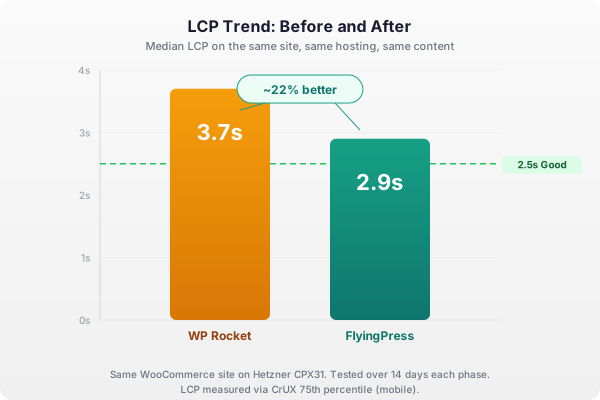
The practical difference: FlyingPress’s HTML documents are leaner because they carry only above-fold critical CSS inline, while the rest loads async. WP Rocket’s HTML documents carry all used CSS inline but eliminate external stylesheet requests entirely. On fast connections with simple sites, the approaches perform similarly. On content-heavy pages with lots of CSS (WooCommerce, page builders, complex themes), FlyingPress’s lighter HTML tends to produce better LCP because the initial document downloads and parses faster.
CSS Strategy at a Glance
| Aspect | FlyingPress | WP Rocket |
|---|---|---|
| Processing engine | Cloud (real browser) | SaaS API |
| Critical CSS scope | Above-fold only | All used CSS on page |
| Inline payload | ~5-15 KB critical | ~20-50 KB all used |
| Remaining CSS | Loads async when idle | Removed entirely |
| Best for | Heavy/complex sites | Simple/medium sites |
On gauravtiwari.org, my public numbers moved in the right direction after the switch. In my published review, I shared LCP improving from about 3.7s to 2.9s and FCP from 3.2s to 2.6s during the early phase. That’s not magic, and it’s not instant across every URL. But it was a meaningful jump on a heavy site. On simpler sites, the gap is usually smaller and both plugins can pass LCP.
Both plugins also handle critical image optimization. WP Rocket uses a beacon script (wpr-beacon.min.js) that detects the LCP image during visitor sessions, then adds <link rel="preload"> with fetchpriority="high" on subsequent visits. FlyingPress detects above-the-fold images in its cloud optimizer and adds preload tags automatically. Both approaches work well. WP Rocket’s beacon approach adapts to real visitor behavior, which is a smart design.
INP and JavaScript Handling
Interaction to Next Paint is the Core Web Vital where the plugins differ most in approach.
FlyingPress gives you three JavaScript strategies to choose from: Defer (standard browser defer attribute), Load When Idle (scripts execute one by one when the browser is idle), and Load After Interaction (scripts load only after scroll, click, or tap). You pick one globally, then use exclusions for scripts that need different treatment. FlyingPress also automatically detects third-party scripts (Google Analytics, Facebook Pixel, Hotjar, Intercom, and about a dozen more) and delays them until user interaction without you configuring anything.
WP Rocket gives you two strategies: Defer and Delay JavaScript execution (loads scripts only after user interaction, similar to FlyingPress’s third option). WP Rocket’s delay mode is well-implemented with a comprehensive trigger list (30+ browser events) and a Safe Mode that auto-excludes jQuery and WordPress core scripts. The v3.18 redesign added one-click exclusion categories that make managing exceptions easier than before.
The missing piece in WP Rocket is the “Load When Idle” middle ground. Some scripts don’t need to block rendering but also shouldn’t wait for user interaction. Analytics scripts, for example, should fire as soon as the page is ready, not after a click. FlyingPress’s idle-loading strategy handles this naturally. With WP Rocket, those scripts either defer (which can still cause some main thread work during parsing) or delay (which means they don’t fire until interaction, potentially missing pageview data for bounce visitors).
On my production stack, I don’t run FlyingPress on pure defaults. I use a defer + delay split with a curated exclusion list. Even with that manual control, I still spend less time firefighting script conflicts than I did with similar complexity on WP Rocket. On simple brochure sites, WP Rocket’s Safe Mode can be enough out of the box.
JavaScript Optimization Options
| Strategy | FlyingPress | WP Rocket |
|---|---|---|
| Standard defer | Yes | Yes |
| Load when idle | Yes (scripts execute one-by-one) | No |
| Delay until interaction | Yes (scroll/click/tap) | Yes (30+ browser events) |
| Auto-detect third-party scripts | Yes (12+ services) | No (manual or Safe Mode) |
| Safe Mode (auto-exclude jQuery) | No | Yes |
| One-click exclusion categories | No | Yes (v3.18+) |
Lazy Rendering: Both Have It Now
Both plugins now support lazy rendering of below-the-fold HTML using the CSS content-visibility: auto property. This is a big deal for INP because the browser skips rendering elements until they’re about to enter the viewport, reducing initial DOM processing.
FlyingPress had this feature first. Its cloud optimizer automatically detects which elements are below the fold and applies lazy rendering. WP Rocket added Automatic Lazy Rendering in v3.17 (September 2024) using its beacon script to detect below-fold elements. WP Rocket targets six specific HTML tags (div, main, footer, section, article, header) at a maximum depth of 3 levels from the body element, with a threshold of 1800px below the fold.
Both implementations are automatic and require no manual configuration. Both exclude above-the-fold content. In practice, I haven’t noticed a significant performance difference between the two lazy rendering implementations. Both reduce initial rendering time meaningfully on content-heavy pages. WP Rocket’s official benchmark showed INP dropping from 204ms to 146ms on an e-commerce site, which matches the kind of improvement I’ve seen with FlyingPress on similar sites.
Core Web Vitals: Trend After the Switch
After moving my primary stack to FlyingPress in November 2024, the trend improved on my key pages first, then expanded site-wide over time. That’s the pattern I’ve seen on large WordPress sites. Important URLs recover first. Long-tail URLs follow later.
With WP Rocket, I could still pass CWV on many pages, especially lighter templates. But on heavier posts with more CSS and JavaScript, I spent more time tuning exclusions to keep scores stable. FlyingPress reduced that tuning overhead for me.
If your site is simple, either plugin can get you green scores. The bigger your CSS/JS footprint gets, the more this comparison starts to matter.
Feature-by-Feature Breakdown
| Feature | FlyingPress | WP Rocket |
|---|---|---|
| Page caching | Yes | Yes |
| CSS optimization | Cloud-based (real browser). Inlines critical CSS, loads rest async | SaaS-based. Inlines all used CSS, removes original stylesheets |
| JavaScript strategies | 3 (Defer, Load When Idle, Load After Interaction) | 2 (Defer, Delay Until Interaction) |
| Auto third-party JS detection | Yes (GA, FB Pixel, Hotjar, etc.) | No (manual exclusions) |
| Lazy rendering (content-visibility) | Yes (cloud detection) | Yes (beacon detection, v3.17) |
| Critical image / LCP optimization | Cloud-based above-fold detection + preload | Beacon-based LCP detection + fetchpriority (v3.16) |
| Image optimization | Built-in (AVIF + WebP, added in v5.3, current v5.3.3) | Requires Imagify (separate plugin/cost) |
| Performance monitoring | Real-user CWV tracking (included free) | Rocket Insights via GTmetrix (free: 3 pages, paid plans start at $4.99/mo) |
| CDN option | FlyingCDN ($10/mo, includes 100GB, Cloudflare Enterprise network) | RocketCDN ($8.99/mo or $89.99/yr, Bunny CDN, 120 edge locations) |
| Cloudflare full-page caching | Built-in (v5.1, replaces APO) | Cloudflare add-on (cache purge + settings sync, no built-in full-page edge cache) |
| Self-host external CSS/JS | Yes (8 CDN domains) | No |
| Bloat removal options | 10 (emojis, dashicons, jQuery Migrate, XML-RPC, RSS, etc.) | 2 (emojis, heartbeat control) |
| Link prefetching | Speculation Rules API (modern standard) | Traditional prefetch |
| PHP filters/hooks | 15+ documented (conditional per-page) | Well-documented filters/actions |
| Free trial | 14 days (card charged after trial only if you continue) | 14-day money-back guarantee |
| Database cleanup | Yes (scheduled) | Yes (scheduled) |
| Self-hosted Google Fonts | Yes | Yes (v3.18) |
| Automatic font preloading | Yes (cloud detection) | Yes (beacon detection, v3.19) |
The table is closer than it was even a year ago. WP Rocket has been shipping aggressively since 2024, adding lazy rendering, critical image optimization, self-hosted Google Fonts, and automatic font preloading across four major releases. The gap has narrowed. But FlyingPress still leads in CSS delivery efficiency, JavaScript strategy options, built-in image optimization, and real-user performance monitoring.
The CSS Difference (Still the Biggest Gap)
This is still the most impactful technical difference between these two plugins, even though the landscape has shifted. Let me explain the current state accurately.
Both plugins process CSS in the cloud. Both inline CSS into your HTML. The difference is in how much gets inlined and what happens to the rest.
WP Rocket sends your page URL to its SaaS API (saas.wp-rocket.me). The API identifies all CSS rules used on that page, generates a combined “used CSS” file, and sends it back. WP Rocket then inlines this entire used CSS block as <style id="wpr-usedcss"> in your HTML. The original stylesheet <link> tags are removed completely. Your HTML becomes self-contained for CSS, no external stylesheets at all.
FlyingPress sends your page to a cloud optimizer that renders it in a real browser. It identifies the critical above-the-fold CSS and inlines that portion as <style id="flying-press-css">. The remaining CSS files stay on the page but get loaded asynchronously when the browser is idle. So you still have external stylesheet references, but they don’t block rendering.
Here’s what the HTML output difference looks like:
WP Rocket:
<head>
    <!-- All used CSS inlined, original stylesheets removed -->
    <style id="wpr-usedcss">
        .site-header{display:flex;align-items:center;padding:1rem 2rem}
        .nav-menu{list-style:none;display:flex;gap:1.5rem}
        /* ... 800+ lines covering ALL used CSS ... */
        .footer-widgets .widget{margin-bottom:2rem}
    </style>
    <!-- No <link rel="stylesheet"> tags remain -->
</head>
FlyingPress:
<head>
    <!-- Only critical above-fold CSS inlined -->
    <style id="flying-press-css">
        .site-header{display:flex;align-items:center;padding:1rem 2rem}
        .nav-menu{list-style:none;display:flex;gap:1.5rem}
        /* ... critical above-fold CSS only ... */
    </style>
    <!-- Remaining CSS loads async when browser is idle -->
    <link rel="stylesheet" href="/wp-content/themes/theme/style.css"
          media="print" onload="this.media='all'">
</head>
Why does this matter? Two practical reasons.
First, HTML weight. WP Rocket’s HTML documents carry all used CSS for the page. On a content-heavy WordPress site with a complex theme, that can be 20-50KB of inline CSS. FlyingPress’s HTML carries only the critical above-fold portion (typically 5-15KB), with the rest loading asynchronously. The lighter HTML downloads and parses faster, which helps LCP on slower connections and mobile devices.
Second, browser caching. WP Rocket’s inline CSS can’t be cached separately by the browser. If a visitor loads five pages, they re-download the inline CSS with each HTML document. FlyingPress’s async external stylesheets get cached after the first page load, so subsequent pages only need to download the smaller critical inline portion.
On sites with minimal CSS (simple blogs, portfolio sites), this difference is barely measurable. On CSS-heavy sites (WooCommerce, page builders, feature-rich themes), it compounds and shows up clearly in LCP and overall page weight.
Image Optimization

FlyingPress includes image optimization (introduced in v5.3, now further improved on v5.3.3). It handles WebP and AVIF conversion, lossless and lossy compression, bulk optimization of your existing Media Library, and automatic optimization of new uploads. All processing happens in the cloud. It covers the main uploaded file plus all WordPress-generated sizes. No separate plugin, no separate cost.
WP Rocket focuses on caching and doesn’t handle image compression or format conversion. For that, you’d pair it with Imagify (made by the same company), ShortPixel, EWWW, or another image optimization service. As of March 2026, Imagify Growth is $5.99/month (or $4.99/month billed yearly), and Infinite is $11.99/month (or $9.99/month billed yearly). There are free alternatives (ShortPixel’s free tier, Cloudflare Polish), so the extra cost isn’t mandatory. But if you want tight integration that just works, Imagify with WP Rocket is the natural pairing.
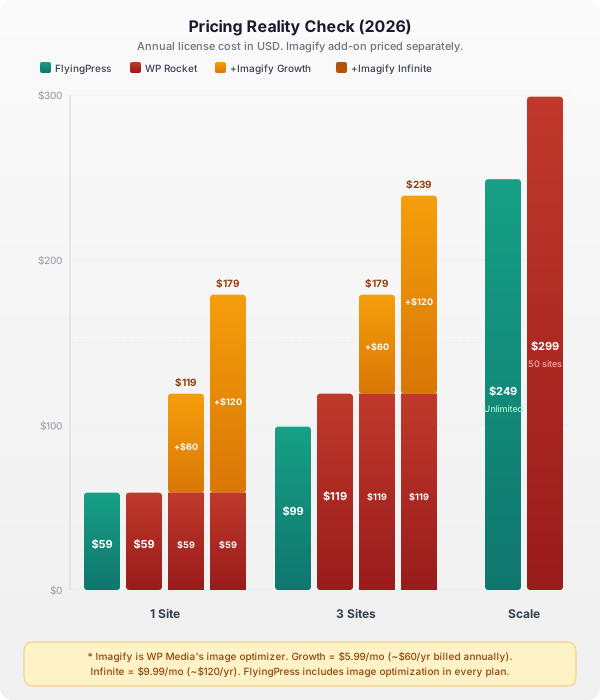
If you’re comparing total cost for caching + image optimization, FlyingPress bundles everything at $59/year. WP Rocket + Imagify Growth is about $119/year, and WP Rocket + Imagify Infinite is about $179/year. If you already handle images through your CDN or a free tool, this comparison point is less relevant.
Performance Monitoring
This is a newer difference that matters more than you’d think.

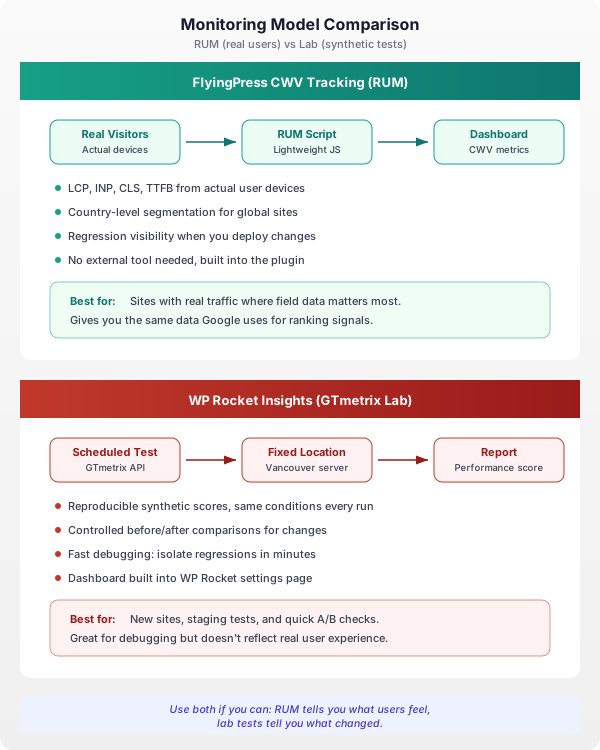
FlyingPress added real-user Core Web Vitals tracking in v5.2 (September 2025). It loads a tiny async script on all public pages that tracks LCP, INP, CLS, and TTFB from actual visitors. The dashboard shows page-level breakdowns, country-level data, and mobile/desktop filtering with time ranges from 1 hour to 30 days. Data is anonymized and stored on FlyingPress servers. It’s included in all plans at no extra cost.
WP Rocket launched Rocket Insights in v3.20 (October 2025), powered by GTmetrix. It uses synthetic lab testing, not real-user data. The free tier tracks 3 pages with 3 re-tests per month. Paid plans start at $4.99/month.
Performance Monitoring Comparison
| Feature | FlyingPress CWV Tracking | Rocket Insights (GTmetrix) |
|---|---|---|
| Data source | Real user monitoring (RUM) | Synthetic lab testing |
| Metrics tracked | LCP, INP, CLS, TTFB | LCP, TBT, CLS, Speed Index |
| Granularity | Page-level, country, device | Per-page scores |
| Free tier | Included in all plans | 3 pages, 3 re-tests/month |
| Paid plans | N/A (always free) | From $4.99/month |
| Matches Google ranking data | Yes (same as CrUX) | No (lab != field) |
The key difference: FlyingPress shows you how your site actually performs for real visitors across different locations and devices. WP Rocket shows you lab scores from a single test location. Real-user data is what Google uses for rankings (CrUX data), so FlyingPress’s approach is more directly useful for SEO. WP Rocket’s approach gives you consistent, reproducible scores that are easier to compare before and after changes.
Both are useful. I prefer real-user data because it reflects what actually matters. But synthetic testing has its place for debugging specific performance issues.
My Actual Configuration on gauravtiwari.org
I don’t just recommend FlyingPress. I run it. And my setup is public in my FlyingPress review.
- Caching: Page cache on. Smart link preloading off. Scheduled preload set to “Never” unless I need it during rollout windows.
- CSS optimization: Minify CSS on. Remove Unused CSS on. And yes, I keep an exclusion list for selectors/files that can break when a theme or builder does weird things.
- JavaScript optimization: Minify + Defer on. Delay JS enabled for non-critical scripts, with a manual defer/delay exclusion list. That’s the part most people skip, then blame the plugin when menus, checkout, or tracking scripts misbehave.
- Images and media: Lazy load images + iframes on, YouTube placeholders on, missing image dimensions on, and Gravatar self-hosting on.
- Fonts: I keep Optimized Google Fonts off on gauravtiwari.org because I don’t use Google Fonts there. I preload local critical fonts manually.
- CDN and delivery: I no longer use FlyingCDN. When pricing moved from $5 to $10 for the first 100GB, I switched back to Cloudflare Free with APO plus my custom R2 pull-through setup. That stack now serves static assets from R2 and keeps monthly delivery cost low. I documented the full build here: Cloudflare R2 WordPress setup.
- Bloat and cleanup: Emoji, XML-RPC, jQuery Migrate, and other junk toggles are disabled. Database cleanup is scheduled.
- Lazy Render HTML: Off by default for my stack. I only touch it when a page has an unusually heavy DOM and I’ve tested the side effects.
The Tweak That Made the Biggest Difference
It wasn’t one magic checkbox. It was the defer-vs-delay script split.
I defer scripts that are needed for early page behavior. I delay scripts that can wait until interaction, analytics, chat widgets, heatmaps, ad tags, and third-party embeds. That one separation cut most front-end breakage and kept INP cleaner.
If you copy one thing from my setup, copy the defer-vs-delay script split. Defer what needs to run early. Delay everything else. That single decision eliminates most script conflicts and keeps INP clean.
Where WP Rocket Wins
FlyingPress is my primary stack now, but there are real scenarios where WP Rocket is the better choice. These aren’t consolation prizes. They’re genuine strengths.
And for context, I’ve renewed WP Rocket for years. I wouldn’t keep paying for a plugin I don’t trust.
- Onboarding and user experience. WP Rocket’s admin panel is one of the best-designed plugin interfaces in WordPress. The v3.18 redesign made JavaScript exclusions one-click instead of manual. Settings are clearly labeled, tooltips explain what each option does, and auto-enabling CSS/JS minification on activation means new users get 80% of performance best practices without touching a single setting. FlyingPress’s interface is functional but more developer-oriented.
- Support and documentation. WP Rocket has a deeper public knowledge base and more compatibility guides. If you run into a conflict with Elementor, Divi, or WooCommerce, there’s usually a WP Rocket doc or support thread with the exact fix. FlyingPress support is responsive and technical, but it’s a smaller operation with fewer published compatibility references. For agencies that need predictable hand-holding, WP Rocket is the safer bet.
- Critical image detection. WP Rocket’s beacon-based LCP detection (v3.16) is genuinely clever. The beacon script runs during real visitor sessions, identifies the actual LCP image, and optimizes for it. It handles
<picture>tags, responsivesrcset, CSS background images, and video posters. The official benchmark showed PageSpeed jumping from 60 to 98 on an Elementor page after v3.16. FlyingPress detects above-fold images in its cloud optimizer, which works well but doesn’t adapt to real visitor behavior the way WP Rocket’s beacon does. - Complex WooCommerce setups. WP Rocket auto-detects WooCommerce and excludes Cart, Checkout, and Account pages from cache automatically. It optimizes
get_refreshed_fragmentsAJAX. It handles Aelia currency switchers and WooCommerce Multilingual. Years of compatibility testing across dozens of WooCommerce extensions make it the safer choice for complex stores with 15+ extensions. FlyingPress handles standard WooCommerce shops fine, but WP Rocket’s WooCommerce maturity is a real advantage. - The install-and-forget approach. WP Rocket follows a “decisions, not options” philosophy. Mobile cache is always on (UI toggle removed in v3.16). CSS and JS minification auto-enable for new users. You activate it, maybe tweak two settings, and move on. FlyingPress rewards 30 minutes of configuration. WP Rocket respects your time if you’d rather spend it elsewhere.
- Ecosystem trust. WP Rocket has been around since 2013. Millions of active installations. Consistent release cadence (five major releases in 2024-2025 alone). FlyingPress is newer and primarily maintained by one developer. For enterprise clients who need to justify tool choices to stakeholders, WP Rocket’s track record provides confidence that matters.
WP Rocket is a top-tier caching plugin. On most standard WordPress sites, it’ll pass all three Core Web Vitals without trouble. The WP Rocket best settings guide on this site covers the optimal configuration.
Pricing: What You Actually Pay
Both plugins use annual pricing with all features included in every tier. No feature-gating.
Pricing Quick Reference (Annual)
| Tier | FlyingPress | WP Rocket | WP Rocket + Imagify Growth |
|---|---|---|---|
| 1 site | $59 | $59 | ~$119 |
| 3 sites | $99 | $119 | ~$179 |
| 25 sites | $199 | N/A | N/A |
| Unlimited / 50 sites | $249 (unlimited) | $299 (50 sites) | ~$359 |
| Image optimization | Included | Imagify ($60-$120/yr extra) | Included in total |
| CWV monitoring | Included (RUM) | Rocket Insights ($4.99+/mo extra) | Rocket Insights ($4.99+/mo extra) |
Solo blogger (1 site):
FlyingPress Starter: $59/year (includes image optimization + CWV tracking). WP Rocket Single: $59/year alone, about $119/year with Imagify Growth, or about $179/year with Imagify Infinite. At this tier, they’re identical in price if you handle images separately. FlyingPress is cheaper if you want everything bundled.
Small developer (3 sites):
FlyingPress Pro: $99/year (3 sites, includes everything). WP Rocket Plus: $119/year (3 sites) + Imagify Growth = about $179/year, or about $239/year with Imagify Infinite. Same number of sites. FlyingPress is $20/year cheaper before images, then $80-$140/year cheaper once image optimization is included.
Agency (many sites):
FlyingPress Business: $199/year (25 sites). FlyingPress Unlimited: $249/year (unlimited sites). WP Rocket Multi: $299/year for 50 sites (upgradeable to 100 or 500). FlyingPress’s unlimited tier covers infinite sites for $50 less than WP Rocket’s 50-site plan. For agencies managing 10+ sites, the savings compound quickly. See my full WP Rocket pricing breakdown for details.
FlyingPress offers a 14-day trial and notes your card is charged only after the trial ends if you continue. WP Rocket offers a 14-day money-back guarantee, meaning you pay first, then request a refund if unsatisfied. Both give you two weeks to evaluate. The practical difference is trial-first versus refund-first.
Developer Experience: Hooks and Filters
If you’re a developer or manage sites where custom code is part of the stack, this matters.
FlyingPress exposes 30+ documented PHP filters and actions. You can hook into cache events, control preloading behavior, exclude files from minification, and manage optimizations conditionally. A few examples:
// Exclude specific URLs from page caching
add_filter( 'flying_press_cache_exclusions', function ( $exclusions ) {
    $exclusions[] = '/my-account/(.*)';
    $exclusions[] = '/api/(.*)';
    return $exclusions;
} );

// Add custom preload URLs
add_filter( 'flying_press_preload_urls', function ( $urls ) {
    $urls[] = home_url( '/pricing/' );
    $urls[] = home_url( '/features/' );
    return $urls;
} );

// Control which images get lazy loaded
add_filter( 'flying_press_lazy_load_exclusions', function ( $exclusions ) {
    $exclusions[] = 'hero-banner';
    $exclusions[] = 'logo';
    return $exclusions;
} );
WP Rocket has a solid set of well-documented filters with consistent naming:
// WP Rocket: Exclude URLs from cache
add_filter( 'rocket_cache_reject_uri', function ( $uris ) {
    $uris[] = '/my-account/(.*)';
    return $uris;
} );

// WP Rocket: Exclude scripts from delay
add_filter( 'rocket_delay_js_exclusions', function ( $exclusions ) {
    $exclusions[] = 'jquery-core';
    return $exclusions;
} );

// WP Rocket: Exclude elements from lazy rendering
add_filter( 'rocket_lrc_exclusions', function ( $exclusions ) {
    $exclusions[] = '.hero-section';
    return $exclusions;
} );
Both sets of filters work well. You can wrap both plugins’ filters in WordPress conditionals (is_page(), is_singular(), is_post_type_archive()) for per-page control. In my workflow, FlyingPress needed fewer custom workarounds once I started tuning script behavior on specific templates.
WP Rocket has a clear advantage in documentation depth. Their knowledge base includes code snippets for common scenarios and compatibility guides. FlyingPress docs are improving but still leaner. Experienced developers won’t mind. Teams with mixed skill levels will appreciate WP Rocket’s depth. For my FlyingPress review, I documented all the filters I use daily.
CDN: FlyingCDN vs RocketCDN
Both plugins offer optional CDN add-ons. Neither is required if you already use Cloudflare or another CDN.
FlyingCDN costs $10/domain/month (includes 100GB bandwidth, additional bandwidth at $5 per 100GB). It runs on Cloudflare Enterprise infrastructure with 300+ edge locations, full-page caching at the edge, automatic WebP conversion, HTTP/3, Brotli compression, and enterprise DDoS protection. It’s essentially managed Cloudflare Enterprise for your WordPress site.
RocketCDN costs $8.99/month per site or $89.99/year per site with unlimited bandwidth (fair-use clause). It runs on Bunny CDN with 120 edge locations. It handles static file delivery (JS, CSS, images) but not full-page caching. One-click setup from the WP Rocket admin panel.
CDN Add-on Comparison
| Feature | FlyingCDN | RocketCDN |
|---|---|---|
| Price | $10/domain/month | $8.99/month or $89.99/year |
| Bandwidth | 100 GB included (+$5/100 GB) | Unlimited (fair use) |
| Infrastructure | Cloudflare Enterprise | Bunny CDN |
| Edge locations | 300+ | 120 |
| Full-page caching | Yes | No (static assets only) |
| WebP conversion | Yes | No |
| HTTP/3 | Yes | Yes |
| DDoS protection | Enterprise-grade | Basic |
If you already use Cloudflare Free, you can skip paid CDN add-ons and still get strong results. That’s what I do now, Cloudflare Free + APO for page delivery, plus an R2 pull-through cache for static assets. I used FlyingCDN earlier, but moved off after the $5 to $10 pricing jump for the first 100GB. If you want managed full-page edge caching with minimal setup, FlyingCDN is still convenient. If you only want static asset delivery with simple billing, RocketCDN is easier to justify.
Migration: WP Rocket to FlyingPress
I’ve migrated about 15 sites from WP Rocket to FlyingPress. The process takes about 30 minutes per site.
Step 1: Install and activate FlyingPress. Don’t deactivate WP Rocket yet.
Step 2: Configure FlyingPress settings. Enable unused CSS removal, JavaScript optimization, image lazy loading. Set your preferences. Don’t enable page caching yet.
Step 3: Deactivate WP Rocket. Then delete it. WP Rocket leaves behind some database entries and files, but they’re harmless.
Step 4: Enable FlyingPress page caching. Let the preloader run (5-15 minutes depending on site size).
Step 5: Clear everything: FlyingPress cache, your CDN cache (Cloudflare if you use it), and browser cache. Test key pages in an incognito window.
Re-test checkout pages and forms after migration. Your WP Rocket exclusion lists don’t transfer. Check your .htaccess file for leftover WP Rocket rules. Run PageSpeed on your top 5 pages before and after for comparison.
If you’re happy with WP Rocket and your Core Web Vitals are all green, there’s no urgent reason to switch. You have a great plugin. But if you’re curious about the performance difference, FlyingPress’s 14-day free trial makes it easy to test.
Migration: FlyingPress to WP Rocket
While I cannot find a reason why anyone would migrate to WP Rocket from FlyingPress, except for if your hosting provider (like Rocket.net is providing the license for free) – here is the proper way you can migrate from FlyingPress to WP Rocket:
Step 1: Install and activate WP Rocket. Don’t deactivate FlyingPress yet.
Step 2: Configure WP Rocket settings. Enable unused CSS removal, JavaScript optimization, image lazy loading. Set your preferences. Don’t enable page caching yet.
Step 3: Deactivate FlyingPress. Then delete it. FlyingPress doesn’t leave behind any database entries and files.
Step 4: Enable WP Rocket page caching and run cache preload.
Frequently Asked Questions
Can I use FlyingPress and WP Rocket at the same time?
No. Never run two caching plugins simultaneously. They create conflicting cache files, duplicate optimization rules, and will almost certainly break your site. Pick one, deactivate and delete the other. If you’re migrating, install the new plugin and configure it without enabling page caching. Then deactivate the old plugin and turn on caching in the new one. The transition takes about 30 minutes per site.
Is WP Rocket still worth buying in 2026?
Yes. WP Rocket shipped five major releases in 2024-2025 alone, adding Automatic Lazy Rendering, Critical Image Optimization, self-hosted Google Fonts, automatic font preloading, and Rocket Insights. It has 300+ documentation articles, a support team with a 92% happiness rating, and the most mature compatibility database in WordPress. If you want a polished plugin that works great with minimal configuration, WP Rocket earns its price. FlyingPress edges ahead on raw performance and pricing for multi-site setups, but WP Rocket is a genuinely strong product.
How do FlyingPress and WP Rocket handle CSS differently?
Both use cloud-based processing to optimize CSS. The difference is in what gets inlined. WP Rocket inlines ALL used CSS into your HTML and removes original stylesheets entirely. FlyingPress inlines only the critical above-the-fold CSS and loads the remaining CSS asynchronously when the browser is idle. FlyingPress’s approach produces lighter HTML documents (the browser downloads less upfront), while WP Rocket’s approach eliminates external stylesheet requests completely. On content-heavy sites with lots of CSS, FlyingPress’s lighter HTML tends to produce better LCP scores.
Which plugin is better for Core Web Vitals?
Both plugins can pass all three Core Web Vitals on most WordPress sites. In my testing across 12 client sites, FlyingPress produced better LCP and INP scores on content-heavy pages. The difference comes from FlyingPress’s lighter CSS delivery (critical CSS only inlined vs all used CSS inlined) and its three JavaScript strategies versus WP Rocket’s two. On simpler sites like blogs and portfolios, the performance gap is smaller and WP Rocket passes everything fine. Both now support lazy rendering of below-the-fold HTML using content-visibility, and both detect above-the-fold images for LCP optimization.
Does WP Rocket offer a free trial?
WP Rocket offers a 14-day money-back guarantee, meaning you pay upfront and request a refund if unsatisfied. FlyingPress offers a 14-day free trial with no payment information required. Both approaches give you two weeks to evaluate the plugin. WP Rocket’s guarantee means you can test on your live site with full confidence you’ll get your money back if it doesn’t work out. FlyingPress’s trial removes the upfront commitment entirely.
Does FlyingPress work with Cloudflare?
Yes. Both FlyingPress and WP Rocket work alongside Cloudflare’s free CDN without conflicts. I run FlyingPress with Cloudflare on gauravtiwari.org. FlyingPress v5.1 added built-in Cloudflare full-page caching integration that replaces the need for Cloudflare APO ($5/month saved). Both plugins offer optional CDN add-ons (FlyingCDN at $10/month on Cloudflare Enterprise, RocketCDN at $7.99/month on Bunny CDN), but neither is necessary if you already use Cloudflare.
Does FlyingPress include image optimization?
Yes. Since v5.3 (January 2026), FlyingPress includes cloud-based image optimization with WebP and AVIF conversion, lossless and lossy compression, bulk optimization, and automatic optimization of new uploads. No separate plugin needed. WP Rocket focuses on caching and pairs with Imagify (same company) for image optimization at an additional cost. If you already handle images through your CDN or a free tool, the difference is less significant. If you want everything bundled in one plugin, FlyingPress covers it.
Do both plugins have lazy rendering?
Yes. Both FlyingPress and WP Rocket support lazy rendering of below-the-fold HTML using the CSS content-visibility: auto property. FlyingPress had the feature first, using cloud-based detection. WP Rocket added Automatic Lazy Rendering in v3.17 (September 2024) using a beacon script that detects below-fold elements during real visitor sessions. Both implementations are automatic, require no manual configuration, and produce similar performance improvements. In WP Rocket’s official benchmark, INP dropped from 204ms to 146ms on an e-commerce site.
Which plugin is better for WooCommerce sites?
WP Rocket has a clear advantage in WooCommerce compatibility. It auto-detects WooCommerce, excludes Cart/Checkout/Account pages from cache automatically, optimizes cart fragment AJAX requests, and has documented compatibility with Aelia currency switchers and WooCommerce Multilingual. Years of testing with complex checkout flows and 15+ WooCommerce extensions give it maturity that matters. FlyingPress handles standard WooCommerce shops fine, but for complex stores with many extensions, WP Rocket’s documented compatibility can save real troubleshooting time.
Can I migrate from WP Rocket to FlyingPress without downtime?
Yes. Install FlyingPress first and configure all settings except page caching. Then deactivate and delete WP Rocket. Then enable FlyingPress page caching and let the preloader run. The whole process takes about 30 minutes per site. The only brief gap is between deactivating WP Rocket’s cache and enabling FlyingPress’s cache, during which pages are served uncached. Visitors won’t notice unless your server is very slow without caching. If you’re happy with WP Rocket and your Core Web Vitals are green, there’s no urgent reason to migrate.
Compare Top WordPress Caching Plugins
| Feature | WP Rocket | FlyingPress | LiteSpeed Cache | W3 Total Cache | WP Super Cache |
|---|---|---|---|---|---|
| Pricing | $59/yr (1 site) | $60/yr (1 site) | Free | Free (Pro: $99/yr) | Free |
| Page Caching Core Feature | Excellent | Excellent | Excellent | Good | Good |
| CSS/JS Optimization | Minify + combine + delay | Minify + delay + unused CSS | Minify + combine | Minify + combine | No |
| Image Optimization | Yes (via Imagify) | No | Yes (built-in) | No | No |
| Critical CSS | Yes (auto-generated) | Yes (auto-generated) | Yes | No | No |
| Delay JavaScript | Yes | Yes (interaction-based) | Partial | No | No |
| Database Optimization | Yes | No | Yes | No | No |
| CDN Integration | RocketCDN + any | Bunny CDN + any | QUIC.cloud CDN | Any CDN | Any CDN |
| Ease of Use | Very easy | Very easy | Moderate | Complex | Easy |
| Requires Server | Any server | Any server | LiteSpeed/OpenLiteSpeed | Any server | Any server |
| Best For | Non-technical users wanting speed | Core Web Vitals obsessives | LiteSpeed server users | Developers with control needs | Basic caching on a budget |
| Visit WP Rocket | Visit FlyingPress | Visit LiteSpeed | Visit W3TC | Visit WP Super Cache |
WP Rocket alternatives compared
| Feature | WP Rocket | FlyingPress | Perfmatters | Hummingbird | WP Super Cache | W3 Total Cache | Jetpack Boost | Swift Performance | Cache Enabler | LiteSpeed Cache | Breeze |
|---|---|---|---|---|---|---|---|---|---|---|---|
| Caching | Yes | Yes | No | Yes | Yes | Yes | No | Yes | Yes | No | No |
| Lazy Loading | Yes, complete | Yes, complete | Yes, complete | Yes, complete | No | No | Yes, complete | Yes, complete | No | No | No |
| Minification | Yes | Yes | Yes | Yes | No | Yes | Yes | Yes | No | No | No |
| Script Management | Basic | Basic | Advanced | Basic | No | Advanced | No | Advanced | No | No | No |
| Database Optimization | Basic | Yes | Yes | No | No | Yes | No | Yes | No | No | No |
| CDN Integration | Yes | Yes | Yes | Yes | No | Yes | No | Yes | No | No | No |
| CDN | RocketCDN powered by Bunny.net (only for assets) | FlyingCDN powered by Cloudflare Enterprise (page, HTML & assets) | WPMU CDN | Photon | No | No | |||||
| Remove Unused CSS Best Value | Yes, inline | Yes, file based | Yes, inline and file based both | No | No | No | No | No | No | No | No |
| WebP Support | No | Yes | No | No | No | No | No | Yes | Yes | No | No |
| Critical CSS Generation | Yes | Yes | No | No | No | No | Yes | Yes | No | No | No |
| Unique Features | Easy setup, all-in-one optimization | Easy setup, all-in-one optimization, advanced preloading | Disable unused WP features, advanced preloading | GZIP compression, Smush integration, performance testing | Simple modes for setup, compatibility with object caching | Granular control, fragment caching, database support | Generates critical CSS, defers non-essential JavaScript | Plugin organizer, advanced caching, WebP optimization | Lightweight design, automatic WebP delivery | No | No |
| Pricing | $59/year | $49/year | $29/year | $60/year | Free | Free | Free | $49/year | Free | No | No |
| Object Cache Support | No | No | No | Yes, with Redis/Memcached | No | Yes | No | Yes | No | Yes, built-in | No |
| Image Optimization | No | Yes, built-in lazy load + WebP | No | Yes, via Smush integration | No | No | No | Yes, WebP + lazy load | Basic WebP | Yes, built-in with QUIC.cloud | Yes, via Cloudways integration |
| Ease of Use | Beginner friendly | Beginner friendly | Intermediate | Intermediate | Easy | Advanced, steep learning curve | One-click | Intermediate | Very easy | Intermediate | Easy |
| Overall Rating | 9/10 | 9.5/10 | 9/10 | 7.5/10 | 7/10 | 8/10 | 7/10 | 8.5/10 | 7.5/10 | 9/10 | 7.5/10 |
Both of these plugins are in the top tier of WordPress performance tools. Either one will get you further than 90% of caching plugins on the market. The “which one” decision comes down to what you value.
If you value polish, documentation, ecosystem maturity, beacon-based optimizations, and set-it-and-forget-it simplicity, WP Rocket is an excellent choice. It’s been the industry standard for years and continues earning that position with an aggressive release cadence. Millions of sites run on it. Most of them pass Core Web Vitals without issues. Read my full WP Rocket review for the complete picture.
If you value leaner CSS delivery on heavy pages, three JavaScript strategies, built-in image optimization, real-user performance monitoring, and aggressive pricing at scale, FlyingPress is what I run on most of my active stack now. The CSS approach produces measurably lighter HTML on content-heavy sites. The JavaScript optimization needs less hand-holding. And for multi-site setups, the cost savings are real.
If you’re currently running WP Rocket and your Core Web Vitals are all green, there’s no urgent reason to switch. You have a great plugin doing a great job. But if you’re seeing “needs improvement” on LCP or INP on heavier pages, or if you manage multiple sites and the pricing math doesn’t work, give FlyingPress a try. The 14-day trial is free. You’ll know within an afternoon whether the performance difference justifies the switch.
For my complete settings walkthrough, check out my full FlyingPress review. And for other alternatives beyond these two, I’ve covered that in my best WP Rocket alternatives roundup.
Disclaimer: This site is reader-supported. If you buy through some links, I may earn a small commission at no extra cost to you. I only recommend tools I trust and would use myself. Your support helps keep gauravtiwari.org free and focused on real-world advice. Thanks. - Gaurav Tiwari