by
by
Rank Math AI Link Genius is worth using if you already pay for Rank Math PRO and run a content-heavy WordPress site. On gauravtiwari.org, it found 592 orphan posts, audited 23,299 links, and gave me keyword maps with rollback. That is the review in one sentence.
The catch: it is not a magic internal linking autopilot. Keyword maps are still global, some 403s are false positives, Content AI usage is hard to budget, and small sites may get more value from a simple manual cleanup.
I tried fixing internal links manually first. Six weekends got me through 50 posts, then I looked at the remaining 629 and knew I needed a system. Link Whisper helped with suggestions, but it was heavy on my site and did not give me the audit, rollback, REST API, or keyword-map workflow I needed.
LinkBoss is stronger than it used to be, especially for semantic link suggestions and silo-style workflows. But AI Link Genius has one practical advantage for my setup: it lives inside Rank Math PRO, the SEO plugin I already use and pay for.
Verdict: Rank Math AI Link Genius is the internal linking tool I would use first on a large WordPress site that already runs Rank Math PRO. Pick it for link audits, orphan post detection, keyword maps, bulk updates, rollback, related posts, and API access in one place. Skip it if you need category-scoped auto-linking, scheduled email audits, or the lightest possible setup.
How I tested AI Link Genius: one month on a 2,253-post WordPress site with 23,299 tracked links, 9,683 unique URLs, 592 orphan posts, three active keyword maps, AI variation testing, REST API checks, and source-code review. The screenshots below are from my own dashboard, not demo data.
| Where AI Link Genius wins | Where it still falls short |
|---|---|
| Full link audit, broken-link checks, redirects, and robots-blocked status in one dashboard | Keyword maps cannot be scoped by category, post type, or date range |
| 592 orphan posts surfaced instantly on my site | Bot-blocked 403s from Perplexity, ChatGPT, Claude, and Instagram create false positives |
| Keyword maps, auto-link on publish, snapshots, and rollback reduce manual cleanup risk | Content AI usage is hard to forecast unless you monitor your own account closely |
| 40+ REST API endpoints make developer automation possible | No dedicated WP-CLI commands for link audits or keyword maps |
What Rank Math AI Link Genius Actually Is
Rank Math AI Link Genius is a module inside Rank Math PRO. It extends the older Link Counter module with link audits, keyword maps, orphan post detection, bulk updates, rollback, REST API access, and AI-assisted suggestions. You do not install a separate internal-linking plugin to use it.
If you already pay for Rank Math PRO, AI Link Genius is included in that plan. Content AI is separate and optional; audits, manual keyword maps, exports, rollback, and non-AI related posts work without Content AI.
It does three things:
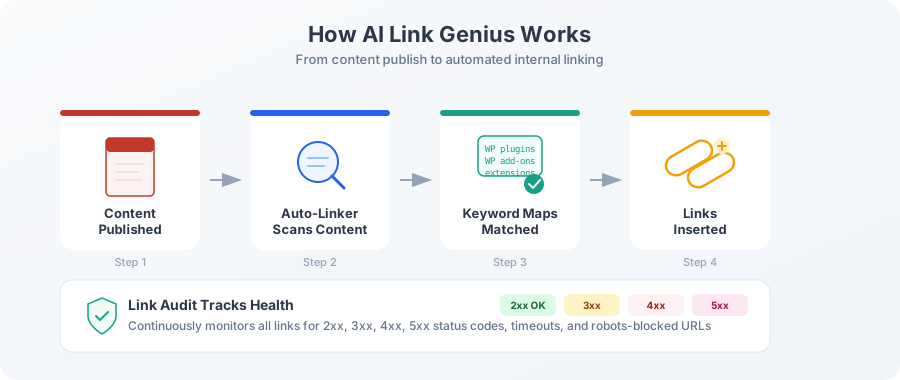
- Link Audit. Crawls every link on your site, checks HTTP status codes, finds broken links, redirects, and bot-blocked URLs.
- Keyword Maps. Lets you define target URLs with keyword variations, then automatically links matching text across your entire site.
- AI Suggestions. Uses TF-IDF similarity scoring plus Content AI to suggest related posts and link opportunities in the editor.
The important distinction: not everything here requires AI credits. The audit, link counter, orphan detection, bulk operations, keyword maps with manual variations, and rollback features all work without spending a single Content AI credit. The AI part is optional. Layered on top.
You already have AI Link Genius. Go to Rank Math > Links in your WordPress dashboard to access it. No extra installation needed.
A Full Tour of the Dashboard
The AI Link Genius dashboard gives you five practical work areas: Overview, Posts, Links, Bulk Update, and Keyword Maps. I am showing the module on a site with 2,253 posts, not a clean demo install with 20 articles.
The Overview Tab
This is your command center. It shows link health at a glance: how many links are working, broken, redirecting, or blocked by robots.txt.
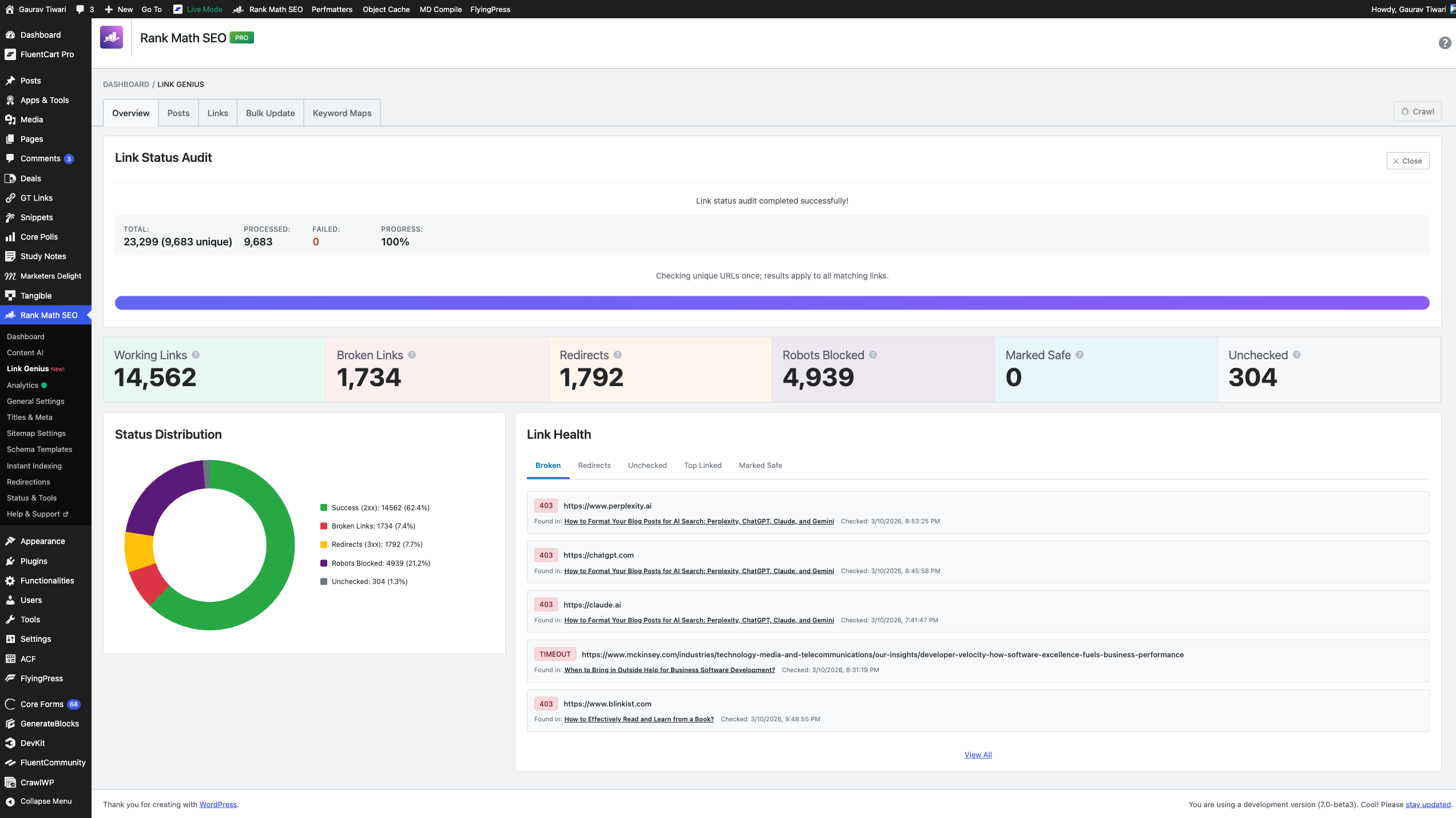
Here’s what my dashboard shows right now:
| Metric | Count |
|---|---|
| Total links tracked | 23,299 (9,683 unique) |
| Working links (2xx) | 14,562 |
| Broken links (4xx,5xx) | 1,734 |
| Redirects (3xx) | 1,792 |
| Robots blocked | 4,939 |
| Unchecked | 304 |
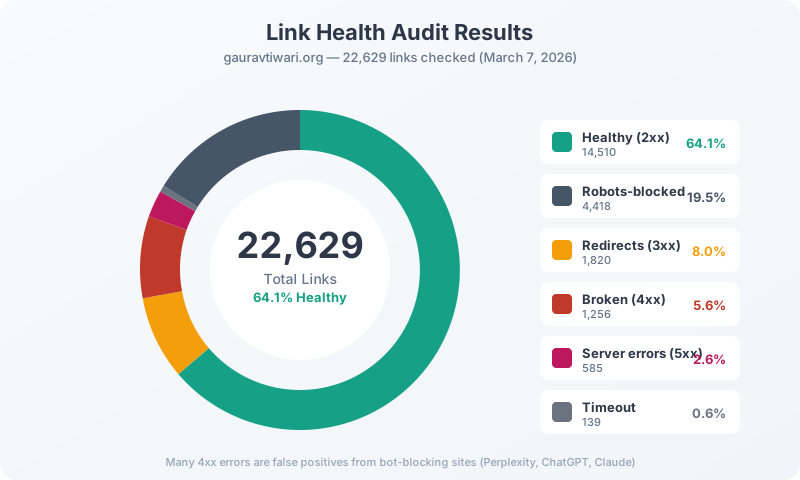
The Status Distribution pie chart breaks this down visually. 62.4% of my links are healthy (green), 7.4% are broken (red), and 21.2% are robots-blocked (purple). That robots-blocked number is high because many external sites block crawlers.
Below that, the Link Health section shows the actual broken links with their HTTP status codes. You can see that Perplexity, ChatGPT, and Claude all return 403 errors, which aren’t actually broken. They just block bots. I’ll show you how to handle these in the tips section.
Hit the Crawl button in the top-right to run a fresh audit. It processes unique URLs and applies results to all matching links, so 23,299 total links only required checking 9,683 unique URLs.
The Posts Tab
This tab is where you see every post on your site with its link profile: internal links out, external links out, incoming internal links, and SEO score.
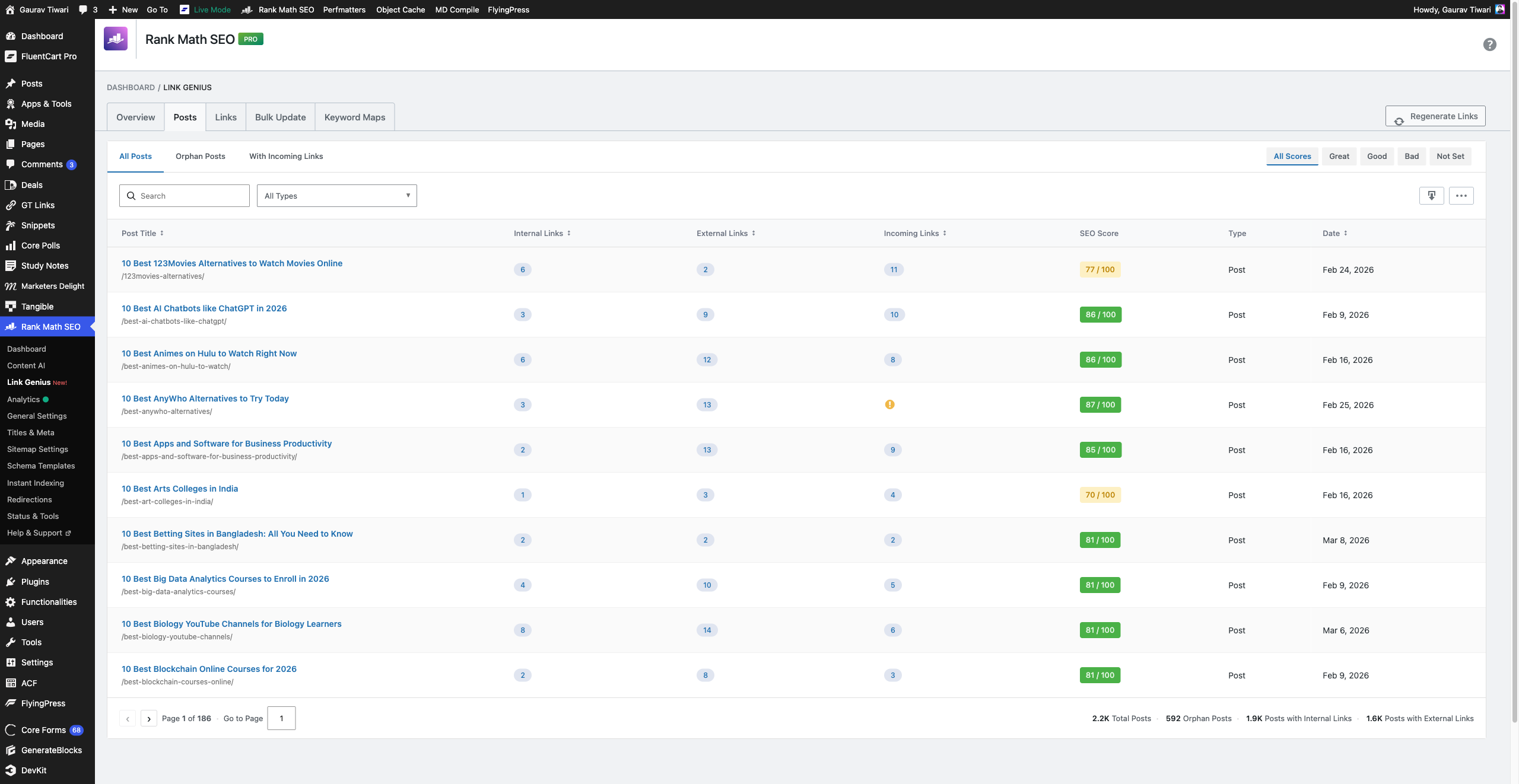
The filters at the top are what make this useful:
- All Posts shows everything with sortable columns.
- Orphan Posts filters to posts with zero incoming internal links. This is the killer feature.
- With Incoming Links shows posts that already have internal links pointing to them.
- SEO Score filters (Great, Good, Bad, Not Set) let you cross-reference link data with SEO health.
You can also filter by Post Type (posts, pages, deals, study notes, tools) and search by title.
The footer shows summary stats: 2.2K total posts, 592 orphan posts, 1.9K posts with internal links, 1.6K posts with external links.
Finding Orphan Posts
Click “Orphan Posts” and you’ll see every post on your site that has zero incoming internal links. These are invisible to search engines because no other page links to them.
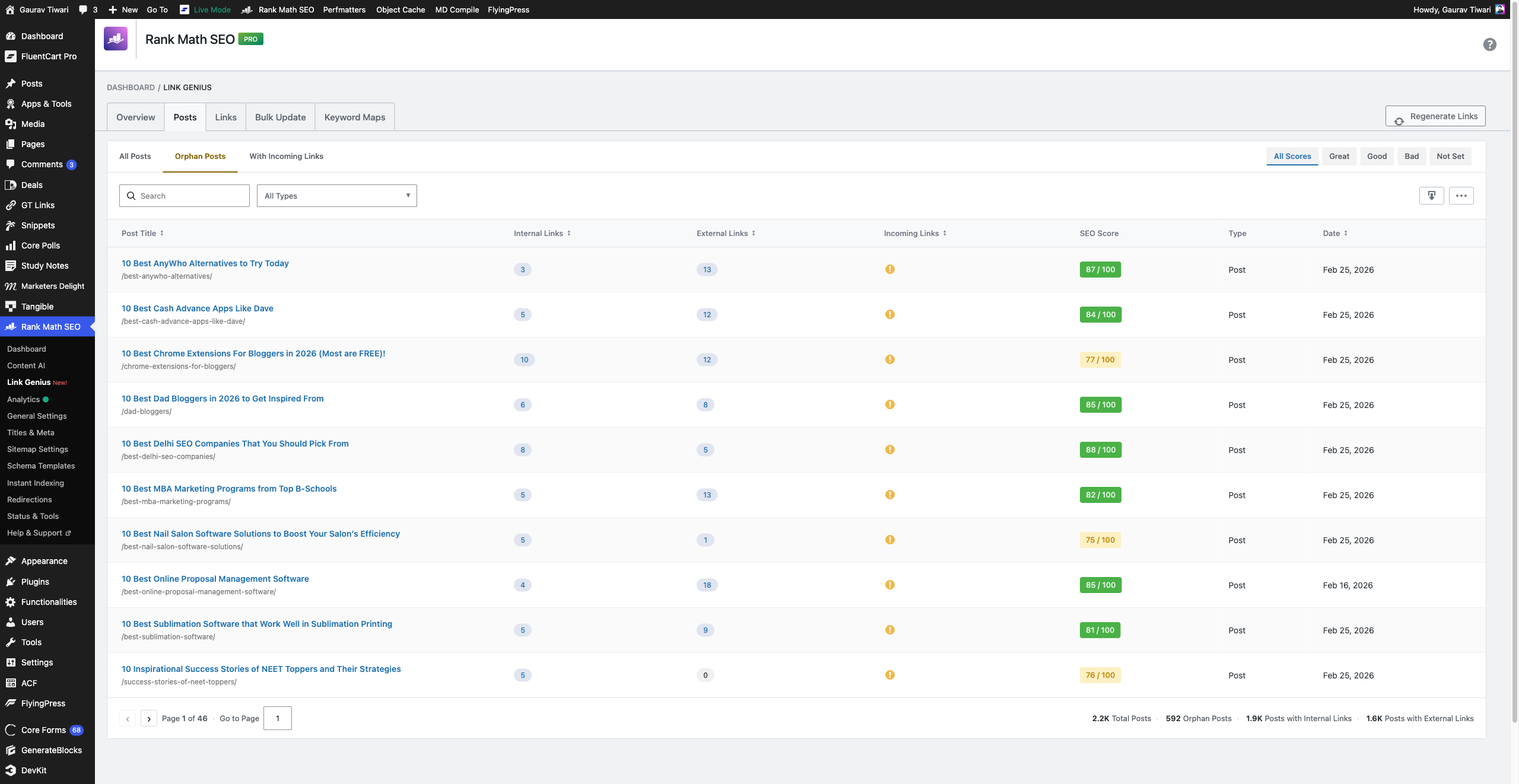
On my site, that’s 592 posts across 46 pages of results. Each one shows a yellow warning icon in the Incoming Links column with the message “This post has no internal links. We recommend that you add links to this URL in other posts of your website.”
This number was 679 a month ago. I ran a separate internal linking automation project and brought it down. AI Link Genius didn’t fix all of them, but it identified them instantly. On a site this size, finding orphan posts manually? Impossible.
The Links Tab
This tab shows every individual link on your site. Source post, destination URL, anchor text, link type (internal/external), nofollow status, and audit status.
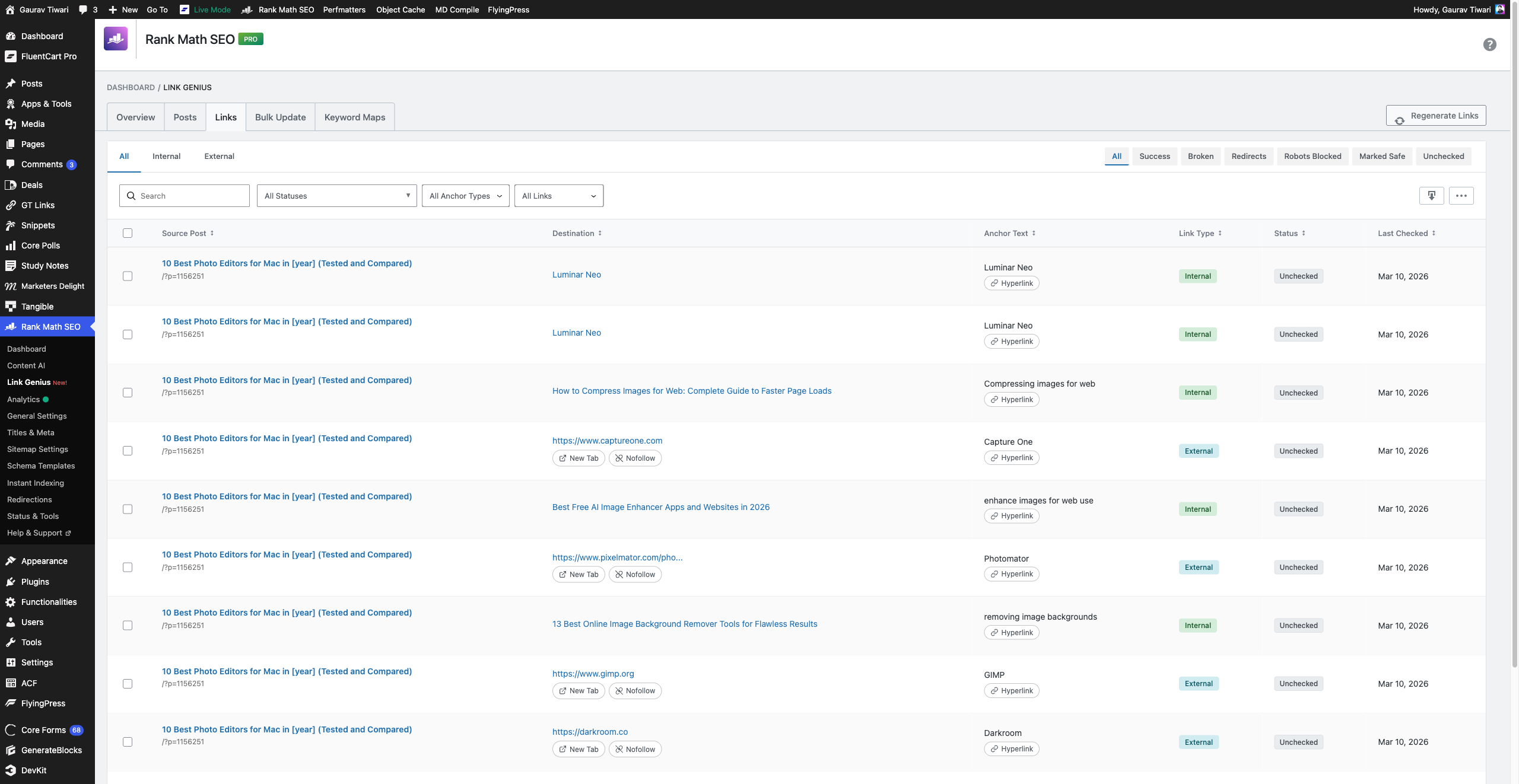
The filters here are powerful:
- Internal vs External toggle
- Status filters: Success, Broken, Redirects, Robots Blocked, Marked Safe, Unchecked
- Status code dropdown for specific HTTP codes
- Anchor Type: Hyperlink or Image
- Nofollow Status: With Nofollow, Without Nofollow
You can select multiple links using the checkboxes for bulk actions. The footer shows: 23.3K total links, 10.6K internal, 12.7K external, 4.1K nofollow.
One thing I noticed: each link row shows a “Remove nofollow” button if the link has nofollow. Handy for fixing accidental nofollows on internal links.
The Bulk Update Tab
This is a 3-step wizard for making bulk changes to links across your site.
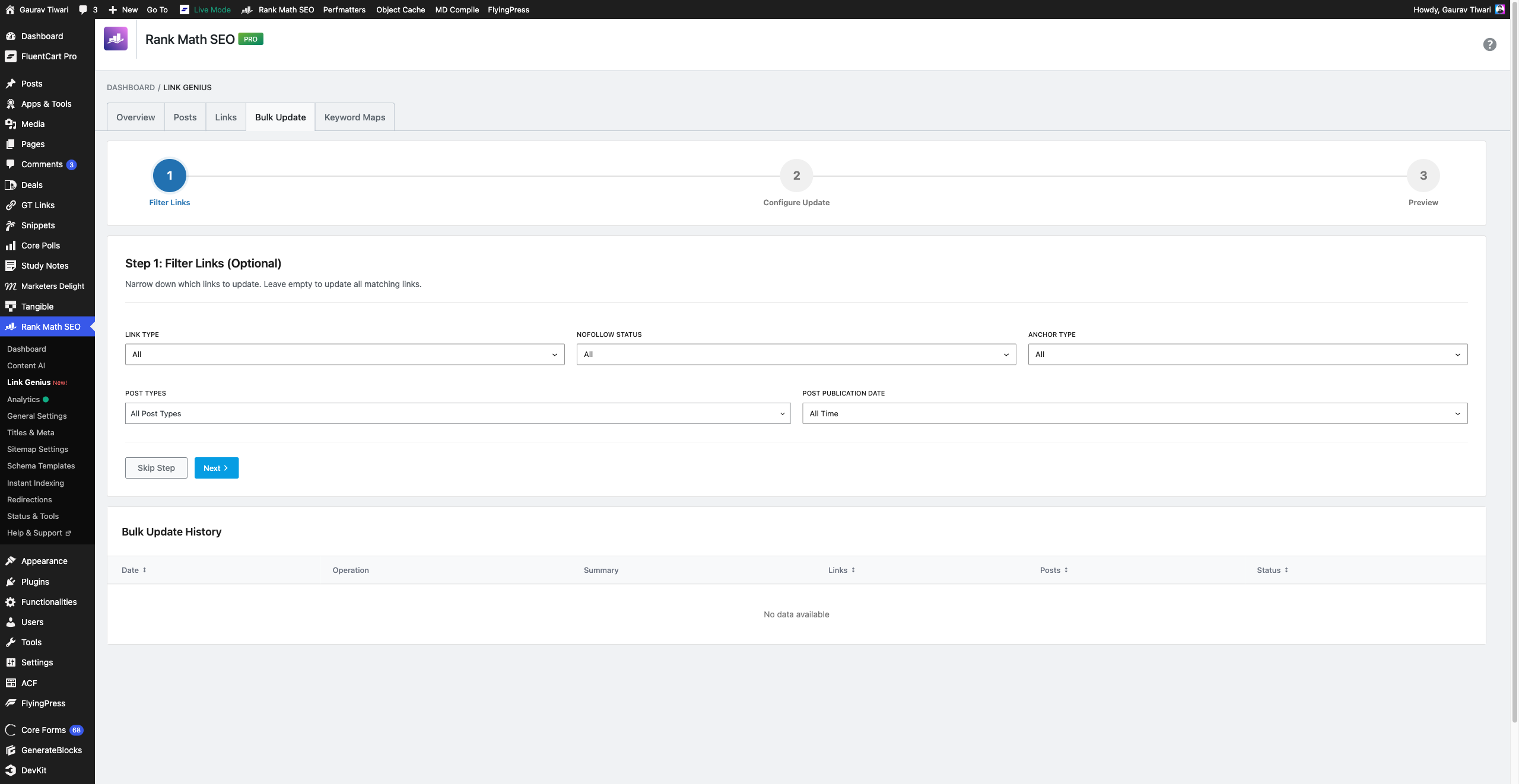
Step 1: Filter Links. Narrow down by link type (internal/external), nofollow status, anchor type, post types, and publication date range. Leave empty to update all matching links.
Step 2: Configure Update. Set what you want to change (add/remove nofollow, change URLs, update anchor text).
Step 3: Preview. See exactly what will change before committing. This is crucial. Never skip the preview.
Below the wizard, a Bulk Update History table tracks every bulk operation you’ve run with date, operation type, summary, link count, post count, and status.
The Keyword Maps Tab
This is the power feature. Keyword maps are reusable rules that automatically link matching text to a target URL.
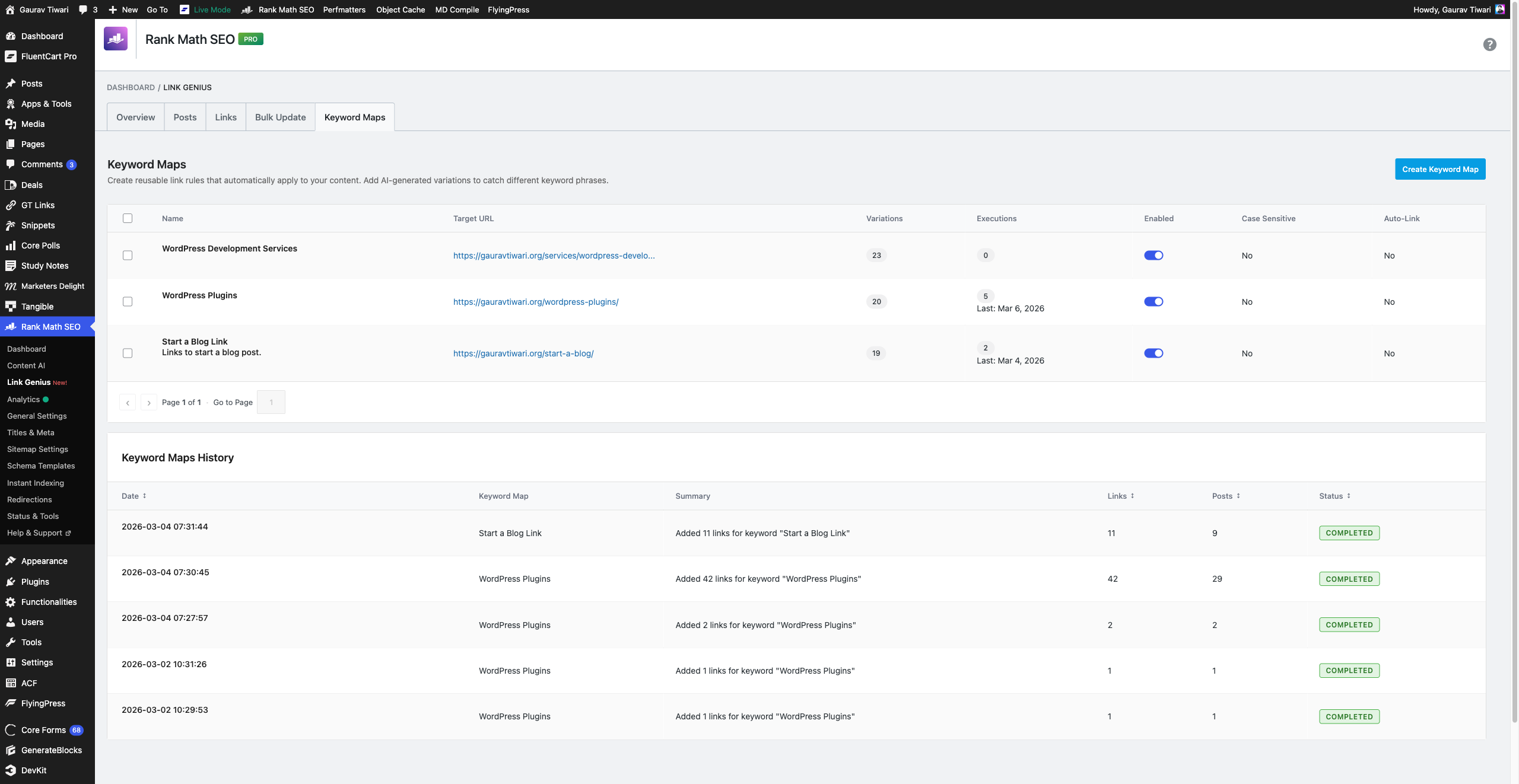
I’m slowly setting up keyword maps and currently have three keyword maps running:
| Map | Target URL | Variations | Executions |
|---|---|---|---|
| WordPress Development Services | https://gatilab.com/services/wordpress/ | 23 | 0 (recently created) |
| WordPress Plugins | /wordpress-plugins/ | 20 | 5 (last: Mar 6, 2026) |
| Start a Blog Link | /start-a-blog/ | 19 | 2 (last: Mar 4, 2026) |
Each map has toggles for Enabled, Case Sensitive, and Auto-Link. Below the maps table, a Keyword Maps History section shows every execution with rollback, export, and delete options.
How to Set Up Your First Keyword Map (Step by Step)
Keyword mapping is the first feature you should configure. It takes 5 minutes and pays dividends every time you publish a new post.
Step 1: Go to Rank Math > Links > Keyword Maps tab. Click the blue “Create Keyword Map” button in the top-right.
Step 2: Give it a name and set your target URL. This should be a page you want to strengthen, like pillar posts, revenue-generating pages, or cornerstone content. For my WordPress Plugins hub page, I used “WordPress Plugins” as the name and https://gauravtiwari.org/wordpress-plugins/ as the target.
Step 3: Configure the settings on the right side:
- Max Links Per Post: I use 3. More than that feels spammy.
- Case Sensitive: Leave off unless you have a specific reason. Off means “wordpress plugins” matches “WordPress Plugins.”
- Auto-Link on Publish: Turn this on. Every new post automatically gets scanned for keyword map matches.
- Enabled: Toggle on to activate the map.
Step 4: Add keyword variations. You have two options:
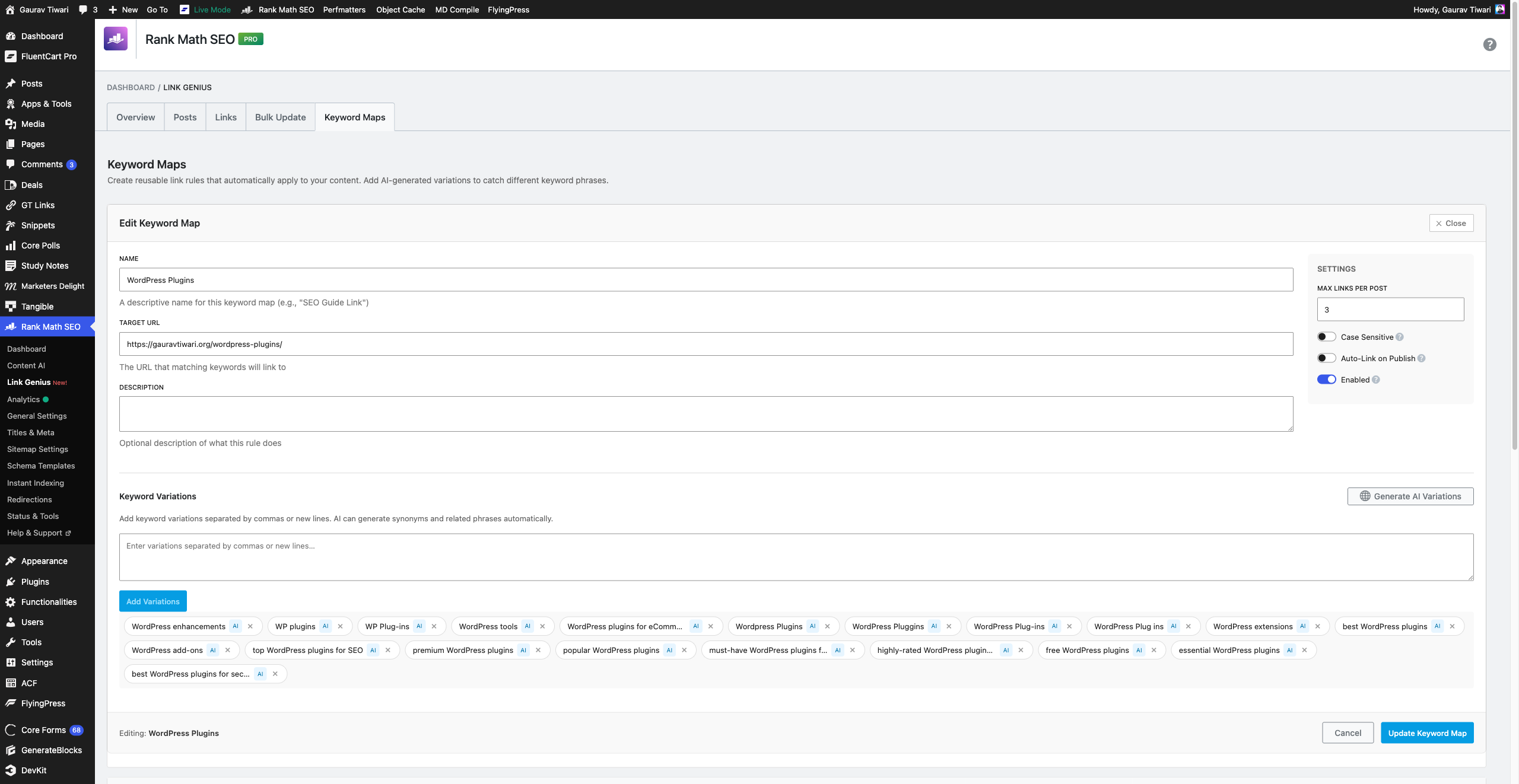
Option A: Generate AI Variations. Click the purple “Generate AI Variations” button. Rank Math’s Content AI generates 15-20 keyword variations automatically. For “WordPress Plugins,” it generated:
- WordPress extensions, WP plugins, WP Plug-ins
- WordPress tools, WordPress enhancements
- WordPress Pluggins (typo catch), WordPress Plugins (lowercase p)
- best WordPress plugins, free WordPress plugins, essential WordPress plugins
- premium WordPress plugins, popular WordPress plugins
- WordPress add-ons, WordPress plugins for eCommerce
- top WordPress plugins for SEO, must-have WordPress plugins for beginners
That typo catch is clever, honestly. If any of your posts contain “WordPress Pluggins” (common in imported or user-generated content), it’ll get linked too. I didn’t expect that level of detail.
Option B: Add Manually. Type variations in the text box separated by commas or new lines, then click “Add Variations.” This costs zero credits and works perfectly fine for most use cases.
Step 5: Click “Update Keyword Map” to save. Your map is now active.
Step 6: Execute it. Go back to the Keyword Maps list, hover over your map, and click “Preview & Execute.” Preview first to see exactly which posts will be modified, what anchor text will be linked, and where in the content the link will be placed.
I previewed my “WordPress Plugins” map before execution and caught three instances where it wanted to link text inside a heading tag. Previewing saved me from bad link placements.
How to Run Your First Link Audit
The link audit crawls every URL on your site and flags broken, redirected, and dead links. Here’s how to run it and what to do with the results.
Step 1: Go to Rank Math > Links > Overview tab. Click the “Crawl” button in the top-right corner.
Step 2: Wait. The crawler runs as a background process. On my site with 9,683 unique URLs, it took about 20 minutes. You’ll see a progress bar with the total, processed, failed, and percentage complete.
Step 3: Once complete, review the Link Health section. It’s organized into tabs:
- Broken: Links returning 4xx/5xx errors or timeouts. Fix or remove these.
- Redirects: Links with 3xx status codes. Update to the final URL where possible.
- Unchecked: Links the crawler couldn’t reach. Run another crawl to retry.
- Top Linked: Your most-linked URLs. Useful for understanding your site structure.
- Marked Safe: Links you’ve manually marked as safe (not actually broken).
Here’s the trick for handling false positives: sites like Perplexity, ChatGPT, Claude, and Instagram return 403 status codes to any bot that checks them. They’re not actually broken. Click into the broken link detail, and use the “Mark Safe” option to clear them from your dashboard.
7 Tips to Get Maximum Value
1. Start with your money pages
Don’t create 50 keyword maps on day one. Start with your top 3-5 revenue-generating URLs. For me, that’s my WordPress Plugins hub and my Start a Blog guide. These are the pages that drive affiliate revenue and organic traffic. Strengthen them first.
2. Fix broken links before building new ones
My audit shows 1,734 broken links. Before I start adding more internal links, I need to clean those up. Broken links waste crawl budget and signal a neglected site to search engines.
Here’s the trick: sort by status category and focus on real 4xx errors first. Many 403s are bot-blocking sites (Perplexity, ChatGPT, Claude, Instagram). Mark those as safe using the “Mark Safe” button. This clears your dashboard without creating false fixes.
3. Turn on auto-link for every keyword map
The auto-linker hooks into WordPress’s save_post action at priority 999. It waits 10 seconds, then asynchronously scans your newly published or updated post for all enabled keyword map variations. Completely non-blocking. Your editor won’t slow down.
Every new post I publish now automatically gets links to my pillar content. Zero manual effort. I tested this by publishing three draft posts in quick succession, and all three had keyword map links applied within 30 seconds.
4. Always preview before bulk-executing on existing content
When you execute a keyword map against existing content, use the Preview feature first. It shows you exactly which posts will be modified, what anchor text will be linked, and where in the content the link will be placed.
I previewed my “WordPress Plugins” map before execution and caught three instances where it wanted to link text inside a heading tag. Previewing saved me from bad link placements. Trust me on this one.
5. Use Content AI selectively
Rank Math’s Content AI limits, trial terms, and sale pricing change often, so I would not build the workflow around a fixed free-credit number. Use whatever free trial or account allowance you have for your most valuable keyword maps first.
My strategy is simple: use AI variation generation for the top 5 to 10 maps, then add variations manually for lower-priority maps. The manual approach takes about 5 minutes per map. The AI approach takes seconds, but the manual approach is easier to budget.
6. Mark articles as Pillar Content for priority treatment
I dug through the plugin code (specifically class-content-similarity.php) and found something interesting. The content similarity engine explicitly prioritizes posts marked as “Pillar Content” in Rank Math when generating link suggestions.
The candidate pool builds in this order: Pillar content first, then taxonomy-related posts, then recently updated content. So if you mark your cornerstone articles as Pillar Content (Rank Math > Post Settings > Advanced > Pillar Content), they’ll appear more frequently in link suggestions across your entire site. I’ve marked my top 15 posts as pillar content and the suggestion quality improved noticeably.
7. Export your link data regularly
The export feature runs as a background process and gives you a full CSV of every link on your site. I export monthly and load it into a spreadsheet to track trends: internal link count over time, orphan count trajectory, broken link resolution rate.
Link Genius doesn’t have built-in historical graphs. But with monthly exports, you can build your own. Not ideal, but it works.
The Costs: An Honest Breakdown
Rank Math AI Link Genius is included in Rank Math PRO. Rank Math’s checkout promotions vary by currency and region. The current recurring PRO price is shown as $107.88 per year before tax. Content AI is separate and optional, so check the live pricing page before buying.
Rank Math PRO: promotional first year, $107.88/year renewal
Rank Math PRO gives you the full AI Link Genius feature set minus optional AI generation:
- Complete link audit with crawler
- Keyword maps with manual variations
- Auto-linking on publish
- Orphan post detection
- Bulk operations with rollback
- Related Posts block in non-AI mode
- Export functionality
- REST API access with 40+ endpoints
- Link health monitoring
For most WordPress sites, this is enough. The non-AI features alone replace a separate broken-link checker and much of what I used Link Whisper for. If you buy a Rank Math plan that includes a Content AI trial, use it for your first few keyword maps, then decide whether the AI layer is worth paying for.
Content AI: optional add-on
Content AI matters only when you want AI-generated keyword variations, AI-refined link suggestions, or AI-refined related posts. Current sale prices I found are Starter $5.99/month, Creator $10.99/month, and Expert $16.99/month, billed annually. These are sale prices, not a permanent promise.
| Plan | Current sale price | Use it for | My take |
|---|---|---|---|
| Starter | $5.99/month | Occasional AI variations | Enough for a small site testing the workflow |
| Creator | $10.99/month | More frequent Content AI work | Better if you already use Content AI for writing and SEO |
| Expert | $16.99/month | High-volume Content AI use | Overkill if you only need keyword-map variations |
Credits or usage allowances do not change the main point: audits, manual keyword maps, keyword map execution, rollback, exports, and the non-AI related posts workflow do not need Content AI. Pay for Content AI only if the AI suggestions save enough manual time to justify the add-on.
AI Link Genius vs the Competition
AI Link Genius is the better default if you already use Rank Math PRO. Link Whisper and LinkBoss can still make sense for specific suggestion workflows, but AI Link Genius wins for my stack because it combines auditing, keyword maps, rollback, related posts, and API access inside the SEO plugin I already use.
| Feature | Rank Math AI Link Genius | Link Whisper | LinkBoss | Internal Link Juicer |
|---|---|---|---|---|
| Link audit/health check | Yes, full crawler | Limited compared with Link Genius | Free audit layer plus paid linking | No full health dashboard |
| AI-powered suggestions | Yes, through Content AI | Yes | Yes, semantic AI | No |
| Keyword maps/rules | Yes, auto-link on publish | No true keyword-map system | Yes, rule/credit-based workflow | Yes, manual keywords |
| Orphan post detection | Yes | Yes | Yes | Limited |
| Bulk operations + rollback | Yes, with snapshots | Basic bulk workflows | Yes | Limited |
| Related Posts block | Yes, TF-IDF plus optional AI | No | No | No |
| REST API | Yes, 40+ endpoints | No | No public WordPress REST workflow | No |
| Broken link detection | Yes, 3xx, 4xx, 5xx, timeout, robots-blocked | Not the core strength | Audit available | No |
| Separate plugin or SaaS needed | No, part of Rank Math PRO | Yes, separate plugin | Yes, SaaS plus plugin | Yes |
| Starting price | Promotional first year; $107.88/year renewal before tax | $97/year for one site | Free audit layer, paid credits/plans | Free / paid Pro plan |
My recommendation: if you already use Rank Math PRO, AI Link Genius probably makes Link Whisper redundant. You get an internal-link audit, keyword maps, a broken-link workflow, rollback, and related posts without adding another WordPress plugin. My full Rank Math review explains why I use Rank Math as the base SEO plugin.
The only scenario where Link Whisper or LinkBoss makes sense alongside Rank Math is if you prefer their suggestion algorithm or need a dedicated SaaS workflow. Link Whisper has improved its LLM-based suggestions. LinkBoss is stronger on semantic linking and silo workflows. But neither gives me the same mix of Rank Math integration, REST API access, keyword maps, link auditing, and rollback in one WordPress dashboard.
What I Don’t Like
The biggest AI Link Genius drawbacks are not deal-breakers for me, but they matter. Most come from scale: when a tool can edit links across thousands of posts, small missing controls become serious workflow risks.
1. False positives in the link audit
Sites that block bots (Perplexity, ChatGPT, Claude, Instagram) show up as 403 errors. There’s no way to auto-exclude specific domains from the audit. You have to manually mark each one as safe. On a site with thousands of external links, this gets tedious fast.
2. Content AI usage is hard to budget
I still want clearer per-operation usage reporting. If a keyword variation run, AI-refined suggestion, or related-post refinement uses an allowance from Content AI, I want the dashboard to show the cost before and after the action. Without that, budgeting the add-on is guesswork.
3. No WP-CLI integration
Rank Math only exposes wp rankmath sitemap via WP-CLI. You can’t trigger link audits, regenerate links, or manage keyword maps from the command line. For developers who automate everything, this is a gap. The REST API compensates somewhat, but CLI commands would be faster.
4. Keyword maps are global
You can’t scope a keyword map to a specific category, post type, or date range. If I create a map for “WordPress Plugins,” it applies to every post on the site. Including study notes, tools, and pages where that link doesn’t make sense.
This is my biggest frustration. I’d want post type and category filters on keyword maps.
5. No simple scheduled audit report
Rank Math now talks about automatic audits on link changes, which is useful. What I still want is a simple weekly scheduled report with an email summary: new broken links, new redirects, orphan-count movement, and the top pages that need attention.
6. Database overhead on large sites
AI Link Genius creates five custom database tables. On my site, the audit table alone has 23,471 rows. On shared hosting with limited database resources, this could cause performance issues.
wp_rank_math_link_genius_audit 23,471 rows
wp_rank_math_link_genius_history 5 rows
wp_rank_math_link_genius_map_variations 62 rows
wp_rank_math_link_genius_maps 3 rows
wp_rank_math_link_genius_snapshots 42 rowsIf you’re on shared hosting with limited database resources, the audit and snapshot tables can grow large on sites with 1,000+ posts. Consider a VPS before enabling AI Link Genius on a large site.
Frequently Asked Questions
Rank Math AI Link Genius

Pros
- Included with Rank Math PRO
- Strong orphan-post and broken-link audit
- Keyword maps with snapshots and rollback
- Developer-friendly REST API
Cons
- Keyword maps lack granular scope controls
- Some bot-blocked URLs look broken
- AI features need separate Content AI usage
- More tool than a small site needs
Summary
AI Link Genius is a practical internal-linking system for large WordPress sites already using Rank Math PRO. On this site it audited 23,299 links and found 592 orphan posts. Audits, keyword maps, bulk updates, rollback, related posts, and API access are the real value. Global keyword-map scope, false-positive 403s, and separate Content AI usage are the main limits.
Price: USD 107.88 /year at renewal before tax
Get Rank Math PRODoes AI Link Genius work with the free version of Rank Math?
Partially. The Link Counter module works with free Rank Math, so you can see incoming and outgoing link counts. The full Rank Math AI Link Genius workflow, including audits, keyword maps, bulk operations, orphan post detection, rollback, and AI suggestions, requires Rank Math PRO.
Is Rank Math AI Link Genius worth it?
Rank Math AI Link Genius is worth it if you already use Rank Math PRO and manage a content-heavy WordPress site. It is less compelling for a 20-post site, where manual internal linking is still manageable and a full audit dashboard may be more tool than you need.
How much does Rank Math AI Link Genius cost?
AI Link Genius is included in Rank Math PRO. Rank Math’s checkout promotions vary by currency and region. The current recurring PRO price is shown as $107.88 per year before tax. Content AI is separate and optional, so always check the live pricing page before buying.
Do I need Content AI for keyword maps?
No. You can create keyword maps, add manual variations, execute maps, export data, and roll back changes without Content AI. Content AI is only needed when you want AI-generated keyword variations, AI-refined link suggestions, or AI-refined related posts.
Can I use keyword maps without Content AI credits?
Yes. Manual keyword variations work fine and cost nothing beyond Rank Math PRO. For smaller sites, I prefer manual variations because they are predictable. Use AI-generated variations only for your most important maps, where the time savings justify the add-on.
Does AI Link Genius slow down my site?
AI Link Genius should not slow down the public frontend because link audits and auto-linking run in the background. The larger concern is wp-admin and database overhead on big sites. On my 2,253-post site, the audit table alone had more than 23,000 rows.
Can I roll back AI Link Genius changes?
Yes. Bulk operations and keyword map executions create snapshots before changing content. You can roll back a batch from the Keyword Maps history area. This is the safety feature that makes large-scale internal linking experiments practical.
Does AI Link Genius work with custom post types?
Yes. AI Link Genius works with post types registered with Rank Math. On my site, it tracks posts, pages, deals, snippets, study notes, and tools. The drawback is scope control: keyword maps can apply too broadly when you cannot filter by post type or category.
How does the Related Posts feature compare to dedicated plugins?
Rank Math Related Posts uses TF-IDF and optional AI refinement. It is useful if you already run Rank Math PRO because you can avoid another related-posts plugin. Dedicated plugins may still offer more design controls, but they add another plugin to maintain.
My Final Verdict on Rank Math AI Link Genius
After testing Link Whisper, LinkBoss, Internal Link Juicer, and several smaller internal-linking plugins, my recommendation is simple: use Rank Math AI Link Genius first if you already run Rank Math PRO and publish enough content for internal linking to become a real maintenance problem.
Link Whisper now starts at $97/year for one site and focuses mainly on suggestions. LinkBoss has a stronger semantic and credit-based workflow, plus a free audit layer, but it is still a separate SaaS workflow. AI Link Genius gives me link auditing, keyword maps, AI variations, orphan detection, bulk operations with rollback, related posts, REST API endpoints, broken-link detection, and auto-linking on publish inside WordPress.
All of that is included in Rank Math PRO, whose first-year promotions vary by region and whose current renewal is $107.88 per year before tax. That is why I would not buy a separate internal-linking plugin first unless I had a very specific reason to prefer its suggestion algorithm.
Here is my recommended setup order if you are starting today:
- Enable Link Counter in Rank Math > Dashboard
- Run the link audit and fix genuine broken links first
- Mark bot-blocked 403s safe when the destination is not actually broken
- Identify orphan posts in the Posts tab
- Create 2 to 3 keyword maps for your most important pages
- Use Content AI variations only on top maps, then add lower-priority variations manually
- Preview and execute keyword maps against existing content
- Add the Related Posts block where it improves the template
You do not need Content AI for most of this. The audit, manual keyword maps, rollback, export, and non-AI related posts workflow already solve the heavy problem.
The one thing I would change first is scoped keyword maps. Linking “WordPress Plugins” inside a study note about mathematics does not make sense. Until Rank Math adds category, post type, and date filters, I preview every execution before applying it. That missing control is what stops AI Link Genius from being a set-and-forget internal linking tool.
For a deeper look at internal linking strategy beyond the tool itself, check out my guides on internal linking for WordPress and how to fix orphan pages. And if you’re optimizing for AI search engines alongside Google, my GEO vs SEO playbook covers how proper internal linking affects both channels. Also worth reading: the best WordPress SEO plugins roundup if you’re still deciding on your SEO stack.
Tell Google you want more of this.
Add Gaurav Tiwari as a preferred sourceOne tap, and this site shows up more often in your own Top Stories, AI Overviews and AI Mode. Remove it any time.
Disclaimer: This site is reader-supported. If you buy through some links, I may earn a small commission at no extra cost to you. I only recommend tools I trust and would use myself. Your support helps keep gauravtiwari.org free and focused on real-world advice. Thanks. - Gaurav Tiwari