
 by
by
FlyingPress is the WordPress speed optimization plugin I run on this site. It ships with settings that work for most sites — on the UX side, it has the fewest settings possible. But beneath that simple settings paradigm, there exists an endless possibility of customizations using PHP filters, manual exceptions and whatnot.
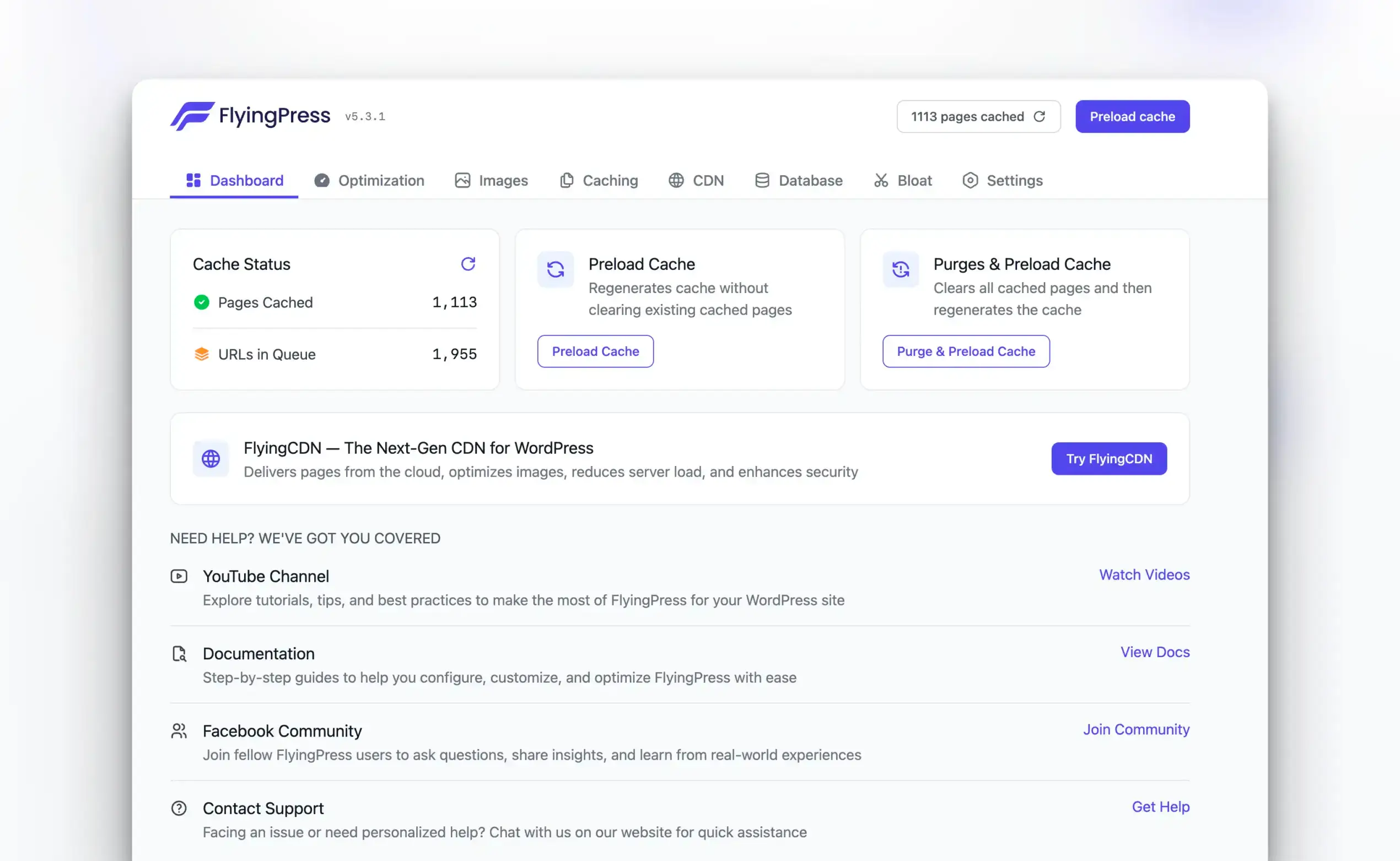
The plugin documentation has around 30 hooks and filters. These let you control exactly how FlyingPress handles your cache, optimizes your assets, purges outdated content, and pushes your WordPress Core Web Vitals scores into the green. You don’t need to be a PHP wizard to use them. Copy, paste, tweak a few values, and you’re done.
I’ll share every filter I have used in production, my exact settings from Gaurav Tiwari, and the code snippets running on my own and client sites right now. This isn’t theory. This is what powers sites serving 100K+ of pageviews daily.
I’ve tested every serious caching plugin I could get my hands on. FlyingPress wins because its filters let you shape caching around your actual setup instead of a vendor’s idea of a generic site. Nothing here is theoretical. This is the configuration running on my own sites. Copy what fits, drop what doesn’t.
My FlyingPress Settings (The Actual Config)
Before we get to filters, here’s the FlyingPress configuration I run on Gaurav Tiwari — the FlyingPress best-settings combination I’ve arrived at after iterating for years. I’ll explain the reasoning behind each choice. If you are not a FlyingPress customer yet, go get it. It’s better than WP Rocket, tbh. Read my full FlyingPress review here.
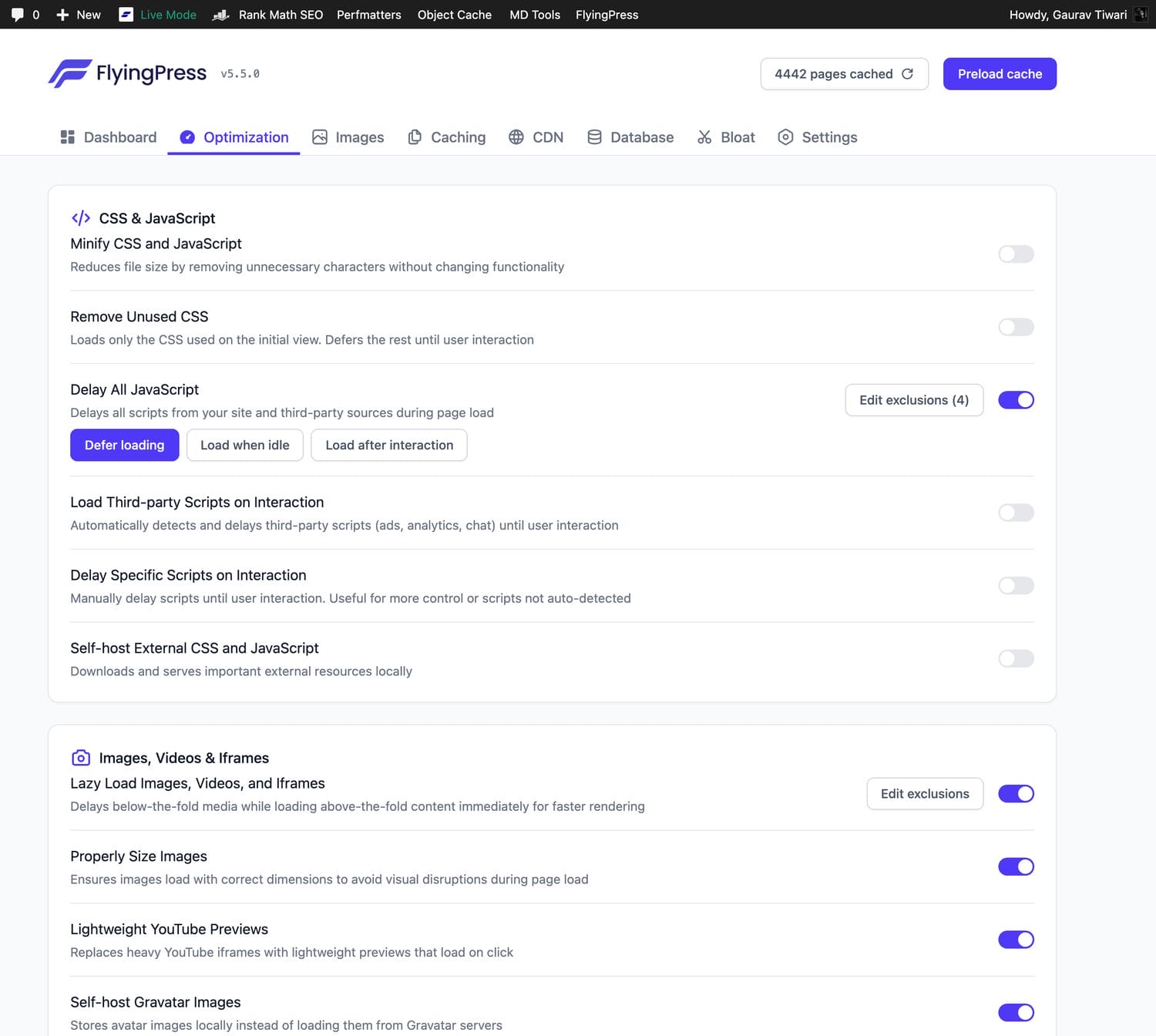
CSS & JavaScript
| Setting | Value | Why | Recommended for You |
|---|---|---|---|
| Minify CSS/JS | ✅ Enabled | Basic optimization. No reason to skip this. | Enable |
| Remove Unused CSS | ❌ Disabled | I actively develop my theme (Marketers Delight) with proper optimizations built in. RUCSS adds complexity I don’t need. On client sites where I don’t control the theme, I enable this. | Enable |
| Delay JavaScript | ✅ Enabled (Defer) | Defer is safer than delay-all. Scripts load after HTML parsing without blocking render. | Enable (Defer) |
| JS Delay Exclusions | jquery.js, jquery.min.js, stats script, scripts.js | jQuery breaks everything if delayed. My analytics script needs to run immediately for accurate data. | Same as mine |
| Delay Third-Party JS | ❌ Disabled | Too aggressive. Breaks payment forms, chat widgets, and tracking pixels. | Same as mine |
| Self-Host Third-Party | ❌ Disabled | I handle this manually with specific filters for better control. | Enable |
The RUCSS decision: On Gaurav Tiwari, I know exactly what CSS loads and why. Every style serves a purpose. Remove Unused CSS would just add processing overhead. On client sites running themes like Astra, Blocksy and plugins like Elementor, starter templates etc. with bloated CSS, RUCSS cuts 200-400KB easily. Context matters.
Images & Media
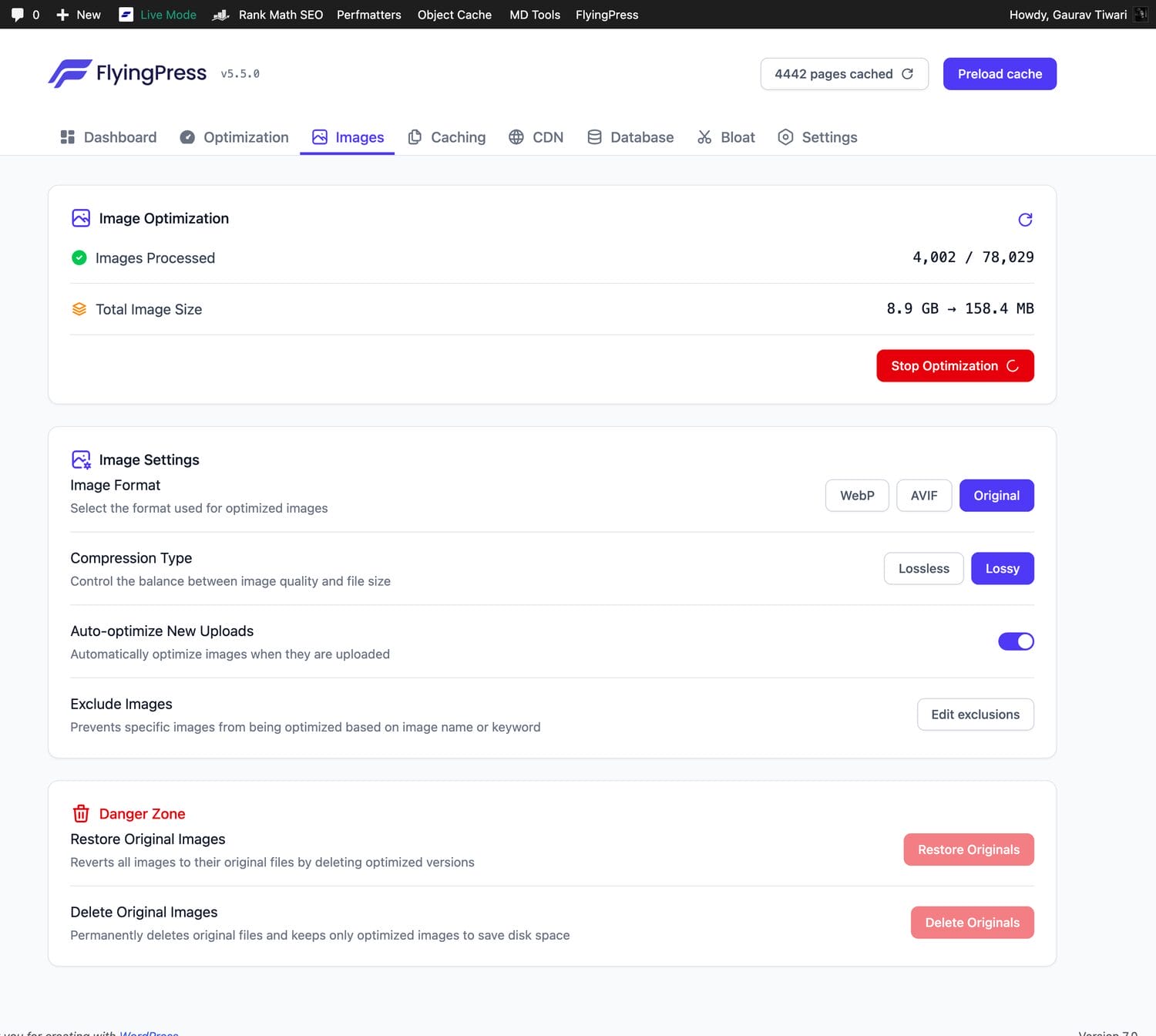
| Setting | Value | Why |
|---|---|---|
| Lazy Load | ✅ Enabled | Standard practice. No above-fold images get lazy loaded anyway. |
| Properly Size Images | ✅ Enabled | Serves appropriately sized images based on viewport. Free Core Web Vitals win. |
| YouTube Placeholder | ✅ Enabled | YouTube embeds add 1-2MB of resources. Placeholder loads a 20KB image instead until clicked. |
| Self-Host Gravatars | ✅ Enabled | Gravatar requests are slow. Self-hosting eliminates external DNS lookup. |
| Image Compression | Lossless | I pre-optimize images before upload. Lossless preserves quality while stripping metadata. |
| Image Format | Original | I upload WebP manually. Automatic conversion sometimes causes issues with transparent PNGs. |
| Auto-Optimize Uploads | ✅ Enabled | Catches images I forget to optimize before upload. |
Fonts
| Setting | Value | Why | Recommended for You |
|---|---|---|---|
| Preload Fonts | ❌ Disabled | I preload critical fonts manually in my theme for precise control. | Enable |
| Optimize Google Fonts | ❌ Disabled | I self-host all fonts. No Google Fonts on my site. | Enable |
| Font Display Swap | ❌ Disabled | Already set in my font-face declarations. | Enable |
Self-hosting fonts is non-negotiable. Google Fonts means:
- DNS lookup to fonts.googleapis.com
- Connection to fonts.gstatic.com
- Potential GDPR issues in EU
- No control over caching headers
I download the fonts, subset them to characters I actually use, and serve them from my own domain. 400KB font files become 40KB. That’s a different article, but trust me on this one.
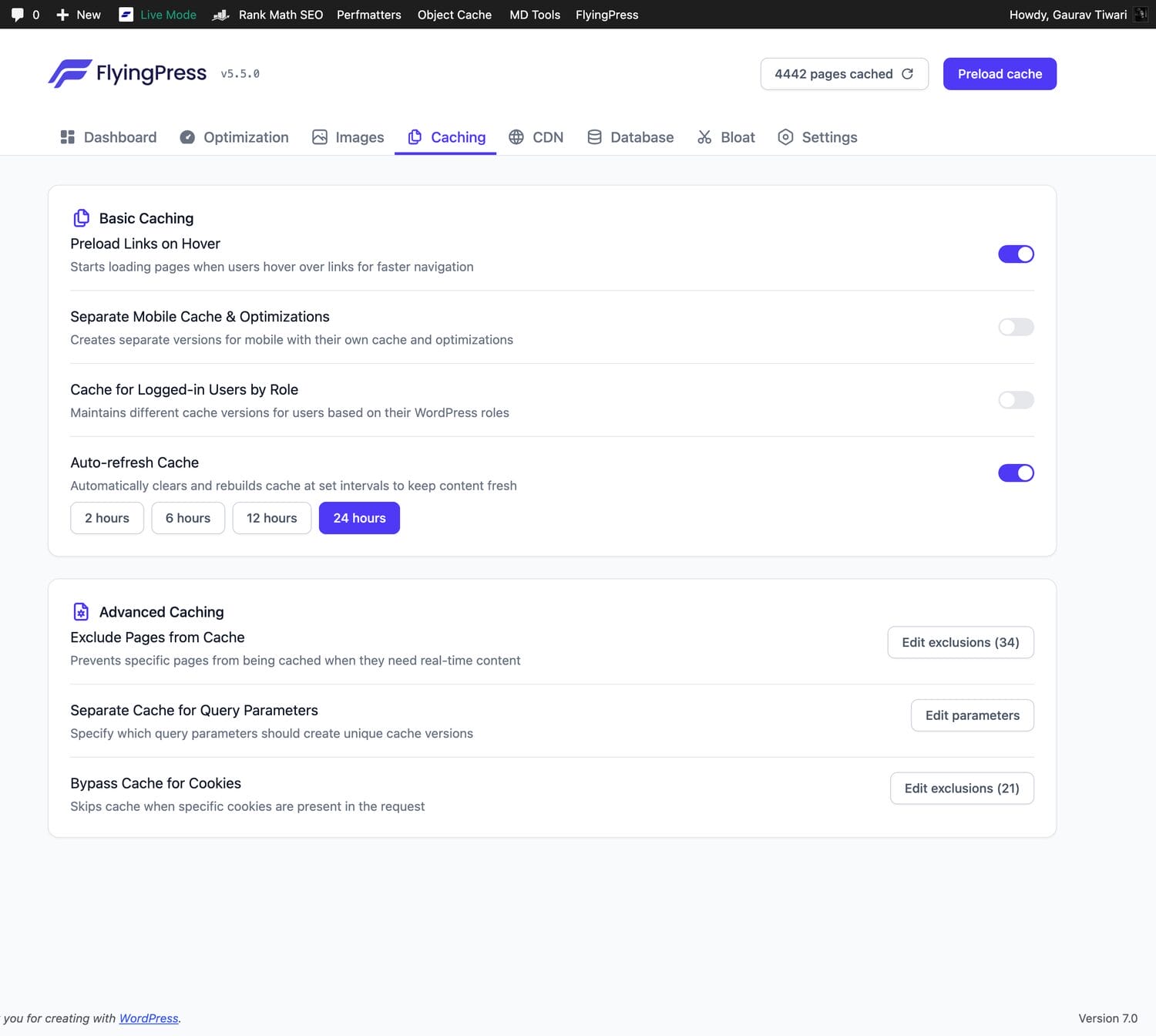
Caching
| Setting | Value | Why |
|---|---|---|
| Link Prefetch | ✅ Enabled | Preloads pages when users hover over links. Makes navigation feel instant. |
| Mobile Cache | ❌ Disabled | My site is responsive. Same HTML works for all devices. Separate mobile cache just fragments storage. |
| Logged-in Cache | ❌ Disabled | Logged-in users see personalized content. Caching would show wrong data. |
| Cache Refresh | ✅ Daily | Automatically rebuilds cache every 24 hours. Keeps content fresh without manual purging. |
| Bypass URLs | /go/, sjv.io | Affiliate redirect URLs should never be cached. They need to track clicks in real-time. |
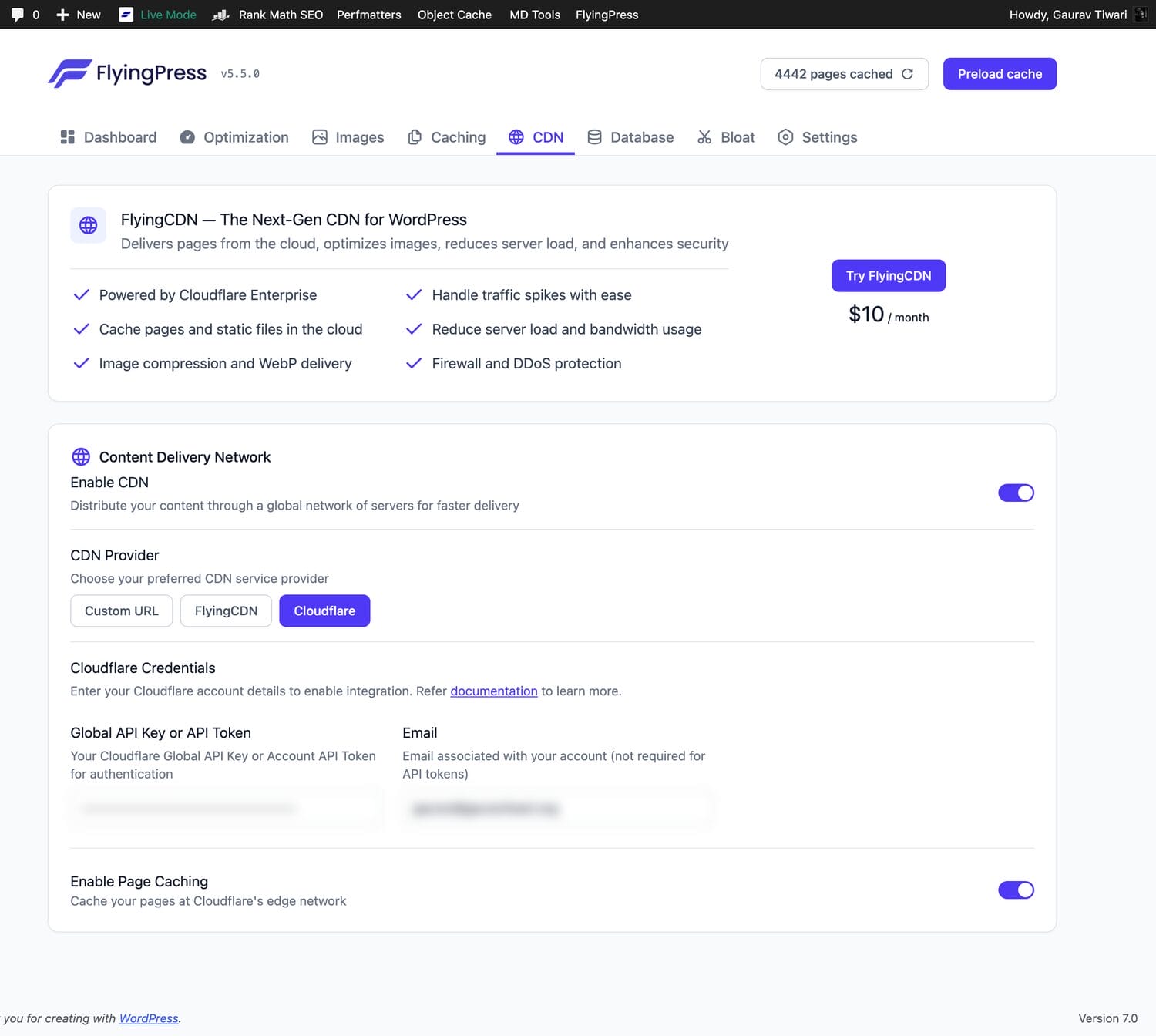
CDN & Cloudflare
| Setting | Value | Why |
|---|---|---|
| CDN | ✅ Enabled | No reason to skip this. |
| CDN Type | Cloudflare | I use Cloudflare for DNS, SSL, and edge caching. FlyingPress integrates natively. |
| CDN File Types | All | CSS, JS, images, fonts. Everything goes through Cloudflare. |
Bloat Removal
| Setting | Value | Why |
|---|---|---|
| Disable Block CSS | ❌ Disabled | I use Gutenberg blocks. Need the styles. |
| Disable Dashicons | ✅ Enabled | Only needed in admin. Frontend doesn’t use them. |
| Disable Emojis | ✅ Enabled | Removes wp-emoji-release.min.js. I use actual emoji characters, not WordPress’s script. |
| Disable jQuery Migrate | ✅ Enabled | Compatibility layer for old jQuery code. My site doesn’t need it. |
| Disable XML-RPC | ✅ Enabled | Security risk. I don’t use apps that need XML-RPC. |
| Disable RSS Feed | ❌ Disabled | People actually subscribe to my RSS feed. Don’t break this. |
| Disable oEmbeds | ❌ Disabled | I embed tweets and YouTube videos. Need oEmbed functionality. |
Why FlyingPress Filters Matter
The settings panel gets you 80% there. Filters get the remaining 20% that separates “fast enough” from “consistently under 400ms.”
Here’s what filters solve that settings can’t:
- UTM parameters fragmenting cache into chaos
- Cloudflare APO purge conflicts
- Translation plugins creating weird cache paths
- Custom auto-purge rules for related content
- Post-optimization HTML modifications
The Complete FlyingPress Hooks Reference
I’ve organized these by function, not by where they appear in the code. Each section includes the filter name, what it controls, when you’d use it, and working code you can copy.
Cache Purging Hooks
These fire when FlyingPress clears cached pages. Use them to sync external CDNs, log cache events, or trigger custom cleanup.
flying_press_purge_urls:before and flying_press_purge_urls:after
Fires before and after purging multiple URLs. The $urls parameter contains an array of URLs being cleared.
add_action('flying_press_purge_urls:after', function($urls) {
    // Notify Cloudflare or another edge cache
    foreach ($urls as $url) {
        wp_remote_post('https://your-webhook.com/purge', [
            'body' => ['url' => $url],
            'blocking' => false
        ]);
    }
}, 10, 1);
I use this to sync FlyingPress purges with external systems. When a post updates, both caches clear simultaneously. No stale content.
flying_press_purge_url:before and flying_press_purge_url:after
Same concept, but for single URL purges. Useful when you need per-URL logic.
flying_press_purge_pages:before and flying_press_purge_pages:after
Fires when clearing all HTML pages (not static assets). Good for pausing non-essential operations during full purges.
flying_press_purge_everything:before and flying_press_purge_everything:after
The nuclear option. These fire when you purge absolutely everything, including static asset cache. I use the :after hook to trigger full cache warming:
add_action('flying_press_purge_everything:after', function() {
    // Schedule cache warming after full purge
    wp_schedule_single_event(time() + 60, 'custom_warm_cache');
});
Cache Configuration Filters
These control how FlyingPress generates and stores cache files. Critical for multilingual sites, membership sites, and anything with user-specific content.
flying_press_ignore_queries
This filter prevents UTM parameters and tracking codes from fragmenting your cache. By default, FlyingPress ignores common ones (gclid, fbclid, utm_source, etc.), but your marketing team probably uses custom ones.
add_filter('flying_press_ignore_queries', function($queries) {
    return array_merge($queries, [
        'ref',
        'campaign_id',
        'mc_cid',
        'mc_eid',
        'mkt_tok',
        'trk',
        'affiliate',
        '_hsenc',
        '_hsmi',
        'hsa_acc',
        'vgo_ee',
        'wickedid'
    ]);
});
Without this, yoursite.com/?ref=twitter and yoursite.com/?ref=facebook create separate cache files. That’s cache fragmentation. Your server rebuilds pages for no reason.
flying_press_cache_include_cookies
Creates separate cache variants based on cookie values. Useful for A/B testing or user preference cookies.
add_filter('flying_press_cache_include_cookies', function($cookies) {
    return ['ab_test_variant', 'currency_preference'];
});
Now visitors with ab_test_variant=a see one cached version, while ab_test_variant=b see another. No dynamic page generation required.
flying_press_cache_file_path
Modify cache directory structure. Translation plugins like WPML sometimes need this:
add_filter('flying_press_cache_file_path', function($path) {
    // Ensure language prefix is included in cache path
    $lang = apply_filters('wpml_current_language', 'en');
    return $lang . '/' . ltrim($path, '/');
});
flying_press_cache_file_name
Final control over cache filename. Add prefixes, versions, or custom identifiers:
add_filter('flying_press_cache_file_name', function($filename) {
    return 'v2_' . $filename;
});
flying_press_request_uri
Intercepts the request URI before cache path generation. WPML and Polylang integrations often need this to translate URLs correctly:
add_filter('flying_press_request_uri', function($uri) {
    // Strip language directory for cache consistency
    return preg_replace('#^/(en|de|fr)/#', '/', $uri);
});
flying_press_cache_excluded_roles
Skip caching for specific user roles. Editors and admins are excluded by default, but you might need to exclude custom roles:
add_filter('flying_press_cache_excluded_roles', function($roles) {
    return ['subscriber', 'customer', 'premium_member'];
});
flying_press_is_cacheable
The final gate. Return false to prevent caching based on custom logic:
add_filter('flying_press_is_cacheable', function($cacheable) {
    // Don't cache WooCommerce cart or checkout
    if (function_exists('is_cart') && is_cart()) {
        return false;
    }
    if (function_exists('is_checkout') && is_checkout()) {
        return false;
    }

    // Don't cache pages with specific shortcodes
    global $post;
    if ($post && has_shortcode($post->post_content, 'user_dashboard')) {
        return false;
    }

    return $cacheable;
});
flying_press_footprint
Customize or remove the HTML comment FlyingPress adds to cached pages:
add_filter('flying_press_footprint', function($footprint) {
    // Remove footprint entirely
    return '';
});
I remove the footprint on client sites. No need to advertise which caching plugin you use.
Auto Purge Control
flying_press_auto_purge_urls
When a post updates, FlyingPress purges related URLs automatically. This filter lets you add more:
add_filter('flying_press_auto_purge_urls', function($urls, $post_id) {
    // Get the post's categories
    $categories = wp_get_post_categories($post_id);

    foreach ($categories as $cat_id) {
        $urls[] = get_category_link($cat_id);
    }

    // Add sitemaps
    $urls[] = home_url('/sitemap_index.xml');
    $urls[] = home_url('/sitemap.xml');

    // Add custom related pages
    $urls[] = home_url('/blog/');

    return $urls;
}, 10, 2);
This ensures your category archives and sitemap update when you publish or edit posts. No stale “recent posts” lists.
Preloading Configuration
flying_press_preload_urls
Control which URLs get preloaded (cache warmed):
add_filter('flying_press_preload_urls', function($urls) {
    // Add high-priority pages first
    $priority_pages = [
        home_url('/'),
        home_url('/pricing/'),
        home_url('/features/'),
        home_url('/blog/')
    ];

    return array_merge($priority_pages, $urls);
});
flying_press_preload_delay
Throttle preload requests. The default is 0.5 seconds between requests. On shared hosting, slow it down:
add_filter('flying_press_preload_delay', function($delay) {
    return 1.0; // 1 second between requests
});
On a fast dedicated server, speed it up:
add_filter('flying_press_preload_delay', function($delay) {
    return 0.2; // 200ms between requests
});
Asset Optimization Filters
flying_press_exclude_from_minify:js
Some JavaScript breaks when minified. Exclude problematic scripts:
add_filter('flying_press_exclude_from_minify:js', function($exclude) {
    return array_merge($exclude, [
        'jquery.min.js',
        'recaptcha',
        'gtag',
        'fbevents.js',
        'hotjar',
        'clarity'
    ]);
});
Match by partial filename or URL. If recaptcha appears anywhere in the script URL, it won’t be minified.
flying_press_exclude_from_minify:css
Same for CSS files:
add_filter('flying_press_exclude_from_minify:css', function($exclude) {
    return array_merge($exclude, [
        'font-awesome',
        'dashicons',
        'admin-bar'
    ]);
});
flying_press_optimization:after
The most powerful filter. Runs after all optimizations, giving you final control over the HTML output:
add_filter('flying_press_optimization:after', function($html) {
    // Minify all inline CSS
    $html = preg_replace_callback(
        '/<styleb([^>]*)>(.*?)</style>/is',
        function($matches) {
            $attributes = $matches[1];
            $css = $matches[2];

            // Skip if already minified (single line)
            if (strpos($css, "n") === false) {
                return $matches[0];
            }

            // Remove comments
            $css = preg_replace('!/*[^*]**+([^/][^*]**+)*/!', '', $css);
            // Collapse whitespace
            $css = preg_replace('/s+/', ' ', $css);
            // Remove spaces around selectors
            $css = preg_replace('/s*([:;{},>~+])s*/', '$1', $css);
            // Remove trailing semicolons
            $css = preg_replace('/;}/', '}', $css);

            return "<style{$attributes}>" . trim($css) . "</style>";
        },
        $html
    );

    return $html;

}, 99);
This minifies inline styles that FlyingPress doesn’t touch by default.
External Resource Handling
flying_press_selfhost_external_domains
FlyingPress can download and self-host external CSS/JS from CDNs like jsDelivr and cdnjs. Add more domains:
add_filter('flying_press_selfhost_external_domains', function($domains) {
    return array_merge($domains, [
        'fonts.googleapis.com',
        'use.fontawesome.com',
        'kit.fontawesome.com'
    ]);
});
Self-hosting eliminates third-party DNS lookups and connection times. Google Fonts alone can add 200-400ms.
flying_press_download_external_file:before
Modify external files before FlyingPress saves them locally:
add_filter('flying_press_download_external_file:before', function($content, $url, $type) {
    if ($type === 'css') {
        // Fix relative font paths in downloaded CSS
        $base_url = dirname($url);
        $content = preg_replace(
            '/urls*(s*['"]?(?!data:|https?:|//)([^'")]+)['"]?s*)/i',
            'url("' . $base_url . '/$1")',
            $content
        );
    }
    return $content;
}, 10, 3);
Access Control
flying_press_allowed_roles
By default, only administrators and editors can access FlyingPress settings. Expand or restrict:
add_filter('flying_press_allowed_roles', function($roles) {
    return ['administrator']; // Admins only
});
Configuration Change Hooks
flying_press_update_config:after
Fires after FlyingPress settings are saved. Useful for rebuilding related caches:
add_action('flying_press_update_config:after', function($new_config, $old_config) {
    // Log configuration changes
    if (defined('WP_DEBUG_LOG') && WP_DEBUG_LOG) {
        error_log('FlyingPress config updated by user ' . get_current_user_id());
    }

    // Purge Cloudflare when settings change
    if ($new_config !== $old_config) {
        do_action('cloudflare_purge_everything');
    }
}, 10, 2);
flying_press_upgraded
Fires after plugin upgrades. Run migration scripts or rebuild caches:
add_action('flying_press_upgraded', function() {
    // Purge all caches after upgrade
    if (class_exists('FlyingPressPurge')) {
        FlyingPressPurge::purge_everything();
    }
});
Image Optimization
flying_press_image_optimizer_delay
Control throttling between image optimization API calls:
add_filter('flying_press_image_optimizer_delay', function($delay) {
    return 1.0; // Slower for shared hosting
});
flying_press_optimization_image_ids
Filter which images get optimized:
add_filter('flying_press_optimization_image_ids', function($ids) {
    // Only optimize images over 50KB
    return array_filter($ids, function($id) {
        $file = get_attached_file($id);
        return $file && filesize($file) > 50000;
    });
});
My Production Configuration
Here’s the complete mu-plugin I use on most sites. Drop this in wp-content/mu-plugins/flyingpress-customizations.php:
<?php
/**
 * FlyingPress Customizations
 * Production configuration for optimal performance
 */

// Ignore marketing tracking parameters
add_filter('flying_press_ignore_queries', function($queries) {
    return array_merge($queries, [
        'ref', 'affiliate', 'partner',
        'mc_cid', 'mc_eid', 'mkt_tok',
        '_hsenc', '_hsmi', 'hsa_acc',
        'vgo_ee', 'wickedid', 'wicked_source'
    ]);
});

// Remove cache footprint
add_filter('flying_press_footprint', '__return_empty_string');

// Exclude problematic scripts from minification
add_filter('flying_press_exclude_from_minify:js', function($exclude) {
    return array_merge($exclude, [
        'recaptcha', 'grecaptcha',
        'gtag', 'gtm.js',
        'fbevents', 'fbq',
        'hotjar', 'clarity'
    ]);
});

// Purge sitemap when posts change
add_filter('flying_press_auto_purge_urls', function($urls, $post_id) {
    $urls[] = home_url('/sitemap_index.xml');
    $urls[] = home_url('/sitemap.xml');

    // Purge category archives
    $categories = wp_get_post_categories($post_id);
    foreach ($categories as $cat_id) {
        $urls[] = get_category_link($cat_id);
    }

    return $urls;
}, 10, 2);

// Minify inline styles
add_filter('flying_press_optimization:after', function($html) {
    return preg_replace_callback(
        '/<styleb([^>]*)>(.*?)</style>/is',
        function($matches) {
            $css = $matches[2];
            if (strpos($css, "n") === false) return $matches[0];
            $css = preg_replace('!/*[^*]**+([^/][^*]**+)*/!', '', $css);
            $css = preg_replace('/s+/', ' ', $css);
            $css = preg_replace('/s*([:;{},>~+])s*/', '$1', $css);
            $css = preg_replace('/;}/', '}', $css);
            return "<style{$matches[1]}>" . trim($css) . "</style>";
        },
        $html
    );
}, 99);

// Restrict access to admins only
add_filter('flying_press_allowed_roles', function($roles) {
    return ['administrator'];
});Get the reviewed PHP files from this guide, plus installation, validation, and one-file rollback instructions. Test on staging before production.
Common Problems These Filters Solve
| Problem | Solution |
|---|---|
| Cache fragmentation from affiliate links | Add affiliate parameter names to flying_press_ignore_queries |
| Cloudflare serves stale content after updates | Use flying_press_purge_urls:after to sync purges with Cloudflare API |
| Membership content getting cached | Use flying_press_cache_excluded_roles for member roles |
| Third-party scripts break after minification | Add patterns to flying_press_exclude_from_minify:js |
| WPML creates duplicate cache files | Use flying_press_request_uri to normalize paths |
| Category archives show old post lists | Add category URLs to flying_press_auto_purge_urls |
| Inline CSS not minified | Use flying_press_optimization:after to post-process HTML |
FlyingPress vs WP Rocket: The Filter Difference
I used WP Rocket for nearly a decade before switching. Both plugins have filters, but FlyingPress exposes more of its internals. The flying_press_optimization:after filter alone gives you control WP Rocket doesn’t offer without modifying core files.
If you’re deciding between them, read my FlyingPress review and my breakdown of WP Rocket alternatives. For pure speed and developer control, FlyingPress wins. For set-and-forget simplicity, WP Rocket is still solid.
Where to Add This Code
Three options, ranked by preference:
- Must-use plugin (recommended): Create
wp-content/mu-plugins/flyingpress-custom.php. Loads automatically, survives theme changes, can’t be accidentally deactivated. - Code Snippets plugin: Use a plugin like Code Snippets to manage PHP additions through the admin. Less clean but easier for non-developers.
- Theme functions.php (avoid): Works, but you lose customizations when changing themes. Only use this for testing.
Never edit FlyingPress plugin files directly. Updates will overwrite your changes.
FlyingPress Recipes by Stack (WooCommerce, Elementor, Divi, Astra)
FlyingPress’s defaults work fine on a vanilla blog. The moment you add WooCommerce, a page builder, or a heavy theme, you start needing exclusion rules and a few targeted filters. Below is what I run on the four stacks I deploy most often. Each recipe assumes you’ve already applied the baseline settings from the section above.
FlyingPress + WooCommerce
WooCommerce stores break the assumptions of a static cache. Cart, checkout, my-account, and product pages with stock-aware pricing need careful handling. FlyingPress excludes cart, checkout, and my-account by default, but that’s not enough for most stores I’ve worked on.
What I add on every WooCommerce site:
- Exclude pages that read cookies. Anything that personalizes content based on logged-in state, country, or cart contents needs to be on the exclusion list. Use
flying_press_is_cacheableto add custom logic for membership pages, dynamic pricing pages, and B2B-locked catalogs. - Disable Delay JS on product pages with variations. WooCommerce variation swatches, gallery zoom, and stock-aware pricing all rely on JavaScript that fires on page load. Delaying it causes a half-second flash where buttons don’t respond. Add
?wc-ajax,cart-fragments, and your variation script handle to the JS exclusion list. - Keep Cart Fragments off the cache key. WooCommerce sends an AJAX request on every page load to update the cart counter. FlyingPress handles this fine by default, but if you’ve disabled cart fragments via a third-party tweak, double-check that the cart icon still updates after add-to-cart.
- Cache the shop archive aggressively. The shop page itself is highly cacheable. Set HTML cache lifetime to 24 hours minimum, and use
flying_press_purge_post_when_terms_changehooks (already covered above) to purge when stock or price changes hit. - Watch INP on product pages. Variation-heavy products with 30+ variations push Interaction to Next Paint past 200ms easily. Test in Chrome DevTools’ Performance panel before publishing — the fix is usually breaking the variations script out of Delay JS plus adding a
requestIdleCallbackwrapper around third-party plugins (review badges, currency switchers).
Common WooCommerce mistake: enabling Remove Unused CSS without exclusions. RUCSS will strip the variation-form CSS that loads conditionally on PDP. Result: variation dropdowns look unstyled. Add the WooCommerce style handles to the RUCSS safelist, or disable RUCSS on is_product() via flying_press_optimize_css.
FlyingPress + Elementor
Elementor sites have two performance enemies: the Elementor JavaScript bundle, and dynamic widgets that depend on it. FlyingPress handles the bundle well by default. The dynamic widgets are where I’ve had to tune.
- Don’t lazy-load Elementor’s hero/marquee widgets. Elementor’s slider, carousel, and animated marquee widgets break if their containing image is lazy-loaded. Add the wrapper class (usually
elementor-widget-slidesorswiper-container) to the lazy-load exclusion list. - Keep Elementor’s frontend.min.js out of Delay JS. If you delay it, the entire page’s interactive widgets stay frozen until first interaction. Better: defer it (which FlyingPress does by default) but don’t delay it.
- Critical CSS regeneration after every Elementor save. Elementor’s design changes embed inline CSS that the cached page misses if you don’t regenerate Critical CSS. FlyingPress’s auto-purge hooks already handle this, but if you’ve disabled auto-purge for performance, add a manual regenerate step to your publishing checklist.
- Pro tip for Elementor Pro Theme Builder users: exclude your global header and footer template IDs from Remove Unused CSS. They get used on every page but RUCSS sometimes misclassifies their selectors as unused.
For more on the Elementor add-on stack itself, see my best Elementor add-ons guide and the Elementor Black Friday deals roundup if you’re shopping for premium add-ons.
FlyingPress + Divi
Divi is the heaviest mainstream WordPress theme. FlyingPress can rescue it, but expect to write more exclusions than on Elementor. The two settings that matter most:
- Disable Critical CSS for Divi modules with conditional logic. Divi’s “show on hover”, “show on click”, and visibility-toggle modules don’t surface their CSS in the initial render. Critical CSS won’t pick them up. The fix: exclude the Divi pages with conditional modules from Critical CSS, or accept that those interactions will FOUC for half a second on first paint.
- Defer Divi’s main JS, don’t delay. Same rule as Elementor. Divi-builder.js is interactive at page load.
- Lazy-load video and iframe modules aggressively. Divi loads YouTube and Vimeo embeds as full iframes by default. Enable FlyingPress’s lazy-load YouTube setting to convert them to placeholder thumbnails.
FlyingPress + Astra, GeneratePress, Kadence (lightweight themes)
The lightweight theme trio works beautifully with FlyingPress out of the box. They ship minimal CSS, minimal JS, and don’t fight the cache. My only tweaks here:
- Astra Pro: if you use Astra Pro’s mega-menu module, exclude its dropdown JS from Delay JS. Otherwise the menu freezes for 200ms after first load.
- GeneratePress + GenerateBlocks: works with everything FlyingPress offers enabled at full strength. GeneratePress is the easiest theme to combine with FlyingPress and the one I’d default to for new sites today.
- Kadence: the Kadence Blocks plugin sometimes adds inline styles that Critical CSS misses. Add a manual cache purge after publishing pages that use Kadence Form, Tabs, or Accordion blocks.
Core Web Vitals Fixes Through FlyingPress
Most readers ask the same three questions in different ways. How do I fix LCP? How do I fix CLS? How do I fix INP? FlyingPress alone can’t solve every CWV problem (some are server-side, some are theme-specific) but it solves more of them than any other caching plugin I’ve used. Here’s the playbook for each metric.
LCP under 2.0 seconds
Largest Contentful Paint is usually the hero image or the first H1. Three FlyingPress moves that consistently push my LCP under 2.0s on most pages:
- Preload the LCP image. Add the hero image URL to FlyingPress’s “Preload critical images” list, or use the
flying_press_preload_resourcesfilter to inject a<link rel=preload>for the exact image. This shaves 300-700ms off LCP on image-heavy pages. - Disable lazy load on above-the-fold images. The first 1-2 images on a page should not lazy-load. FlyingPress lets you exclude by class — add
no-lazyto the hero image’s class list and exclude that class globally. - Inline critical CSS aggressively. FlyingPress’s Critical CSS feature inlines the styles needed for above-the-fold rendering. Make sure it’s enabled. Without it, the browser waits for the full stylesheet before painting, and LCP suffers.
CLS under 0.1
Cumulative Layout Shift is almost always images without dimensions or fonts loading late. FlyingPress fixes both:
- Add Missing Image Dimensions. FlyingPress’s image setting auto-injects width and height attributes for images that don’t have them. Enable it. CLS drops dramatically the moment images stop reflowing the page on load.
- Preload web fonts and use font-display: swap. FlyingPress’s font optimization handles both. Without preload, FOIT (flash of invisible text) is replaced by FOUT (flash of unstyled text), but the layout still shifts when the real font loads. Preload + size-adjust descriptors fixes this in 99% of cases.
- Use aspect-ratio CSS for embeds. YouTube, Vimeo, and Twitter embeds reflow content on load. Add
aspect-ratio: 16/9to the embed wrapper class so the space is reserved before the iframe renders.
INP under 200 milliseconds
Interaction to Next Paint is the metric that replaced FID in 2024 and the one that catches most sites off guard. It measures how long users wait between clicking and seeing a response. FlyingPress’s role here is mostly about not making it worse:
- Delay JS, but exclude interactive scripts. Default FlyingPress delays all third-party JS until first interaction. The trade-off: the first click triggers all delayed scripts at once, which can spike INP to 500ms+. Solution: exclude analytics, ad scripts, and chat widgets from Delay JS. Let them load progressively after page render.
- Audit third-party scripts. Most INP problems aren’t FlyingPress’s fault. They’re Hotjar, Intercom, Drift, Tawk.to, or a Meta Pixel firing on click. Use Chrome DevTools’ Performance panel to identify the culprit, then either remove the script or move it to a server-side load.
- Combine FlyingProxy with Cloudflare APO. Server-side caching at the CDN level removes round-trip latency for repeat visitors, which improves perceived INP because subsequent interactions hit cached responses.
For deeper Core Web Vitals work that goes beyond what a caching plugin can do, you’ll need a fast hosting stack. My recommendations live in best web hosting services and the managed cloud hosting roundup.
My PageSpeed Numbers on This Site
Concrete numbers from gauravtiwari.org as of October 2026, with FlyingPress configured exactly as described above. The site runs on Cloudways DigitalOcean Mumbai with FlyingProxy CDN.
- TTFB: 110-180ms from US, 320-420ms from Indian ISPs (FlyingProxy CDN cached)
- LCP (mobile): 1.6-1.9s on most posts, 2.1-2.4s on image-heavy roundup pages
- CLS: 0.00-0.04 on most pages (Add Missing Image Dimensions does almost all the work)
- INP: 90-160ms on content pages, 180-220ms on pages with affiliate widgets
- PageSpeed Insights mobile score: 92-98 on most posts
- PageSpeed Insights desktop score: 98-100 on most posts
The numbers fluctuate based on what page you’re testing, what time of day, and how the third-party ad networks are behaving. The point isn’t a perfect 100 score. The point is that the site loads fast enough that nobody bounces because of speed.
If you want the comparison context — how FlyingPress stacks up against WP Rocket, Perfmatters, and LiteSpeed Cache — that’s covered in my full FlyingPress review. This guide assumes you’re past the buying decision and ready to configure.
Related searches: Whether you came here looking for FlyingPress settings, the best FlyingPress configuration, FlyingPress with WooCommerce, FlyingPress and Cloudflare, FlyingPress with Elementor, WordPress speed optimization, WordPress Core Web Vitals fixes, WordPress LCP optimization, or just how to make WordPress fast, the recipes above cover the configuration I actually run on a site that consistently scores 92+ on mobile PageSpeed Insights. The filters and exclusions are not theoretical — they are the same code my own production sites use today.
Quick poll: You’ve seen my config. Which caching plugin do you actually run?
Frequently Asked Questions
Do I need to know PHP to use FlyingPress filters?
Not really. Copy the code snippets from this guide, change the values to match your needs, and paste them into a must-use plugin file. If you can edit a text file, you can use these filters.
Will these filters break if FlyingPress updates?
Unlikely. Hooks and filters are part of WordPress’s extension API. Plugin developers keep them stable because breaking changes would affect thousands of sites. I’ve used these same filters across multiple FlyingPress versions without issues.
Can I use multiple filters together?
Yes. Combine as many as you need. Put them all in one mu-plugin file. They won’t conflict with each other since they hook into different parts of the caching process.
What’s the flying_press_optimization:after filter priority?
Use priority 99 or higher to ensure your modifications run after FlyingPress completes its optimizations. Lower priorities run earlier in the chain and might get overwritten by default behavior.
How do I know if my filter is working?
View page source and look for your changes. For cache-related filters, check the wp-content/cache/flying-press/ directory. For logging, add error_log() statements and check your debug.log file.
Does FlyingPress support WooCommerce out of the box?
Yes. Cart and checkout pages are excluded automatically. But if you have custom membership or account functionality, use the flying_press_is_cacheable filter to exclude those pages based on your specific logic.
Should I enable Remove Unused CSS?
Depends on your theme. If you’re using a bloated theme or page builder, yes. RUCSS can cut 200-400KB of unused styles. If you control your theme’s CSS and it’s already optimized, skip it. RUCSS adds processing overhead and can occasionally break styles on dynamic content.
Why bypass cache for /go/ URLs?
The /go/ directory contains affiliate redirect links. These need to execute PHP to track clicks, add cookies, and redirect to the affiliate URL. If cached, the redirect would be served as a static file and none of the tracking would work. Your affiliate commissions would disappear.
Start With One Filter
Don’t implement everything at once. Pick the filter that solves your most annoying problem. For most sites, that’s flying_press_ignore_queries to stop UTM parameter chaos.
Once you see how much control these filters give you, you’ll understand why I switched from WP Rocket. The default settings are fast. The filters make it yours.
Grab FlyingPress if you haven’t already. Then come back here and start customizing.
Tell Google you want more of this.
Add Gaurav Tiwari as a preferred sourceOne tap, and this site shows up more often in your own Top Stories, AI Overviews and AI Mode. Remove it any time.
Disclaimer: This site is reader-supported. If you buy through some links, I may earn a small commission at no extra cost to you. I only recommend tools I trust and would use myself. Your support helps keep gauravtiwari.org free and focused on real-world advice. Thanks. - Gaurav Tiwari