by
by
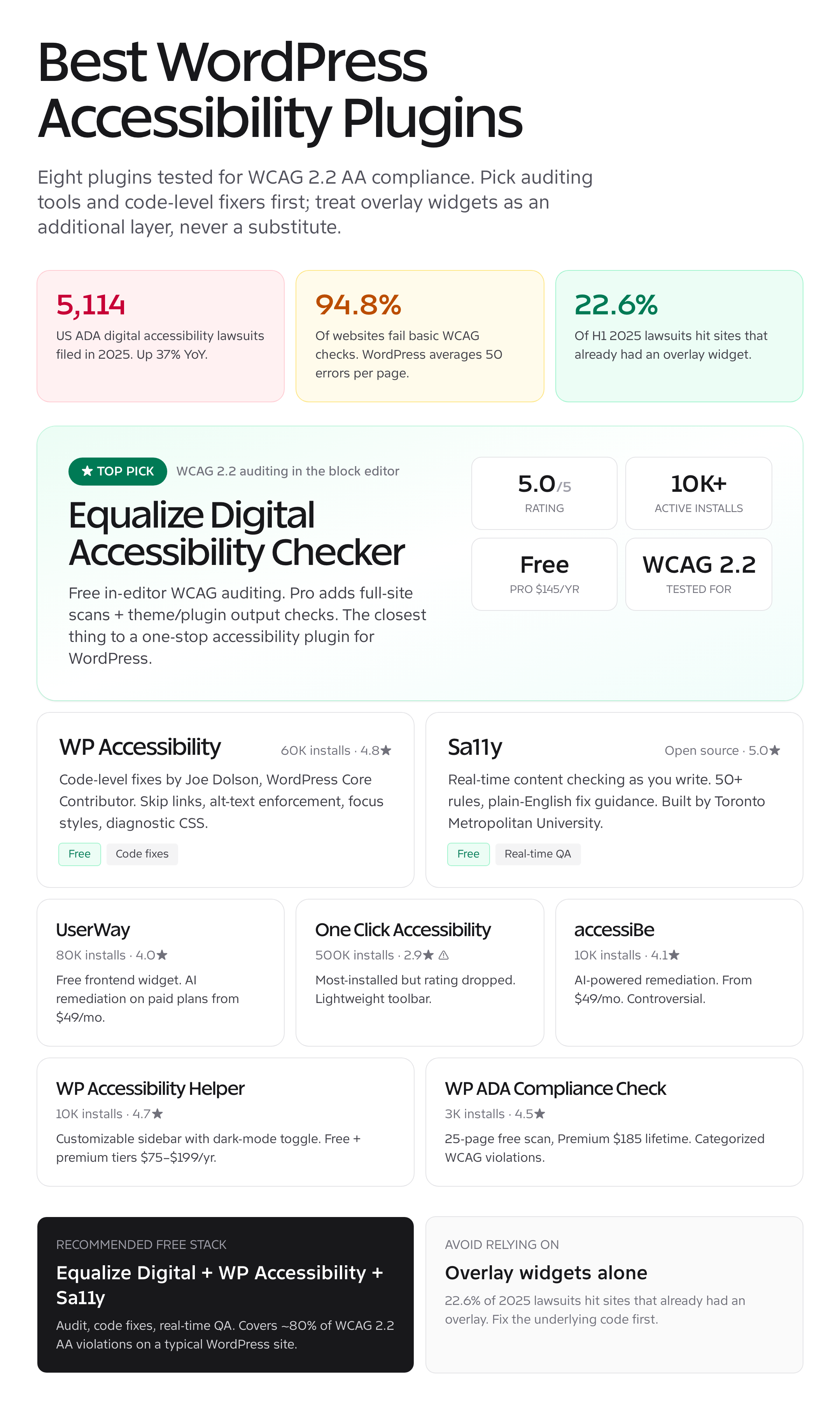
WordPress accessibility plugins can find issues, enforce a few safer patterns, or add visitor controls. They cannot prove that a website conforms to WCAG. Equalize Digital Accessibility Checker is the strongest auditing choice here, WP Accessibility handles several practical code-level fixes, and Sa11y gives editors useful content feedback.
Use plugins to shorten the feedback loop. Then test the rendered site with a keyboard, zoom and reflow, screen readers such as VoiceOver or NVDA, and people who use assistive technology. Navigation, forms, dialogs, media, authentication, and checkout need human evaluation because automated rules cannot understand every context.
Legal scope: This is technical guidance, not legal advice. ADA.gov, the European Commission, and W3C’s evaluation method provide authoritative starting points. Which law applies depends on the organization, service, customers, jurisdiction, and local implementation.
The best accessibility plugins for WordPress in 2026
- Equalize Digital Accessibility Checker: free, automated WCAG 2.2 auditing inside the block editor. Top pick.
- WP Accessibility: free, code-level fixes from a WordPress Core Contributor. 60K+ installs.
- Sa11y: free, real-time WCAG QA as you write. Built by Toronto Metropolitan University.
- UserWay: free frontend accessibility widget, paid AI remediation. 80K+ installs.
- Ally: most-installed accessibility toolbar. Caveat: rating dropped to 2.9.
- accessiBe: AI-powered automated remediation. Controversial, expensive, comprehensive.
- WP Accessibility Helper: customizable accessibility sidebar with a real dark-mode toggle.
- WP ADA Compliance Check: page scanner that flags WCAG violations with severity. Lifetime pricing.
What makes a good WordPress accessibility plugin?
WordPress accessibility plugins fall into three categories, and most sites need at least one from the first two:
- Auditing tools scan your content and theme for WCAG violations and tell you exactly what’s broken. Equalize Digital, Sa11y, and WP ADA Compliance Check fit here.
- Code-level fixers apply real HTML, CSS, and ARIA fixes: skip links, alt-text enforcement, focus styles, language attributes. WP Accessibility is the best of these.
- Frontend overlay widgets add a button visitors click to adjust contrast, font size, spacing, and so on. UserWay, Ally, accessiBe, and WP Accessibility Helper sit here.
Frontend widgets and overlays can expose useful visitor preferences, but they do not establish conformance and cannot repair every error in source code, content, or interaction design. Treat them as optional user controls. Fix headings, labels, focus order, keyboard behavior, names and roles, errors, media alternatives, and contrast in the underlying site.
Use overlay widgets only as an additional layer, never a substitute. Audit and fix your code first with Equalize Digital and WP Accessibility. Then, if you want a visitor-facing toolbar on top, pick one carefully.
1. Equalize Digital Accessibility Checker: best WCAG WordPress plugin overall
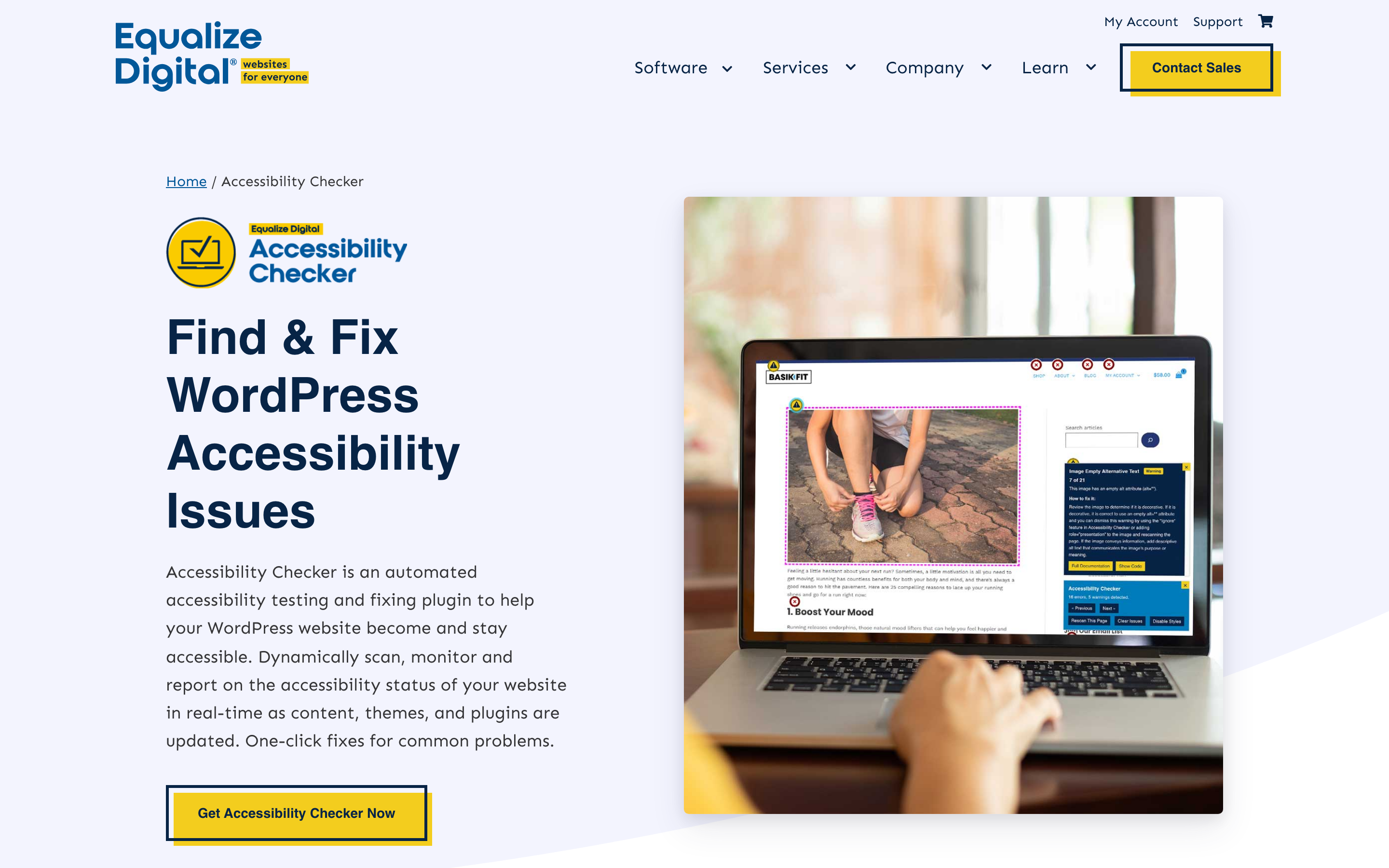
Best for: Free, automated WCAG 2.2 auditing inside the WordPress block editor. The accessibility plugin I’d install on every site I touch.
Equalize Digital Accessibility Checker scans every post and page for WCAG 2.2 violations as you edit. Errors, warnings, and passed checks show up in a sidebar panel inside the block editor: no external tool, no separate dashboard. The free tier handles missing alt text, empty headings, broken heading hierarchy, missing form labels, low color contrast, and links without descriptive text. Each issue comes with a plain-English explanation and a fix path.
Equalize Digital is the strongest auditing choice in this list because its WordPress workflow connects findings to specific content and remediation guidance. The paid tier adds broader scans, scheduling, and reporting. Confirm current plan limits and pricing before purchase; choose Pro when the reporting and site-wide workflow saves more time than the subscription costs.
Honest limit: it’s an auditing tool, not an auto-fixer. It tells you what’s broken; you fix it manually. That’s the right design choice: automated fixes routinely make accessibility worse: but it means real work on your end.
- Free for in-editor scans on individual posts and pages
- Pro tier $145/year adds full-site scans + theme/plugin output checks
- WCAG 2.2 AA criteria, updated continuously
- Plain-English fix instructions inside the editor sidebar
2. WP Accessibility: best free code-level fixer
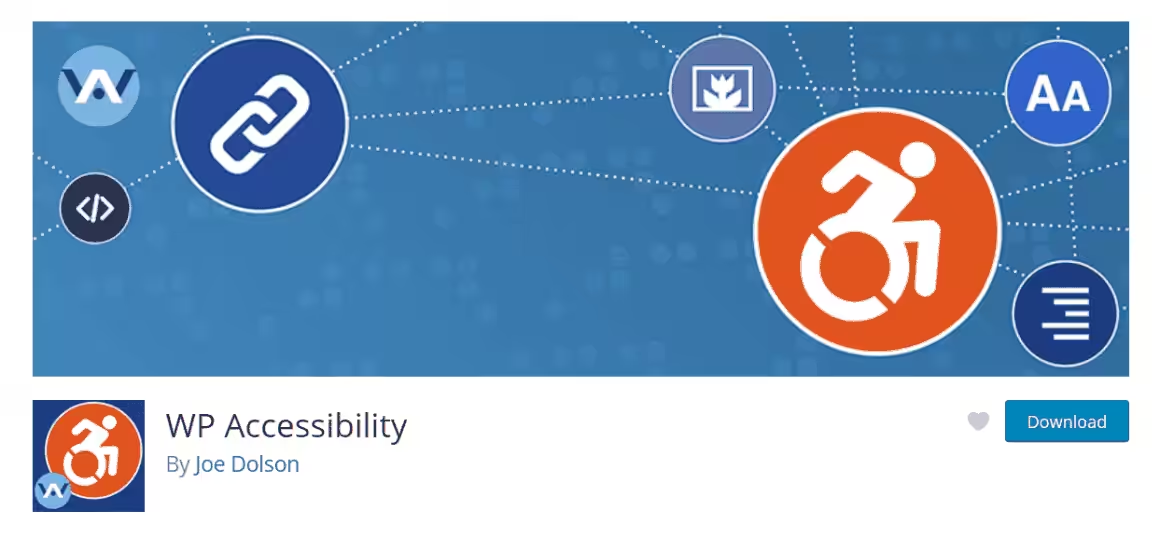
Best for: Free, developer-oriented accessibility fixes that ship at the code level rather than the toolbar level.
WP Accessibility is maintained by Joe Dolson, a WordPress Core Contributor who’s been working on WordPress accessibility since 2011. 60,000+ active installs, 4.8/5 rating, and one of the few accessibility plugins where you can read the code, understand what’s happening, and trust it. There’s no flashy frontend widget. The plugin fixes underlying HTML and CSS issues that cause WCAG failures.
What it actually does: adds skip links so keyboard users can jump past navigation. Forces alt attributes on images (correctly inserting empty alt="" on decorative ones, which most plugins get wrong). Removes tabindex from elements that shouldn’t have it. Adds language attributes. Removes redundant link title attributes that confuse screen readers. Adds visible focus styles. Bundles a color contrast tester into wp-admin. Includes a Diagnostic CSS mode that paints red borders on every element with an accessibility problem on your live site, which is the fastest visual audit I know.
Trade-off: it’s a toolkit, not a one-click switch. You read each setting, decide if your theme needs it, enable it. Beginners may find this overwhelming. The fixes are real code-level improvements: no overlay, no JavaScript bandaid.
Pair WP Accessibility with Equalize Digital. EDAC finds the issues; WP Accessibility fixes the structural ones. Both free, no recurring cost, and you’ll close most WCAG 2.2 AA gaps on a typical WordPress site.
3. Sa11y: best for content creators
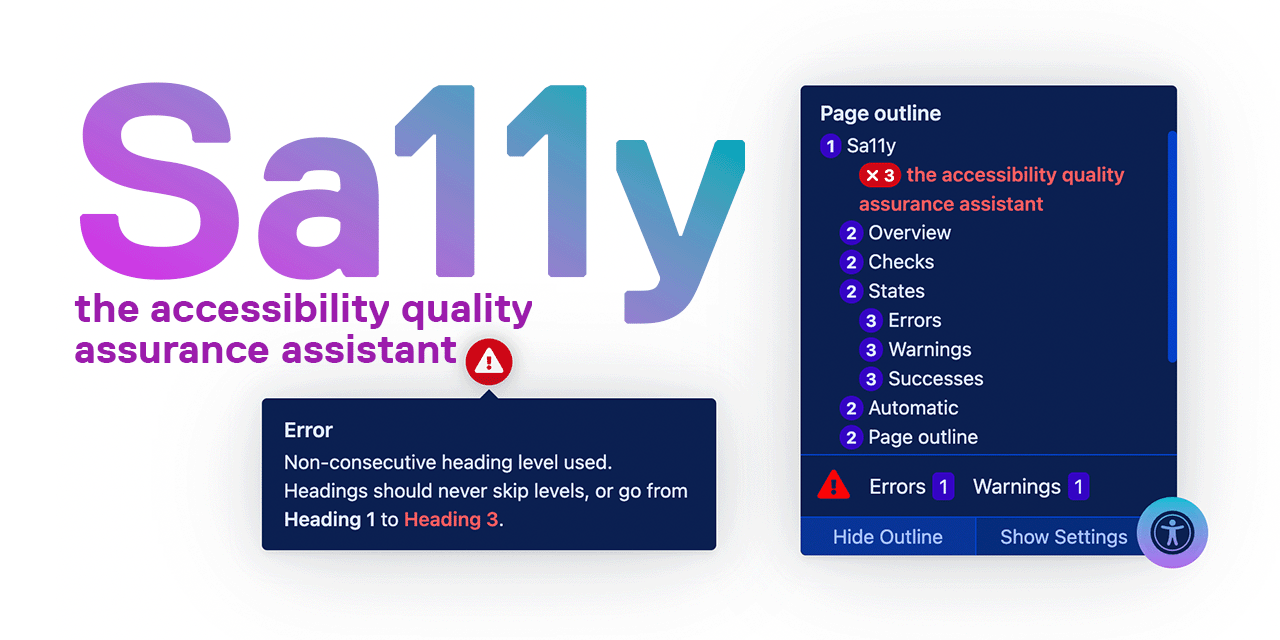
Best for: Free, real-time WCAG quality assurance as you write. Spell-check, but for accessibility.
Sa11y (pronounced “Sally”) is open source, built and maintained by Toronto Metropolitan University. It runs inline as you edit, painting small icons next to elements that have issues. A red exclamation means an error. A yellow triangle means a warning. Click the icon and you get a plain-English explanation of what’s wrong and how to fix it.
Sa11y checks 50+ rules: missing alt text, empty links, skipped heading levels, missing form labels, broken ARIA attributes, vague link text like “click here” and “read more,” missing page language, plus a readability check that flags overly complex sentences. It’s the most intuitive WordPress accessibility plugin for non-developers because the feedback shows up where the mistake happens, not in a separate dashboard you have to remember to check.
Limit: Sa11y only checks content you can edit in the editor. It doesn’t audit your theme’s header, footer, navigation, or widget areas. For those, pair it with Equalize Digital Pro or run an external scan.
4. UserWay: popular frontend accessibility widget
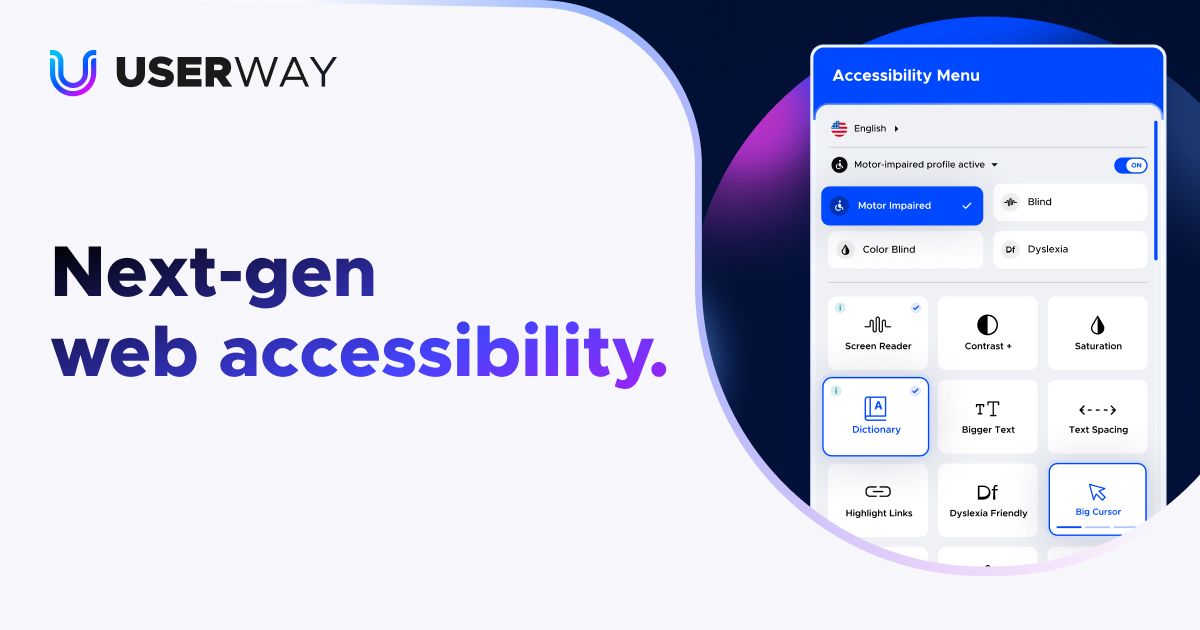
Best for: A free frontend accessibility widget visitors can customize. Use as a layer, not a foundation.
UserWay adds a floating accessibility icon to your site (80,000+ active installs on WordPress.org, 4.0/5 rating). When clicked, visitors get a panel to adjust text size, line height, letter spacing, contrast, cursor size, and text alignment. The free tier also includes a basic screen reader, dyslexia-friendly font toggle, and animation pause. Paid plans from $49/month add AI-powered remediation that tries to auto-fix accessibility issues at the DOM level.
UserWay provides visitor-facing controls, but that is a different job from auditing and repairing the underlying site. Test the widget itself with keyboard and screen-reader workflows, because any injected interface can introduce conflicts. If you use it, keep Equalize Digital or another audit process and fix source issues directly.
5. Ally, formerly One Click Accessibility: popular but watch the rating
Best for: The simplest possible frontend accessibility toolbar. Caveat below.
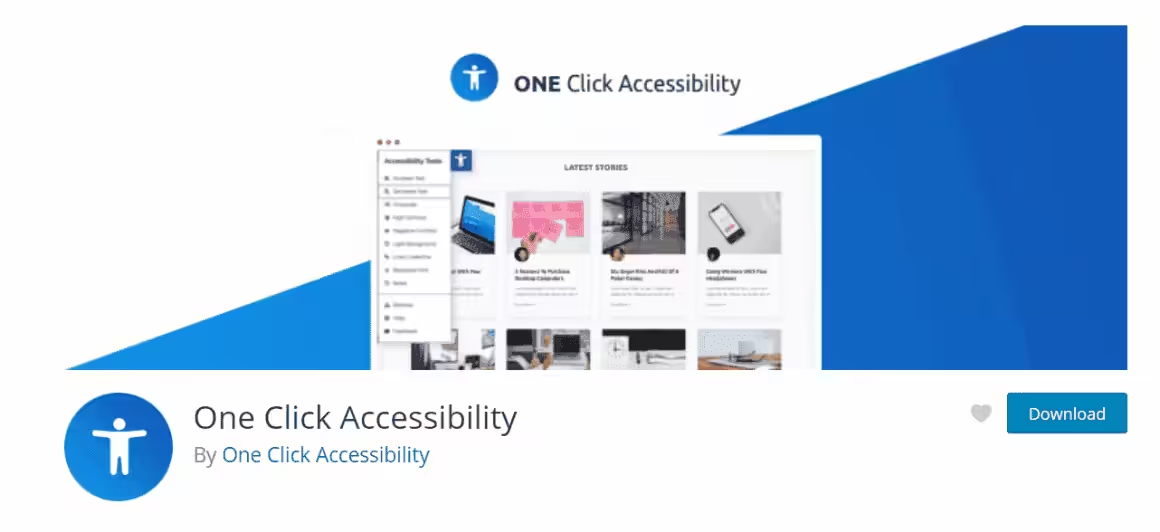
Ally, the toolbar Elementor acquired and renamed from One Click Accessibility, has 500,000+ active installs, more than any other plugin on this list. It does what the old name said: install, activate, and you get a toolbar where visitors can toggle high contrast, grayscale, larger text, light background, link underlines, and a readable font. Behind the scenes it can also remove target="_blank" from links (which confuses screen readers), add focus outlines for keyboard users, and insert a skip-to-content link.
Ally is the current name for the plugin formerly called One Click Accessibility. Recent WordPress.org reviews should be read before a new install because ownership, interface, and product direction have changed. Keep an existing deployment only after re-testing focus, keyboard access, contrast controls, and frontend script behavior on your site.
6. accessiBe: AI remediation for business sites
Best for: Business sites that need AI-powered automated remediation as a paid layer on top of manual fixes.
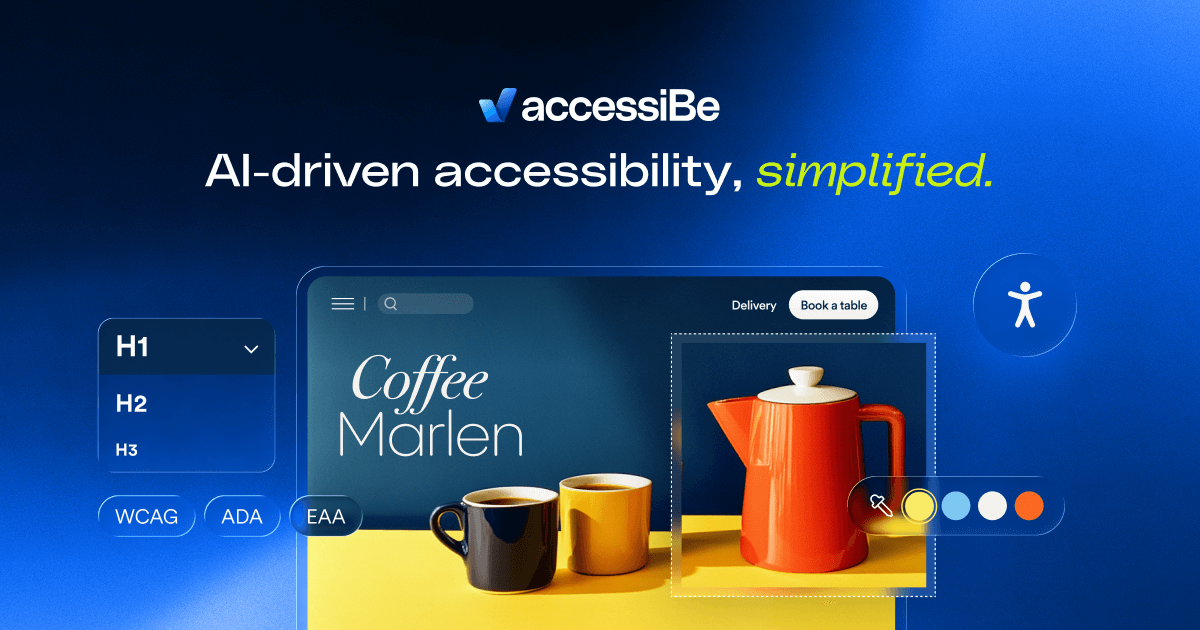
accessiBe is the most feature-rich and most expensive option on this list. Computer vision plus machine learning scans your site, identifies barriers, and applies fixes: alt-text suggestions, ARIA labels, keyboard-nav corrections, page structure adjustments. The frontend panel offers visual profiles (epilepsy safe, vision impaired, cognitive disability, ADHD friendly), text adjustments, and color profiles. It’s the most polished frontend experience of any accessibility plugin, full stop.
Automated remediation has the same context problem as automated auditing. Software cannot reliably decide whether an image is decorative, whether link text makes sense in context, whether a focus move is logical, or whether a checkout is understandable. Treat accessiBe as an optional service layer, not as evidence that the underlying site conforms to WCAG.
Pricing depends on site and service level, so confirm the current plan directly. Do not compare that subscription with an invented universal audit cost: manual audit scope depends on templates, user journeys, components, technologies, and the required sample. For a deeper product-specific analysis, read my accessiBe review.
7. WP Accessibility Helper: customizable sidebar with dark mode
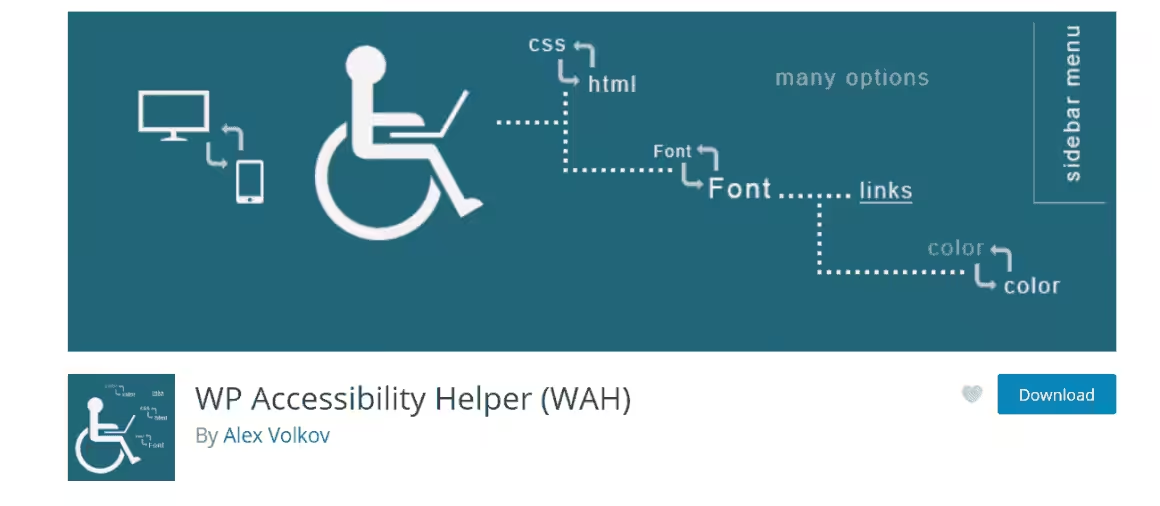
Best for: A free, deeply customizable accessibility sidebar with a real dark-mode toggle.
WP Accessibility Helper (10,000+ installs, 4.7/5) adds a sliding sidebar where visitors toggle contrast, grayscale, text resizing, link highlighting, readable font, and a “lights off” dark mode that actually works (unlike most fake dark-mode toggles that just invert colors). The free tier covers everything most sites need. Premium ($75–$199/year) adds an accessible accordion, custom widget areas, and priority support.
What sets it apart from Ally is depth of customization. You control sidebar colors, light/dark theme, logo placement, widget order, and which controls show up. The admin UI is well-organized: every feature is a labeled toggle. Same caveat as every overlay: it doesn’t fix code-level WCAG failures. Pair with Equalize Digital and WP Accessibility.
8. WP ADA Compliance Check: lifetime-priced page scanner
Best for: Page-level WCAG scanning with categorized severity, plus a lifetime license option.
WP ADA Compliance Check Basic scans posts and pages for accessibility issues and bins them into Alerts (critical) and Notices (minor). The free tier scans up to 25 pages, which is enough for most small sites. Each issue is tagged with the specific WCAG criterion it violates, so you can cite chapter and verse when you fix it.
Premium ($185 lifetime, no recurring fee) removes the page limit, runs scans automatically when you publish, and adds a compliance dashboard with email alerts. The lifetime price tag is unusual in this space: most accessibility WordPress plugins lock the meaningful features behind annual subscriptions. WP ADA Compliance Check is a one-and-done purchase.
Compared to Equalize Digital, the UI is less polished and the per-issue explanations are thinner. EDAC teaches you why the issue matters; WP ADA Compliance Check assumes you already know. That makes it a better fit for developers and agencies than for content teams.
WordPress accessibility plugins compared
These WordPress accessibility plugins should be compared by audit scope and behavior, not install counts or star ratings. Every option still needs manual review.
| Plugin | Type | Checks content | Checks theme output | Changes source | Manual review still needed | Main risk |
|---|---|---|---|---|---|---|
| Equalize Digital | Audit workflow | Yes | Plan and scan dependent | No | Yes | A clean automated report can be mistaken for conformance |
| WP Accessibility | Code-level fixes | Limited | Applies selected fixes | Adds or adjusts behavior | Yes | Theme conflicts or assuming defaults fit every site |
| Sa11y | Editor feedback | Yes | Limited | No | Yes | Content focus leaves application behavior untested |
| UserWay | Visitor widget | No | Injected controls | No | Yes | Widget treated as proof of conformance |
| Ally | Visitor toolbar | No | Injected controls | No | Yes | Product changes and frontend conflicts |
| accessiBe | Automated remediation service | Automated | Automated | Usually overlays behavior | Yes | Context errors and false assurance |
| WP Accessibility Helper | Visitor toolbar | No | Injected controls | No | Yes | Toolbar does not repair source issues |
| WP ADA Compliance Check | Page scanner | Yes | Scope dependent | No | Yes | Scanner results need human interpretation |
Which WordPress accessibility plugin should you install?
Choose one audit workflow first. Add a repair or toolbar plugin only when you can name the specific problem it solves.
- Small editorial site: Start with Equalize Digital Accessibility Checker. Add Sa11y when several writers need feedback before publishing.
- Theme with missing skip links or weak focus styles: Evaluate WP Accessibility, then test each enabled fix against menus, modals, forms, and account pages.
- Visitor preference controls: Compare UserWay, Ally, and WP Accessibility Helper as toolbars. Do not count the toolbar as an audit or remediation record.
- Business with legal obligations: Define applicable requirements with qualified counsel, commission a scoped evaluation, fix the underlying design and code, and keep evidence of testing and remediation.
- Covered EU product or service: Use the European Commission and the relevant member-state implementation to determine scope. An EU visitor alone does not answer that legal question.
No plugin produces a defensible conformance percentage. Automated checks cover rules that software can evaluate. Keyboard flow, screen-reader output, cognitive clarity, error recovery, media alternatives, and real task completion require human judgment.
How to actually fix your WordPress site’s accessibility
Order matters. Here’s the sequence that works on real sites:
- Install Equalize Digital Accessibility Checker. Run a scan on your top 10 pages. Note every error.
- Install WP Accessibility. Enable skip links, alt-attribute enforcement, focus styles, and Diagnostic CSS for a one-time visual sweep of the live site.
- Fix every error EDAC flagged. Most are alt-text, heading-order, and link-text issues you can fix in 5–10 minutes per page.
- Test with a real keyboard. Tab through every page. Confirm every interactive element gets a visible focus indicator and the tab order makes sense.
- Test with VoiceOver (Mac, free) or NVDA (Windows, free). Listen to the home page, contact form, and main product/service page. Fix anything that sounds wrong.
- Add a frontend toolbar (UserWay or WP Accessibility Helper) only after steps 1–5. Treat it as a layer for users, not a compliance shortcut.
- Run EDAC monthly. Re-test with a screen reader after major theme or plugin updates. Accessibility regressions are common after theme, plugin, and content changes.
Performance matters here too. A page that takes 8 seconds to load is inaccessible to anyone on a slow connection or assistive tech that times out. Run the same fix sequence against your Core Web Vitals and you’ll handle the second-most-common accessibility complaint after missing alt text.
Manual accessibility test matrix for WordPress
Run the checks below on representative templates and complete user journeys, not only the home page. Include the header, search, contact form, authentication, checkout, account area, dialogs, and error states that matter to the site.
| Test | What to do | Failure to watch for |
|---|---|---|
| Keyboard | Complete every task with Tab, Shift+Tab, Enter, Space, arrows, and Escape | Traps, skipped controls, illogical order, or no visible focus |
| Zoom and reflow | Check browser zoom at 200% and 400% and a narrow viewport | Clipped text, horizontal scrolling, overlapping controls, or hidden content |
| Screen reader | Use VoiceOver or NVDA to navigate headings, landmarks, links, forms, tables, and dialogs | Missing names, wrong roles, repeated labels, or silent state changes |
| Forms and errors | Submit empty, invalid, and valid data; recover from each error | Color-only errors, missing instructions, lost values, or focus not moved to the problem |
| Menus and dialogs | Open and close navigation, cookie panels, popups, accordions, and modals | Background focus, missing Escape support, or incorrect expanded state |
| Media | Review captions, transcripts, audio description needs, autoplay, and controls | Uncaptioned speech, inaccessible player controls, or motion without a stop control |
| Contrast and color | Check text, icons, focus rings, charts, and all interaction states | Information conveyed only by color or controls disappearing on hover/focus |
| Touch and cognition | Use the site on mobile and ask whether labels, timing, steps, and recovery are understandable | Tiny targets, unexpected context changes, jargon, or irreversible actions |
Frequently asked questions
Which WordPress accessibility plugin should I start with?
Start with Equalize Digital Accessibility Checker when you need an audit workflow inside WordPress. Add WP Accessibility only for specific code-level fixes you have tested. Sa11y is useful when editors need content feedback before publish.
Can a plugin make a WordPress site conform to WCAG?
No plugin can establish conformance by itself. Automated tools can find some failures and plugins can repair selected patterns, but WCAG evaluation also needs representative pages, complete user journeys, keyboard testing, assistive technology, and human judgment.
Are accessibility overlays enough for ADA or EAA obligations?
Do not use an overlay or toolbar as proof of legal compliance. It may offer visitor controls, but it cannot reliably repair every content, code, and interaction issue. Determine the applicable legal scope, fix the underlying site, and document testing. This is not legal advice.
Which free accessibility tools work well together?
Use one checker plus targeted manual testing. Equalize Digital can support the audit workflow, WP Accessibility can address selected theme issues, and Sa11y can help editors. More plugins do not create more conformance; overlapping scripts can create new problems.
Do accessibility plugins affect performance?
They can. Admin-only scanners, frontend fixers, toolbars, and remote services have different costs. Measure scripts, styles, requests, CPU, cron work, and interaction delay on representative pages instead of relying on a universal file-size or millisecond claim.
Should a WordPress site target WCAG 2.2 Level AA?
WCAG 2.2 Level AA is a sensible current technical target for many web projects. A target is not the same as a legal conclusion. Confirm the standard, version, exceptions, and reporting rules required by the organization, contract, procurement process, and jurisdiction.
Does the European Accessibility Act apply to every WordPress site with EU visitors?
No. The European Accessibility Act covers specified products and services and is implemented through member-state law. Scope can depend on the service, business, consumers, exemptions, and jurisdiction. Use official guidance and qualified legal advice for the specific case.
How should I budget for WordPress accessibility work?
Budget by templates, components, integrations, user journeys, content volume, and the required testing sample. Tool subscriptions are only one line item. Remediation, design changes, development, retesting, content training, and ongoing regression checks often matter more.
Install the audit tool that fits your workflow, then use it to produce a repair queue. Fix the underlying content, design, and code. Re-run the same keyboard, zoom, screen-reader, form, dialog, media, and mobile checks after major theme, plugin, or checkout changes.
The useful outcome is not a badge or a clean scanner screen. It is a site where people can find information, understand controls, recover from errors, and complete the task they came to do.
Tell Google you want more of this.
Add Gaurav Tiwari as a preferred sourceOne tap, and this site shows up more often in your own Top Stories, AI Overviews and AI Mode. Remove it any time.