
5 Ways You Can Use Video Conferences in Your Business
Video conferencing went from a nice-to-have to a business essential practically overnight. What started as a pandemic necessity has become the default way teams communicate, and honestly, I don’t see that changing anytime soon. The tools have gotten dramatically better, costs have dropped, and the productivity gains are real.
Whether you’re running a 5-person startup or managing a distributed team across multiple countries, video conferencing is the backbone of modern business communication. But most teams barely scratch the surface of what these tools can do. Let me walk you through the best ways to use video conferencing in your business, plus the tools and practices that actually make a difference.
Best Video Conferencing Tools in 2026

Before diving into use cases, you need the right tool. Here’s how the major platforms compare based on what actually matters for business use.
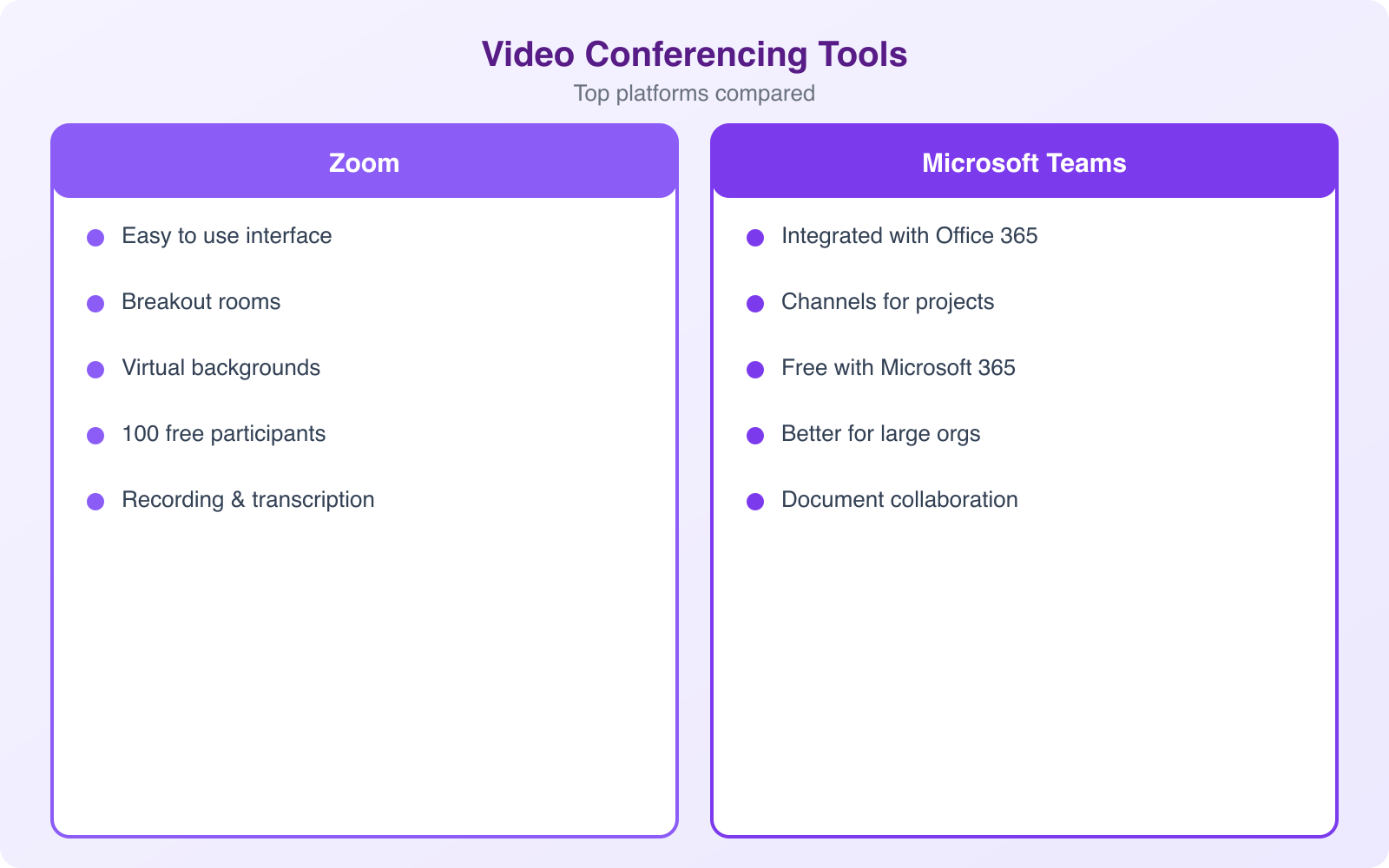
Zoom remains the most widely used platform. Free plan supports 40-minute meetings with up to 100 participants. Paid plans start at $13.33/month and include unlimited meeting duration, cloud recording, and breakout rooms. The interface is intuitive, connection quality is reliable, and nearly everyone already has it installed. For most businesses, Zoom is the default choice.
Google Meet is included free with any Google Workspace plan ($6-18/user/month). If your team already uses Gmail, Google Calendar, and Google Drive, Meet integrates seamlessly. Video quality is excellent, meetings launch directly from calendar events, and there’s nothing to install for browser-based joining. It’s my recommendation for teams already in the Google ecosystem.
Microsoft Teams is the powerhouse for enterprise environments. Bundled with Microsoft 365 ($6-22/user/month), it combines video conferencing with chat, file sharing, and project management. If your team lives in Word, Excel, and Outlook, Teams makes sense. The learning curve is steeper than Zoom, but the integration depth is unmatched.
Loom deserves a mention for async video communication. Instead of scheduling a live meeting, you record a quick video (screen share plus webcam) and send the link. Recipients watch on their own time. For status updates, code walkthroughs, and feedback that doesn’t need real-time discussion, Loom saves hours every week. Free plan includes 25 videos up to 5 minutes each.
Team Meetings and Pep Talks
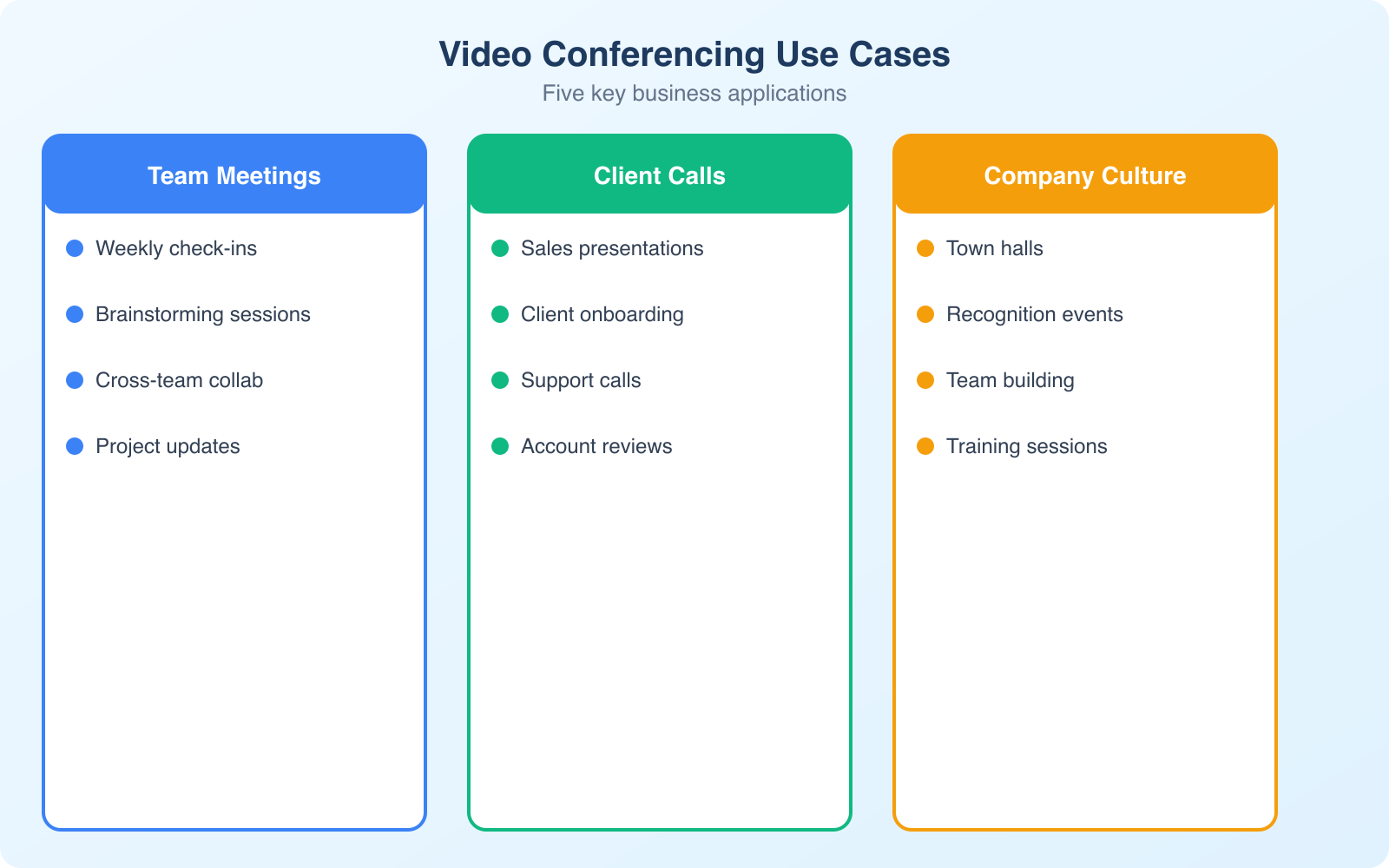
Video conferencing shines for team motivation and alignment. When you’re managing remote workers, it’s harder to read the room and keep morale high. Regular video check-ins let you gauge energy levels, celebrate wins, and address concerns before they snowball.
Use video calls for pep talks when you’re starting a big project, approaching a critical deadline, or when morale seems low. There’s a reason every sports team has a huddle before the game. The same principle applies to business teams.
Keep pep talks short (15-20 minutes max). Start with specific recognition of recent wins, outline the challenge ahead, and express confidence in the team. End with clear next steps. Rambling 45-minute motivational sessions have the opposite effect, as they drain energy instead of building it.
Daily Stand-Ups and Check-Ins
Daily video check-ins work exceptionally well for small to medium teams (under 20 people). The format is borrowed from agile development: each person shares what they worked on yesterday, what they’re working on today, and any blockers they need help with.
Keep these to 15 minutes or less. Use a strict format so nobody rambles. If a topic needs deeper discussion, take it offline to a separate call with only the relevant people. The goal is alignment and visibility, not problem-solving.
Daily check-ins also let you monitor team wellbeing. When someone’s usually energetic but shows up flat for three days straight, that’s a signal. Video makes it much easier to pick up on these cues compared to text-based status updates in Slack or email.
Consider replacing your daily live stand-up with async video updates using Loom. Each team member records a 2-minute update on their own schedule. Everyone watches when convenient. This saves the coordination overhead of finding a time that works across time zones and gives people back 15-30 minutes per day.
Emergency Meetings and Crisis Response
When something goes wrong, video conferencing lets you rally the team in minutes rather than hours. A client complaint escalates, a server goes down, a product shipment gets delayed. You can send a notification and have your entire team on a call within 5 minutes.
The power here is speed plus visual communication. Text messages get lost in noise. Emails sit unread. But a video call creates immediate focus. Everyone’s looking at the same screen, hearing the same information, and brainstorming solutions in real time.
For crisis calls, designate a meeting leader who outlines the problem in 2 minutes, assigns responsibilities, and sets a follow-up time. Avoid the common trap of turning a crisis call into a blame session. Fix the problem first, do the post-mortem later.
Recognition and Celebration
Public recognition is one of the most powerful motivators, and video conferencing makes it possible even when your team is distributed across cities or countries. Drawing everyone together for a 10-minute celebration when someone hits a milestone, closes a big deal, or completes a challenging project goes a long way.
Don’t save recognition for annual reviews. Make it a weekly habit. During your regular team call, spend 2-3 minutes calling out specific contributions. Name the person, describe what they did, and explain the impact. “Sarah’s debugging work this week saved us a week of delays on the client project” is much more meaningful than “great job everyone.”
Recognition on video has an advantage over text: everyone sees the reaction. The team witnesses the moment, which reinforces the behavior you want to encourage and builds team culture even across distances.
Client Presentations and Sales Calls
Video conferencing has transformed how businesses sell and present to clients. You no longer need to fly across the country for a pitch meeting. Screen sharing, virtual whiteboards, and AI-powered presentation tools make remote client meetings just as effective as in-person ones.
For sales calls, always use video (with your camera on). Salespeople who use video on calls close 41% more deals than those who use audio only. Seeing facial expressions builds trust and lets you read the client’s reactions in real time. If they look confused during your pricing slide, you can address it immediately rather than finding out later that they went with a competitor.
Record your client presentations (with permission). This serves multiple purposes: team members who couldn’t attend can catch up, you can review your own performance for improvement, and the recording can be shared with other stakeholders on the client side who make purchasing decisions.
Video Conferencing Best Practices
The tool matters less than how you use it. Here are the practices that separate productive video meetings from time-wasting ones.
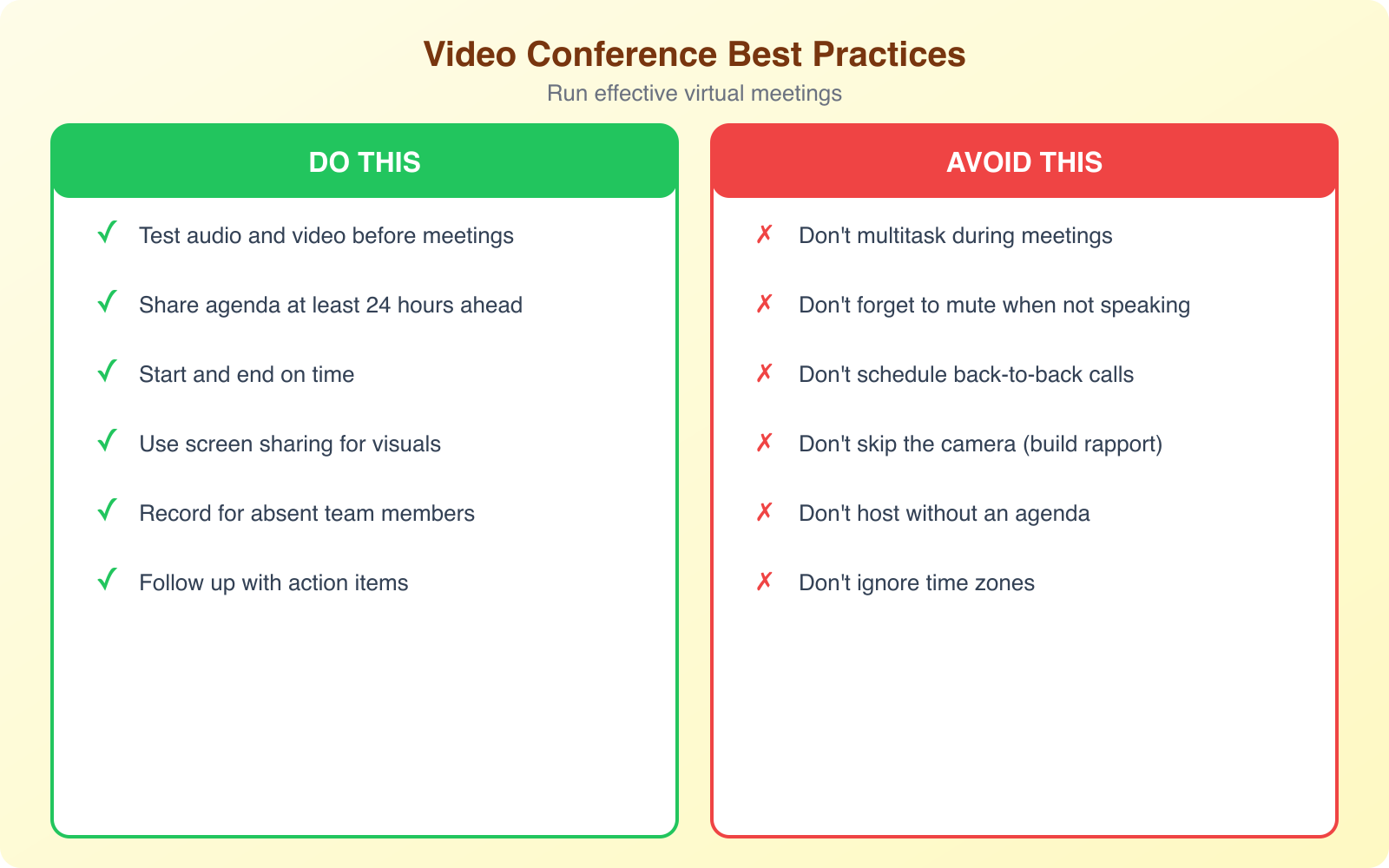
Set an agenda for every meeting. Share it 24 hours in advance. Meetings without agendas run 30% longer and accomplish less. Even a simple bullet-point list of topics gives the call structure and keeps it focused.
Default to 25 or 50 minutes instead of 30 or 60. This builds in buffer time between back-to-back calls and prevents the “Zoom fatigue” that comes from 8 hours of continuous video.
Use the mute button. Background noise from one person disrupts everyone. Mute by default, unmute to speak. Most platforms support push-to-talk (hold spacebar to unmute), which makes this seamless.
Invest in decent audio. A $30-50 USB microphone or quality headset makes a bigger difference than an expensive camera. People will tolerate mediocre video but check out instantly with bad audio. Clear audio shows professionalism.
End with action items. The last 2 minutes of every meeting should be spent confirming who’s doing what by when. Send a follow-up message within 10 minutes. Meetings without clear outcomes are meetings that could’ve been emails.
Virtual Team Building and Social Connection
Video conferencing isn’t just for work discussions. Some of the most valuable virtual calls are the informal ones. If your team used to grab lunch together or hit happy hour on Fridays, those social bonds still matter when everyone’s remote.
Virtual coffee chats (15-minute paired calls between random team members), Friday afternoon social hours, and virtual game sessions all help maintain team cohesion. These aren’t frivolous. Research from MIT shows that teams with strong social bonds are 25% more productive than those without.
Keep these optional and low-pressure. Mandating fun defeats the purpose. Create the space, promote it, and let people join when they want to. The teams I’ve worked with that maintain strong remote cultures are the ones that intentionally create opportunities for casual interaction.
Zoom fatigue is real. The average worker spends 5.5 hours per day on video calls. Combat this by auditing your meeting calendar ruthlessly. Cancel recurring meetings that no longer serve a clear purpose. Convert status updates to async format. Protect at least 2-3 hours of meeting-free time each day for focused work.
AI Features Changing Video Meetings in 2026
AI has added genuinely useful features to video conferencing tools. These aren’t gimmicks, as they solve real productivity problems.
Automated transcription and summaries. Zoom, Teams, and Google Meet now generate real-time transcripts and post-meeting summaries. This means you can skip taking notes during the call and focus on the conversation. The AI catches action items, decisions, and key discussion points. For anyone who’s joined a meeting late, the AI summary catches them up in 30 seconds.
Noise cancellation. AI-powered noise cancellation in tools like Krisp removes background noise (dogs barking, construction, kids playing) in real time. It works as a system-level add-on with any conferencing platform. If you work from home or a noisy environment, this is worth every cent.
Real-time translation. Zoom and Teams now offer live translation for meetings with participants who speak different languages. This feature alone makes global team collaboration 10x easier than it was even two years ago.
Smart scheduling. AI assistants can analyze everyone’s calendars and find optimal meeting times automatically. No more back-and-forth email chains trying to coordinate schedules across time zones.
Frequently Asked Questions
What’s the best free video conferencing tool for small businesses?
Zoom’s free plan supports up to 100 participants with a 40-minute limit on group meetings. Google Meet is free with a Google account (60-minute limit for groups). Microsoft Teams offers free video calls for up to 100 participants with a 60-minute limit. For most small businesses, Google Meet is the simplest option since it integrates with Google Workspace. Zoom remains the most feature-rich free option, especially for webinars and breakout rooms.
How do I reduce Zoom fatigue for my team?
Limit meetings to 25-30 minutes when possible, and always question whether a meeting could be an email or Loom video instead. Implement ‘no meeting’ blocks (like no meetings on Fridays). Use cameras-optional policies for internal check-ins. Schedule 5-minute breaks between back-to-back calls. The biggest fatigue reducer is having clear agendas so meetings end early when objectives are met. Also, walking meetings (audio-only) on phone calls help break the screen monotony.
Should I use Zoom or Google Meet for client meetings?
Zoom is better for larger meetings (50+ participants), webinars, and when you need features like breakout rooms and polling. Google Meet is simpler and better for smaller teams already using Google Workspace, with seamless Calendar and Gmail integration. For client-facing meetings, Zoom’s virtual backgrounds and recording features give a more polished experience. Google Meet is improving fast, but Zoom still has the edge in advanced features and reliability for large groups.
What equipment do I need for professional video calls?
At minimum: a decent webcam (your laptop’s built-in camera works for most calls, but a Logitech C920 or similar makes a noticeable difference), good lighting (a ring light or desk lamp facing you), and a quality microphone or headset (this matters more than video quality). A neutral, uncluttered background helps. Most importantly, a stable internet connection with at least 10 Mbps upload speed. You don’t need expensive gear, but good audio and lighting make a significant impression.
How do I make video conferencing work across different time zones?
Use a shared calendar with time zones displayed (Google Calendar does this natively). Rotate meeting times so the same team members aren’t always meeting at inconvenient hours. Record important meetings for those who can’t attend live. Use async tools like Loom or Slack video messages to reduce the need for synchronous meetings across time zones. When scheduling, aim for the overlap window where the most participants are within regular working hours.
Make Video Conferencing Work for Your Team
Video conferencing isn’t going anywhere. The businesses that thrive in 2026 are the ones that use these tools intentionally rather than defaulting to a meeting for everything. Use live video for collaboration, brainstorming, and relationship building. Use async video for updates and information sharing. And always, always end every call with clear action items.
The technology is mature, the tools are affordable, and the practices are well-established. What separates productive remote teams from chaotic ones isn’t the platform they use. It’s how they use it. Start with clear meeting hygiene, invest in decent audio equipment, and don’t be afraid to cancel the meetings that nobody needs. Your team will thank you for it.
Disclaimer: This site is reader-supported. If you buy through some links, I may earn a small commission at no extra cost to you. I only recommend tools I trust and would use myself. Your support helps keep gauravtiwari.org free and focused on real-world advice. Thanks. - Gaurav Tiwari
Great beat ! I would like to apprentice while you amend yourwebsite, how can i subscribe for a blog web site? The account helped me a acceptable deal.I had been tiny bit acquainted of this your broadcast provided bright clear idea