
Creating Your First Website: How to Pick The Best Web Design Tools?
I’ve built websites with WordPress since 2009, designed interfaces in Figma, shipped marketing sites with Framer, and tested every AI design tool that’s launched in the past two years. The web design tool landscape in 2026 looks nothing like it did even three years ago. AI changed everything, and the gap between professional-grade tools and beginner-friendly platforms is shrinking fast.
But here’s the problem: more options means more confusion. Do you need a full CMS like WordPress? A visual builder like Webflow? A design tool like Figma? Or can an AI tool like Galileo AI just generate your entire site? The answer depends entirely on what you’re building, your skill level, and how much control you want over the final result.
I’ve tested and compared the tools that actually matter in 2026. Not a list of 30 random platforms. Just the ones worth your time, with honest takes on what each does best and where each falls short.
How the Web Design Tool Landscape Has Changed
Five years ago, you had two real choices: hire a developer or use WordPress. Website builders like Wix existed, but serious professionals didn’t touch them. Design tools like Sketch were Mac-only and had no collaboration features. The whole ecosystem was fragmented and slow.
Three things changed the game in 2026. First, Figma made collaborative design free and browser-based. Second, tools like Framer and Webflow blurred the line between design and development. Third, AI design tools arrived and made it possible to generate entire layouts from a text prompt.
The result? You now have genuinely good options at every skill level and budget. A complete beginner can build a professional-looking site in an afternoon. An experienced designer can prototype and publish without writing a single line of code. And a developer can use AI to skip the boring parts and focus on custom functionality.
The tools I’m covering here fall into four categories: design tools (for creating layouts and prototypes), website builders (for publishing directly), CMS platforms (for content-heavy sites), and AI design tools (for generating designs from prompts). Most professionals use tools from multiple categories. I’ll explain why.
Best Design Tools for Web Projects
Design tools are where you create the visual blueprint for your website. You’re not building the actual site here. You’re designing what it should look like, testing interactions, and getting feedback from clients or team members before any code gets written.
Figma: The Industry Standard
Figma is the default design tool for web and product designers in 2026. It runs entirely in the browser, supports real-time collaboration (multiple designers working on the same file simultaneously), and has a free tier that’s genuinely usable for solo designers and small teams.
What makes Figma dominant is the ecosystem. Thousands of free UI kits, design systems, and plugins. Auto layout for responsive components. Dev mode that generates CSS and code snippets for developers. Prototyping with smart animate transitions. Variables and design tokens for maintaining consistency across large projects.
The learning curve is real. Figma isn’t a drag-and-drop website builder. It’s a professional design tool, and you’ll need to understand concepts like frames, auto layout, constraints, and component variants. Budget 2-4 weeks to feel comfortable if you’re starting from zero.
Pricing: Free for up to 3 projects. Professional plan starts at $15/month per editor. Organization plan at $45/month per editor.
Best for: UI/UX designers, product teams, design agencies, anyone who needs collaborative design with developer handoff.
Canva: Design for Non-Designers
Canva started as a social media graphics tool, but it’s grown into something much bigger. Canva Websites lets you build and publish simple sites directly from the platform. The AI-powered features (Magic Resize, background removal, text-to-image generation) make it genuinely useful for solo entrepreneurs and small businesses.
I wouldn’t use Canva for complex web projects. It lacks the precision of Figma, the SEO capabilities of WordPress, and the interaction design features of Framer. But for creating a quick portfolio, a simple landing page, or designing social assets and presentation decks alongside your website? It’s hard to beat.
Pricing: Free tier available. Canva Pro at $13/month. Canva Teams at $10/month per person (minimum 3).
Best for: Non-designers, social media managers, small business owners who need design + simple website capabilities in one tool.
Best Website Builders for Publishing
Website builders let you design AND publish in the same tool. No handoff to a developer. No separate hosting setup. You create the design, add your content, and hit publish. The tradeoff is less customization compared to a CMS like WordPress, but the speed advantage is massive.
Framer: Design-to-Website in One Tool
Framer is the tool I recommend most for marketing sites, portfolios, and landing pages. It started as a prototyping tool but pivoted to become a complete website builder, and the pivot worked. The design experience feels like Figma, but everything you create is a live website. No export, no code generation, no developer handoff needed.
Framer’s AI features deserve special mention. You can describe a page in plain text and get a functional, styled layout in seconds. The CMS is built in, so you can manage blog posts and dynamic content without plugins. SEO settings, custom domains, analytics, and form handling are all native features.
The animations are where Framer really shines. Scroll-triggered effects, parallax, hover states, page transitions. Things that would take a developer hours to code are point-and-click in Framer. Marketing agencies love it because client sites look impressive without requiring ongoing developer time.
Pricing: Free for 1 project (with Framer branding). Mini plan at $5/month. Basic at $15/month. Pro at $30/month.
Best for: Marketing sites, portfolios, startup landing pages, design agencies building client sites.
If you’re choosing between Framer and Webflow, pick Framer for marketing sites where animations matter and Webflow for complex CMS projects with lots of dynamic content. Framer is faster to learn. Webflow gives you more control over the final code output.
Webflow: Visual Development for Power Users
Webflow sits between website builders and traditional development. It gives you visual control over HTML, CSS, and JavaScript without writing code manually. The interface mirrors how CSS actually works (box model, flexbox, grid, positioning), which means the learning curve is steeper than Framer but the output is cleaner, more semantic HTML.
The CMS is more powerful than Framer’s. You can create complex content structures, multi-reference fields, conditional visibility rules, and dynamic pages. For agencies managing content-heavy client sites (real estate listings, product catalogs, team directories), Webflow’s CMS capabilities are a significant advantage.
The biggest downside is the pricing. Webflow gets expensive fast once you need CMS features, client billing, or e-commerce. And the learning curve is real. Expect 4-8 weeks to become productive if you’re new to CSS concepts.
Pricing: Free for staging sites. Basic site plan at $18/month. CMS plan at $29/month. Business plan at $49/month. Enterprise pricing available.
Best for: Freelance web designers, agencies building CMS-heavy sites, developers who want visual tools with clean code output.
Best CMS Platforms for Content-Heavy Sites
If your website is primarily about content (blog posts, articles, product pages, documentation), you need a Content Management System. CMS platforms are built for managing hundreds or thousands of pages, with SEO tools, plugin ecosystems, and publishing workflows that website builders can’t match.
WordPress: Still the King of Content Sites
WordPress powers over 43% of all websites on the internet. That’s not a legacy stat. It’s because WordPress does content management better than anything else available. The plugin ecosystem (60,000+ plugins), theme flexibility, and SEO capabilities are unmatched.
I’ve built sites on every platform listed in this article, and WordPress is still what I use for content-focused projects. The block editor has improved dramatically. Full site editing means you can customize headers, footers, and templates without code. And the hosting options range from $3/month shared hosting to enterprise-grade managed solutions like Cloudways.
WordPress requires more setup than a website builder. You need hosting, a domain, a theme, and plugins. But that modularity is also its strength. You can add e-commerce with WooCommerce, SEO optimization with Rank Math, email marketing, membership features, learning management, and basically anything else through plugins.
Pricing: WordPress software is free. Hosting costs $3-$50/month depending on provider and plan. Premium themes $50-$200 one-time. Premium plugins vary.
Best for: Blogs, business websites, e-commerce stores, membership sites, any project where content and SEO matter most.
AI Design Tools: What Actually Works
AI design tools are the newest category, and honestly, the most overhyped. Some deliver real value. Others are glorified templates with an AI marketing wrapper. Here’s what I’ve found after testing a dozen of them.
Galileo AI
Galileo AI generates complete UI designs from text descriptions. Type something like “dashboard for a fitness app with workout tracking and progress charts” and you get a polished, editable design in seconds. The output quality is genuinely impressive. Clean layouts, proper spacing, modern component patterns.
The catch: Galileo AI outputs are starting points, not finished products. You’ll still need to customize colors, typography, and content for your specific brand. And it currently exports to Figma format, so you need Figma to refine the designs. Think of it as a rapid prototyping accelerator, not a replacement for a designer.
Best for: Rapid prototyping, exploring layout ideas, generating initial concepts for client presentations.
Uizard
Uizard takes a different approach. You can upload a hand-drawn sketch, a screenshot of a competitor’s site, or a text description, and it converts them into editable digital designs. The sketch-to-design feature is the standout. Draw something rough on paper, snap a photo, and Uizard turns it into a clean wireframe.
It also includes a built-in design editor (simpler than Figma), collaboration features, and a component library. For non-designers who think visually but struggle with design tools, Uizard fills a genuine gap.
Best for: Non-designers, product managers, startup founders who need quick wireframes and prototypes.
Relume AI
Relume solves a specific problem brilliantly: generating sitemaps and wireframes with AI. Describe your business and goals, and Relume generates a complete sitemap with page structures, section layouts, and placeholder copy. It then exports directly to Figma or Webflow.
I use Relume at the start of client projects to generate a wireframe in minutes instead of hours. The wireframe library includes hundreds of section patterns (hero sections, feature grids, testimonial layouts, pricing tables) that you can mix and match. It’s not a complete design tool, but it eliminates the most tedious part of web design: the initial layout planning.
Pricing: Free tier available. Pro at $38/month. Team plans available.
Best for: Designers and agencies who want to speed up the wireframing and sitemap phase.
Figma AI and Canva Magic Studio
Both Figma and Canva have integrated AI features directly into their existing tools. Figma AI can generate design suggestions, auto-name layers, and create component variants from text descriptions. Canva Magic Studio includes text-to-image generation, Magic Eraser for background removal, Magic Resize for multi-platform content, and AI-powered text editing.
These aren’t standalone AI tools. They’re AI features embedded in tools you might already use. That makes them more practical than dedicated AI design platforms because they fit into your existing workflow without adding another subscription or learning curve.
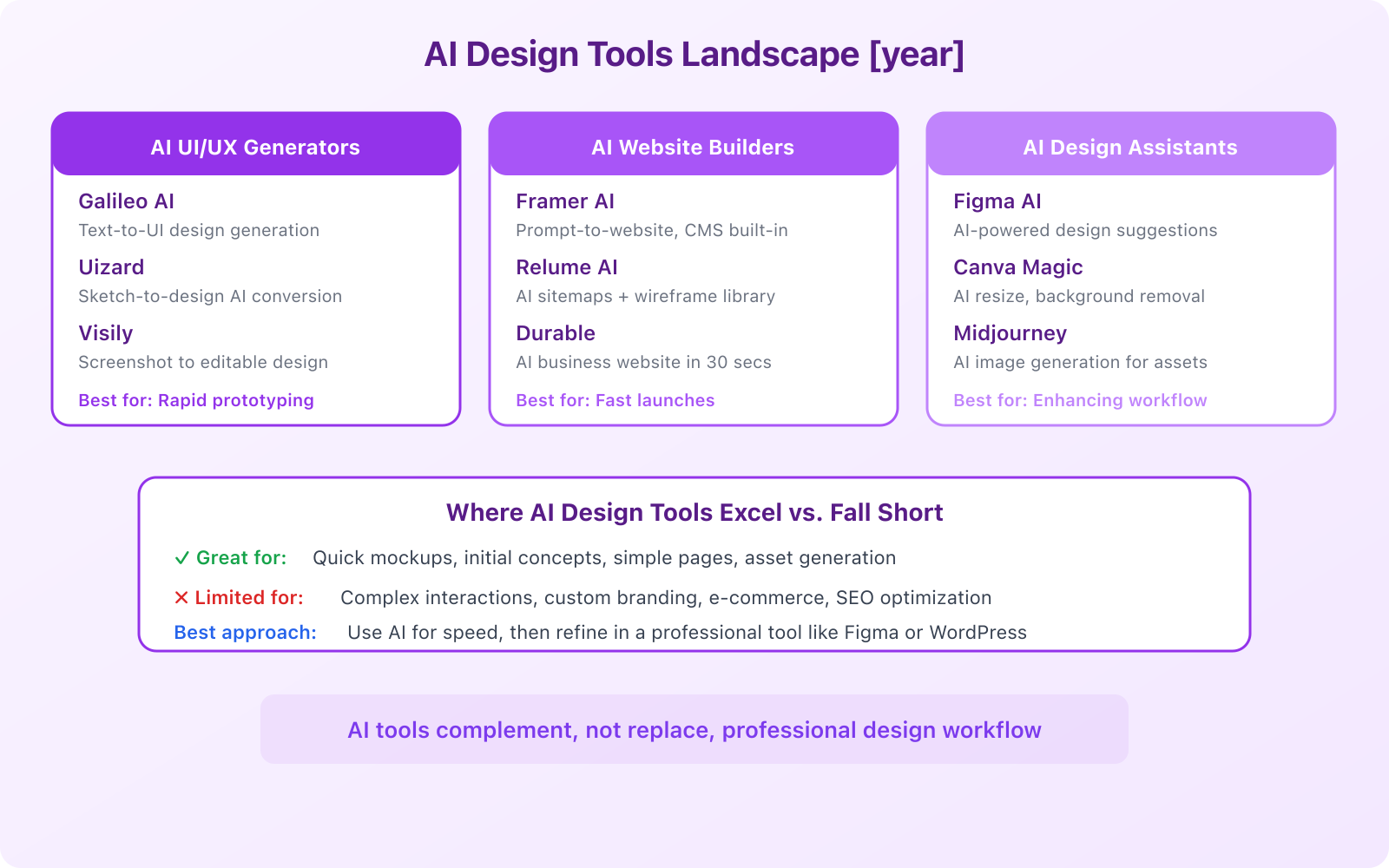
AI design tools are excellent for generating initial concepts and speeding up repetitive tasks. They don’t replace design judgment, brand strategy, or user research. Use them to start faster, then refine with professional tools like Figma or WordPress. The best approach in 2026 is AI-assisted design, not AI-only design.
Web Design Tools Compared: Pricing, Features, and Use Cases
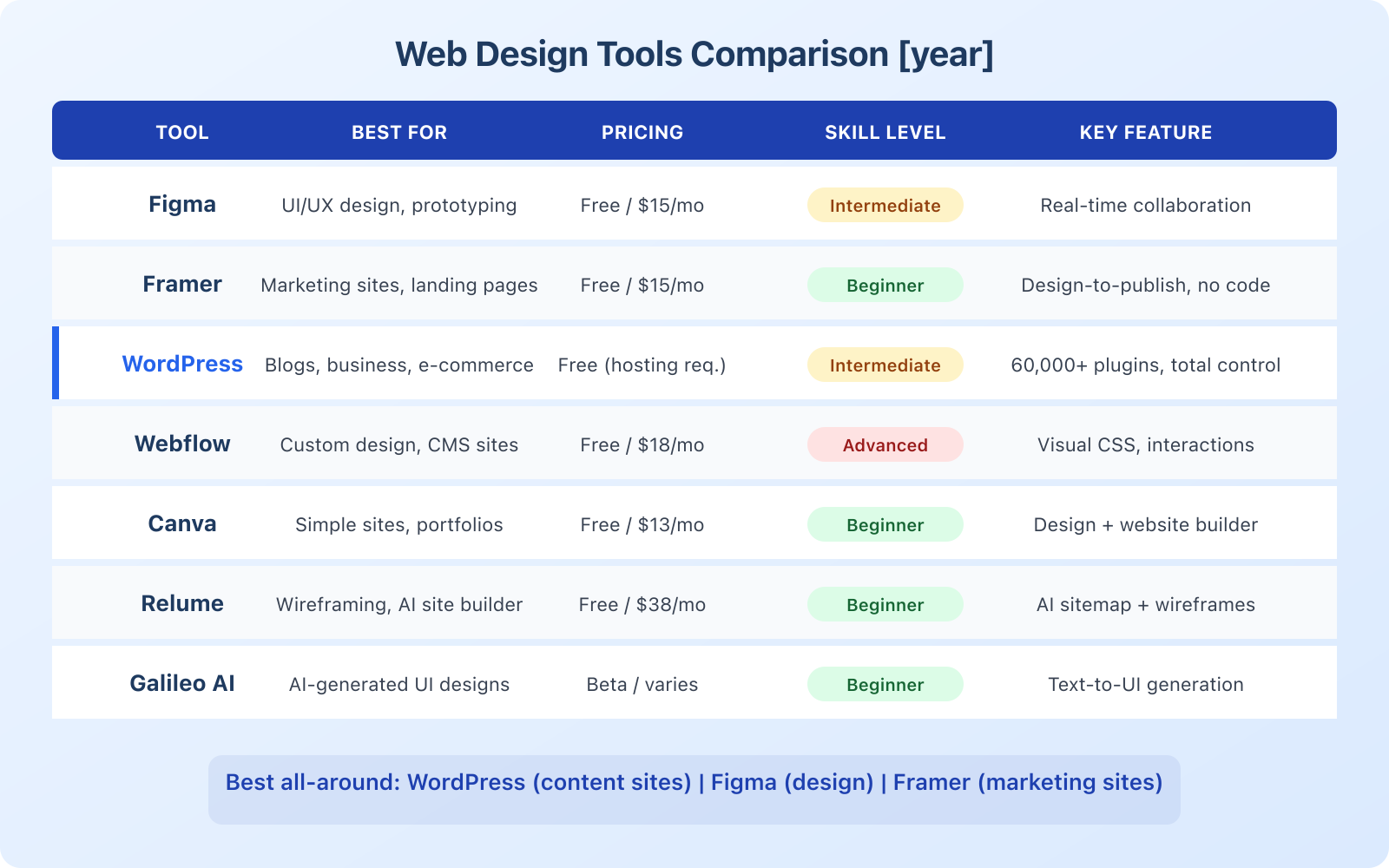
Here’s a side-by-side comparison of every tool covered in this guide. Use this to narrow down your shortlist based on what matters most for your project.

Figma leads for pure design work. Real-time collaboration, design systems, and developer handoff make it the tool professional design teams standardize on. The free tier is generous enough for solo designers.
Framer wins for marketing sites and landing pages. The design-to-publish workflow eliminates developer dependency, and the animations are best-in-class among no-code tools.
WordPress dominates content-heavy sites. Blogs, e-commerce, membership sites, documentation. Nothing matches its plugin ecosystem, SEO capabilities, and community support. It requires more setup but offers the most long-term flexibility.
Webflow is the power user’s choice. Clean code output, advanced CMS, and visual CSS control. But the learning curve and pricing make it better suited for professionals than beginners.
Canva is the simplest option. Perfect for solopreneurs who need basic websites alongside their social media graphics. Limited for anything complex, but the learning curve is almost zero.
How to Choose the Right Tool for Your Project
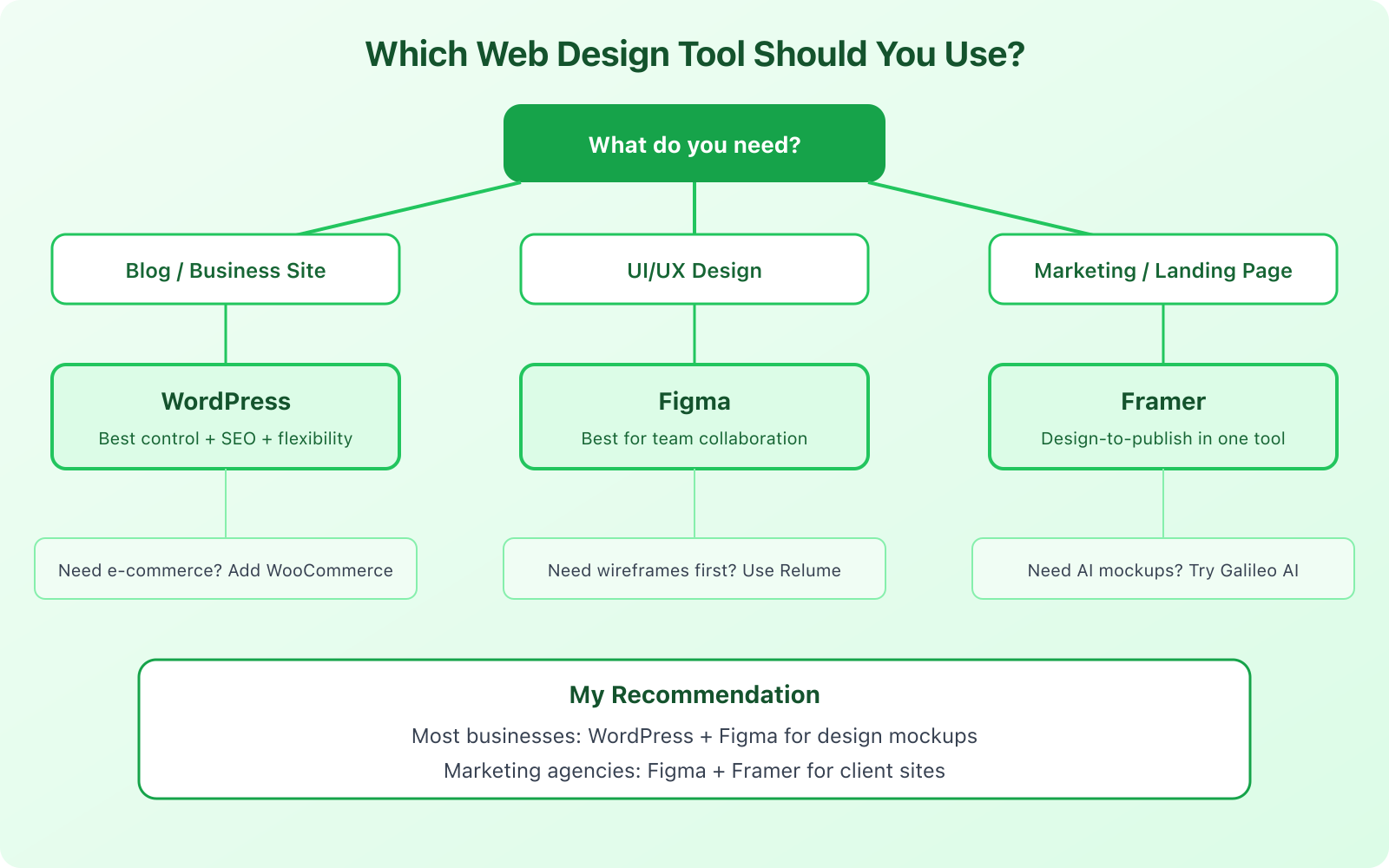
The decision tree is simpler than you think. Answer these three questions and you’ll know which tool to pick.

Question 1: What type of site are you building?
- Blog or content-heavy business site: WordPress
- Marketing site or landing page: Framer
- Complex CMS with custom content types: Webflow
- Simple portfolio or personal site: Canva or Framer
- E-commerce store: WordPress + WooCommerce
Question 2: What’s your skill level?
- Complete beginner: Canva or Framer
- Intermediate (comfortable with tech): WordPress or Figma + Framer
- Advanced (understand CSS/design): Webflow or Figma + custom code
Question 3: What’s your budget?
- Under $10/month: WordPress on shared hosting or Canva free tier
- $15-30/month: Framer Pro or Figma Professional
- $30-50/month: Webflow CMS or WordPress on Cloudways managed hosting
- $50+/month: Enterprise plans with any tool, or Webflow Business
The Professional Workflow: Using Multiple Tools Together
Here’s what most beginners miss: professionals don’t use just one tool. They combine tools from different categories. The specific combination depends on the type of work, but here are the two most common workflows I see in 2026.
For content-focused businesses (my recommendation):
- Figma for design mockups and prototyping
- WordPress for the actual website (content, SEO, plugins)
- Canva for social media graphics and quick visual assets
- Relume for initial wireframing when starting new pages
For marketing agencies building client sites:
- Figma for client-facing design presentations
- Framer or Webflow for building and publishing the final site
- Galileo AI or Relume for rapid concept generation
- Canva for brand collateral the client can manage themselves
The key insight is that no single tool does everything well. WordPress is terrible for visual prototyping. Figma can’t publish websites. Framer can’t handle complex e-commerce. By using the right tool for each job, you get better results in less time.
AI Design Tools in 2026: What Works and What Doesn’t
Let me be direct about AI design tools because there’s a lot of hype. I’ve tested Galileo AI, Uizard, Relume, Framer AI, Canva Magic Studio, Locofy, and several others. Here’s an honest assessment of where AI actually helps and where it falls short.

Where AI design tools excel:
- Generating initial layout concepts in seconds instead of hours
- Creating wireframes and sitemaps for new projects
- Producing simple landing pages for testing ideas quickly
- Generating image assets (backgrounds, icons, illustrations)
- Removing backgrounds, resizing content, batch processing
Where AI design tools fall short:
- Custom brand identity (AI generates generic-looking designs)
- Complex user interactions and micro-animations
- E-commerce with custom checkout flows
- SEO optimization (most AI builders produce poor SEO output)
- Accessibility compliance (WCAG standards require human judgment)
- Maintaining design consistency across large multi-page sites
My take: use AI tools to start faster, then move to a professional tool for the final product. Galileo AI generates a great starting wireframe. Relume accelerates your sitemap planning. Framer AI can scaffold a landing page. But the refinement, branding, and optimization still require human skill and a proper tool like Figma or WordPress.
Essential Features to Look For
Regardless of which tool you choose, make sure it handles these non-negotiable features for 2026.
Responsive design. Your site must look good on phones, tablets, and desktops. Every tool listed here supports responsive design, but the approaches differ. Figma uses constraints and auto layout. Framer and Webflow use breakpoints. WordPress depends on your theme. Make sure you can preview and customize the mobile experience, not just hope it works.
SEO fundamentals. Custom meta titles, descriptions, heading structures, clean URLs, image alt text, and sitemap generation. WordPress with Rank Math gives you the most SEO control. Framer and Webflow have decent built-in SEO settings. Canva’s SEO options are minimal.
Performance. Page load speed directly affects user experience and search rankings. WordPress performance depends on your hosting and optimization setup. Framer and Webflow handle hosting and optimization automatically. Run your site through Google PageSpeed Insights regardless of which tool you use.
Scalability. Can the tool grow with your project? WordPress scales to millions of pages. Webflow handles thousands. Framer works best for sites under 100 pages. Canva tops out at basic sites. Choose based on where you expect to be in 2-3 years, not just where you are today.
Collaboration. If you work with a team, clients, or contractors, collaboration features matter. Figma leads here. Framer and Webflow have good collaboration built in. WordPress collaboration depends on your setup but supports multiple user roles and editorial workflows.
Mistakes to Avoid When Choosing Web Design Tools
I’ve watched clients make the same mistakes for years. Here are the ones that cost the most time and money.
Choosing based on the demo, not the workflow. Every tool looks great in a 2-minute demo video. What matters is the daily experience: how easy is it to update content? How long does it take to make changes? How’s the publishing workflow? Try the free tier for at least a week before committing.
Ignoring the migration cost. Switching platforms later is painful and expensive. Webflow to WordPress migration requires rebuilding everything. Framer to WordPress means starting from scratch. Choose carefully upfront because the switching costs are real.
Overpaying for features you don’t need. You don’t need Webflow’s Business plan for a 5-page portfolio. You don’t need WordPress if you’re building a single landing page. Match the tool’s complexity to your actual needs.
Ignoring SEO from the start. If organic search traffic matters to your business (it does for most businesses), factor SEO capabilities into your tool choice from day one. Migrating to a more SEO-friendly platform later means losing months of ranking progress.
Falling for AI hype. AI design tools are impressive demos but limited production tools. Don’t build your entire website strategy around a tool that launched 6 months ago and might pivot or shut down. Use established tools for the foundation and AI tools for acceleration.
My Recommendation for 2026
If I had to pick one recommendation for each audience, here’s what I’d say.
For bloggers and content creators: WordPress on Cloudways hosting with Rank Math for SEO. It’s the most proven setup for content-driven growth. You’ll have complete control over your site, the best SEO tools, and a platform that scales to any size.
For marketing agencies: Framer for client sites with Figma for the design phase. This combination gives you speed, impressive client presentations, and published sites that don’t need ongoing developer support.
For solopreneurs on a budget: Start with Canva for a simple site and social graphics, then upgrade to WordPress when you’re ready to invest in content marketing and SEO.
For design professionals: Figma as your primary design tool with Framer or Webflow for publishing. Use Relume for initial wireframing and Galileo AI for exploring concepts quickly.
The best web design tool is the one that matches your actual workflow, not the one with the most impressive feature list. Start with what you need today, learn it well, and add more tools as your projects demand them.
Frequently Asked Questions
What is the best free web design tool in 2026?
Figma is the best free design tool with a generous free tier (3 projects, unlimited collaborators). For building and publishing a website for free, Framer and Canva both offer free plans with limitations (branding, custom domain restrictions). WordPress is free software but requires paid hosting. If you need zero cost, start with Canva Websites or Framer’s free plan.
Can AI tools replace web designers?
Not yet, and not anytime soon. AI tools like Galileo AI and Uizard generate decent starting layouts, but they can’t handle brand strategy, custom interactions, SEO optimization, accessibility compliance, or the nuanced decisions that make a website truly effective. AI accelerates the process, but you still need human judgment for the final product. Think of AI as a fast sketch artist, not an architect.
Should I use WordPress or a website builder like Framer?
It depends on your priorities. Choose WordPress if you need blogging, e-commerce, SEO optimization, or a site with hundreds of pages. WordPress gives you the most control and the largest plugin ecosystem. Choose Framer if you need a beautiful marketing site or landing page with animations and fast publishing. Framer is easier to learn but less flexible for content-heavy projects.
How much does it cost to build a website with these tools?
Costs vary widely. A WordPress site on shared hosting costs $3-10/month plus a theme ($0-200 one-time). Framer plans range from free to $30/month. Webflow ranges from free to $49/month. Figma is free for up to 3 projects or $15/month for pro features. Canva Pro costs $13/month. Most small businesses spend $15-50/month total, including hosting, tools, and domain registration.
What’s the best web design tool for beginners with no experience?
Canva is the easiest starting point. It has the lowest learning curve and lets you create basic websites alongside social media graphics and presentations. Framer is the next step up, offering more design flexibility with a visual drag-and-drop interface. Both are significantly easier than WordPress, Webflow, or Figma for complete beginners. Once you outgrow them, WordPress is the best long-term platform to learn.
Disclaimer: This site is reader-supported. If you buy through some links, I may earn a small commission at no extra cost to you. I only recommend tools I trust and would use myself. Your support helps keep gauravtiwari.org free and focused on real-world advice. Thanks. - Gaurav Tiwari