
How to Install Claude Code, Set It Up, and Fix the Snags
If you want to install Claude Code, the command takes less than a minute. The part worth doing carefully comes after installation: choosing the right route for your operating system, signing in with the right account, and giving Claude enough project context to be useful without handing it reckless permissions.
I learned that distinction the expensive way. A coding agent is not another autocomplete box. It can read a repository, run commands, edit several files, and keep working across a task. A clean installation matters, but a small set of project rules matters more. This guide covers both so your first session starts with useful guardrails.
Before You Install Claude Code
Claude Code runs in a terminal, but you do not need to be a terminal expert. You do need a supported computer, internet access, a terminal shell, and an account that includes Claude Code. Anthropic’s current requirements are macOS 13 or newer, Windows 10 version 1809 or newer, Windows Server 2019 or newer, Ubuntu 20.04 or newer, Debian 10 or newer, or Alpine Linux 3.19 or newer. The machine needs at least 4 GB of RAM and an x64 or ARM64 processor.
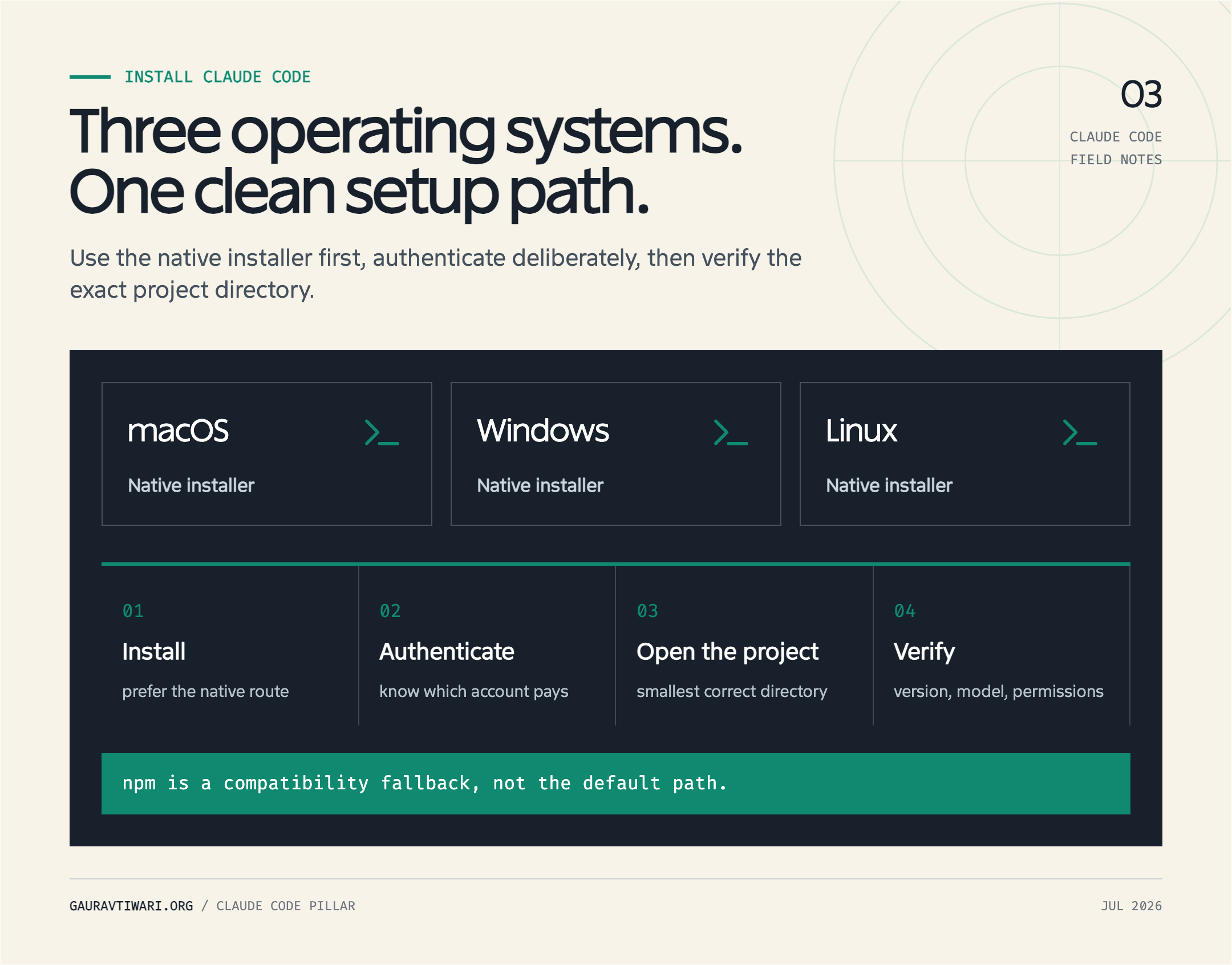
The official Claude Code setup documentation recommends the native installer. That route does not require Node.js, installs a self-contained binary, and updates itself in the background. Homebrew, WinGet, Linux package repositories, and npm remain available when they fit an existing management policy better.
| Route | Best for | Updates | Main tradeoff |
|---|---|---|---|
| Native installer | Most individual users | Automatic in the background | Managed outside your system package manager |
| Homebrew or WinGet | Teams already standardizing on a package manager | Manual package-manager upgrade | The Homebrew stable cask can trail the newest release |
| Linux package repository | Managed Linux machines | Through apt, dnf, or apk | Repository setup varies by distribution |
| npm | Compatibility with an older Node-based setup | Manual npm upgrade | Requires Node.js 22 or newer for installation |
Claude Code is not included with Claude’s Free plan. You can sign in with a Claude Pro, Max, Team, or Enterprise account, use an Anthropic Console account billed for API usage, or connect an approved cloud provider such as Amazon Bedrock, Google Cloud’s agent platform, or Microsoft Foundry. If you only want the shortest path, use a direct Anthropic subscription and the native installer.
Choose the terminal CLI or the desktop app
The terminal version is the full Claude Code experience. It fits naturally beside Git, WP-CLI, Composer, npm, and the other tools I already use. Anthropic also offers a graphical Code workspace inside the Claude desktop app for macOS and Windows. It can open repositories, display diffs and plans, run parallel sessions, and preview a development server or static file inside an embedded browser.
The desktop app does not replace the command-line installation. It is a separate way to run coding sessions, and Linux is not currently supported by the desktop app. Install the CLI if you want to work from Terminal, PowerShell, Windows Terminal, an IDE terminal, SSH, scripts, or headless commands. Choose the desktop app when you prefer a visual diff and session interface.
Install Claude Code on macOS
On macOS, the native installer is the best route for most people. Open Terminal, paste the command below, and press Return. It works on both Apple silicon and Intel Macs that meet the macOS 13 requirement.
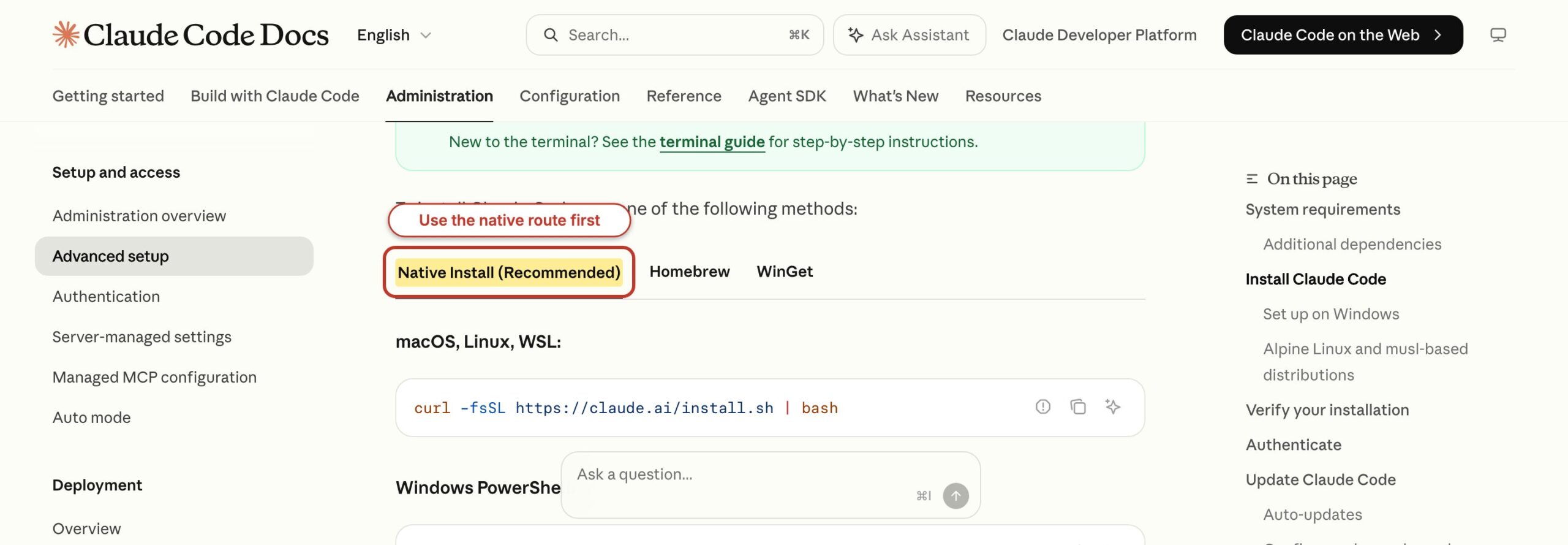
curl -fsSL https://claude.ai/install.sh | bashWhen the installer finishes, close and reopen Terminal if the claude command is not immediately available. Then verify the binary:
claude --version
claude doctor
claude --version prints the installed version. The terminal command claude doctor performs a read-only diagnostic of the installation and update path. Do not confuse it with the interactive /doctor skill inside a Claude Code session. The interactive version can now propose configuration cleanup and asks before making a change.
Install with Homebrew when policy requires it
If you manage developer tools through Homebrew, install the stable cask:
brew install --cask claude-codeAnthropic notes that the stable Homebrew cask can be roughly a week behind the newest release. Use the latest cask only when you need immediate features or fixes:
brew install --cask claude-code@latestHomebrew installations do not use Claude Code’s background updater. Update them with brew upgrade claude-code or brew upgrade claude-code@latest, matching the cask you installed. I would stay on the stable cask unless a documented release solves a problem you actually have.
Keep active repositories out of fragile sync states
My most painful Claude Code setup problem was not the installer. It was running a large Git repository from an iCloud-synced location while background work and file synchronization competed over the same tree. The repository had grown to roughly 277 GB. Git operations slowed down, files moved between local and cloud states, and diagnosing the agent became harder because the storage layer was unstable.
The lesson is practical: keep active code repositories fully downloaded and locally available. For a large or write-heavy project, prefer a normal local development directory and sync backups separately. If you must use iCloud Drive, confirm the folder is downloaded before starting, avoid moving it during a session, and stop the session before reorganizing the repository. Claude can recover from a rejected edit. It cannot make an unreliable filesystem trustworthy.
Install Claude Code on Windows
Windows now has a native Claude Code installation, so WSL is optional rather than mandatory. On a supported Windows 10, Windows 11, or Windows Server machine, open PowerShell and run:
irm https://claude.ai/install.ps1 | iexIf your organization uses Command Prompt instead of PowerShell, use Anthropic’s CMD installer:
curl -fsSL https://claude.ai/install.cmd -o install.cmd && install.cmd && del install.cmdReopen the terminal, run claude --version, and then start claude. Git for Windows is optional. When it is present, Claude Code can use Bash for shell commands. Without it, Claude uses PowerShell. That makes the native route reasonable for WordPress, PHP, JavaScript, and documentation repositories even if you do not want a Linux layer.
Install with WinGet on managed PCs
WinGet is the cleaner route when the rest of the machine is managed through Windows Package Manager:
winget install Anthropic.ClaudeCodeWinGet installations require a manual upgrade:
winget upgrade Anthropic.ClaudeCodeUse the native installer when you want automatic background updates. Use WinGet when predictable package inventory matters more than receiving every release immediately.
Choose native Windows or WSL 2 deliberately
Native Windows is the shortest route if your repository, editor, PHP stack, and browser tools already live on Windows. WSL 2 is better when your development environment depends on Linux packages, Bash scripts, containers, or a production-like Linux filesystem. Claude Code supports both.
- Choose native Windows for a Windows-first stack and direct access to Windows paths.
- Choose WSL 2 for Linux tooling and Claude Code’s operating-system sandbox support.
- Avoid splitting one repository across both filesystems. Keep a WSL project inside the Linux filesystem and open it through WSL-aware editor integration.
Anthropic’s OS-level sandboxing is supported on WSL 2, but not on native Windows or WSL 1. That does not make native Windows unsafe by definition. It means permission rules and review habits carry more of the load there.
Install Claude Code on Linux
On Ubuntu, Debian, Alpine, and other supported Linux distributions, the native shell installer is again the direct path. Run it as your normal user:
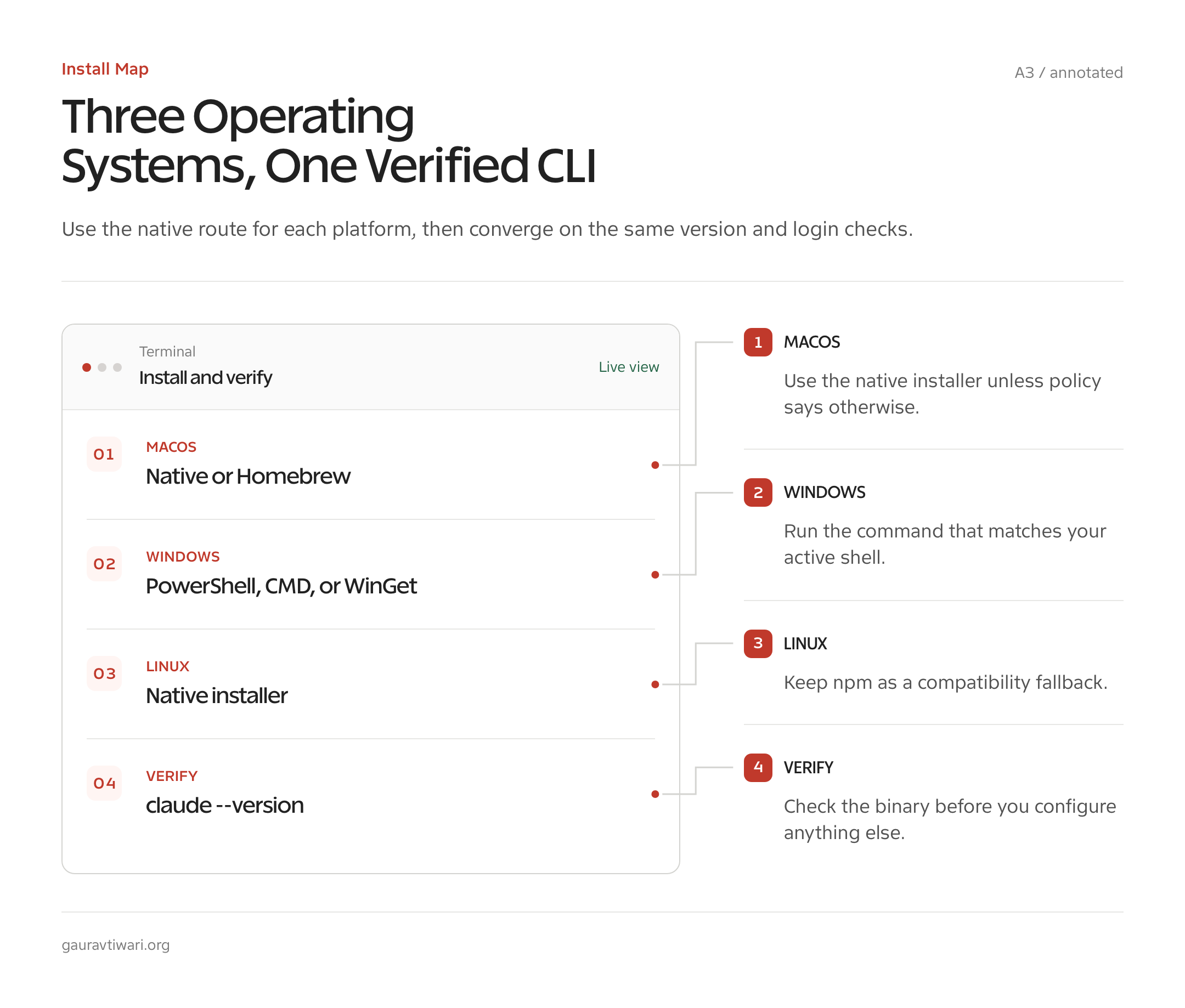
curl -fsSL https://claude.ai/install.sh | bashDo not add sudo. The installer places the binary in your user environment. Reopen the shell if necessary, then run claude --version and claude doctor.
Anthropic also maintains official apt, dnf, and apk repositories. Those routes fit servers and workstations where operating-system package policies are mandatory. Follow the distribution-specific repository commands in the official setup page rather than copying an old third-party snippet. Signing keys, repository paths, and package instructions are the sort of details that deserve a current source.
Use npm only when you need the compatibility route
The npm package still works, but it is no longer the preferred installation. Current Claude Code releases require Node.js 22 or newer for npm installation:
npm install -g @anthropic-ai/claude-codeNever use sudo npm install -g to force it through a permissions error. Fix the npm prefix or use the native installer. The installed native binary does not need Node.js at runtime, even when npm was used to fetch it. Update this route with:
npm install -g @anthropic-ai/claude-code@latestAnthropic specifically advises against relying on npm update -g for Claude Code. Install the latest package explicitly instead.
Complete the First Run: Login, Theme, and Permissions
The first run connects your account and establishes how Claude asks before acting. Move into a real project directory before you start. Claude uses the working directory as the initial scope for file discovery and tool decisions.
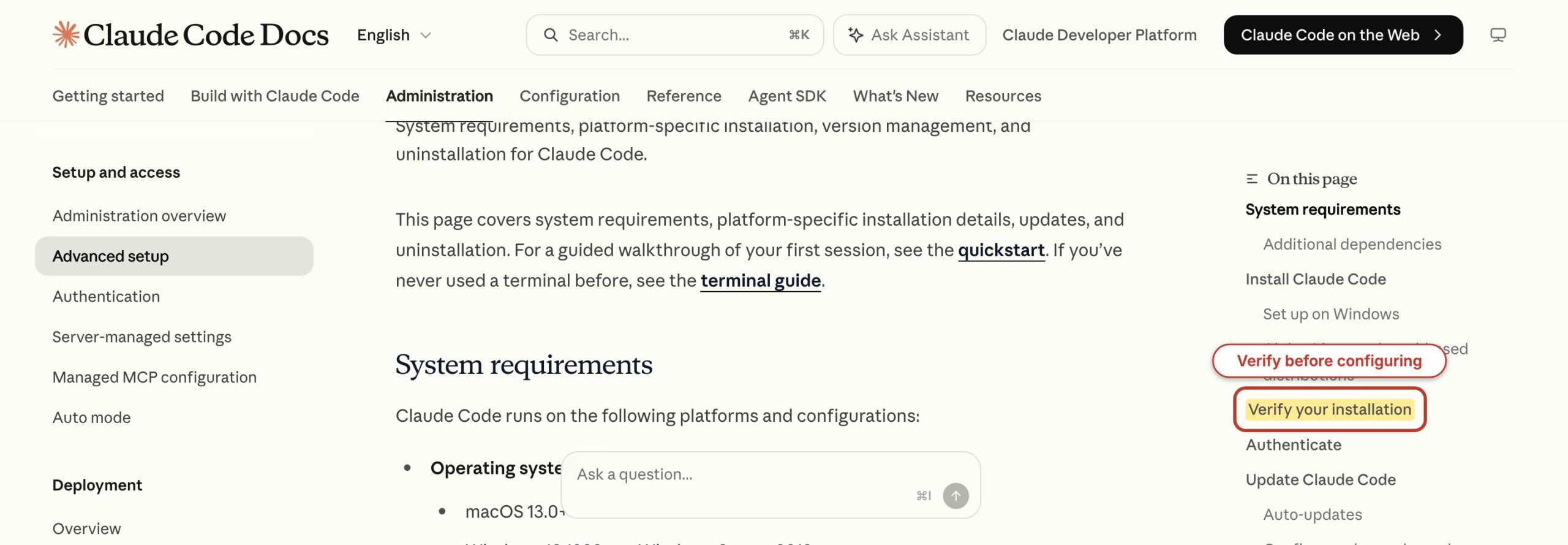
cd path/to/your-project
claude
Claude Code opens a browser sign-in flow for a supported Claude subscription or Console account. Finish authentication, return to the terminal, select a display theme, and review the trust prompt for the directory. Trust only repositories you recognize. A repository can contain project settings, hooks, MCP configuration, and instruction files that influence agent behavior.
If an ANTHROPIC_API_KEY environment variable is already set, Claude Code can use API billing even when you have a subscription. That surprises people who expect every request to count against Pro or Max. Check the variable and your selected authentication method if costs appear in the Console.
Understand the permission modes before approving tools
Claude Code starts in its normal permission mode and asks when a tool falls outside an allowed rule. Press Shift+Tab to cycle through the common modes. Accept Edits allows file edits while retaining prompts for commands. Plan Mode lets Claude inspect the project and run read-only shell commands while withholding source edits. The exact prompt still depends on your rules and environment.
- Default: review edits and commands as Claude requests them.
- Accept Edits: useful after you understand a bounded task and want fewer edit confirmations.
- Plan: useful before a multi-file change, migration, or unfamiliar repository task.
- Bypass Permissions: reserved for an isolated container or disposable virtual machine, not a normal laptop.
Open /permissions during a session to inspect or change rules. Claude evaluates deny rules before ask rules and allow rules, so a narrow deny can protect a secret even when a broader read permission exists. Start restrictive. Widen a rule only after you understand the exact command pattern that needs it.
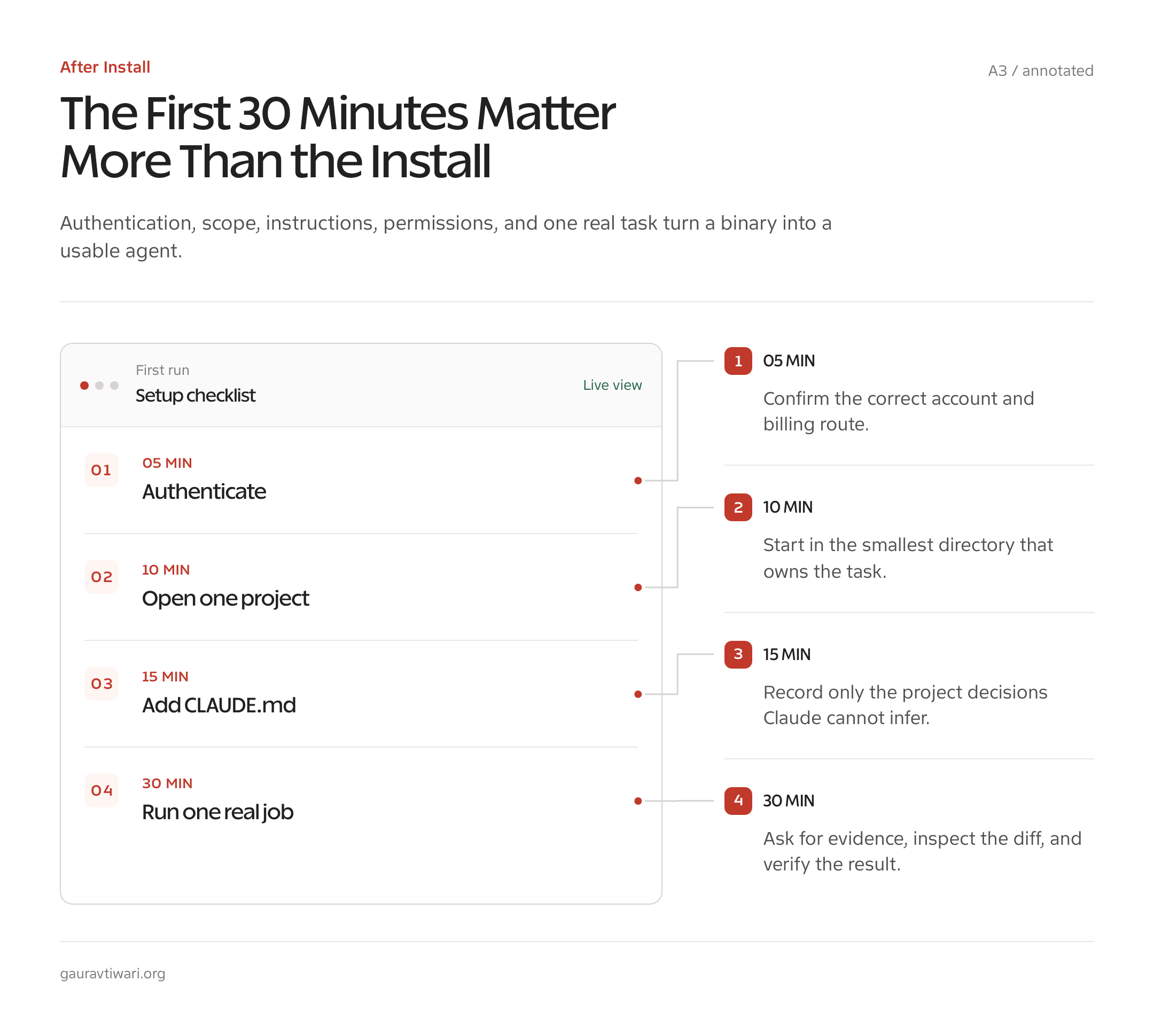
Do This 30-Minute Claude Code Setup
A useful Claude Code setup needs one project instruction file, restrained permissions, and one repeatable skill. You can add more automation later. The first goal is to make Claude understand how this repository differs from every other repository.
Create a focused CLAUDE.md
Run /init inside Claude Code to generate a starting project file, or create CLAUDE.md in the repository root. Claude also recognizes .claude/CLAUDE.md. Keep the file specific and short. Anthropic recommends staying under roughly 200 lines because sprawling instructions consume context and become harder for the model to follow consistently.
# Project rules

- Read existing code before editing it.
- Preserve the current formatting and naming conventions.
- Run the smallest relevant test after each change.
- Never read or print .env files.
- Do not publish, deploy, or push without explicit approval.
- Summarize changed files and unresolved risks at the end.
This is deliberately plain. A good instruction tells Claude what to inspect, what to preserve, what evidence counts, and which action needs a human decision. It does not repeat generic advice about writing clean code. If your project already uses AGENTS.md, a short CLAUDE.md can import it with @AGENTS.md instead of maintaining two competing manuals.
Add conservative project permissions
Shared project settings live in .claude/settings.json. Personal overrides belong in .claude/settings.local.json, which should stay out of version control. Start with explicit read-only Git commands and protection for secrets:
{
  "permissions": {
    "allow": [
      "Bash(git status:*)",
      "Bash(git diff:*)",
      "Bash(git log:*)"
    ],
    "deny": [
      "Read(./.env)",
      "Read(./.env.*)"
    ],
    "defaultMode": "default"
  }
}
Treat that JSON as a starting policy, not a universal file. Add commands only when the project needs them. Do not approve broad shell wildcards merely to remove prompts. Hooks can run programs automatically around tool events, so leave hooks out of a first-day configuration. Add one only when you can explain the trigger, command, timeout, and failure behavior.
Create one project skill
A skill turns a repeated instruction into a named workflow. Project skills live under .claude/skills/. For a WordPress repository, I would start with a review skill that checks scope and evidence before touching files:
.claude/skills/review-change/SKILL.md---
name: review-change
description: Review a proposed WordPress change before implementation.
---
Read the relevant code and project instructions.
Explain the current behavior, affected files, compatibility risks,
and the smallest credible validation. Do not edit files until I approve.Claude Code reloads skills while it is running. Type /review-change to invoke this one. A small skill like this earns its place because it creates a repeatable decision point. A library of vague prompts only consumes attention. If you build a larger content workflow, my content creation checklist provides a useful sequence to translate into project-specific checks.
Add Your First MCP Server
An MCP server gives Claude Code controlled access to an external service or tool. Add one only when it removes a real copy-and-paste step. For a first test, Anthropic’s official documentation uses Sentry’s hosted HTTP server:
claude mcp add --transport http --scope local sentry https://mcp.sentry.dev/mcpStart Claude Code in that project, run /mcp, and complete the browser authentication. Then ask a bounded question such as, What were the most common errors in the last 24 hours? The visible payoff is not that Claude knows Sentry exists. It can inspect live error data without you pasting a screenshot or export.
The official MCP guide recommends HTTP for remote servers. Use claude mcp list, claude mcp get sentry, and claude mcp remove sentry to inspect or remove the connection. The default local scope is private to the current project. A project-scoped server is written to .mcp.json for team sharing, while user scope makes it available across your projects.
WordPress users can apply the same idea to site operations. I have explained the architecture in my WP MCP introduction and the SEO use case in my Rank Math MCP Server guide. The permission boundary still matters: connecting a server does not mean every write action should be automatic.
Fix Common Claude Code Installation Problems
Most installation failures come from an old shell path, an outdated npm route, network filtering, or mixed authentication. Diagnose those layers in that order. Reinstalling repeatedly rarely fixes the underlying mismatch.
The claude command is not found
Close and reopen the terminal first. If the native installer reported success but the command is missing, run the installer again and read its path message. Confirm that your shell loads the expected profile, especially after switching between Bash and Zsh. On Windows, open a new PowerShell or Windows Terminal window so it receives the updated environment.
If an old npm installation and a new native installation both exist, which claude on macOS or Linux, or Get-Command claude in PowerShell, shows which executable wins. Remove the route you no longer use instead of keeping two versions on the path.
npm reports a Node version or permission error
The current npm installer needs Node.js 22 or newer. Upgrade Node with your normal version manager, or switch to the native installer and remove Node from the equation. For a global permission error, do not run npm with sudo. A user-owned npm prefix or the native route fixes the ownership problem instead of hiding it.
Login opens the wrong account or billing route
Run /logout inside Claude Code, restart, and authenticate with the intended account. Check whether ANTHROPIC_API_KEY is present in the shell. An API key overrides subscription authentication for requests and can create Console charges. Remove or scope that variable if you want Pro, Max, Team, or Enterprise usage instead.
Network, proxy, or SSH access fails
Claude Code itself needs HTTPS access to Anthropic. Your task may also need Git hosting, package registries, MCP endpoints, or remote servers. Test each destination separately. I have seen Cloudflare WARP interfere with outbound SSH on port 22 while normal web traffic kept working. Pausing WARP or using an approved HTTPS Git remote isolated the problem. That was a network-routing issue, not a Claude Code defect.
Corporate proxies may require HTTPS_PROXY and custom certificate configuration. Follow the organization’s security policy instead of disabling certificate verification. If Claude starts but a specific tool fails, inspect that tool’s endpoint and authentication before blaming the installation.
Update or Uninstall Claude Code
The update command depends on the installation route. Native installations update automatically in the background, and you can request an immediate update with claude update. Package-manager installations stay under their package manager.
- Native:
claude update - Homebrew:
brew upgrade claude-code - WinGet:
winget upgrade Anthropic.ClaudeCode - npm:
npm install -g @anthropic-ai/claude-code@latest
Run claude --version after an upgrade. If a release behaves differently, read the current command documentation before assuming an old tutorial still applies. Claude Code changes quickly enough that installation advice from its early npm-only period is now misleading.
Uninstall by the route you used
For Homebrew, use brew uninstall --cask claude-code. For WinGet, use winget uninstall Anthropic.ClaudeCode. For npm, use npm uninstall -g @anthropic-ai/claude-code. A native macOS or Linux installation can be removed with:
rm -f ~/.local/bin/claude
rm -rf ~/.local/share/claude
Do not delete ~/.claude as routine cleanup. That directory can contain settings, permissions, MCP configuration, skills, and resumable session data. Remove it only when you intentionally want to erase that local Claude Code state and have backed up anything you need.
A Clean Install Is Only the Start
The right way to install Claude Code is the native installer unless your package-management policy says otherwise. Verify the binary, enter a real project, sign in, and keep the initial permission boundary narrow. Then spend your next 30 minutes on CLAUDE.md, one project skill, and one MCP connection that solves a real problem.
That setup is enough to move from a chat window to a working project agent without pretending the agent should control everything. Keep reviews around publishing, deployment, secrets, destructive commands, and expensive external actions. You can loosen the workflow later. Recovering from a careless first-day automation is much harder.
Is Claude Code free to install?
The installer does not have a separate charge, but using Claude Code requires Claude Pro, Max, Team, Enterprise, an Anthropic Console account with API billing, or a supported cloud provider. The Claude Free plan does not include Claude Code.
Do I need Node.js to install Claude Code?
No. The recommended native installer does not require Node.js. The npm installation route currently requires Node.js 22 or newer, but the installed binary does not use Node at runtime.
Can I install Claude Code on Windows without WSL?
Yes. Claude Code supports native Windows through PowerShell, Command Prompt, or WinGet. WSL 2 remains useful for Linux tooling and operating-system sandbox support, but it is optional.
Where should I install Claude Code on a Mac?
Use the native shell installer for the recommended self-updating binary. Use Homebrew when you already manage developer tools through Homebrew and accept manual upgrades.
How do I confirm Claude Code installed correctly?
Open a fresh terminal and run claude –version. Then run claude doctor for a read-only installation diagnostic. Enter a project directory and run claude to test authentication and project access.
Does Claude Code update automatically?
Native installations update in the background. Homebrew, WinGet, Linux package-repository, and npm installations are updated through their respective package managers.
Should I give Claude Code full permissions?
No. Start with normal prompts and narrow allow rules. Reserve permission bypass for an isolated container or disposable virtual machine. Keep human approval around secrets, publishing, deployment, deletion, and paid external actions.