
The Dynamic Functionalities plugin packs 16 independent modules into one WordPress optimization toolkit: performance cleanup, login security, redirects, schema markup, custom fonts, and more. The Functionalities dashboard is the control center where you enable, disable, and configure every one of those modules from a single screen.
I built this plugin because my own utility plugin list was getting embarrassing. A redirect plugin here, a snippets plugin there, a security plugin loading its own CSS on every page view. Functionalities replaced five separate plugins on gauravtiwari.org, and the dashboard is the reason that consolidation doesn’t turn into chaos.
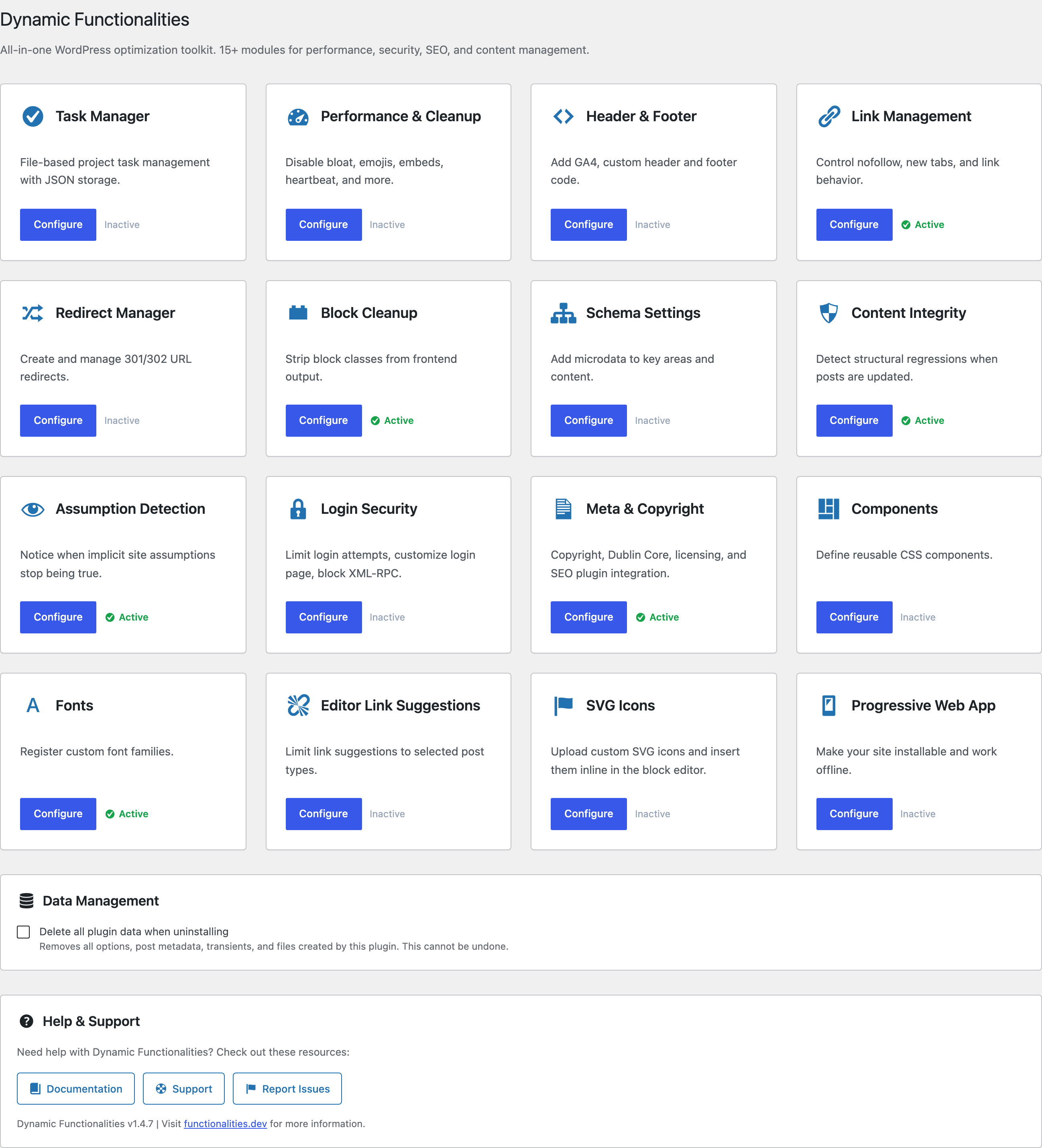
Where to Find the Dashboard
After activating the plugin, the dashboard lives under Functionalities in your WordPress admin sidebar, or directly at admin.php?page=functionalities. Each module also gets its own submenu entry, so you can jump straight to Redirect Manager or Fonts without passing through the main screen.
The Module Grid
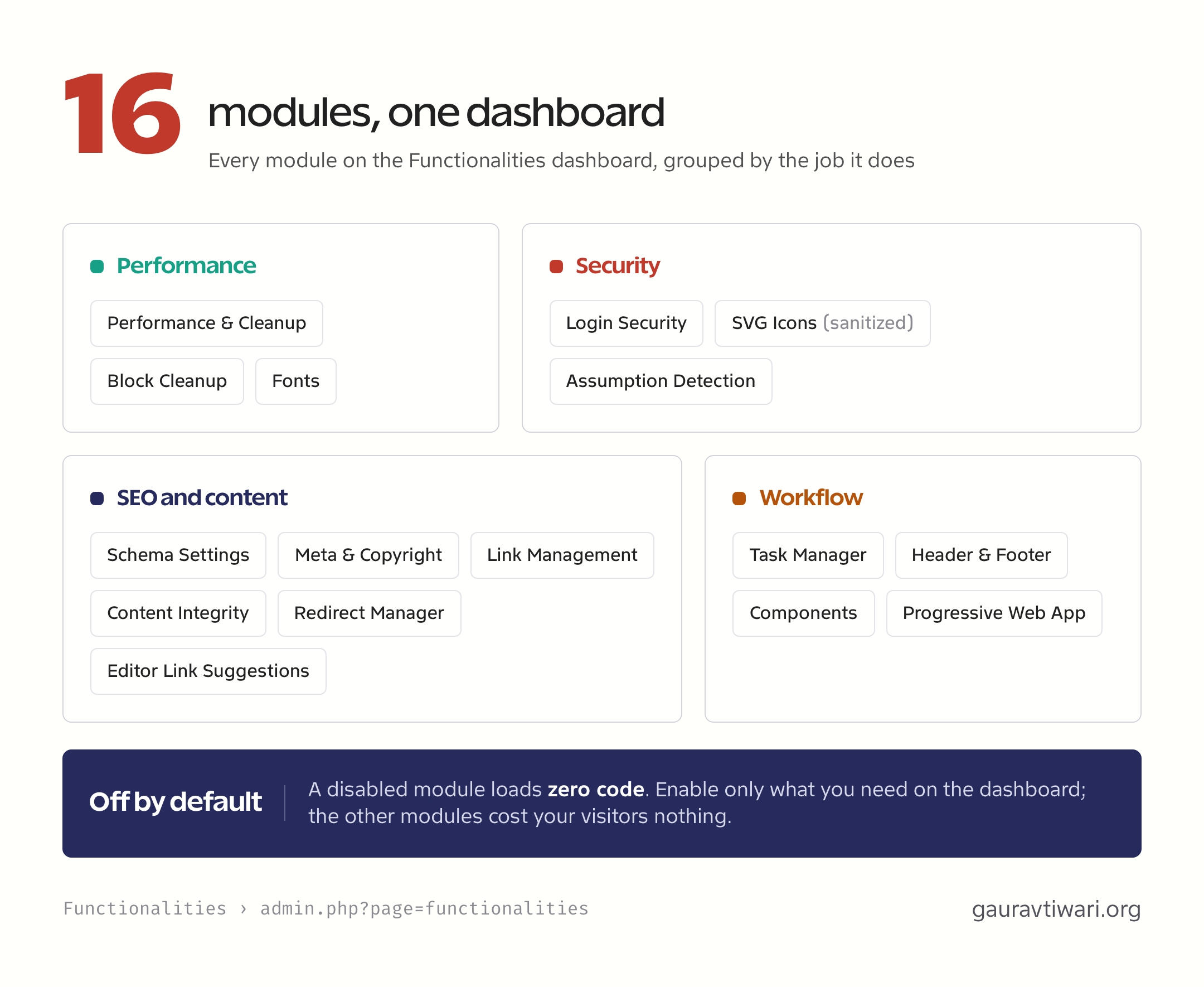
The dashboard shows all 16 modules as cards, and every card answers three questions at a glance: what the module does, whether it’s running, and where to configure it. Each card carries an icon, a one-line description, a Configure button, and an Active or Inactive status badge.
The 16 modules break down into four rough groups:
- Performance: Performance & Cleanup, Block Cleanup, Fonts
- Security: Login Security, SVG Icons (with sanitization), Assumption Detection
- SEO and content: Schema Settings, Meta & Copyright, Link Management, Content Integrity, Redirect Manager, Editor Link Suggestions
- Workflow: Task Manager, Header & Footer, Components, Progressive Web App
Modules Are Off by Default
Every module requires explicit activation, and a disabled module loads zero code. That is the single most important design decision in the plugin. Install Functionalities on a site and it does nothing until you tell it to, and a lazy module registry enforces this at the file level, so a frontend request with every module disabled does not even load the feature class files.
This matters for performance. A typical WordPress site runs 5 to 10 utility plugins that each bootstrap on every request whether you need them or not. With the Dynamic Functionalities plugin, options are read once per request through static property caching, and only active modules hook into WordPress at all. If you only need redirects and login security, the other 14 modules cost you nothing.
Data Management
The dashboard includes one opt-in destructive setting: “Delete all plugin data when uninstalling.” Leave it unchecked and uninstalling the plugin preserves your options, redirects, and task files. Check it and uninstall removes every option, post meta entry, transient, and file the plugin ever created. There’s no undo, which is exactly why it ships unchecked.
Settings Export, Import, and Diagnostics
Three portability tools sit on the dashboard. Export Settings downloads a versioned JSON file of your module configuration. Custom code, like snippets and Components CSS, is redacted from that export unless you explicitly opt in, so a shared settings file can’t smuggle executable code onto another site. Your GA4 measurement ID is not treated as custom code, so it comes through in the export where it belongs.
Import runs as a dry run first: you see exactly which settings would change before anything is written, and invalid module data is rejected. Download Diagnostics produces a privacy-conscious report for debugging: software versions, enabled modules, writable-path status, and rewrite-rule health. Task content, redirects, users, secrets, and site URLs never appear in it, so it’s safe to attach to a support thread.
What WordPress 7 Adds
On a WordPress 7 site the dashboard grows a few extra surfaces, and all of them are feature-detected, so nothing here breaks or nags on an older install.
- Abilities API operations, 9 of them, covering module status and toggles, privacy-safe diagnostics, assumption scans, content-integrity checks, redirect import previews, and creating a redirect or a task
- DataViews workspaces for Redirect Manager, its 404 activity, and Task Manager: searchable, sortable, filterable tables with proper creation forms, shown only while the module is enabled
- Command Palette actions for jumping to a Functionalities screen or kicking off an Assumption Detection scan
- AI explanations, opt-in and off by default, which send a single finding to your configured provider when an administrator asks for it and never anything else
Each of those 9 abilities carries its own permission check and rejects input properties it does not declare. That matters because an ability is a machine-callable operation: a shared permission callback that widens to post editing would let anyone who can edit 1 post toggle modules and create redirects.
Help and Support
The bottom of the dashboard links to the documentation, the support page, and the issue tracker, and the footer shows the version you have installed. Each module’s own settings screen carries its feature list and its hooks, with a description for each, which is the reference that always matches the code you are actually running.
Where to Go Next
Start with the module that removes your biggest standalone plugin. For most sites that’s Performance & Cleanup, then Login Security. The next lesson covers the Task Manager, the module I use daily for editorial checklists.