
Perfmatters Review 2026: Boost WordPress Performance Beyond Caching
Perfmatters is a lightweight WordPress performance plugin that gives you surgical control over scripts, styles, and database bloat. It doesn’t cache your pages. It doesn’t optimize images. What it does is stop WordPress from loading unnecessary junk on every single page, and that distinction matters more than most people realize.
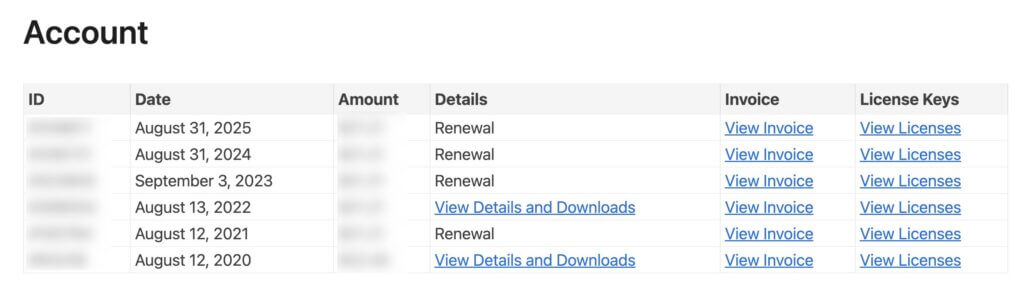
I’ve been using Perfmatters on this WordPress site since 2020.
It was there when I ran WP Rocket for ten years. It’s still here now that I’ve switched to FlyingPress.
Caching plugins come and go in my stack. Perfmatters stays and Perfmatters slays.
The reason is simple: you can’t cache your way out of a bloated page. If your homepage loads 47 JavaScript files because every plugin dumps assets site-wide, no caching solution will fix that problem.
After 6 years of using this plugin across dozens of client sites and my own properties, I can tell you exactly who needs it, who doesn’t, and whether the $29.95 annual price tag for a site is super affordable and justified.
What Perfmatters Actually Does
WordPress loads scripts globally by default. Install WooCommerce and its JavaScript runs on your blog posts. Add a contact form plugin and those assets load on your homepage. Every plugin developer assumes their code might be needed everywhere, so they dump everything into the global pool. Your 3-second homepage becomes a 6-second homepage not because the content changed, but because the browser now fetches 40 files instead of 15.
Perfmatters solved this with a Script Manager that lets you disable specific assets on specific pages or post types. WooCommerce scripts only on shop pages. Contact Form 7 only on your contact page. Slider Revolution only where you actually have a slider. The result isn’t a percentage improvement. It’s a complete shift.
Beyond script management, Perfmatters handles dozens of performance micro-optimizations: disabling emojis, removing query strings, preloading resources, deferring JavaScript, removing unused CSS. Each optimization is small individually. Together, they compound into measurable improvements.
My Complete Setup
I’ve been running Perfmatters on this site (probably) since the plugin launched. Here’s my exact exported configuration as of February 2026. Also see my FlyingPress advanced setup guide.
General Tab Settings
I enable every bloat-removal toggle that applies to my site. Each one removes a script, style, or HTTP request that serves no purpose for my visitors.
- Disable Emojis: On. WordPress loads an emoji script on every page by default. I write technical articles. I don’t need emoji support baked into the page.
- Disable Dashicons: On. Dashicons is WordPress’s admin icon font. It loads on the frontend for logged-in users. My readers aren’t logged in.
- Disable Embeds: On. The oEmbed feature loads JavaScript whether you use embeds or not. I use traditional iframe embeds where needed, so the oEmbed script is dead weight.
- Disable XML-RPC: On. XML-RPC is a legacy API that’s primarily used by brute-force attackers these days. I use the REST API for everything. No reason to keep this attack vector open.
- Remove jQuery Migrate: On. jQuery Migrate exists to support plugins that haven’t updated to modern jQuery. All my plugins are current. If yours aren’t, be careful with this.
- Hide WP Version: On. No reason to broadcast your WordPress version to the world. It’s a minor security measure but costs nothing to enable.
- Remove RSD Link and Shortlink: Both on. These add unnecessary
<link>tags to your HTML head. Removing them is free performance. - Remove REST API Links: On. I don’t disable the REST API itself (too many plugins depend on it), but I remove the discovery links from the HTML head.
- Disable Google Maps: On. I don’t use Google Maps embeds on my site. If you do, skip this one.
- Disable Password Strength Meter: On. WordPress loads a password strength library on every page with a password field. Unless you’re running a membership site, this is unnecessary overhead.
- Disable Comments: On. I turned off comments site-wide years ago. If you still use WordPress comments, leave this off.
- Disable Self-Pingbacks: On. When you link to your own content, WordPress pings itself. Useless.
- Remove Feed Links: On. I remove the RSS feed discovery links from the HTML head, though RSS itself still works.
Preloading Tab
- Early Hints: Enabled for fonts, images, scripts, and styles. This is a newer HTTP/103 feature that tells the browser what to start downloading before the full HTML response arrives. If your server supports it, turn this on.
- Preconnect: I preconnect to
https://stats.gauravtiwari.org(my self-hosted Umami Analytics instance). I used to preconnect to Google Tag Manager and Google Fonts, but I’ve moved to Umami for analytics and Functionalities for local font hosting. Less external dependencies, faster pages. - Disable Core Fetch Priority: On. WordPress core adds its own
fetchpriorityattributes to images, but the logic isn’t always accurate. I disable it and let Perfmatters handle resource prioritization instead. - Preload Critical Images and Fonts: I let FlyingPress handle these now. When I was using WP Rocket, Perfmatters managed my font preloading. But since FlyingPress handles critical CSS and resource prioritization, I avoid configuring the same optimization in two places.
Lazy Loading Tab
- Lazy Load Images: On. I switched from my theme’s native lazy loading to Perfmatters because it gives me more control over exclusions, fade-in behavior, and CSS background images. Perfmatters handles the full lazy loading pipeline now.
- Exclude Leading Images: On. You never want to lazy load hero images or above-the-fold content. That kills LCP.
- Lazy Load Iframes: On. Iframes from YouTube, Twitter embeds, and other third-party services get deferred until the visitor scrolls near them.
- YouTube Preview Thumbnails: On. This replaces YouTube iframes with static thumbnail images until the visitor clicks play. Huge savings on pages with embedded videos since you’re no longer loading YouTube’s entire player upfront.
- DOM Monitoring: On. This catches dynamically loaded images (from JavaScript-rendered content) and applies lazy loading to them too.
- Add Image Dimensions: On. Perfmatters automatically adds missing width and height attributes to images, preventing layout shifts (CLS).
- Fade In: On. Images fade in smoothly as they load instead of popping in abruptly. Small UX detail that makes lazy loading invisible to visitors.
- CSS Background Images: On. Perfmatters lazy loads CSS background images too, not just
<img>tags. Leading CSS backgrounds are excluded automatically. - Lazy Load Footer: Enabled. Perfmatters can lazy load specific DOM elements. I lazy load the entire footer since it’s below the fold on every page.
Database Tab
I have every cleanup option enabled: post revisions, auto-drafts, trashed posts, spam comments, trashed comments, expired transients, all transients, and table optimization. I run these manually when I notice the database growing rather than on a fixed schedule. On a site with 1,800+ posts and years of content, regular database maintenance makes a noticeable difference in query times. I use this over FlyingPress’ database cleanup as it is more intuitive and allows manual optimization.
Assets Tab: Defer, Minification, and CSS Optimization
This is where Perfmatters handles the heavy lifting beyond script management. I’ve consolidated most of my frontend optimization into Perfmatters instead of splitting it across multiple plugins.
- Defer JavaScript: On, including jQuery. Perfmatters defers all JS so nothing render-blocks the page. I exclude
jquery.js,jquery.min.js, and FluentCart scripts (fluent, fluentcart, fluent-cart, fluent-cart-pro) that need to load immediately. - Minify JavaScript: On. Strips whitespace and comments from JS files for smaller payloads.
- Remove Unused CSS: Off (currently). I’ve optimized my theme’s CSS to be lean enough that unused CSS removal isn’t necessary for my site anymore. But I used this feature for over a year and it’s genuinely the best unused CSS implementation in any WordPress plugin. Better than FlyingPress, way better than WP Rocket. The file-based method is fast, the async stylesheet loading option gives you control, and the algorithm is more accurate at identifying which selectors are actually in use. If your theme or plugins ship bloated stylesheets, turn this on without hesitation.
- Minify CSS: On. Shrinks CSS files by removing whitespace and comments.
- CDN Rewriting: On. Perfmatters rewrites asset URLs to
https://r2.gauravtiwari.orgforwp-content,wp-includes, andstaticdirectories. I exclude.php,.woff2,.woff, and.jsonfiles from CDN rewriting. - Disable Google Fonts: On. I don’t load any Google Fonts. All fonts are self-hosted, so there’s no reason for WordPress or plugins to reach out to Google’s font servers.
Analytics via Perfmatters
Perfmatters includes a full local analytics feature that lets you host Google Analytics directly on your server instead of loading the script from Google’s CDN. This eliminates an external DNS lookup, gives you control over the script’s caching headers, and resolves that ironic “leverage browser caching” warning that Google’s own script triggers. When the file lives on your domain, your CDN and server caching rules apply automatically, and you benefit from a single HTTP/2 connection instead of opening a separate one to Google’s servers.
The setup is straightforward: enter your GA4 measurement ID, toggle on local analytics, and choose between the full gtagv4.js script (104 KB) or the minimal analytics variant (just 2.2 KB). The minimal version covers page views, users, locations, devices, and traffic sources, which is honestly all most WordPress site owners ever check. Perfmatters grabs a fresh copy of the script daily via a CRON job, so you’re never running a stale version.
I don’t use Google Analytics anymore, but this feature still matters to my setup. I use the footer code field in Perfmatters to inject a single deferred script tag that loads my self-hosted Umami Analytics instance. No analytics plugin needed. No extra database queries. No settings page for a plugin whose only job is dropping one <script> tag into the page. Perfmatters’s header and footer code injection handles it cleanly, and the script loads after the page renders so it never touches my Core Web Vitals.
If you’re still running Google Analytics, the local hosting approach is genuinely useful. You eliminate a render-blocking external request, you gain full caching control, and you can pair it with Perfmatters’s Delay JavaScript feature so the analytics script doesn’t fire any requests until the user actually interacts with the page. That’s zero performance cost for tracking. Combine it with a cookie consent plugin like Real Cookie Banner (which has a native Perfmatters integration) and you’ve got a GDPR-compliant analytics setup without a dedicated analytics plugin in your stack.
For everyone else who’s moved to privacy-focused alternatives like Umami or Fathom, the code injection fields are the cleaner path. One line in the footer, one preconnect in the Preloading tab, done. Either way, Perfmatters keeps analytics from becoming yet another plugin problem.
Script Manager: Where Perfmatters Earns Its Price
The Script Manager is Perfmatters’s killer feature. It’s worth the entire license fee on its own.
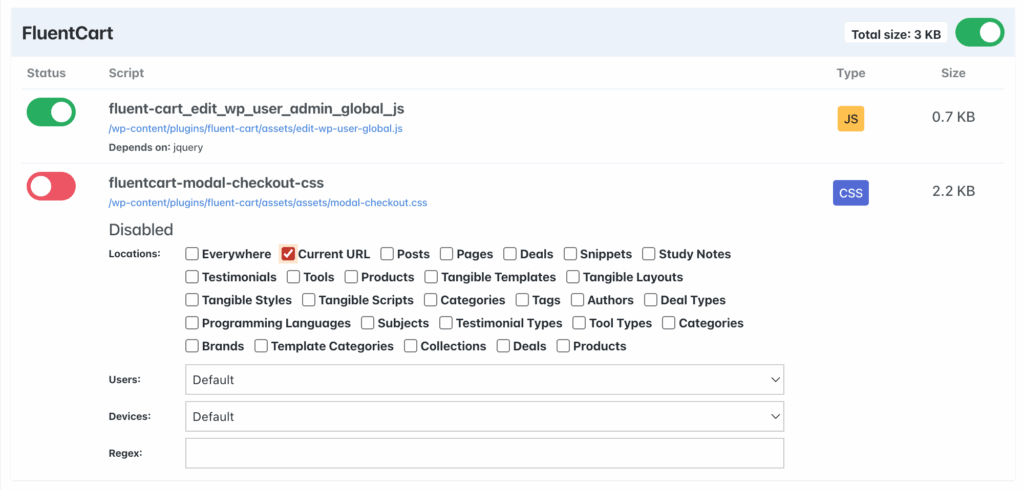
You visit any page on your site with the Script Manager toolbar active. Perfmatters shows you every script and style loading on that page. You can then disable any asset:
- Current URL: Disables only on this specific page
- Post Type: Disables on all posts, pages, or custom post types
- Everywhere: Disables site-wide (use carefully)
The interface is visual and intuitive. You see the asset name, the plugin it belongs to, and the file path. Then you click to disable. I run it in Advanced Mode with the Script Manager disabled for logged-in users so it doesn’t interfere with admin workflows.
My Script Manager Configuration
FluentCart:
- Already loads CSS and JS only on necessary pages. But I still remove those from necessary pages to add my own CSS and JS.
Block Editor:
- Block Editor styles and global-style variables CSS removed from all pages that don’t need it.
Rank Math:
- Frontend styles: Disabled everywhere (I don’t use their breadcrumb styling)
To be honest, I don’t use plugins that bloat my sites – so I don’t have much configs here but if you are using Perfmatters, you will find many opportunities.
The cumulative effect will be dramatic. One of my client sites went from loading 42 assets to 18. The homepage dropped from 2.1 seconds to 0.9 seconds. Not because I added caching. I already had caching. This was pure elimination of unnecessary requests.
Script Manager Pro Tips
- Start with the biggest offenders. WooCommerce, page builders, and sliders are usually the worst culprits. Disable those first and measure the impact before getting granular.
- Test after every change. Disabling the wrong script breaks functionality. I’ve accidentally disabled a checkout script and broken the payment flow. Test immediately.
- Use “Current URL” for one-off exceptions. If a specific post needs a script that’s disabled post-type-wide, enable it for that URL only.
- Check mobile separately. Some themes load different scripts on mobile. The Script Manager shows device-specific assets.
Code Snippets Manager
This is one of the newer Perfmatters features that doesn’t get enough attention. Perfmatters now includes a full code snippets manager, and it’s good enough that I ditched both Script Organizer (which I recently started using) and Code Snippets Pro in favor of it.
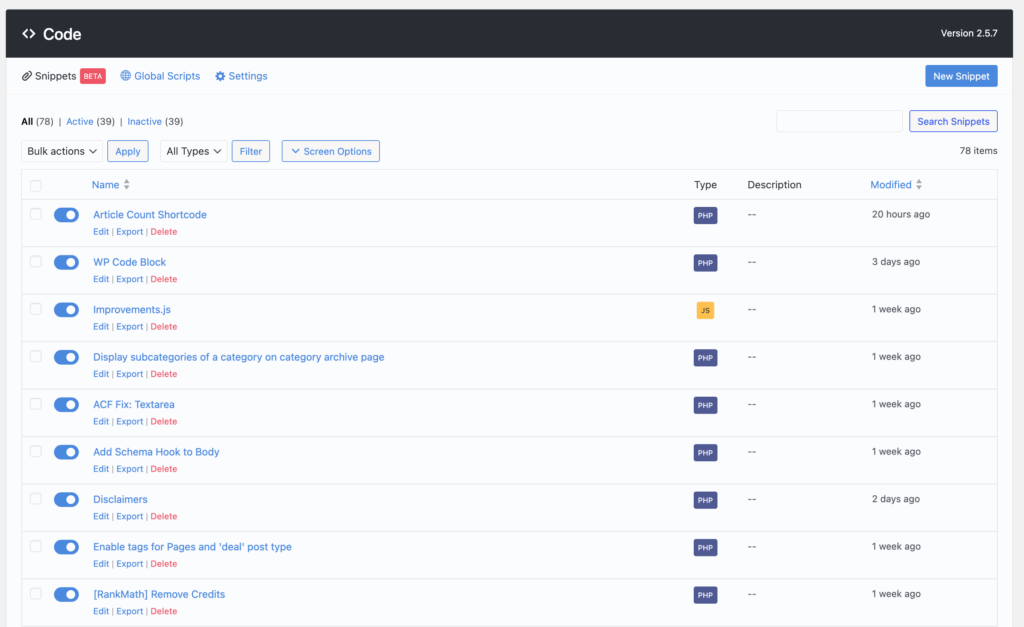
The Code Snippets manager supports PHP, CSS, JavaScript, and HTML. You add a snippet, give it a name, set its location (header, footer, before/after content), and choose where it runs. That last part is what sets it apart: the conditional loading uses the same per-page logic as the rest of Perfmatters. You can run a snippet only on specific pages, post types, user roles, or logged-in states. For PHP snippets, you can scope them to frontend-only, admin-only, or everywhere.
What I love about the implementation is the flat-file approach. Unlike Code Snippets Pro that stores everything in the database, Perfmatters writes snippets to flat files.
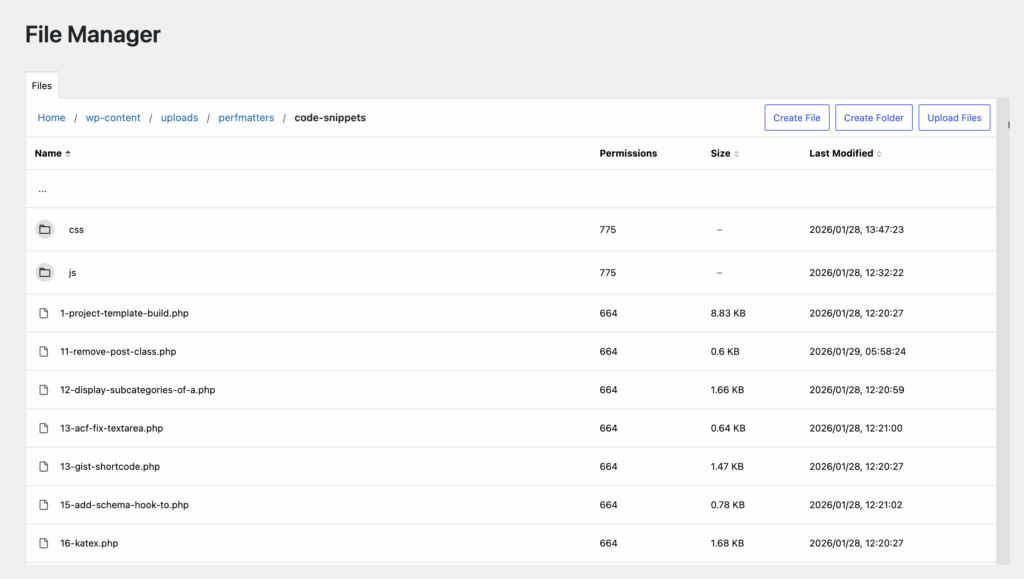
According to their benchmarks, this means about 20% less execution time and zero frontend database calls. I can feel the difference on a site with 15+ active snippets.
The safety features are solid too. If a PHP snippet causes a fatal error, Perfmatters automatically deactivates it. There’s a safe mode that kills all snippets at once if you’ve locked yourself out. You can trigger safe mode from the settings page, a special URL parameter, or a wp-config.php constant. Most plugins offering code snippets have this, so not a big deal.
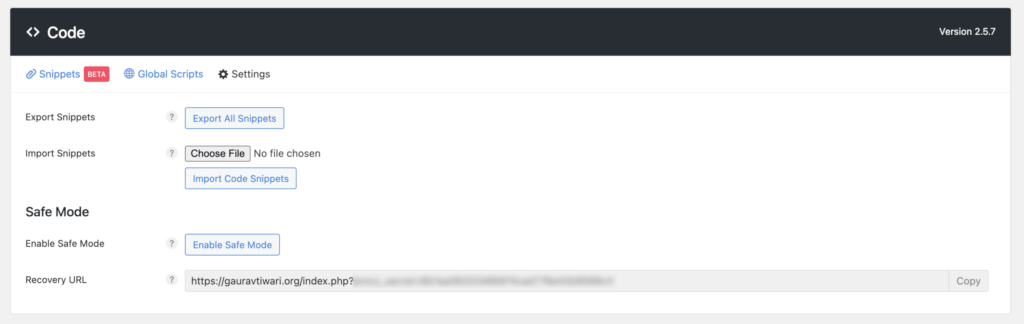
I’ve used the URL parameter method twice when a snippet conflicted with a plugin update. Saved me from an FTP rescue both times.
Other details that matter: priority settings (default 10, same as WordPress hooks), tagging for organization, minification for CSS and JS snippets, and import/export as JSON. I exported all my snippets from Code Snippets Pro and recreated them in Perfmatters in about 10 minutes using Claude. One less plugin in my stack, and the snippets actually run faster.
If you’re using a separate snippets plugin alongside Perfmatters, check if the built-in Code Snippets manager covers your needs. For most sites, it will.
Code Snippets I Use with Perfmatters
I currently run 39 active code snippets through Perfmatters’ built-in code manager — mostly PHP, with a few CSS and JS snippets. They fall into a handful of categories.
- SEO & Rank Math: I strip out Rank Math branding from sitemaps and the frontend, inject dynamic meta keywords, fix category priority for SEO, and ensure Rank Math plays nicely with ACF-generated tables of contents.
- ACF (Advanced Custom Fields): A couple of snippets fix textarea rendering quirks and add a subtitle field powered by ACF.
- Block Editor: I patch an iframe scrolling bug in the block editor and force Gutenberg to load block styles as separate stylesheets instead of one monolithic file.
- Frontend Styling: Three CSS snippets handle header styles (priority 40), footer styles (priority 99), and a dedicated SEO-Freelancer stylesheet (priority 99). On the PHP side, I inline small CSS files for performance and add a Backend CSS snippet for admin styling.
- Performance & Cleanup: Several snippets strip unnecessary output for logged-out visitors: removing sourceURL comments, simplifying the body tag, and inlining small CSS. I also remove unused scripts and styles where possible.
- Content Display & Loops: I customize how content appears across the site: displaying subcategories on archive pages, changing the excerpt “read more” text, defining per-CPT loop templates, rendering related calculators, and powering a custom header button.
- Shortcodes & Tools: An article count shortcode, shortcode support inside menu items, and a safeguard that prevents shortcodes from executing inside
<pre>or<code>tags. - Admin & Dashboard: A “Go To” menu in the admin bar links to every post type’s list screen for quick navigation. I also have a WP Code Block snippet for managing reusable code in the admin.
- Schema & Analytics: A PHP hook wires schema markup into the body, and a JS snippet enables Umami stats tracking (with the Umami script itself loaded via Perfmatters’ footer code field).
- WordPress Core Tweaks: I register custom image sizes, add extra site icon dimensions, allow additional file upload types, enable tags on Pages and the “deal” post type, apply nofollow to outbound go-links, and customize the excerpt length/format.
- Plugin Integrations: A snippet improves Fluentcart behavior, and another handles disclaimers output across the site.
- Other Active Snippets: A general-purpose “
Improvements.js” (JS) handles minor frontend enhancements, a “Random Post” snippet serves a random post endpoint, and “New Perfmatters Snippet” acts as a starter template.
What Perfmatters Does Well
After seven years, I’ve identified seven things Perfmatters does better than any alternative I’ve tested.
Granular Script Control
No other plugin matches the Script Manager’s precision. Asset CleanUp comes close, but Perfmatters’s interface is cleaner and the logic more predictable. You can disable assets per URL, per post type, per taxonomy, or globally. That flexibility matters when you’re managing complex sites.
Unused CSS Removal Quality
I don’t talk about this enough: Perfmatters’s unused CSS removal and minification logic is genuinely better than FlyingPress’s, and way better than WP Rocket’s. The algorithm is more accurate at identifying which selectors are actually used. On my site, I ran Perfmatters’s unused CSS alongside my MD theme with its hundreds of utility classes. I had to maintain an exclusion list, but the output CSS was tighter and more accurate than what FlyingPress produced for the same pages.
WP Rocket’s Remove Unused CSS, by comparison, was always too aggressive or too conservative depending on the page. I spent more time debugging WP Rocket’s CSS output than configuring it. Perfmatters found the right balance on the first pass more often than not.
I’ve since turned off unused CSS removal on my own site, but only because I’ve manually optimized my theme’s CSS to the point where there’s barely any unused CSS left to strip. That’s a luxury most WordPress sites don’t have. If you’re running a theme or page builder with bloated stylesheets, Perfmatters’s unused CSS removal is the single best implementation available. The file-based method is fast, the async stylesheet loading option gives you delivery control, and the two-step cache clearing (Perfmatters first, then your caching plugin) is a small price for the output quality.
Database Optimization Without Bloat
Database optimization plugins often become bloat themselves. Perfmatters includes lightweight database cleaning as a secondary feature. It handles revisions, transients, spam comments, and table optimization without adding overhead.
Performance-First Philosophy
The developers clearly understand performance. Every feature exists to reduce load, not add features for marketing. There’s no bloated dashboard. No upsells inside the plugin. No “premium” nag screens. It does what it promises and nothing more.
Clear, Helpful Documentation
The Perfmatters documentation explains every setting with context. Not just what it does, but when to enable it and potential side effects. Most WordPress plugin docs assume you know what you’re doing. Perfmatters teaches you.
Lightweight Footprint
The plugin itself adds minimal overhead. It’s around 200KB total. Compare that to some “performance” plugins that add megabytes of their own code. Perfmatters practices what it preaches.
Active Development
Updates come regularly with new features and compatibility fixes. The Code Snippets manager is a recent addition. Early Hints support arrived shortly after browsers started adopting HTTP/103. The developers respond to WordPress core changes quickly, and when new performance APIs emerge, Perfmatters integrates them.
What Perfmatters Doesn’t Do Well
No plugin is perfect, and Perfmatters has real limitations you should know about before buying.
No Caching (The One Feature I Wish They’d Add)
This is the big one. Perfmatters doesn’t cache pages, and that means you need a second plugin for caching. You need FlyingPress, WP Rocket, or another caching solution alongside it.
I’ll be honest: if Perfmatters added page caching, critical CSS generation, and CDN integration, I would switch from FlyingPress to Perfmatters in a heartbeat. I love FlyingPress as a product. Gijo Varghese has built something special. But having everything in one plugin, from one team, with one settings page and one cache to clear, would be worth the trade. Perfmatters’s attention to detail and performance-first mentality is exactly what I’d want from a caching implementation.
Right now, that’s not a reality. So budget for two plugins if you’re going the Perfmatters route.
No Image Optimization
Perfmatters can lazy load images and add missing dimensions, but it doesn’t compress or convert images. You’ll need to use FlyingPress, EWWW, Imagify, or ShortPixel for that.
No Visual Preview of Impact
Other tools show you before/after comparisons or estimated savings. Perfmatters trusts you to measure results yourself using tools like GTmetrix or PageSpeed Insights. A built-in impact preview would be helpful.
Pricing
Perfmatters uses straightforward annual pricing:
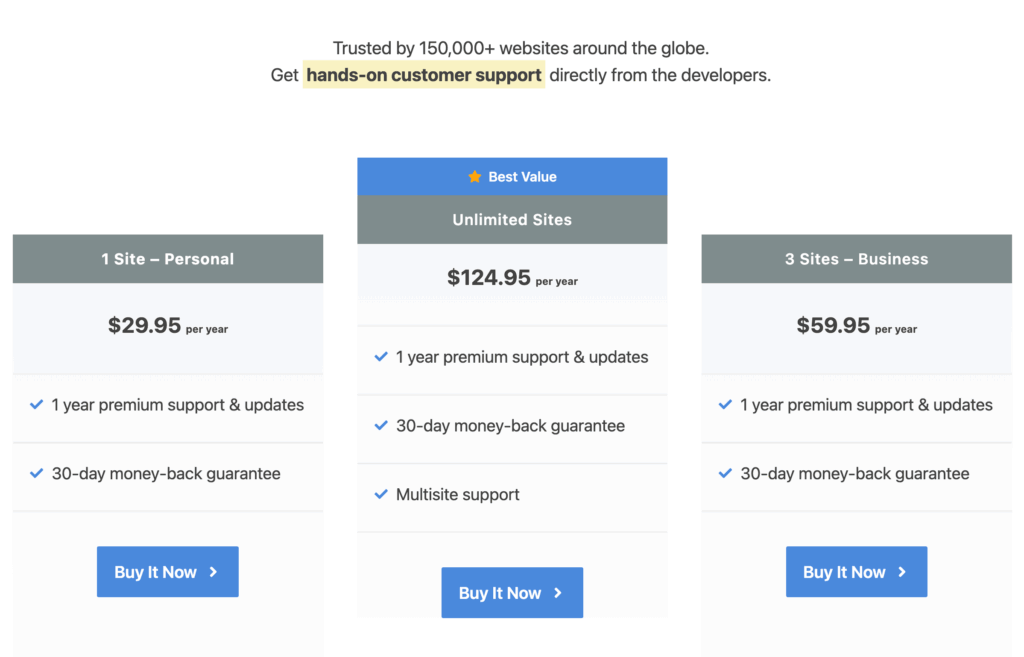
| Plan | Sites | Price/Year | Per-Site Cost |
|---|---|---|---|
| Personal | 1 site | $29.95 | $29.95 |
| Business | 3 sites | $59.95 | $19.98 |
| Unlimited | Unlimited | $124.95 | Varies |
All plans include the same features and come with a 30-day money-back guarantee. Renewals get an automatic 15% discount, which makes the long-term cost even more reasonable.
Is the Personal Plan Worth It? Yes. $29.95 per year for the script management alone pays for itself in time saved and performance gained. You’d spend more than that troubleshooting bloated plugins manually.
vs Competitors
| Plugin | Free Tier | 1 Site | Unlimited |
|---|---|---|---|
| Perfmatters | No | $29.95/yr | $124.95/yr |
| Asset CleanUp Pro | Yes (limited) | $49/yr | $149/yr |
| WP Rocket | No | $59/yr | $299/yr |
| FlyingPress | No | $60/yr | $180/yr |
Perfmatters is cheaper than both WP Rocket and FlyingPress, but remember it does different things. You need Perfmatters PLUS a caching plugin for complete performance optimization. The total cost is higher, but the results justify it.
Perfmatters vs Alternatives
Three plugins come up in every Perfmatters comparison. Here’s how they stack up, based on years of running each one.
Perfmatters vs Asset CleanUp Pro
Asset CleanUp Pro is the closest competitor. Both offer script management with per-page control.
Perfmatters wins on:
- Cleaner, more intuitive interface
- Better documentation
- Lighter footprint
- Built-in Code Snippets manager
- More reliable updates
Asset CleanUp wins on:
- Free version with useful features
- Slightly more granular control options
- Lower starting price for paid version
My recommendation: Perfmatters for most users. Asset CleanUp’s free version is good for testing the concept, but once you’re committed to script management, Perfmatters’s interface saves time. I’ve used both across multiple sites. Perfmatters causes fewer configuration mistakes.
Perfmatters vs WP Rocket
This comparison comes up constantly, but it’s misleading. WP Rocket is a caching plugin with some asset optimization. Perfmatters is an asset optimization plugin with no caching. They complement each other. They don’t compete.
I speak from experience. I used WP Rocket from 2014 to 2024. Ten years, among their first 1,000 users. For most of that decade, I ran WP Rocket and Perfmatters together. WP Rocket handled caching, compression, and critical CSS. Perfmatters handled script management, database cleanup, and the micro-optimizations WP Rocket never touched. The combination was stronger than either alone.
What WP Rocket does that Perfmatters doesn’t:
- Page caching
- Browser caching
- GZIP compression
- Critical CSS generation
What Perfmatters does that WP Rocket doesn’t:
- Per-page script disabling (WP Rocket added some of this later, but Perfmatters is still more precise)
- Database cleanup scheduling
- Built-in code snippets manager
- Heartbeat control
- Login URL changing
WP Rocket’s unused CSS removal also can’t match Perfmatters’s quality. I’ve tested both side by side. Perfmatters’s output is tighter and more accurate, with fewer false positives that break layouts.
My recommendation: They’re complementary tools. I eventually moved from WP Rocket to FlyingPress for caching, but Perfmatters never left my stack. I wrote a detailed WP Rocket vs Perfmatters comparison if you want the full breakdown.
Perfmatters vs FlyingPress
Same category mismatch as WP Rocket. FlyingPress handles page caching, Cloudflare integration, critical CSS, and image optimization. Perfmatters handles script management, JS deferring, CSS/JS minification, CDN rewriting, lazy loading, and micro-optimizations. They stack with minimal overlap.
I use Perfmatters for JS defer, lazy loading, minification, and CDN rewriting. FlyingPress handles caching, critical CSS generation, unused CSS, and image optimization. The division is clean: Perfmatters controls what loads and how, FlyingPress controls caching and delivery. That said, Perfmatters’s unused CSS implementation is more accurate and configurable than FlyingPress’s. I only let FlyingPress handle it because I’ve optimized my theme CSS enough that either tool produces clean output for my site.
Perfmatters vs Manual Optimization
You can achieve everything Perfmatters does with custom code. Disable emojis? A snippet. Remove query strings? Another snippet. Disable scripts per page? Conditionals in functions.php.
The question is time. I estimated my manual optimization code at about 600 lines across various snippets. Perfmatters replaces all of it with a GUI that takes 20 minutes to configure. And with the built-in Code Snippets manager, even my edge-case custom code lives inside Perfmatters now. At $29.95 per year, it’s cheaper than my hourly rate spent maintaining scattered functions.php additions.
My recommendation: Use Perfmatters unless you’re a developer who enjoys writing performance code. The time savings alone justify the cost.
Who Should Use Perfmatters
Perfmatters isn’t for everyone, but certain users get disproportionate value from it.
If you’d rather have an expert handle your performance stack, I offer performance optimization services where I configure Perfmatters, FlyingPress, and server-level caching as a package. I also run Cloudflare cache setup and R2 image optimization if your asset delivery needs work.
WordPress Site Owners with Multiple Plugins
If you run WooCommerce, contact forms, sliders, or any feature-heavy plugins, Perfmatters will improve your performance. The more plugins you have, the more bloat you’re likely loading site-wide. Perfmatters lets you contain that bloat.
Developers Managing Client Sites
The Unlimited license at $124.95 covers every site you manage. For agencies, this is must-have infrastructure. Every client site benefits from proper script management, and the time savings compound across your portfolio.
Performance-Obsessed Site Owners
If you’re chasing 100 on PageSpeed Insights or trying to pass Core Web Vitals, Perfmatters gives you the fine-grained control needed to eliminate every unnecessary request. Combined with a good caching plugin, it’s part of the optimal performance stack.
Sites with Slow TTFB
If your Time to First Byte is slow due to database bloat, Perfmatters’s database optimization can help. Cleaning transients, revisions, and orphaned data reduces query time.
E-commerce Sites
WooCommerce is notorious for loading assets everywhere. Perfmatters is practically a requirement if you’re running a WooCommerce store with decent traffic. The performance improvements translate directly to conversion rates.
Who Should NOT Use Perfmatters
Some people won’t get their money’s worth from Perfmatters. Save your $29.95 if any of these apply.
Complete Beginners
The Script Manager can break your site if used incorrectly. If you don’t understand what JavaScript does or which plugins generate which scripts, you’ll cause problems. Start with simpler optimizations first. When you understand the concepts, return to Perfmatters.
Single Simple Sites
If you run a basic blog with three plugins, Perfmatters might be overkill. The default WordPress performance with a good caching plugin is probably sufficient. Perfmatters shines when complexity creates bloat. Simple sites don’t have that problem.
Sites Already Using WP Rocket’s Features
WP Rocket includes some asset optimization. If you’re already using those features and happy with the results, adding Perfmatters creates overlap. The Script Manager is still more powerful, but the marginal benefit might not justify the cost.
Users Expecting All-in-One Performance
If you want one plugin to handle everything, Perfmatters will disappoint. It’s specialized. You’ll need caching, image optimization, and CDN configuration from other tools. Perfmatters handles one thing well, not everything adequately.
How Did Perfmatters Fare with Me?
Perfmatters has been in my toolkit longer than almost any other performance plugin. Seven years, across more sites than I can count. Caching plugins have changed under it: WP Rocket for a decade (2014 to 2024), then FlyingPress from 2024 onward. Theme frameworks have changed. Hosting providers have changed. But Perfmatters has been the constant. It was the first performance plugin I installed on every new site, and it’s still the first one I install today.
The Script Manager changed how I approach WordPress performance. Before Perfmatters, I accepted that plugins loaded globally. Now I can’t imagine deploying a site without per-page asset control. The Code Snippets manager means I don’t need Scripts Organizer or Code Snippets Pro anymore. The unused CSS removal is the best I’ve tested in any WordPress plugin, and I’d still recommend it to anyone whose theme ships bloated stylesheets. I’ve turned it off on my own site only because I’ve trimmed my theme CSS to the bone. JS deferring, CSS/JS minification, lazy loading, CDN rewriting: all through Perfmatters now. The database cleanup keeps my 1,800+ post site running lean.
Is it perfect? No. The lack of caching means you need a second plugin, and that’s the one thing I genuinely wish they’d build. If Perfmatters shipped page caching and critical CSS generation with the same quality as their Script Manager and unused CSS removal, I’d drop FlyingPress the same day, no matter how much I like Gijo’s work. Having script management, JS deferring, lazy loading, code snippets, database cleanup, and page caching all in one plugin, from a team that understands performance this deeply, would be the endgame for WordPress performance.
Until that day, I’ll keep running Perfmatters + FlyingPress. And if I switch caching plugins again in five years, Perfmatters will still be there. It’s earned that kind of loyalty.
Bottom line: If you’re serious about WordPress performance, Perfmatters belongs in your stack. Not as a replacement for caching, but as a complement to it. The combination of proper caching and proper asset management is where real performance lives. Perfmatters handles the asset side better than anything else available.
Disclosure: The Perfmatters link in this review is an affiliate link. I recommend it because I use it, not because of commission. I’d recommend it regardless.. For more, see my complete WordPress performance guide.
Perfmatters Review
Perfmatters

Pros
- Script Manager with per-page asset control that no other plugin matches
- Unused CSS removal quality is better than FlyingPress and WP Rocket
- Built-in Code Snippets manager replaced Scripts Organizer and Code Snippets Pro in my stack
- Lightweight plugin footprint under 200KB
- Full database optimization and cleanup built in
- Documentation that explains every setting in context
- Unlimited license at $124.95 is a steal for agencies
Cons
- No page caching. Requires a separate caching plugin like FlyingPress or WP Rocket
- Script Manager learning curve can intimidate beginners
- Using Perfmatters unused CSS alongside a separate caching plugin adds a two-step cache clearing workflow
- Limited multisite network-wide configuration
- No visual preview of performance impact
Summary
Perfmatters is a lightweight WordPress performance plugin that excels at script management, unused CSS removal, and micro-optimizations. The Script Manager is the best available for disabling assets on a per-page basis. The built-in Code Snippets manager replaced two separate plugins in my stack. Combined with a caching plugin like FlyingPress or WP Rocket, it forms the foundation of a high-performance WordPress setup. Not a beginner tool, but a must-have for anyone serious about Core Web Vitals and page speed. The only thing missing is page caching.
Price: USD 29.95 /year
Get PerfmattersFrequently Asked Questions
Is Perfmatters worth the price?
At $29.95 per year for a single site, Perfmatters pays for itself in time savings alone. The Script Manager eliminates hours of manual code writing, and the performance improvements can boost conversions and SEO rankings. For agencies, the Unlimited license at $124.95 is a steal.
Does Perfmatters replace a caching plugin?
No. Perfmatters doesn’t cache pages. It handles script management, database optimization, and asset cleanup. You still need a caching plugin like FlyingPress or WP Rocket alongside it. Perfmatters handles what caching plugins can’t: stopping unnecessary scripts from loading in the first place.
Will Perfmatters break my site?
It can if you disable scripts carelessly. The Script Manager lets you control scripts per page, but turning off the wrong one can break functionality. Always test changes on individual pages first. The plugin’s status indicators and test mode help you identify issues before they go live.
What’s the Script Manager and why does it matter?
The Script Manager lets you disable specific JavaScript and CSS files on a per-page basis. Most plugins load their scripts on every page, even where they’re not needed. The Script Manager stops that bloat. It’s the single most impactful feature for cutting page load times.
How does Perfmatters compare to WP Rocket?
They do different things. WP Rocket is a caching plugin with some asset optimization. Perfmatters is a script management and performance optimization tool with no caching. Many users run both together. Perfmatters’ Script Manager is more granular than WP Rocket’s file optimization features.
Can I use Perfmatters with any WordPress theme?
Yes. Perfmatters works with any WordPress theme. It operates at the script and asset level, not the theme level. I’ve used it with GeneratePress, Astra, Kadence, and custom themes without compatibility issues.
What WordPress performance improvements can I expect?
Results vary by site, but most users see a 30-50% reduction in HTTP requests and significant improvements in Largest Contentful Paint and Total Blocking Time scores. On my site, Perfmatters helped cut load times by removing 15+ unnecessary scripts from most pages.
Disclaimer: This site is reader-supported. If you buy through some links, I may earn a small commission at no extra cost to you. I only recommend tools I trust and would use myself. Your support helps keep gauravtiwari.org free and focused on real-world advice. Thanks. - Gaurav Tiwari