
Export Datasets and Public CSV Downloads
Core Tables has 2 kinds of export. You can export a dataset from the admin as a file, and you can let visitors download a published table as CSV.
They work differently, so it’s worth knowing what each one includes before you share a file.
Export a Dataset
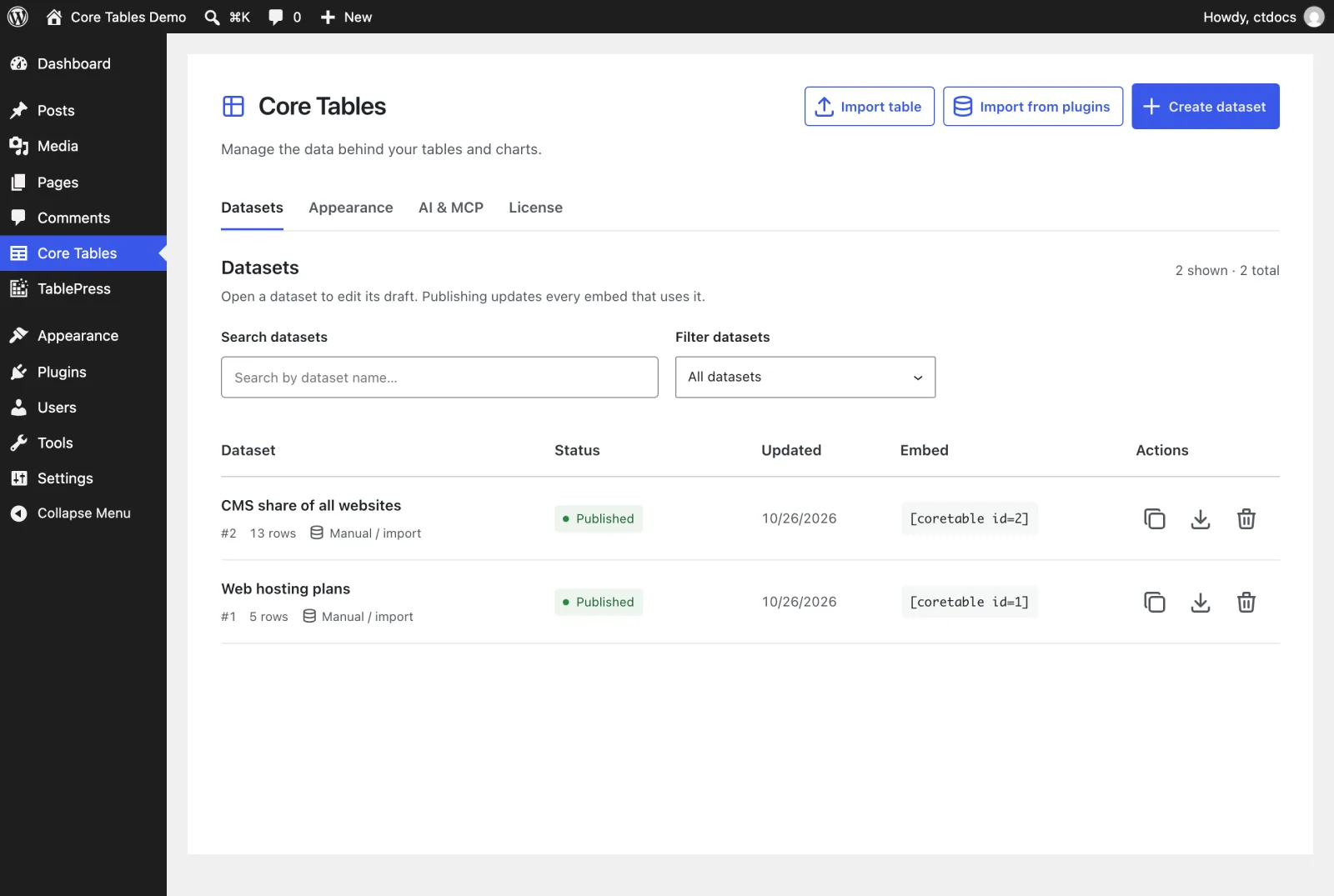
Every dataset on the Datasets screen has an Export menu in its Actions column.
- Go to Core Tables.
- Open the Export menu on the dataset’s row.
- Choose a format.
| Format | What you get | File |
|---|---|---|
| CSV | Column labels as the header row, then the values | name.csv |
| JSON (full backup) | Types, public choices, the CSV setting and every stored value | name.json |
| HTML table | A <figure class="wp-block-table"> table with a caption and headings | name.html |
| Markdown table | A ## name heading and a pipe table | name.md |
The file name is the dataset name made URL-safe, up to 60 characters. You need the export_core_tables capability and edit access to the dataset. Administrators and editors have both for the datasets they can edit.
What an Admin Export Includes
An admin export holds the current draft, private columns included. If you’ve saved changes you haven’t published, those are in the file too. Check the file before you share it outside your team.
The AI tools and the REST API can export public columns only. Pass public_only to dataset.export, as shown in Build Tables with Site Agent.
How Values Are Written
- CSV: yes and no values become
trueandfalse, images become their attachment ID and rich text keeps its HTML. - JSON: values are stored exactly, so the file imports back through Convert table with nothing lost.
- HTML: rich text is kept, images become
<img>tags and URLs become links. - Markdown: rich text becomes
**bold**,*italic*, code spans and links, and images become.
The JSON export is the one to keep as a backup. CSV, HTML and Markdown carry values only, without types or public choices.
Formula Protection in CSV
Spreadsheet apps run any cell that starts with =, +, - or @ as a formula. To stop that, Core Tables puts an apostrophe in front of those values in every CSV it writes.
That includes negative numbers. A value of -5 exports as '-5. Remove the apostrophe in your spreadsheet if you need the numbers to calculate. The same rule applies to values that start with a tab or a line break.
Let Visitors Download a CSV
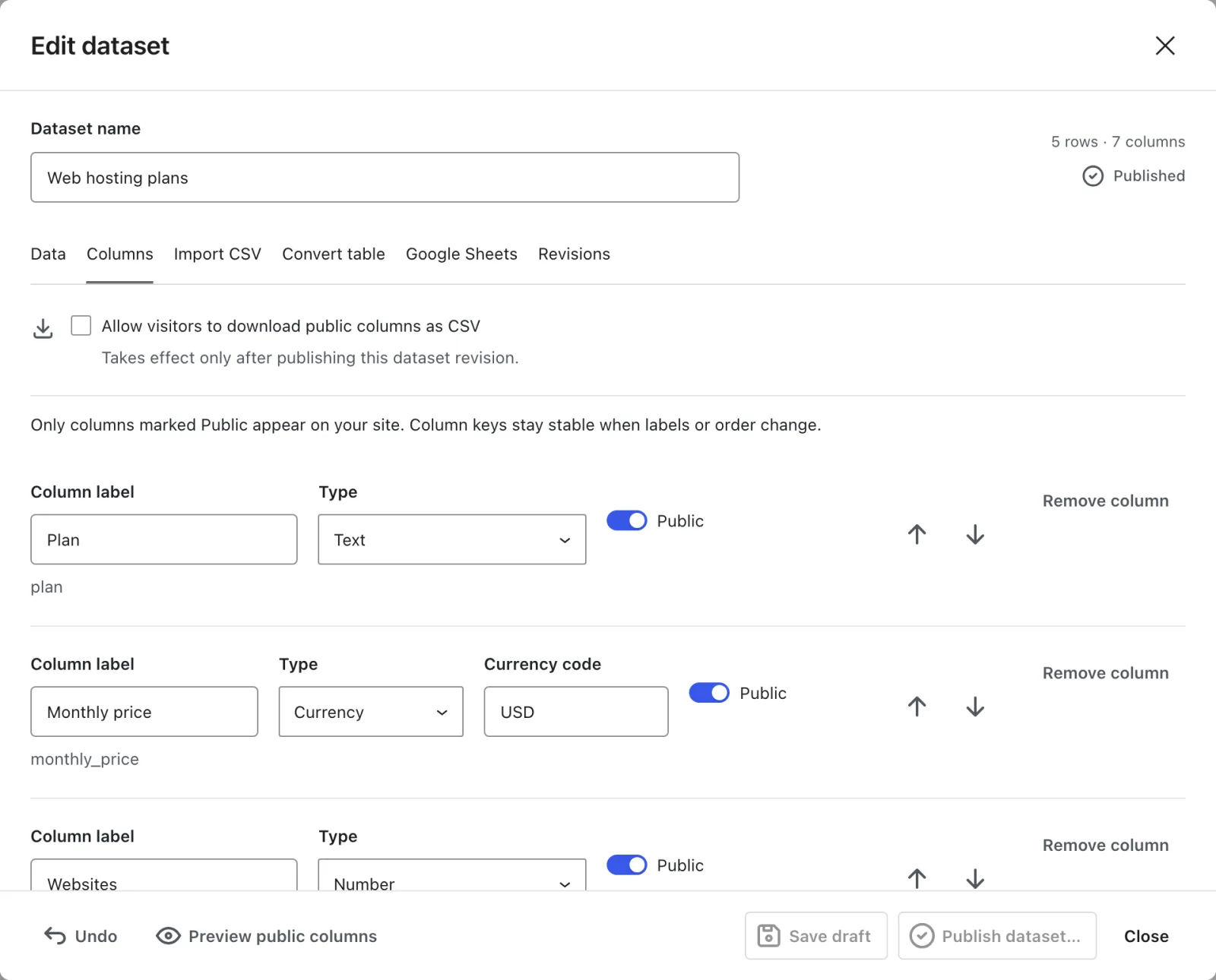
A published table can show a Download CSV button. It needs 2 settings:
- In the dataset editor, open Columns and tick Allow visitors to download public columns as CSV. Then publish. The setting “Takes effect only after publishing this dataset revision.”
- In the Core Table block, turn on Download CSV button in the Display panel. For a shortcode, add
download=yes.
The visitor’s file is named table-ID.csv. It holds:
- every public column of the published revision
- every row, not only the current page
- images as their URL and rich text as plain text
- the same apostrophe formula protection as admin exports
Charts don’t get a download button. Only Core Table blocks and table shortcodes show one.
The Download Works Without the Button
The button setting only decides whether visitors see a button. The download itself is a public address, /wp-json/core-tables/v1/public/datasets/ID/export, and it answers whenever the published revision allows CSV.
So once you tick Allow visitors to download public columns as CSV and publish, anyone can fetch that file, even if no block shows a button. Leave the option off for data you don’t want copied in bulk. Private columns are never included either way.
If the dataset doesn’t allow CSV, the address returns not found. When a download fails on the page, visitors see “CSV export is unavailable. Reload the page and try again.”
Export Before Deleting
The Delete this dataset permanently? window in Trash has its own Export latest draft CSV button. It downloads dataset-ID.csv with the latest draft. A CSV holds only that draft, so take a database backup if you need the full revision history. Trash, Restore and Delete Datasets covers the rest of that flow.