
Best Photo Editor for Mac in 2026: Luminar Neo Review
Luminar Neo is an AI-powered photo editor built for photographers who want professional results without spending hours learning Photoshop. It costs €99 for a perpetual license, runs natively on Apple Silicon Macs, and handles everything from basic exposure fixes to removing entire objects from your shots. The AI tools actually work. The interface stays out of your way. The catch? Generative features expire after one year, and some upgrades cost extra.
I’ve tested Luminar Neo on my M5 MacBook Air and Mac Mini M5 setup for six months now, editing everything from product shots for client work to landscape photos from weekend trips. This review covers what the software does well, where it falls short, and whether it’s worth your money compared to Adobe Lightroom, Capture One, and other Mac photo editors.
What Luminar Neo Actually Does
Luminar Neo is a standalone photo editor from Skylum, the company behind Luminar AI and the original Luminar. It’s not a subscription service in the traditional sense. You buy a license, you own it. But some features, specifically the generative AI tools, require annual renewals.
The software handles RAW processing, non-destructive editing, layers, masking, and local adjustments. Where it differs from Lightroom is the AI integration. Instead of manually selecting areas to edit, you let the software detect faces, skies, backgrounds, and subjects automatically. You then adjust sliders to control the effect intensity.
This isn’t magic of the best photo editing software for Mac, I think which it’s. It’s pattern recognition applied to common photography problems: blown highlights, underexposed subjects, distracting backgrounds, sensor noise, and slight motion blur. Luminar Neo packages solutions to these problems into one-click or one-slider fixes that genuinely save time.
My Experience with Luminar Neo
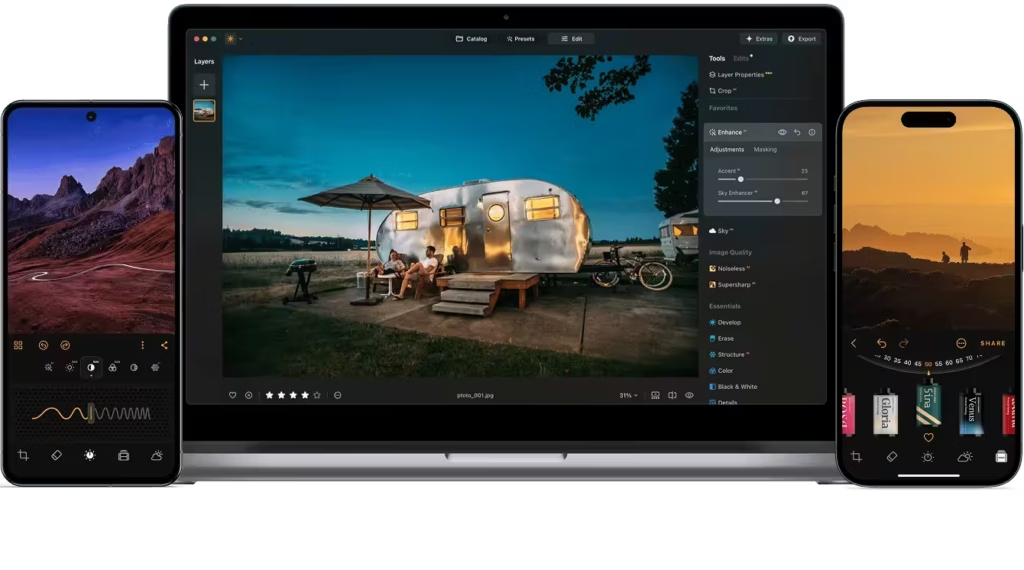
I’ve used Luminar Neo on about 2,000 photos over the past six months. Most were product shots for WordPress theme and plugin reviews, about 200 were travel photos from a trip to Rajasthan, and maybe 100 were random test files specifically for this review.
On the M5, Luminar Neo feels fast. Applying AI adjustments takes 2-4 seconds on 24MP RAW files. Export times are reasonable. The app launches in about 3 seconds and doesn’t feel sluggish even with 50+ photos loaded in a catalog. On the Intel Mac, AI processing took noticeably longer, around 8-12 seconds for the same operations, and the interface occasionally stuttered during heavy edits.
I use this alongside my regular Mac apps and haven’t noticed any memory pressure issues or conflicts. The app plays nicely with the macOS ecosystem.
Key Features That Matter
Luminar Neo has dozens of features. Most don’t matter for daily work. Here are the ones I actually use.
If you need source photos to edit, Shutterstock and Getty Images offer high-resolution images that hold up well during editing. Alamy is another option with a massive library and no subscription requirement.
Enhance AI
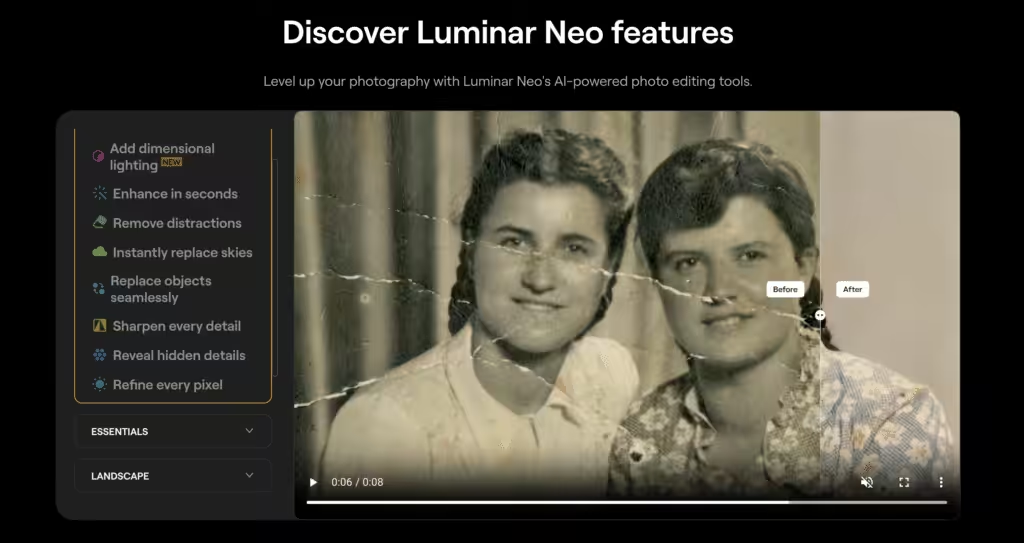
This is the feature I use most. It combines multiple baseline adjustments, exposure, contrast, highlights, shadows, saturation, and sharpness, into two sliders: Accent and Sky. The Accent slider analyzes the image and applies corrections where needed. It’s not applying the same adjustment everywhere. It’s looking at different tonal ranges and treating them differently.
For event photos shot in mixed lighting, this saves 10-15 minutes per batch. I used to manually adjust each image. Now I apply Enhance AI at 40-60% strength, then fine-tune the 10% that need extra attention.
GenErase
This removes objects from photos and fills in the background with generated content. Think content-aware fill in Photoshop, but faster to use. You brush over the object, hit apply, and Luminar Neo rebuilds the missing area based on surrounding pixels and (I assume) training data from similar images.
Results vary. On uniform backgrounds like grass, sand, or sky, GenErase works flawlessly. On complex patterns or areas near edges, it sometimes creates obvious artifacts. I’ve had to run it 2-3 times on tricky removals, adjusting the brush size each time.
For product photography, this saves significant time. Removing dust spots, stray cables, or background distractions used to mean opening Photoshop. Now I handle most of it without leaving Luminar Neo.
Noiseless AI
High-ISO noise reduction that actually preserves detail. Most noise reduction tools make images look plasticky if you push them too hard. Luminar Neo’s version manages to reduce grain while keeping textures intact, at least up to a point.
I’ve pushed ISO 6400 images through this and gotten usable results for web display. ISO 12800 still looks rough, but better than leaving the noise untreated. For most photographers shooting below ISO 3200, this tool handles noise without any visible downside.
Background Removal AI
One-click background removal. Select the subject, choose a new background or transparency, and export. This competes directly with online background remover tools and does a better job on complex edges like hair.
I use this for product images that need white backgrounds. Previously, I’d spend 5-10 minutes per image in Photoshop refining the selection. Luminar Neo’s AI gets it 90% correct immediately. I still need to clean up some edges manually, but the time savings are real.
Supersharp AI
Fixes slight motion blur and focus issues. This isn’t recovering completely out-of-focus shots, nothing can do that, but it handles the minor softness from camera shake or missed autofocus. I’ve salvaged about a dozen photos that I’d have deleted otherwise.
Layers and Masking
Luminar Neo includes actual layers, unlike Lightroom. You can stack adjustments, blend them, and mask specific areas. This matters for composite work or complex local adjustments. The masking tools include brush, radial, gradient, and AI-based masks for faces, skin, sky, and background.
The AI masks are surprisingly accurate. Select “Face” and it detects faces in the image. Select “Sky” and it masks sky areas, even through tree branches. These aren’t perfect, but they’re faster than manual masking and require fewer refinements than I expected.
First Impressions and Setup
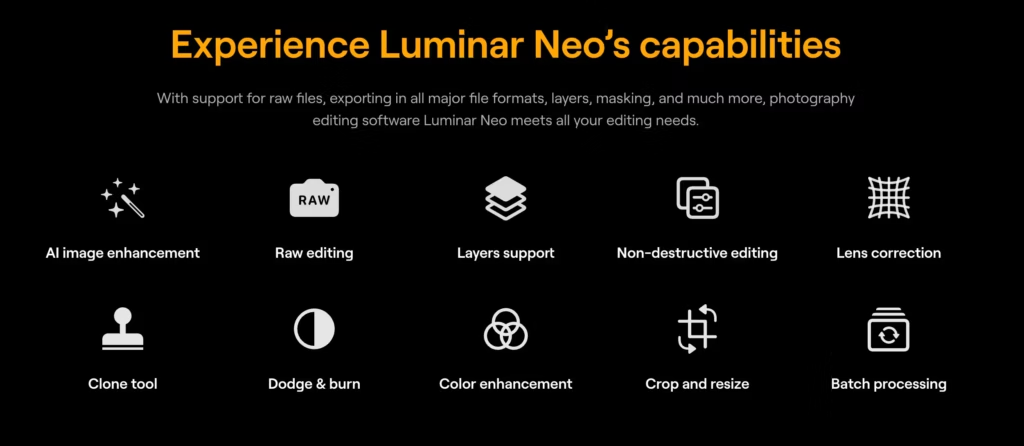
Installation takes about 10 minutes including downloading AI models. The app needs approximately 10GB of disk space after everything is installed, which is significant but not unusual for a modern photo editor.
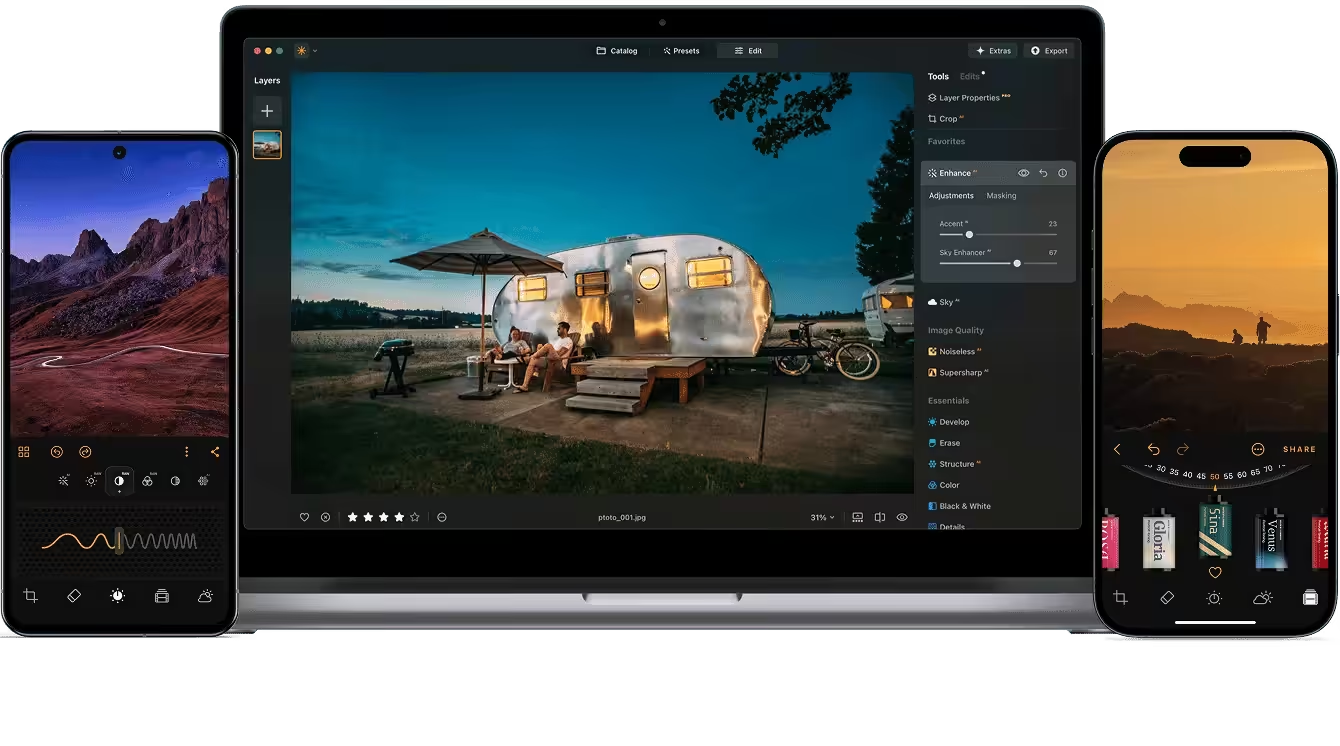
The interface is clean. Primary tools run along the top and right side. Presets and catalogs sit on the left. The middle shows your image with a one-click before/after comparison. Coming from Lightroom, I found the layout intuitive within the first hour.
Non-destructive editing means you can experiment freely. Every adjustment saves to a sidecar file. Your original RAW stays untouched. You can reset any edit, compare versions, and export multiple variations without duplicating source files.
If you already use Apple Photos, Luminar Neo works as a Photos extension on macOS 12 or later. You can open images directly from Photos, edit in Luminar Neo, and save back without export/import hassles. This integration works well for photographers who don’t want to manage a separate catalog system.
What Luminar Neo Does Well
Speed of basic edits. Getting an image from RAW to polished takes 30-60 seconds with Enhance AI. For batch processing social media content or quick client previews, this matters more than pixel-perfect control.
AI masking accuracy. The automatic subject detection works better than I expected. Portrait photographers will appreciate the face and skin masks. Landscape photographers will like the sky and background separation.
Apple Silicon performance. On M-series Macs, the app runs smoothly. If you’ve upgraded to a recent MacBook, you’ll get the best experience Luminar Neo can offer.
Object removal quality. GenErase handles most common scenarios, dust, cables, photobombers, without requiring Photoshop skills. The results aren’t always perfect, but they’re good enough for most uses.
Approachable learning curve. Someone new to photo editing can produce decent results within an hour. The presets provide starting points, and the AI tools reduce technical decisions. This makes Luminar Neo a strong choice for photographers who want to spend time shooting, not mastering software.
What Luminar Neo Doesn’t Do Well
- Catalog management is basic. If you have 50,000+ photos and need advanced organization, keywording, and metadata tools, Luminar Neo falls short compared to Lightroom. The catalog system works for smaller collections but lacks the depth serious archivists need.
- Color science is different. RAW files look slightly different in Luminar Neo than in Lightroom or Capture One. The default rendering is fine, but if you’re migrating from another editor and expect identical colors, you’ll need to adjust.
- Generative tools expire. GenErase, GenExpand, and GenSwap only work for one year from purchase. After that, you need to renew for continued access. Mine has expired and I haven’t bothered to renew it as the software in itself is good enough for me. This is Skylum’s way of funding ongoing AI development, but it complicates the “perpetual license” claim.
- Mobile sync is one-way. The mobile app syncs to desktop, but desktop doesn’t sync to mobile yet. Skylum says bidirectional sync is coming, but it’s not here now.
Performance, Stability, and Requirements
Luminar Neo needs macOS 12.0 or later, 8GB RAM minimum (16GB recommended), and about 10GB free disk space.
On Apple Silicon Macs (M1, M2, M3, M4, M5), the app runs natively and feels responsive. AI operations complete in seconds. Export times are reasonable. I haven’t experienced crashes in six months of use.
On Intel Macs, expect longer processing times for AI features. The app works, but the experience is noticeably slower. If you’re planning to use Luminar Neo heavily on an Intel Mac, the workflow friction might outweigh the benefits.
Memory usage peaks during AI operations but returns to normal afterward. With 16GB RAM & 24GB RAM, I can run Luminar Neo alongside Brave browser, Claude, and Antigravity without issues. 8GB is technically supported but tight if you multitask.
Pricing
Luminar Neo offers perpetual licenses with different feature sets. Current pricing as of April 2026:
| Plan | Price | What’s Included |
|---|---|---|
| Perpetual Desktop | €99 | macOS/Windows, 1 year updates, 1 year generative tools |
| Cross-device Perpetual | €129 | Desktop + Luminar Mobile + Spaces web galleries |
| Perpetual Max | €139 | Cross-device + Creative Library for 1 year |
After the first year, generative features (GenErase, GenExpand, GenSwap) require renewal. Skylum shows renewal pricing around €39-€69 depending on the plan at checkout.
Major version upgrades may also cost extra, even with a perpetual license. Skylum doesn’t guarantee free upgrades forever.
Comparison to alternatives: Adobe Lightroom costs €11.99/month (€144/year) and requires ongoing subscription. Capture One costs €179/year or €299 perpetual. For photographers who want to avoid subscriptions, Luminar Neo’s €99 entry point is competitive, though the generative tool renewals add ongoing costs.
Luminar Neo vs Alternatives
vs Adobe Lightroom
Lightroom has better catalog management, deeper color grading tools, and tighter integration with Photoshop. If you need advanced organization for large libraries or regularly move files to Photoshop, Lightroom is still the standard.
Luminar Neo wins on AI-assisted editing speed and doesn’t require a subscription. If you edit 10-50 photos per week and value quick results over maximum control, Luminar Neo is the better choice. If you’re a full-time photographer managing thousands of images, Lightroom’s ecosystem is harder to replace.
vs Capture One
Capture One has superior color science and tethering support. Professional studio photographers often prefer it for product and fashion work. The editing tools are more precise but require more expertise to use effectively.
Luminar Neo is simpler and cheaper. If you’re not doing high-end commercial work requiring perfect color accuracy, the convenience of AI tools outweighs Capture One’s technical advantages.
vs Apple Photos
Apple Photos is free and handles basic edits well. For casual photographers who just want to tweak exposure and add a filter, it’s sufficient. But Apple Photos can’t match Luminar Neo’s AI capabilities, RAW processing quality, or advanced local adjustments.
If you’re shooting JPEG on your iPhone and posting to Instagram, Apple Photos works. If you’re shooting RAW with a dedicated camera and want professional results, Luminar Neo is worth the upgrade.
Who Should Use Luminar Neo
Get Luminar Neo if:
- You shoot 10-100 photos per week and want quick, professional results
- You’re tired of Adobe subscriptions but need more than Apple Photos offers
- You value AI-assisted editing speed over maximum manual control
- You have an Apple Silicon Mac and want native performance
- You do product photography and need quick background removal
- You’re a hobbyist photographer who wants professional tools without a steep learning curve
Luminar Neo fits photographers who want an 80/20 tool: 80% of Lightroom’s capability with 20% of the complexity. It’s available on the Mac App Store if you prefer Apple’s purchasing and update system.
Who Should NOT Use Luminar Neo
Skip Luminar Neo if:
- You manage 50,000+ photos and need advanced cataloging, keywording, and search
- You require pixel-perfect color accuracy for commercial print work
- You rely heavily on tethered shooting for studio work
- You’re running an older Intel Mac and can’t tolerate slow AI processing
- You want truly perpetual software with no ongoing costs, the generative tool renewals add recurring expenses
- You already have a Lightroom workflow that works and don’t want to re-learn
If you’re producing work for demanding clients who scrutinize color accuracy, or if you need the organizational power of a full DAM system, Luminar Neo isn’t the right fit. It’s designed for efficient editing, not full image management.
Verdict
Luminar Neo
Pros
- AI-assisted editing cuts RAW-to-final time to 30-60 seconds per image.
- GenErase removes objects and rebuilds backgrounds without Photoshop skills.
- Native Apple Silicon performance. AI operations complete in 2-4 seconds.
- €99 perpetual license. No subscription required for core features.
- Works as Lightroom plugin and Apple Photos extension.
- Non-destructive editing. Original RAW files stay untouched.
Cons
- Generative tools (GenErase, GenExpand, GenSwap) expire after one year.
- Basic catalog management. Not suitable for 50,000+ photo libraries.
- Intel Mac performance is noticeably slower (8-12 seconds per AI operation).
- Mobile sync is currently one-way only (mobile to desktop).
Summary
Luminar Neo is the AI photo editor for Mac users who want professional results without Photoshop complexity. The €99 perpetual license beats Adobe’s subscription model, and AI tools like Enhance AI and GenErase genuinely save time. I’ve used it on 2,000+ photos over six months. It handles 80% of what most photographers need. The catch: generative tools expire after one year (€39-69 renewal), and catalog management can’t match Lightroom for large libraries. Best fit for hobbyist and semi-pro photographers who value speed over pixel-perfect control.
Price: EUR 99 perpetual
Luminar Neo is best for hobbyist and semi-professional photographers on Mac who want quick results without subscription fatigue. The AI tools genuinely save time. The €99 entry price is fair. The interface stays out of your way.
The generative tool expiration is annoying but understandable; AI development costs money. If you can accept €39-69/year for continued access to GenErase and similar features, the total cost is still below Lightroom’s subscription.
I’ve added Luminar Neo to my regular workflow for quick product shots and travel photos. It hasn’t replaced Photoshop for complex retouching, and I still use Lightroom for large catalog management. But for the majority of my editing, where I need decent results fast, Luminar Neo delivers.
If you’re tired of manual adjustments and want AI that actually helps, give Luminar Neo a trial. It won’t be for everyone. But for photographers who value efficiency over absolute control, it’s one of the best options on Mac right now.
Disclosure: This review contains affiliate links. I only recommend tools I actually use.
Frequently Asked Questions
If Luminar Neo feels too heavy, Fotor runs in the browser with AI-powered photo enhancement, background removal, and batch editing. It won’t replace Luminar for RAW processing, but for quick social media edits and product photo touch-ups, it’s faster and free to start.
Is Luminar Neo worth €99?
For photographers editing 10-100 images weekly who want quick, professional results without learning Photoshop, yes. The AI tools save enough time to justify the cost within a few months. If you only edit occasionally or already have an efficient Lightroom workflow, the value proposition weakens.
Can I use Luminar Neo without paying for renewals?
Yes. The core editing features, including Enhance AI, Noiseless AI, Supersharp AI, and all manual tools, work indefinitely with a perpetual license. Only the generative features (GenErase, GenExpand, GenSwap) require annual renewals. You can use Luminar Neo as a capable editor without renewing, just without the generative AI tools.
How does Luminar Neo compare to free alternatives?
Free editors like Apple Photos, GIMP, and RawTherapee lack Luminar Neo’s AI capabilities. The one-click enhancements, automatic masking, and object removal don’t exist in free software. If you value time, Luminar Neo’s automation pays for itself quickly. If you have unlimited time and enjoy learning manual techniques, free alternatives work.
Does Luminar Neo work with Lightroom?
Yes. Luminar Neo functions as a Lightroom plugin. You can send images from Lightroom to Luminar Neo for AI processing, then return them to Lightroom. This workflow lets you use Lightroom’s catalog management while accessing Luminar Neo’s AI tools. Many photographers use both together.
Is Luminar Neo better than Lightroom?
Different tools for different needs. Lightroom has superior catalog management and deeper integration with Adobe’s ecosystem. Luminar Neo has faster AI-assisted editing and no subscription requirement. For professional photographers managing large archives, Lightroom remains the standard. For hobbyists who want quick results, Luminar Neo is often the better choice.
What Mac specs do I need for Luminar Neo?
Minimum: macOS 12, 8GB RAM, 10GB storage, SSD. Recommended: Apple Silicon Mac (M1 or newer), 16GB RAM. Intel Macs work but AI processing is noticeably slower. If you’re buying a new Mac primarily for photo editing, any current MacBook Air or Pro handles Luminar Neo without issues.
Can Luminar Neo replace Photoshop?
For basic photo editing and quick fixes, yes. For complex compositing, detailed retouching, graphic design, or print production, no. Luminar Neo handles 80% of what most photographers need. The remaining 20%, advanced layer work, precise selections, and specialized filters, still requires Photoshop or Affinity Photo.
What’s Luminar Neo’s refund policy?
Skylum offers a 30-day money-back guarantee on purchases from their website. Mac App Store purchases follow Apple’s refund policy. If you’re uncertain, buy from Skylum directly for the easier refund process.
Disclaimer: This site is reader-supported. If you buy through some links, I may earn a small commission at no extra cost to you. I only recommend tools I trust and would use myself. Your support helps keep gauravtiwari.org free and focused on real-world advice. Thanks. - Gaurav Tiwari