Best Screen Capture Software for Mac, Windows, and Linux
 by
by
The best screen capture software is not the app with the longest feature page. It is the one that fits your operating system and removes the repeated step after capture. For most people, that means CleanShot X on Mac, ShareX on Windows, Flameshot for Linux screenshots, and OBS Studio for serious recording.
Start with the tool already on your computer if you capture a screen once a month. Pay only when scrolling capture, annotation, presentation polish, privacy, team sharing, or editing keeps stealing time. A simple snip should not become a film-production project.
Quick verdict: Choose CleanShot X for daily Mac screenshots, ShareX for configurable Windows capture, Flameshot for Linux stills, OBS Studio for complex recording, Cap for private local or self-hosted video, Borumi for scene-based tutorials, and Loom for fast team links.
Compare the Best Screen Capture Software in 2026
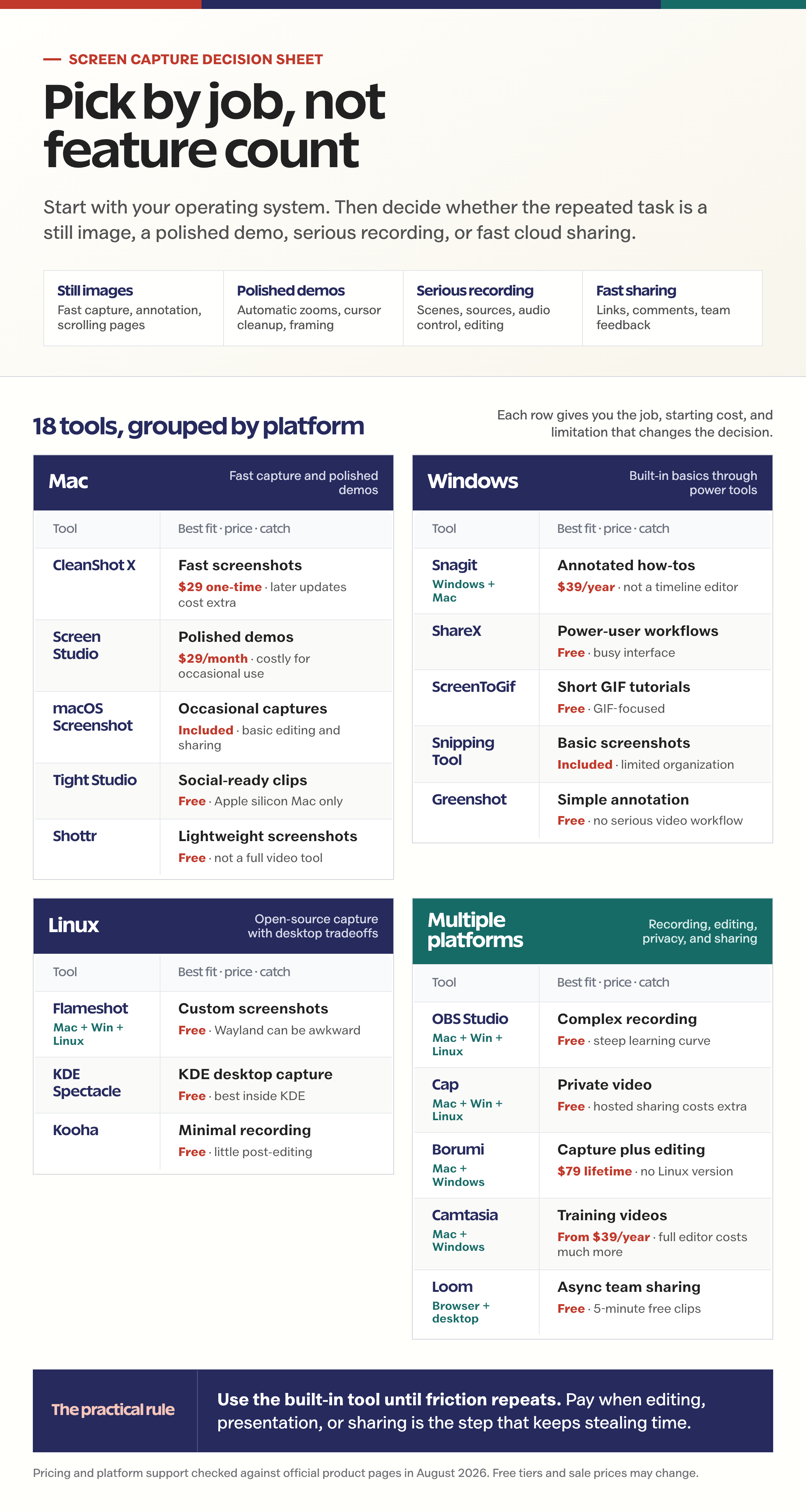
Platform removes the apps you cannot use. The repeated job decides what remains. The comparison below includes all 18 picks, their starting cost, and the limitation most likely to change your decision.
| Tool | Platform | Best for | Starting price | Main catch |
|---|---|---|---|---|
| CleanShot X | Mac | Fast screenshots | $29 one-time | Later updates cost extra |
| Screen Studio | Mac | Polished product demos | $29/month | Costly for occasional use |
| macOS Screenshot | Mac | Occasional captures | Included | Basic editing and sharing |
| Tight Studio | Mac | Social-ready clips | Free | Apple silicon Mac only |
| Shottr | Mac | Lightweight screenshots | Free; $12 license | Not a full video tool |
| Snagit | Windows, Mac | Annotated how-tos | $39/year | Not a timeline editor |
| ShareX | Windows | Power-user workflows | Free | Busy interface |
| ScreenToGif | Windows | Short GIF tutorials | Free | GIF-focused |
| Windows Snipping Tool | Windows | Basic screenshots | Included | Limited organization |
| Greenshot | Windows | Simple annotation | Free | No serious video workflow |
| Flameshot | Mac, Windows, Linux | Custom screenshots | Free | Wayland can be awkward |
| KDE Spectacle | Linux | KDE desktop capture | Free | Best inside KDE |
| Kooha | Linux | Minimal recording | Free | Little post-editing |
| OBS Studio | Mac, Windows, Linux | Complex recording | Free | Steep learning curve |
| Cap | Mac, Windows, Linux | Private video | Free; Pro $8.16/month annually | Hosted sharing costs extra |
| Borumi | Mac, Windows | Capture plus editing | $79 lifetime | No Linux version |
| Camtasia | Mac, Windows | Training videos | Capture $39/year | Full editor costs much more |
| Loom | Browser, desktop | Async team sharing | Free; Business $18/user/month | Free clips stop at 5 minutes |
Best Screen Capture Apps for Mac
Mac has the strongest specialist capture tools in this roundup. CleanShot X wins for daily screenshots, Screen Studio for polished demos, Tight Studio for a generous free start, macOS Screenshot for occasional use, and Shottr for a tiny still-image utility.
CleanShot X
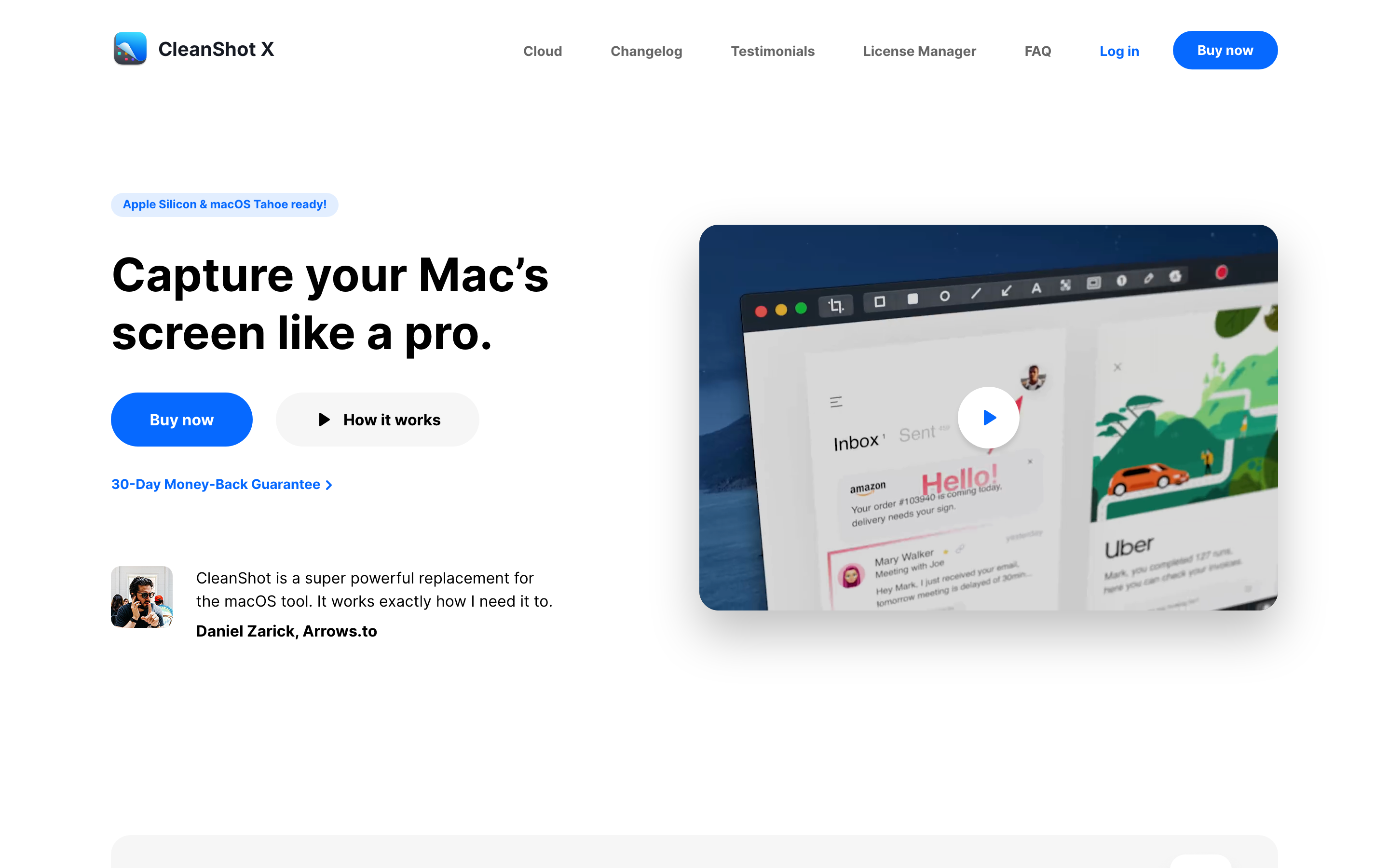
CleanShot X is the best screen capture app for most Mac users because it removes friction after the capture, not only during it.
- The $29 one-time license covers 1 Mac and includes 1 year of updates; optional renewal is $19 per year.
- Scrolling capture, OCR, annotation, pin-to-screen, GIF recording, and video recording live in 1 native app.
- The Quick Access Overlay lets you copy, drag, save, or upload without opening a separate editor.
The catch: It is Mac-only, and later updates are not included forever. CleanShot Cloud is optional rather than part of the base license.
Screen Studio
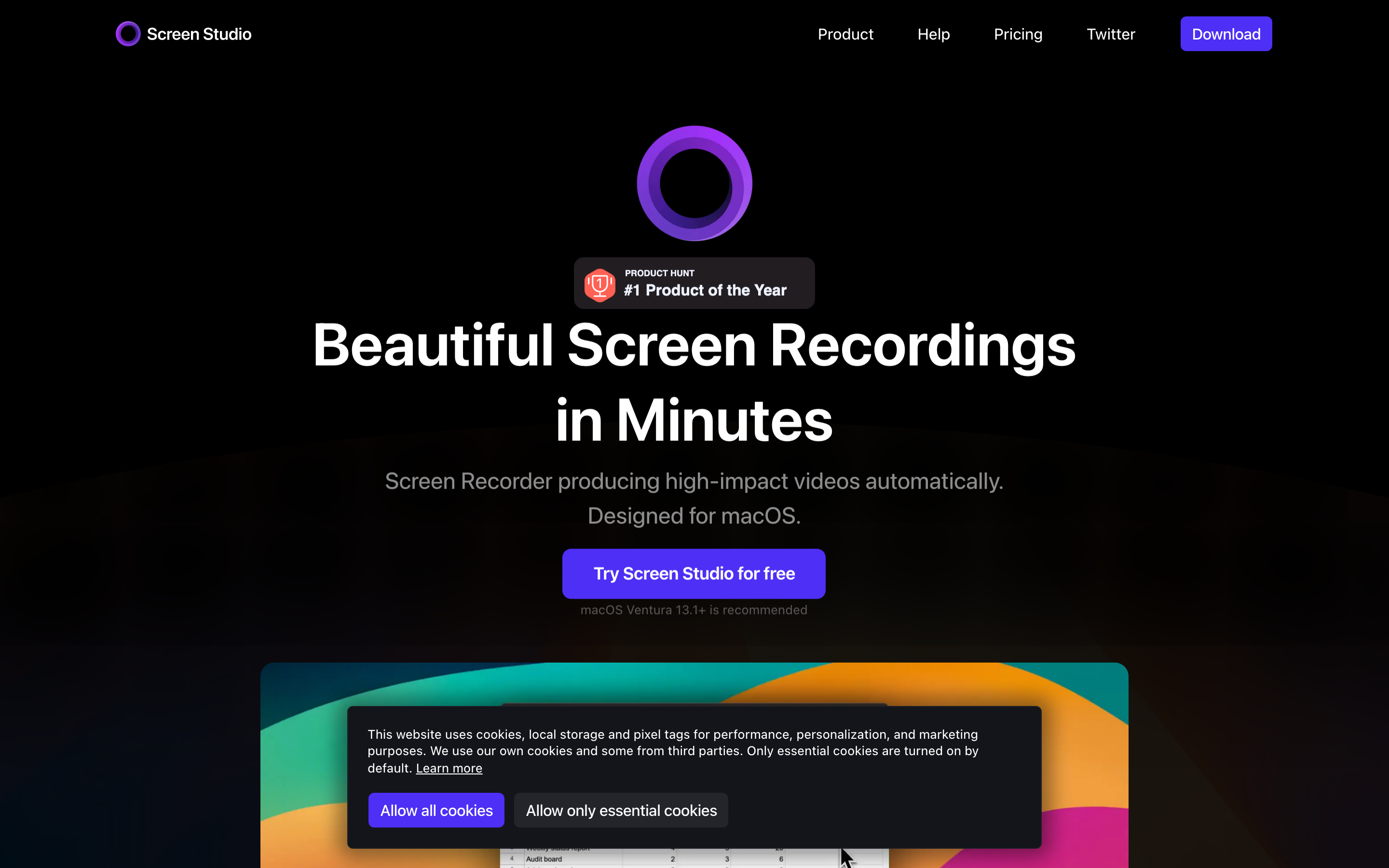
Screen Studio is the premium choice when a product demo needs to look edited before it reaches an editor.
- Automatic zooms, cursor smoothing, backgrounds, and device frames make software demonstrations easier to follow.
- It can record system audio and export up to 4K at 60 fps.
- The monthly plan is $29; annual billing lowers the effective monthly cost.
The catch: The signature polish is unnecessary for quick support clips, and the subscription is difficult to justify if you record only occasionally.
macOS Screenshot
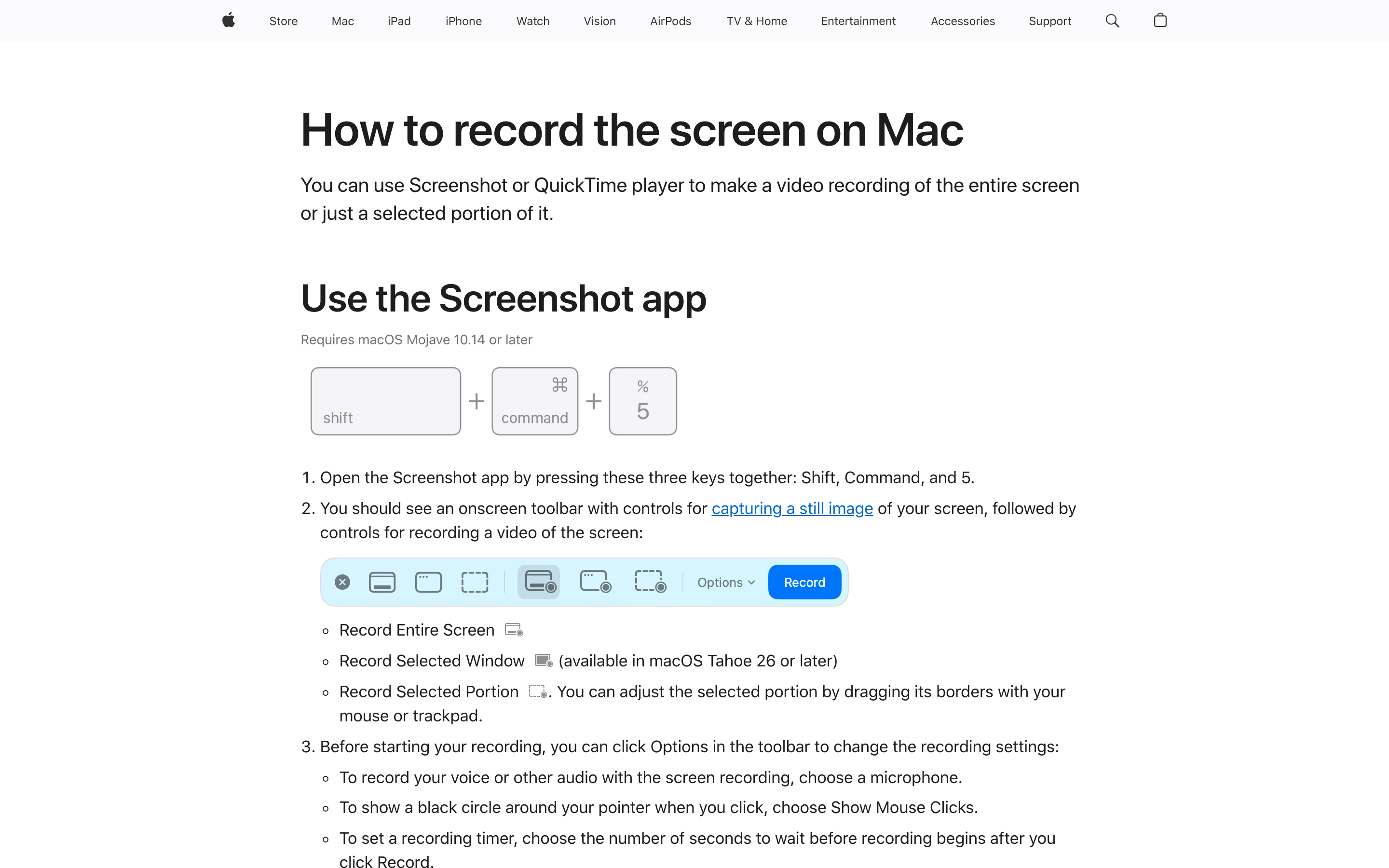
Press Shift-Command-5 before buying anything. Apple’s built-in tool covers more than casual Mac users expect.
- Capture the full screen, a window, or a selected region without installing another app.
- Record the full display or a selected portion and include microphone audio.
- The floating thumbnail opens quick markup and trimming controls after capture.
The catch: There is no scrolling capture, OCR workflow, cloud-link generation, or serious annotation library. For system audio, use the methods in the Mac screen recording guide.
Tight Studio
Tight Studio is the easiest free starting point for Mac users who want automatic zooms, captions, and a presentable demo without paying first.
- The free plan includes recording, smooth zoom, cursor animation, captions, layouts, clipping, music, and annotations.
- Plus starts at $9 per month when billed yearly and expands multi-clip recording and share links.
- A teleprompter, mobile-device capture, and intro and outro clips cover lightweight product-demo work.
The catch: It currently requires an Apple silicon Mac. Multi-clip, sharing, and AI allowances vary by plan, so check the limits before building a recurring workflow around the free tier.
Shottr
Shottr is the better fit when you care about fast screenshots, pixel measurements, OCR, and clean annotation more than video.
- The current Mac app is only 2.3 MB and is optimized for Apple silicon.
- Scrolling capture, OCR, QR reading, object removal, pinning, backgrounds, and measurement tools are included.
- Most features remain usable for free; a Basic license is $12 for 1 user on up to 5 computers.
The catch: Shottr is Mac-only and still-image-first. Choose CleanShot X, Tight Studio, or Screen Studio when recording is central to the job.
Best Screen Capture Apps for Windows
Windows gives you a cleaner ladder: try Snipping Tool first, use Greenshot for simple annotation, install ShareX when automation matters, choose ScreenToGif for frame-level GIF work, or pay for Snagit when a team needs the same tidy workflow.
Snagit
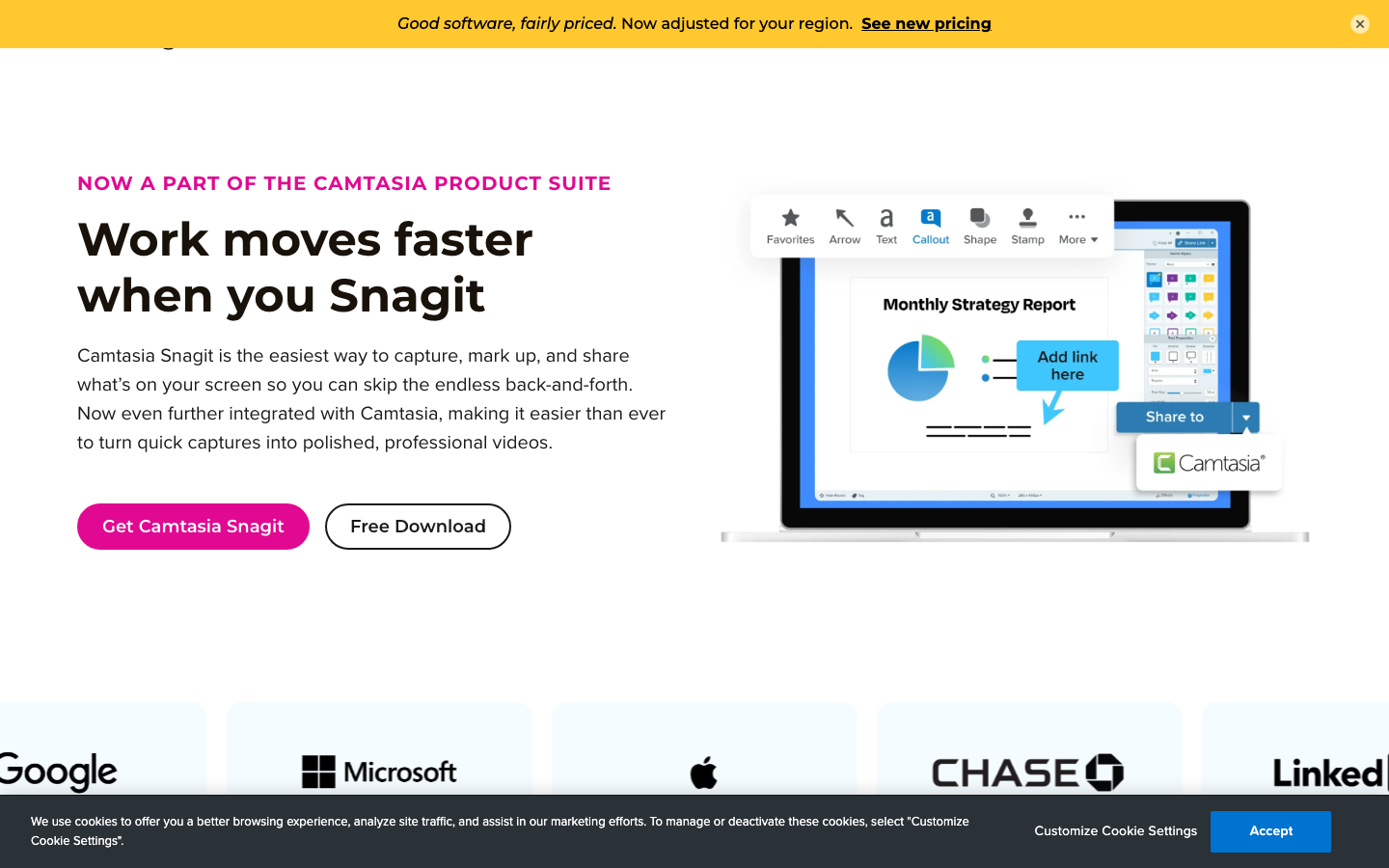
Snagit is the safer paid choice when several people need to capture, annotate, organize, and share images the same way.
- Scrolling capture, templates, annotation, redaction, OCR, and a searchable capture library sit in 1 workflow.
- The current $39-per-year plan runs on Windows 10 and 11 and macOS 14 or newer.
- Its cleaner editor reduces training cost for mixed-skill teams.
The catch: ShareX offers more automation for free. Snagit’s advantage is consistency and approachability, not raw feature count.
ShareX
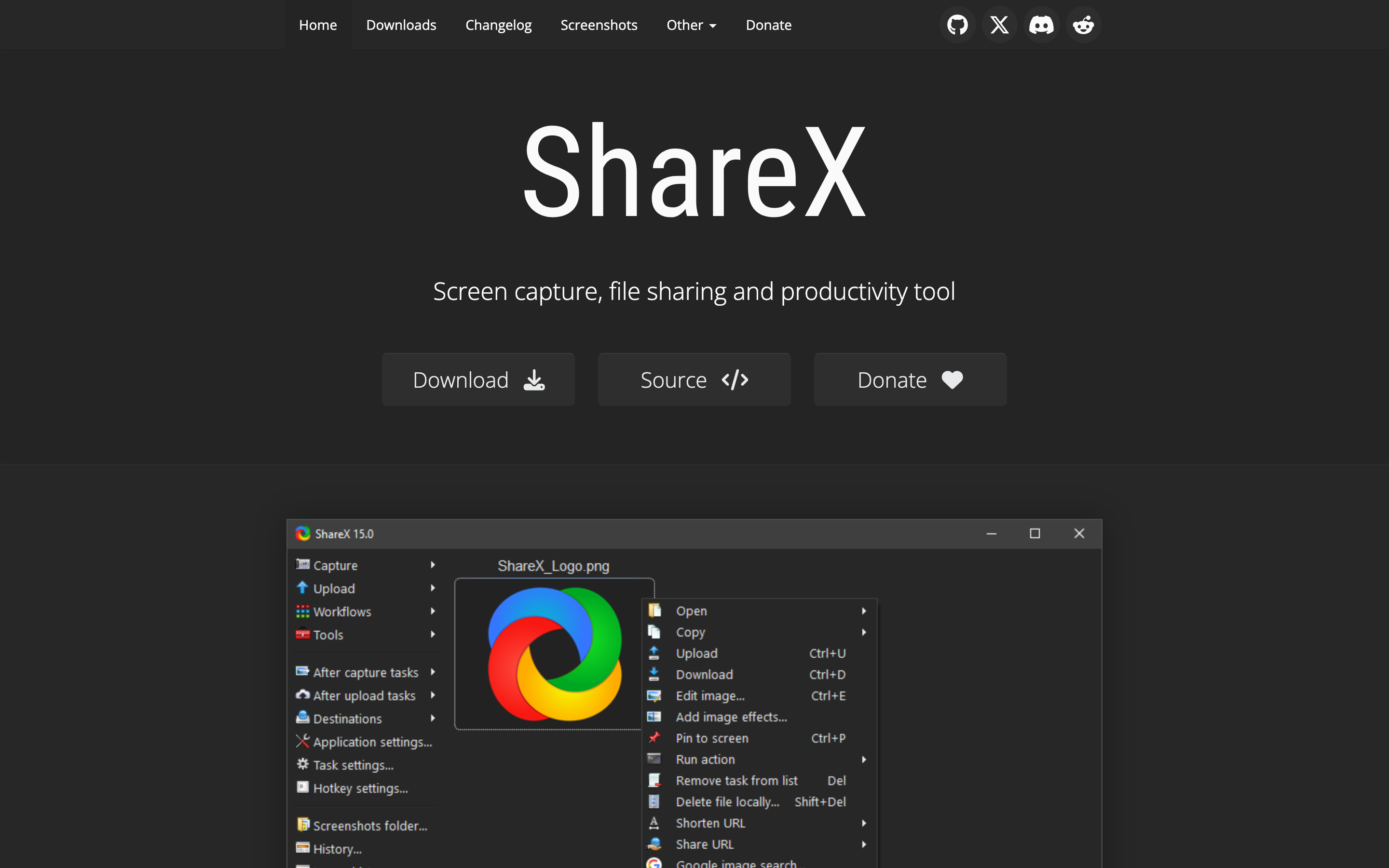
ShareX is the best free Windows pick if you will spend a few minutes configuring it.
- It is free, open source, ad-free, and does not require an account.
- Full-screen, region, active-window, scrolling, GIF, and video capture are included.
- After-capture workflows can annotate, redact, upload, shorten a URL, and copy the final link automatically.
The catch: The interface exposes a workshop full of controls. That is useful for developers and support teams, but it is not a gentle first-run experience.
ScreenToGif
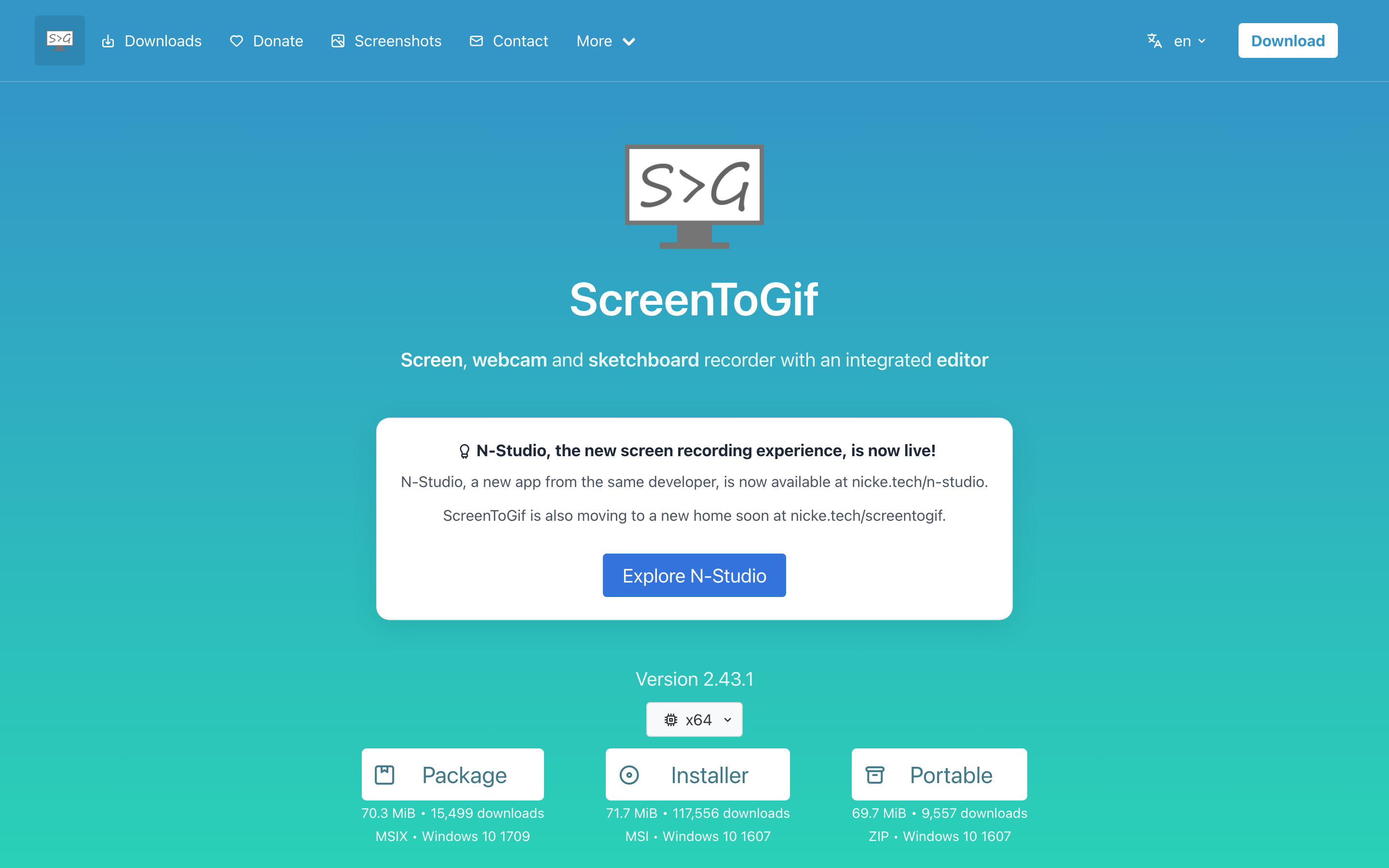
ScreenToGif remains the practical Windows tool when you need to edit individual frames before exporting a GIF or short video.
- Record a selected area, webcam feed, or drawing board, then edit the result frame by frame.
- Exports include GIF, APNG, video, PSD, and image sequences.
- The project is free and open source, which makes it easy to keep beside a larger recorder.
The catch: It is a specialist recorder, not a searchable screenshot library or a polished long-form editor.
Windows Snipping Tool
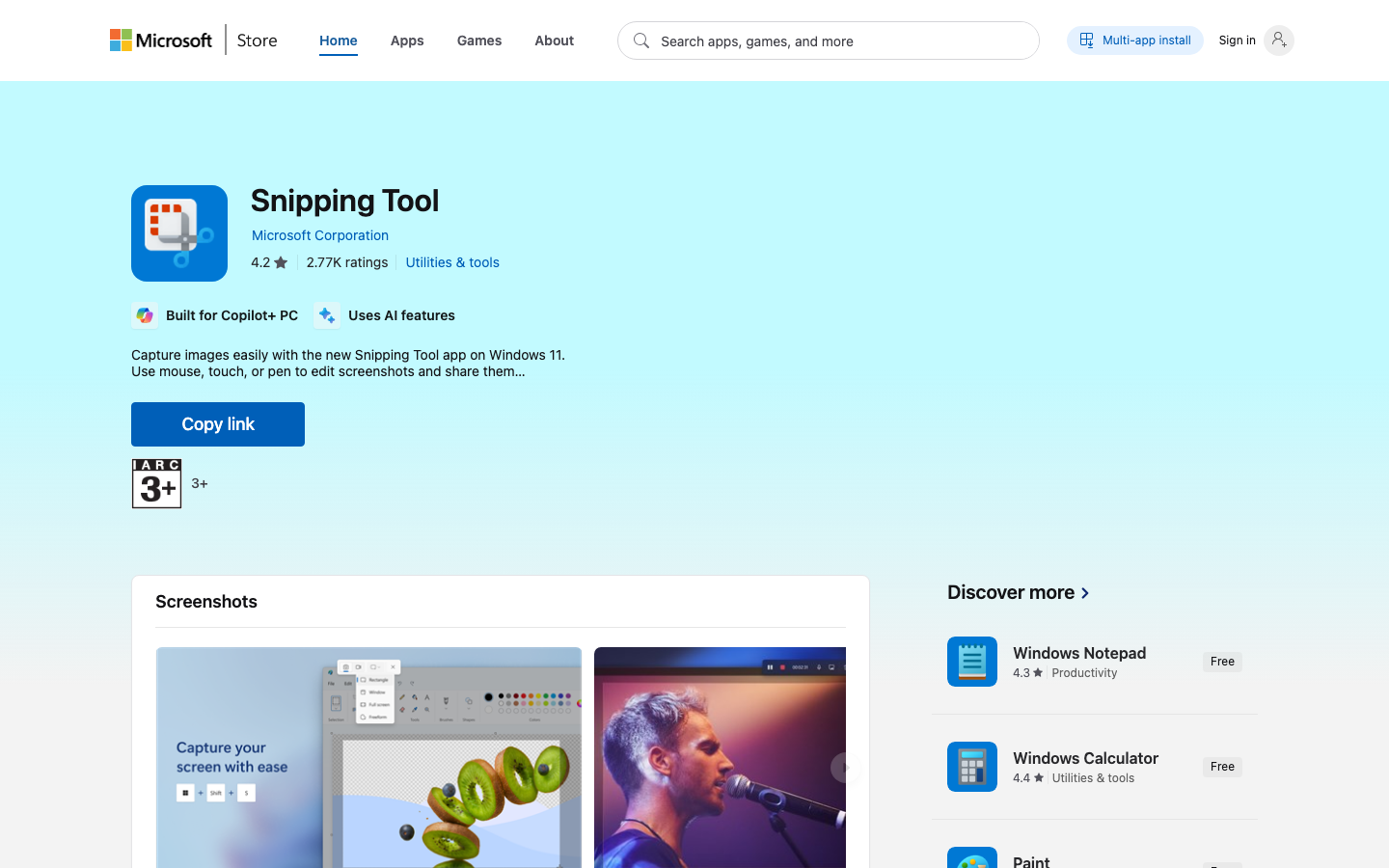
Windows Snipping Tool now handles the basic job well enough that casual users should try it before installing another utility.
- Windows-Shift-S opens rectangular, free-form, window, and full-screen screenshot modes.
- Windows-Shift-R opens the video capture overlay on supported Windows 11 builds.
- Captured images can be cropped, highlighted, copied, saved, or shared from the built-in editor.
The catch: Annotation, automation, scrolling capture, and library features remain basic beside ShareX or Snagit.
Greenshot
Greenshot is the sensible Windows choice when ShareX feels too configurable and you only need screenshots, annotation, and quick exports.
- It is free and open source, with capture modes for a region, window, full screen, and scrolling pages.
- The editor can annotate, highlight, crop, or obscure sensitive areas.
- Finished captures can be saved, printed, copied, attached to email, or sent to another application.
The catch: Greenshot does not record video, and parts of its export workflow feel dated. Use ShareX for automation or ScreenToGif when motion matters.
Best Screen Capture Apps for Linux
Linux does not need 1 winner. Flameshot is the strongest general screenshot utility, KDE Spectacle fits Plasma, and Kooha is the clean recorder for modern Wayland desktops. OBS Studio appears in the multi-platform section because its real strength extends far beyond Linux.
Flameshot
Flameshot is the first Linux screenshot app to install when annotation, arrows, blur, and quick region capture matter.
- Packages are available across major Linux distributions, and builds also exist for Windows and macOS.
- The capture editor includes text, arrows, boxes, blur, pixelation, numbering, clipboard output, and file output.
- Command-line and DBus integration make desktop shortcuts and repeated workflows possible.
The catch: Wayland behavior varies by desktop and portal configuration. GNOME and some compositors may require a share prompt, permissions, or extra setup.
KDE Spectacle
KDE Spectacle is the right first choice on Plasma when you want dependable capture that already belongs to the desktop.
- It captures the whole desktop, 1 monitor, the active window, the window under the pointer, or a rectangular region.
- Keyboard shortcuts cover the common modes, and images can be saved, printed, or sent to another application.
- Installation is straightforward through Discover or the distribution package manager.
The catch: Spectacle is screenshot-first. Use Kooha for simple recording or OBS Studio when scenes, audio routing, and streaming matter.
Kooha
Kooha is the better Linux recorder when OBS Studio feels too large and you only want to press Record.
- Record a monitor or selected area with microphone audio, desktop audio, or both.
- Export to WebM, MP4, GIF, or Matroska and control pointer visibility, frame rate, delay, and save location.
- PipeWire and xdg-desktop-portal make it a natural fit for GNOME and Wayland desktops.
The catch: Window-only capture and hardware-accelerated formats can depend on the distribution’s portal stack. Simple does not mean universally trouble-free on Linux.
Best Multi-Platform Screen Recorders
These tools solve larger workflows. OBS Studio manages sources and scenes, Cap keeps recordings local or self-hosted, Borumi structures a tutorial before editing, Camtasia combines capture with a traditional timeline, and Loom turns a recording into a team conversation.
OBS Studio
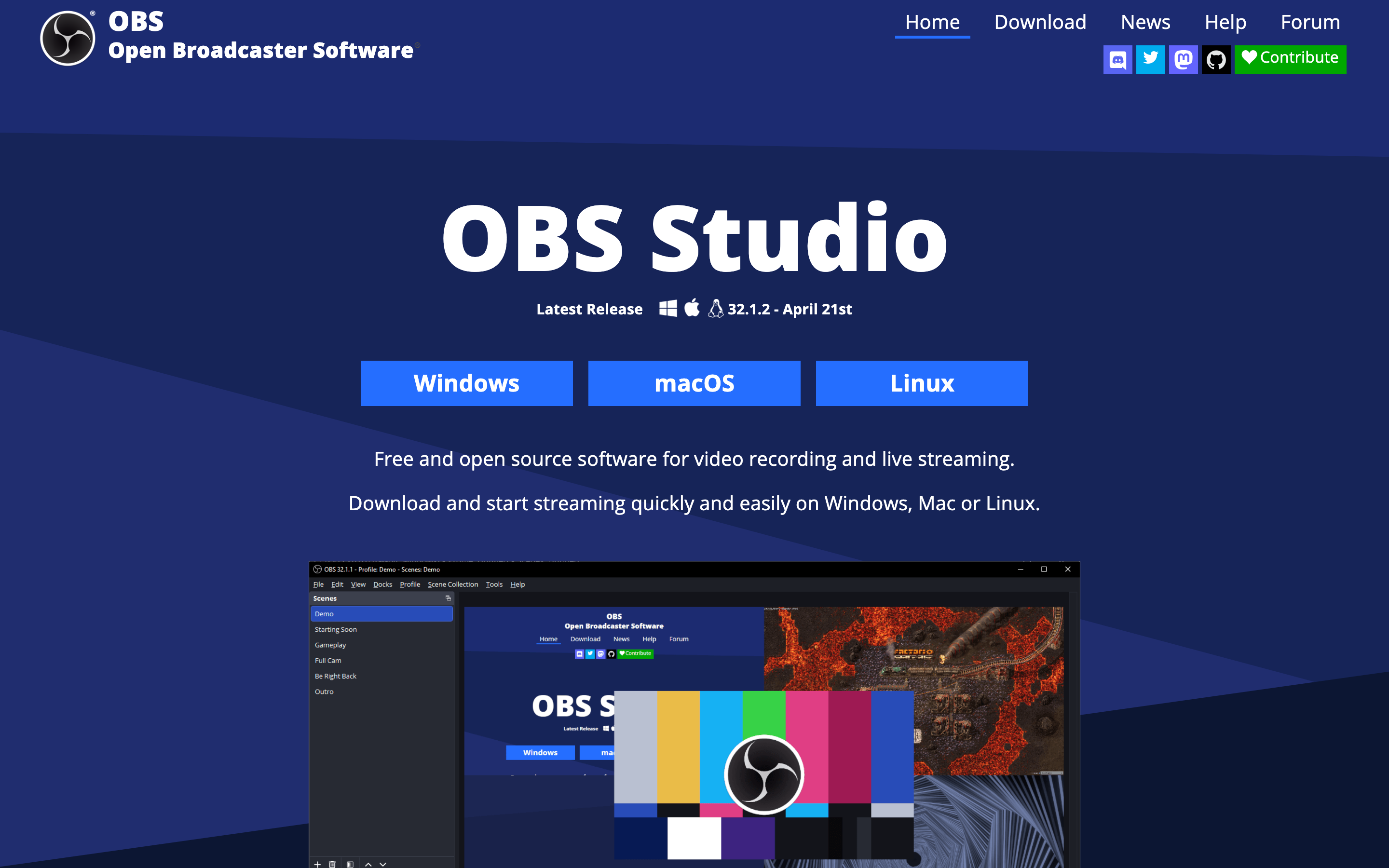
OBS Studio is the best free recorder when you need multiple sources, separate audio control, long sessions, or streaming.
- It is free and open source, with official builds for Linux, Windows, and macOS.
- Scenes can combine a display, app window, webcam, microphone, browser source, capture card, and overlays.
- The same scene system works for local recording and live streaming.
The catch: OBS Studio has no built-in timeline editor. Its Scene, Source, and Filter model is more setup than a 30-second explanation needs.
Cap
Cap is the strongest privacy-focused alternative to Loom when you want local recording, self-hosting, or control over where the files live.
- The desktop recorder is open source and supports macOS, Windows, and Linux.
- You can keep recordings local, self-host the stack, or connect storage you control instead of accepting vendor lock-in.
- The free route covers recording; Cap Pro is $8.16 per month when billed annually for hosted sharing features.
The catch: Cap is attractive because it gives you choices, but self-hosting is still infrastructure. Teams that want a link with no operational work may prefer Loom.
Borumi
Borumi is the best fit when a tutorial should be planned scene by scene instead of recorded as 1 long take and repaired later.
- Structured Video combines a script, scene-by-scene recording, and a built-in teleprompter; Quick Recording skips the planning step.
- The editor preserves earlier takes, supports transcript-based cuts, and adds zooms, cursor treatment, layouts, noise removal, and 4K export.
- The free trial lets you evaluate the workflow; exporting requires a license, currently $79 for the early-adopter lifetime offer.
The catch: Borumi runs on macOS and Windows, not Linux. Its structured workflow pays off for tutorials, but it is unnecessary for disposable clips.
Camtasia
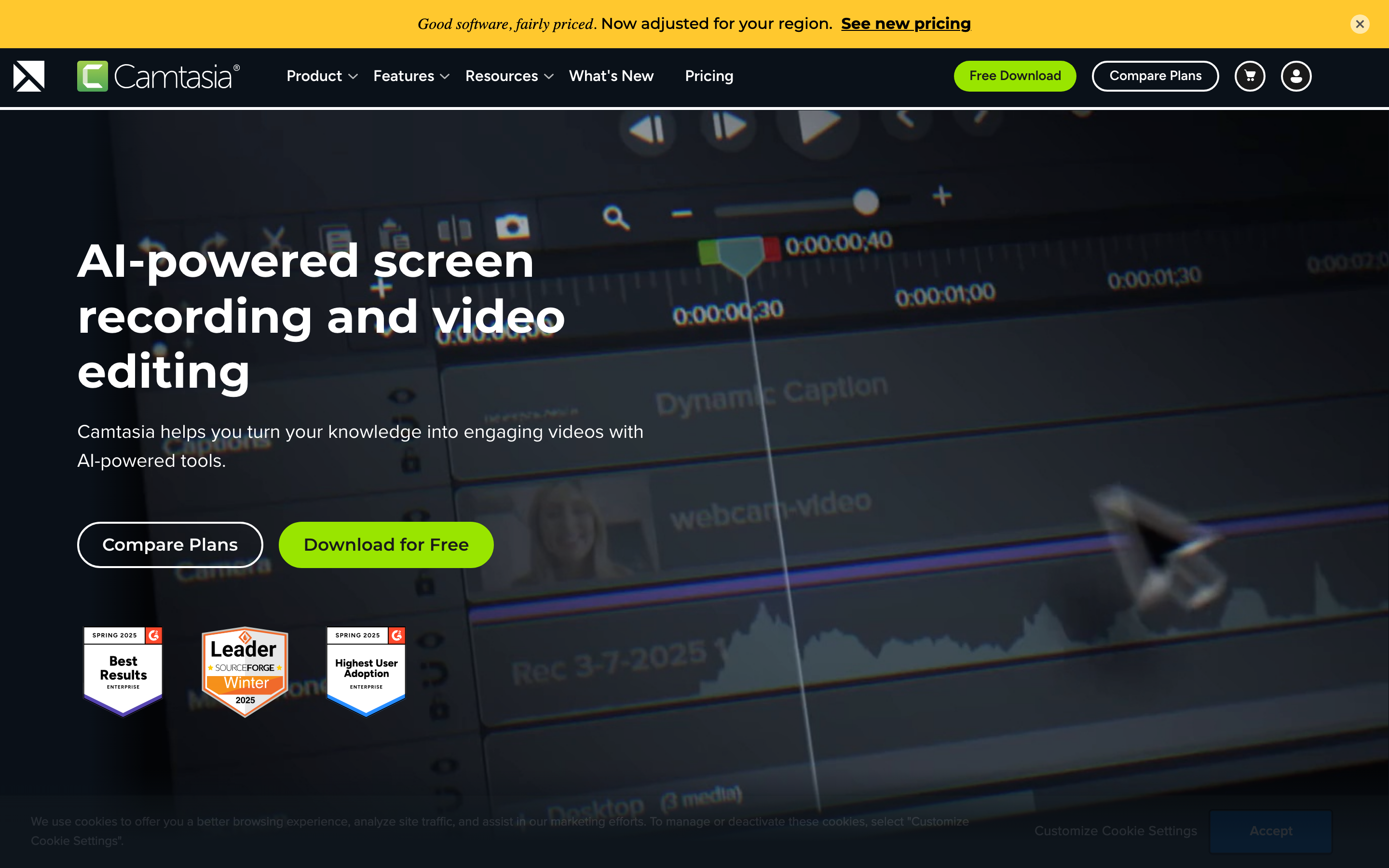
Camtasia makes sense when editing is part of the job, not when you only need an untrimmed screen clip.
- The $39-per-year Starter tier includes advanced screen capture, but Camtasia Editor exports remain watermarked there.
- The Essentials tier costs $179.88 per year and unlocks the full video and audio editing workflow.
- Cursor replacement, zooms, callouts, transitions, captions, and training-video assets are built in.
The catch: The full editor is expensive overkill for bug reports, screenshots, and occasional explanations. Buy it for editing, not merely for recording.
Loom
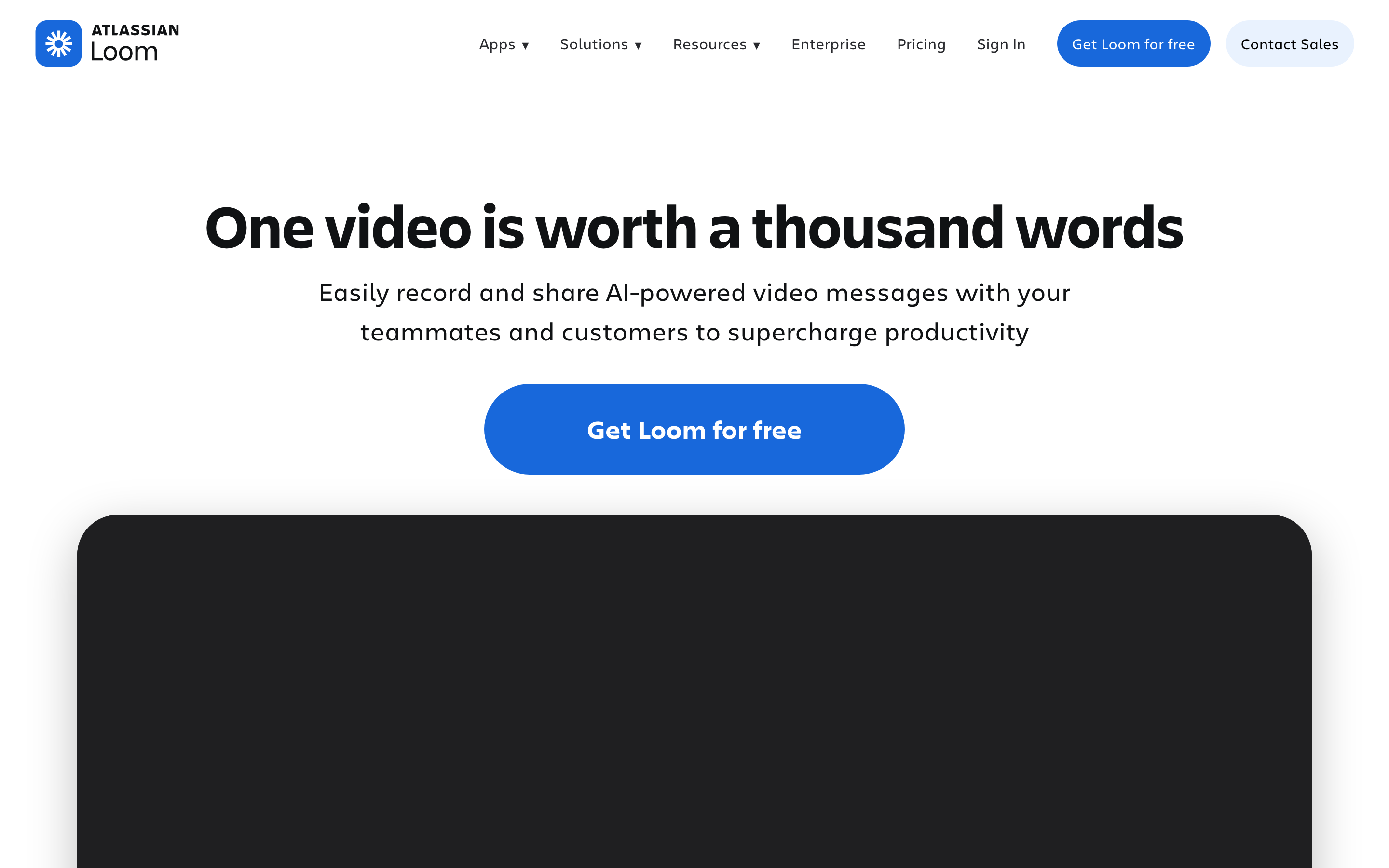
Loom is the best fit when the deliverable is an instant share link with captions, comments, and viewer access.
- The free Starter plan allows 25 videos per person and caps each screen recording at 5 minutes and 720p.
- Business costs $18 per user per month on monthly billing and removes the recording limits while adding up to 4K capture.
- Screen and camera can be recorded together, then shared without exporting a local file.
The catch: The cloud-first workflow creates account, storage, and privacy dependencies. Cap or a local recorder is the better boundary when the capture should not leave your control.
Choose the Repeated Step You Want to Remove
Feature count is a trap because the longest list often belongs to the app that demands the most setup. Start with the output you make repeatedly, then pay for the bottleneck.
- Choose a screenshot-first app for documentation, bug reports, research, annotations, and scrolling pages.
- Choose a presentation recorder when automatic zooms, cursor cleanup, frames, and social-ready layouts matter.
- Choose a serious recorder for multiple sources, long sessions, separate audio control, or streaming.
- Choose a cloud messenger when comments and fast access matter more than local files.
- Choose a local or self-hosted recorder when the capture contains client work, private dashboards, or unreleased product details.
What Better Screen Capture Software Will Not Fix
A better recorder cannot rescue a careless capture. The expensive mistakes usually happen before you press Record or after you share the link.
- Do not record a 12-minute explanation when 1 annotated screenshot would resolve the question.
- Turn off notifications and hide passwords, email addresses, API keys, customer data, and private browser tabs before capture.
- Do not assume a cloud link is private merely because it is hard to guess. Check access controls and retention settings.
- Do not buy a timeline editor to trim 30-second clips. That is like renting a workshop to tighten 1 screw.
- Keep a local master when a tutorial or training video has long-term value. Hosted links and free-plan rules can change.
The Short Version
Use the built-in Mac or Windows tool until a limitation repeats. Then solve that specific limitation: CleanShot X for faster Mac capture, ShareX for Windows automation, Flameshot for Linux screenshots, OBS Studio for complex recording, Cap for control, Borumi for structured tutorials, Camtasia for full editing, or Loom for fast team sharing.
The best upgrade is not more capture software. It is fewer steps between what you see and what the other person needs to understand.
Frequently Asked Questions
These questions cover the boundaries that still matter after the product comparison.
When is the built-in screenshot tool enough?
Use the built-in macOS Screenshot or Windows Snipping Tool when you make occasional screenshots or short clips and only need basic crop, markup, save, and copy controls. Install a specialist tool after scrolling capture, OCR, repeatable annotation, audio, automation, or sharing becomes a recurring need.
Should screen recordings stay local or be uploaded?
Keep recordings local when they contain client work, private dashboards, customer information, unreleased features, or credentials. Cloud hosting is more convenient for comments and team access. Cap offers local and self-hosted routes, while Loom favors hosted sharing. The right choice depends on the sensitivity of the capture and who must view it.
Does Linux screen recording work on Wayland?
Yes, but the recorder needs PipeWire and the correct xdg-desktop-portal backend for the desktop environment. Kooha and OBS Studio support modern portal-based capture. Flameshot can work on Wayland, although GNOME and some compositors may require permissions, a share prompt, or extra configuration.
Can screen recording capture system audio?
Many third-party recorders can capture system audio, but support varies by operating system and permissions. OBS Studio, Screen Studio, Camtasia, Loom, and other dedicated recorders expose audio controls. Built-in tools may limit system-audio capture or require additional routing.
Do I need paid screen capture software?
No. macOS Screenshot, Windows Snipping Tool, ShareX, Flameshot, KDE Spectacle, Kooha, OBS Studio, Cap, and ScreenToGif cover a wide range of jobs for free. Pay when a cleaner editor, automatic presentation polish, integrated editing, consistent team workflow, or hosted sharing saves enough repeated time to justify the cost.
Tell Google you want more of this.
Add Gaurav Tiwari as a preferred sourceOne tap, and this site shows up more often in your own Top Stories, AI Overviews and AI Mode. Remove it any time.
Disclaimer: This site is reader-supported. If you buy through some links, I may earn a small commission at no extra cost to you. I only recommend tools I trust and would use myself. Your support helps keep gauravtiwari.org free and focused on real-world advice. Thanks. - Gaurav Tiwari