
 by
by
You have a Mac and one Windows program you can’t avoid, maybe an accounting tool or a company .exe installer. Double-clicking that installer does nothing useful, because macOS can’t run Windows programs on its own.
Picking a tool by its popularity is where people usually lose money. A virtual machine can install your app and still fail the moment it reaches a database connection or a USB driver, so knowing how to run Windows apps on Mac starts with what your app needs after it installs. For most people the answer is Windows 11 in a virtual machine: Parallels if you want the smoothest setup and VMware Fusion if you want it free. CrossOver skips Windows altogether when your specific app supports it, and a remote Windows PC covers the work that can’t run on the Mac at all.
Parallels Desktop is a paid Mac app that runs Windows 11 inside macOS and can show Windows apps as ordinary Mac windows. VMware Fusion gives you the same kind of full Windows virtual machine for free, with fewer conveniences. CrossOver uses Wine to run supported Windows programs without installing Windows. Parallels and CrossOver both have free trials and Fusion costs nothing, so you can test your real work before paying for anything.
Which Method Should You Choose?
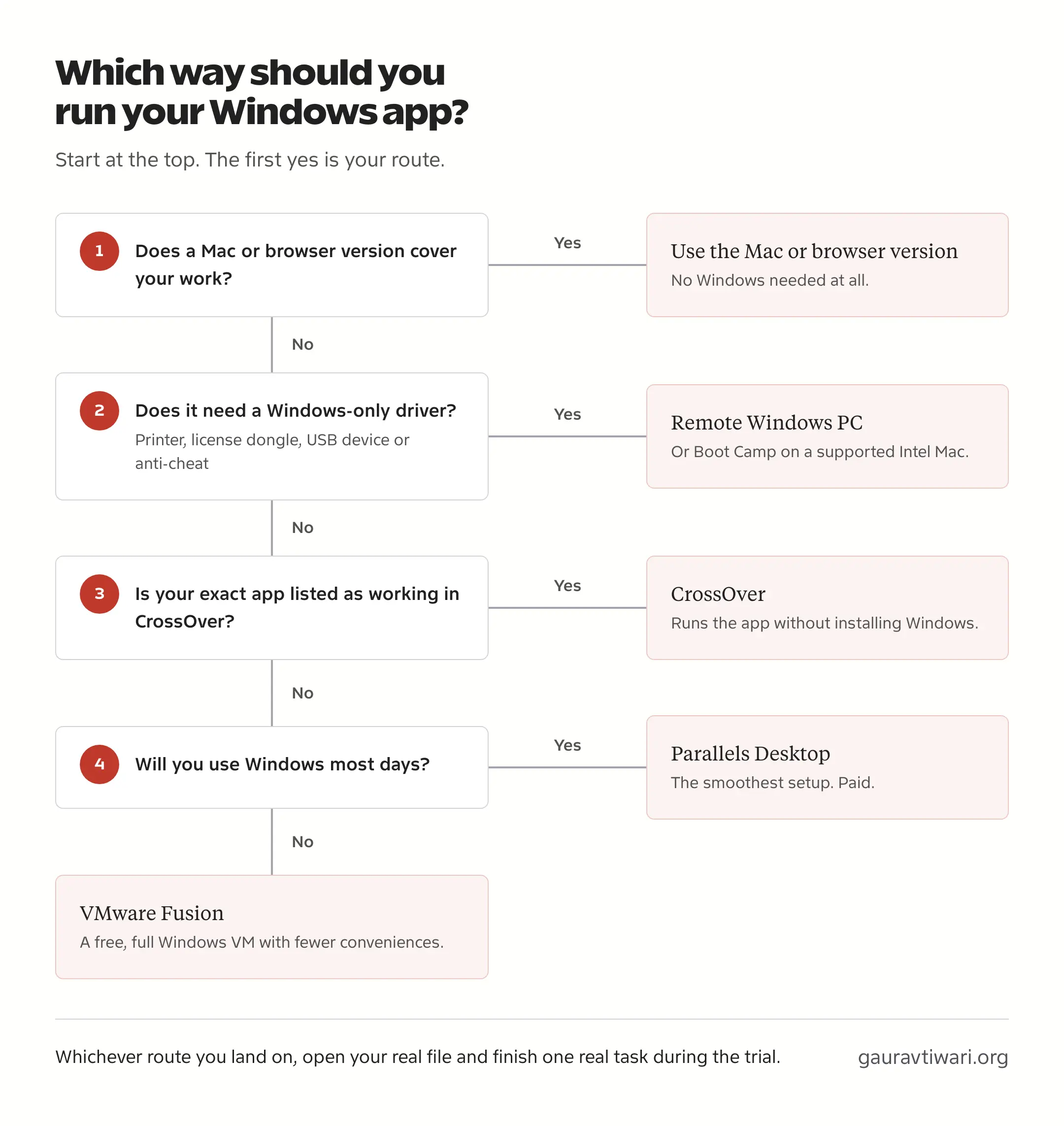
You should first check whether a Mac or browser version of your app already covers the work. If it doesn’t, find your situation in this table and read that section.
| Route | Best For | Needs Windows Installed | Cost | Main Limit |
|---|---|---|---|---|
| Parallels Desktop | Daily Windows work beside Mac apps | Yes, license separate | $99.99/year Standard, or a one-time Standard license | Standard caps each VM at 8 GB memory and 4 CPUs |
| VMware Fusion | A full Windows VM without paying for the tool | Yes, license separate | Free for personal, educational and commercial use | Thinner Windows integration on Apple Silicon; no Unity mode |
| CrossOver | One or two specific apps or games | No | $74 new license with 12 months of updates | Works only if your app version is compatible |
| UTM | Free VMs and old x86 Windows versions | Yes | Free download, paid App Store version | Emulated x86 Windows is slow; limited Windows graphics |
| VirtualBox | Manually configured VMs | Yes | Free | Apple Silicon hosts need ARM guests |
| Remote Windows PC | Apps that can’t run on the Mac, or managed work Macs | No local install | Your existing PC, or a monthly Windows 365 plan | Needs a steady connection |
| Boot Camp | Existing setups on supported Intel Macs | Yes | Included on Intel Macs; license separate | No Apple Silicon support; restart to switch |
If you’re unsure, I’d start the Parallels trial when Windows is part of your working day and Fusion when you open Windows a few times a month. CrossOver comes first only when its compatibility database lists your exact app as working. The tool’s price is also only part of the cost, because Windows and the app itself usually need their own licenses.
Will Windows Apps Run on Apple Silicon Macs?
Most will, through two layers. An Apple Silicon Mac runs the ARM version of Windows 11 inside a virtual machine, and Windows 11 on ARM then runs ordinary x86 and x64 apps through Microsoft’s built-in emulator, Prism. That covers a lot of office, business and development software.
Drivers are where it breaks. A printer, scanner, license dongle, VPN client or anti-cheat system that installs a kernel driver needs an ARM64 version of that driver, and emulation can’t make one. This is why an app can install perfectly and still fail on the one task you needed it for.
You can check which Mac you have from the Apple menu > About This Mac. A Chip line naming M1, M2, M3, M4 or M5 means Apple Silicon. A Processor line naming Intel means you have an Intel Mac, where Boot Camp and regular x64 Windows are still possible.
Before going into the tools, I want to ensure you check your app properly, because it decides everything else. You should confirm these for your exact app:
- The edition and version you need, and whether a Mac or browser version already does the job. AutoCAD LT has a Mac edition and SAP offers a macOS installer for SAP GUI for Java, though a company setup can still need the Windows edition for a specific feature.
- The tasks beyond the first launch, such as opening a company file, refreshing data, exporting a report or running an add-in.
- Any printer, scanner, security key or USB device that needs a Windows driver.
- The publisher’s support statement for Windows on ARM and for virtual machines, which matters most for business-critical software.
- The anti-cheat and graphics requirements, if it’s a game.
Say you need Microsoft Access with a company database and an ODBC connection. A clean install only answers the first question. You should also open a copy of the database, connect to the data source and run the report or export you actually use, because that is the part that fails when a driver or connector is missing.
Ways to Run Windows Apps on Mac
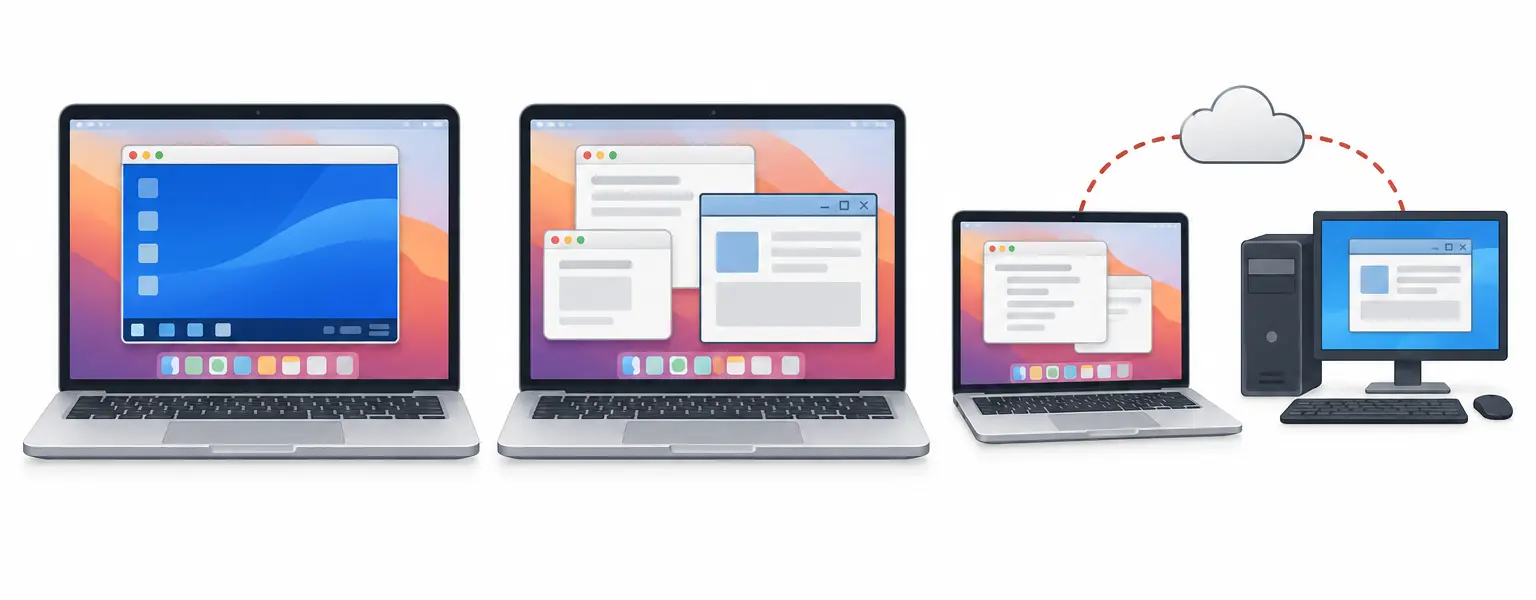
There are broadly two kinds of tools here. A virtual machine (VM) runs a complete copy of Windows inside macOS, so it needs a Windows license and a share of your Mac’s memory, and in return almost anything that works on Windows 11 on ARM works there. A compatibility layer such as CrossOver runs the Windows program directly on macOS by translating its Windows calls, which is lighter but works app by app. The third route is a remote Windows PC, where Windows runs on another machine and your Mac only shows its screen.
Parallels Desktop
Parallels Desktop is the one I’d pick for daily Windows work on an Apple Silicon Mac. It downloads and installs Windows 11 for you, sets up its guest tools and can put Windows apps on the Mac desktop as separate windows through Coherence mode. My Power BI and Visual Studio tests below ran in Parallels on a MacBook Pro with an M5 Pro chip.
The Standard edition costs $99.99 a year at US list price and is also sold as a one-time license. Standard limits each VM to 8 GB of memory and 4 virtual CPUs, which is enough for office work and the workloads I tested. Pro lifts that limit for heavier development or data work, and Parallels runs discounts often enough that you should check the current price before buying.
Windows is a separate purchase. Microsoft’s support page for Apple Silicon Macs names Windows 11 Pro and Enterprise as the authorized editions in Parallels Desktop, and a Windows 11 Pro license costs $199.99 at the Microsoft Store in the US.
Parallels doesn’t change what Windows on ARM can do. A device that needs an x86-only driver fails in Parallels for the same reason it fails anywhere else on Apple Silicon, and its graphics support stops at DirectX 11, so some newer games won’t start.

Parallels Desktop for Mac
- Downloads and installs Windows 11 for you, with guest tools set up automatically
- Coherence mode shows Windows apps as separate windows on the Mac desktop
- Runs Windows 11 on ARM on Apple Silicon, with DirectX 11 graphics
- Shared clipboard and drag-and-drop between macOS and Windows
- Free trial, and the Standard edition is also sold as a one-time license
VMware Fusion
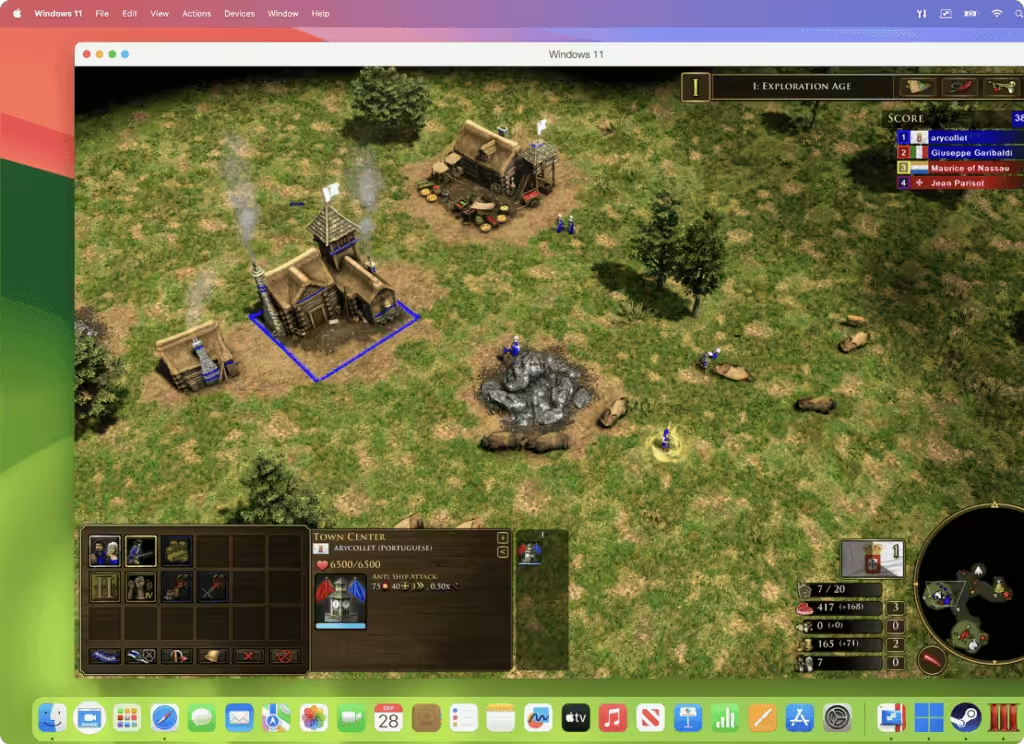
VMware Fusion is the one to try when you want a full Windows VM and don’t want to pay for the virtualization app. Broadcom made it free for personal, educational and commercial use in November 2024. You download it through Broadcom’s support portal with a free account, and a new account goes through an export-compliance check before downloads open, which can take some time. You still need a Windows license.
On Apple Silicon, Fusion runs Windows 11 on ARM and includes a Get Windows option that fetches the installer for you. Its Windows integration is thinner than on Intel Macs. Unity mode, VMware’s version of Coherence, is gone from current versions, and Broadcom’s Windows ARM feature list limits native shared folders to Linux guests, so you should check it first if moving files between Mac and Windows is part of your day.
For the free route:
- Create a free Broadcom account and download Fusion from its support portal.
- Create a Windows 11 VM using Get Windows, or with Microsoft’s official ARM64 ISO.
- Install VMware Tools and run Windows Update.
- Activate Windows with a suitable license, then install your app.
- Test the files, devices and features your work depends on.
CrossOver
CrossOver makes sense when the one app you need is on its compatibility list. CodeWeavers builds it on Wine, which reimplements the Windows programming interfaces on macOS, so you install the app into a “bottle” (a self-contained Windows-style folder) and launch it like a Mac app, without installing Windows.
A new license costs $74 and includes 12 months of updates and support. The version you bought keeps working after that period, and renewing only continues the updates and support. Lifetime support costs $494, and there’s a 14-day free trial. You still need the Windows app’s own license where it has one.
I would use the trial to run one representative task before buying. An entry in the CrossOver compatibility database is useful evidence for that app version and setup, but it is not a promise that your add-ins, company files or connected hardware will work. CrossOver avoids running a whole Windows guest, though translating Windows calls and DirectX graphics still uses memory and CPU time.
Whisky, the free Wine app many older guides still recommend, is no longer maintained. Its maintenance notice from April 2025 says its Wine build gets no further updates or app-specific fixes, so I wouldn’t start a new setup on it. Guides that still call it the best free option must be having a long update cycle. Sikarugir, a free wrapper descended from Wineskin, is still developed, but its own documentation says it isn’t a replacement for CrossOver or Whisky and it expects more manual setup.
UTM
UTM is a free app that virtualizes ARM operating systems on Apple Silicon and can also emulate older x86 systems. Those are two different workloads. A Windows 11 on ARM VM runs at close to the hardware’s speed, while a fully emulated Windows XP or Windows 7 machine is slow, and it is wise to judge UTM by the one you actually need.
The Mac download is free, and the paid App Store version has the same features and funds development. Setup is more manual than Parallels or Fusion, and Windows graphics support is limited in stable releases. A recent beta adds experimental accelerated graphics for Windows guests, which I’d leave for testing rather than daily work. UTM is the sensible pick for an old Windows version that a legacy program needs, kept offline and away from your regular files.
VirtualBox
VirtualBox is Oracle’s free VM app, and it now runs on both Intel and Apple Silicon Macs. On an Apple Silicon host it needs an ARM guest, so it can run Windows 11 on ARM but it can’t boot an existing Intel Windows installation.
Setup is manual, and integration features are thinner than in Parallels or Fusion. You should check Oracle’s supported host and guest combinations before relying on it for a particular Windows workflow. VirtualBox suits people who already know it from Linux or Intel machines more than first-time Windows users.
Install Windows With Parallels
If Parallels fits, setup is mostly automatic. Before you start, you should have your app’s installer and license, a Windows license and at least 64 GB of free space for Windows, plus room for your app and updates.
- Download the Parallels Desktop trial from the official site and install it like any Mac app.
- Choose the option to download Windows 11 from Microsoft in the installation assistant. On Apple Silicon, Parallels downloads the ARM version and installs it with its guest tools.
- Run Windows Update, then activate Windows with your license key. Activation depends on the installed edition and a valid license for that VM, so signing in with a Microsoft account alone won’t do it.
- Install your app and test real work: open a copy of your file, connect the printer, database or add-in you depend on, and finish one task from start to end.
- Adjust only what the test showed. Raise the VM’s memory if Windows runs short, share only the Mac folders your work needs, and turn on Coherence from the View menu if you want Windows apps on the Mac desktop.
- Take a snapshot from the Actions menu once everything works, so a bad update or installer can be rolled back.
A snapshot lets you roll the VM back to a working state. It lives on the same drive as the VM, so if the VM file or the drive is lost, the snapshot goes with it. Your Windows files still need a separate backup.
My Power BI and Visual Studio Tests
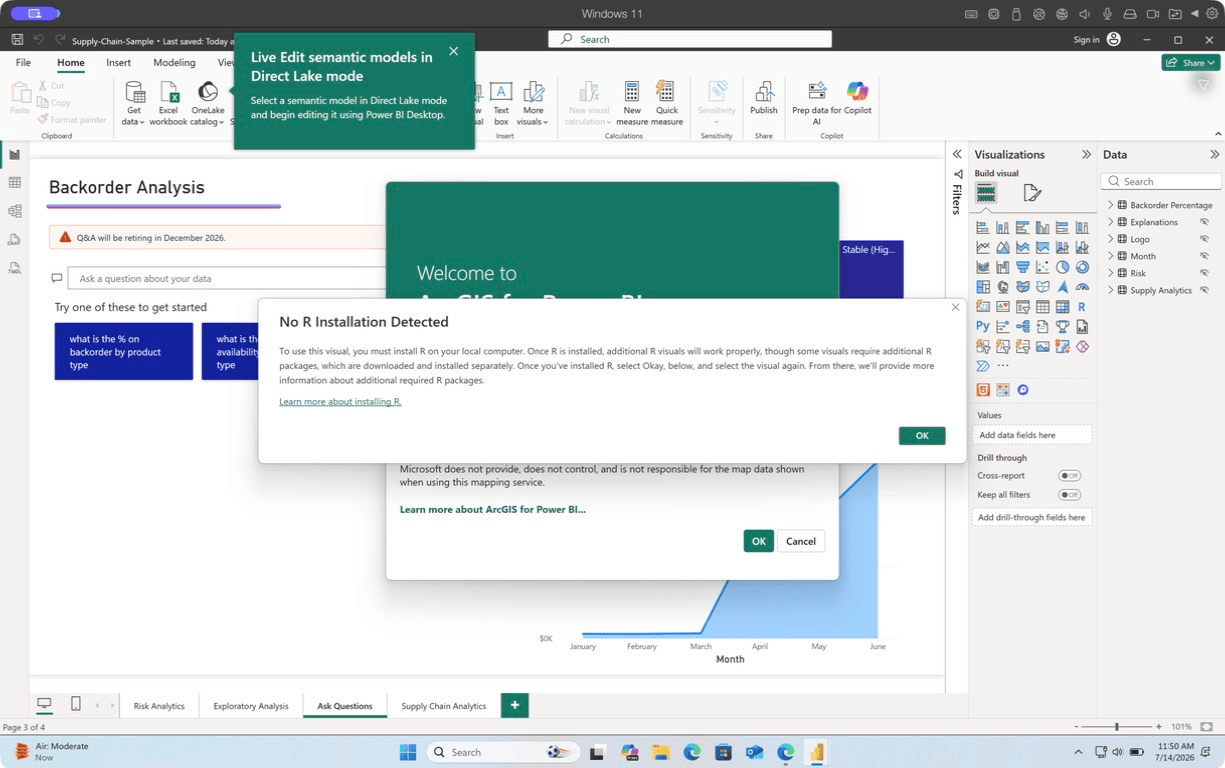
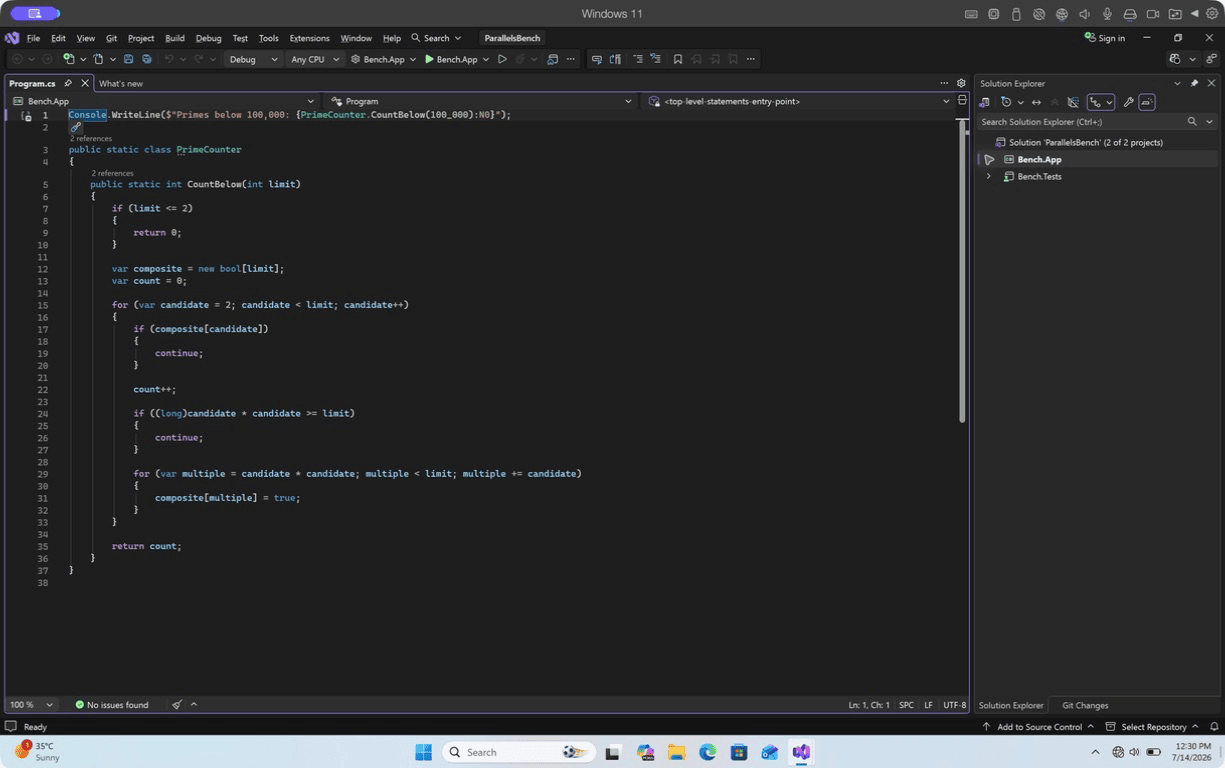
In July 2026, I tested Power BI Desktop and Visual Studio, two Windows-only apps, in Parallels on my MacBook Pro with an M5 Pro chip and 24 GB of memory. The Windows 11 on ARM VM started with 4 virtual CPUs and 6 GB of memory.
- Power BI Desktop installed from Microsoft’s standalone package and opened Microsoft’s Supply Chain Sample report. The first window took 42.7 seconds to appear.
- With the sample open, Power BI and its model engine used about 1.59 GB together, which left Windows only 712 MB free in the 6 GB VM. I raised the VM to 8 GB after that.
- The same small .NET solution built in 2.15 seconds on macOS and 2.44 seconds in the Windows VM, with its package cache already warm.
- All 4 xUnit tests passed on both sides, though the Windows test command took 4.87 seconds against 1.35 seconds on macOS.
I didn’t sign in to Power BI, refresh the sample’s data or publish a report, and the sample asked for R and ArcGIS components I didn’t install. So the test shows the app opens and fits in memory, and every connector and publishing step still needs its own check.
Two practical lessons came out of it. A VM can boot and still be too small, so data models and local databases want 8 GB for Windows and enough left over for macOS. And for cross-platform .NET work, the native Mac toolchain was the quicker path. I’d keep Visual Studio in Windows for WPF, WinForms, SQL Server Data Tools, .NET Framework or a team setup that depends on it.
The full setups and results are in my Power BI for Mac guide and Visual Studio on Mac guide.
Use a Remote Windows PC
A remote Windows PC helps when your app needs a Windows setup the Mac can’t provide, such as a device with an x86-only driver, software your company supports only on x64 Windows or a work Mac where IT blocks virtualization. If you already have a Windows PC at home or a desktop provided by work, you should try reaching that before paying for a cloud one.
- Windows App, Microsoft’s Mac client, connects to a Windows PC running Pro or higher, to Windows 365 Cloud PCs and to company remote desktops. It also works in a browser.
- Windows 365 rents you a Cloud PC from Microsoft, billed per user each month. The subscription covers the Windows environment, while your app licenses and your company’s access rules still apply.
- Third-party remote desktop tools reach a Windows PC on any edition, and my virtual desktop software guide compares them.
Every remote route needs a steady connection, and printers, USB devices and audio don’t always pass through. Before you pay for Windows 365, you should configure a Cloud PC with enough memory for your workload, because a cheaper plan that runs out of memory is still the wrong purchase. Occasional use doesn’t automatically justify a monthly plan either.
Boot Camp on Intel Macs
Boot Camp installs Windows directly on compatible Intel Macs and makes you restart to switch between macOS and Windows. It doesn’t exist on Apple Silicon. Apple’s supported model list includes some 2020 Intel Macs, so you should check it before assuming your Mac is too new or too old.
Apple documents Windows 10 for Boot Camp, and Microsoft’s ordinary support for Windows 10 ended on October 14, 2025. An existing Boot Camp setup still runs, but staying on security updates now needs Microsoft’s Extended Security Updates program, and your apps may drop Windows 10 before long.
Moving to Apple Silicon means a fresh Windows setup. A Boot Camp installation is x64 Windows and an Apple Silicon Mac runs Windows 11 on ARM, so plan for a new Windows install, reinstalling your apps and copying your data across. Parallels has an early preview of x86 emulation in its higher editions, but it is slow and limited, and I’d treat it as a last resort for one stubborn legacy setup. Keep the old Windows partition and a separate backup until the new setup has run your real work.
Windows Games on Mac
Games are the least predictable part of this. You should start by checking for a native Mac version on Steam or the publisher’s site, because a native build skips every translation layer.
If there’s none, check your exact game in CrossOver’s compatibility database. CrossOver translates DirectX graphics to Apple’s Metal and can run many DirectX 12 games that Parallels can’t start. Games with kernel-level anti-cheat, Valorant being the common example, generally won’t run through Wine or in an ARM VM at all. For those, cloud gaming services such as GeForce Now or Xbox Cloud Gaming work only if your title is in their library and your region.
RAM, Storage and File Safety
Windows 11 needs at least 4 GB of memory and 64 GB of storage in a VM, according to Microsoft’s system requirements, and that is only Windows. macOS and your Mac apps need their share at the same time.
For regular VM work, I’d choose a Mac with at least 16 GB of memory and watch Memory Pressure in Activity Monitor during the real task. My 24 GB MacBook Pro had room to give Windows 8 GB for Power BI. On a 16 GB Mac, I’d close heavy Mac apps before starting the VM rather than giving Windows more memory until macOS starts swapping.
A VM’s virtual disk grows as Windows stores more, so the Mac needs free space for that growth, your app’s files, updates and snapshots. Shared folders let Windows read and write the Mac folders you choose, which means anything that goes wrong inside Windows can reach them too. You should share only the folders your work needs and keep a separate copy of important files with backup software.
Common Problems and Fixes
An app that won’t install needs a different check from a VM that feels slow, so you should start with the part of the workflow that fails.
| Problem | Check First | What to Do |
|---|---|---|
| App won’t install or launch | The exact version, architecture and dependencies | Use the publisher’s ARM guidance or an ARM build if one exists |
| VM feels slow | Memory pressure on the Mac, the VM’s allocation and free disk space | Close heavy Mac apps, then adjust memory without starving macOS |
| Printer, dongle or USB device fails | Whether an ARM64 driver exists | Use the maker’s supported setup or a remote Windows PC |
| Windows won’t activate | The installed edition and the license you hold | Use a matching license, then Microsoft’s activation troubleshooter |
| Files or clipboard won’t share | The guest tools and that feature’s support on ARM | Reinstall the guest tools or use a supported sharing method |
| Game won’t start | Anti-cheat, DirectX version and the game’s build | Check CrossOver’s database, a native Mac version or cloud gaming |
FAQs on Windows Apps on Mac
Can I open an .exe file directly on a Mac?
No. macOS doesn’t run a Windows .exe as a Mac app. You need a Windows virtual machine, a Wine-based tool such as CrossOver that supports that program, or access to a remote Windows PC. Renaming the file doesn’t convert it.
Does Rosetta run Windows apps?
No. Rosetta translates Intel Mac apps so they run on Apple Silicon. A Windows program also needs the Windows interfaces it was built for, and Rosetta doesn’t supply those.
Do free virtual machines include a free Windows license?
No. VMware Fusion, UTM and VirtualBox cost nothing, but a Windows guest still needs a suitable Windows license. CrossOver avoids installing Windows, although the app you run may need its own license.
Can I run Windows apps on a Mac offline?
Yes, with a local VM or CrossOver once setup is done, subject to each app’s own sign-in or license checks. A remote Windows PC or Windows 365 Cloud PC needs a working internet connection.
Can I move my Boot Camp Windows to an Apple Silicon Mac?
Not as a normal virtual machine. Boot Camp Windows is x64 and Apple Silicon runs Windows 11 on ARM, so plan to install Windows again, reinstall your apps and copy your data. Keep the old installation until the new one has run your real work.
Will my x86 Windows driver work in Windows on ARM?
Usually not. App emulation doesn’t convert an x86 kernel driver into an ARM64 one. Check whether the device maker offers an ARM64 driver; if it doesn’t, a remote Windows PC or an Intel Windows machine is the reliable route.
Does signing in to a Microsoft account activate Windows?
No. Signing in doesn’t grant a Windows license. Activation depends on the installed edition and a valid license for that VM, so check the license terms and the activation error before assuming an existing key will transfer.
Can I run Windows XP or Windows 7 on an Apple Silicon Mac?
Yes, through UTM’s x86 emulation, though it runs much slower than Windows 11 on ARM. Both versions no longer get security updates, so keep that VM offline and isolated, and use it only for the legacy program that needs it.
Final Remarks
Parallels is worth paying for when Windows is part of your working day, and Fusion is the sensible free choice when you open Windows now and then. Whichever you lean towards, I’d make the decision only after checking the exact app and what it connects to.
Before you pay for anything, open a copy of your real file, connect the device or data source it needs and finish the job that sent you looking. If that works during the trial, you’ve found your setup.
Tell Google you want more of this.
Add Gaurav Tiwari as a preferred sourceOne tap, and this site shows up more often in your own Top Stories, AI Overviews and AI Mode. Remove it any time.
Disclaimer: This site is reader-supported. If you buy through some links, I may earn a small commission at no extra cost to you. I only recommend tools I trust and would use myself. Your support helps keep gauravtiwari.org free and focused on real-world advice. Thanks. - Gaurav Tiwari