
Kadence Blocks vs GenerateBlocks: Which WordPress Block Plugin Should You Use?
Two Gutenberg block plugins dominate the conversation among serious WordPress users: Kadence Blocks and GenerateBlocks. Both extend the native block editor. Both come from respected developers. Both have generous free versions. But they approach the problem of “how do I build better layouts in WordPress” from completely different angles.
I’ve used both extensively. GenerateBlocks powers this site and most of my client projects. Kadence Blocks is my go-to recommendation when clients need to edit their own sites without calling me. After building dozens of sites with each, I can tell you exactly when to use which one.
Here’s the truth most comparison articles won’t tell you: these plugins aren’t really competing. They serve different audiences with different philosophies. You could use GenerateBlocks for page layouts and Kadence Blocks for blog articles. Choosing between them isn’t about which is “better” but which matches how you work. (For a broader overview of options, see my best Gutenberg block plugins roundup and also my complete Block Editor setup.)
The Philosophy Difference
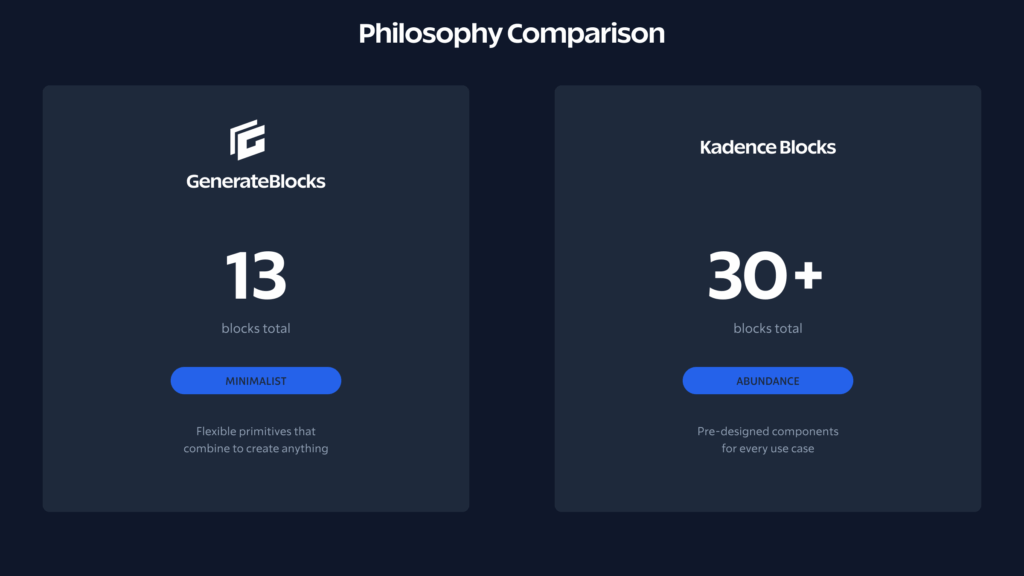
Before diving into features, you need to understand what makes these plugins fundamentally different.
- GenerateBlocks follows a minimalist philosophy. It gives you 13 blocks total (8 free, 5 Pro). That’s remarkably restrained compared to competitors. The free blocks are Container, Grid, Text, Button, Headline, Image, Query, and Shape. Pro adds Site Header, Navigation, Accordion, Tabs and Carousel. The idea is that these foundational blocks can create anything. You’re not getting dozens of pre-designed components. You’re getting flexible primitives that you combine however you want.
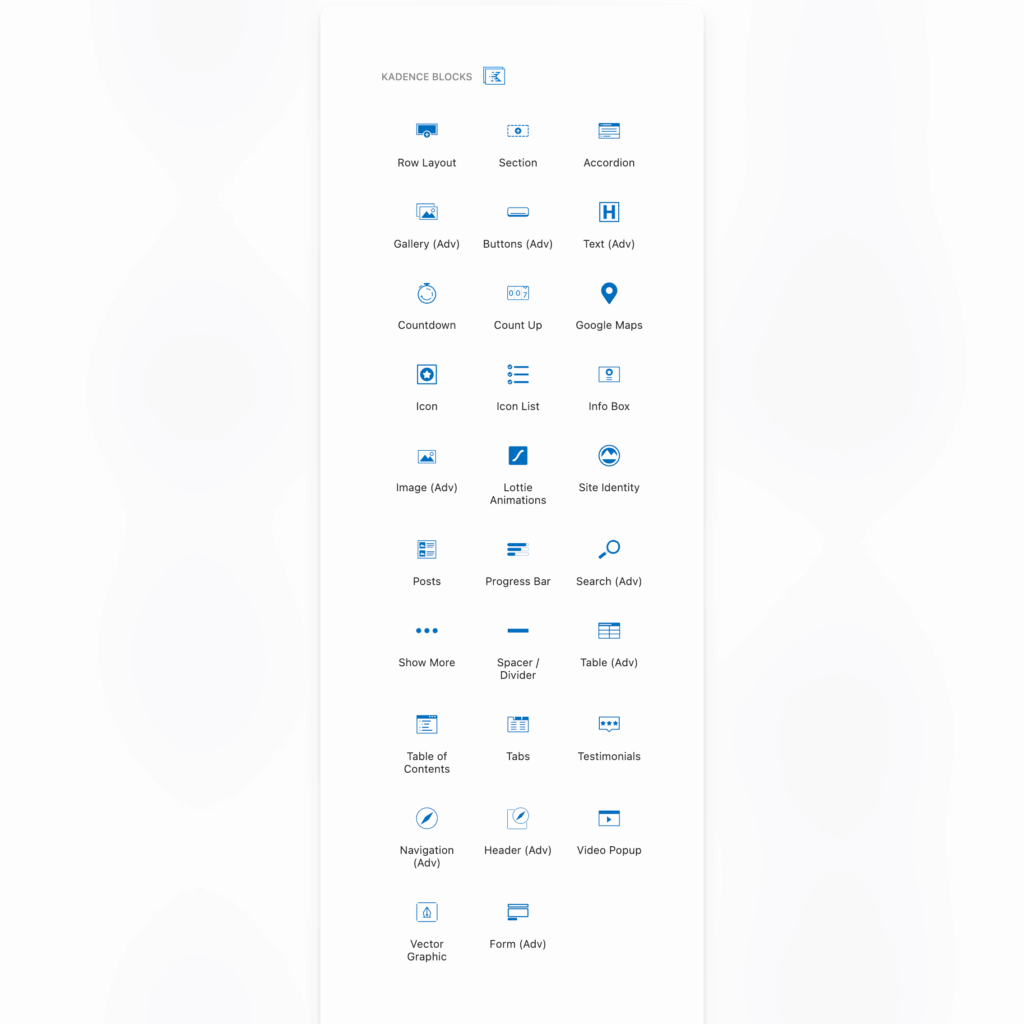
- Kadence Blocks follows an abundance philosophy. It gives you 30+ blocks covering specific use cases: Row Layout, Advanced Gallery, Testimonials, Accordion, Tabs, Progress Bar, Info Box, Icon List, Form, Table of Contents, Countdown, and many more. Each block includes multiple pre-built layouts you can insert and customize immediately.
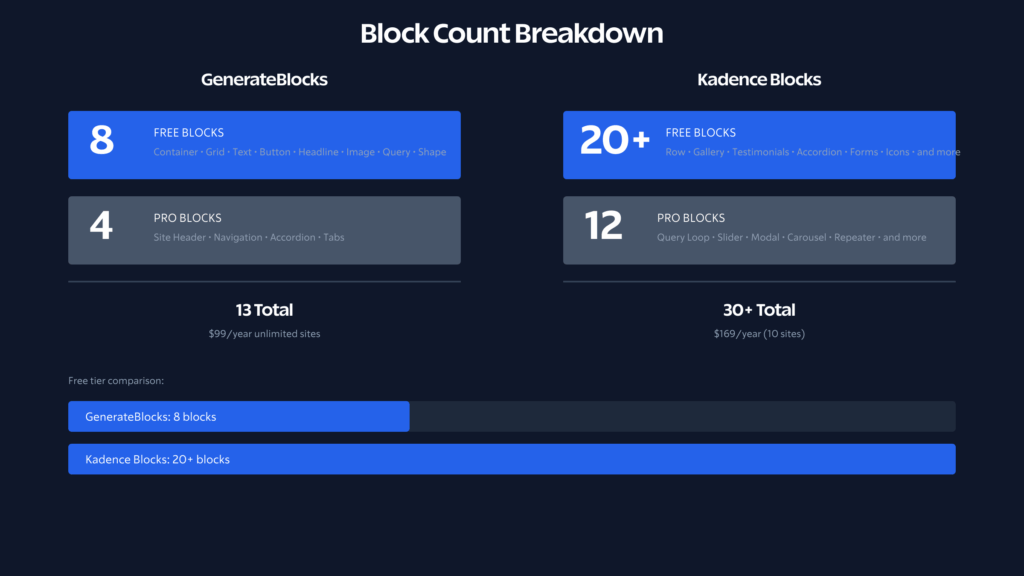
Neither approach is wrong. GenerateBlocks respects your ability to build with 11 carefully designed blocks. Kadence Blocks respects your time with 30+ ready-made components. Which matters more depends on your skill level and project requirements.
GenerateBlocks Overview
GenerateBlocks comes from Tom Usborne, the developer behind GeneratePress – who shares my ideology of creating performance-first and affordable products. If you know GeneratePress, you know what to expect: clean code, lightweight output, and no bloat. (I covered GeneratePress in detail in my GeneratePress Free vs Premium comparison.)
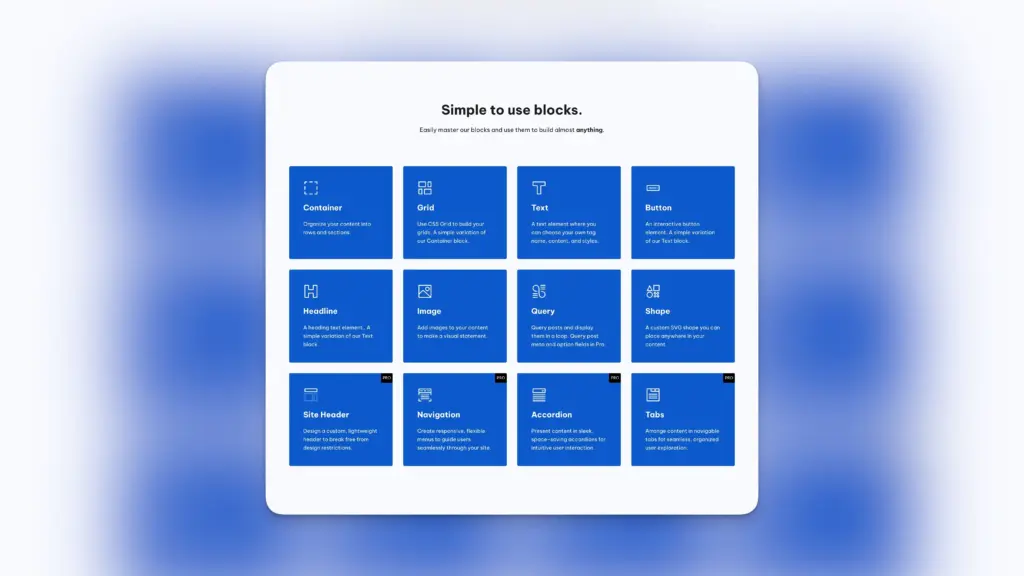
The plugin launched with four blocks in it’s version 1.x and maintained that minimalist approach for years. Version 2.0 rebuilt everything with a new architecture, expanding to 13 blocks while keeping the focus on flexibility over feature bloat. The output is remarkably clean compared to what other block plugins produce.
What GenerateBlocks Does Well
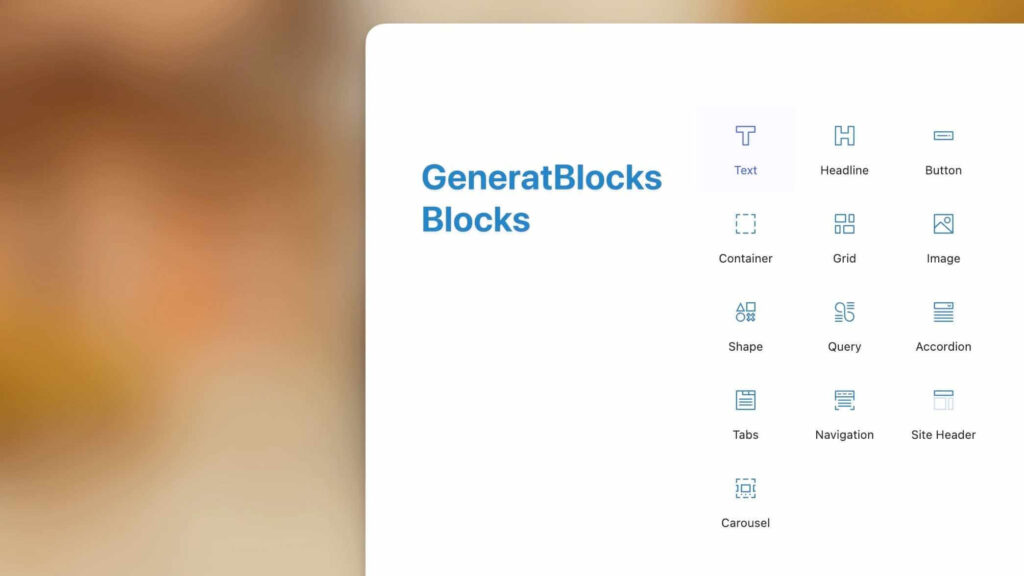
Container Block: The foundation of everything. It’s a wrapper that can be a div, section, article, header, footer, or any semantic HTML element. You control display properties, flexbox layouts, spacing, backgrounds, and more. One block that does the job of ten specialized blocks in other plugins.
Grid Block: A CSS Grid variation of the Container block. Build complex multi-column layouts with proper grid controls rather than relying on nested flexbox hacks.
Text Block: The versatile text element. Use it for paragraphs, spans, or any inline text. Full typography controls with proper semantic output.
Headline Block: Dedicated heading element outputting h1 through h6 tags. Separate from Text block for cleaner semantic structure.
Button Block: Proper button and link elements with full styling controls. No need to hack Text blocks into looking like buttons.
Image Block: Images with proper responsive handling, aspect ratio controls, and object-fit properties. Clean img tags without wrapper divs cluttering your markup.
Query Block: Create custom post grids, blog feeds, and archive layouts that pull content automatically. Works with custom post types and custom fields. Rebuilt from scratch in version 2.0.
Shape Block: SVG icons and decorative shapes. Useful for adding visual interest without loading heavy image files.
Pro Blocks: Site Header, Navigation, Carousel, Accordion, and Tabs extend the system for complete site building without third-party plugins.
Global Styles: Define typography, colors, and spacing that apply consistently across your site. Change your primary color once, and every block using that variable updates automatically.
Dynamic Tags: Insert post titles, featured images, custom fields, and other dynamic content anywhere in your blocks. This is where GenerateBlocks becomes seriously powerful for developers building dynamic templates. Available only with GenerateBlocks Pro, I think.
My Experience with GenerateBlocks
I switched to GenerateBlocks three years ago and haven’t looked back. The learning curve was real. Coming from page builders, I had to unlearn the expectation that I’d drag in a “testimonial block” and be done. Instead, I build testimonials from Container blocks, Headline and Text blocks for quotes and names, Image blocks for avatars.
The first month felt slower. By month three, I was faster than I’d ever been with Elementor. Now I can build landing pages in under an hour that would have taken me half a day with traditional page builders.
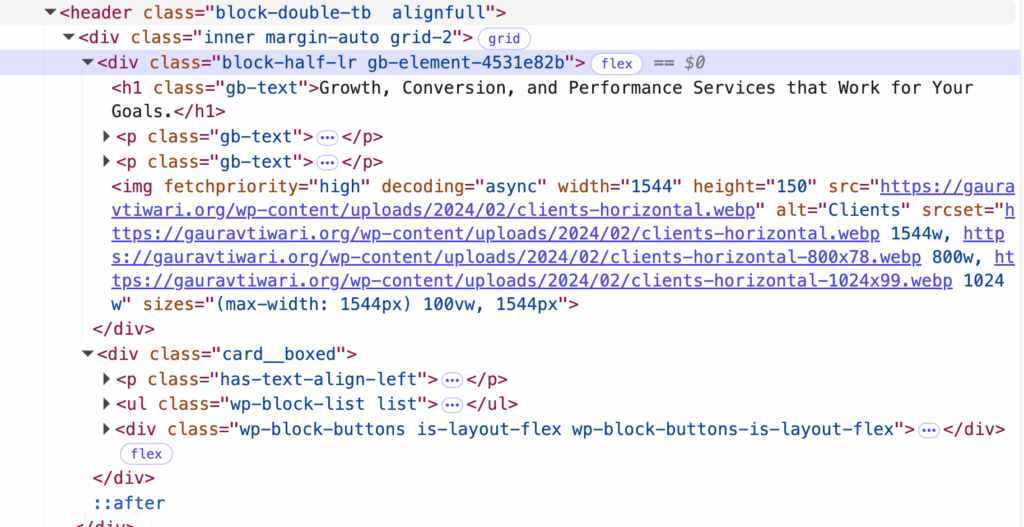
What I love most is the code output. Inspect any GenerateBlocks page and you’ll see semantic HTML with minimal classes. No nested divs three layers deep. No inline styles spanning hundreds of characters. Just clean markup that loads fast and renders quickly.
The dynamic tags system changed how I approach client sites. I build templates once, and the content populates from custom fields. Updates happen in one place. This alone saves hours of maintenance on every project.
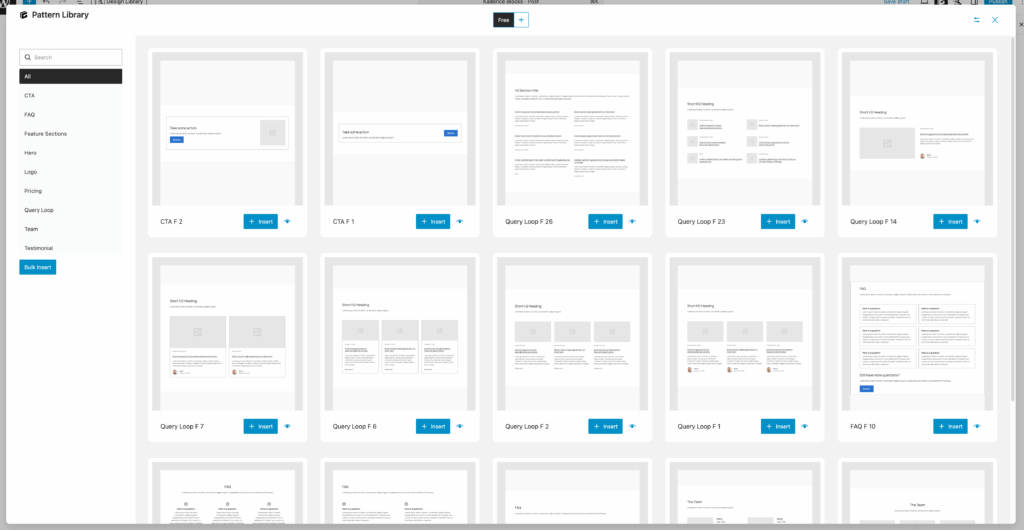
Last but not the least, the collection of GenerateBlocks Patterns in the library is a must use.
Kadence Blocks Overview
Kadence Blocks comes from Kadence WP, now part of StellarWP (the Liquid Web family that includes LearnDash and iThemes). The plugin pairs naturally with the Kadence Theme, though it works with any theme.
Kadence Blocks takes the opposite approach from GenerateBlocks. Instead of asking you to build from primitives, it gives you finished components. Install the plugin, drag in a Testimonials block, pick from pre-designed layouts, customize the text and images, and you’re done.
What Kadence Blocks Does Well
Row Layout Block: The backbone of Kadence layouts. Create multi-column sections with responsive breakpoint controls. More intuitive than GenerateBlocks’ flexbox/grid approach if you’re not comfortable with CSS layout concepts.
Advanced Gallery: Multiple gallery styles including masonry, grid, carousel, and tiles. Lightbox built in. No need for separate gallery plugins.
Testimonials Block: This is where Kadence shines. Twelve starting designs covering grid layouts, carousels, and single testimonial styles. Drag one in, paste your testimonials, adjust colors, done. Building this from scratch in GenerateBlocks takes 20 minutes. In Kadence, it takes 2 minutes.
Accordion and Tabs: FAQ sections, tabbed content, collapsible areas. Each includes multiple design presets. The FAQ block has schema markup built in for Google rich results.
Info Box: Icon or image, heading, text, and button in one block. Perfect for feature sections and services pages.
Form Block: Basic contact forms without needing a separate form plugin. Fine for simple needs, though I still prefer WPForms or FluentForms over this for anything complex.
Advanced Text: Similar to GenerateBlocks’ Text block but with more visual controls for users who don’t want to think in CSS terms.
Design Library: Hundreds of pre-made sections you can import with one click. Feature grids, hero sections, call-to-action areas, pricing tables. The designs are modern and professional.
My Experience with Kadence Blocks
Kadence Blocks is my recommendation when I hand off a site to clients who’ll make their own edits. The interface is self-explanatory in a way that GenerateBlocks isn’t. Clients can drag in a Testimonials block, understand immediately what to edit, and produce decent results without breaking the design.
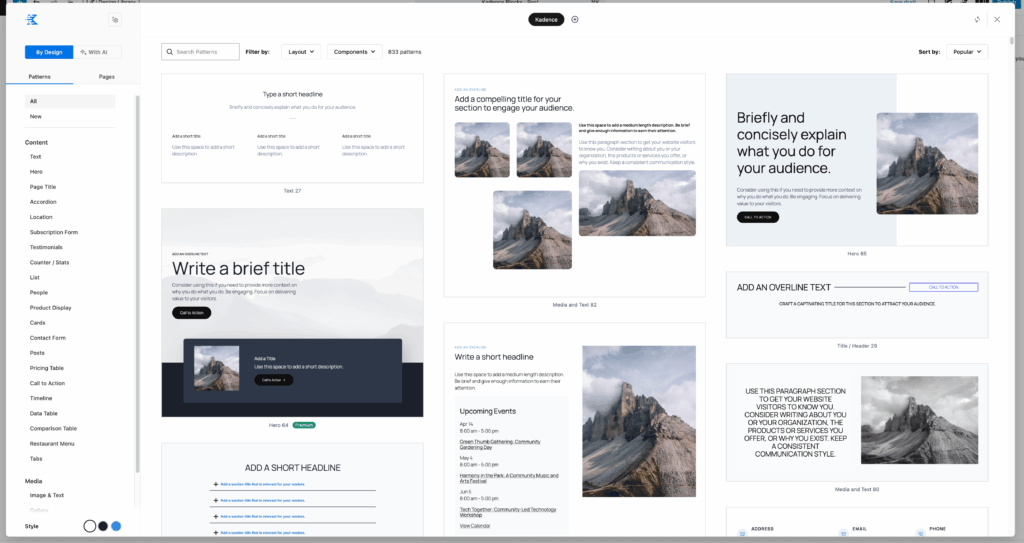
I’ve also used Kadence on projects with tight deadlines. When I need a services page live by tomorrow and don’t have time to build custom layouts, Kadence’s design library saves me. Import a section, swap the content, adjust the brand colors, ship it.
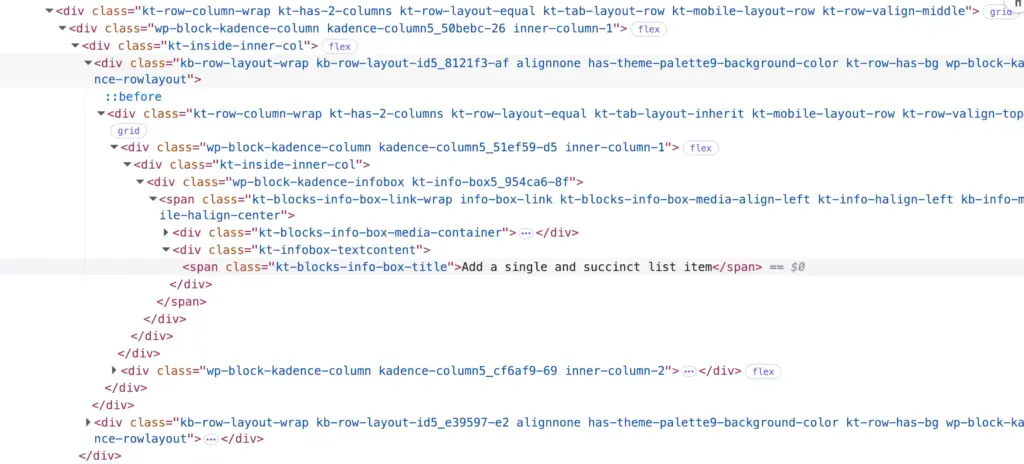
The tradeoff is the code output.
Kadence produces more markup than GenerateBlocks. More wrapper divs, more classes, more CSS. It’s not bad by page builder standards, far cleaner than Elementor or Divi. But it’s noticeably heavier than GenerateBlocks.
Block Library Comparison
Here’s the complete block comparison:
GenerateBlocks (13 blocks)
Free Blocks (8):
- Container – Wrapper for any layout with flexbox controls
- Grid – CSS Grid layouts for complex multi-column designs
- Text – Paragraphs and inline text elements
- Headline – Heading elements h1-h6
- Button – Buttons and styled links
- Image – Responsive images with aspect ratio controls
- Query – Dynamic post grids and loops
- Shape – SVG icons and decorative shapes
Pro Blocks (5):
- Site Header – Custom lightweight header builder
- Navigation – Responsive, flexible menu systems
- Accordion – Collapsible content sections
- Tabs – Tabbed content organization
- Carousel – The name explains
Everything else, you build from these eleven foundational blocks. And not to forget the dynamic data, display conditions etc. make everything possible. But you have WordPress core blocks to help you around as well.
Kadence Blocks (30+ blocks)
Free Blocks (20+):
- Row Layout
- Section
- Advanced Gallery
- Testimonials
- Accordion
- Tabs
- Progress Bar
- Info Box
- Icon List
- Icon
- Spacer/Divider
- Advanced Text
- Advanced Heading
- Advanced Buttons
- Advanced Image
- Lottie Animations
- Form (Advanced)
- Posts
- Show More
- Table of Contents
- Google Maps
- Count Up
- Countdown
- Vector Graphic
Pro Blocks (12):
- Advanced Query Loop
- Advanced Slider
- Image Overlay
- Modal
- Post Grid/Carousel
- Product Carousel
- Repeater
- Split Content
- Video Popup
- Dynamic List
- Dynamic HTML
- User Info
Plus design library with hundreds of pre-made sections.
The numbers tell the story: 11 vs 30+. If you want ready-made components, Kadence wins by volume. GenerateBlocks isn’t trying to compete on quantity. It’s competing on flexibility and performance.
Performance Comparison
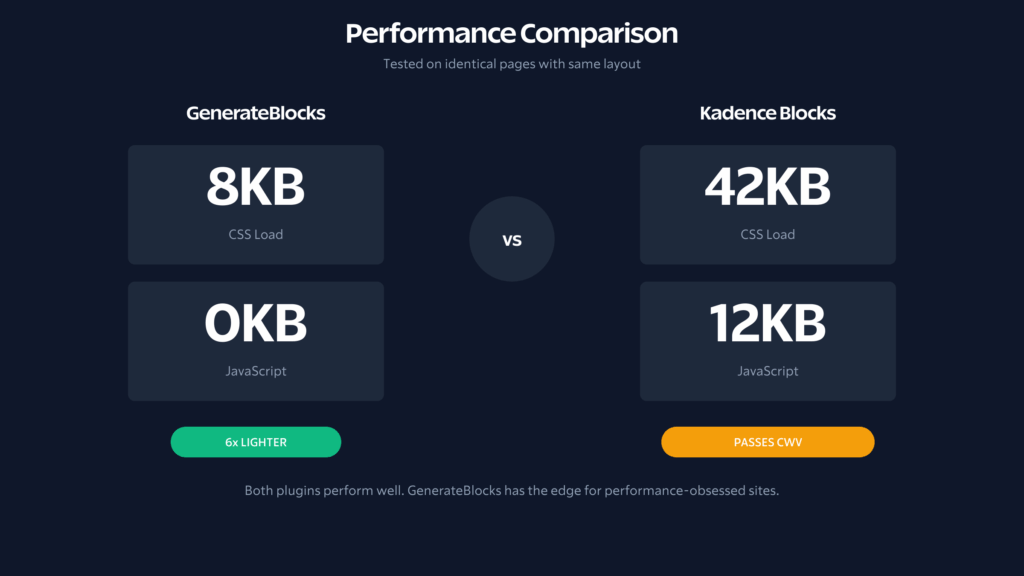
I tested both plugins on identical staging sites using GeneratePress theme. Each test page included a hero section, three-column feature grid, testimonial section, and call-to-action.
Test Results
GenerateBlocks:
- Additional CSS: 8KB
- Additional JS: 0KB (no JavaScript needed for static layouts)
- Total page weight impact: +8KB
- Core Web Vitals: All green
Kadence Blocks:
- Additional CSS: 42KB
- Additional JS: 12KB
- Total page weight impact: +54KB
- Core Web Vitals: All green
GenerateBlocks loads roughly 6x less than Kadence for equivalent layouts. Both pass Core Web Vitals easily, but the difference matters on larger sites or for users obsessive about PageSpeed scores.
The performance gap comes from architecture. GenerateBlocks compiles only the CSS you actually use. If your page uses flexbox but not grid, the grid CSS doesn’t load. Kadence loads its component stylesheets more broadly.
For a typical blog with 10-20 pages using blocks, the difference might be 200-400KB of total CSS across your site. For a 500-page content site, we’re talking megabytes of difference. Whether this matters to you depends on your performance standards.
Customization and Styling
GenerateBlocks Approach
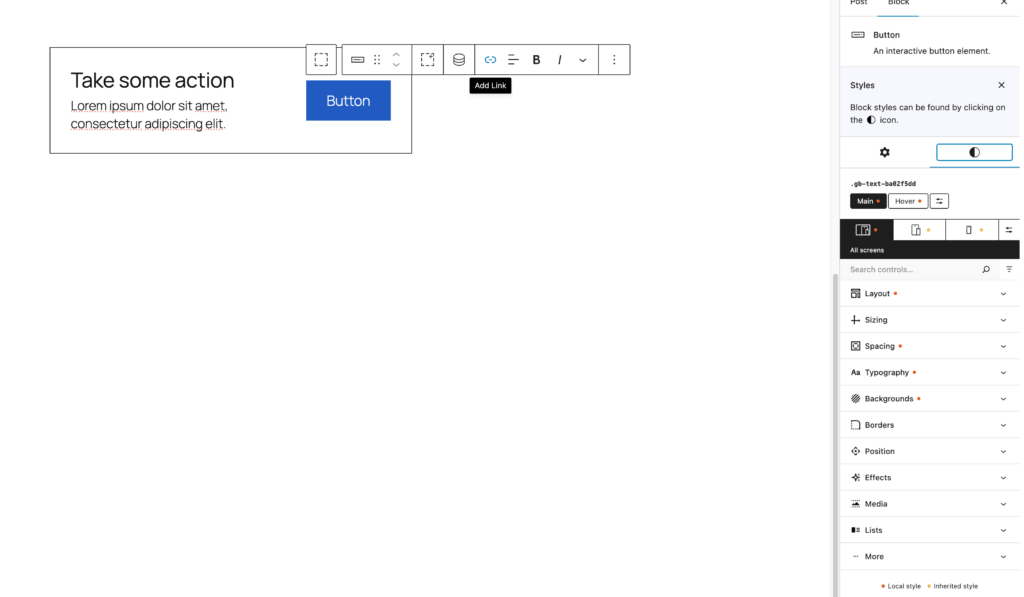
Everything is a CSS property. Want rounded corners? Set border-radius. Want a gradient background? Configure the background object. Want a hover effect? Add a &:hover nested style object.
GenerateBlocks V2 uses inline styles stored as JSON, then generates optimized CSS. The system handles responsive breakpoints, pseudo-classes like hover and focus, and pseudo-elements like ::before and ::after.
Example: creating a card with hover effect involves setting base styles plus &:hover styles in a single configuration object. The generated CSS is clean and specific to your block instance.
This approach gives maximum control. You can build literally anything CSS can do. The tradeoff is you need to know what CSS can do. If “flex-direction: column” means nothing to you, GenerateBlocks will feel frustrating.
Kadence Blocks Approach
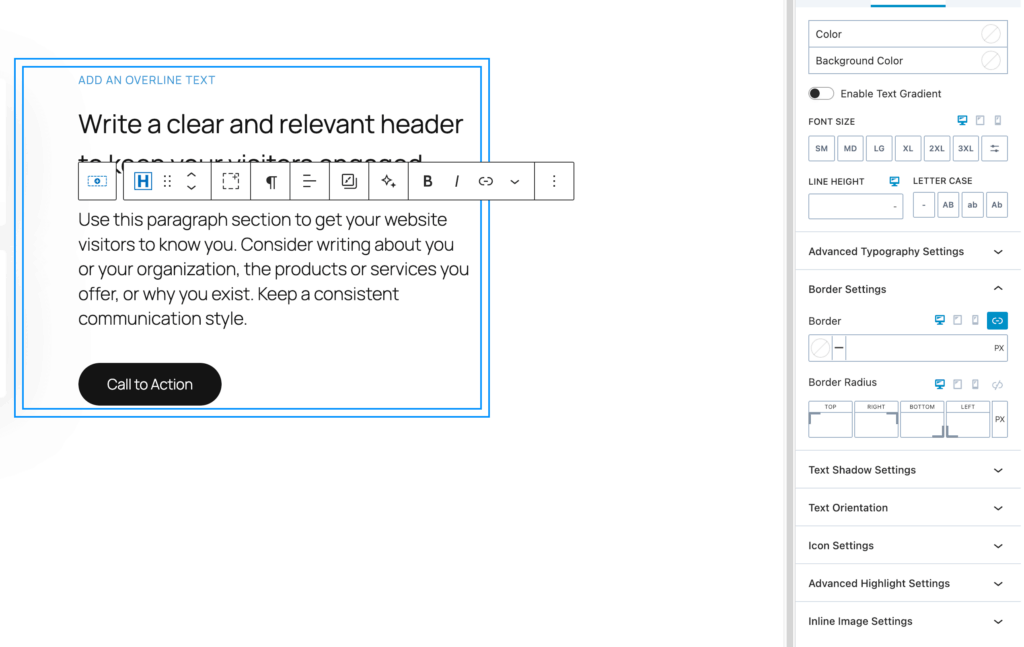
Point and click. Want rounded corners? There’s a border radius slider. Want a gradient background? There’s a visual gradient builder. Want a hover effect? There’s a hover tab with the same controls.
Kadence abstracts CSS into visual controls. You’re not writing “gap: 2rem” but rather moving a slider labeled “Column Gap.” Same result, different interface.
The advantage is accessibility to everyone. Anyone can use Kadence’s controls without knowing CSS. The disadvantage is that you’re limited to what the interface exposes. If you want a specific CSS effect that Kadence doesn’t have a control for, you’re writing custom CSS anyway.
Both plugins support custom CSS. But GenerateBlocks is designed around CSS-first thinking while Kadence is designed to hide CSS complexity.
Global Styles and Design Systems
GenerateBlocks
Global Styles in GenerateBlocks lets you define:
- Typography presets (fonts, sizes, weights)
- Color palette with CSS custom properties
- Spacing scale
- Default block styles
Create a global button style once, apply it to any Text block set to button, and all instances update together. Change your primary color variable, and every block using that color updates site-wide.
The system uses CSS custom properties (variables) throughout. This means your theme can override GenerateBlocks colors, and GenerateBlocks can inherit from your theme. Proper cascade behavior.
Kadence Blocks
Kadence has its own global system that integrates with the Kadence Theme:
- Global color palette (8 colors)
- Global typography (3 font families, size scale)
- Global button styles
- Block defaults
The integration with Kadence Theme is seamless. Change a color in the theme customizer, and Kadence Blocks picks it up. This tight coupling is either a benefit (everything just works) or a limitation (less flexibility) depending on your perspective.
With other themes, you’ll need to configure Kadence Blocks’ global settings separately, and they may not perfectly match your theme’s design tokens.
Theme Integration
GenerateBlocks
Built for GeneratePress but works with anything. The GeneratePress + GenerateBlocks combination is the tightest theme/blocks pairing available. Shared spacing scale, shared colors, shared typography. They feel like one product.
On other themes, GenerateBlocks works but requires more setup, especially inside the Block Editor. You’ll configure its global styles to match your theme manually. Once configured, everything works fine, but there’s no automatic inheritance.
Kadence Blocks
Built for Kadence Theme with similar deep integration. Using both together means your blocks automatically use theme colors, fonts, and spacing. No configuration needed.
Kadence Blocks also works well with Astra, GeneratePress, and other lightweight themes. The design language is flexible enough to adapt. You won’t get automatic integration, but manual configuration is straightforward.
I’d rate theme integration as: Kadence Theme + Kadence Blocks > GeneratePress + GenerateBlocks > Any other combination. But all combinations work.
User Experience
GenerateBlocks Editor Experience
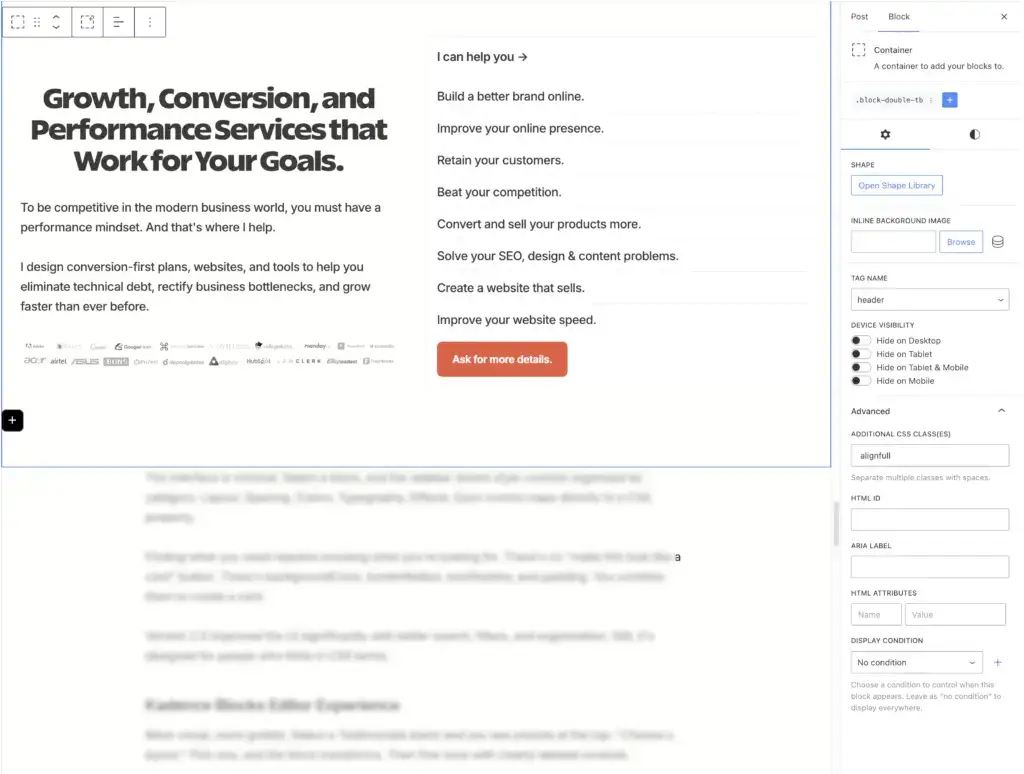
The interface is minimal. Select a block, and the sidebar shows style controls organized by category: Layout, Spacing, Colors, Typography, Effects. Each control maps directly to a CSS property.
Finding what you need requires knowing what you’re looking for. There’s no “make this look like a card” button. There’s backgroundColor, borderRadius, boxShadow, and padding. You combine them to create a card.
Version 2.0 improved the UI significantly with better search, filters, and organization. Still, it’s designed for people who think in CSS terms.
Kadence Blocks Editor Experience
More visual, more guided. Select a Testimonials block and you see presets at the top: “Choose a layout.” Pick one, and the block transforms. Then fine-tune with clearly labeled controls.
The learning curve is gentler. New users can produce good results quickly because they’re selecting from designed options rather than building from primitives.
The sidebar gets crowded on complex blocks. Tabs for Content, Style, Advanced settings, each with nested sections. Finding a specific setting sometimes takes clicking through multiple tabs.
Pricing Comparison
GenerateBlocks
Free: Container, Grid, Text, Headline, Button, Image, Query, and Shape blocks with full styling capabilities. That’s 8 blocks covering most layout needs.
Pro ($99/year for unlimited sites):
- 4 additional blocks: Site Header, Navigation, Accordion, Tabs
- Advanced backgrounds (gradients, overlays)
- Advanced effects (transforms, transitions)
- Copy/paste styles
- Global styles management
- Shape dividers
- Dynamic data
- Query Loop advanced features
- Priority support
Kadence Blocks
Free: 20+ blocks included with full functionality. This is genuinely generous and includes Testimonials, Accordion, Tabs, Forms, and most layout blocks.
Pro ($169/year ten sites, $299/year for 25 sites):
- 12 additional blocks (Advanced Query Loop, Slider, Modal, Product Carousel, etc.)
- Custom icons
- Advanced dynamic content
- Priority support
- Animation effects
- Page-specific CSS and JS
- Includes Kadence Theme Premium and other goodies as well.
Both free versions are usable for real projects. GenerateBlocks Pro is cheaper at $99/year for unlimited sites, but Kadence’s free tier includes more blocks out of the box. Your choice depends on which plugin’s approach you prefer.
When to Use GenerateBlocks
Choose GenerateBlocks if:
- You know CSS. Flexbox, grid, custom properties, pseudo-classes. If these terms are familiar, GenerateBlocks feels natural.
- Performance is non-negotiable. You’re optimizing for every KB and care deeply about Core Web Vitals.
- You want maximum flexibility. Pre-designed components feel limiting. You want to build exactly what you envision.
- You’re building templates. The dynamic tags and Query Loop make GenerateBlocks excellent for theme-level template building.
- You use GeneratePress. The integration is seamless. No reason to look elsewhere.
- You prefer learning once and applying forever. Once you understand GenerateBlocks’ 11-block system, you can build anything. No need to learn 30+ different block interfaces.
When to Use Kadence Blocks
Choose Kadence Blocks if:
- You’re not comfortable with CSS. The visual controls abstract complexity away. You can produce professional results without knowing what flexbox means.
- Speed of development matters more than code weight. Importing a pre-designed testimonial section takes 30 seconds. Building one from primitives takes 30 minutes.
- Clients will edit the site. Kadence’s interface is self-explanatory. Clients can update content without training.
- You need specific components. Countdown timers, progress bars, Lottie animations, modals. If you need these, Kadence has them. GenerateBlocks requires custom solutions.
- You use Kadence Theme. The integration is excellent, and you’ll benefit from the shared design system.
- You want pre-designed sections. The design library jumpstarts projects. Good for tight deadlines or when you need inspiration.
Can You Use Both?
Technically yes. Practically, I don’t recommend it.
Running two block plugins means:
- Duplicate functionality (both have containers, text, images)
- Two different CSS systems loading
- Potential editor conflicts
- Confusion about which plugin to use for what
If you absolutely must use both, pick one as primary and use the other only for specific features it uniquely offers. But I’ve never found this necessary. Each plugin is complete enough on its own.
Kadence Blocks vs GenerateBlocks: My Recommendation
Need help choosing or setting up either? My WordPress development services include full block editor setups with GenerateBlocks or Kadence. I’ve also built an HTML to GenerateBlocks converter if you’re migrating existing layouts to blocks.
For developers: GenerateBlocks. The clean code, performance, and flexibility are worth the steeper learning curve. You’ll build faster sites with less bloat.
For affiliate link management inside the block editor, LinkCentral integrates natively with both Kadence Blocks and GenerateBlocks. It handles link cloaking, click tracking, and automatic nofollow attributes without a separate plugin dashboard.
For site owners editing their own content: Kadence Blocks. The intuitive interface and pre-designed components mean you’ll actually use the features. A block plugin that’s “better” but too complicated to use is worse than a simpler one you’ll use effectively.
For agencies building client sites: Depends on your workflow. If you build sites and hand them off, Kadence makes the handoff easier. If you maintain sites long-term, GenerateBlocks’ maintainability wins.
I use GenerateBlocks on gauravtiwari.org and most projects where I’m the one editing. I install Kadence Blocks when clients need self-service capabilities.
GenerateBlocks is great for developers, and Kadence Blocks is comfortable for users.
Both plugins are excellent. The “wrong” choice is picking one that doesn’t match how you work. Try both free versions. Build a test page with each. You’ll know within an hour which one clicks for you.
Frequently Asked Questions
Is Kadence Blocks better than GenerateBlocks?
Neither is universally better. GenerateBlocks is better for developers who want maximum control and minimal code output. Kadence Blocks is better for non-developers who need intuitive controls and pre-designed components. Choose based on your skill level and workflow, not on which plugin is u0022better.u0022
Which block plugin is faster for performance?
GenerateBlocks loads approximately 6x less CSS and JavaScript than Kadence Blocks for equivalent layouts. In my testing, GenerateBlocks added 8KB while Kadence added 54KB. Both pass Core Web Vitals, but GenerateBlocks has the edge for performance-obsessed sites.
Can I use Kadence Blocks with GeneratePress theme?
Yes, Kadence Blocks works with any theme including GeneratePress. You won’t get the automatic design integration that comes with Kadence Theme, but the blocks function normally. Configure Kadence Blocks’ global settings to match your GeneratePress setup.
Can I use GenerateBlocks with Kadence Theme?
Yes, GenerateBlocks works with Kadence Theme. You’ll configure GenerateBlocks’ global styles to use Kadence’s CSS custom properties for colors and fonts. The integration isn’t automatic like GeneratePress + GenerateBlocks, but it works well once configured.
Which has a better free version?
Kadence Blocks’ free version includes more blocks (20+) covering Testimonials, Accordion, Tabs, Forms, and more. GenerateBlocks’ free version includes 8 foundational blocks with full styling, which is powerful but requires more skill to use effectively. For non-developers, Kadence’s free tier offers more ready-to-use value.
Do I need the Pro version of either plugin?
For most blogs and small business sites, no. Both free versions handle typical needs. GenerateBlocks Pro adds Site Header, Navigation, Accordion, and Tabs blocks plus advanced features. Kadence Pro adds 12 specialized blocks including Slider, Modal, and Product Carousel. Pro becomes worthwhile for agencies or sites needing those specific features.
Can I switch from Kadence Blocks to GenerateBlocks?
There’s no automatic migration path. Kadence’s specialized blocks (Testimonials, Accordion, etc.) will show as invalid blocks if you deactivate the plugin. You’d need to manually rebuild each layout using GenerateBlocks. For sites with many pages, this is a significant project. I recommend testing on staging and migrating pages individually.
Which plugin is better for WooCommerce sites?
For basic content pages around WooCommerce, both work fine. For product grid customization and shop page layouts, Kadence Theme + Kadence Blocks offers tighter WooCommerce integration with Product Carousel and specific WooCommerce blocks. GenerateBlocks requires more manual work for WooCommerce-specific layouts.
The best block plugin is the one that matches your workflow. GenerateBlocks for developers who want control. Kadence Blocks for site owners who want simplicity. Both are solid investments of your time to learn.
If you’re still unsure, try the free versions. Build the same page with each plugin. Whichever feels more natural is your answer.
Disclaimer: This site is reader-supported. If you buy through some links, I may earn a small commission at no extra cost to you. I only recommend tools I trust and would use myself. Your support helps keep gauravtiwari.org free and focused on real-world advice. Thanks. - Gaurav Tiwari