
HTML to GenerateBlocks Converter
Convert HTML and CSS into editable GenerateBlocks 2.x markup. Free, no signup, and your code never leaves your browser.
HTML to GenerateBlocks 2.x
Source code
Block markup
- Blocks
- 0
- Elements
- 0
- Text
- 0
- Media
- 0
- Shape
- 0
- Core
- 0
Static HTML only. Build post grids, related posts, and other WordPress data with Query Loop blocks in the editor, then style them with GenerateBlocks.
The HTML to GenerateBlocks converter turns ordinary HTML and CSS into block markup you can paste directly into the WordPress Code Editor. It targets GenerateBlocks 2.x and maps structural elements to the newer Element, Text, Media, and Shape blocks. It doesn’t produce legacy V1 markup, so a page still built on Container and Headline blocks needs those rebuilt by hand.
The conversion runs in your browser, so you don’t need an account and your pasted code isn’t sent to a conversion API. You should still review the output before publishing. Dynamic queries, JavaScript behavior, global CSS, and complex form logic can’t be reconstructed safely from static HTML alone.
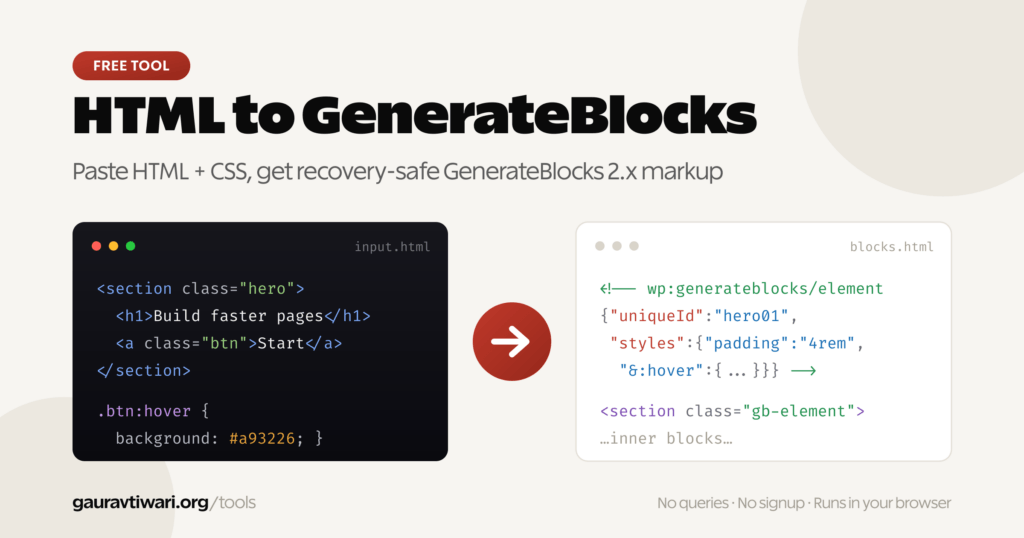
What does the HTML to GenerateBlocks converter do?
The converter parses your HTML into a document tree, reads inline and embedded CSS, and serializes the result as valid WordPress block comments plus HTML. GenerateBlocks 2.x structural tags become Element blocks, text becomes Text blocks, images become Media blocks, and inline SVG becomes Shape blocks.
This is different from dropping code into a Custom HTML block. The converted layout becomes a set of editable blocks that WordPress and GenerateBlocks can recognize. You can select a heading, container, link, or image in the editor and continue working with it instead of maintaining one large HTML blob.
| HTML input | Generated block | What to check afterward |
|---|---|---|
div, section, nav, article | GenerateBlocks Element | Responsive spacing and any complex selectors |
| Headings, paragraphs, spans, links, buttons | GenerateBlocks Text | Relative URLs, hover states, and typography |
| Images and inline SVG | GenerateBlocks Media or Shape | Media Library URL, alt text, and dimensions |
| Lists, tables, quotes, code, audio, video | WordPress core blocks | Styles that core blocks can’t store as attributes |
| Forms and unsupported iframes | Custom HTML block | Validation, scripts, embeds, and accessibility |
| Scripts and inline event handlers | Removed | Add behavior through a plugin or theme, not post content |
Why does GenerateBlocks V2 output matter?
GenerateBlocks 2.0 replaced the old Container and Grid blocks with Element, Headline and Button with Text, and Image with Media. The current GenerateBlocks 2.3.0 release still uses that V2 architecture. The converter outputs only that V2 structure, so a new site gets the current blocks from the start. If you’re starting a new build, get GenerateBlocks or GenerateBlocks Pro here.
I wouldn’t mix formats without a reason. If an existing page is still built with V1 blocks, adding converted V2 sections means maintaining two block styles on that page until you migrate the rest. If you’re deciding whether the plugin fits your workflow, my GenerateBlocks review after six years of use explains the tradeoffs in more detail.
How do you use the output in WordPress?
Paste the generated markup into the WordPress Code Editor, not into a Paragraph or Custom HTML block. WordPress reads the <!-- wp:... --> comments, rebuilds the block tree, and then lets you switch back to the Visual Editor to inspect and edit each block.
- Install and activate GenerateBlocks 2.x before pasting the markup.
- Paste one self-contained section into the converter. Smaller sections are easier to verify than an entire page.
- Add separate CSS when the design depends on a stylesheet instead of inline styles.
- Copy the output, open the target page, and select Options > Code Editor.
- Paste the markup, switch back to the Visual Editor, and check the List View for the expected block hierarchy.
- Replace remote image URLs with Media Library assets, then test desktop, tablet, and mobile breakpoints.
If you want a cleaner editor workflow around custom blocks, see my WordPress Block Editor setup. The converter solves the markup step, while your theme, block styles, and reusable patterns still control how maintainable the finished page will be.
If you use ChatGPT, Claude, Cursor, Windsurf, or Copilot to create layouts, copy my free GenerateBlocks Skills for AI tools too. The MIT-licensed pack includes 38 section templates and teaches an AI assistant the actual GenerateBlocks V2 block shapes, attributes, and utility classes instead of letting it invent markup that breaks in the editor.
What HTML and CSS does it preserve?
The converter preserves semantic tag names, classes when requested, safe HTML attributes, inline styles, embedded <style> rules, CSS custom properties, hover rules, and media queries where GenerateBlocks can express them. CSS properties are normalized into block attributes and a generated CSS string.
- Links: Absolute URLs are safest. Relative URLs are kept, but WordPress recovery can be less predictable after copying between sites.
- Images: The source and alt attributes are carried over. Upload final images to the WordPress Media Library instead of leaving temporary or third-party URLs in the layout.
- Responsive CSS: Standard media queries can be mapped. Responsive hover or pseudo-element rules may need manual CSS.
- Global CSS: Rules targeting
body,html, or unrelated selectors are skipped because page content shouldn’t rewrite the entire site. - Animations and fonts:
@keyframesand@font-facerules are dropped. Load them through your theme, a snippets plugin, or the site’s font system.
HTML to GenerateBlocks vs. HTML to Gutenberg
An HTML to Gutenberg converter usually creates WordPress core blocks or scaffolds a custom block plugin. This tool has a narrower job: it converts a static layout into GenerateBlocks markup you can paste into an existing page. It doesn’t generate block.json, React editor code, PHP render files, or a standalone plugin.
That narrower scope is useful when you already build with GenerateBlocks and want an editable starting point from an HTML section. If you’d rather compare broader block libraries first, my guide to the best Gutenberg block plugins for WordPress covers GenerateBlocks, Kadence Blocks, Spectra, Stackable, and other options.
When should you not use the converter?
Don’t use the HTML to GenerateBlocks converter as a substitute for rebuilding application logic. Static HTML doesn’t contain the server queries, JavaScript state, validation rules, or plugin data that made the original component work. The tool can preserve structure, but it can’t infer behavior that isn’t present in the markup.
- Query loops: Build GenerateBlocks Query and Looper blocks inside the editor. Imported WordPress Query Loop markup is intentionally not converted.
- Forms: The HTML can be preserved in a Custom HTML block, but submissions, spam protection, and validation still need a form plugin or custom code.
- JavaScript components: Script tags and inline event handlers are removed. Rebuild menus, tabs, sliders, and modals through an appropriate block or plugin.
- Whole-site imports: Convert one section at a time. Headers, footers, templates, and global styles belong in the Site Editor or theme.
Bottom line: use the converter to save the mechanical work of translating a static HTML section into editable WordPress blocks. Treat the output as a strong first draft, then check media, responsive behavior, accessibility, and any interactive features before publishing.
HTML to GenerateBlocks FAQs
Is the HTML to GenerateBlocks converter free?
Yes. The converter is free to use, requires no account, and runs in your browser. Paste HTML and optional CSS, convert the layout, and copy the generated block markup into WordPress.
Does the converter send my HTML to a server?
No. The conversion logic runs in your browser and does not need a conversion API. That makes the tool suitable for working with draft layouts. You should still avoid pasting passwords, private keys, customer data, or other secrets into any browser page.
Does it support GenerateBlocks 2.x?
Yes. V2 output uses the GenerateBlocks Element, Text, Media, and Shape block structure introduced in GenerateBlocks 2.0. It doesn’t output the older V1 Container, Grid, Headline, Button, and Image blocks.
How do I paste the output into WordPress?
Open the target post or page, choose Options, switch to the Code Editor, and paste the generated markup. Switch back to the Visual Editor and inspect the block hierarchy in List View. Install and activate GenerateBlocks before pasting GenerateBlocks markup.
Does the converter preserve CSS styles?
The converter preserves inline styles and many embedded stylesheet rules, including CSS variables, hover states, and media queries. Global selectors, keyframe animations, font-face rules, and complex pseudo-element behavior may be skipped because those styles belong in a theme or site-level stylesheet.
Is GenerateBlocks Pro required?
No. Basic Element, Text, Media, Shape, and core WordPress blocks work with the free GenerateBlocks plugin. A converted layout may still depend on Pro if its final design uses Pro-only global styles, dynamic data, custom breakpoints, or other premium features.
Can it convert forms, iframes, and JavaScript?
Forms and unsupported iframes are preserved as core Custom HTML blocks when possible. Script tags and inline event handlers are removed, and WordPress or GenerateBlocks query loops are not converted. Rebuild interactive behavior with a suitable plugin, block, or theme code.
Why does WordPress ask me to attempt block recovery?
Block recovery usually means the saved HTML no longer matches the attributes inside a block comment. Convert smaller sections, use absolute image and link URLs, paste through the Code Editor, and avoid editing generated block comments manually. Then check the affected block in List View.