
Best Mac Apps for WordPress Developers (2026)
Last week, I spun up 3 client sites, pushed 47 commits, and debugged a WooCommerce checkout issue that had been haunting a store for months. All before lunch. The difference between a frustrating day and a productive one often comes down to the tools running on your Mac.
I’ve tried every shiny new app that promised to revolutionize my workflow. Most didn’t survive a month. The ones that did are in this list.
This isn’t a compilation from Google searches. These are the apps actually running on my MacBook and Mac Mini M5 right now. If you’re tired of generic “best apps” lists written by people who’ve never shipped a WordPress site, you’re in the right place.
Local Development Environments
Everything starts here. Without a solid local development setup, you’re either coding directly on live sites (please don’t) or spinning up staging servers for every small change. Neither is efficient.
Local by Flywheel
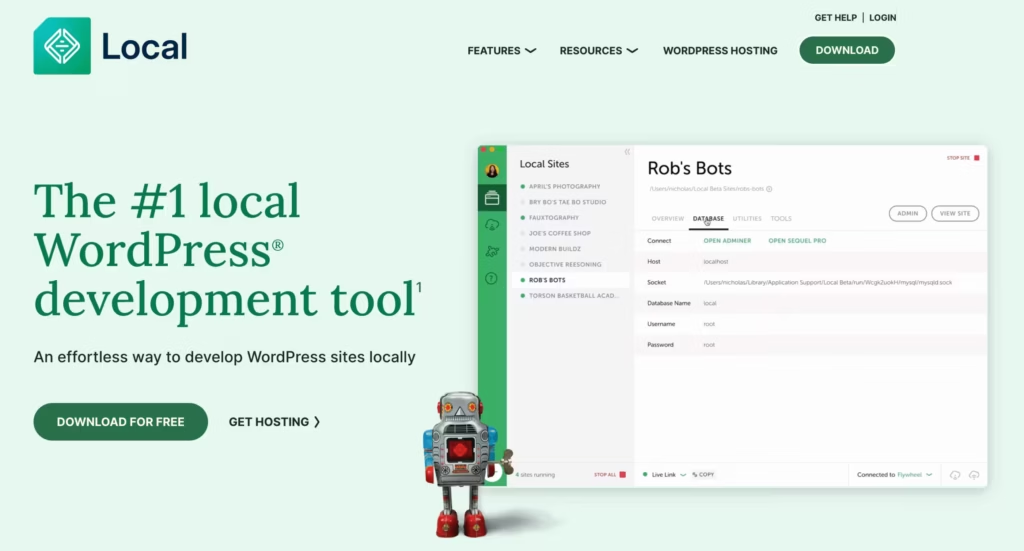
This is my primary local development tool, and it has been for years. Local gets WordPress running on your Mac in about 60 seconds. No Apache configuration. No mucking with MAMP settings. One click and you’re ready.
The features that matter:
Live Links changed how I do client previews. Generate a secure URL and share your local site with anyone. No staging server needed. No deployment. Your client can see the homepage redesign while you’re still tweaking it. This alone saves hours every month.
Blueprints let you save your starter configuration. I have one with my standard plugins (FlyingPress, Rank Math, GenerateBlocks), preferred settings, and a basic theme structure. New project? Load the blueprint and skip 30 minutes of setup.
One-click WordPress installs with configurable PHP versions, web servers (Nginx or Apache), and database options. Need to test something on PHP 7.4 for a legacy client? Takes 10 seconds to set up.
The limitation: Local can be resource-heavy with 10+ sites running. I keep most sites stopped and only spin up what I’m actively working on. On an M-series Mac, this isn’t a huge issue, but older Intel machines might struggle.
Studio by WordPress.com
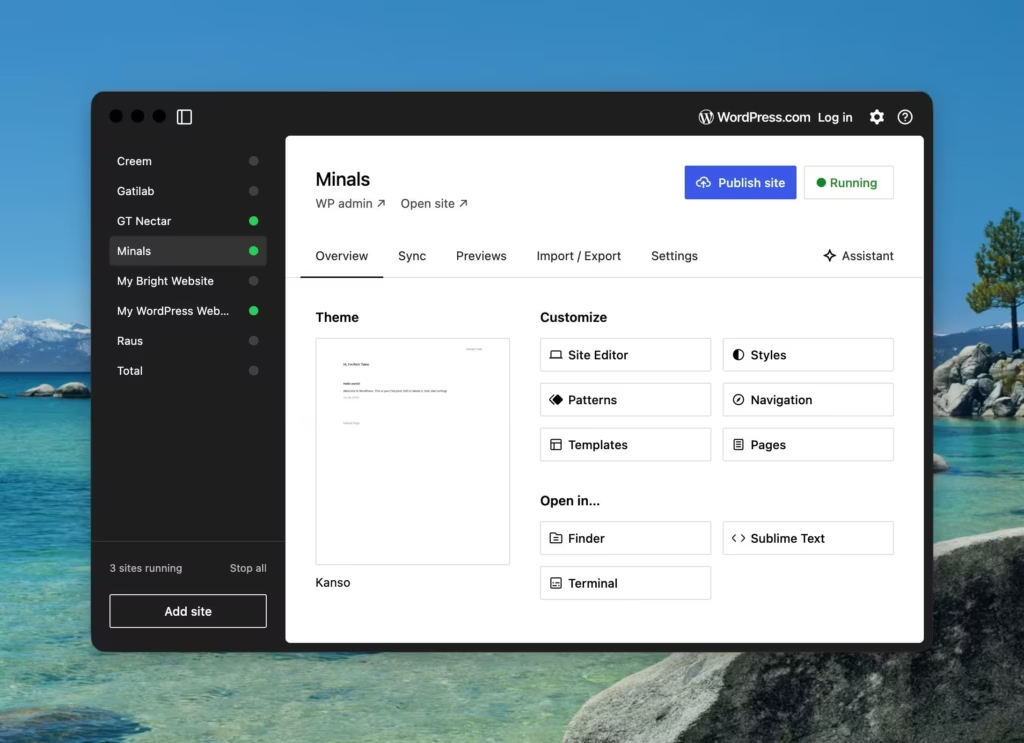
Automattic’s newer offering is worth watching. Studio is lighter than Local and genuinely fast. For quick testing and prototype work, I reach for it when Local feels like overkill.
The sync with WordPress.com hosting is nice if you’re in that ecosystem. I’m not, but the app stands on its own merit regardless.
When I use Studio over Local: Quick plugin testing, throwaway sites, and anything I’ll delete within a day. For client work with ongoing maintenance, Local’s features still win.
DevKinsta
I don’t use it anymore but if you host clients on Kinsta, DevKinsta is a no-brainer. The MyKinsta integration means you can pull production sites down to local with a few clicks, make changes, and push them back.
Database management is built in. Email testing works out of the box. And the Kinsta-specific optimizations mean your local environment matches production more closely than generic tools can.
I use DevKinsta specifically for Kinsta-hosted client sites. For everything else, Local remains my default.
Other Options Worth Knowing
MAMP Pro still works and some developers swear by it. I find it dated, but if your muscle memory is built around MAMP, there’s no urgent reason to switch.
Laravel Valet is brilliant if you’re comfortable with the command line. It’s the lightest option, runs through Homebrew, and just works. The learning curve is steeper, but the resource footprint is minimal.
Docker-based setups make sense for teams needing identical environments. For solo WordPress work, they’re usually overkill. But if you’re already using Docker for other development, spinning up WordPress containers is straightforward.
How I Organize Multiple Client Sites
Naming conventions matter more than you’d think. Every site gets a folder name following this pattern: clientname-projecttype-date. So acme-redesign-2025 or smith-woocommerce-q1. When you’re juggling 15 active projects, being able to find things quickly saves sanity.
I also keep a simple text file with each active project, its Local site name, Git repo URL, and staging/production URLs. Old school, but it works.
Code Editors
The editor wars are over. VS Code won. But there’s nuance in how you configure it for WordPress work, and alternatives worth knowing for specific situations.
Visual Studio Code (Primary)
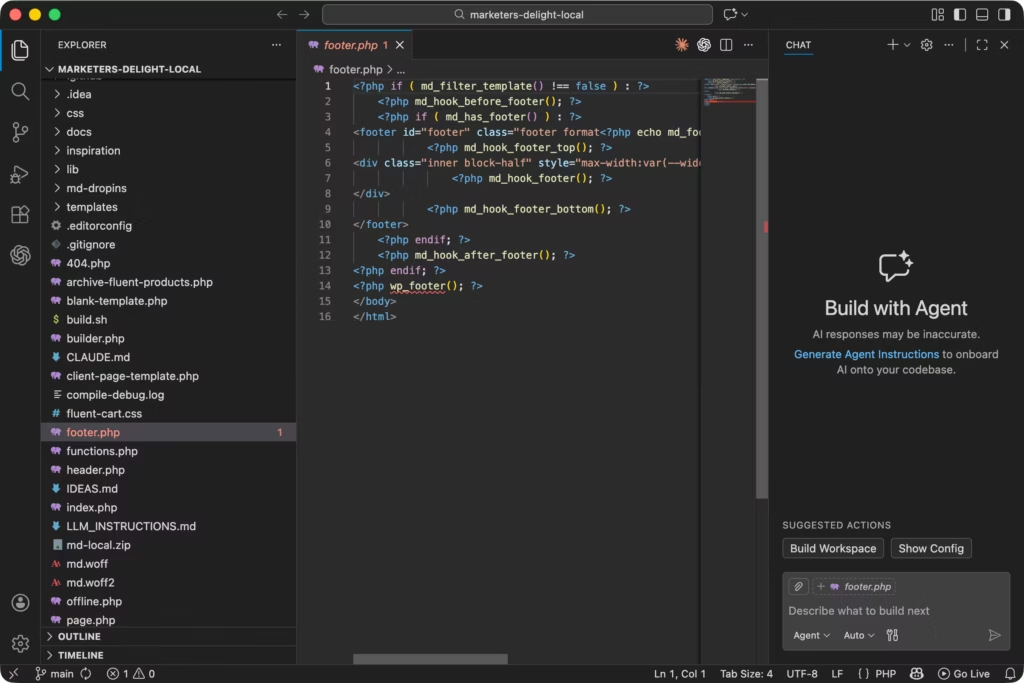
VS Code is my daily driver, but I have been jumping ships to Antigravity by Google lately, mainly for using my Google AI Pro subscription. But VS Code is perfect for almost everyone. Free, fast enough, and the extension ecosystem covers everything WordPress developers need.
Extensions that actually matter:
- PHP Intelephense (not the basic PHP extension): Autocomplete, go-to-definition, and intelligent refactoring for PHP. The difference from the default PHP support is night and day. Worth the Pro license for heavy WordPress work.
- WordPress Snippets: Common functions, hooks, and boilerplate code accessible through quick commands. Saves typing
register_post_typeboilerplate for the hundredth time. - GitLens: See who wrote every line and when. Essential for collaborative projects and understanding inherited codebases.
- Prettier: Consistent formatting without thinking about it. Configure once, forget forever.
- Auto Rename Tag: Change an opening HTML tag and the closing tag updates automatically. Small feature, huge time saver in template files.
Settings worth tweaking:
I’ve customized my settings.json for WordPress work. PHP formatting rules, specific file associations for WordPress templates, and workspace configurations that differ between theme and plugin development. The details would fill another article, but the principle is simple: invest an hour configuring your editor properly, save hundreds of hours over your career.
I tried PhpStorm by JetBrains, too. It is really good, but for $109 for a year, I won’t suggest it. Use this money to get GitHub Copilot instead.
Cursor
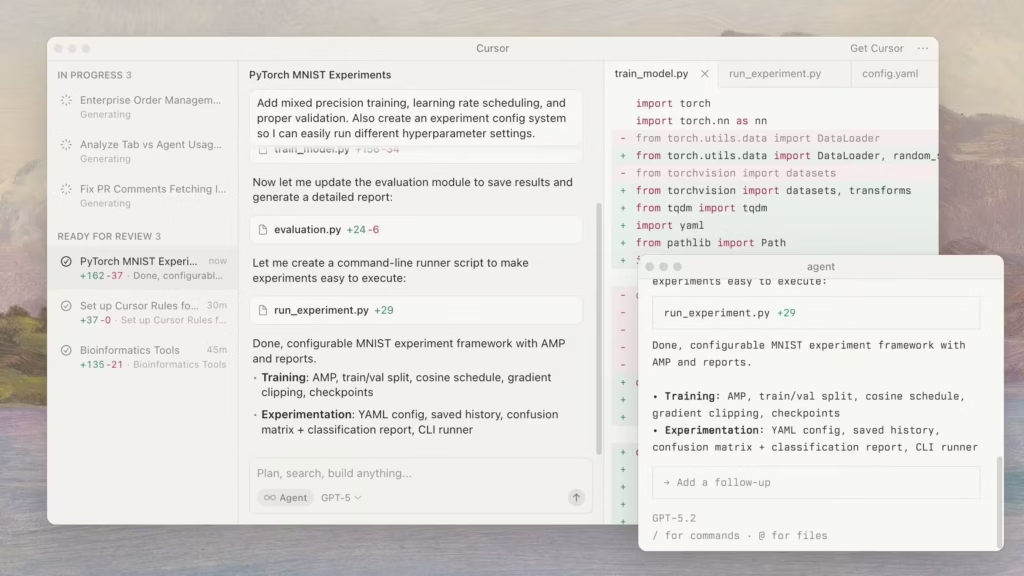
Cursor is VS Code with AI baked in. It’s not a gimmick. For WordPress development, it genuinely helps with:
- Generating boilerplate code faster than snippets
- Explaining complex WordPress functions you inherited from another developer
- Writing repetitive code (custom post type registrations, meta box setups)
- Debugging when you’re stuck
Where it falls short: AI suggestions can hallucinate WordPress functions that don’t exist. You need to know WordPress well enough to catch the mistakes. Cursor helps experienced developers move faster. It won’t teach beginners.
I use Cursor alongside VS Code. Some days it’s my primary editor. Other days I want the AI to shut up and let me think. Having both installed costs nothing.
Sublime Text
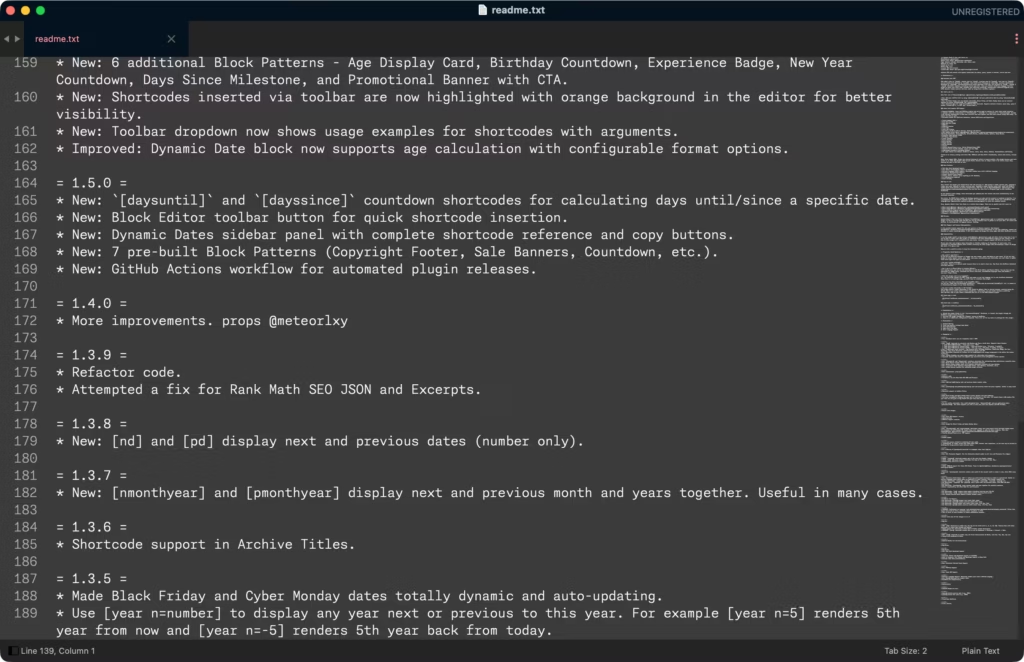
Sublime Text opens instantly regardless of file size. That sounds trivial until you need to edit a 50MB SQL dump or a massive log file. VS Code will hang. Sublime won’t.
I keep Sublime installed specifically for:
- Quick edits to individual files
- Opening giant files that would crash other editors
- Speed when I just need to change one thing and close
Package Control adds whatever functionality you need. It’s not my primary editor, but it’s essential backup.
Whisk (Mac-only)
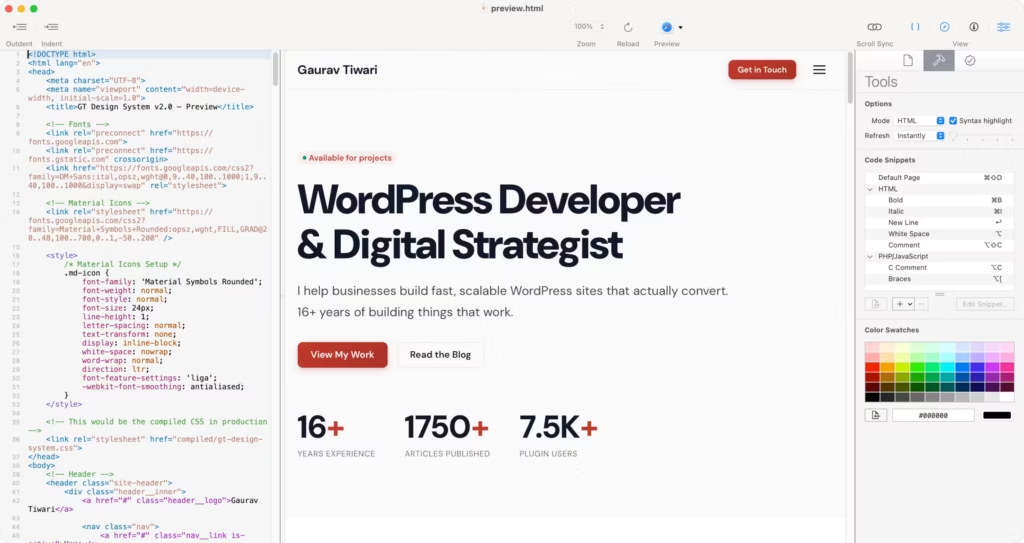
Whisk is underrated for front-end WordPress work. It’s focused on HTML, CSS, and JavaScript with live preview built in.
For template tweaking and CSS modifications, Whisk’s instant visual feedback beats the save-refresh-check cycle. I use it for front-end heavy tasks where seeing changes immediately matters more than full IDE features.
Nova (Panic)
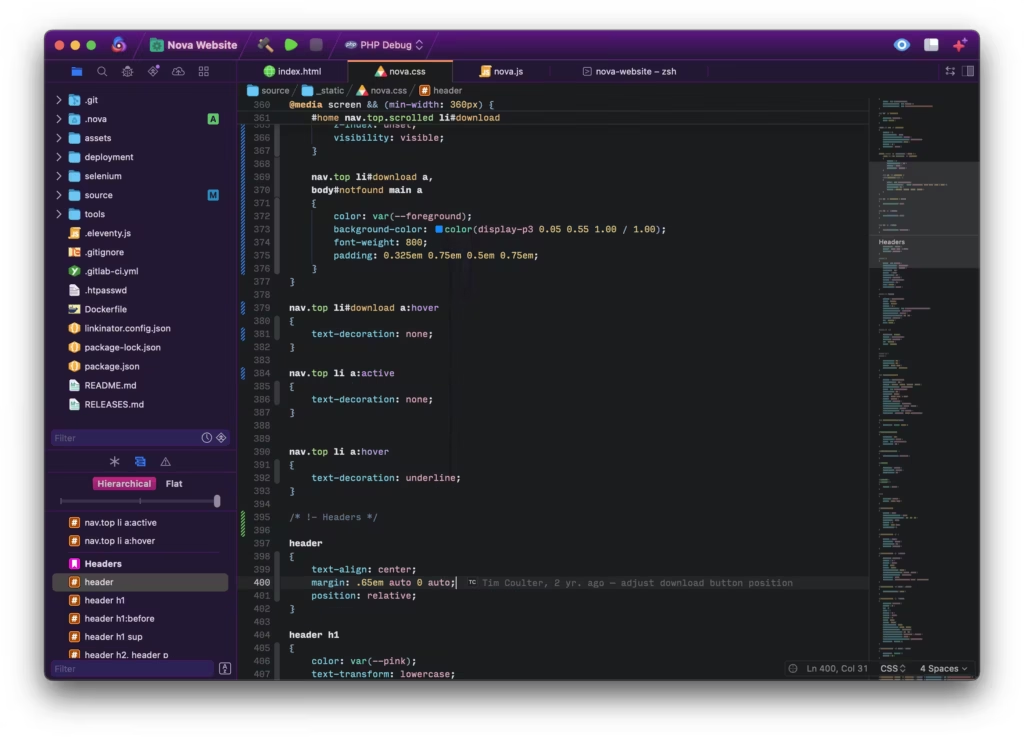
Nova is what a Mac-native code editor should feel like. It’s beautiful, fast, and has enough WordPress extensions to be genuinely useful.
If you prioritize Mac-native design and want an editor that feels like it belongs on macOS, Nova is worth trying. I’ve used it for months at a time. The only reason I keep returning to VS Code is the extension ecosystem. Nova’s extensions are good. VS Code’s are deeper.
Which Editor for Which Task
| Task | Best Editor |
|---|---|
| Full WordPress development | VS Code or Cursor or Antigravity |
| Quick file edits | Sublime Text |
| Front-end template work | Whisk |
| Large file handling | Sublime Text |
| Mac-native experience | Nova |
| AI-assisted coding | Cursor |
Terminal Apps
The command line is where WordPress development shifts from clicking through menus to executing precise commands in seconds. If you’re not using WP-CLI, you’re working too hard. And if you’re using WP-CLI, you need a terminal that doesn’t make the experience painful.
Ghostty

Ghostty is my current terminal. It’s GPU-accelerated, meaning it’s genuinely fast. Scrolling through long outputs doesn’t lag. The configuration is file-based and sensible.
Why I switched from iTerm2: Ghostty is cleaner. The defaults are better. And performance on M-series Macs is noticeably snappier for terminal-heavy workflows.
The aesthetic is minimal without being spartan. If you like your tools to look good while being functional, Ghostty nails it.
iTerm2
iTerm2 remains the benchmark. If Ghostty doesn’t click with you, iTerm2 will do everything you need.
Split panes for multiple sites, profile configurations for different workflows, and years of refinement make it reliable. I used iTerm2 for a decade before switching. There’s nothing wrong with sticking with it.
Warp
Warp is interesting. It reimagines what a terminal can be, with AI assistance, modern interface conventions, and team collaboration features.
For solo WordPress development, it might be overkill. For agencies where multiple developers touch the same servers, Warp’s collaborative features could be valuable. I’ve tried it, found it capable, but returned to simpler options.
Essential CLI Tools
Before diving into specific tools, here’s how the pieces fit together: your Mac runs a shell (Zsh by default), which is the program that interprets your commands. Terminal apps like Ghostty or iTerm2 are just windows into that shell. Homebrew installs software, WP-CLI runs WordPress commands, and everything else builds on that foundation.
WP-CLI is non-negotiable for serious WordPress development. Database exports, search-replace operations, plugin management, user creation, content updates. All from the command line, all infinitely faster than clicking through wp-admin. Install it by running brew install wp-cli if you have Homebrew, or follow the instructions at wp-cli.org. Once installed, wp becomes your new best friend.
Homebrew is the package manager that makes everything else possible. It installs software from the command line without hunting through websites or App Stores. Run /bin/bash -c "$(curl -fsSL https://raw.githubusercontent.com/Homebrew/install/HEAD/install.sh)" to install it. After that, brew install php gets you PHP, brew install node gets you Node.js, and brew install mysql gets you a database server. Install Homebrew first, then install everything through it.
Oh My Zsh transforms your shell from basic to powerful with better autocomplete, syntax highlighting, and useful plugins. Install it with one command from ohmyz.sh. The autosuggestions plugin alone saves hours by completing commands based on your history. Worth the 5 minutes to install.
nvm (Node Version Manager) handles Node.js versions because WordPress build tools need different versions for different projects. A theme built in 2020 might need Node 14, while a modern block plugin needs Node 18. Install nvm, then nvm install 18 and nvm use 18 switch between versions painlessly.
Composer manages PHP dependencies the way npm manages JavaScript dependencies. Modern WordPress development increasingly uses Composer for package management, autoloading, and dependency resolution. If you’re building anything beyond basic themes, you’ll need it. Install via brew install composer and you’re ready for professional PHP development.
Database Tools
WordPress is MySQL under the hood. At some point, you’ll need to look at the database directly. phpMyAdmin works, but desktop tools are better.
TablePlus
TablePlus replaced everything else. Multiple database connections. Query editor with proper syntax highlighting. Safe mode that prevents accidental writes to production.
The SSH tunneling works flawlessly, which matters for remote database access. I have connections saved for every client’s staging and production databases. Click and I’m in.
Worth the license fee for anyone doing serious WordPress work. The free tier is limited but functional if you want to try it first.
Sequel Ace
Sequel Ace is the free alternative. It’s the community-maintained successor to Sequel Pro, which was abandoned.
For budget-conscious developers, Sequel Ace does 90% of what TablePlus does at 0% of the cost. The interface is less polished, but the functionality is solid.
DBngin
DBngin manages local database servers. Run multiple MySQL versions, PostgreSQL if you need it, and Redis. One-click database creation.
It pairs well with TablePlus. DBngin runs the servers. TablePlus connects to them. Clean separation of concerns.
Production Database Safety
Never connect to production without:
- A verified backup taken in the last hour
- Safe mode enabled in your client
- Confirmation you’re connected to the right server
I’ve seen developers drop production tables thinking they were on staging. The recovery process was not pleasant. Check twice before running any write query.
Git Clients
Version control isn’t optional. The question is whether you use the command line or a GUI client. I use both, depending on the task.
GitHub Desktop
GitHub Desktop is simple. That’s its strength. Visual diffs, branch management, and push/pull operations without remembering commands.
For WordPress projects where Git complexity is low (most themes and plugins), GitHub Desktop is all you need. I use it for quick commits and visual code review before pushing.
Fork
Fork is more powerful. Interactive rebase made visual. Conflict resolution that makes sense. Branch graphs that show project history clearly.
If you’re doing anything beyond basic Git workflows, Fork pays for itself quickly. The $49.99 license is for commercial use. Personal use is free.
Tower
Tower is the professional option. Best-in-class merge conflict handling, team features, and polish everywhere. Worth considering for agencies where Git proficiency varies across team members.
SnailSVN
Some clients still use SVN; my WordPress plugins need SVN to push updates. I inherited a project last year that was SVN-only. SnailSVN provides Finder integration for SVN repositories. It’s not glamorous, but it works when you need it. It is the only Mac SVN app that I found useful.
GitLens in VS Code
For inline Git information without leaving your editor, GitLens is essential. Blame annotations, history visualization, and author information on every line. I mentioned it earlier, but it deserves emphasis. Understanding who wrote code and when matters for maintenance.
File Transfer
SFTP should be obsolete. Git deployments, CI/CD pipelines, and proper hosting have replaced manual file uploads for modern workflows. But some clients are on budget hosts that only support FTP. You need a client.
ForkLift
ForkLift is my pick. Dual-pane interface, SFTP support, Amazon S3 and other cloud services. The sync browsing feature keeps local and remote directories in sync automatically.
It replaced Transmit for me. Similar functionality, different design philosophy. I prefer ForkLift’s approach.
Transmit
Transmit from Panic is the classic choice. Beautiful interface, reliable sync, and years of refinement. If you prefer Panic’s design language, Transmit won’t disappoint.
FileZilla
FileZilla is free and functional. Cross-platform if you ever need Windows. Privacy concerns from a few years ago have been addressed, but the reputation lingers. It works fine.
Mountain Duck
Mountain Duck takes a different approach. Instead of a dedicated file transfer window, it mounts remote servers as drives in Finder. Your S3 bucket, SFTP server, or Google Cloud Storage appears like any other folder on your Mac.
For workflows where you’re constantly referencing remote files, this integration is smoother than switching between apps. I use it alongside ForkLift. ForkLift for bulk transfers and sync operations. Mountain Duck for quick access to files I need regularly.
Why FTP Still Exists in 2026
Budget shared hosting. Legacy client setups. Specific server configurations that don’t allow SSH. I wish FTP would die, but it hasn’t. Having a capable client ready is practical preparation.
The Supporting Cast
These tools aren’t WordPress-specific, but they support WordPress development workflows.
Homebrew
Package management for Mac. Install PHP, MySQL, Node.js, and dozens of other dependencies through Homebrew. Updating is a single command. Uninstalling is clean.
If you’re doing any development on Mac, Homebrew is step one. Everything else builds on it.
Docker Desktop
When containerization makes sense, Docker Desktop runs it. For WordPress, I use Docker less than you might expect. Local by Flywheel handles most use cases. But for specific testing scenarios (multiple PHP versions simultaneously, specific server configurations), Docker fills the gap.
Resource management on M-series Macs is good. On Intel Macs, Docker can be a resource hog. Configure memory limits if you’re running other applications.
Postman
API testing for WordPress REST API work. If you’re building headless WordPress, custom API endpoints, or working with WooCommerce‘s API, Postman is essential.
Saved collections mean you can keep organized requests for each project. Testing authentication, verifying endpoints, and debugging API issues all happen in Postman.
RegExRX
Regular expression testing for search-replace operations. WordPress migrations often need complex find-and-replace across database content. Testing regex patterns before running them on production is smart.
Clop
Clop compresses images automatically before they hit your WordPress media library. Drop an image, get a smaller file. No quality loss visible to human eyes, but significant file size reduction.
I run every client image through Clop before uploading. A 2MB hero image becomes 400KB. Multiply that across dozens of images per site, and you’re looking at meaningful performance improvements without touching any optimization plugins.
The app sits in the menu bar and works on copy-paste too. Screenshot something, paste it, and Clop intercepts to compress before it lands in your editor or upload form. From Lowtechguys, the same folks behind other solid Mac utilities.
Setapp
Setapp deserves mention as a meta-tool. It’s a subscription service that bundles hundreds of Mac apps for a monthly fee. Several tools in this article are available through Setapp: CleanMyMac, TablePlus, Paste, and others.
If you’re buying multiple premium Mac apps anyway, do the math. Setapp might cost less than purchasing each app individually. I use it for apps I need occasionally but wouldn’t buy outright.
My Complete WordPress Development Stack (April 2026)
Here’s what’s actually installed and running:
| Category | Primary | Backup |
|---|---|---|
| Local Dev | Local by Flywheel | DevKinsta |
| Editor | VS Code + Cursor | Sublime Text |
| Terminal | Ghostty | iTerm2 |
| Database | TablePlus | Sequel Ace |
| Git | Fork + GitLens | GitHub Desktop |
| FTP | ForkLift | FileZilla |
Hardware note: M-series Macs handle WordPress development beautifully. The performance improvement over Intel Macs is noticeable in compilation times, Docker performance, and general responsiveness. If you’re still on Intel, an upgrade is worth considering when budget allows.
Building Your WordPress Development Environment
Three approaches based on where you’re at:
- Beginner stack: Local by Flywheel + VS Code + GitHub Desktop. Free, capable, and gets you building immediately. Add complexity only when you hit limitations.
- Intermediate stack: Add TablePlus, a better terminal (Ghostty or iTerm2), and Fork for Git. These tools remove friction as projects get more complex.
- Advanced stack: Cursor for AI assistance, Docker for specific scenarios, and custom workflows built around your specific needs. At this level, you know what you need and why.
Tools matter less than workflow. The best apps won’t help if your development process is chaotic. Start with solid fundamentals, add tools that solve specific problems, and resist the urge to collect apps you don’t actually use.
Frequently Asked Questions
Krisp removes background noise system-wide on Mac. Every Zoom and Google Meet call sounds studio-quality. The meeting assistant transcribes client calls automatically so you can focus on the conversation.
BLACKBOX AI is an AI coding assistant that generates and explains code across PHP, JavaScript, Python, and 20+ languages. Useful for WordPress developers who need to write quick custom queries, debug hooks, or scaffold plugin boilerplate.
Is Local by Flywheel really free?
Yes, completely free. Local is developed by WP Engine (who acquired Flywheel), and they offer it as a free tool to encourage WordPress development. There are no premium tiers or hidden costs. The features you see are what you get.
Do I need a Mac with Apple Silicon for WordPress development?
No, Intel Macs work fine. Apple Silicon (M1, M2, M3, M4, M5 chips) offers better performance and battery life, but WordPress development isn’t demanding enough to require it. If you’re buying new, get Apple Silicon. If you have a working Intel Mac, don’t feel pressured to upgrade immediately.
Should I learn WP-CLI if I’m comfortable with the WordPress admin?
Absolutely. WP-CLI saves massive amounts of time on repetitive tasks. Database exports, search-replace operations, bulk plugin updates, user management. All faster through the command line. Start with basic commands like wp db export, wp search-replace, and wp plugin list. Build from there.
What’s the best code editor for WordPress specifically?
VS Code with PHP Intelephense and WordPress Snippets extensions. It’s free, well-supported, and handles WordPress’s mix of PHP, HTML, CSS, and JavaScript well. Cursor is worth trying if you want AI assistance. But VS Code remains the safe, reliable choice.
How do I handle different PHP versions for different client projects?
Local by Flywheel handles this automatically. Each site can run a different PHP version. When creating a new site, select the PHP version matching your production server. For command-line work, use Homebrew to install multiple PHP versions and a version manager to switch between them.
Is TablePlus worth paying for when Sequel Ace is free?
For occasional database work, Sequel Ace is perfectly fine. TablePlus is worth the investment if you’re in databases frequently, managing multiple client sites, or want safer production database access. The safe mode feature alone has saved me from accidental data loss. Try the free tier first and upgrade if you hit limitations.
Disclaimer: This site is reader-supported. If you buy through some links, I may earn a small commission at no extra cost to you. I only recommend tools I trust and would use myself. Your support helps keep gauravtiwari.org free and focused on real-world advice. Thanks. - Gaurav Tiwari