
Best Budget Laptops for Working from Home
You need a laptop for remote work. So you start browsing Amazon, and suddenly you’re looking at $900 machines with dedicated GPUs, 16GB of RAM, and backlit keyboards built for gaming. None of that matters when your day is Zoom calls, Google Docs, and Slack. You end up overspending on specs you’ll never touch, or you go too cheap and get a machine that freezes mid-meeting.
The sweet spot for WFH laptops sits between $150 and $300. According to a 2025 Statista survey, 58% of remote workers use laptops priced under $400 for their daily tasks. That $150-$300 range is enough for a machine that boots in under 15 seconds, handles 720p video calls without choking, and lasts 7-10 hours on battery. Below that, the hardware can’t keep up. Above that, you’re paying for features most remote workers won’t touch.
This list covers the best budget laptops for working from home in 2026. Every pick runs Zoom, Google Workspace, and Slack without drama. If you’re building out a full home office, the laptop is where you start.

Best Budget WFH Laptops at a Glance
- HP Pavilion 15: Cheapest Windows laptop with SSD storage and ethernet port ($195)
- Lenovo IdeaPad 3: Strongest processor in the budget range, best for multitasking
- HP Stream 14: Includes Office 365 + 1TB OneDrive for one year ($200)
What to Look for in a Budget WFH Laptop
You don’t need a powerful machine to answer emails and sit through meetings. But you do need one that won’t choke when you’ve got Zoom running, a Google Sheet open, and Slack pinging you every 30 seconds. Here’s what to prioritize when you’re laptop shopping on a budget.
RAM
RAM is your multitasking muscle. It determines how many apps and browser tabs you can run before your laptop starts crawling. For basic WFH tasks, 4GB is the bare minimum in 2026. 8GB is worth the upgrade if your budget allows it. With 4GB, screen-sharing on Zoom while referencing a spreadsheet will stutter. With 8GB, it won’t.
Processor
The processor is what makes everything feel fast or painfully slow. For WFH, aim for at least an Intel Core i3 (12th gen or newer) or AMD Ryzen 3. Older Pentium and Celeron chips will work for light email and browsing, but they’ll struggle with video calls and multitasking. If you can swing a Ryzen 5 or Intel Core i5 at a budget price, you’re set for years.
Storage
Go SSD. Period. A 128GB SSD will boot your laptop in under 15 seconds. A traditional hard disk drive will have you staring at a loading screen for a minute. If you use cloud storage for most of your files, 128GB is enough. If you store a lot locally, look for 256GB. eMMC storage (common in Chromebooks and ultra-budget machines) works fine but it’s slower than a proper SSD.
Ports and Connectivity
You’ll want at least 2 USB ports, an HDMI output (for an external monitor), and a headphone jack. USB-C is a bonus on budget laptops. Wi-Fi 6 support matters if you have a newer router. And if your internet is spotty, look for an ethernet port so you can hardwire your connection for stable video calls.
Webcam and Display
Most budget laptops come with a 720p webcam. It’s passable for meetings, but don’t expect to look crisp. A 1080p webcam is a welcome upgrade if you’re client-facing. For the display, a 15.6-inch Full HD (1920×1080) screen is the sweet spot. Anything less than Full HD looks noticeably blurry when you’re reading text all day. A 14-inch screen works too if you prefer something more portable.
Chromebooks vs. Windows Laptops for WFH
Chromebooks run Google’s ChromeOS and are built around the browser. Everything lives in the cloud. They’re cheap, fast to boot, and almost zero-maintenance. If your work is 100% browser-based (Google Workspace, Slack web app, Zoom in-browser), a Chromebook at $200-$300 is a smart buy.
But if you need to install desktop software like Microsoft Office (the actual desktop version), Photoshop, or any company-specific Windows apps, you need a Windows laptop. No way around it. Most WFH professionals fall into this category, which is why the majority of picks on this list run Windows.
HP Pavilion 15 (Intel Pentium Silver N5000)
Best for: General WFH on the tightest budget, with SSD speed and a wired ethernet option.
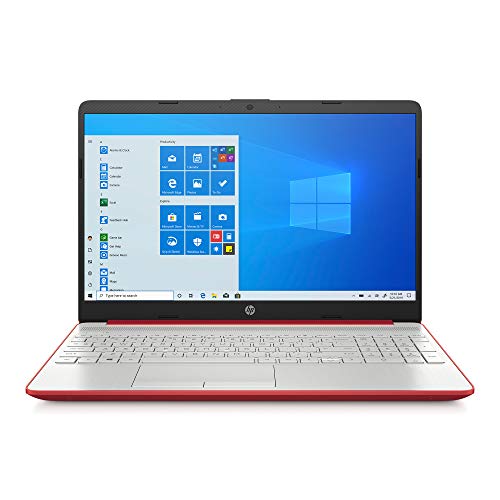
HP Pavilion 15.6-inch Intel Pentium Silver N5000 4GB 128GB SSD Windows 10 Laptop
- Intel Pentium Silver N5030, 1.1 GHz base with boost capability for everyday computing tasks
- 15.6-inch HD display (1366 x 768) with 220 nits brightness
At under $200, the HP Pavilion 15 with the Pentium Silver N5000 is one of the cheapest Windows laptops that’s still usable for daily work. It comes with 4GB of DDR4 RAM, a 128GB SSD, and a 15.6-inch HD display. The port selection is solid for this price: 3 USB ports, HDMI, an ethernet port, and a card reader. That ethernet port is a standout feature, since most budget laptops in 2026 skip it entirely.
The SSD storage instead of eMMC at this price point makes a noticeable difference. Boot times clock in around 12-15 seconds compared to the 45-60 seconds you’d see on a traditional hard drive. App loading feels snappier, and the 10-hour battery life means a full workday without reaching for the charger. That’s enough to move between a desk and the couch without worrying about a power outlet.
The Intel Pentium Silver N5000 is a quad-core chip running at 1.1GHz base with boost up to 2.7GHz. It handles email, documents, and light browsing without issue. But stacking a Zoom call on top of a Google Sheet and a few browser tabs will expose its limits. The display is also HD-only (1366×768), not Full HD, so text looks a bit soft during long reading sessions.
For the price, it’s hard to find a better deal. This laptop works best for remote workers whose day is 80% email and document editing, with occasional video calls. It won’t win any speed contests, but it won’t freeze mid-meeting either. If stable internet matters more than raw speed, the ethernet port alone justifies picking this over other sub-$200 options.
Lenovo IdeaPad 3 (AMD Ryzen 3)
Best for: Multitaskers who run Zoom, spreadsheets, and Slack at the same time without lag.
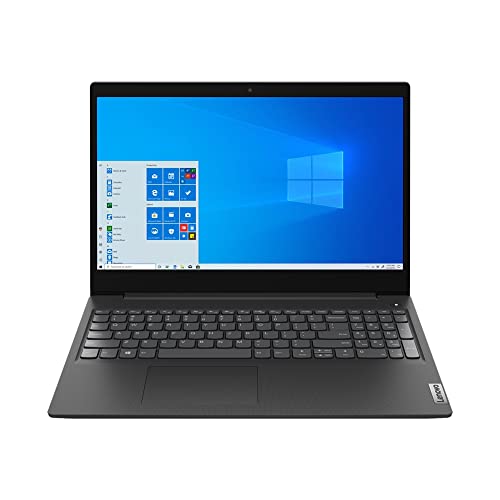
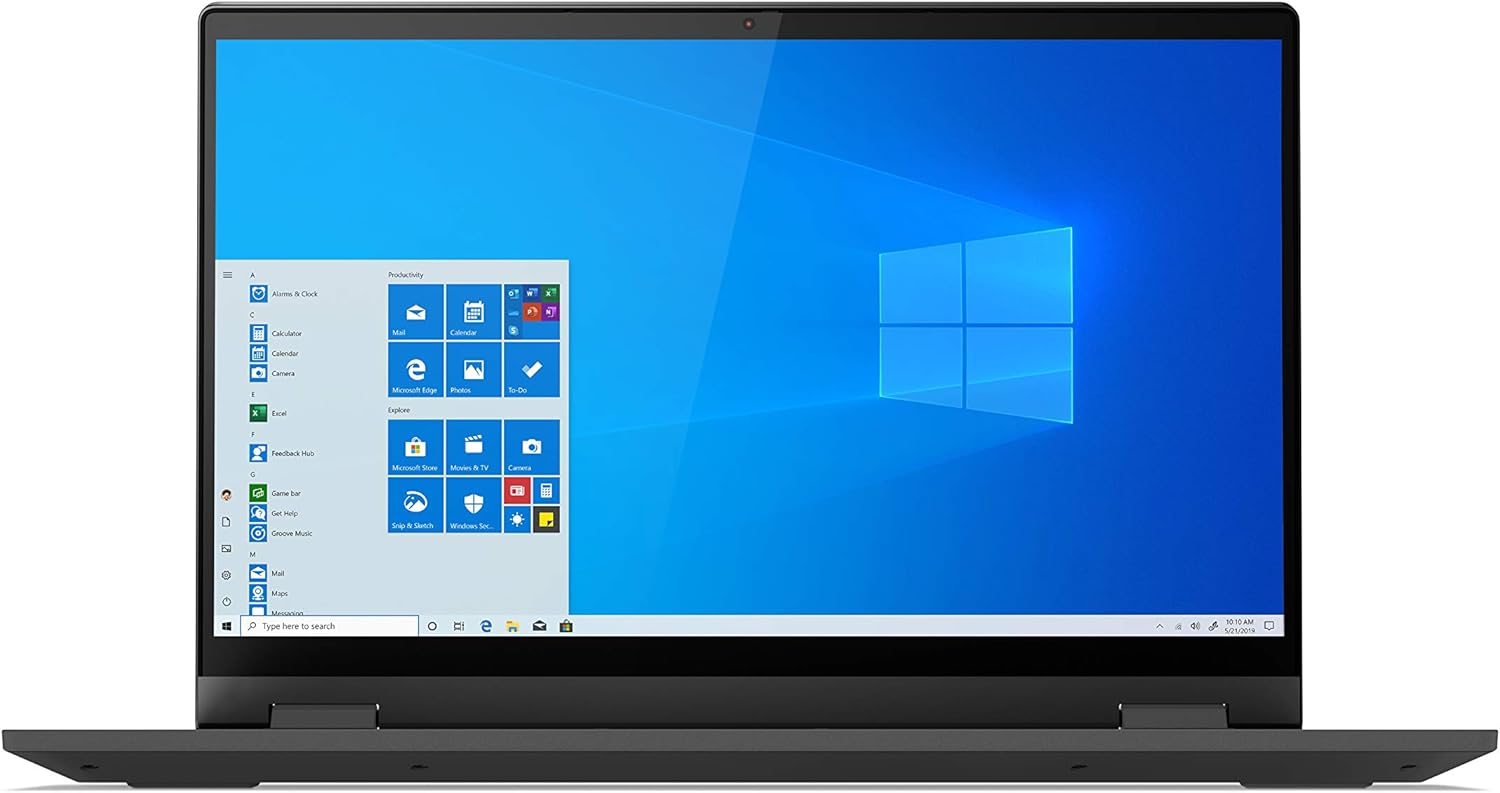
Lenovo IdeaPad 3 15.6-inch HD AMD Ryzen 3 3250U 4GB DDR4 128GB SSD Laptop
- AMD Ryzen 3 3250U processor with Radeon Vega 3 graphics for smooth multitasking
- 15.6-inch HD display with narrow bezels and Dolby Audio speakers
The Lenovo IdeaPad 3 offers the best balance of price and performance in an entry-level WFH laptop. The AMD Ryzen 3 3250U processor runs at 2.6GHz base clock, which is a significant step up from the Pentium and Celeron chips found in other budget machines. Paired with 4GB of DDR4 RAM and a 128GB SSD, it handles day-to-day work without the stuttering that cheaper alternatives produce.
The 15.6-inch display with narrow bezels provides solid screen real estate for spreadsheet work and side-by-side document editing. It’s still HD (not Full HD), but the Dolby Audio speakers are a standout at this price. Video calls sound noticeably better than the tinny output from most budget competitors. Ports include 3 USB connections, HDMI, a headphone jack, and an SD card reader.
Lenovo’s build quality on the IdeaPad line holds up well for the price. The keyboard has enough travel for comfortable long typing sessions, and the trackpad responds accurately without the lag common in sub-$300 machines. The Ryzen 3’s integrated Radeon Vega 3 graphics also handles screen sharing and 1080p video playback smoothly, which matters during presentation-heavy meetings.
The main trade-off is battery life. At roughly 7 hours, it falls short of the HP Pavilion 15’s 10-hour runtime. That’s still enough for a standard workday with a charger nearby, but it won’t last through a full 8-hour shift unplugged. For anyone who needs to run Zoom plus Slack plus a spreadsheet without stuttering, the Ryzen 3 paired with SSD storage delivers noticeably smoother performance than the Pentium or Celeron alternatives at a similar price.
HP Stream 14-inch (Intel Celeron N4000)
Best for: Email-and-docs workers who want Office 365 and 1TB cloud storage included in the price.
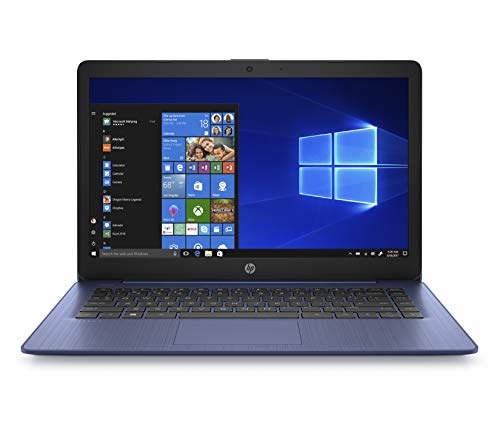
HP Stream 14-inch Laptop Intel Celeron N4000 4GB RAM 64GB eMMC with Office 365
- Intel Celeron N4000 processor with 4GB RAM for basic computing tasks
- 64GB eMMC storage with 1TB of OneDrive cloud storage included for one year
The Celeron N4000 processor in this laptop is slow. It runs at 1.1GHz base with burst speeds up to 2.6GHz, which is roughly half the sustained performance of the Ryzen 3 3250U in the IdeaPad 3. Running heavy software or juggling a dozen browser tabs isn’t this machine’s strength.
But the HP Stream 14 earns its spot for one reason: it comes with a full year of Office 365 Personal. That includes Word, Excel, PowerPoint, Outlook, and 1TB of OneDrive cloud storage. Office 365 Personal costs $69.99/year on its own. Factor that in, and the effective laptop cost drops to around $130, which is hard to beat.
The 64GB eMMC storage is small, but with a terabyte of cloud storage included, local space isn’t much of a concern. The eMMC drive is slower than a proper SSD, so boot times run closer to 25-30 seconds compared to the 12-15 seconds on the SSD-equipped options above. The 14-inch form factor weighs in at just 3.17 pounds, making it the most portable option on this list for moving between rooms.
The 10-hour battery life matches the HP Pavilion 15, and the 14-inch HD display is adequate for email and document work. The webcam is 720p, which is standard at this price. This laptop fits remote workers whose day is 90% email, light document editing, and the occasional video call. Don’t try to run data analysis or Photoshop on it. Know its limits and it’ll serve you well for 2-3 years of basic WFH use.
How to Pick the Right One for Your WFH Setup
Picking a budget laptop isn’t just about specs. It’s about matching the machine to how you actually work. Here’s a quick decision framework based on the most common home office on a budget setups.
If you work with spreadsheets and multiple tabs: Go with the Lenovo IdeaPad 3. The Ryzen 3 processor handles multitasking better than the Pentium or Celeron chips. The 128GB SSD keeps things snappy.
If you need the cheapest possible machine that works: The HP Pavilion 15 at $195 gives you SSD storage and a full-size keyboard. It’s not fast, but it’s functional.
If your work is mostly browser-based: The HP Stream 14 is fine, and you get Office 365 included. Or consider a Chromebook if you don’t need Windows at all.
If you’re on video calls all day: Budget carefully here. All three laptops above have basic 720p webcams. If you’re client-facing, you might want to grab a separate external webcam for $30-50 to look more professional.
Tips to Get More from a Budget Laptop
A cheap laptop doesn’t have to feel cheap. A few small investments can make a budget machine feel like something that costs twice as much.
Add an external monitor. Even a basic 24-inch monitor for $120-150 will change your work experience. Plug it in via HDMI and you’ve got dual screens. Your laptop screen for Slack and email, your monitor for your main work. Studies show dual monitors can boost productivity by up to 20-30% for document-heavy work.
Use cloud storage. Don’t fill up a small SSD or eMMC drive with local files. Use Google Drive, OneDrive, or Dropbox to keep your files in the cloud. This also gives you automatic backup, so if your laptop dies, your work is safe.
Close what you’re not using. On a 4GB machine, every open tab and app matters. A good rule: if a tab hasn’t been used in 15 minutes, close it. Browser extensions like OneTab can save groups of tabs for later without using RAM.
Keep Windows clean. Uninstall bloatware that comes pre-loaded. Disable startup programs you don’t need. Run Windows Update regularly. These basics keep a budget laptop running closer to its peak speed.
Consider a keyboard and mouse. If your laptop is your main work machine, a $25 wireless keyboard and mouse make long work sessions much more comfortable. The built-in keyboard and trackpad on budget laptops are usually just adequate, not great.
Budget Laptop Specs Comparison
Here’s a quick side-by-side so you can compare the three laptops at a glance.
| Feature | HP Pavilion 15 | Lenovo IdeaPad 3 | HP Stream 14 |
|---|---|---|---|
| Processor | Intel Pentium Silver N5000 | AMD Ryzen 3 3250U | Intel Celeron N4000 |
| RAM | 4GB | 4GB DDR4 | 4GB |
| Storage | 128GB SSD | 128GB SSD | 64GB eMMC |
| Display | 15.6″ HD (1366×768) | 15.6″ HD (1366×768) | 14″ HD |
| Battery | ~10 hours | ~7 hours | ~10 hours |
| Ports | 3 USB, HDMI, Ethernet | 3 USB, HDMI, SD reader | 3 USB, HDMI, SD reader |
| Bonus | Ethernet port, SSD at this price | Dolby Audio, best processor | Office 365 + 1TB cloud for 1 year |
| Price | $194.99 | Check Amazon | $199.99 |
| Best For | General WFH on a tight budget | Multitasking, best overall value | Light work with Office included |
Should You Buy Refurbished?
Some of these laptops are available as “renewed” or refurbished units on Amazon. If it’s “Amazon Renewed” with the 90-day guarantee, the risk is low. The laptops go through testing, come with a charger, and work as expected.
The trade-off is cosmetic. You might get a small scratch or a slightly worn keyboard. Functionally, Amazon Renewed units are tested to work and look like new. The savings can be 20-40% off the original price. For a WFH machine that just needs to work, refurbished is a smart move.
Just avoid third-party “renewed” sellers with low ratings. Stick to Amazon Renewed or manufacturer-certified refurbished programs. Lenovo’s outlet store, for example, often has IdeaPads at big discounts with full warranties.
What About Data-Heavy WFH Work?
If your remote work involves data analysis, large Excel files, or any kind of development, these ultra-budget laptops won’t cut it. You’ll want at least 8GB of RAM, an SSD of 256GB or more, and a Core i5 or Ryzen 5 processor. That bumps the budget to the $400-$600 range, but it’s worth it.
For more powerful options, check out the best laptops for data analysts, which covers machines built for heavier workloads. For everyone else, the three picks above will cover standard WFH work for under $300.
Which One Should You Buy?
The Lenovo IdeaPad 3 is the strongest pick on this list. The Ryzen 3 processor handles Zoom + Slack + a spreadsheet without stuttering, the 128GB SSD keeps boot times under 15 seconds, and Lenovo’s keyboard holds up over months of daily typing. It consistently earns 4+ star ratings from remote workers on Amazon.
If the IdeaPad is sold out (it goes fast), grab the HP Pavilion 15. You lose some processing power but gain an ethernet port, which matters if your Wi-Fi drops during client calls. Skip the HP Stream 14 unless your work is strictly email and docs, or you want that bundled Office 365 subscription.
One thing none of these laptops can fix: bad internet. If your Wi-Fi is unreliable, plug in via ethernet before spending more on hardware. And if you’re building a full home office, add a $120 external monitor next. That single upgrade boosts productivity more than any laptop swap.
Frequently Asked Questions
How much should I spend on a WFH laptop in 2026?
For basic WFH tasks like email, video calls, and document editing, $200-$300 is enough. If you need to run heavier software or multitask with many apps, budget $400-$600. Spending less than $150 usually means you’re getting a machine that’ll frustrate you within months.
Is 4GB of RAM enough for working from home?
4GB works for light use: a couple of browser tabs, one video call, and basic document editing. If you regularly have 10+ tabs open or run apps like Slack, Zoom, and a spreadsheet at the same time, 8GB is a better choice. The difference in daily comfort is significant.
Can I use a Chromebook for remote work?
Yes, if your work is entirely browser-based. Google Workspace, Slack web, Zoom, and most project management tools run fine on ChromeOS. But if your employer requires Windows-specific software, VPNs that only run on Windows, or desktop versions of Microsoft Office, you need a Windows laptop.
SSD vs. eMMC: which is better for a budget laptop?
SSD is faster and more reliable. eMMC is cheaper and usually found in ultra-budget machines. If you can get a laptop with a 128GB SSD for a similar price to one with 64GB eMMC, always go with the SSD. Boot times, app loading, and general responsiveness are noticeably better.
Do I need a dedicated graphics card for WFH?
No. Integrated graphics (Intel UHD or AMD Radeon Vega) are more than enough for video calls, web browsing, document work, and even streaming video. You only need a dedicated GPU if you’re doing video editing, 3D modeling, or gaming.
Is it worth buying a refurbished laptop for remote work?
Yes, especially from Amazon Renewed or manufacturer outlet stores. You can save 20-40% and still get a reliable machine. Look for units with at least a 90-day warranty. Cosmetic imperfections are common but don’t affect performance. Amazon Renewed units go through a multi-point inspection process before resale.
What accessories should I buy with a budget WFH laptop?
Start with a wireless mouse ($15-25) and a laptop stand ($20-30) to improve ergonomics. An external monitor is the best productivity upgrade you can make. A USB headset ($25-40) will make your video calls sound much better than the built-in speakers and mic. Total cost for all of these: under $100.
How long will a budget laptop last for WFH use?
With reasonable care, 2-4 years. Budget laptops aren’t built for heavy use over 5+ years. Keep the software updated, don’t overload the storage, and clean the vents occasionally to prevent overheating. When it starts feeling sluggish, a factory reset can often buy you another year of usable performance.