
 by
by
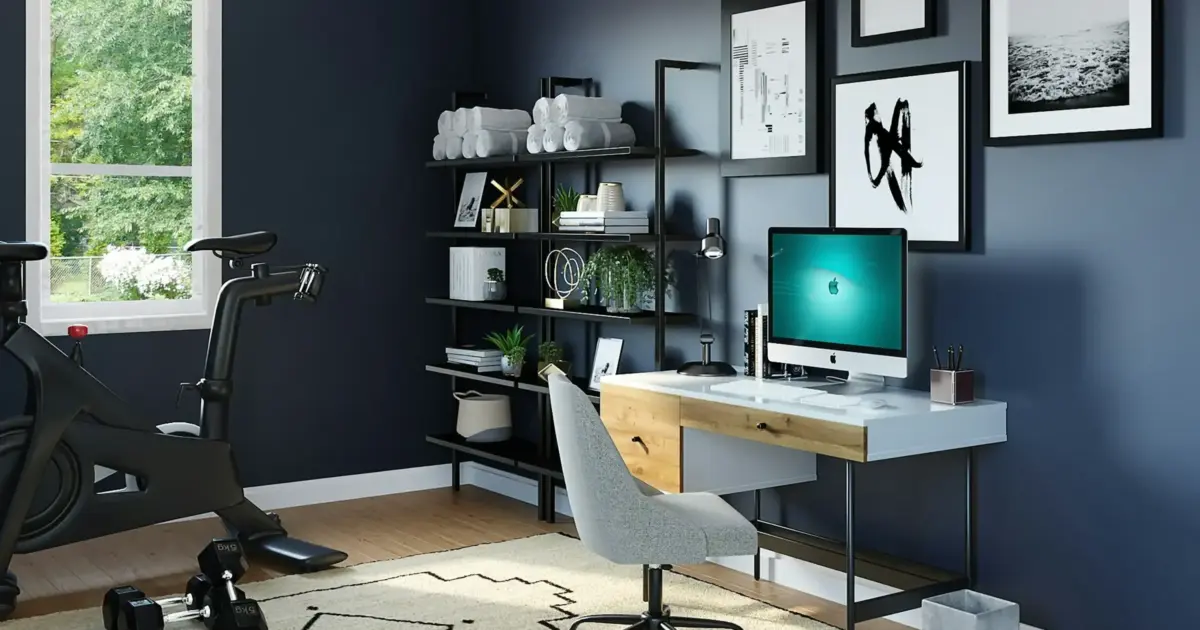
You’re freelancing from your kitchen table. Your back aches by 2 PM. Your laptop screen is too small for side-by-side documents. And every time you get on a client call, you’re shifting around in a dining chair that wasn’t built for 8-hour workdays.
The longer you ignore your workspace, the worse it gets. Bad posture compounds into chronic pain fast. A 2025 study published in the Journal of Physical Therapy Science found 82.7% of desk workers already have forward head posture, and remote workers show 15% higher prevalence than office workers. That cramped screen costs 15-20 minutes per day just from window juggling. Over a month, that’s a full workday lost to a setup problem you could fix for less than a single client invoice.
$500 is where you stop compromising. It covers a proper ergonomic chair, a full-size monitor, solid input devices, and a stable desk. Every product in this 2026 guide is backed by thousands of verified buyer reviews and independent ergonomics testing. No filler picks, just the 2-3 options per category that are actually worth buying at this price point.
Top Picks at a Glance
- Mimoglad Home Office Chair ($100) – Best overall budget chair, mesh back with adjustable lumbar
- SIHOO M18 Ergonomic Office Chair ($150) – Best for taller/larger frames, 4-point support with headrest
- Acer KB272 27-Inch ($100) – Best value monitor, 27-inch IPS with VESA mount
- ASUS VA24DQ 24-Inch ($120) – Sharper pixel density for smaller desks, built-in speakers
- Logitech MK540 Combo ($40) – Best combo value, keyboard + mouse with 36-month battery
- Keychron V3 ($69+) – Best budget mechanical, hot-swappable switches
- Royal Kludge RK61 ($50) – Best wireless mechanical, triple connectivity in 60% layout
- Logitech M720 Triathlon ($40) – Best multi-device mouse, Easy-Switch across 3 devices
- Logitech Pebble M350s ($18-25) – Quietest mouse for video calls and shared spaces
- SHW L-Shaped Desk ($70) – Best fixed desk, steel frame with corner-maximizing L-shape
- GreenForest Folding Desk ($70) – Best for renters, folds flat and rolls away
The Priority Order
Before adding things to your cart, understand what actually improves productivity. The most common mistake is spending $300 on a desk and $40 on a chair. That’s backwards.
- Chair ($100-150): You sit in it 8+ hours a day. A bad chair causes back pain, fatigue, and long-term health problems. This is not optional.
- Monitor ($100-150): More screen real estate means less window juggling. A laptop screen limits productivity more than most freelancers realize.
- Keyboard and mouse ($40-75): Decent input devices reduce wrist strain and improve typing accuracy. You’re touching these all day.
- Desk ($70-100): It holds your stuff. Any stable surface works. Don’t overspend here.
- Accessories ($20-50): Lighting, laptop stand, power strip. Nice to have, not essential.
Most people get this backwards. They buy the pretty desk first and cheap out on the chair. If you want a deeper look at building out a workspace, check out the full home office setup guide.
Budget Breakdown
Here’s how to split $500 across the five priorities. This leaves room to flex based on what you already own. If you have a decent monitor, put more into the chair. Already have a keyboard? Upgrade the desk.
| Category | Budget | Priority |
|---|---|---|
| Chair | $100-150 | Essential |
| Monitor | $100-150 | Essential |
| Keyboard | $40-75 | Important |
| Mouse | $20-40 | Important |
| Desk | $70-100 | Basic |
| Accessories | $20-50 | Optional |
Best Budget Ergonomic Chairs Under $150
The chair market below $150 is mostly garbage. Most chairs in this range look great on Amazon and fall apart in six months. But a few options stand out consistently, and these are the two that keep coming up in freelancer communities and ergonomics reviews.
Mimoglad Home Office Chair
Best for: First-time home office builders who want solid lumbar support without overspending.
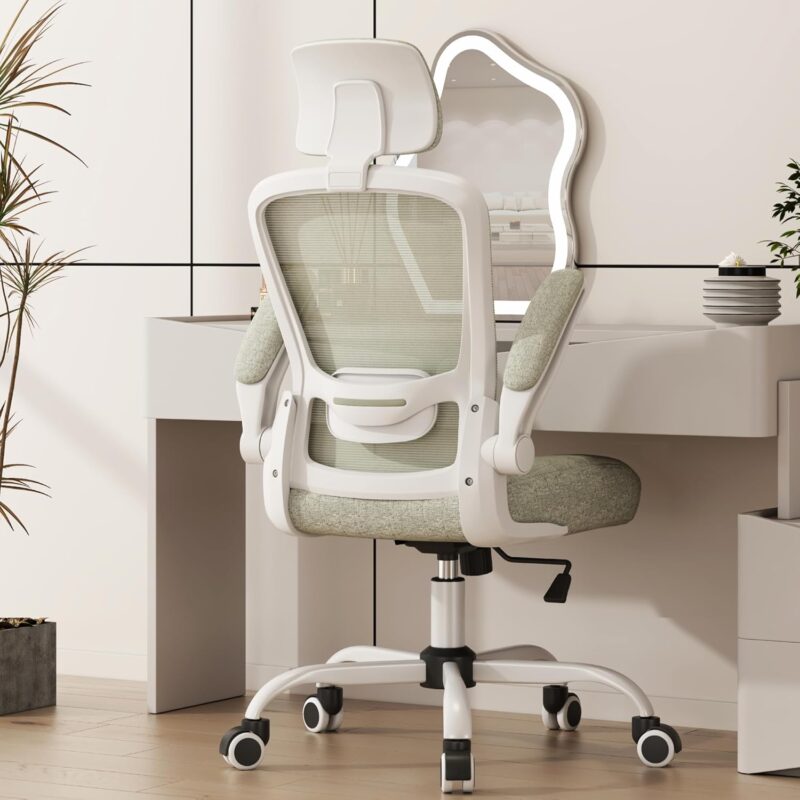
Mimoglad Office Chair, High Back Ergonomic Desk Chair with Adjustable Lumbar Support
- Ergonomic S-curve design maintains natural spine alignment and reduces back fatigue
- Breathable mesh back keeps you cool during long work sessions
- Adjustable lumbar support and flip-up armrests for narrow desks
- 350 lb weight capacity with sturdy base and smooth-rolling casters
At around $100, this chair delivers mesh-back construction with actual adjustable lumbar support, not the decorative kind that does nothing. The S-curve backrest follows the natural spine alignment that most budget chairs ignore entirely. The flip-up armrests are a feature worth noting: on narrow desks, having armrests that fold out of the way means you can slide right up to your keyboard without repositioning the whole chair.
Buyer feedback across thousands of Amazon reviews points to two consistent positives: comfortable for 6-8 hour days and breathable enough that you don’t stick to it in summer. The 350 lb weight capacity is generous for this price range. Honest downside: the seat cushion flattens after 12-18 months, which is the expected tradeoff at $100. If you weigh over 200 lbs or need to sit for 10+ hours daily, skip ahead to the SIHOO M18 below. For everyone else, this is the best value chair under $150.
One thing to avoid at this price range: “gaming chairs.” The racing-style bucket seats are designed for Twitch streams, not 8-hour freelance workdays. Skip anything without adjustable lumbar support and proper seat depth. Your spine has a natural curve, and your chair needs to support it, not flatten it.
SIHOO M18 Ergonomic Office Chair
Best for: Taller freelancers (5’10″+) or anyone who needs headrest support for long sessions.
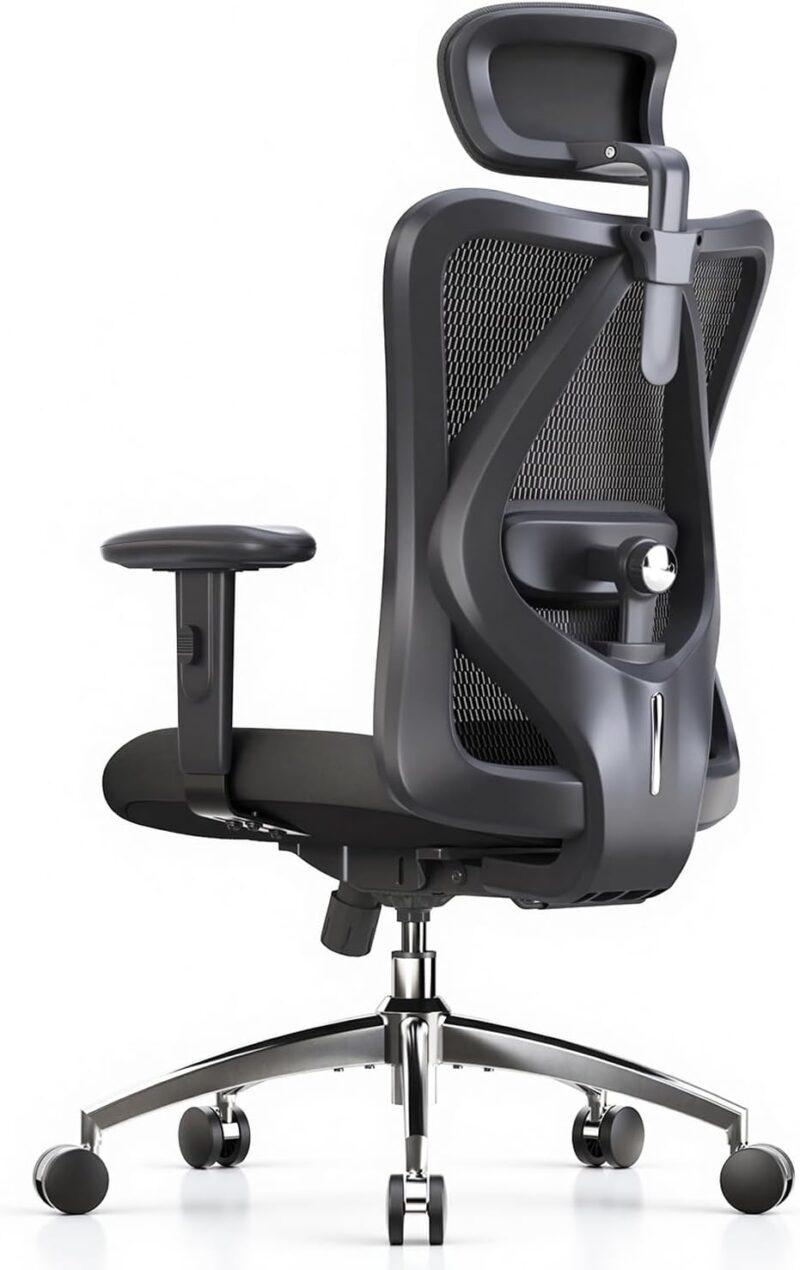
SIHOO M18 Ergonomic Office Chair with Adjustable Headrest and Lumbar Support
- 4-point ergonomic support: head, back, hips, and hands for full-body comfort
- Height-adjustable lumbar support and adjustable headrest for taller users
- 3D adjustable armrests (height, angle, depth) for customized positioning
- Larger seat accommodates bigger frames comfortably
Taller than 5’10” or need headrest support? The SIHOO M18 is the better pick. It provides 4-point ergonomic support covering head, back, hips, and hands, with 3D adjustable armrests that the Mimoglad doesn’t offer. The height-adjustable lumbar actually follows the spine’s curve, which matters when coding or handling client calls for 10 hours straight. The seat measures 20 inches wide and 20 inches deep, which accommodates larger frames comfortably.
The headrest has 45 degrees of rotation and 3.9 inches of vertical adjustment, so it’s genuinely usable for different body types rather than being a fixed decoration. The 330 lb weight capacity and breathable high-strength mesh make this a solid choice for heavier users who find the Mimoglad’s 350 lb limit cutting close. Price sits around $150 with frequent discounts dropping it lower.
The tradeoffs? Assembly takes 30+ minutes and some units ship with squeaky wheels. The armrest adjustment mechanism also feels a bit cheap compared to chairs double the price. But for $150, the features match chairs sold for $300-400 elsewhere. If you’re a bigger person or need that headrest for leaning back during long thinking sessions, the extra $50 over the Mimoglad is worth it.
Best Monitors Under $150
For freelance productivity, size and clarity matter. Gaming features like 144Hz refresh rates and 1ms response time are irrelevant when you’re working in spreadsheets, writing proposals, and managing client projects. Don’t pay for specs you won’t use. If you’re looking for programmer-specific recommendations, there’s a separate guide on the best monitors for programmers.
Acer KB272 27-Inch FHD IPS
Best for: Freelancers who want maximum screen space at the lowest price.
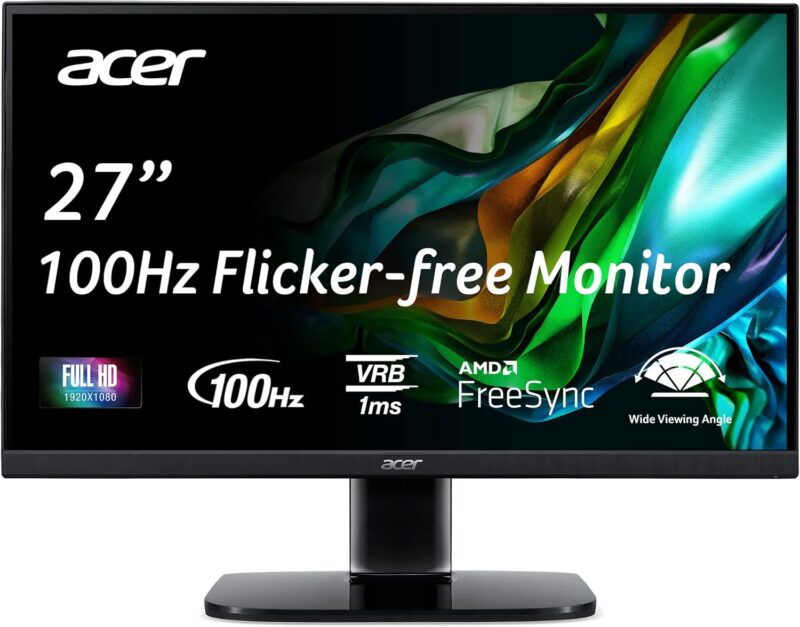
Acer KB272 EBI 27-Inch IPS Full HD 1920 x 1080 Zero-Frame Monitor
- 27-inch Full HD IPS panel with wide viewing angles for home, gaming, or office
- 75Hz refresh rate with AMD FreeSync for smooth, tear-free visuals
- Zero-frame design with slim bezels for a clean, modern look
- VESA mountable for easy monitor arm setup later
27 inches of screen real estate at under $100 when on sale. That’s hard to beat. The IPS panel delivers decent colors and wide viewing angles, which matters when doing design work or reviewing client deliverables. The 100Hz refresh rate is smoother than the standard 60Hz, and while it won’t matter in spreadsheets, scrolling through long documents feels noticeably better. Zero-frame bezels keep the desk footprint manageable, and VESA mounting means a monitor arm is an easy future upgrade.
The stand is basic with no height adjustment, so stacking a book or two underneath it gets the screen to proper eye level. Built-in speakers are absent, but that’s true for most monitors at this price. The real limitation: 1080p at 27 inches isn’t razor sharp. Sit at arm’s length and it looks fine. Sit 18 inches away and you’ll notice individual pixels. For most freelancers working at a standard desk distance, pixel density at this size is a non-issue.
Don’t bother hunting for a 4K monitor under $150. The few that exist at that price have poor panels, washed-out colors, and limited inputs. A quality 1080p IPS panel now beats a cheap 4K panel every time. Upgrade to 4K when the budget allows for a $250+ display with a proper panel.
ASUS VA24DQ 24-Inch FHD IPS
Best for: Smaller desks where sharper text and built-in speakers matter more than screen size.
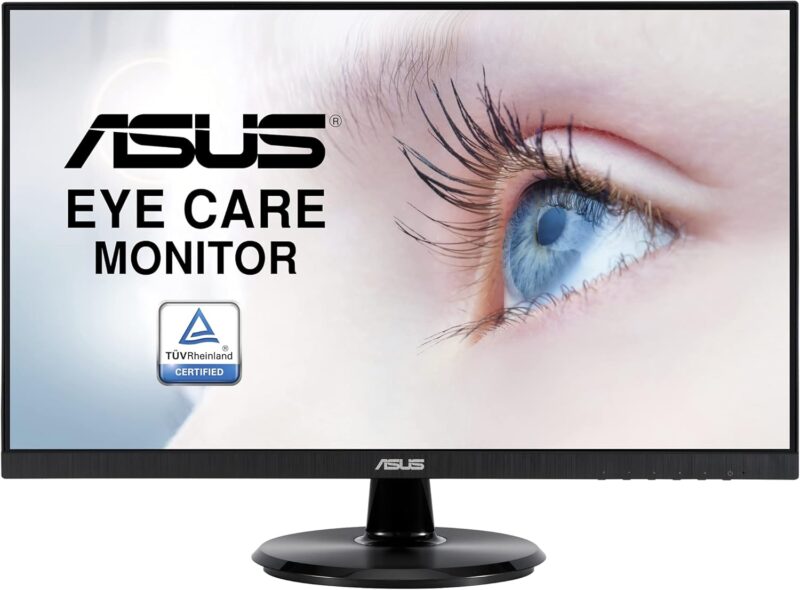
ASUS VA24DQ 24-Inch 1080P Full HD 75Hz IPS Monitor with Adaptive-Sync and Eye Care
- 24-inch Full HD IPS display with 178-degree wide viewing angles
- 75Hz refresh rate with Adaptive-Sync/FreeSync for smooth visuals
- Built-in speakers and low blue light mode for comfortable evening work
- HDMI and DisplayPort inputs for flexible connectivity
If you have a smaller desk or sit closer to the screen, the ASUS VA24DQ at 24 inches is the smarter pick. 1080p looks noticeably sharper at 24 inches than at 27 inches. The pixel density is higher, text is crisper, and you won’t see the faint graininess that larger 1080p panels sometimes show at close viewing distances. ASUS eye care technology also applies flicker-free backlighting, which reduces eye fatigue during extended sessions.
The built-in 2W speakers are functional enough for video calls, which saves buying a separate speaker setup. The low blue light mode is genuinely useful for evening work sessions when pushing through a deadline. HDMI and DisplayPort inputs give flexibility for connecting multiple devices. At around $120, it’s slightly more expensive per inch than the Acer, but the sharper image and extra connectivity make the tradeoff worth it for smaller desks and text-heavy workflows.
ASUS has sold this model for several years with a strong reliability track record. The VA24DQ consistently ranks at the top of sub-$130 monitor recommendations on r/homeoffice and r/buildapc communities, with thousands of verified purchases. VESA mounting is also supported, so a monitor arm remains an option later.
Best Budget Keyboards for Typing
Your keyboard matters more than most freelancers admit. Writers, developers, and anyone doing data entry types thousands of words daily. A bad keyboard causes wrist strain and slows you down. You don’t need to spend $200 on a keyboard, but settling for whatever came in a box isn’t the answer either.
Logitech MK540 Wireless Combo
Best for: Freelancers who need a keyboard and mouse right now without buying them separately.
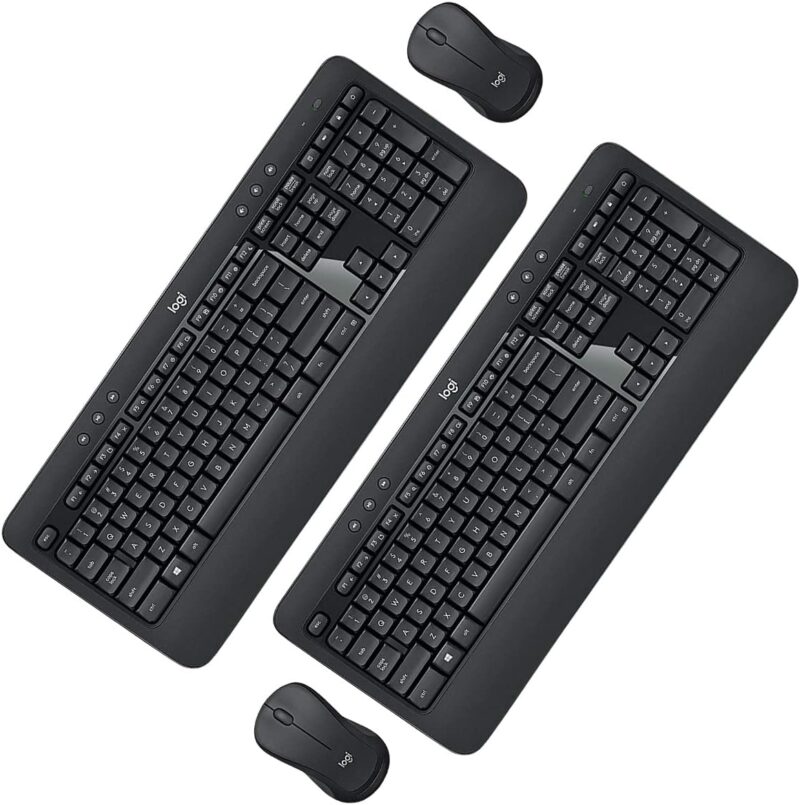
Logitech MK540 Advanced Wireless Keyboard and Mouse Combo
- Full-size layout with number pad and built-in palm rest for comfortable typing
- Quiet, low-profile membrane keys that won't disturb roommates or family
- Wireless keyboard and mouse share a single USB receiver
- 36-month keyboard battery life, 18-month mouse battery life
At around $40 for both a keyboard and a mouse, this is the best value combo for budget-conscious freelancers. The keyboard has a full-size layout with a number pad (essential for invoicing or data work), quiet low-profile membrane keys, and a built-in palm rest that’s surprisingly comfortable for long typing sessions. Both devices share a single USB nano-receiver, so only one port gets used.
The keyboard battery lasts 36 months, and the mouse battery lasts 18 months. That’s effectively “set it and forget it” territory. Logitech’s 2.4GHz wireless signal has a reliable range of up to 33 feet with minimal latency. The downside is that it’s membrane, not mechanical, so there’s no tactile feedback for faster typists. The included mouse is basic and works, but won’t impress anyone. As a complete starting point for someone who needs everything right now, this combo handles the job at a price that leaves budget for the more important chair and monitor purchases.
Note: the MK540 is Windows-optimized. Mac users will find some function keys remapped and missing the Command key. For Mac-native layouts at a similar price, the Logitech MK470 Slim Combo ($50) is the better choice.
Keychron V3 Mechanical Keyboard
Best for: Writers and developers who want mechanical feel and hot-swappable switches at the lowest price.
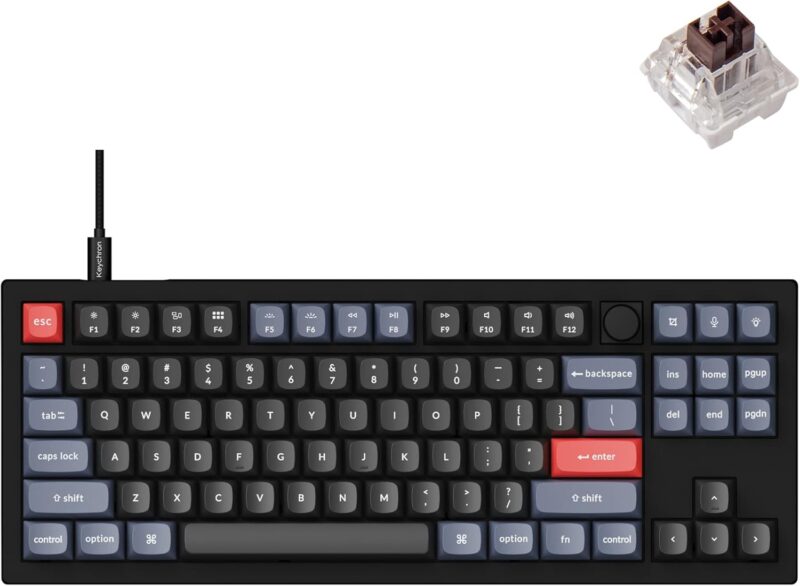
Keychron V3 Wired Custom Mechanical Keyboard, TKL QMK/VIA Programmable with Hot-Swappable Switches
- TKL 80% layout with QMK/VIA programmable support for endless customization
- Hot-swappable switches let you change switches without soldering
- Solid aluminum build quality that feels premium at a budget price
- Available with red or brown switches, plus RGB backlighting
The Keychron V3 is a genuine mechanical keyboard at under $70 (on Amazon; $89 assembled on Keychron’s own store). Hot-swappable switches mean you can swap out switch types later without soldering, which gives this keyboard upgrade potential that most budget boards don’t have. The PCB supports both 3-pin and 5-pin MX switches, so virtually any aftermarket switch is compatible.
The TKL (tenkeyless) layout drops the number pad to save desk space while keeping the function row and arrow keys intact. The aluminum frame feels solid rather than hollow and rattly. Brown switches are the better starting point for most freelancers: they deliver tactile feedback without the loud click that drives roommates or family members crazy. Red switches are smoother and quieter but offer no physical bump to confirm each keystroke. QMK/VIA support means every key can be remapped through software, which is useful for productivity shortcuts.
Two honest downsides: the V3 is wired only (no Bluetooth), and the stock ABS keycaps will develop a shiny worn look over time. Replacing them with aftermarket PBT keycaps costs $15-20 and fixes both the look and feel permanently. For writers and developers who want the mechanical experience at the lowest possible entry price, this remains the top recommendation.
Royal Kludge RK61
Best for: Freelancers who need wireless Bluetooth and a compact 60% layout to save desk space.
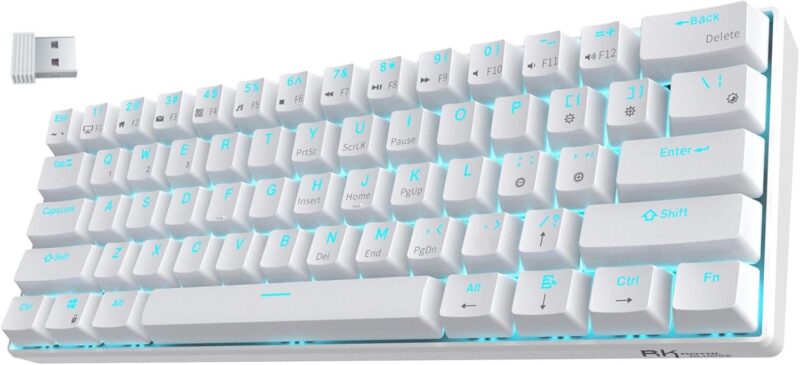
RK ROYAL KLUDGE RK61 Wireless 60% Triple Mode Mechanical Keyboard, BT5.0/2.4G/USB-C
- Triple mode connectivity: Bluetooth 5.1, 2.4GHz wireless, and USB-C wired
- Compact 60% layout with 61 keys saves maximum desk space
- Hot-swappable switches and RGB backlighting for customization
- Multiple switch options available: red, brown, and blue
The RK61 offers Bluetooth 5.1, a 2.4GHz dongle, and USB-C wired mode at around $50. That’s triple connectivity at a price most brands charge for just Bluetooth alone. The hot-swappable sockets support 3-pin and 5-pin switches, and the keyboard weighs just 0.5 kg, making it genuinely portable for freelancers who work from different locations.
The 60% layout removes the function row, number pad, and some navigation keys to minimize the desk footprint dramatically. For writers, designers, and developers who live in their editor, 60% is workable. The learning curve is real though: F-keys require holding Fn, and some shortcuts take a week to become muscle memory. If invoicing or data entry depends on a number pad, the RK61 isn’t the right fit. The RK Gaming Store lists it at $49.99 directly; Amazon pricing varies by color and switch type.
Battery life in Bluetooth mode is approximately 1,500-2,000 mAh depending on RGB brightness settings. Turning RGB off extends wireless range to around 10 meters with Bluetooth 5.1. For a first mechanical keyboard with wireless capability at under $60, the RK61 has no real competition at this price point.
Best Budget Mice for Work
The mouse bundled with keyboard combos is usually terrible. Stretching the budget by even $20-30 for a proper mouse changes how the whole workday feels. Clicking and scrolling all day adds up. It’s worth spending a little more here.
Logitech M720 Triathlon
Best for: Multi-device users who switch between laptop, tablet, and desktop throughout the day.
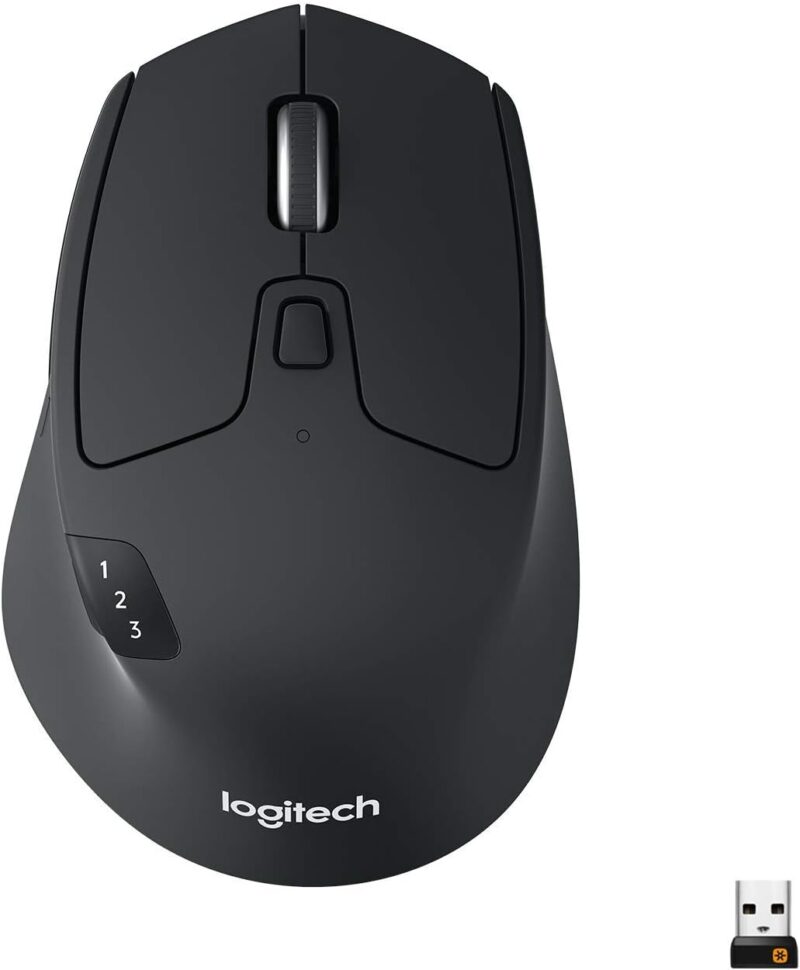
Logitech M720 Triathlon Multi-Device Wireless Mouse
- Multi-device Bluetooth with Easy-Switch button to cycle between three devices
- Comfortable full-palm grip shape for extended use
- Dual scroll wheel modes: ratchet for precision and free-spin for long documents
- Single AA battery lasts 2+ years of daily use
The Easy-Switch button on top cycles between three Bluetooth devices with a single press. No re-pairing, no fiddling with settings. Freelancers who work across a laptop, tablet, and desktop throughout the day can keep this mouse on the desk and switch contexts instantly. Logitech’s Flow software also lets you drag files between devices using the same mouse, which is genuinely useful for transferring client assets.
The scroll wheel switches between ratchet mode (precise, click-by-click scrolling for spreadsheets) and free-spin mode (flick it and it spins freely through long documents or web pages). The hyper-fast scroll is one of those features that’s hard to go back from once experienced. The full-palm grip shape prevents hand cramping after a full day, and a single AA battery runs for over two years under daily use.
The M720 Triathlon retails around $40-47 at most retailers and is frequently discounted. Honest limitations: right-handed only, larger than compact travel mice, and not precise enough for pixel-level design work. For standard office tasks, writing, coding, and client management, it’s more than sufficient. Logitech has kept this model in production for years, which means replacement parts and continued software support are reliable.
Logitech Pebble M350s
Best for: Video call-heavy freelancers and anyone working in shared or noise-sensitive spaces.
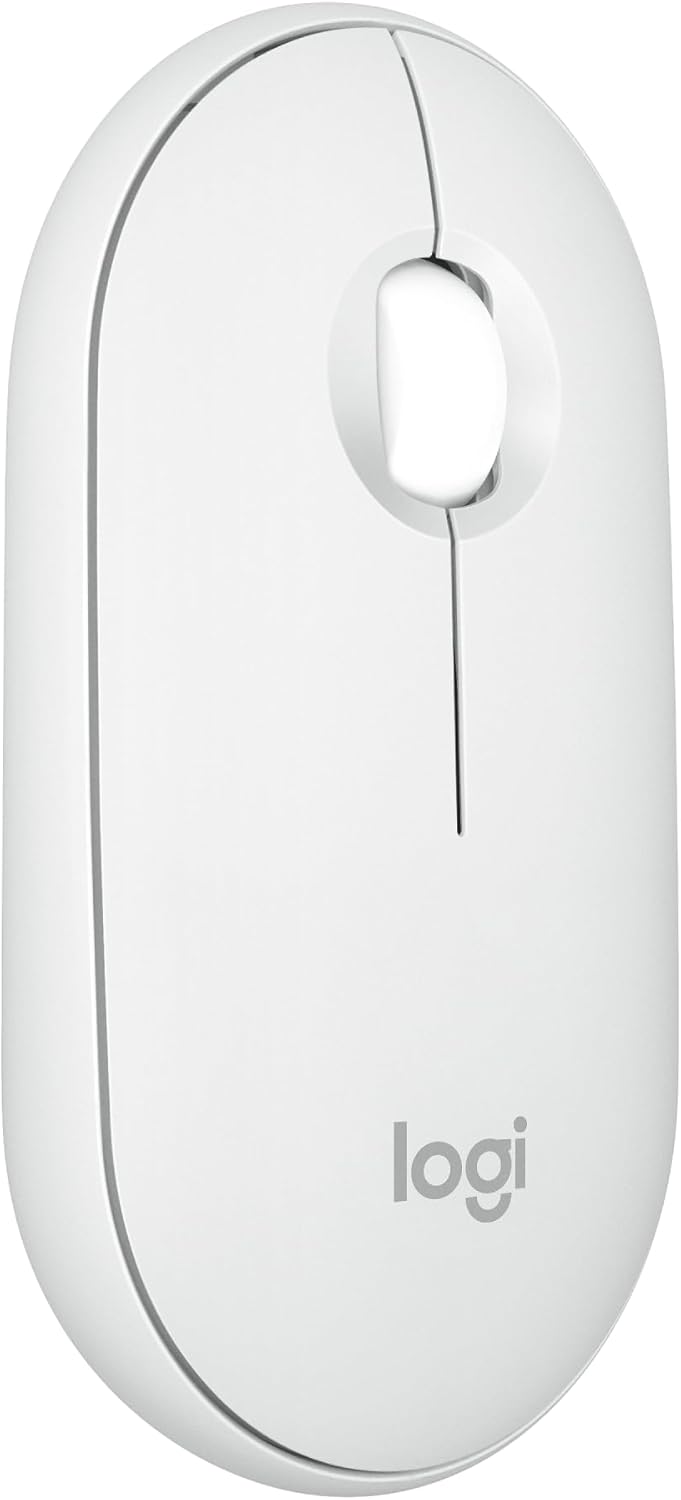
Logitech Pebble Mouse 2 M350s Slim Bluetooth Wireless Mouse
- Near-silent clicks, perfect for video calls and shared workspaces
- Slim, minimalist design with recycled plastic that fits in any laptop bag
- Bluetooth and USB receiver connectivity with multiple color options
The Pebble M350s is nearly inaudible when clicking. Mouse clicks on a Zoom call are one of those subtle irritants that clients notice even when they don’t say anything. The silent click mechanism reduces audible click noise by up to 90% compared to standard mice, according to Logitech’s own specs. The slim ambidextrous design fits both left and right-handed users, which is an advantage over the right-only M720 above.
As of March 2026, the M350s Black model has dropped to around $17.95 on Amazon, which makes it one of the best price-to-value items on this entire list. It’s light enough to toss in a laptop bag without adding noticeable weight. Available in multiple color options and made with recycled plastic per Logitech’s sustainability commitments. The 18-month battery on a single AA cell keeps maintenance minimal.
The catch: it’s small. Users with large hands will be claw-gripping it, which gets uncomfortable over 8-hour sessions. No multi-device switching either, so those who need to jump between devices should look at the M720 Triathlon instead. For travel, coworking spaces, video calls, or as a secondary mouse for a quieter workflow, the Pebble M350s is a strong choice at under $25.
Best Budget Desks Under $100
The desk just needs to be stable and large enough to hold a monitor, keyboard, and a notebook. Don’t overthink this. Many freelancers agonize over desk shopping for weeks when a $70 option would’ve been fine from day one. For more ideas on designing your overall workspace, the guide on creating your perfect home office covers the full setup.
SHW Home Office 48-Inch Computer Desk
Best for: Permanent home offices where stability and corner space matter more than portability.
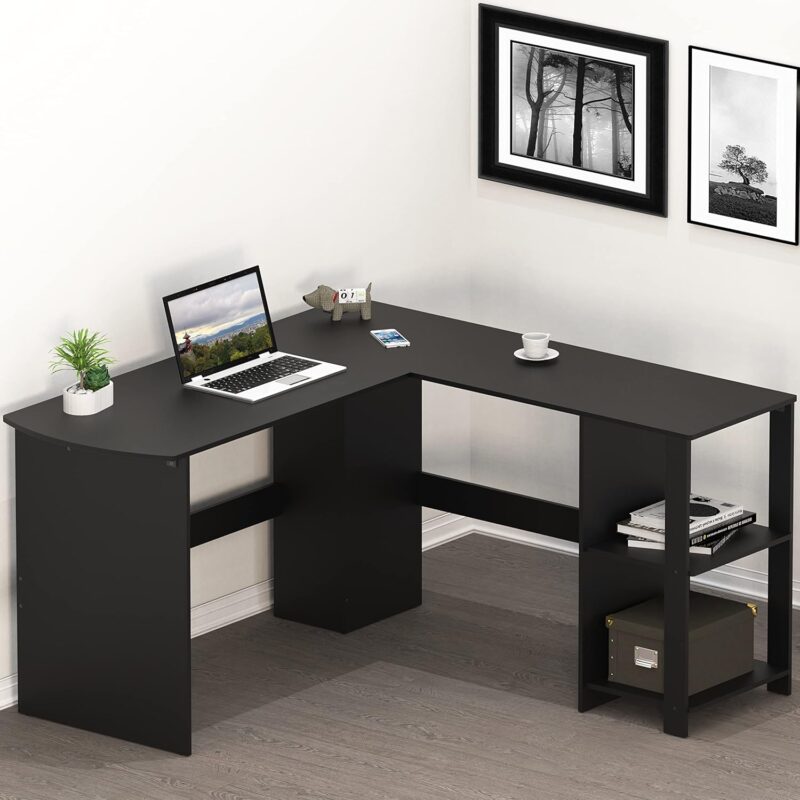
SHW 51 x 51 Inches L-Shaped Home Office Wood Corner Desk with Storage
- L-shaped 51 x 51 inch design maximizes corner space in any room
- Steel frame construction that won't wobble during heavy typing
- Integrated storage shelves and cable management for a clean setup
- Easy 20-minute assembly with minimal tools required
Simple, sturdy, affordable. The SHW’s steel frame won’t wobble during aggressive typing sessions, integrated storage shelves hold books and supplies without eating up the desk surface, and a cable management hole keeps cords organized behind the work area. Assembly takes about 20 minutes, which is significantly faster than most IKEA alternatives that require an hour or more.
The L-shaped 51×51 inch footprint is particularly useful for corner setups in bedrooms or living rooms where a dedicated office isn’t available. This configuration lets you place the monitor on one arm and spread reference materials or notebooks on the other without crowding. The desk comes in Black, White, Walnut, and Espresso finishes, so matching to existing furniture is straightforward.
The surface is particle board with laminate finish, not solid wood. It holds standard office equipment without issues, and it wipes clean easily. Don’t expect it to impress anyone with the material quality. But at $70 with steel frame construction, it’s the most stable option in this price range. The tradeoff of aesthetics for reliability is a reasonable one for a working desk.
GreenForest Folding Computer Desk
Best for: Renters, studio apartments, and anyone who needs to reclaim their living space after work hours.
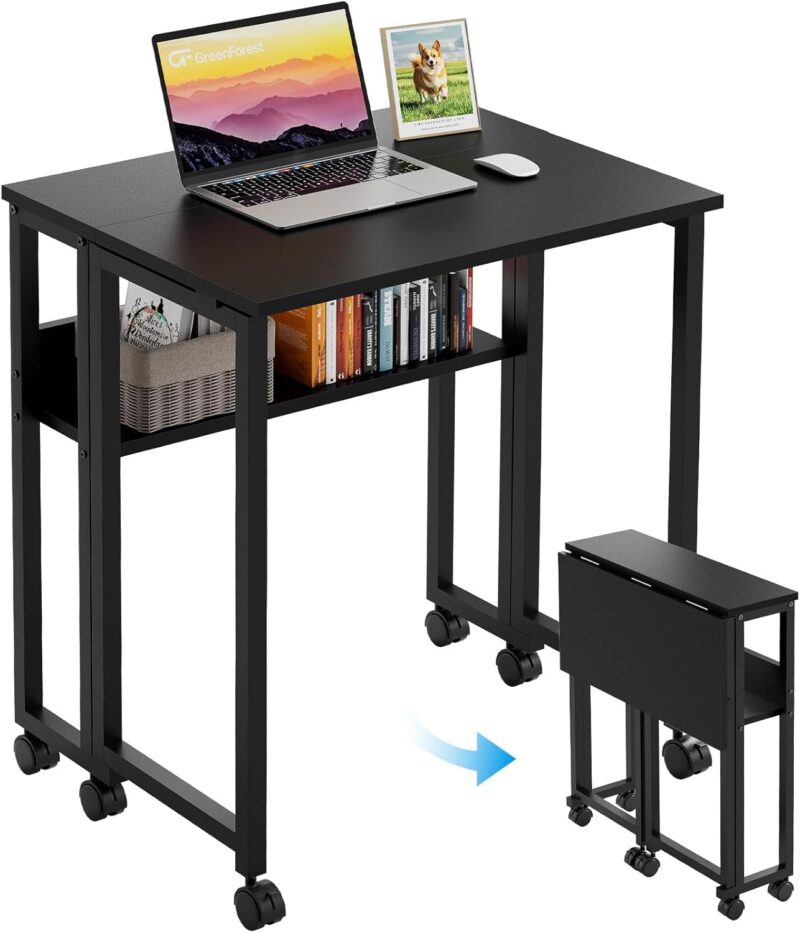
GreenForest Folding Desk Small Rolling Desk with Storage Shelf, Foldable Computer Desk
- Folds flat for storage when not in use, perfect for small apartments
- 6 locking swivel casters for easy mobility between rooms
- Built-in storage shelf for books, supplies, or laptop
- No assembly required, sturdy when opened and locked in place
Renters living in studio apartments face a specific problem: where does the office go when work is done? This desk solves it. The GreenForest folds completely flat when not in use and rolls into a closet or behind a couch on six locking swivel casters. No assembly required out of the box. When locked in position, the casters hold the desk stable enough for standard typing without sliding.
The built-in storage shelf holds books and supplies without cluttering the desktop surface. Available in multiple sizes (24.8 inch and 31.5 inch widths) to match different space constraints. The smaller 24.8 inch model is genuinely compact, while the 31.5 inch version fits a monitor plus keyboard with a bit of room to spare. Both models come in Oak, Walnut, and Pure White finishes.
It’s slightly wobbly compared to a fixed desk, and the smaller surface area means spreading out reference materials alongside a monitor isn’t realistic. For freelancers who need to reclaim their living room at 6 PM, this is a practical solution that a standard desk simply can’t offer. At around $70, it costs the same as the SHW fixed desk. The choice comes down entirely to whether portability or stability is the priority.
Accessories That Actually Matter
With the core setup handled, there’ll be $20-50 left for accessories that make a workspace more comfortable. These aren’t glamorous purchases, but they add up to a noticeably better experience. If you’re working from a budget laptop, these accessories make an especially big difference.
Desk Lamp with USB Charging
Best for: Reducing eye strain during evening work sessions and cutting desk clutter with built-in USB charging.
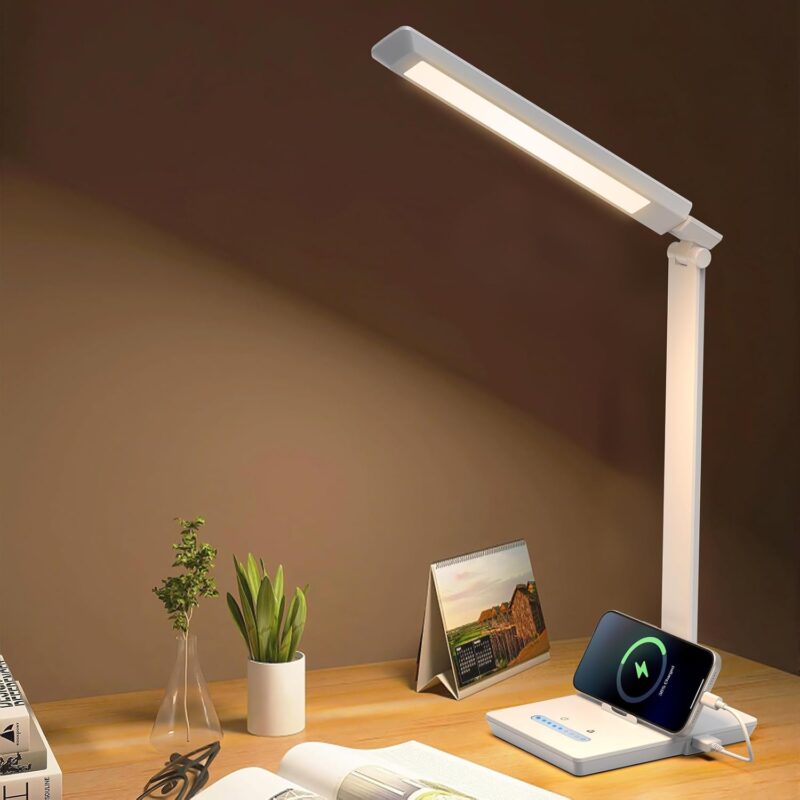
LED Desk Lamp with USB Charging Port, 14W 900LM Dimmable Eye-Caring Reading Lamp
- Stepless dimming with adjustable color temperature (2700K-6500K) for any time of day
- Multi-angle adjustable swing arm with rotatable lamp head
- Built-in USB charging port to charge phone without extra adapters
Good lighting reduces eye strain more than any monitor setting. This lamp provides stepless dimming and adjustable color temperature from warm (2700K) to cool daylight (6500K) within a single unit. Setting it to warm in the evening and cool during the day noticeably reduces eye fatigue after a full workday. The American Academy of Ophthalmology recommends matching ambient light temperature to the time of day specifically to reduce digital eye strain, and this lamp covers that range completely.
The swing arm adjusts to point light exactly where it’s needed, whether that’s illuminating a notebook, a secondary keyboard area, or off to the side to reduce screen glare. The built-in USB charging port eliminates one adapter from the outlet strip. At $25, it’s one of those purchases that pays off immediately. Proper desk lighting is routinely underestimated by new home office builders, then recognized as essential within the first week of using it.
Laptop Stand
Best for: Dual-screen setups where your laptop serves as a secondary display at eye level.
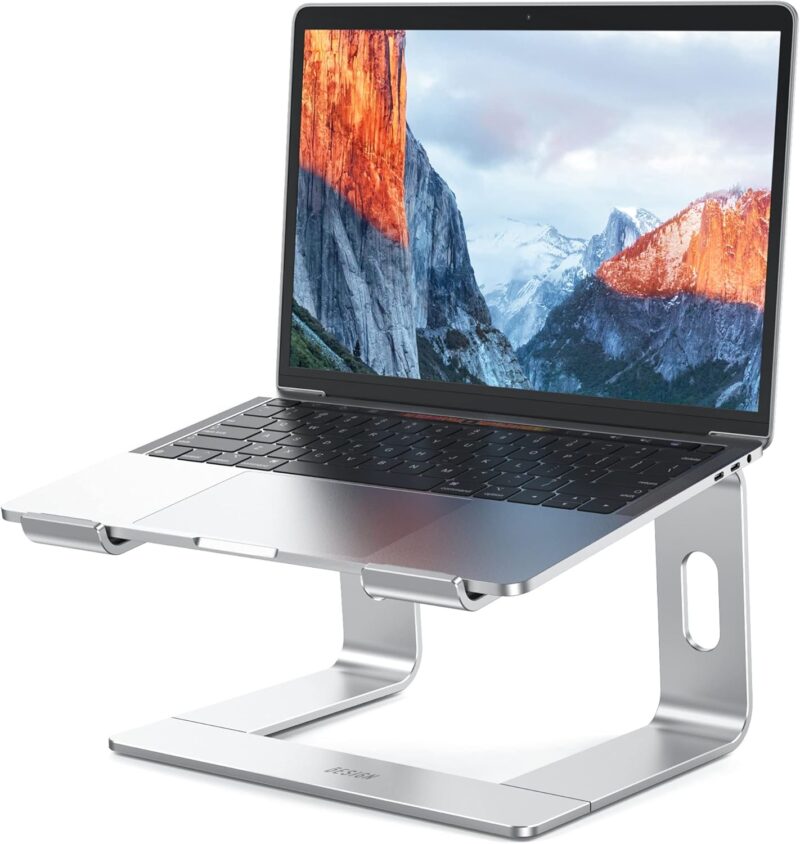
BESIGN LS03 Aluminum Laptop Stand, Ergonomic Detachable Computer Stand
- Compatible with all laptops from 10 to 15.6 inches
- Raises laptop by 6 inches to eye level, reducing neck strain
- Detachable aluminum construction, sturdy and easy to clean
Using a laptop screen as a secondary display next to an external monitor is common for freelancers, but looking down at the laptop screen causes neck strain that compounds quickly over weeks of daily use. The BESIGN LS03 elevates a laptop by 6 inches to eye level, fits any laptop from 10 to 15.6 inches, and the aluminum frame keeps the setup sturdy without adding much desk weight. The detachable design also means packing it into a bag for coworking days is quick.
At $20, this is the cheapest fix for a real ergonomic problem that affects most freelancers running dual-screen setups. Better airflow around the laptop is a secondary benefit: the elevated stand allows air to circulate underneath, which reduces thermal throttling on laptops that run warm. A must-have for anyone who currently looks down at their laptop screen for hours each day.
Power Strip with USB Ports
Best for: Any home office setup, because you’ll always need more outlets and USB ports than you expect.
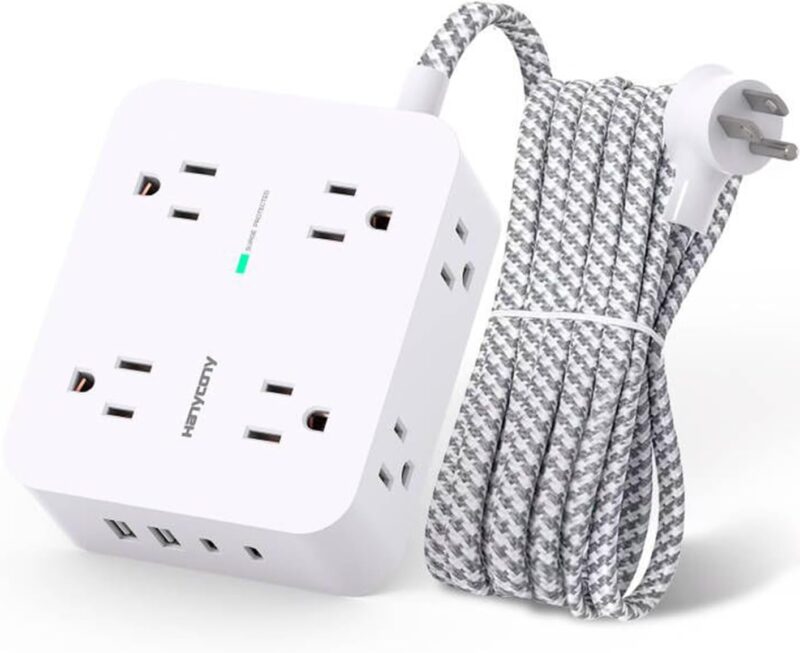
Surge Protector Power Strip, 8 Outlets with 4 USB + 2 USB-C Charging Ports
- 12-in-1 design: 8 AC outlets with 2.2-inch wide spacing for bulky adapters
- 4 USB-A ports plus 2 USB-C ports for direct device charging
- Built-in surge protection to safeguard your equipment
A home office generates more cords than most people expect: monitor power, laptop charger, phone charger, lamp, and whatever else gets added later. This surge protector offers 8 AC outlets with 2.2-inch wide spacing so bulky adapters don’t block adjacent outlets, plus 4 USB-A and 2 USB-C ports for direct device charging without separate adapters. That’s 14 connection points from a single wall outlet.
The surge protection circuit safeguards equipment during power spikes, which is genuinely useful for protecting a monitor and laptop that together cost 20-30 times more than the strip itself. At $15, this is the cheapest item on the entire list and arguably the most practical one. Every home office needs more outlets than the wall provides, and this solves it permanently.
Sample Build: Complete Setup for $450
Here’s how it all comes together. This build covers the two most important health-and-output purchases first, then fills in the rest.
| Item | Product | Price |
|---|---|---|
| Chair | Mimoglad Ergonomic Chair | $100 |
| Monitor | Acer KB272 27-Inch | $100 |
| Keyboard | Keychron V3 Mechanical | $45 |
| Mouse | Logitech M720 Triathlon | $35 |
| Desk | SHW 48-Inch Computer Desk | $70 |
| Desk Lamp | LED Desk Lamp with USB | $25 |
| Laptop Stand | BESIGN LS03 Aluminum | $20 |
| Power Strip | Surge Protector with USB-C | $15 |
| Total | $410 |
That leaves $90 for headphones, a webcam, or savings toward future upgrades. If you already own some of these items, redistribute the budget. Already have a keyboard and mouse? Upgrade to the SIHOO chair. Already have a chair? Get a better monitor. The priority order above tells you where extra money makes the biggest difference.
What to Skip
Not everything that seems like a smart office purchase actually is. These are the products that consistently disappoint freelancers who buy them at budget price points.
Standing Desk Converters
Cheap standing desk converters in the $100-200 range are wobbly and eat up desk space. They look great in product photos and terrible in practice. Either commit to a proper standing desk ($300+) or stick with a sitting desk and take walking breaks. The converter is a compromise that satisfies neither goal.
Ultrawide Monitors
Tempting, but good ultrawides cost $300+. A quality 27-inch monitor now beats a cheap 34-inch ultrawide every time. The panels on budget ultrawides are consistently disappointing in color accuracy and brightness uniformity.
Ergonomic Keyboard Trays
Most add instability and actually reduce usable desk space. A keyboard with a built-in palm rest (like the Logitech MK540) works better at this budget than any bolt-on tray.
Multiple Monitors
One good monitor beats two bad ones. Start with one quality display and add a second later when the budget allows for another decent panel. Two cheap monitors means double the bad viewing experience.
Upgrade Path
After using this setup for 6-12 months, the specific pain points in your workflow will become clear. Most freelancers upgrade in this order.
- Better chair: Herman Miller Aeron or Steelcase Leap ($800-1,200). The biggest quality-of-life upgrade available.
- 4K or ultrawide monitor: ($300-600). Once you’ve worked on a quality display, going back to 1080p is difficult.
- Standing desk frame: ($400-700). FlexiSpot and Uplift make the best motorized options.
- Mechanical keyboard upgrade: ($100-200). Better keycaps, wireless connectivity, or a premium board like the Keychron Q series.
The $500 setup buys time to figure out what matters for your specific workflow. Don’t try to predict needs before experiencing the setup. Use the basic configuration, discover the pain points, then invest where it counts.
Start With the Chair
The most common pattern among freelancers building their first home office: spend too much on the desk and not enough on the chair. Three months later, the lower back starts aching by lunch. That expensive desk is just holding equipment. The cheap chair is the thing affecting the body every single day.
A 2025 Journal of Physical Therapy Science study found 82.7% of desk workers already have compromised spinal alignment from poor seating. Freelancers, who don’t have HR departments mandating ergonomic equipment, are disproportionately affected. A $100-150 ergonomic chair won’t prevent all posture issues, but it addresses the most common ones: lack of lumbar support, seat depth that cuts off circulation, and armrests at the wrong height.
Order the Mimoglad chair and the Acer KB272 monitor today. That’s $200 and it covers the two purchases that affect your health and output the most. Add the rest as your budget allows. You don’t need to buy everything at once, but stopping work from that dining chair this week is the right first move.
FAQs
What is the most important part of a home office setup?
The chair is the most important part of any home office setup. You sit in it 8+ hours daily, and a bad chair causes back pain, fatigue, and long-term health issues. Prioritize chair quality over desk aesthetics. A $100-150 ergonomic chair with proper lumbar support will improve your work experience more than any other single purchase.
Is $500 enough for a complete home office?
Yes, $500 is more than enough for a functional home office. You can get a decent ergonomic chair ($100-150), a quality 27-inch monitor ($100-140), a mechanical keyboard ($45), a wireless mouse ($35), a stable desk ($70), and essential accessories like a desk lamp and laptop stand. You won’t get premium brands, but you’ll have everything needed for productive remote work.
Should I buy a standing desk on a $500 budget?
Standing desks aren’t recommended on a $500 budget. Quality standing desks cost $400+ and cheap standing desk converters are wobbly and unreliable. Get a stable sitting desk for $70-100 and take regular walking breaks throughout the workday. Once your setup is established and you have more budget, upgrade to a proper motorized standing desk from FlexiSpot or Uplift.
What size monitor is best for a home office?
27 inches is ideal for most home office workers. It provides enough screen real estate for side-by-side documents and spreadsheets without overwhelming a standard desk. 24 inches works better for smaller desks or if you sit closer to the screen. Under $150, stick with 1080p IPS panels rather than cheap 4K monitors that sacrifice panel quality for resolution.
Is a mechanical keyboard worth it for freelance work?
Mechanical keyboards are worth it if you type frequently. They offer better tactile feedback, improved typing accuracy, and much greater durability than membrane keyboards. Entry-level mechanical keyboards like the Keychron V3 cost around $45-89 and last for years. Choose brown switches for a good balance of feedback and noise, or red switches if you need quieter operation in shared spaces.
How do I reduce eye strain in my home office?
Proper lighting makes the biggest difference for eye strain. Get a desk lamp with adjustable color temperature and use warm light in the evening and cool light during the day. Enable low blue light mode on your monitor after sunset. Position your screen at arm’s length and slightly below eye level. Also follow the 20-20-20 rule: every 20 minutes, look at something 20 feet away for 20 seconds.
Do I need a separate webcam for video calls?
Most built-in laptop webcams are 720p and produce grainy video, especially in low light. If you’re on client calls regularly, a basic external webcam ($30-50) is a worthwhile upgrade. However, on a strict $500 budget, prioritize chair, monitor, and input devices first. Your webcam can wait until the next upgrade cycle. Good lighting from a desk lamp improves your video quality more than a new camera anyway.
What’s the best desk material for a budget home office?
Particle board with laminate finish is the most common material in budget desks under $100, and it works fine for home office use. It’s not premium, but it’s stable, easy to clean, and holds standard equipment without issues. Don’t waste money on solid wood desks at this budget level. Put that money into your chair or monitor instead, and upgrade the desk later when budget allows.
Tell Google you want more of this.
Add Gaurav Tiwari as a preferred sourceOne tap, and this site shows up more often in your own Top Stories, AI Overviews and AI Mode. Remove it any time.
Disclaimer: This site is reader-supported. If you buy through some links, I may earn a small commission at no extra cost to you. I only recommend tools I trust and would use myself. Your support helps keep gauravtiwari.org free and focused on real-world advice. Thanks. - Gaurav Tiwari