
Best Budget Laptops for Working From Home
 by
by
The best budget laptops for working from home are harder to pick this year because memory and storage costs are pushing prices up. A low sticker price can hide an 8GB configuration that leaves too little room for a meeting app, a browser full of tabs and a spreadsheet at the same time. For a new Windows work laptop I’d start at 16GB, then check that the screen and ports fit the desk you already have.
The MacBook Neo changes the Mac side of the decision. At $699 it’s a real option for lighter work that runs on macOS, with one clear limit: its 8GB of memory can’t be upgraded. The MacBook Air with 16GB costs a lot more, and it earns that only when you need the headroom or 2 external monitors.
Every price below was checked against Amazon’s US listings and Apple’s store when I updated this guide, and each pick names the exact memory and storage you’ll get. The new-laptop checklist covers the basics that apply to any purchase; this page is about the work-from-home decisions.
Quick Comparisons
Find the configuration that matches your work in the table, then jump to that entry. Prices are US figures; the 2 Mac entries also list India prices.
| Laptop | Memory / storage | Screen | Best fit | Main compromise | US price |
|---|---|---|---|---|---|
| MacBook Neo | 8GB / 256GB | 13-inch | Lighter work on macOS | 8GB is fixed; 1 external display | $699 |
| Acer Aspire Go 15 | 16GB / 512GB | 15.6-inch 1920×1080 touch | Cheapest 16GB Windows laptop | Entry-level 4-core processor | $500 |
| HP OmniBook 3 14 | 16GB / 256GB | 14-inch 1920×1200 OLED | Longest battery, light to carry | Arm chip; check your apps; small SSD | $500 |
| HP 15 (15-fc0057wm) | 16GB / 512GB | 15.6-inch 1920×1080 IPS touch | 8-core processor on a budget | Plain build, HDMI 1.4 only | $640 |
| Acer Aspire 14 AI | 16GB / 512GB | 14-inch 1920×1200 touch | Portable 14-inch with Thunderbolt 4 | Third-party sellers only | $650 |
| Lenovo IdeaPad Slim 5 16 | 16GB / 512GB | 16-inch 1920×1200 | Spreadsheets and split-screen work | Price has climbed to step-up money | $800 to $900 |
| Acer Swift Go 14 | 16GB / 512GB | 14-inch 1920×1200 touch | Client-facing video calls | Costs $170 more than the Aspire 14 | $820 |
| MacBook Air 13 (M5) | 16GB / 512GB | 13.6-inch | Memory headroom, 2 external displays | Outside a strict budget | $1,099 to $1,299 |
Best Budget Laptops for Working From Home
Start with the software your job requires. If it needs Windows, the Aspire Go 15 and OmniBook 3 are the cheapest ways to get 16GB, the HP 15 and IdeaPad buy more processor and screen, and the Aspire 14 and Swift Go are the step-ups for carrying or for a better camera. If your work runs on macOS, the Neo covers lighter days and the Air covers the heavier ones.
MacBook Neo

Apple MacBook Neo 13 (A18 Pro, 8GB)
- A18 Pro chip, 8GB unified memory
- 256GB SSD; 512GB with Touch ID for $100 more
- 13-inch Liquid Retina display, 1080p camera
- 1 external display up to 4K at 60Hz
I’d consider the Neo when your work stays in a browser, documents and a meeting app, and you want macOS without paying Air money. Apple lists it at $699 for 8GB and 256GB, and Amazon was matching that price. In India, Apple lists it at ₹79,900 while Amazon.in had it closer to ₹69,000.
The limit is the memory. 8GB is fixed, and the 512GB model with Touch ID adds storage, not RAM, so buy that one for local files and the fingerprint sensor rather than for multitasking. The ports are modest too: one USB 3 and one USB 2 port, both USB-C, and native support for a single external display at up to 4K and 60Hz. Apple rates it at up to 16 hours of battery in its own tests, which measure video and web use, not a day of calls.
iFixit’s teardown found a screwed-in battery tray and easier access to parts than recent MacBooks, which matters for a laptop you plan to keep for years. It doesn’t prove the Neo will outlast a Windows laptop. Skip it if you keep a heavy creative app or a large dataset open during calls; that workload belongs on the Air’s 16GB or on a 16GB Windows machine.
Acer Aspire Go 15
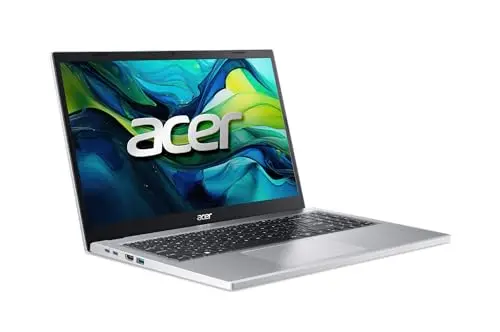
Acer Aspire Go 15 (Ryzen 5 7520U, 16GB)
- AMD Ryzen 5 7520U, 4 cores
- 16GB LPDDR5 (soldered) + 512GB NVMe SSD
- 15.6-inch 1920×1080 touchscreen
- HDMI 2.1 and USB-C with DisplayPort
This replaces the Aspire 5 I listed before. The Aspire 5 configuration Amazon still sells has 8GB, which fails the 16GB rule, and its price has drifted toward $580, so it no longer earns the value pick. The Aspire Go 15 with the Ryzen 5 7520U, 16GB of memory and a 512GB SSD does, at $499.99 from Acer’s authorized Amazon store.
Be clear about what you’re buying. The 7520U is an entry-level 4-core chip, so this is a laptop for Office, browser-based tools, email and video calls, not for editing video or compiling large projects. The 16GB of memory is the reason it makes the list: it keeps Teams, a browser with a few dozen tabs and Excel open without the constant swapping that makes 8GB machines feel broken. The memory is soldered, so there’s no upgrade later, which is exactly why I’d buy the 16GB version now.
Skip it if you want a sharp camera or a premium build. The chassis is plastic and the webcam is ordinary, so pair it with good lighting or an external webcam if calls matter.
HP OmniBook 3 14
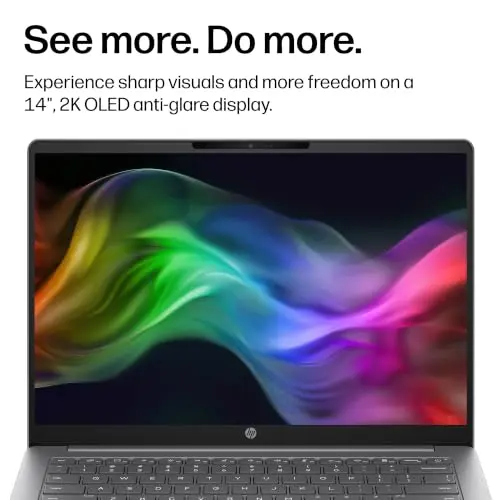
HP OmniBook 3 14 (Snapdragon X, 16GB)
- Qualcomm Snapdragon X X1-26-100, 8 cores
- 16GB LPDDR5X + 256GB SSD
- 14-inch 1920×1200 OLED display
- Windows on Arm; check your apps first
The OmniBook 3 is the laptop I’d pick for someone who works from the sofa, the kitchen table and a cafe in the same week. Amazon sells the 14-hz0288nr configuration directly for $499.99 with 16GB of memory, a 14-inch 1920×1200 OLED panel and a Snapdragon X chip that HP rates for well over a day of video playback. That rating is HP’s own test, not a measure of back-to-back calls, but it’s a different class of battery from the 15.6-inch Windows picks here.
Two things decide whether it suits you. The chip is Arm, so Windows runs most everyday apps natively or through emulation, but Microsoft’s own guidance is to check specialised software, drivers and peripherals before buying. If your employer’s VPN client or a niche add-in has no Arm build, this isn’t your laptop. The other limit is the 256GB SSD: fine for cloud-first work, tight if you keep large local files. In India the same model sells with a 512GB drive at about ₹68,000.
Skip it if your job depends on an x86-only tool or a particular USB device. The Aspire 14 covers the same portable role on an Intel chip.
HP 15 (15-fc0057wm)
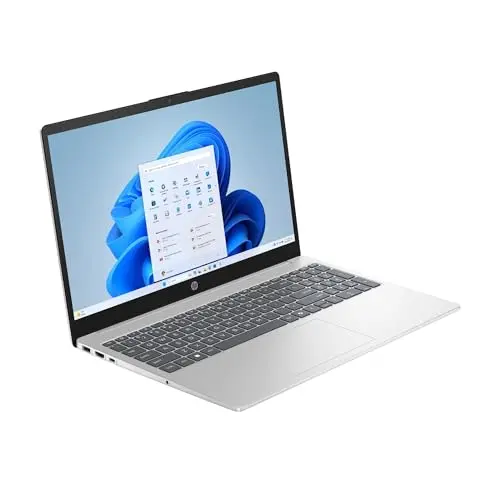
- AMD Ryzen 7 7730U, 8 cores
- 16GB DDR4 + 512GB NVMe SSD
- 15.6-inch 1920×1080 IPS touchscreen, 300 nits
- HDMI 1.4 and USB-C (data only)
This is the pick when the Aspire Go’s 4-core chip worries you but the IdeaPad Slim 5 costs too much. The 15-fc0057wm pairs the 8-core Ryzen 7 7730U with 16GB of DDR4 and a 512GB SSD, and the 300-nit IPS touchscreen is brighter than most laptops at this price. It handles a heavier mix of spreadsheets, a dozen browser tabs and a meeting without the swapping you’d get from an 8GB machine.
The build is the trade. It’s a plain plastic HP 15 with an HDMI 1.4 port and a USB-C port that carries data only, so one external monitor over HDMI is the practical limit. Amazon’s $640 price comes from a third-party seller, so check the return window before paying. In India the equivalent fc0761AU configuration sells for about ₹69,600.
Skip it if you want to run 2 monitors from a dock or carry the laptop daily. The Aspire 14 does both better.
Lenovo IdeaPad Slim 5 16
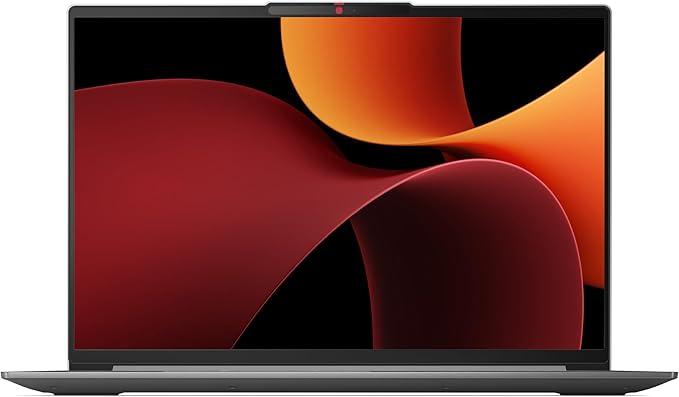
Lenovo IdeaPad Slim 5 16 (16AHP9)
- AMD Ryzen 7 8845HS, 8 cores
- 16GB LPDDR5X (soldered) + 512GB SSD
- 16-inch 1920×1200 IPS display
- AMD Radeon 780M graphics
The IdeaPad Slim 5 is still the laptop I’d point at anyone who lives in spreadsheets and split-screen documents. The 16-inch 1920×1200 panel shows more rows than a 15.6-inch Full HD screen, and the Ryzen 7 8845HS with 16GB handles far heavier multitasking than the Aspire Go.
The problem is the price. When I first listed it, this configuration sold for about $600. Amazon’s current listings for the 16GB/512GB model come from third-party sellers at $800 to $900, which is step-up money, not budget money. I’d buy it only when a sale brings it back near $700, and I’d check the seller’s return window before paying a marketplace seller that much.
Skip it if you carry your laptop around. A 16-inch chassis is a desk machine, and the Swift Go is the lighter option at a similar price.
Acer Aspire 14 AI
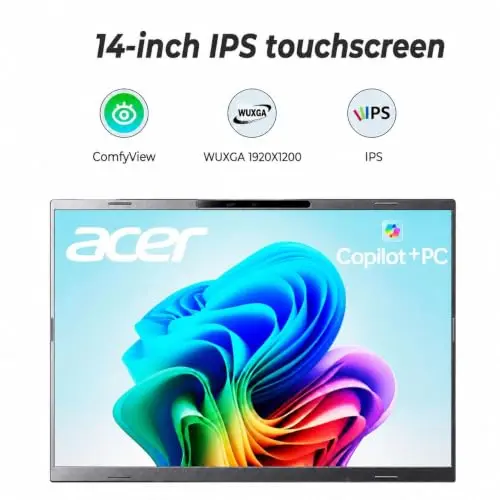
Acer Aspire 14 AI (Core Ultra 5 226V, 16GB)
- Intel Core Ultra 5 226V, 8 cores
- 16GB LPDDR5X + 512GB SSD
- 14-inch 1920×1200 IPS touchscreen
- 2 Thunderbolt 4 (USB4) ports and HDMI 2.1
The Aspire 14 AI replaces the HP Pavilion Aero 13 as the portable pick, because the Aero has no current US offer on Amazon and this Acer does more for a desk setup. The Core Ultra 5 226V is Intel’s efficient Lunar Lake chip, the 14-inch 1920×1200 touchscreen keeps the laptop small, and 16GB of LPDDR5X with a 512GB SSD meets the memory rule.
The ports are the reason I’d choose it over the OmniBook for a desk you move between. Two USB-C ports carry USB4 and Thunderbolt 4 with power delivery, plus there’s a full HDMI 2.1 port, so a single dock drives 2 monitors and charges the laptop. The webcam is a 1080p IR unit with Windows Hello face login. The catch is the seller: Amazon’s $650 listings for this configuration are all third-party, so compare the warranty terms and return window before buying.
Skip it if you don’t need the ports or the touchscreen. The OmniBook 3 is $150 cheaper for the same portability.
Acer Swift Go 14
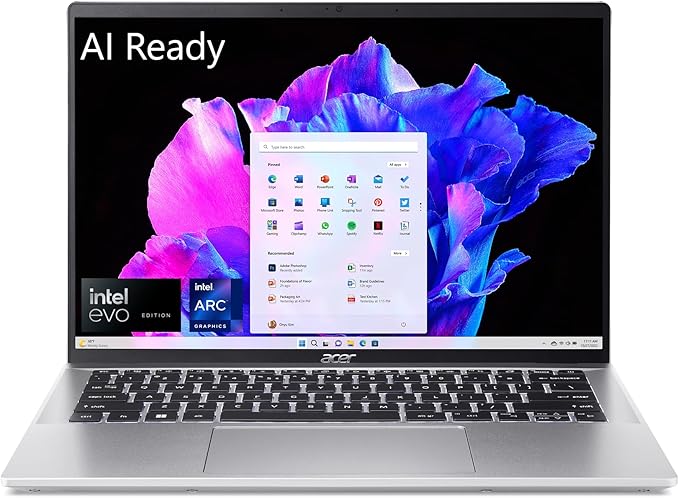
Acer Swift Go 14 (SFG14-72T-718K)
- Intel Core Ultra 7 155H, 16 cores
- 16GB LPDDR5X + 512GB SSD
- 14-inch 1920×1200 IPS touchscreen
- 1440p webcam
If your day is back-to-back calls, the Swift Go 14 is the Windows laptop I’d pick, and the camera is the reason. Acer fits a 1440p webcam to this model where most budget laptops still ship 720p, so you start from a sharper image before lighting and software settings do their work. The 14-inch 1920×1200 touchscreen and the Core Ultra 7 chip also make it the most capable Windows machine here.
Two cautions. A higher-resolution camera only helps if the light is in front of your face and your meeting service sends HD; Zoom delivers HD only when the account and meeting settings allow it. And the price has moved: Acer lists this exact configuration at $999.99, and Amazon’s listings sit around $820 from third-party sellers, roughly $170 more than the Aspire 14 for the same core office work.
Skip it if you’re rarely on camera. Put the difference into a monitor instead.
MacBook Air 13 (M5)
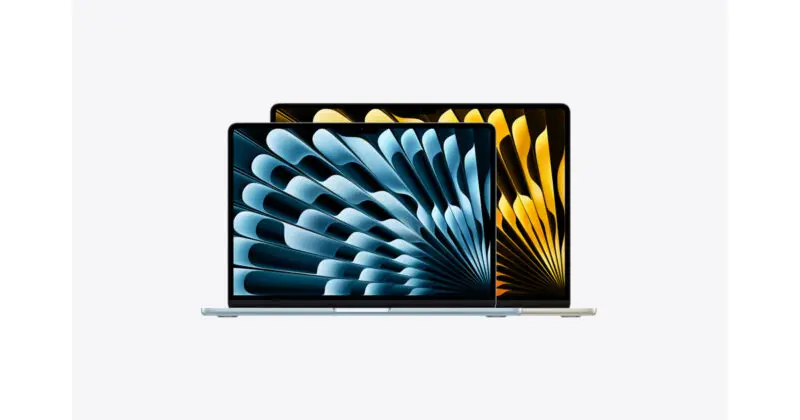
Apple MacBook Air 13 (M5, 16GB)
- Apple M5 chip, fanless
- 16GB unified memory + 512GB SSD
- 13.6-inch Liquid Retina, 12MP Center Stage camera
- 2 Thunderbolt 4 ports, MagSafe, 2 external displays
The current Air is the M5 model, and its base configuration now starts at 16GB and 512GB. Apple lists it at $1,299 in the US and ₹1,49,900 in India; Amazon.com was selling the same configuration for $1,099. That’s well outside a strict budget, so I’m including it for one reason: it’s the Mac to buy when your ordinary workday puts an 8GB machine under memory pressure.
What you get for the premium is concrete. Apple’s specifications list 16GB of memory, native support for 2 external displays, 2 Thunderbolt 4 ports plus MagSafe charging, and a 12MP camera that’s the best built-in camera on this list. Apple rates it at up to 18 hours of video streaming or 15 hours of wireless web; neither figure is a promise of 18 hours of meetings.
A discounted M4 Air can still be a good buy, but compare the exact memory and storage before assuming it matches. And I’d stop short of claiming a MacBook always outlasts a Windows laptop. The memory headroom helps the Air stay useful as your work grows, but battery wear, repair costs and software support decide the lifespan, and a well-built Windows business laptop can last just as long.
Why Budget Laptops Cost More
RAM and SSD storage are a bigger buying concern this year because rising component costs are putting pressure on laptop prices. You shouldn’t assume last year’s budget buys the same specification today.
TrendForce’s latest memory forecast projects these Q4 2026 contract-price increases over the previous quarter:
- Conventional DRAM, used for system memory: 10% to 15%.
- NAND Flash, used in SSD storage: 15% to 20%.
Those are component forecasts. The increase you see on a finished laptop also depends on the manufacturer’s inventory and the retailer’s pricing, and discounts and refurbished machines still turn up. So I wouldn’t tell you affordable laptops have disappeared. I’d tell you to compare the exact configuration, because a discounted model with too little soldered memory leaves you with a limitation you can’t fix later. Compare the cost of keeping your current laptop as well, especially if a memory or storage upgrade would solve the actual problem.
How Much RAM Do You Need?
For a new Windows laptop used for ordinary remote work, I’d buy at least 16GB. That’s a purchasing recommendation for multitasking headroom, not a claim that Windows can’t run on less. An existing 8GB laptop that handles your work doesn’t need replacing just to meet a number.
I wouldn’t recommend a new Windows work laptop with 8GB of soldered memory to anyone who expects to run a meeting app alongside a browser-based CRM and a spreadsheet. You shouldn’t have to organize your work around closing apps to free memory, and a more expensive processor won’t add RAM. Zoom’s own requirements draw the same line: 4GB minimum, 16GB recommended.
Memory-hungry apps deserve criticism when they use resources without giving you useful work in return. If several clients duplicate the same notifications, or an idle app keeps causing slowdowns, check whether you need all of them. High memory use alone doesn’t prove waste; the useful question is whether the app does enough to justify it.
Your workload should decide the capacity:
- Light browser-based work can fit the Neo’s 8GB, provided your required apps and ordinary multitasking stay within its limits.
- A new Windows work laptop should start at 16GB for everyday multitasking.
- Large datasets or virtual machines can justify more. Check the requirements of the actual software before paying for 24GB or 32GB.
Native Apple silicon apps avoid translating Intel instructions, which is a real efficiency advantage; Apple recommends Apple silicon or Universal builds, and Office has native Mac support. That doesn’t make every Mac app lightweight, and it doesn’t make 8GB on a Mac equal to 16GB on Windows. Apple documents memory pressure and swap for a reason: Macs run short of memory too.
What to Check Before Buying
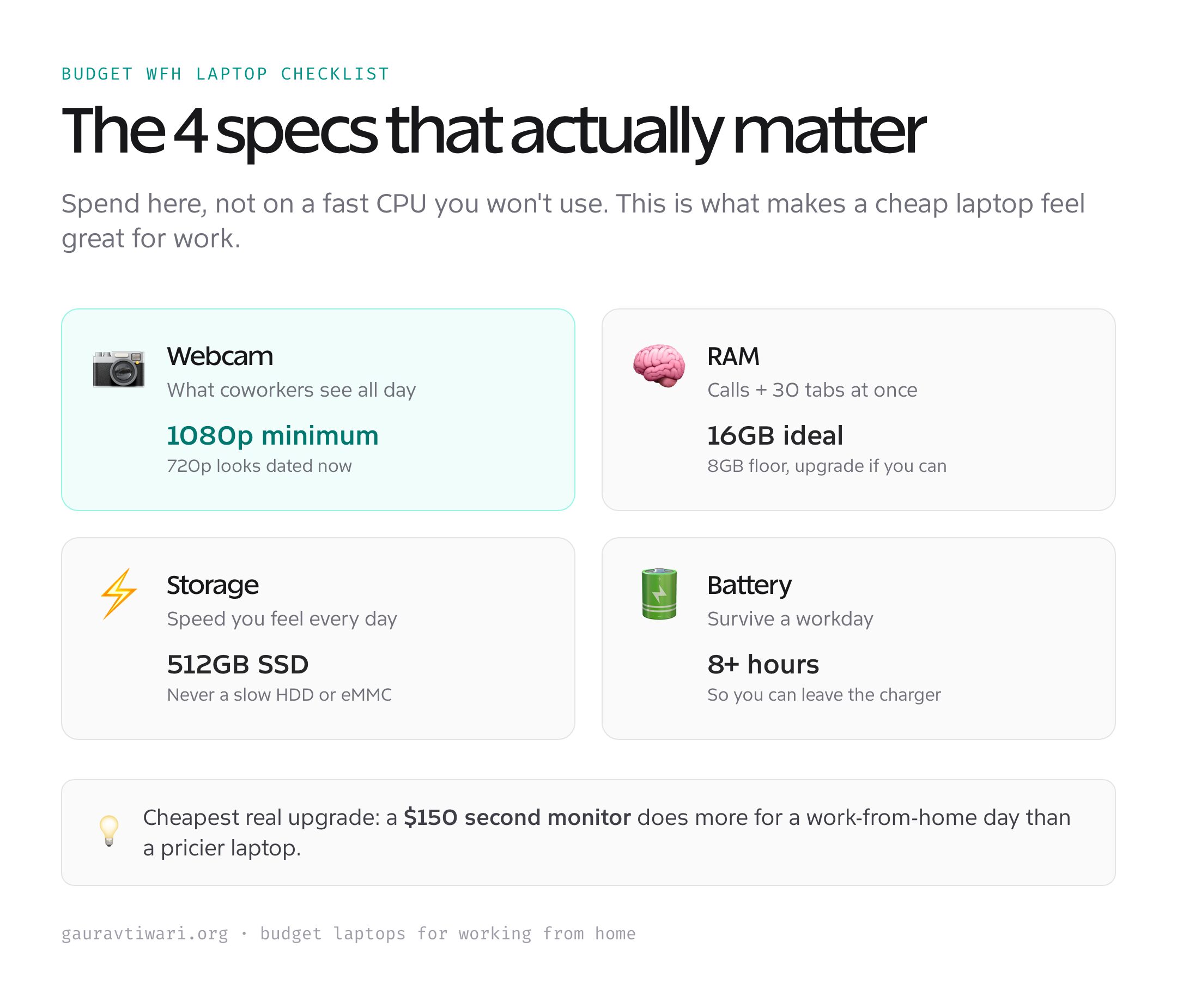
Four specifications decide whether a cheap laptop feels fine or frustrating at a desk. Get these right and the brand matters much less.
- Memory. 16GB for a new Windows laptop. If the memory is soldered, the amount you buy is the amount you keep.
- Screen. A 1920×1080 or 1920×1200 IPS panel is the floor for a full day of reading and typing. A 16:10 panel shows more rows of a spreadsheet than 16:9 at the same diagonal.
- Storage. A 512GB NVMe SSD. Avoid eMMC storage and small drives that fill up within a year.
- Monitor support. Check which port drives a display, HDMI or USB-C with DisplayPort, and how many external displays the laptop supports natively. The Neo drives 1; the Air drives 2.
- Camera. 1080p when it’s affordable, but lighting changes a call more than resolution does.
- Battery. Treat manufacturer ratings as video or web figures. None of them measures a day of Teams or Zoom.
Check Your Work Apps
Your employer’s requirements should decide the platform before the laptop brand does. macOS is a sensible option only when the tools you need are supported, and Windows compatibility should be checked against the exact machine too, especially when an app depends on a particular driver or on x86 hardware.
For example, Power BI Desktop requires Windows. If that’s part of your job, a Mac needs a supported way to do that work, with its cost and limits counted. Ordinary Office documents are a different case, since native Office apps exist for Apple silicon Macs. A Chromebook can handle browser-only work, but confirm your employer’s VPN and device-management tools support ChromeOS before buying one for the price. If you’re buying for a team rather than yourself, the business laptop guide covers procurement.
Before you pay, confirm:
- The required apps and any specialized add-ins.
- Your employer’s VPN and device-management support.
- The printers and other peripherals you need.
- The monitors and dock you plan to connect.
Build a Better Home Office
A few cheap moves turn a budget laptop into a setup that feels far more expensive. None of them costs much, and together they fix the things budget machines get wrong.
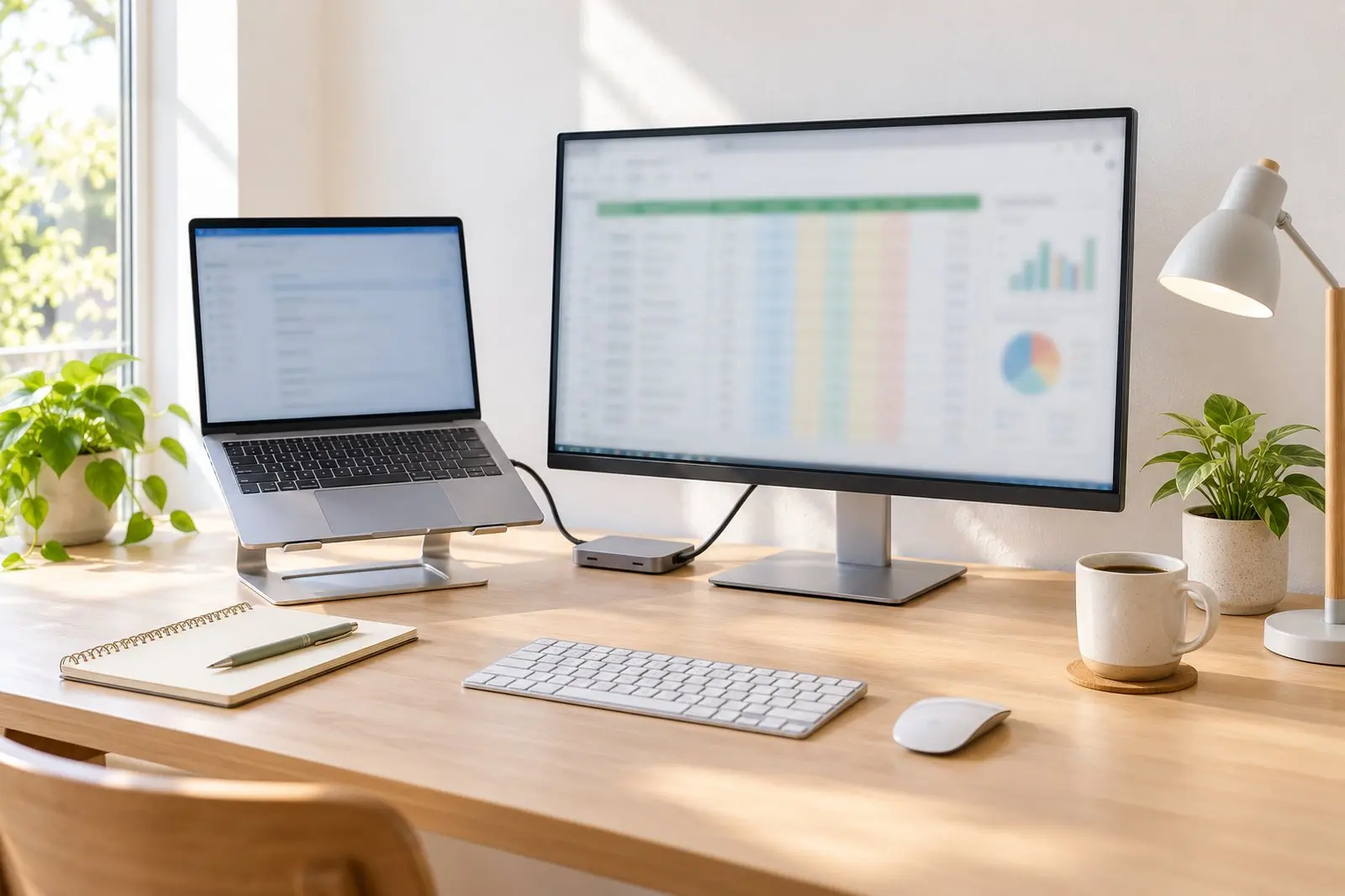
- Add an external monitor. A second screen at your desk does more for productivity than a pricier laptop. If you work with text all day, the monitor guide for programmers applies to writers and analysts too, and a laptop stand brings the built-in screen up to eye level beside it.
- Fix the light before the camera. Put a lamp or a window in front of your face, or slightly to the side. A bright window behind you leaves your face dark, whatever camera you own. If the picture still falls short, compare external webcams, and check the microphone and connection at the same time.
- Upgrade memory only where it’s possible. On a laptop with a memory slot, going from 8GB to 16GB helps when the workload is memory-constrained. Soldered memory can’t be upgraded, and upgrade prices vary with the same component costs that are raising laptop prices.
- Keep room on the SSD. Leave enough free space for updates, temporary files and your actual work. Move archives to cloud storage or an external drive.

Buy Refurbished Carefully
A refurbished business laptop can be good value when the saving survives the cost of repairs. Compare its complete cost with a new machine before the original business-laptop price persuades you.
Before buying, check:
- Battery condition and the cost of a replacement.
- The exact installed memory and whether an upgrade is supported.
- The warranty, return window and condition description.
- Whether the required operating system and apps are supported.
- Whether a previous owner’s account or company management can prevent normal setup.
Which Laptop Should You Buy?
Start with your required work apps. If they need Windows, the Acer Aspire Go 15 and the HP OmniBook 3 are the cheapest 16GB configurations here at about $500: the Aspire Go for a plain x86 desk laptop, the OmniBook for battery and weight once you’ve confirmed your apps run on Arm. The HP 15 adds an 8-core chip for about $640, and the Aspire 14 AI is the portable pick with Thunderbolt 4 at about $650. Pay more for the IdeaPad Slim 5 only when a sale brings it near $700 and you need the 16-inch screen, and for the Swift Go 14 only when you’re on camera most of the day.
If lighter work runs on macOS, the MacBook Neo is worth considering at $699. The Air is the better fit when you need memory headroom or 2 native external displays and the higher price is affordable. Before paying, add the dock, monitor and other accessories you actually need to the total. The right purchase lets you work comfortably without forcing another expensive upgrade to fix a limitation you could have spotted beforehand.
FAQs on Work-From-Home Laptops
Is 8GB enough on the MacBook Neo for remote work?
It can be enough for lighter browser-based work and documents, provided your required apps run on macOS and your ordinary multitasking fits. For heavier work I’d choose an Air with 16GB or a 16GB Windows laptop. The Neo’s lower price comes with a fixed 8GB configuration.
Does the 512GB MacBook Neo have more RAM?
No. Both Neo storage configurations have 8GB of memory. The 512GB model adds storage and Touch ID, so choose it for those benefits rather than for extra memory.
Do you need 32GB for working from home?
Ordinary office work doesn’t justify 32GB on its own. Large datasets or virtual machines can change the requirement. Check the software and workload before paying for memory you won’t use.
Can you connect 2 external monitors to the MacBook Neo?
The Neo natively supports 1 external display up to 4K at 60Hz alongside its built-in screen. If you want 2 native external displays, the current MacBook Air is the more suitable Mac.
Should you replace an existing 8GB laptop?
Only if it’s failing to meet your needs. Find what causes the slowdown before buying another machine. A supported memory upgrade or a better call setup may solve the problem for less, while soldered memory limits your upgrade options.
Does a MacBook always last longer than a Windows laptop?
No. A useful lifespan depends on workload, battery condition, repairs and software support. The Air’s memory headroom can help it stay useful as your work grows, but a serviceable Windows business laptop is also a sensible long-term purchase.
Tell Google you want more of this.
Add Gaurav Tiwari as a preferred sourceOne tap, and this site shows up more often in your own Top Stories, AI Overviews and AI Mode. Remove it any time.
Disclaimer: This site is reader-supported. If you buy through some links, I may earn a small commission at no extra cost to you. I only recommend tools I trust and would use myself. Your support helps keep gauravtiwari.org free and focused on real-world advice. Thanks. - Gaurav Tiwari