
How to Boost WordPress Performance for Free
Your WordPress site is slower than it should be. That’s not an insult. It’s a statistical reality. Most WordPress sites score below 60 on Google PageSpeed Insights. Most load in over 3 seconds. And most lose visitors because of it.
I’ve spent 16 years optimizing WordPress sites. I’ve taken sites from 8-second load times to under 1 second. I’ve watched traffic double after speed improvements. The connection between WordPress performance and business results isn’t theoretical. It’s measurable, predictable, and fixable.
This guide covers everything you need to make your WordPress site fast in 2026. We’ll go beyond basic plugin recommendations. You’ll get specific code snippets, hooks, and filters that eliminate bloat at the source. No preaching and all. Just what actually works.
Why WordPress Sites Are Slow in 2026
Before fixing anything, you need to understand what’s actually slowing your site down. Most performance guides jump straight to plugin recommendations. That’s backwards. You need to diagnose before prescribing.
- Server response time: This factor is monitored by your web-host. If your site has an unexpectedly long server response time, you must contact them and request that they reduce the response time. Your Time to First Byte (TTFB) should be under 200ms. Anything over 500ms means your hosting is the bottleneck.
- Number of scripts: If you are using a heavy theme and/or a lot of plugins, then CSS/JS files can make your site load forever. An increasing number of scripts also increases the number of HTTP requests in the header. Every plugin loads its own stylesheets and JavaScript. A site with 30 plugins might make 80+ HTTP requests before the page even renders.
- Images: As everyone knows, unoptimized images take ages to load on a web browser and therefore rapidly increase site loading time. A single hero image can be 5MB if uploaded straight from a camera. That same image optimized should be under 200KB.
- Unnecessary Plugins: A plugin uploads its own files to your WordPress installation directory, which are later downloaded by readers accessing your blog if the plugin is activated. The greater the number of plugins is activated, the more files are downloaded by users, and hence the greater the load time is experienced. Every plugin is a liability. More code means more things that can break, slow down, or conflict.
- Database bloat: Post revisions, spam comments, transient data, and orphaned metadata accumulate over time. After two years, your database carries megabytes of unnecessary weight.
- No caching: Without caching, WordPress rebuilds every page for every visitor. PHP executes, database queries run, and the page assembles from scratch. Every single time.
Solving Site Loading Issues: The 2026 Approach
The WordPress performance landscape has changed dramatically. Tools that were essential five years ago are now outdated. New solutions have emerged that work better with fewer conflicts. Here’s the modern approach.
Using Cloudflare
Security, CDN, Speed and Small Server Response Time
Cloudflare is a free Content Delivery Network (CDN) and site optimizer that can work with any type of website to deliver a fast-paced and secure web experience. It is free for all users with just a few feature limitations. Higher plans allow more freedom and start at $20 per month. Setting up Cloudflare is very easy and can be achieved by any person who has access to their domain’s DNS manager. In 2026, Cloudflare remains the baseline CDN recommendation. The free tier provides more than most sites need.
How to set up Cloudflare?
First of all, create a new account on https://cloudflare.com and verify your email address. Cloudflare provides guided setup which involves the following steps:
1. Insert the domain


In this section, type the domain name you want to be on cloudflare. Cloudflare will read and download the existing A/CNAME/MX & TXT records so that they can be edited directly from the Cloudflare dashboard. After these records are downloaded, cloudflare asks if you want to do any changes to the existing records or just want to add new ones. There is always “I’ve added all missing records” link at the bottom of the page if you want to step forward.

2. Change the domain nameservers
For cloudflare to work with your domain, you need to edit the nameserver records from your domain registrar’s control panel. You need to delete all existing nameservers and add the two Cloudflare provides (they vary per account).

Once you change nameservers, it takes about an hour for them to work, however cloudflare requests you to wait for 24 hours to guarantee that the settings will work.

3. Cloudflare settings for 2026
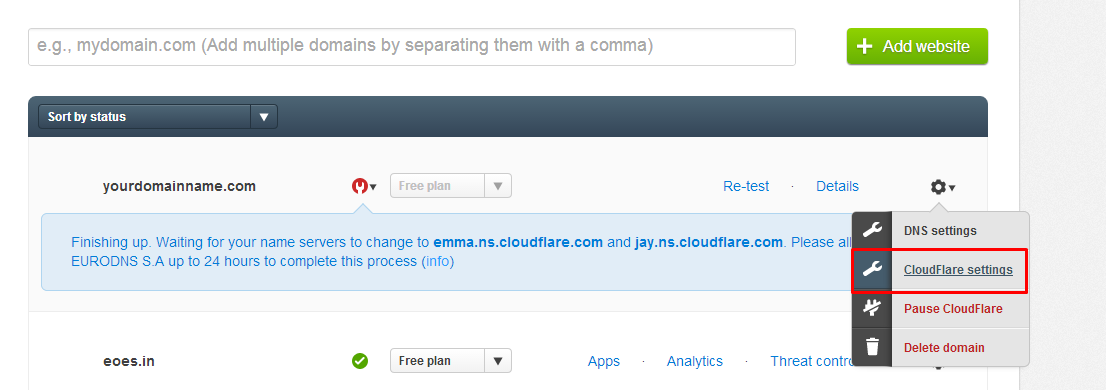
The Cloudflare dashboard has evolved significantly. Here are the recommended settings for WordPress sites in 2026:
RECOMMENDED SECURITY PROFILE SETTINGS
- Security Level: Medium (increase to High if under attack)
- Bot Fight Mode: On
- Browser Integrity Check: On
- Email Address Obfuscation: On
- Hotlink Protection: Off (unless image theft is a concern)
RECOMMENDED SPEED SETTINGS
- Auto Minify: Off (let your caching plugin handle this)
- Brotli Compression: On
- Early Hints: On
- Rocket Loader: Off (causes JavaScript conflicts with WordPress)
- HTTP/2: Enabled automatically
- HTTP/3 (QUIC): On
RECOMMENDED CACHING SETTINGS
- Caching Level: Standard
- Browser Cache TTL: Respect Existing Headers
- Always Online: On
Modern Caching Solutions for WordPress in 2026
FlyingPress is my current top recommendation. It’s faster than alternatives in my testing, handles critical CSS automatically, and integrates well with Cloudflare and Bunny CDN. The interface is cleaner than WP Rocket with fewer settings to misconfigure.
WP Rocket remains excellent for users who want one-click simplicity. It’s slightly slower than FlyingPress in my tests but has better documentation and support.
LiteSpeed Cache is the best free option if your server runs LiteSpeed or OpenLiteSpeed. It integrates with server-level caching for exceptional performance at zero cost.
Whatever you choose, enable these core features:
- Page caching (stores rendered HTML)
- Browser caching (tells browsers to store static files locally)
- Critical CSS generation (extracts and inlines above-fold CSS)
- JavaScript deferral (loads non-critical JS after page render)
- Image lazy loading (delays off-screen images)
WordPress Performance Hooks and Filters
Plugins solve most performance issues. But some optimizations require code-level changes. These hooks and filters eliminate bloat at the source, reducing what plugins need to clean up.
Add these snippets to your theme’s functions.php file or use a code snippets plugin like Perfmatters or Code Snippets.
Disable WordPress Emojis
WordPress loads emoji scripts on every page. If you don’t use WordPress emojis (most people use native OS emojis), remove them:
/**
 * Disable WordPress emoji scripts and styles
 */
add_action( 'init', function() {
    remove_action( 'wp_head', 'print_emoji_detection_script', 7 );
    remove_action( 'admin_print_scripts', 'print_emoji_detection_script' );
    remove_action( 'wp_print_styles', 'print_emoji_styles' );
    remove_action( 'admin_print_styles', 'print_emoji_styles' );
    remove_filter( 'the_content_feed', 'wp_staticize_emoji' );
    remove_filter( 'comment_text_rss', 'wp_staticize_emoji' );
    remove_filter( 'wp_mail', 'wp_staticize_emoji_for_email' );

    add_filter( 'tiny_mce_plugins', function( $plugins ) {
        return is_array( $plugins ) ? array_diff( $plugins, array( 'wpemoji' ) ) : array();
    });

    add_filter( 'wp_resource_hints', function( $urls, $relation_type ) {
        if ( 'dns-prefetch' === $relation_type ) {
            $urls = array_filter( $urls, function( $url ) {
                return strpos( $url, 'https://s.w.org/images/core/emoji/' ) === false;
            });
        }
        return $urls;
    }, 10, 2 );
});
Remove jQuery Migrate
jQuery Migrate provides backward compatibility for old jQuery code. Most modern themes and plugins don’t need it. Removing saves 12KB:
/**
 * Remove jQuery Migrate script
 */
add_action( 'wp_default_scripts', function( $scripts ) {
    if ( ! is_admin() && isset( $scripts->registered['jquery'] ) ) {
        $script = $scripts->registered['jquery'];
        if ( $script->deps ) {
            $script->deps = array_diff( $script->deps, array( 'jquery-migrate' ) );
        }
    }
});
Limit Post Revisions
WordPress stores every save as a revision. After years, you accumulate thousands of revisions bloating your database. Limit to 5 revisions:
/**
 * Limit post revisions to 5
 * Add to wp-config.php instead of functions.php
 */
define( 'WP_POST_REVISIONS', 5 );
Throttle Heartbeat API
The Heartbeat API sends AJAX requests every 15 seconds in the admin. This creates unnecessary server load. Throttle it:
/**
 * Reduce Heartbeat API frequency
 */
add_filter( 'heartbeat_settings', function( $settings ) {
    $settings['interval'] = 60; // 60 seconds instead of 15
    return $settings;
});

/**
 * Disable Heartbeat on frontend entirely
 */
add_action( 'init', function() {
    if ( ! is_admin() ) {
        wp_deregister_script( 'heartbeat' );
    }
});
Remove Query Strings from Static Resources
Query strings on CSS and JavaScript files prevent proper caching by some CDNs and proxies:
/**
 * Remove query strings from static resources
 */
add_filter( 'script_loader_src', 'gt_remove_query_strings', 15, 1 );
add_filter( 'style_loader_src', 'gt_remove_query_strings', 15, 1 );

function gt_remove_query_strings( $src ) {
    if ( strpos( $src, '?ver=' ) ) {
        $src = remove_query_arg( 'ver', $src );
    }
    return $src;
}
Disable oEmbed/Embeds
WordPress allows other sites to embed your content. If you don’t need this feature, disable it to remove extra JavaScript:
/**
 * Disable WordPress embeds
 */
add_action( 'init', function() {
    // Remove the REST API endpoint
    remove_action( 'rest_api_init', 'wp_oembed_register_route' );

    // Turn off oEmbed auto discovery
    add_filter( 'embed_oembed_discover', '__return_false' );

    // Remove oEmbed-specific JavaScript from the front-end and back-end
    remove_action( 'wp_head', 'wp_oembed_add_discovery_links' );
    remove_action( 'wp_head', 'wp_oembed_add_host_js' );

    // Remove filter that converts URLs to embeds
    remove_filter( 'the_content', array( $GLOBALS['wp_embed'], 'autoembed' ), 8 );
}, PHP_INT_MAX - 1 );
Disable XML-RPC
XML-RPC enables remote publishing but is also a common attack vector. If you don’t use it, disable it:
/**
 * Disable XML-RPC
 */
add_filter( 'xmlrpc_enabled', '__return_false' );

// Remove XML-RPC link from head
remove_action( 'wp_head', 'rsd_link' );
remove_action( 'wp_head', 'wlwmanifest_link' );
Preload Key Resources
Tell browsers to start downloading important resources before they’re discovered in the HTML:
* Preload critical fonts
 */
add_action( 'wp_head', function() {
    ?>
    <link rel="preload" href="<?php echo get_template_directory_uri(); ?>/fonts/your-font.woff2" as="font" type="font/woff2" crossorigin>
    <?php
}, 1 );

/**
 * Add resource hints for external resources
 */
add_filter( 'wp_resource_hints', function( $urls, $relation_type ) {
    if ( 'preconnect' === $relation_type ) {
        $urls[] = 'https://fonts.gstatic.com';
    }
    return $urls;
}, 10, 2 );
Defer Non-Critical Scripts
Add defer attribute to scripts that don’t need to block rendering:
/**
 * Add defer attribute to scripts
 */
add_filter( 'script_loader_tag', function( $tag, $handle, $src ) {
    // Scripts to defer
    $defer_scripts = array(
        'comment-reply',
        'wp-embed',
        // Add your script handles here
    );

    if ( in_array( $handle, $defer_scripts ) ) {
        return str_replace( ' src', ' defer src', $tag );
    }

    return $tag;
}, 10, 3 );
Remove Unused Block Editor Styles
If you’re using a classic theme or not using certain blocks, remove the unused styles:
/**
 * Remove Gutenberg block library CSS on frontend if not using blocks
 */
add_action( 'wp_enqueue_scripts', function() {
    // Uncomment if not using Gutenberg
    // wp_dequeue_style( 'wp-block-library' );
    // wp_dequeue_style( 'wp-block-library-theme' );

    // Remove global styles (theme.json inline styles)
    // wp_dequeue_style( 'global-styles' );
}, 100 );

/**
 * Remove classic theme styles added in WP 6.1+
 */
add_action( 'wp_enqueue_scripts', function() {
    wp_dequeue_style( 'classic-theme-styles' );
}, 20 );
Conditionally Load Plugin Assets
Many plugins load their CSS and JavaScript on every page even when not needed. Conditionally unload them:
/**
 * Disable Contact Form 7 scripts except on contact page
 */
add_action( 'wp_enqueue_scripts', function() {
    if ( ! is_page( 'contact' ) ) {
        wp_dequeue_script( 'contact-form-7' );
        wp_dequeue_style( 'contact-form-7' );
    }
}, 99 );

/**
 * Disable WooCommerce scripts/styles on non-WooCommerce pages
 */
add_action( 'wp_enqueue_scripts', function() {
    if ( function_exists( 'is_woocommerce' ) ) {
        if ( ! is_woocommerce() && ! is_cart() && ! is_checkout() && ! is_account_page() ) {
            wp_dequeue_style( 'woocommerce-general' );
            wp_dequeue_style( 'woocommerce-layout' );
            wp_dequeue_style( 'woocommerce-smallscreen' );
            wp_dequeue_script( 'wc-cart-fragments' );
            wp_dequeue_script( 'woocommerce' );
        }
    }
}, 99 );
For comprehensive asset management across plugins, Perfmatters provides a per-page script manager that makes this easy without code.
Uncompromised Speed with Lesser Web Fonts
Self-host fonts instead of loading from Google

Loading fonts from Google Fonts adds DNS lookup time and connection overhead. Self-hosting fonts eliminates these delays and improves privacy compliance (GDPR).
In 2026, the best approach is:
- Use system fonts when possible. System font stacks like
-apple-system, BlinkMacSystemFont, "Segoe UI", Roboto, Oxygen-Sans, Ubuntu, Cantarell, "Helvetica Neue", sans-serifload instantly because they’re already on the user’s device. - Self-host critical fonts. Download fonts and serve them from your own domain. Use Google Webfonts Helper to download Google Fonts in WOFF2 format.
- Limit font variations. Each font weight and style is a separate file. Use only what you need. Most sites work fine with 2-3 weights (regular, medium, bold).
- Use font-display: swap. This shows a system font while your custom font loads, preventing invisible text.
For WordPress, OMGF (Optimize My Google Fonts) automatically downloads Google Fonts locally and configures optimal delivery.
Optimizing Images for 2026: Modern Tools and Formats

Image optimization has evolved significantly. The focus now is on modern formats and intelligent delivery.
Use WebP Format
WebP provides 25-35% better compression than JPEG with no visible quality loss. All modern browsers support it. WordPress 6.0+ generates WebP versions automatically if your server supports it.
Check if WebP generation is enabled:
/**
 * Check WebP support and enable if available
 */
add_filter( 'wp_image_editors', function( $editors ) {
    // Log available editors and their capabilities for debugging
    // Most modern hosts support Imagick with WebP
    return $editors;
});
Recommended Image Optimization Plugins
Imagify handles compression, WebP conversion, and resizing automatically. It processes images on external servers, so your hosting isn’t affected.
ShortPixel is another excellent option with competitive pricing and similar features.
Smush by WPMU DEV offers a free tier for basic optimization. Good for smaller sites with limited budgets.
Image Best Practices
- Compress before upload: Use TinyPNG or Squoosh to compress images before uploading to WordPress
- Resize to needed dimensions: Don’t upload 4000px images for 800px containers
- Target file sizes: Blog images under 100KB, hero images under 200KB
- Use lazy loading: WordPress has native lazy loading since 5.5. Make sure it’s not disabled.
- Add width and height attributes: Prevents Cumulative Layout Shift. WordPress does this automatically for images in content.
Database Optimization
Your database grows every time someone posts a comment, saves a revision, or when plugins store transient data. After a year, you’re carrying megabytes of unnecessary weight.
What to Clean
- Post revisions (keep last 5)
- Trashed posts and comments
- Spam comments
- Expired transients
- Orphaned post meta
- Orphaned term relationships
Perfmatters handles database cleanup with scheduled options. Run it monthly. For larger sites, consider Redis or memcached object caching to reduce database queries entirely.
Manual Database Cleanup Query
For advanced users, here’s a cleanup script (backup your database first):
/**
 * Clean up WordPress database
 * Run via WP-CLI: wp eval-file cleanup.php
 */

global $wpdb;

// Delete post revisions older than 30 days, keeping 5 most recent per post
$wpdb->query( "
    DELETE FROM {$wpdb->posts}
    WHERE post_type = 'revision'
    AND post_date < DATE_SUB(NOW(), INTERVAL 30 DAY)
" );

// Delete all trashed posts
$wpdb->query( "DELETE FROM {$wpdb->posts} WHERE post_status = 'trash'" );

// Delete spam and trashed comments
$wpdb->query( "DELETE FROM {$wpdb->comments} WHERE comment_approved = 'spam' OR comment_approved = 'trash'" );

// Delete expired transients
$wpdb->query( "
    DELETE FROM {$wpdb->options}
    WHERE option_name LIKE '_transient_timeout_%'
    AND option_value < UNIX_TIMESTAMP()
" );

$wpdb->query( "
    DELETE FROM {$wpdb->options}
    WHERE option_name LIKE '_transient_%'
    AND option_name NOT LIKE '_transient_timeout_%'
    AND option_name NOT IN (
        SELECT CONCAT('_transient_', SUBSTRING(option_name, 20))
        FROM (SELECT option_name FROM {$wpdb->options} WHERE option_name LIKE '_transient_timeout_%') AS t
    )
" );

// Optimize tables
$wpdb->query( "OPTIMIZE TABLE {$wpdb->posts}, {$wpdb->postmeta}, {$wpdb->comments}, {$wpdb->options}" );
Clean Garbage: Deactivate Unnecessary plugins
Every plugin is a liability. More code means more things that can break, slow down, or get hacked. I keep client sites under 15 active plugins.
Audit criteria for each plugin:
- Does this plugin serve a current, active purpose?
- Could native WordPress features replace it?
- Could theme features replace it?
- Is there a more lightweight alternative?
- Has it been updated in the last year?
- Does it load scripts on every page when only needed on specific pages?
After deactivating unnecessary plugins, delete them completely. Deactivated plugins still pose security risks if attackers can access their files.
Lazy Loading: Beyond Images
WordPress 5.5+ includes native lazy loading for images. But you can extend lazy loading to other heavy elements:
/**
 * Add lazy loading to iframes (embeds, videos)
 */
add_filter( 'the_content', function( $content ) {
    return str_replace( '
For advanced lazy loading with intersection observer and placeholder blurs, FlyingPress and WP Rocket handle this automatically.
Responsive Images: Serving the Right Size
What if a 800px image is downloaded where only a 250px images was needed? That will unnecessarily increase page load time.
WordPress automatically generates multiple sizes and uses srcset to serve appropriate sizes. Make
sure your theme supports this properly.
/**
 * Add custom image sizes for your layout
 */
add_action( 'after_setup_theme', function() {
    add_image_size( 'blog-thumbnail', 400, 300, true );
    add_image_size( 'blog-medium', 800, 600, true );
    add_image_size( 'blog-large', 1200, 800, false );
});

/**
 * Increase max srcset width for high-res displays
 */
add_filter( 'max_srcset_image_width', function() {
    return 2560;
});
After changing image sizes, use the Regenerate Thumbnails plugin to create new versions of existing images.
Hosting Matters More Than Plugins
I’ve seen perfectly optimized WordPress sites run slow because the hosting was garbage. No amount of caching fixes a 2-second TTFB.
Recommended hosting for 2026:
- Cloudways: Best value for VPS performance with managed convenience. Start at $14/month.
- Kinsta: Premium managed WordPress. Excellent support and performance. Starts at $35/month.
- Hetzner/Vultr VPS: For technical users comfortable with server management. $5-10/month for excellent performance. See my Hetzner vs Vultr comparison.
- Hostinger: Best budget option. Surprisingly good performance for the price.
Avoid cheap shared hosting for any site that matters. The $3/month plans have you sharing resources with hundreds of other sites.
Monitor Your Site Speed
You can monitor load speed of your website/blog by using Google PageSpeed Insights, GTMetrix and Pingdom Tools. Focus on Core Web Vitals:
- LCP (Largest Contentful Paint): Under 2.5 seconds
- INP (Interaction to Next Paint): Under 200ms
- CLS (Cumulative Layout Shift): Under 0.1
Google Search Console provides real-world Core Web Vitals data from actual Chrome users. This matters more than lab tests.
The Complete WordPress Performance Stack for 2026
Here’s my current recommended stack for fast WordPress sites:
- Hosting: Hetzner with xCloud or Cloudways or Kinsta
- Theme: GeneratePress or Kadence
- Caching: FlyingPress or WP Rocket
- CDN: Cloudflare (free) or Bunny CDN
- Images: Imagify or ShortPixel
- Asset management: Perfmatters
- SEO: Rank Math
This stack consistently delivers sub-1-second load times and green Core Web Vitals. It’s boring. It works. I stopped chasing new tools years ago.
Get more help!
If you are having any issues configuring or following these steps, check out my WordPress optimization services.
FAQs
What is the best WordPress caching plugin in 2026?
FlyingPress is the fastest in my testing, followed by WP Rocket for ease of use. LiteSpeed Cache is the best free option if your server runs LiteSpeed. Avoid using multiple caching plugins as they conflict with each other.
How many plugins are too many for WordPress performance?
There’s no magic number, but I keep client sites under 15 active plugins. Quality matters more than quantity. One poorly coded plugin can slow your site more than 20 well-coded ones. Audit each plugin’s necessity and impact.
Should I use Cloudflare’s Rocket Loader?
No. Rocket Loader frequently causes JavaScript conflicts with WordPress sites, breaking functionality like sliders, forms, and interactive elements. Let your WordPress caching plugin handle JavaScript optimization instead.
What image format should I use in 2026?
WebP is the standard for most images. It provides 25-35% better compression than JPEG with no visible quality loss. WordPress 6.0+ generates WebP versions automatically. Use AVIF for even better compression if browser support meets your needs.
How do I add defer to WordPress scripts?
Use the script_loader_tag filter to add defer attributes to specific scripts. Caching plugins like FlyingPress and WP Rocket handle this automatically. For manual control, the code examples in this guide show exactly how to implement defer selectively.
Is Redis object caching worth it?
Yes, especially for sites with heavy database usage like WooCommerce stores or membership sites. Redis stores database query results in memory for instant retrieval. Most managed WordPress hosts include Redis. For VPS, install Redis server and the Redis Object Cache plugin.
Disclaimer: This site is reader-supported. If you buy through some links, I may earn a small commission at no extra cost to you. I only recommend tools I trust and would use myself. Your support helps keep gauravtiwari.org free and focused on real-world advice. Thanks. - Gaurav Tiwari