
FSE Migration: Switch to Block Themes from Classic Themes
Switching from a classic WordPress theme to a block theme, also known as a Full Site Editing theme, isn’t a simple theme swap. It’s a fundamental architectural shift in how WordPress handles templates, styling, widgets, and menus. Features that worked seamlessly in your old theme may not exist, work differently, or require migration in a block theme.
I’ve migrated dozens of sites from classic to block themes over the past several years. Each migration taught me something new about what breaks and why. This guide covers what to check, what to expect, how to handle the transition, and whether you even need to make the switch at all.
The good news? Block themes have reached production maturity. The Site Editor keeps getting better with every WordPress release, while the Customizer gets less attention. Classic themes can now adopt block features incrementally through hooks, filters, and theme.json. You don’t necessarily need to abandon your classic theme entirely to benefit from block-based design. Also see my adding theme.json to classic themes.
Understanding Block Themes vs Full Site Editing
Before diving into migration details, let’s clarify what we’re actually talking about. Also see my page builders vs the block editor. Also see my my block editor setup.
A block theme is a WordPress theme built entirely with HTML templates, template parts, and a theme.json configuration file instead of PHP template files. Block themes work closely with the Site Editor, letting you visually customize every part of your site.
Full Site Editing (FSE) is the broader capability that block themes enable. It means editing headers, footers, templates, and global styles directly in the block editor rather than through the Customizer or code.
Here’s how to tell if you have a block theme: Go to Appearance in your admin sidebar. If you see “Editor” as an option (not just “Theme Editor”), you have a block theme installed.
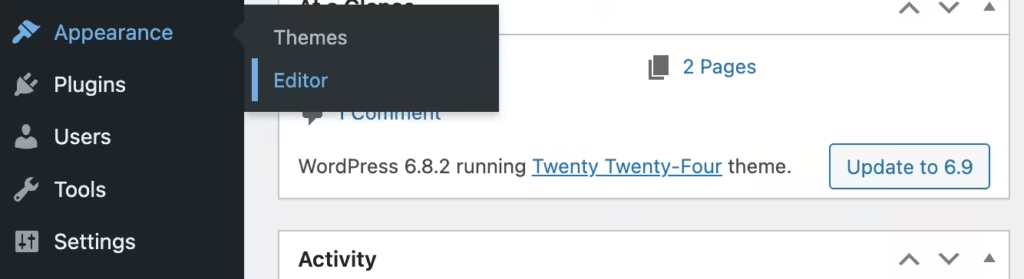
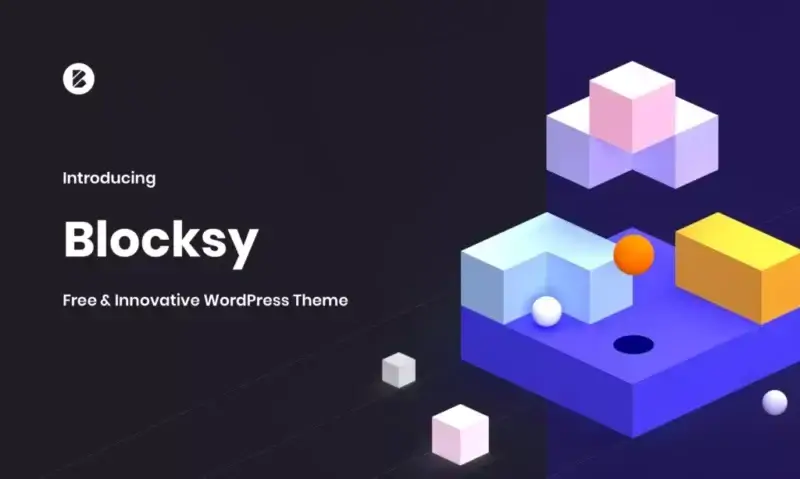
Classic themes don’t show this option, but they do have a Design option, which allows some level of block editing with patterns. For example, Blocksy is a cool Classic theme that integrates deeply with Blocks.
This distinction matters because you can adopt block-based features in your classic theme without switching to a full block theme. WordPress supports a hybrid approach that lets classic themes use theme.json for styling and even block-based template parts.
This flexibility matters because the WordPress ecosystem is in transition. Pure block themes work great for new sites, but many existing sites have complex customizations that don’t migrate easily. For example, no matter how hard I try, I cannot move Gaurav Tiwari to a pure block theme due to my heavy investment in customization to the current Marketers Delight theme. To be honest, I cannot move to another classic theme either.
Key APIs Related to Block Themes Going Forward
Block themes rely on several APIs that have matured significantly. Understanding these helps you decide whether migration makes sense for your situation.
Block Bindings API
The Block Bindings API lets you connect dynamic data from custom fields to block attributes. This is huge for developers who previously needed custom blocks for every dynamic element.
Here’s a practical example.
Say you want to display a custom field called product_price in a Paragraph block:
// Register the custom field (functions.php or plugin)
register_post_meta('post', 'product_price', array(
    'show_in_rest'  => true,
    'single'        => true,
    'type'          => 'string',
    'auth_callback' => function() {
        return current_user_can('edit_posts');
    }
));
Now in the Site Editor, you can bind that field to a Paragraph block’s content attribute. The key requirement is show_in_rest set to true. Without that, the block editor can’t access the field data.
The visual UI for managing block bindings is now built directly into the editor. You no longer need to manually edit block markup to create bindings. For developers building dynamic templates, this eliminates a significant amount of custom block development.
The API works with Paragraph, Heading, Button, and Image blocks. It supports text, URL, and alt attribute types. Developers can also create custom binding sources that pull data from any source, including external APIs.
Block Hooks API
The Block Hooks API provides a block-based equivalent to the classic add_action() system. It lets plugins inject blocks into templates, template parts, and patterns without modifying theme files.
// Using the hooked_block_types filter
add_filter('hooked_block_types', function($hooked_blocks, $position, $anchor_block, $context) {
    if ($anchor_block === 'core/post-content' && $position === 'after') {
        $hooked_blocks[] = 'my-plugin/related-posts';
    }
    return $hooked_blocks;
}, 10, 4);
Or declare hooks in your block.json:
{
    "name": "my-plugin/social-share",
    "blockHooks": {
        "core/post-content": "after"
    }
}
The beauty of this system is user control. Even though blocks are automatically inserted, users can remove, move, or customize them in the Site Editor. Their changes persist and take precedence over hook-based insertion.
Interactivity API
The Interactivity API handles client-side interactivity for blocks without requiring heavy JavaScript frameworks. It supports lazy loading, code splitting, and dynamic content rendering.
If you’re building custom blocks that need to respond to user actions without full page reloads, this API is worth exploring. It’s particularly useful for interactive features like modals, search interfaces, and dynamic content loading.
Template Registration API
The Template Registration API streamlines how developers register templates and template parts programmatically. Instead of manually creating files, you can register templates via PHP:
add_action('init', function() {
    register_block_template(
        'my-theme/custom-landing',
        array(
            'title'       => 'Custom Landing Page',
            'description' => 'A full-width landing page template.',
            'content'     => '<!-- wp:group {"layout":{"type":"constrained"}} -->' .
                             '<div class="wp-block-group">' .
                             '<!-- wp:post-content /-->' .
                             '</div>' .
                             '<!-- /wp:group -->'
        )
    );
});
This is particularly useful for plugins that need to add templates to any block theme.
The Power of theme.json for Classic Themes
Here’s something many WordPress developers don’t realize: you can add a theme.json file to a classic PHP-based theme. This hybrid approach gives you block editor styling consistency without requiring a full theme rewrite.
A theme.json file in a classic theme provides:
Global color palettes that appear in the block editor:
{
    "$schema": "https://schemas.wp.org/trunk/theme.json",
    "version": 3,
    "settings": {
        "color": {
            "palette": [
                {
                    "name": "Primary",
                    "slug": "primary",
                    "color": "#1e40af"
                },
                {
                    "name": "Secondary",
                    "slug": "secondary",
                    "color": "#7c3aed"
                }
            ]
        }
    }
}
Typography presets with fluid scaling:
{
    "settings": {
        "typography": {
            "fontSizes": [
                {
                    "name": "Small",
                    "slug": "small",
                    "size": "0.875rem",
                    "fluid": {
                        "min": "0.8rem",
                        "max": "0.875rem"
                    }
                },
                {
                    "name": "Large",
                    "slug": "large",
                    "size": "1.5rem",
                    "fluid": {
                        "min": "1.25rem",
                        "max": "1.75rem"
                    }
                }
            ]
        }
    }
}
Block-specific styling without writing CSS:
{
    "styles": {
        "blocks": {
            "core/button": {
                "border": {
                    "radius": "4px"
                },
                "typography": {
                    "fontWeight": "600"
                }
            }
        }
    }
}
Appearance tools that unlock UI controls:
{
    "settings": {
        "appearanceTools": true
    }
}
This single setting enables UI controls for background, border, color, dimensions, position, spacing, and typography across blocks.
The theme.json approach means you can modernize your classic theme incrementally. Your PHP templates continue working while blocks inside your content get consistent, configurable styling. This is the bridge strategy I recommend for sites where full migration isn’t feasible. Also see my Kadence Theme.
Before You Switch: Audit First
Document what you’re working with before changing anything. This step saves hours of troubleshooting later.
Current Theme Features
Check and document:
- Header layout and content (logo placement, navigation, search, social icons)
- Footer layout and content (widgets, copyright, menus, CTAs)
- Sidebar widgets and locations (how many sidebars, what’s in each)
- Menu locations and structures (primary, secondary, mobile, footer)
- Custom template files (page-contact.php, single-product.php, etc.)
- Theme options/customizer settings (export if possible)
- Custom CSS in customizer (copy it somewhere safe)
- Shortcodes from theme (search for uses in content)
- Custom fonts and typography (how they’re loaded, what files)
- Color scheme and branding (document hex codes)
Screenshot everything. You’ll want visual reference of how things should look. I use CleanShot X on Mac, but any screenshot tool works. Take full-page screenshots of your homepage, a typical blog post, a category archive, and any unique page templates.
Content Inventory
Identify:
- Pages using custom templates
- Posts with special formatting
- Widget content that needs preservation
- Shortcodes in content (search database)
- Custom fields and meta
- Featured images and media
Run a shortcode audit to find every shortcode in your content:
SELECT ID, post_title, post_type
FROM wp_posts
WHERE post_content LIKE '%[%'
AND post_status = 'publish'
AND post_type IN ('post', 'page');
This query returns every published post and page containing square brackets. You’ll need to review these to identify theme-specific shortcodes that may break after switching.
What Definitely Breaks
These features require migration or replacement. No exceptions.
Widget Areas
Classic themes: Widget areas defined by register_sidebar(), populated in Appearance → Widgets
Block themes: Widget areas don’t exist. Sidebars are template parts with block content.
The entire widget system is replaced by blocks. That newsletter signup widget, that custom HTML widget with your affiliate banners, that carefully configured Recent Posts widget with custom styling? They all need to become blocks in template parts.
Migration approach:
- Document every widget’s content before switching
- Identify block equivalents (most WordPress widgets have core block alternatives)
- For third-party widgets, check if the plugin offers blocks (most popular plugins do now)
- Recreate widget content as blocks in template parts
What to watch:
- Text widgets with custom HTML (may need Custom HTML block)
- Third-party plugin widgets (check for block alternatives)
- Widget visibility rules (plugins like Widget Logic don’t apply to blocks)
- Sidebar ad placements (recreate as block patterns or template parts)
The Classic Widgets plugin restores the old widget interface if you need a transition period, but it’s a bandaid, not a solution.
Theme Customizer Settings
Classic themes: Customizer panels for colors, fonts, layouts, header images, background images, and theme-specific options
Block themes: Customizer is mostly replaced by Site Editor → Styles
This is often the biggest loss. Years of theme-specific customizer options disappear when you switch to a block theme. The theme knows nothing about your old settings.
Migration mapping:
- Color settings → Global Styles color palettes
- Typography settings → Global Styles typography
- Header image → Template part for header with Image block
- Background image → Site-wide styles or template-specific
- Custom CSS → Appearance → Editor → Styles → Additional CSS
- Theme-specific options → No equivalent (recreate manually or with blocks)
What’s lost with no equivalent:
- Custom theme option panels built with Customizer API
- Theme-specific layout toggles
- Conditional header/footer options
- Premium theme options (widget-specific settings, custom layouts)
PHP Template Files
Classic themes: header.php, footer.php, sidebar.php, custom templates like page-contact.php
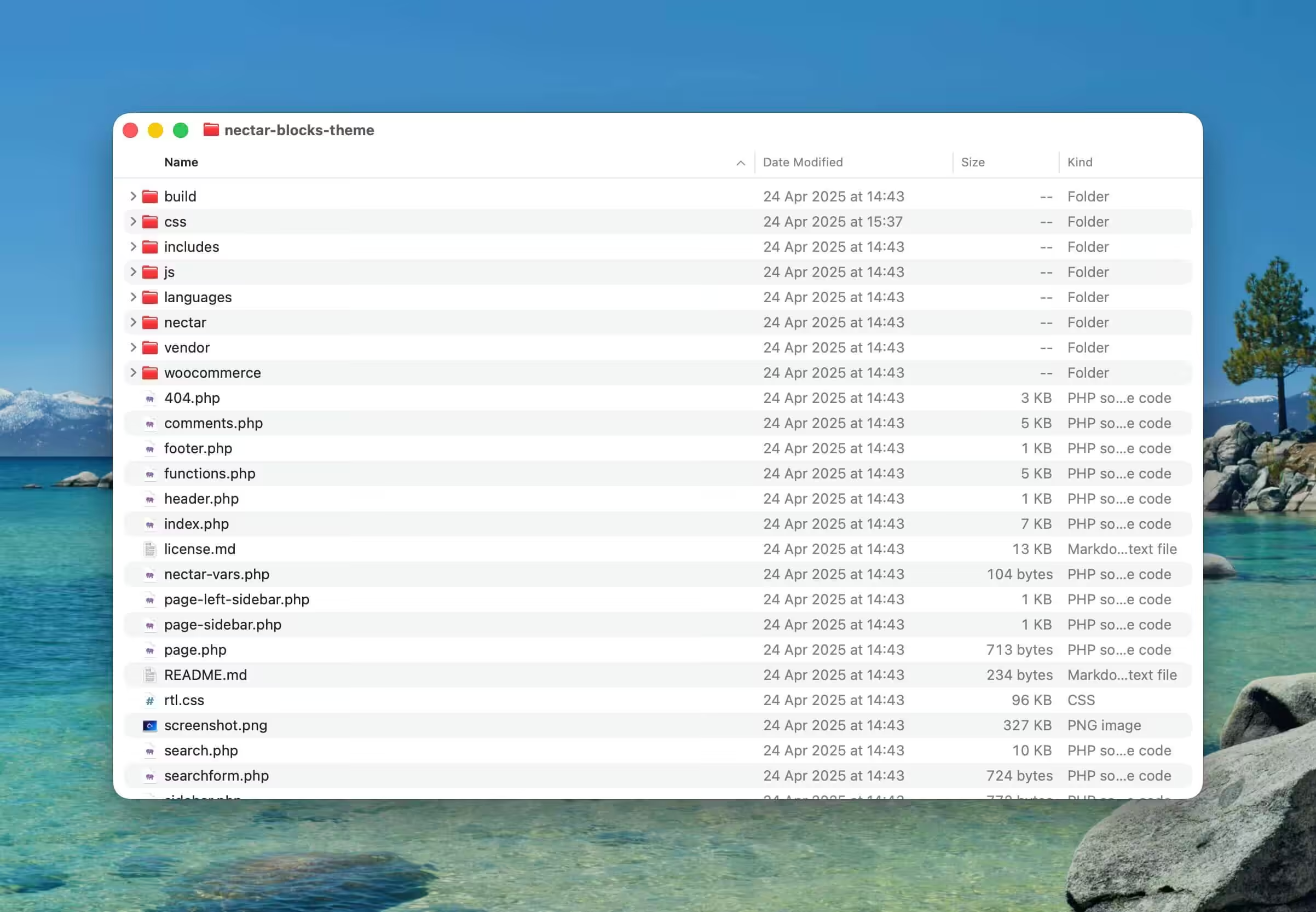
Block themes: HTML template files in /templates/, template parts in /parts/
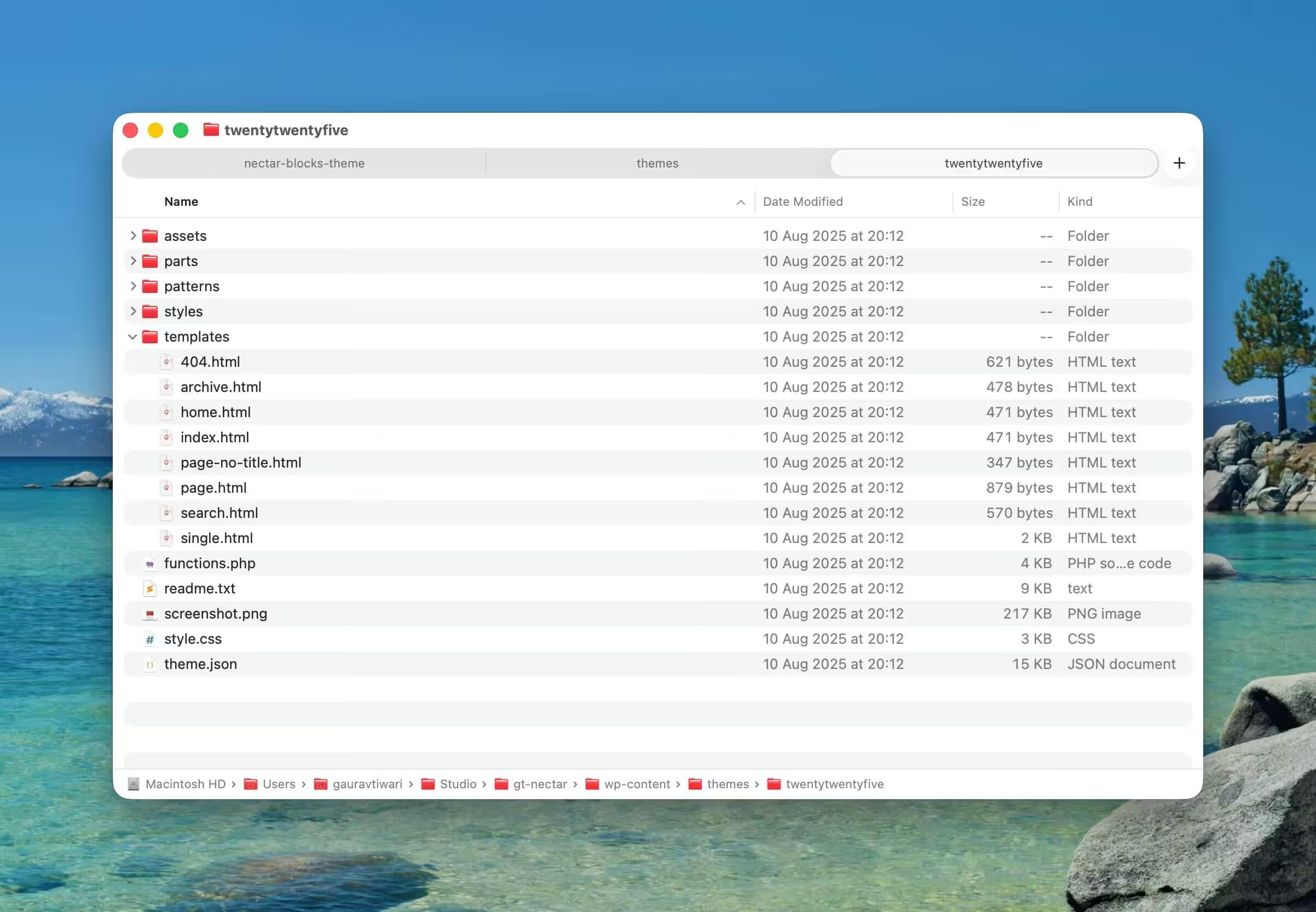
PHP logic in templates is the hardest thing to migrate. Classic themes often have complex conditionals, dynamic content generation, and function calls embedded in templates. Block themes use HTML with block markup.
What can migrate:
- Static content layouts (headers, footers, page structures)
- Simple conditionals (can sometimes use block visibility patterns)
- Standard post/page displays
What can’t migrate directly:
- Complex PHP logic (requires custom blocks or Block Bindings API)
- Template conditionals like
is_home()checks (use separate templates instead) - Dynamic content generation (needs custom blocks or Block Bindings)
- Plugin function calls in templates (use Block Hooks API or patterns)
Menu Locations
Classic themes: register_nav_menus() with theme-specific locations like primary, footer, mobile
Block themes: Navigation block references menus, but locations work completely differently
Your menus themselves are preserved in the database. The nav menu items don’t disappear. But the association between “this menu displays in the header” breaks because that association was defined by the theme.
Migration approach:
- Note which menu was assigned to which location
- In the block theme, add Navigation blocks to appropriate template parts
- Configure each Navigation block to use the correct existing menu
- Test that all menu items appear correctly
Watch for:
- Multiple menu locations (main, footer, mobile) each need separate Navigation blocks
- Menu styling dependent on location (block themes style navigation differently)
- Menu-related JavaScript (mobile toggles, dropdowns) handled by Navigation block
What Usually Breaks
These commonly cause issues but aren’t guaranteed to fail.
Custom Post Type Templates
Classic themes: single-{post_type}.php, archive-{post_type}.php
Block themes: Need equivalent templates in /templates/
If you have custom post types, your block theme needs corresponding templates. The default block theme templates (like single.html) apply to all post types unless you create specific ones.
Migration:
- Create
single-{post_type}.htmltemplates for single views - Create
archive-{post_type}.htmlfor archives - Use Query Loop block for archive layouts
- Custom post type display often needs adjustment
Shortcodes
Shortcodes still work in block themes. The shortcode system is independent of themes. But rendering and styling may differ significantly.
Common issues:
- Layout-based shortcodes (columns, rows) may conflict with block layout
- Column shortcodes become redundant with column blocks
- Styling may not match new theme (shortcode CSS vs block theme CSS)
- Spacing and margins render differently
Evaluate each shortcode: Some should migrate to blocks (columns, buttons, etc.), others keep as-is (plugin-specific functionality).
Third-Party Plugins
Plugin compatibility with block themes varies widely.
| Plugin Type | Usually OK | May Break |
|---|---|---|
| SEO plugins (Rank Math, Yoast) | ✓ | |
| Contact forms (Gravity, WPForms) | ✓ | |
| E-commerce (WooCommerce) | ✓ | Template areas need configuration |
| Page builders (Elementor, Beaver) | ✓ Layout conflicts common | |
| Widget-dependent plugins | ✓ No widget areas exist | |
| Customizer plugins | ✓ Customizer not used |
WooCommerce is worth special mention. It works with block themes but requires extra configuration. WooCommerce has its own block-based checkout and cart, and the templates need adjustment. Plan extra time for e-commerce sites.
Custom Functions
Most hooks and filters in functions.php continue working. Actions like wp_head, wp_footer, and wp_enqueue_scripts fire the same way. But some theme-specific code becomes pointless.
Still works:
- Script and style enqueueing
- Custom post type registration
- Shortcode registration
- Most action and filter hooks
- REST API customizations
Won’t work as expected:
// These become pointless in block themes:
register_sidebar( ... )                    // No widget areas
add_theme_support( 'custom-header' )       // Site Editor replaces this
add_theme_support( 'custom-background' )   // Global Styles replaces this
$wp_customize->add_section( ... )          // Customizer not primary interface
Top Block Themes Worth Considering
If you decide to migrate, choosing the right theme matters. Not all block themes are created equal. Some are basically basic starter themes. Others offer substantial design systems and pattern libraries. Also see my free block themes for bloggers.
Here are block themes I’ve actually used on production sites or evaluated thoroughly.
OllieWP
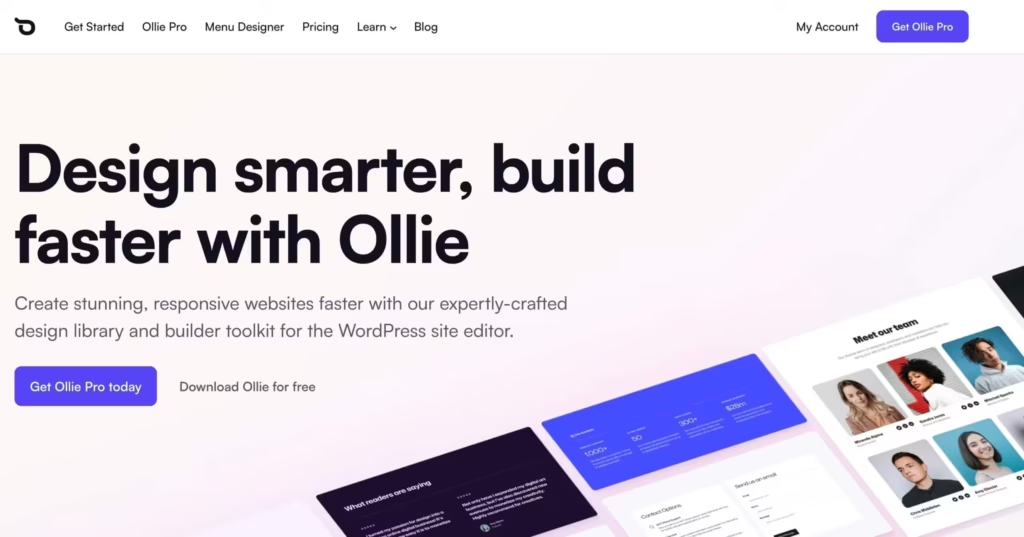
Ollie has become the poster child for what block themes can achieve. Built by Mike McAlister and Patrick Posner with a focus on making FSE accessible, it offers a genuinely polished experience.
What makes it stand out:
- Exceptional pattern library (50+ in free, hundreds in Pro)
- Setup wizard that actually works (configures colors, typography, creates pages)
- Multiple global style variations for quick design changes
- Performance-focused with lightweight code
- Fluid typography and spacing built into the design system
Recent updates brought Class Manager for professional CSS control directly in the Block Editor, a Menu Designer for enhanced navigation customization, and Pro Extensions with professional animations and advanced grid controls.
Best for: Users who want a complete design system without third-party page builders. The setup wizard is genuinely useful. Unlike most theme wizards that create demo content you’ll delete, Ollie’s wizard configures actual site settings.
Limitations: Some advanced features require Ollie Pro ($149/year). The free theme is capable but the Pro pattern library is the real draw.
Neve FSE
Neve FSE is ThemeIsle’s block theme version of their popular Neve theme. It’s positioned as an “experimental sister theme” built without backward compatibility constraints.
What makes it stand out:
- Familiar patterns if you’ve used Neve before
- Lightweight and genuinely fast
- Drag-and-drop header and footer builder
- WooCommerce compatible out of the box
- Compatible with Elementor if you need the fallback
Best for: Existing Neve users who want to adopt FSE gradually. The theme bridges the gap between classic Neve’s Customizer-based workflow and full Site Editor usage.
Limitations: Fewer style variations than Ollie. Some features still feel transitional between classic and block architectures.
Spectra One
Spectra One comes from the Brainstorm Force team (creators of Astra). It’s designed to work seamlessly with their Spectra plugin, which extends the block editor with additional blocks.
What makes it stand out:
- Deep integration with Spectra blocks
- Business and portfolio-focused patterns
- Performance optimization inherited from Astra’s philosophy
- Starter templates for quick launches
- Lightweight code following block theme best practices
Best for: Users already in the Brainstorm Force ecosystem (Astra, Spectra, Ultimate Addons). The integration between theme and plugin is tight.
Limitations: Gets more valuable with the Spectra plugin installed. Standalone theme is capable but the ecosystem selling point only matters if you’re using their other tools.
Blocksy (Hybrid Approach)
Blocksy deserves mention even though it’s not a pure FSE theme. It’s built for deep Gutenberg integration while keeping some Customizer-based options.
What makes it stand out:
- Exceptional Customizer with block-like flexibility
- Zero layout shift and impressive Core Web Vitals
- Free version is genuinely feature-rich
- WooCommerce integration rivals dedicated shop themes
Best for: Users who want block editor benefits without abandoning Customizer workflow entirely. The hybrid approach means less migration friction.
Limitations: Not a pure block theme. Customization split between Customizer and Site Editor can feel disjointed. But for gradual adoption, this split is actually the feature.
Twenty Twenty-Five
WordPress’s default theme deserves consideration for its simplicity and guaranteed compatibility.
What makes it stand out:
- Built by WordPress core team, so it follows all best practices
- Guaranteed compatibility with latest WordPress features
- 70+ patterns including full-page layouts
- 9 style variations with unique color palettes and typography
- Multiple blog styles (text-centric, photo blog, news layouts)
- Support for all post formats
- Clean foundation for developers building custom solutions
Best for: Developers who want a clean block theme foundation to customize. Content-focused sites that don’t need elaborate design systems. Anyone who wants to learn block theme development by studying well-documented code.
Limitations: More basic compared to commercial options. Fewer patterns than premium themes. But basic isn’t bad. For blogs and content sites, simplicity is often the right choice.
Other Notable Options
Prime FSE: 52+ block patterns, 5 color schemes, mega menu block plugin included. Good for portfolios and startups.
Raft: Simple, minimal design suitable for business sites and portfolios. Includes patterns for pricing tables, service lists, and testimonials.
Tove: Colorful, friendly design that works well for cafes, restaurants, and local businesses. Lots of block patterns for site-wide layouts.
Abisko: Clean and professional with large typography and vertical text elements. Six style variations including dark mode.
The Hybrid Path: Adding Block Features to Classic Themes
Here’s the reality many developers overlook: you don’t have to choose between classic and block themes. WordPress supports a hybrid approach that lets you adopt block features incrementally. This is what I have done to make my theme feel almost native to Block Editor.
Adding theme.json to a Classic Theme
Drop a theme.json file in your classic theme’s root directory. WordPress automatically picks it up and applies the settings to the block editor.
Start with something minimal:
{
    "$schema": "https://schemas.wp.org/trunk/theme.json",
    "version": 3,
    "settings": {
        "appearanceTools": true,
        "layout": {
            "contentSize": "800px",
            "wideSize": "1200px"
        },
        "color": {
            "palette": [
                {
                    "name": "Primary",
                    "slug": "primary",
                    "color": "#1e40af"
                },
                {
                    "name": "Accent",
                    "slug": "accent",
                    "color": "#7c3aed"
                },
                {
                    "name": "Light",
                    "slug": "light",
                    "color": "#f8fafc"
                },
                {
                    "name": "Dark",
                    "slug": "dark",
                    "color": "#0f172a"
                }
            ]
        },
        "typography": {
            "fontFamilies": [
                {
                    "name": "System",
                    "slug": "system",
                    "fontFamily": "-apple-system, BlinkMacSystemFont, 'Segoe UI', Roboto, 'Helvetica Neue', Arial, sans-serif"
                }
            ]
        }
    }
}
Now your blocks get consistent color options, content width settings, and typography that matches your theme. The classic PHP templates continue working unchanged.
Here is my theme.json, if you want to experiment:
{
"$schema": "https://schemas.wp.org/trunk/theme.json",
"version": 3,
"settings": {
"appearanceTools": true,
"border": {
"color": true,
"radius": true,
"style": true,
"width": true
},
"color": {
"custom": true,
"customGradient": true,
"defaultDuotone": false,
"defaultGradients": false,
"defaultPalette": false,
"palette": [
{
"name": "Primary",
"slug": "primary",
"color": "#C0392B"
},
{
"name": "Secondary",
"slug": "secondary",
"color": "#2D3748"
},
{
"name": "Tertiary",
"slug": "tertiary",
"color": "#16A085"
},
{
"name": "White",
"slug": "white",
"color": "#ffffff"
},
{
"name": "Text Secondary",
"slug": "text-sec",
"color": "#262A5D"
},
{
"name": "Headline",
"slug": "headline",
"color": "#212121"
},
{
"name": "Button",
"slug": "button",
"color": "#C0392B"
},
{
"name": "Background",
"slug": "background",
"color": "#FFFFFC"
},
{
"name": "Off White",
"slug": "offwhite",
"color": "#F6F6F6"
},
{
"name": "Bordered",
"slug": "bordered",
"color": "#dddddd"
},
{
"name": "Midnight",
"slug": "midnight",
"color": "#1E293B"
}
],
"gradients": [
{
"slug": "primary-to-secondary",
"gradient": "linear-gradient(135deg, #C0392B, #2D3748)",
"name": "Primary to Secondary"
},
{
"slug": "dark-overlay",
"gradient": "linear-gradient(180deg, rgba(0,0,0,0) 0%, rgba(0,0,0,0.7) 100%)",
"name": "Dark Overlay"
},
{
"slug": "light-overlay",
"gradient": "linear-gradient(180deg, rgba(255,255,255,0) 0%, rgba(255,255,255,0.9) 100%)",
"name": "Light Overlay"
},
{
"slug": "ocean-breeze",
"gradient": "linear-gradient(135deg, #0ea5e9 0%, #14b8a6 100%)",
"name": "Ocean Breeze"
},
{
"slug": "midnight-city",
"gradient": "linear-gradient(135deg, #1e293b 0%, #0f172a 100%)",
"name": "Midnight City"
},
{
"slug": "glass-white",
"gradient": "linear-gradient(135deg, rgba(255,255,255,0.4) 0%, rgba(255,255,255,0.1) 100%)",
"name": "Glass White"
}
]
},
"layout": {
"contentSize": "850px",
"wideSize": "1050px"
},
"shadow": {
"defaultPresets": false,
"presets": [
{
"name": "Small",
"slug": "sm",
"shadow": "0 1px 2px 0 rgba(0, 0, 0, 0.05)"
},
{
"name": "Medium",
"slug": "md",
"shadow": "0 4px 6px -1px rgba(0, 0, 0, 0.1), 0 2px 4px -2px rgba(0, 0, 0, 0.1)"
},
{
"name": "Large",
"slug": "lg",
"shadow": "0 10px 15px -3px rgba(0, 0, 0, 0.1), 0 4px 6px -4px rgba(0, 0, 0, 0.1)"
},
{
"name": "Card",
"slug": "card",
"shadow": "0 1px 3px rgba(0, 0, 0, 0.12), 0 1px 2px rgba(0, 0, 0, 0.08)"
}
]
},
"spacing": {
"defaultSpacingSizes": false,
"blockGap": true,
"margin": true,
"padding": true,
"units": [
"%",
"px",
"em",
"rem",
"vh",
"vw"
],
"spacingSizes": [
{
"name": "Small",
"size": "0.3125rem",
"slug": "xs"
},
{
"name": "Third",
"size": "0.625rem",
"slug": "third"
},
{
"name": "Half",
"size": "1rem",
"slug": "s"
},
{
"name": "Single",
"size": "1.9375rem",
"slug": "m"
},
{
"name": "Mid",
"size": "2.9375rem",
"slug": "l"
},
{
"name": "Double",
"size": "3.875rem",
"slug": "xl"
},
{
"name": "Triple",
"size": "5.8125rem",
"slug": "2xl"
},
{
"name": "Quad",
"size": "7.75rem",
"slug": "3xl"
}
]
},
"typography": {
"customFontSize": true,
"lineHeight": true,
"defaultFontSizes": false,
"fluid": true,
"fontFamilies": [
{
"fontFamily": "InterVar, Inter, sans-serif",
"slug": "body",
"name": "Body"
},
{
"fontFamily": "GTReallySans, sans-serif",
"slug": "heading",
"name": "Heading"
},
{
"fontFamily": "TiemposText, Georgia, Cambria, 'Times New Roman', Times, serif",
"slug": "serif",
"name": "Serif"
},
{
"fontFamily": "Consolas, Monaco, Menlo, Courier, Verdana, sans-serif",
"slug": "mono",
"name": "Monospace"
}
],
"fontSizes": [
{
"size": "0.9844rem",
"slug": "small",
"name": "Small"
},
{
"size": "1.125rem",
"slug": "base",
"name": "Base"
},
{
"size": "1.4375rem",
"slug": "medium",
"name": "Medium"
},
{
"size": "1.625rem",
"slug": "large",
"name": "Large"
},
{
"size": "1.75rem",
"slug": "x-large",
"name": "Extra Large"
},
{
"size": "2.1875rem",
"slug": "xx-large",
"name": "Super Large"
},
{
"size": "3rem",
"slug": "xxx-large",
"name": "Triple Large"
}
]
},
"useRootPaddingAwareAlignments": true
},
"styles": {
"spacing": {
"blockGap": "1.2rem"
},
"elements": {
"link": {
"color": {
"text": "var:preset|color|primary"
},
":hover": {
"color": {
"text": "var:preset|color|secondary"
}
}
},
"caption": {
"typography": {
"fontSize": "var:preset|font-size|small",
"lineHeight": "1.4"
},
"color": {
"text": "var:preset|color|text-sec"
}
}
},
"blocks": {
"core/paragraph": {
"typography": {
"lineHeight": "1.7"
}
},
"core/heading": {
"typography": {
"lineHeight": "1.2"
}
},
"core/list": {
"spacing": {
"margin": {
"left": "1rem"
},
"padding": {
"left": "0.5rem"
}
},
"typography": {
"lineHeight": "1.7"
}
},
"core/button": {
"color": {
"background": "var:preset|color|primary",
"text": "var:preset|color|white"
},
"border": {
"radius": "0.5rem"
},
"typography": {
"fontWeight": "600",
"fontSize": "var:preset|font-size|small"
},
"spacing": {
"padding": {
"top": "0.75rem",
"bottom": "0.75rem",
"left": "1.5rem",
"right": "1.5rem"
}
}
},
"core/group": {
"spacing": {
"padding": {
"top": "var:preset|spacing|s",
"bottom": "var:preset|spacing|s",
"left": "var:preset|spacing|s",
"right": "var:preset|spacing|s"
}
}
},
"core/columns": {
"spacing": {
"blockGap": "var:preset|spacing|m"
}
},
"core/column": {
"spacing": {
"blockGap": "var:preset|spacing|s"
}
},
"core/cover": {
"spacing": {
"padding": {
"top": "var:preset|spacing|xl",
"bottom": "var:preset|spacing|xl",
"left": "var:preset|spacing|m",
"right": "var:preset|spacing|m"
}
}
},
"core/image": {
"spacing": {
"margin": {
"bottom": "var:preset|spacing|m"
}
},
"border": {
"radius": "0.375rem"
}
},
"core/quote": {
"border": {
"left": {
"color": "var:preset|color|primary",
"width": "4px",
"style": "solid"
}
},
"spacing": {
"padding": {
"left": "1.5rem",
"top": "0.5rem",
"bottom": "0.5rem"
}
},
"typography": {
"fontStyle": "italic",
"lineHeight": "1.6"
},
"color": {
"text": "var:preset|color|text-sec"
}
},
"core/code": {
"color": {
"background": "var:preset|color|offwhite",
"text": "var:preset|color|headline"
},
"typography": {
"fontFamily": "var:preset|font-family|mono",
"fontSize": "var:preset|font-size|small",
"lineHeight": "1.6"
},
"spacing": {
"padding": {
"top": "1rem",
"bottom": "1rem",
"left": "1.25rem",
"right": "1.25rem"
}
},
"border": {
"radius": "0.5rem",
"color": "var:preset|color|bordered",
"width": "1px",
"style": "solid"
}
},
"core/separator": {
"color": {
"background": "transparent"
},
"border": {
"width": "0",
"top": {
"width": "2px",
"style": "dashed",
"color": "#ddd"
}
},
"spacing": {
"margin": {
"top": "var:preset|spacing|l",
"bottom": "var:preset|spacing|l"
}
}
},
"core/details": {
"border": {
"color": "var:preset|color|bordered",
"width": "1px",
"style": "solid",
"radius": "0.5rem"
},
"spacing": {
"padding": {
"top": "1rem",
"bottom": "1rem",
"left": "1.25rem",
"right": "1.25rem"
},
"margin": {
"bottom": "0.75rem"
}
}
}
}
}
}Block-Based Template Parts in Classic Themes
WordPress allows classic themes to use block-based template parts for specific sections. You can keep your PHP templates but let users edit the header or footer with blocks.
Add theme support:
add_theme_support( 'block-template-parts' );Note that this might break your design if not done properly and /parts/ not added.
If you add block-template-parts support, you need to also create a /parts/ directory with HTML files and add header and footer templates:
<!-- parts/header.html -->
<!-- wp:group {"layout":{"type":"constrained"}} -->
<div class="wp-block-group">
    <!-- wp:site-logo /-->
    <!-- wp:navigation /-->
</div>
<!-- /wp:group -->
Then load the template part in your PHP template:
<?php block_template_part( 'header' ); ?>This hybrid approach gives users block-based customization for specific areas without changing your entire theme structure.
Using Hooks and Filters for Block Customization
Classic themes can hook into the block rendering process to modify output:
// Modify specific block output
add_filter('render_block_core/image', function($block_content, $block) {
    // Add lazy loading attribute
    return str_replace('<img', '<img loading="lazy"', $block_content);
}, 10, 2);

// Add custom classes to blocks
add_filter('render_block', function($block_content, $block) {
    if ($block['blockName'] === 'core/paragraph') {
        return str_replace(
            'class="wp-block-paragraph"',
            'class="wp-block-paragraph my-custom-paragraph"',
            $block_content
        );
    }
    return $block_content;
}, 10, 2);
The Migration Process
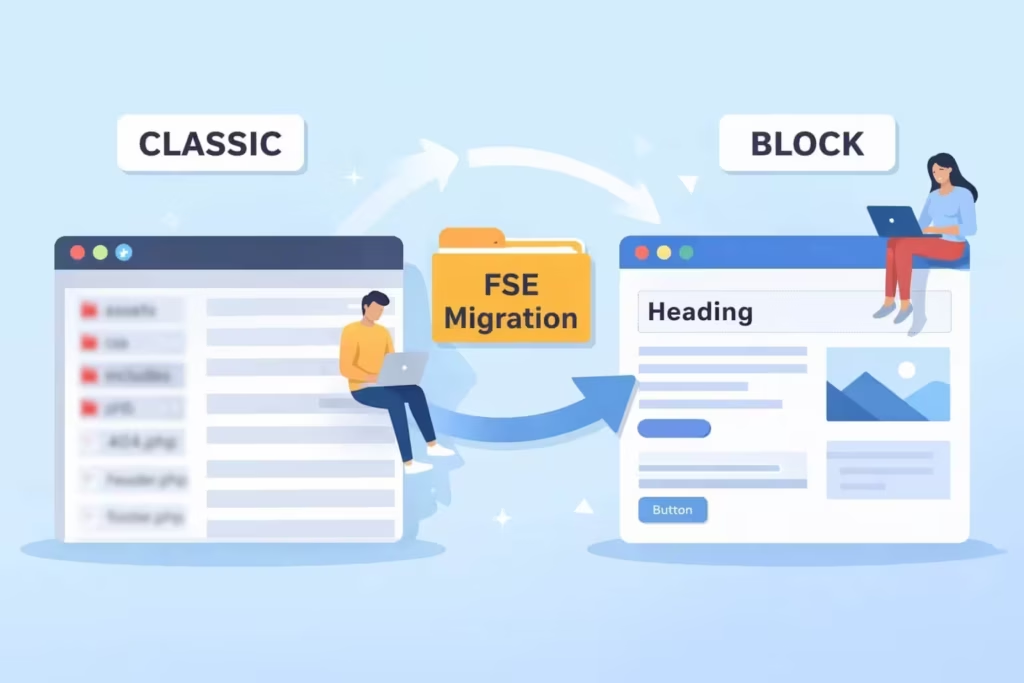
If you’ve decided to switch, here’s the systematic approach that minimizes problems.
Step 1: Complete Backup
This isn’t optional. Theme switching can be reversed, but customizations and settings often can’t be recovered. Use a WordPress backup plugin or use WP-CLI to create local backups.
# Database backup via WP-CLI
wp db export backup-before-theme-switch.sql

# Full wp-content backup
zip -r wp-content-backup.zip wp-content/

# Or use a backup plugin with remote storage
Verify your backup works before proceeding.
Download it. → Check the file size. → On staging, try restoring from it.
Step 2: Staging Environment First
Never switch themes on production first. The list of things that can break is too long to risk live traffic.
- Clone site to staging (ManageWP, InstaWP, xCloud or manual clone)
- Activate block theme on staging
- Document everything that breaks
- Develop migration solutions
- Test every critical user journey
- Only then schedule production switch
Step 3: Preserve Critical Content
Before switching:
// Export widget content
$widgets = get_option( 'sidebars_widgets' );
file_put_contents( ABSPATH . 'widgets-backup.json', json_encode( $widgets, JSON_PRETTY_PRINT ) );

// Export all widget settings
global $wp_registered_widgets;
$widget_settings = array();
foreach ( wp_get_sidebars_widgets() as $sidebar_id => $widget_ids ) {
    foreach ( $widget_ids as $widget_id ) {
        preg_match( '/^(.+)-(d+)$/', $widget_id, $matches );
        if ( $matches ) {
            $settings = get_option( 'widget_' . $matches[1] );
            $widget_settings[ $widget_id ] = $settings[ $matches[2] ] ?? null;
        }
    }
}
file_put_contents( ABSPATH . 'widget-settings-backup.json', json_encode( $widget_settings, JSON_PRETTY_PRINT ) );

// Note customizer settings
$mods = get_theme_mods();
file_put_contents( ABSPATH . 'customizer-backup.json', json_encode( $mods, JSON_PRETTY_PRINT ) );
These backups let you reference old settings while recreating them in the Site Editor.
Step 4: Map Templates
Create a document mapping old templates to new:
| Classic Template | Block Theme Equivalent | Status |
|---|---|---|
| header.php | parts/header.html | Needs nav, logo, CTA button |
| footer.php | parts/footer.html | Needs 4 columns, social links |
| sidebar.php | parts/sidebar.html | Newsletter, recent posts, ad |
| page.php | templates/page.html | Standard layout |
| single.php | templates/single.html | Add related posts block |
| archive.php | templates/archive.html | Query Loop needed |
| 404.php | templates/404.html | Custom design needed |
| page-contact.php | templates/page-contact.html | Form + map |
| page-about.php | templates/page-about.html | Team grid pattern |
This mapping becomes your checklist. Don’t switch to production until every row is complete.
Step 5: Switch and Configure
- Activate block theme on staging
- Open Site Editor (Appearance → Editor)
- Start with
headertemplate part- Add Site Logo block with existing logo
- Add Navigation block, select existing primary menu
- Add any buttons, search, or social icons
- Configure
footertemplate part- Recreate column structure
- Add blocks for widget content
- Include navigation, copyright, social links
- Configure Global Styles
- Set color palette matching old theme
- Configure typography (sizes, families)
- Adjust spacing defaults
- Create any missing templates
- Test all critical pages
Step 6: Post-Migration Cleanup
- Clear all caches (page cache, CDN, object cache)
- Check mobile layouts in actual devices
- Test all forms (submission, email delivery)
- Verify analytics tracking
- Check for console errors
- Run Lighthouse for performance regression
Post-Switch Checklist
Functionality
- All navigation menus working
- Forms submit correctly and emails arrive
- Search returns expected results
- Comments work if used
- User login/registration if applicable
- E-commerce checkout if applicable
- Third-party integrations (email marketing, CRM)
- Analytics tracking intact
Appearance
- Logo displays correctly (all sizes)
- Colors match brand guidelines
- Typography is correct (font family, sizes, weights)
- Spacing feels appropriate
- Mobile layout works (test on actual devices)
- Images display properly (featured images, gallery)
- Favicon and app icons
SEO
- Page titles correct (check 10+ pages)
- Meta descriptions intact (SEO plugin settings)
- Schema markup working (test with Google Rich Results)
- Sitemap generating properly
- Canonical URLs correct
- No broken internal links
- 301 redirects if URLs changed
Performance
- Page load times comparable or better
- No console JavaScript errors
- Core Web Vitals pass
- Images lazy loading
- No layout shift (CLS)
When Not to Switch
Block themes aren’t always the answer. I’ve talked clients out of migration when the effort wasn’t justified.
- Heavy Customizer dependency. If your current theme has 50+ Customizer options you’ve carefully configured, recreating all of that in Global Styles and template parts takes significant time. Especially true for premium themes with elaborate option panels.
- Complex PHP templates. Custom query logic, conditional displays based on user roles, dynamic content from external APIs. This logic doesn’t translate to blocks without custom development. Either accept that complexity stays in PHP, or budget for custom block development.
- Page builder integration. If your site is built with Elementor, Beaver Builder, or similar, a block theme doesn’t automatically help. The page builder content stays the same. You’d only benefit for new pages built with blocks. Mixed approaches work but add maintenance overhead.
- Limited development resources. Migration takes time. A complex site might need 20-40 hours to properly migrate, test, and fix issues. If that time doesn’t exist, a poorly executed migration is worse than no migration.
- Working fine as-is. Classic themes will be supported for years. WordPress has a strong backward compatibility commitment. If your current setup works, converts, and doesn’t cause operational problems, there’s no urgency to switch. Don’t fix what isn’t broken.
- Waiting for specific features. Block themes improve with every WordPress release. If you’re hesitant today, the situation will be better in six months. The hybrid approach (adding
theme.jsonto your classic theme) lets you benefit from improvements without the migration risk.
The Continuous Progress of Block Themes
The block theme ecosystem keeps maturing. Every WordPress release brings meaningful improvements.
- Block Bindings API means custom fields can connect to core blocks without custom development. Previously, displaying ACF fields in templates meant either custom blocks or PHP template code. Now it’s a binding with a visual UI.
- Block Hooks API gives plugins a way to inject functionality without modifying templates. Shopping cart in the header, newsletter popups, related posts. They can hook into templates automatically.
- Global Styles improvements make theme-wide styling practical. You can style most blocks globally with reliable cascading. Form elements now support
theme.jsonstyling too. - Pattern libraries have matured. Ollie, Neve FSE, and others ship with dozens or hundreds of production-ready patterns. Building a page from patterns is genuinely faster than most page builders now.
- Font management tools let you configure typography visually with fluid scaling. Custom size presets, grouped fonts by source, granular controls.
- Template Registration API lets plugins add templates programmatically. Create WordPress functionality extends through blocks instead of just widgets and shortcodes.
This progress means evaluating block themes is worth revisiting periodically. What didn’t work 12 months ago might work beautifully now.
Final Recommendations
For new sites, use a block theme. The ecosystem is mature enough for most use cases. Start with Ollie or Twenty Twenty-Five for simplicity, Neve FSE if you want ThemeIsle’s ecosystem, or Spectra One if you’re in the Brainstorm Force stack.
For existing sites with simple themes, evaluate migration cost versus benefit. If your current theme doesn’t have elaborate customizations, migration might take only a few hours. The Site Editor workflow improvements make ongoing updates easier.
For existing sites with complex setups, start hybrid. Add theme.json to your classic theme. Use block-based template parts where practical. Get comfortable with the Site Editor on non-critical sections before considering full migration.
For developers maintaining client sites, learn the block theme architecture regardless of current projects. Block themes are WordPress’s future. Understanding theme.json, template structure, and the Block APIs positions you for the next decade of WordPress development.
The block theme transition is real, but it’s not a cliff. You can walk toward it gradually, adopting features as they mature and as your situation allows.
Need Help With Your Migration?
FSE migration can be tricky. I’ve handled dozens of these transitions and know exactly what breaks and how to fix it. Whether you need a full migration or just guidance on the hybrid approach, I can help.
Related guides: Start a Blog · Best Indian Bloggers · Guest Posting Sites
FAQs
Do I lose my content when switching to a block theme?
No, post and page content is preserved in the database. But widget content doesn’t auto-migrate because widget areas don’t exist in block themes. Customizer settings are lost because block themes use Global Styles instead. Content displayed via theme-specific PHP templates may not appear correctly until you create equivalent block templates. Your content exists; it’s the presentation layer that changes.
What happens to my widgets when I switch?
Widget areas don’t exist in block themes. Your widgets won’t display anywhere. You need to recreate widget content as blocks in template parts (sidebars, footers, headers). Before switching, document every widget’s content and settings. Most core widgets have block equivalents. For third-party plugin widgets, check if the plugin offers block alternatives. The Classic Widgets plugin can serve as a temporary bridge during migration.
Will my menus still work after switching?
Menu content and structure are preserved in the database. Your nav menu items don’t disappear. But the association between u0022this menu displays in the headeru0022 breaks because that location was defined by your classic theme. In block themes, you add Navigation blocks to template parts and configure each block to use your existing menu. The menus work, but you must manually reconnect them to display locations.
Can I switch back to my classic theme if migration fails?
Yes, you can reactivate your classic theme anytime. Content isn’t modified by theme switching. But any Global Styles customizations, template parts, and templates you created in the block theme won’t transfer back. Your Customizer settings from before the switch will still be saved for your classic theme. Always test on staging first and keep complete backups before switching themes on production.
How long does a classic to block theme migration take?
It varies dramatically based on complexity. A simple blog with minimal customization might take 2-4 hours. A business site with multiple widget areas, custom templates, and extensive Customizer settings could take 20-40 hours or more. E-commerce sites with WooCommerce require additional template configuration. Don’t underestimate the testing phase. A thorough migration includes testing every form, every interactive element, and every page template on multiple devices.
What is the Block Bindings API and why does it matter?
The Block Bindings API lets you connect dynamic data (like custom fields) to core block attributes without creating custom blocks. Previously, displaying ACF or meta box fields in templates required custom blocks or PHP template code. Now you can bind a custom field to a Paragraph, Heading, or Image block directly. Recent WordPress versions added a visual UI for managing these bindings in the editor, making dynamic content much more accessible.
Can I use theme.json with my classic PHP theme?
Yes. Adding a theme.json file to a classic theme creates a hybrid approach. Your PHP templates continue working unchanged while blocks in your content get consistent styling from theme.json settings. You can define color palettes, typography presets, spacing defaults, and block-specific styles. This hybrid approach lets you modernize incrementally without rebuilding your entire theme. Many developers use this as a bridge strategy before full block theme migration.
Which block theme should I choose for a new site?
For most users, OllieWP offers the best combination of patterns, style variations, and setup experience. The free version is capable and the Pro version adds an extensive pattern library. Twenty Twenty-Five works well for developers who want a clean foundation to customize. Neve FSE suits users already familiar with ThemeIsle products. Spectra One integrates well with the Brainstorm Force ecosystem (Astra, Spectra plugin). For hybrid approaches where you want Customizer alongside FSE, Blocksy offers the best balance.
Do block themes work with page builders like Elementor?
Block themes and page builders can coexist, but the relationship is awkward. Page builder content renders inside the post/page content area as before. But headers, footers, and templates are controlled by the Site Editor, not the page builder. You end up with two different editing experiences. Some block themes like Neve FSE explicitly support Elementor for backward compatibility. For new sites, committing to one approach (blocks or page builder) makes more sense than mixing them.
Will classic themes stop working in future WordPress versions?
No. WordPress has a strong backward compatibility commitment. Classic themes will continue working for years, likely indefinitely. The Customizer, widget areas, and PHP templates remain supported even as block themes become more common. The shift to block themes is about capability and workflow, not forced obsolescence. That said, new features increasingly target the block editor and Site Editor. Classic themes can adopt some features via theme.json (hybrid approach) but won’t get the full benefit of FSE improvements.
Disclaimer: This site is reader-supported. If you buy through some links, I may earn a small commission at no extra cost to you. I only recommend tools I trust and would use myself. Your support helps keep gauravtiwari.org free and focused on real-world advice. Thanks. - Gaurav Tiwari