
How to Turn Your WordPress Site into an Installable App
Regular readers come back through a bookmark or a search, and each visit starts with a browser tab full of other things. An installable app puts your site on their home screen or desktop with its own icon. It opens in its own window and shows a proper offline page when the connection drops.
You can turn a WordPress site into an installable app without a native app or an app builder. The Progressive Web App module in Functionalities adds the manifest, the service worker and the offline page that browsers look for. Most of it fills itself in from your site settings.
Functionalities is my free WordPress plugin with 19 modules on one dashboard, each off until you switch it on. The Progressive Web App module is one of them.
Before You Start
An installable site needs a few things in place:
- Functionalities 1.7.0 or newer.
- HTTPS on the whole site. Browsers only install sites served over HTTPS.
- Pretty permalinks under Settings → Permalinks. The manifest, service worker and offline page live at their own addresses.
- A square PNG icon of at least 512 by 512 pixels. Your Site Icon under Settings → General works if it’s that size.
Turn On the Module
- Go to Functionalities and click Configure on the Progressive Web App card.
- Tick Enable PWA.
- Click Save Changes.
With nothing else filled in, the module already uses your site title as App Name, your tagline as Description and your Site Icon for the app icons.
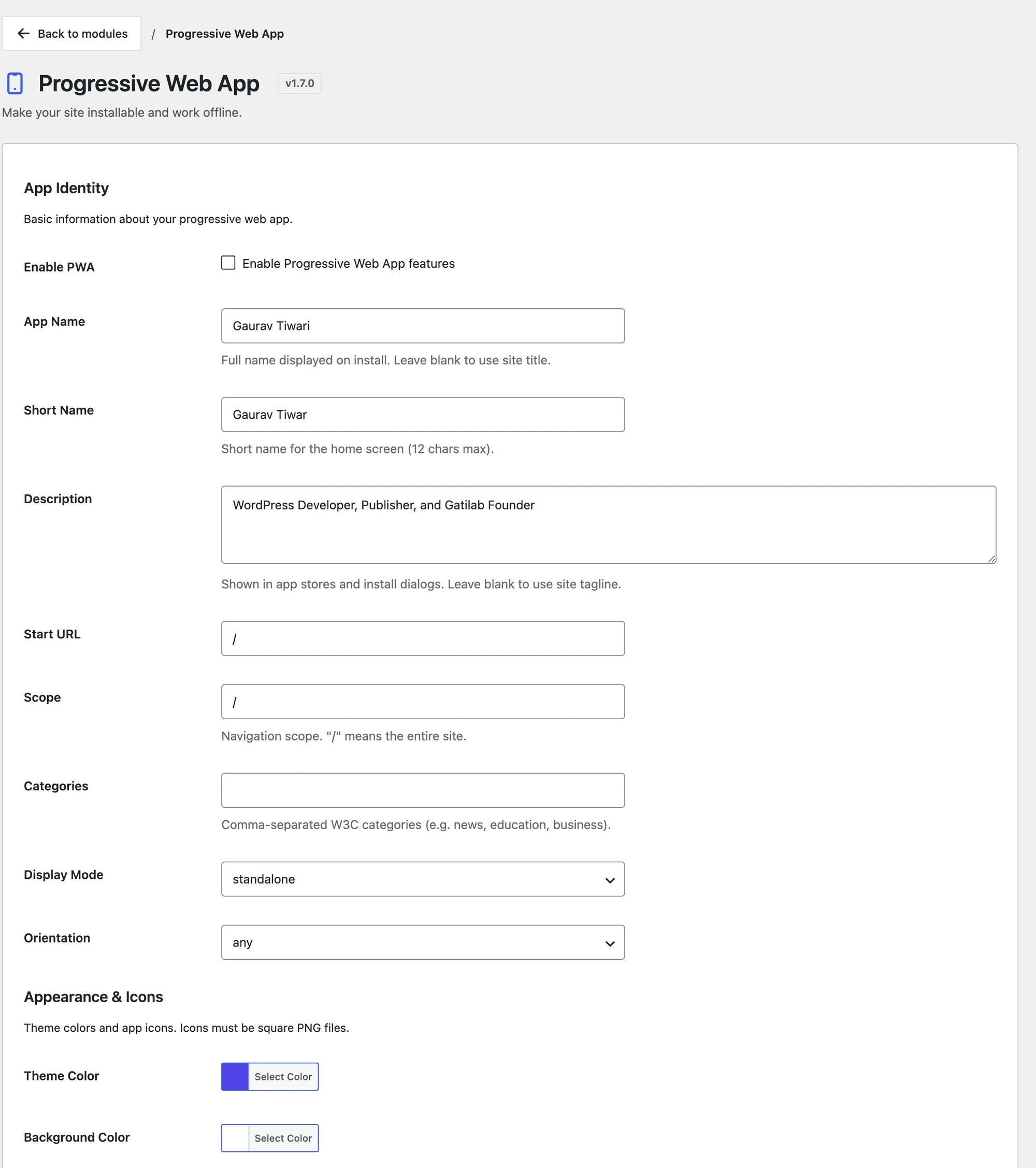
Set the App Identity
Under App Identity, review these fields:
- App Name appears in the install dialog. Leave it blank to use the site title.
- Short Name appears under the home screen icon, 12 characters at most.
- Start URL is the page the app opens on.
/opens the homepage. - Scope limits which addresses stay inside the app window.
/means the whole site. - Display Mode decides how much browser chrome shows. standalone gives an app window with no address bar, and suits most sites.
Add the Icons and Colors
Under Appearance & Icons:
- Set Theme Color, which tints the title bar and the phone’s status bar. The default is
#4f46e5, so change it to your brand color. - Set Background Color, the splash screen color while the app loads.
- Upload Icon 512×512. The help text calls it the “Primary app icon (required for installability).”
- Upload Icon 192×192.
- If you have them, upload the Maskable Icon versions. A maskable icon has extra padding around the logo, so Android can crop it into a circle or a rounded square without cutting the logo.
Icons must be square PNG files. The module doesn’t resize or check them, so export them at the exact sizes.
Choose What Works Offline
Under Offline & Caching:
- Precache URLs takes the pages a reader should be able to open offline, one per line. The homepage and the offline page are always cached.
- Cache Version starts at
v1. Change it tov2after a redesign, so returning visitors drop the old cached files.
The service worker keeps pages fresh. It fetches pages from the network first and falls back to the cached copy only when the network fails. Images are served from the cache first, and CSS, JavaScript and fonts are served from the cache and refreshed in the background.
It never caches wp-admin, the login page, REST API responses, cross-site requests or anything marked private, so logged-in screens and personal data stay out of the cache.
A reader who is offline and opens a page that isn’t cached sees the offline page, titled “You’re Offline”. It has Try Again, Go Back and Homepage buttons and lists up to 10 cached pages. It reloads by itself when the connection comes back.
Add an Install Prompt
Browsers show their own install button in the address bar or menu. A custom prompt makes the option visible to readers who never look there.
- Under Install Prompt, tick Show Install Prompt.
- Fill Prompt Title, Prompt Text, Button Text and Dismiss Text.
- Set Position to Bottom or Top, with the Banner style.
- Set Re-show After (days). A dismissed prompt stays hidden for 14 days by default.
The prompt only appears in browsers that support the install event, which means Chrome, Edge and other Chromium browsers. Safari on iPhone and iPad never shows it, so iPhone readers add the site through the Share menu with Add to Home Screen.
To put an install button in your own design, give any button the class func-pwa-install. It triggers the same install dialog.
Check It Works
Open your site in Chrome on a desktop:
- Open DevTools and go to Application → Manifest. The name, icons and colors should match your settings, with no installability errors.
- Check Application → Service workers.
functionalities-sw.jsshould show as activated. - Look for the install icon in the address bar.
On Android, the browser menu should offer Install app or Add to Home screen.
When the App Won’t Install
| Symptom | Likely cause | Fix |
|---|---|---|
| No install option at all | No 512 icon, or the site isn’t on HTTPS | Upload Icon 512×512 and serve the whole site over HTTPS |
/manifest.webmanifest returns a 404 | Permalinks are set to Plain, or rewrite rules weren’t refreshed | Switch to pretty permalinks and save the PWA settings again |
| Old design after an update | Returning visitors have old files cached | Bump Cache Version |
| Blurry or cropped home screen icon | Icon wasn’t square or the maskable version had no padding | Export square icons at the exact sizes |
| No custom prompt on iPhone | Safari doesn’t support the install event | Tell iPhone readers to use Share → Add to Home Screen |
What It Won’t Do
A PWA is a website with app features, and that sets the limits:
- It doesn’t publish to the App Store or Google Play.
- It doesn’t send push notifications.
- It doesn’t make a logged-in area work offline. Private and admin pages are never cached on purpose.
- It adds no iPhone splash screens. iOS gets the home screen icon and the app window.
The Progressive Web App reference covers shortcuts, the share target and the developer filters.