
How to Remove the WordPress Features You Don’t Use
WordPress loads a lot of things for sites that might need them, such as an emoji script, embed discovery and an XML-RPC endpoint. On a site that uses none of them, they add requests, markup and open doors for nothing.
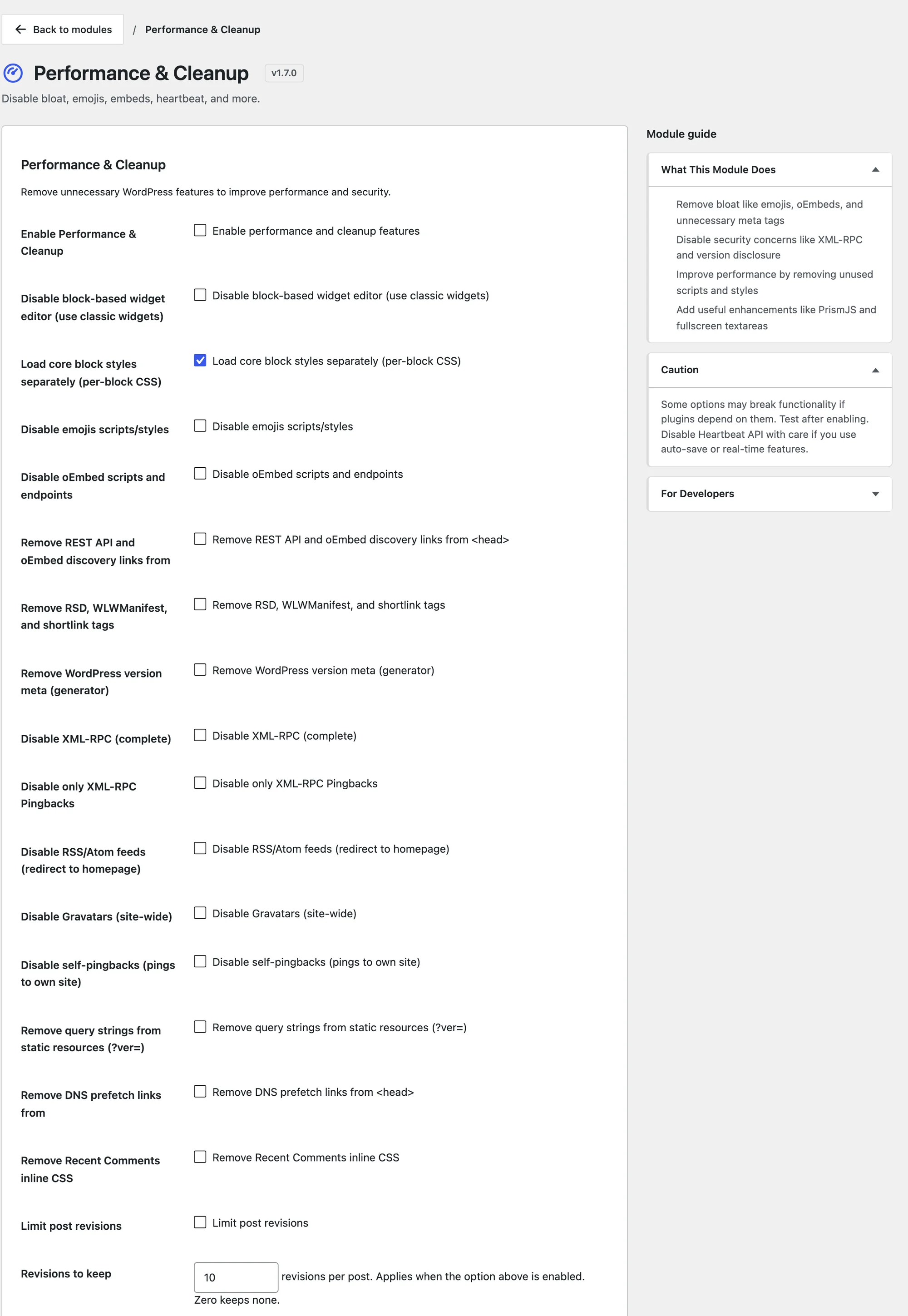
You can disable unused WordPress features one at a time, without writing a snippet for each. The Performance & Cleanup module in Functionalities gives you 23 toggles, and the Block Cleanup module strips the wp-block-* classes WordPress adds to your HTML.
Functionalities is my free WordPress plugin with 19 modules on one dashboard, each off until you switch it on. Every toggle in Performance & Cleanup is off by default too, so nothing changes until you choose it.
Before You Start
Treat this like any change to how WordPress loads:
- Functionalities 1.7.0 or newer.
- A list of what your site actually uses: embedded YouTube videos, comments with avatars, an RSS feed for newsletters, a mobile publishing app and so on.
- A way to test, such as a staging copy of the site.
- One change at a time. Turn on a few toggles, test, then turn on more. When something breaks, you’ll know which toggle did it.
The module’s own caution box says it plainly: “Some options may break functionality if plugins depend on them. Test after enabling.”
Turn On Performance & Cleanup
- Go to Functionalities and click Configure on the Performance & Cleanup card.
- Tick Enable Performance & Cleanup.
- Tick the toggles you want, then click Save Changes.
Start with the Safe Toggles
These remove things almost no site needs, and they rarely break anything:
- Disable emojis scripts/styles removes the script that swaps emoji for images. Modern browsers show emoji on their own.
- Remove RSD, WLWManifest, and shortlink tags removes tags for old desktop blogging tools.
- Remove WordPress version meta (generator) stops the page from announcing your WordPress version.
- Remove DNS prefetch links from <head> removes a prefetch hint WordPress adds for the emoji host.
- Remove Recent Comments inline CSS removes a style block the Recent Comments widget adds even when it isn’t on the page.
- Disable self-pingbacks (pings to own site) stops your own internal links from creating pingback comments on your posts.
- Load core block styles separately (per-block CSS) loads only the CSS for blocks that are actually on the page.
Check Before You Turn These Off
These are useful to remove, but each one turns off something a plugin or a reader might use:
| Toggle | Turn it on when | Leave it off when |
|---|---|---|
| Disable oEmbed scripts and endpoints | You don’t embed other sites’ content | You paste YouTube, X or other links that turn into embeds |
| Disable XML-RPC (complete) | No app or service publishes through XML-RPC | An older mobile app or remote publishing tool uses it |
| Disable RSS/Atom feeds | You have no feed readers or feed-based email | A newsletter tool or reader app pulls your feed |
| Disable Gravatars (site-wide) | Comments are off or avatars don’t matter | Your theme shows author or commenter avatars |
| Remove query strings from static resources | A cache or CDN struggles with ?ver= | Browsers need the version to fetch updated files |
| Disable Dashicons on frontend | Visitors never see the admin bar or Dashicons | Your theme or a plugin uses Dashicons for icons |
| Remove jQuery Migrate from frontend | Your theme and plugins run on current jQuery | An older plugin or slider uses old jQuery functions |
| Disable admin bar on the frontend | You don’t want the toolbar on the site for anyone | Editors rely on it to jump to the editor |
Disable Gravatars removes avatars everywhere, wp-admin included. Remove jQuery Migrate also applies in wp-admin, despite its label, so test your admin screens after turning it on.
Limit Revisions and Heartbeat
2 settings shape how WordPress saves your work:
- Limit post revisions with Revisions to keep caps saved revisions per post. 10 is the default. Zero keeps none, which removes your ability to roll back an edit, so keep a few.
- Disable Heartbeat API on the frontend stops the background check-in requests on public pages. The admin keeps Heartbeat, so autosave and post locking keep working.
The next toggle, Also disable Heartbeat in wp-admin (breaks autosave and post locking), does what its label says. Leave it off on any site where more than one person edits, or where you rely on autosave.
Strip Block Classes from Your HTML
The Block Cleanup module removes the wp-block-* classes WordPress adds to content blocks. This helps when a theme styles plain HTML tags and the extra classes get in the way.
- Go to Functionalities and click Configure on the Block Cleanup card.
- Tick Enable Block Cleanup.
- Tick the blocks to clean, such as Headings, Lists, Paragraphs, Images, Quotes and Tables.
- Click Save Changes.
The classes are removed only from post content on the front end. The editor, feeds and the REST API keep them.
Leave Columns, Buttons, Covers and Media & Text alone unless your theme styles those layouts itself. WordPress’s own block styles target those classes, so removing them can break the layout.
Check It Works
Open a post on the front end and view the page source:
- With emojis disabled, the
wp-emojiscript and its settings are gone. - With the generator removed,
<meta name="generator" content="WordPressis gone. - With jQuery Migrate removed,
jquery-migrateis gone from the scripts.
Then click through the parts of the site that use the things you switched off: an embedded video, the comment form, the feed URL, your mobile app.
What It Won’t Do
These toggles remove features. They don’t replace the rest of a performance setup:
- No page caching, image optimization or CSS minifying. Those belong to a caching or performance plugin.
- No REST API lockdown. Remove REST API and oEmbed discovery links removes the links from the page head, but the API itself still answers.
- No pingback blocking from Disable XML-RPC (complete). It switches off XML-RPC logins, and while it’s on, Disable only XML-RPC Pingbacks is ignored. To stop pingbacks, use the pingbacks toggle on its own.
For login protection, see How to Lock Down Your Login Page Without a Security Plugin. The Performance & Cleanup reference and the Block Cleanup reference list every option.