
How to Add Analytics or Verification Code Without Editing Your Theme
Every tool you connect to a site asks for a bit of code. It might be a Google Analytics tag, a meta tag to verify ownership in Search Console, a Tag Manager container or a chat widget. Pasting those into the theme’s header.php works until the next theme update replaces the file and the code disappears without a warning.
You can add code to the WordPress header without editing the theme. The Header & Footer module in Functionalities stores each snippet on its own and prints it in the head, right after the opening <body> tag or in the footer. Your code stays put through theme updates and theme changes.
Functionalities is my free WordPress plugin with 19 modules on one dashboard, each off until you switch it on. Header & Footer is the module for code snippets.
Before You Start
Check these first:
- Functionalities 1.7.0 or newer.
- An administrator account. On a single site, administrators can save scripts as written. On a multisite network, only a Super Admin can.
- The code from the tool, such as your GA4 Measurement ID or the verification meta tag.
- No other plugin adding the same code. A GA4 tag loaded twice counts every visit twice.
Turn On Header & Footer
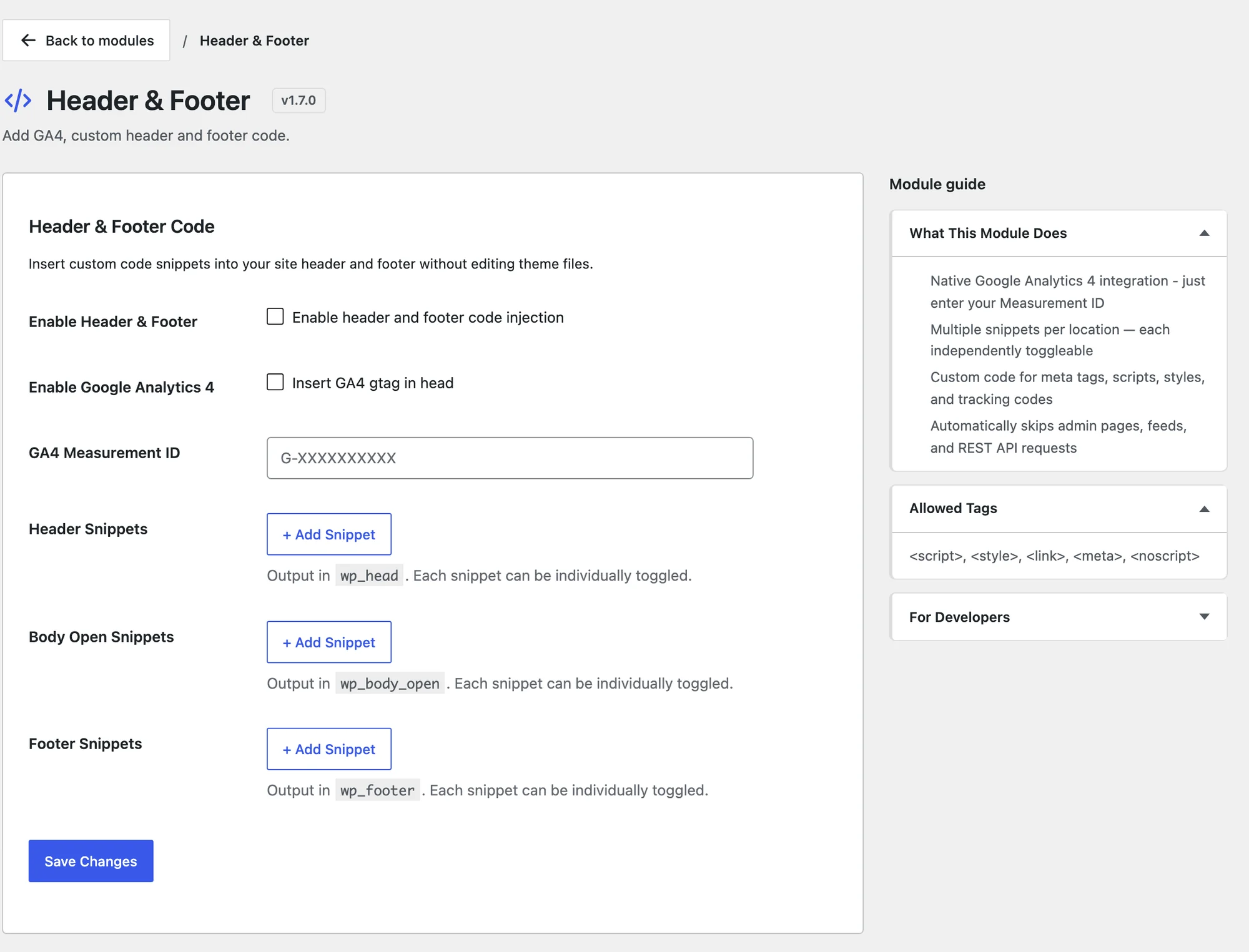
- Go to Functionalities and click Configure on the Header & Footer card.
- Tick Enable Header & Footer.
- Click Save Changes.
Add Google Analytics 4
GA4 needs only your Measurement ID:
- Tick Enable Google Analytics 4.
- Paste the ID into GA4 Measurement ID. It starts with
G-, such asG-ABC123XYZ9. - Click Save Changes.
The module prints the GA4 gtag code in the head of every front-end page, before your header snippets.
If the ID doesn’t match the G- format, the field is cleared on save without a message. When the field is empty after saving, check the ID you copied from Google Analytics.
Add a Verification Tag or Any Snippet
Search Console, Bing Webmaster Tools, Pinterest and similar services give you a meta tag to prove you own the site. Those, and any other script, go in a snippet:
- Under Header Snippets, click + Add Snippet.
- Give it a label you’ll recognize later, such as “Search Console verification”.
- Paste the code, such as
<meta name="google-site-verification" content="your-code">. - Make sure the snippet’s checkbox is on.
- Click Save Changes.
Each snippet shows a badge for its type, such as Meta, JS or CSS, and has its own on and off switch. You can turn one off for a test without deleting it.
Pick the Right Location
Each tool’s instructions say where its code goes. The module has 3 locations:
| Location | Where it prints | Typical code |
|---|---|---|
| Header Snippets | Inside <head> | Verification meta tags, analytics, Tag Manager’s main script |
| Body Open Snippets | Right after the opening <body> tag | Tag Manager’s <noscript> part |
| Footer Snippets | Before the closing </body> tag | Chat widgets, tracking pixels, scripts that can load last |
Body Open Snippets depend on your theme calling wp_body_open(). Most current themes do. If a body snippet never appears, put the code in the header or the footer instead.
Check It Works
View the source of any front-end page and search for your code. A verification tag should sit in the <head>, and a GA4 page should contain gtag with your Measurement ID.
Then finish in the tool itself:
- In Google Search Console, click Verify.
- In Google Analytics, open the Realtime report and load your site in another browser.
Snippets never print in wp-admin, in RSS feeds or in REST API responses.
When a Snippet Doesn’t Show
| Symptom | Likely cause | Fix |
|---|---|---|
| Nothing prints at all | Enable Header & Footer is off | Tick it and save |
| GA4 field empty after saving | The ID isn’t in G- format | Copy the Measurement ID from your GA4 data stream |
| One snippet missing | Its own checkbox is off | Turn the snippet on |
<script> tags stripped | The account that saved can’t post unfiltered HTML | Save it as an administrator on a single site, or as a Super Admin on multisite |
| Body snippet missing | The theme doesn’t call wp_body_open() | Move the code to the header or footer |
| Visits counted twice | Another plugin or the theme also adds GA4 | Remove one of the 2 |
The page says it plainly when your account can’t save scripts: “Your account can save ordinary HTML. Executable scripts, styles, and embedded frames require the unfiltered_html capability.”
What It Won’t Do
The module prints code. It doesn’t decide who sees it:
- No page or post rules. Every snippet prints on every front-end page. Developers can limit that with the
functionalities_snippets_output_enabledfilter. - No exclusion for logged-in users. Your own visits reach GA4 too. Filter them out in Google Analytics, or use the filter above.
- No code checking. A typo in a script breaks only that script, but nothing warns you before you save.
- No cookie consent. Tracking that needs consent where your readers live needs a consent tool in front of it.
The Header & Footer reference lists the hooks and priorities. If you’re tidying the page head at the same time, How to Remove the WordPress Features You Don’t Use covers the tags WordPress adds by default.