
How to Self-Host Custom Fonts in the Block Editor
A custom font usually means a request to Google Fonts or Adobe on every page view, or a theme that hardcodes its own choice. The first adds a third-party request and a privacy question. The second leaves the block editor showing a different font from the one readers see.
When you self-host custom fonts in WordPress with Functionalities, the font files live in your own media library. You register each family once. The module writes the @font-face rules for the front end, loads the same font in the editor canvas and adds it to the editor’s font picker.
Functionalities is my free WordPress plugin with 19 modules on one dashboard, each off until you switch it on. The Fonts module is the one that handles typography.
Before You Start
Get these ready:
- Functionalities 1.7.0 or newer.
- The font in WOFF2 format. WOFF2 is required. A WOFF file is an optional fallback. TTF and OTF files aren’t accepted, so convert them first.
- A license that allows self-hosting. Most open fonts do. Paid fonts often need a web license.
- For a variable font, its weight range, such as 100 to 900. The font’s download page or license usually lists it.
Turn On the Fonts Module
- Go to Functionalities and click Configure on the Fonts card.
- Tick Enable fonts output.
- Click Save Changes.
The module allows WOFF and WOFF2 uploads in the media library for users who can upload files. It checks what’s inside each file as well as its extension, so a renamed file is rejected.
Add a Font Family
- Click Add Font.
- Type the Font Family name, such as
Inter. This is the name the editor shows and the name your CSS uses. - Set Style to normal for the upright file, or italic for the italic file.
- Leave Display on swap, so text shows in a fallback font while the custom font loads.
- Set the weight:
- For a static font, type the weight in Static Weight, such as
400. - For a variable font, tick Variable font and type the range in Variable Weight Range, such as
100 900.
- For a static font, type the weight in Static Weight, such as
- Click the upload button next to WOFF2 URL (required) and pick or upload the file. Add WOFF URL (fallback) only if you have one.
- Tick Preload this font for the font used above the fold, usually your body text.
- Click Done, then Save Changes.
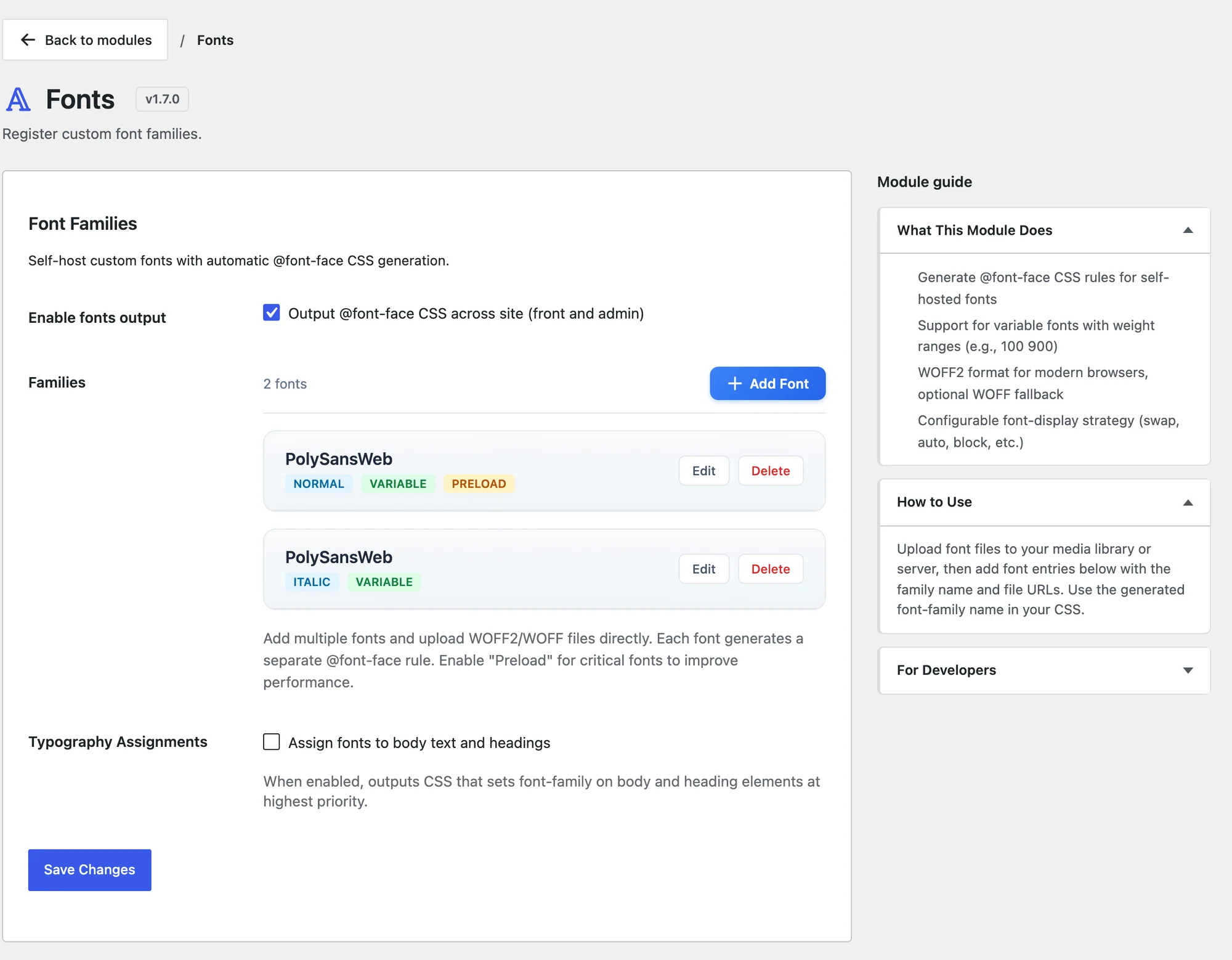
Add a separate entry for each style and weight file. A variable font with an italic needs 2 entries with the same family name: one normal, one italic.
Limit the Download with a Character Range
Character Range (unicode-range) tells the browser to download the file only when the page uses those characters. The presets cover the common sets:
- Basic Latin + Latin-1 for English and most Western European text.
- Latin Extended, Greek, Cyrillic and Vietnamese for other scripts.
This matters when you split a large font into subset files. For a single full file, leave it empty.
Use the Font in the Editor
Once saved, the family appears in the block editor:
- In the font picker under Typography in the block settings and in Global Styles, because the module adds it to the theme’s font list. Block themes and other themes that use theme.json show this picker.
- In the editor canvas, so the post looks the same while you write as it does on the site.
To set it site-wide without touching each block, tick Assign fonts to body text and headings under Typography Assignments, then pick a Body / Content Font and a Headings Font. A Per-Heading Override lets one heading level use a different family.
Styles you set in Global Styles under Appearance → Editor may still override these assignments, so check the result on the front end after you change either one.
Check It Works
View a page on the front end and open the browser’s developer tools:
- Network tab, filter by Font: your
.woff2file loads from your own domain, with no requests to Google Fonts or another font host for that family. - Elements tab: the
<style id="functionalities-fonts-inline-css">block in the head holds your@font-facerules. - Preloaded fonts show as a
<link rel="preload" as="font">tag near the top of the head.
When the Font Doesn’t Show
| Symptom | Likely cause | Fix |
|---|---|---|
| The font entry disappears after saving | No family name or no WOFF2 URL | Fill both, then save again |
| Upload refused | The file isn’t really WOFF or WOFF2 | Convert the font to WOFF2 and upload again |
| Font in the picker but not on the page | The theme or Global Styles sets a different font-family | Pick the font in Global Styles, or use Typography Assignments |
| Missing from the picker | Enable fonts output is off, or the theme has no theme.json font controls | Tick Enable fonts output, or use Typography Assignments |
| Text jumps when the font loads | The font isn’t preloaded | Tick Preload this font for the body font only |
What It Won’t Do
The module is a self-hosting tool, with clear edges:
- It doesn’t convert fonts. Bring WOFF2 files.
- It doesn’t download fonts from Google Fonts for you. Download the files and upload them.
- It doesn’t add fonts to WordPress’s Font Library under Appearance → Editor → Typography. It registers them through the theme’s font list instead, which is why they appear in the picker.
- It doesn’t remove fonts your theme or another plugin loads. If the theme still loads Google Fonts, turn that off in the theme.
Preload 1 or 2 fonts at most. Every preloaded file competes with your images and CSS for the first moments of the page load. The Fonts reference covers Bricks Builder support and the developer filters.