
How to Stop Losing Links and Headings When You Update Old Posts
Refreshing an old post is where good content quietly gets worse. A section gets rewritten and 4 internal links go with it. A pasted block turns an H2 into an H4, or a cleanup trims half the post, and nobody notices until the rankings slip.
Content Integrity in Functionalities catches those changes. It remembers how each published post looked and compares every update against that version. When links, words or headings drop past the limits you set, the editor shows a warning.
Functionalities is my free WordPress plugin with 19 modules on one dashboard, each off until you switch it on. Content Integrity is the module for posts that already earn traffic and links.
Before You Start
Check these first:
- Functionalities 1.7.0 or newer.
- The block editor. The warnings appear in a block editor sidebar, so the Classic Editor shows only the post list column.
- Published posts. The module records its first snapshot when a post is published or updated, so it can’t compare a post it hasn’t seen yet.
Turn On Content Integrity
- Go to Functionalities and click Configure on the Content Integrity card.
- Tick Enable Content Integrity.
- Under Post Types, tick the types you update. Posts and pages are ticked by default.
- Click Save Changes.
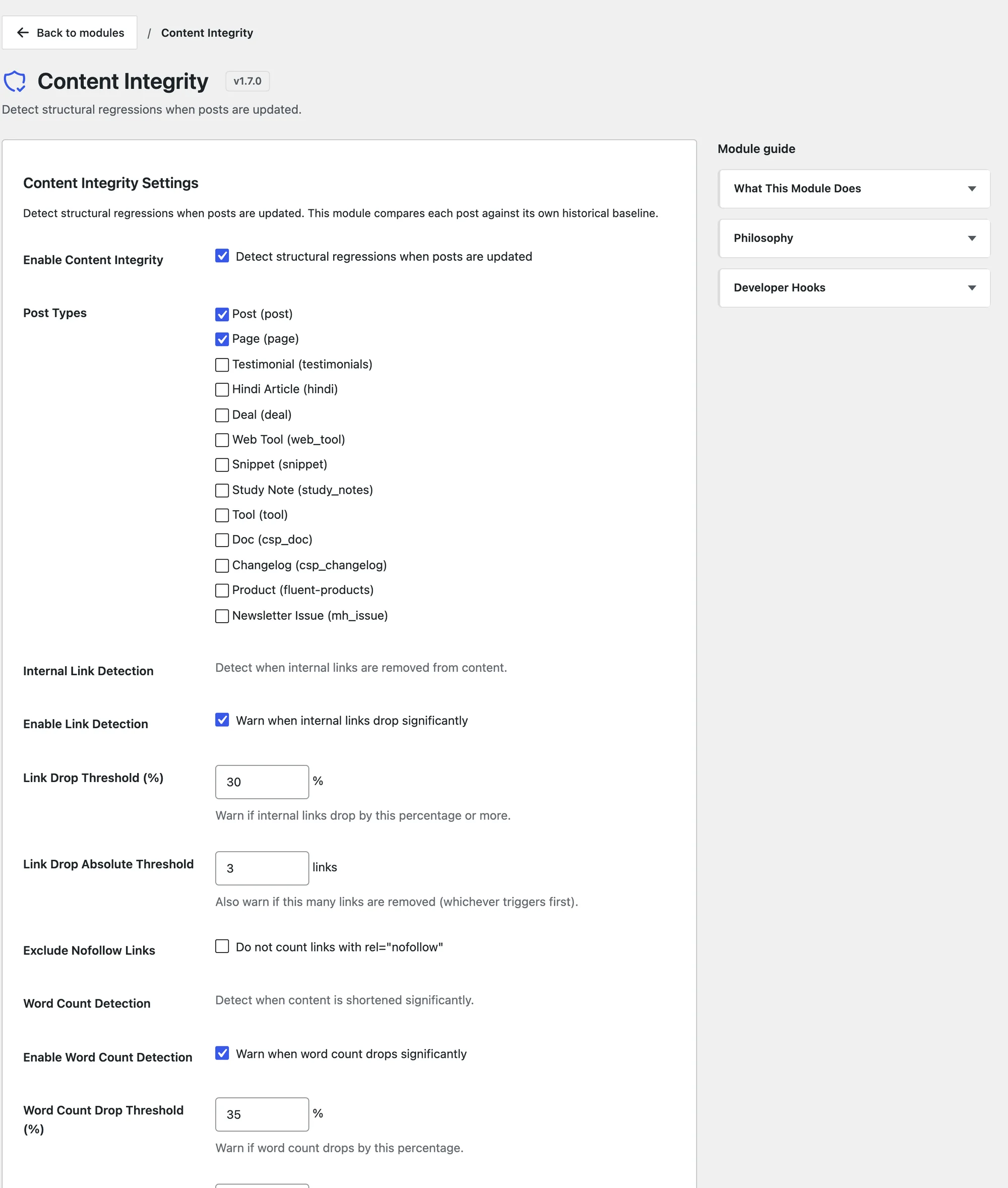
The default thresholds suit most blogs. You can tune them later.
Record a Baseline
The module compares each update against the last good version of the post. Nothing exists to compare against on day one, so:
- Open a post you plan to refresh.
- Click Update before you change anything.
That save records the baseline. From then on, every update of that post is checked. Posts you don’t touch get their baseline the next time someone updates them.
Read the Warnings
After you update a post, open the Content Integrity panel from the shield icon in the editor’s top bar, or from the More menu. It shows any warnings, with a before and after count for each, and the post’s internal links, word count and H1 count.
The module checks 4 things:
- Internal links. A warning fires when internal links drop by 30% or more, or by 3 links or more, whichever comes first: “This update reduced internal links from 12 to 8 compared to the previous version.” Navigation, menu and footer links inside the content don’t count. Neither do
#anchors, email links and phone links. - Word count. A post that is 35% or more shorter than its last published version gets a warning: “This post is 40% shorter than its previous published version.” Posts younger than 30 days are skipped, because early edits are normal.
- Heading structure. The post title counts as the H1, so the content should start at H2 and step down one level at a time. “Heading level skipped: H2 followed by H4.” points at the first skip. A second H1 inside the content also gets a warning.
- Missing alt text. “2 of 9 images are missing alt text.” counts the images without it.
The Content Integrity panel also lists headings added and removed, by level, since the last snapshot.
The same warnings appear in the pre-publish panel, and a status icon in the posts list shows which posts had issues at their last update.
Decide What a Warning Means
A warning means something changed past your limit, not that something is wrong. The panel gives you 3 choices:
- Fix it. Put the lost links back, correct the heading level or restore the cut section, then update again.
- Mark change as intentional. Use this when you meant to remove those links or shorten the post. The current version becomes the new baseline.
- Ignore for this update. The warnings hide for this editing session only, and the baseline stays where it was.
Until you fix or accept a change, the module keeps comparing against the old baseline. That’s deliberate: 3 small trims in a row still add up to one visible drop.
For posts that should stay short, such as a news brief or a link post, turn on Mark as short-form content in the panel. Disable detection for this post turns the module off for that post alone.
Tune the Thresholds
The settings page holds every limit:
| Setting | Default | Raise it when | Lower it when |
|---|---|---|---|
| Link Drop Threshold (%) | 30 | Posts have few internal links and one removal trips it | Internal links carry your site structure |
| Link Drop Absolute Threshold | 3 | Long posts with dozens of links | Short posts where 2 links matter |
| Word Count Drop Threshold (%) | 35 | You prune heavily on purpose | Posts rank on depth |
| Minimum Post Age (days) | 30 | New posts get rewritten for weeks | You want checks on new posts sooner |
| Snapshots to Keep | 5 | You want a longer history per post | Your database is tight on space |
Exclude Nofollow Links stops rel="nofollow" links from counting, which helps on posts full of affiliate links.
Check It Works
Test it on a draft copy of a real post:
- Publish or update the post once to record the baseline.
- Delete 3 internal links and change one H2 to an H4.
- Update the post.
The panel should show the link warning and the skipped heading level within a second of the save.
What It Won’t Do
The module watches and warns. It doesn’t stop you:
- It never blocks publishing. The check runs after the save, on the saved version, not on unsaved edits.
- It doesn’t say which links were removed. It reports counts. The post’s revisions show the exact change.
- It doesn’t watch external links. They’re counted, but a drop never triggers a warning.
- It doesn’t check posts in the Classic Editor beyond the posts list column.
On WordPress 7, the module can also explain a finding in plain language through your configured AI provider. That stays off until an administrator ticks Allow AI explanations for individual findings on the Functionalities dashboard. The Content Integrity reference lists every option and filter.