
How to Lock Down Your Login Page Without a Security Plugin
Every WordPress login page gets guessed at. Bots try common usernames and passwords around the clock, and the default login form helps them by saying whether a username exists before it rejects the password.
You can lock down the login page without a full security suite. The Login Security module in Functionalities limits login attempts and locks out an address or a username after repeated failures. It also closes XML-RPC logins and replaces the revealing error messages with a generic one.
Functionalities is my free WordPress plugin with 19 modules on one dashboard, each off until you switch it on. Login Security handles the login page and nothing else, so it sits fine next to a firewall at your host or Cloudflare.
Before You Start
Check these first:
- Functionalities 1.7.0 or newer.
- Your own IP address, so you can keep yourself out of a lockout. A search for “what is my IP” shows it.
- Whether your site sits behind a proxy or CDN, such as Cloudflare or a load balancer. That changes one setting below.
- No other login limiter running. Two plugins counting the same failures lock people out twice as fast.
Turn On Login Security
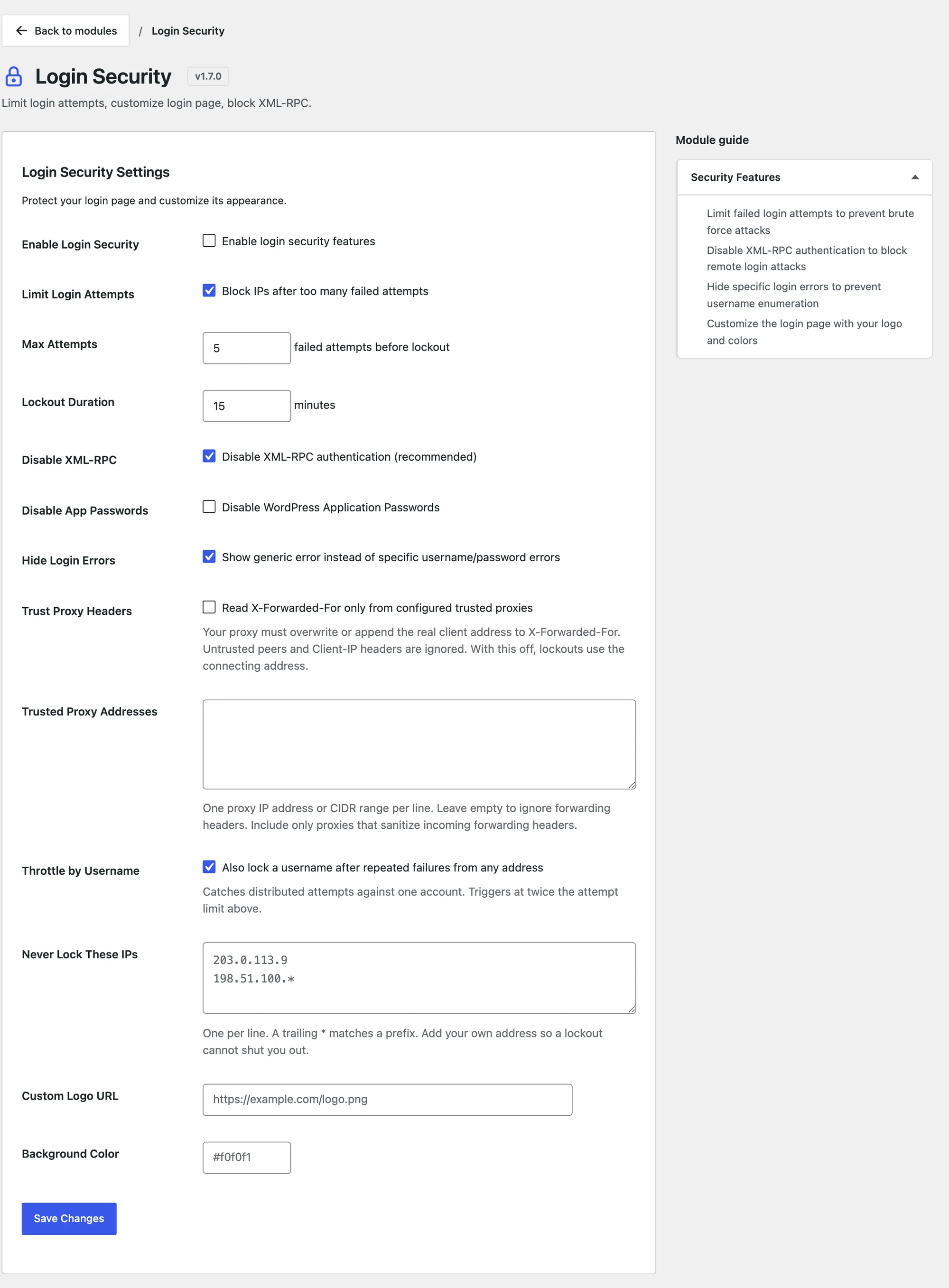
- Go to Functionalities and click Configure on the Login Security card.
- Tick Enable Login Security.
- Review the settings below, then click Save Changes.
Set the Lockout Rules
The defaults are a sensible start:
| Setting | Default | What it does |
|---|---|---|
| Limit Login Attempts | On | Blocks an IP address after too many failed attempts |
| Max Attempts | 5 | Failed attempts before the lockout, from 1 to 20 |
| Lockout Duration | 15 minutes | How long the lockout lasts, from 1 minute to 24 hours |
| Throttle by Username | On | Also locks a username after failures from any address, at twice the attempt limit |
Failed attempts are counted per IP address for an hour. A successful login clears the count. With the defaults, an address gets 5 tries, and a username under attack from many addresses gets locked after 10.
Keep Yourself Out of a Lockout
Add your own address to Never Lock These IPs, one per line. A trailing * matches a range, so 198.51.100.* covers every address that starts with 198.51.100..
Use this for a fixed office or home connection. A mobile connection changes its address too often for an allowlist to help.
Set It Up Behind Cloudflare or a Proxy
Behind a proxy, every login attempt appears to come from the proxy’s address. Without the right setting, 5 failures from anyone would lock out everyone.
- Tick Trust Proxy Headers.
- In Trusted Proxy Addresses, list your proxy’s IP addresses or ranges, one per line. CIDR ranges such as
173.245.48.0/20work here. - Save.
With this on, the module reads the visitor’s real address from X-Forwarded-For, but only when the request comes from an address on your list. A visitor can’t fake their way around a lockout by sending that header directly.
Leave Trust Proxy Headers off if your site isn’t behind a proxy. If you see a warning that every recent lockout came from the same address, that’s the module telling you a proxy is in the way.
Close the Side Doors
3 more settings stop logins that skip the login form:
- Disable XML-RPC, on by default, disables XML-RPC authentication, an old remote-publishing route that bots use to guess passwords in bulk.
- Disable App Passwords turns off WordPress Application Passwords. Leave it off if an app or a service such as a mobile editor or an automation tool logs in with one.
- Hide Login Errors, on by default, shows “Invalid username or password.” instead of telling a visitor which part was wrong.
With errors hidden, a failed login also shows how many attempts are left before the lockout.
Check It Works
Test from a phone on mobile data, so a lockout doesn’t affect your own connection:
- Open your login page and enter a wrong password 5 times.
- Once the limit is reached, the login page shows “Too many failed login attempts. Please try again in 15 minutes.”
- Back on the settings page, Recent Lockouts lists that address with an Unlock button.
Click Unlock to clear it right away.
When Logins Go Wrong
| Symptom | Likely cause | Fix |
|---|---|---|
| You’re locked out of your own site | Too many wrong passwords from your address | Wait for the lockout to end, or ask another admin to click Unlock |
| Everyone gets locked out at once | The site is behind a proxy and Trust Proxy Headers is off | Turn it on and list the proxy addresses |
| An app stopped logging in | Disable App Passwords is on | Turn it off for that app |
| An older mobile app or remote editor stopped working | It used XML-RPC logins | Turn off Disable XML-RPC if you need that app |
The lockout message shows the full lockout length, not the minutes remaining, so a reader who tries again after 10 minutes still sees “15 minutes”.
What It Won’t Do
The module covers login attempts. It doesn’t cover these:
- No custom login address. The login page stays at
/wp-login.php. - No two-factor authentication and no CAPTCHA. Pair it with a dedicated 2FA plugin if your accounts need one.
- No firewall. It doesn’t block attacks on other pages, and it doesn’t scan for malware.
- No pingback blocking. XML-RPC pingbacks still work. The Disable only XML-RPC Pingbacks option in Performance & Cleanup turns those off.
For the rest of the WordPress features you can switch off, see How to Remove the WordPress Features You Don’t Use. The Login Security reference lists every setting.