
 by
by
If you want to know how to block YouTube channels, start with the result you actually need. Regular YouTube does not have one universal switch that removes a channel from recommendations, search, direct links, comments, and every device.
Use Don’t recommend channel to tune Home and Watch Next, Block user to limit interactions, Hide user from channel to moderate your own audience, and YouTube Kids controls to restrict a child’s profile. Reporting is for suspected policy violations. These controls solve different problems, so choosing the wrong one makes it look as if blocking did nothing.
Which YouTube control should you use?
Choose the harm first, then use the narrowest control that matches it. This is the difference most guides miss when they explain how to block YouTube channels.
| Your goal | Use this control | Important limit |
|---|---|---|
| Stop Home or Watch Next recommendations | Don’t recommend channel | Search and direct links still work |
| Stop messages, comments, or mentions between accounts | Block user | Public videos remain available |
| Remove a person’s activity from your own channel | Hide user from channel | It only moderates your channel |
| Restrict a child from a specific channel | Block channel for kids | Reuploads on other channels may remain |
| Flag suspected abuse or a policy violation | Report | Review does not guarantee removal |
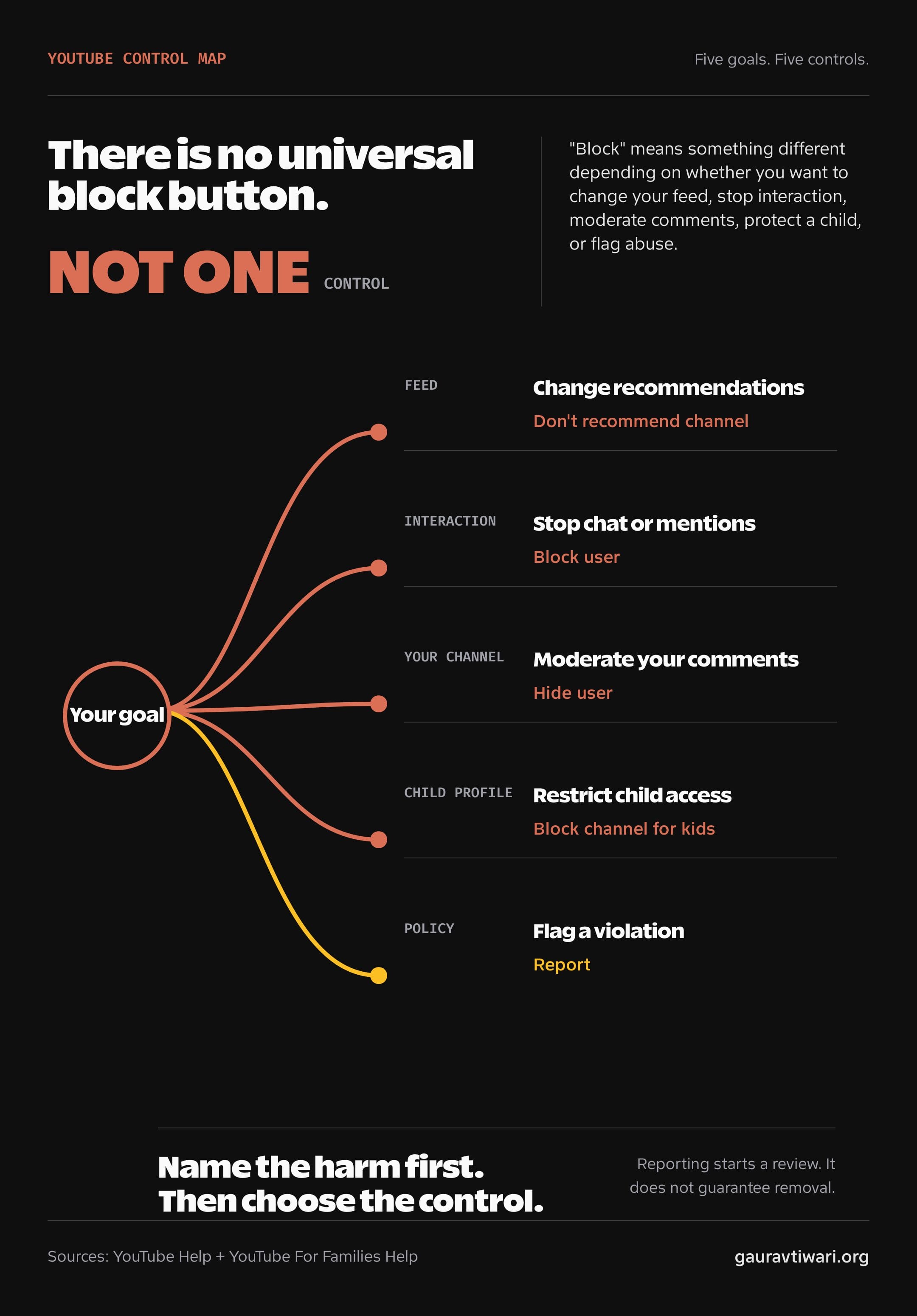
YouTube’s official documentation treats recommendation feedback, interaction blocking, creator moderation, child controls, and reporting as separate systems.
How to block YouTube channels from recommendations
On mobile and desktop, use Don’t recommend channel from a recommended video’s More menu. YouTube currently documents this option on Home and Watch Next, not as a universal filter across the site.
On Android, iPhone, or iPad
- Open the YouTube app and sign in.
- Go to Home.
- Find a recommended video from the unwanted channel.
- Tap More beside the video.
- Tap Don’t recommend channel.
On a computer
- Open YouTube and sign in.
- Go to Home or a Watch Next recommendation.
- Find a video from the channel.
- Click More beside the title.
- Select Don’t recommend channel.
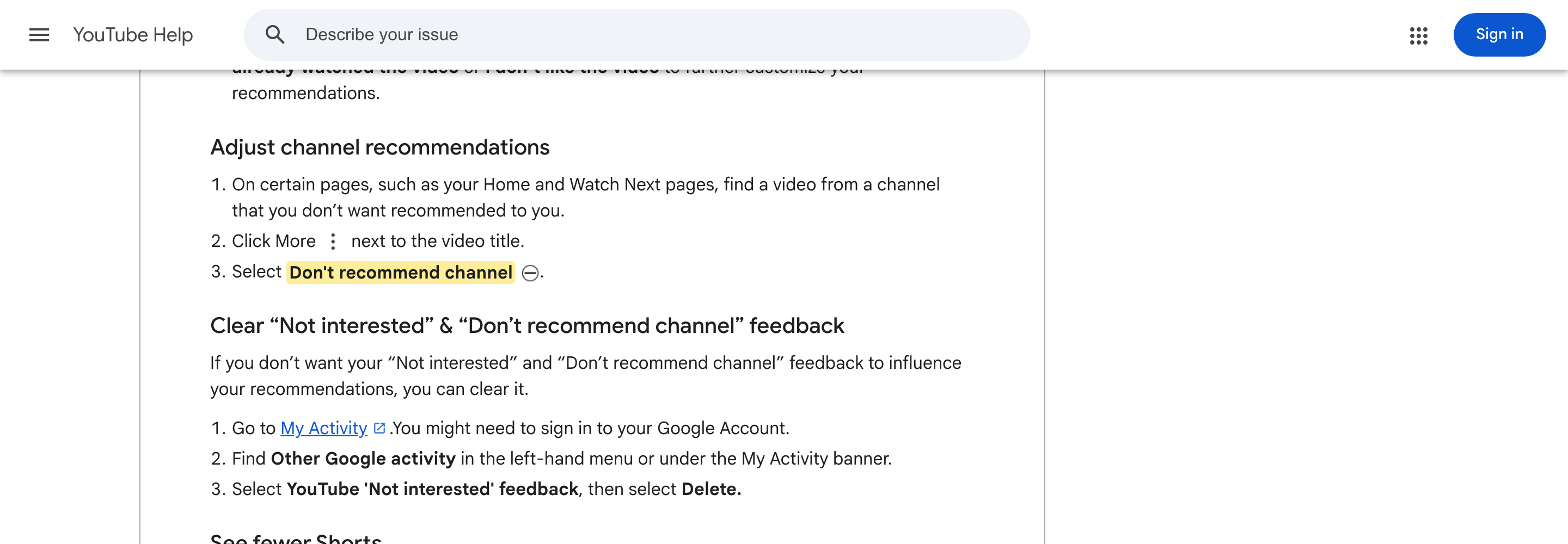
Use “Not interested” for one video or topic. Use “Don’t recommend channel” when the repeated problem is the creator, not one upload.
If irrelevant search results are the real problem, recommendation feedback will not clean them up. Use YouTube’s search filters and operators instead. My YouTube search tips show the practical options.
How do you stop channel recommendations on a smart TV?
If you are searching for how to block YouTube channels on a smart TV, this is the closest equivalent: YouTube puts Not interested before the channel-level feedback.
- Highlight the recommended video on Home.
- Press and hold the remote’s select or OK button.
- Select Not interested.
- Select Tell us why.
- Choose Don’t recommend channel.
Remote labels vary between Google TV, Roku, Fire TV, Apple TV, consoles, and television manufacturers. If a long press does not open the menu, use the remote’s More or options button.
How do you block a person on YouTube?
The regular YouTube Block control is about interactions. It stops messages in live chat, comments, and mentions between accounts. It does not remove the person’s channel or videos from public YouTube.
- Select the person’s live-chat message or More menu.
- Choose Block.
- Confirm the action.
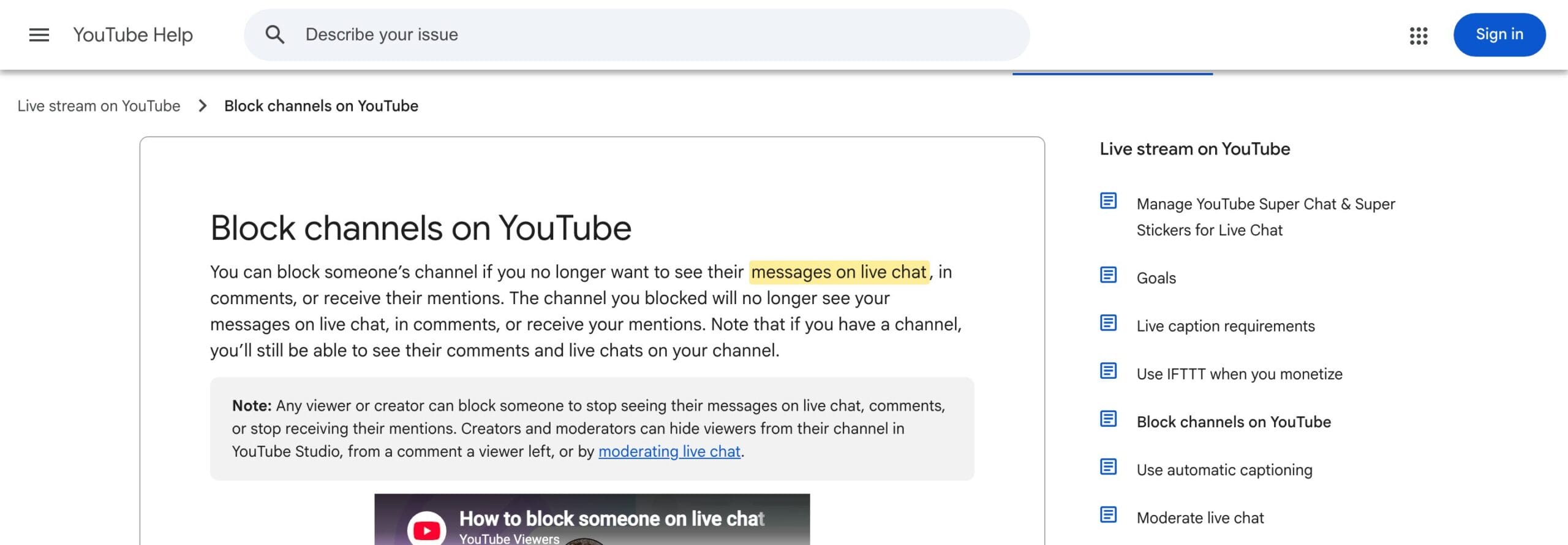
To undo it, open the blocked-accounts list in your Google Account and remove the person. If you own a channel and still see their activity on your videos, use creator moderation instead.
How do creators hide a user from their channel?
Creators can hide a user so that the person’s comments, live chats, and Community activity are not visible to the channel’s audience. YouTube says the user is not notified.
- From a comment, open More and select Hide user from channel
- From YouTube Studio, go to Settings → Community moderation → User management
- For live streams, use the moderation controls in live chat
Hiding is moderation, not punishment. Report threats, harassment, impersonation, scams, or other suspected violations through the proper reporting flow. If you run a channel, my YouTube marketing guide covers the audience and growth side without ignoring moderation.
How to block YouTube channels for a child
YouTube Kids and supervised accounts provide the closest thing to a true channel-level content block. The block applies to the child’s signed-in profile, not to every device or account in the household.
In the YouTube Kids app
- Sign in to YouTube Kids.
- Open a video from the channel.
- Tap More, then Block.
- Choose Block entire channel.
- Complete the parent verification step and confirm.
From a linked parent account
A linked parent can also open a channel in regular YouTube and choose Block channel for kids. The option appears only when the parent account is linked to a YouTube Kids profile or supervised account.
The current YouTube Kids blocking guide states an important limit: blocking one channel does not block reuploads on other channels or similar channels with related content. For stricter control, use Approved content only so the child can watch only videos, channels, or collections a parent has approved.
When should you report a YouTube channel or video?
Report content when you believe it violates YouTube policy. Do not report a channel merely because you dislike its topic or style.
- Harassment, hate, or abuse
- Dangerous conduct or child-safety concerns
- Scams, spam, or impersonation
- Privacy or copyright issues through the appropriate form
YouTube says reports are anonymous and reviewed against its guidelines. A report does not automatically remove content. If reviewers find no violation, repeated reports do not change that result.
How do you undo “Don’t recommend channel”?
YouTube does not provide a clean per-channel undo list for recommendation feedback. Instead, you clear the stored “Not interested” feedback from Google My Activity.
- Open Google My Activity.
- Open Other Google activity.
- Find YouTube Not interested feedback.
- Select Delete.
This may clear more recommendation feedback than one channel. Use it when you want YouTube to rebuild recommendations from future activity.
What does blocking a YouTube channel not do?
On regular YouTube, no single control guarantees that an unwanted channel disappears everywhere. Depending on the control, the channel may still:
- Appear in search results
- Open through a direct link
- Appear while you are signed out
- Remain visible on another Google Account
- Be reuploaded by another channel
- Stay publicly available
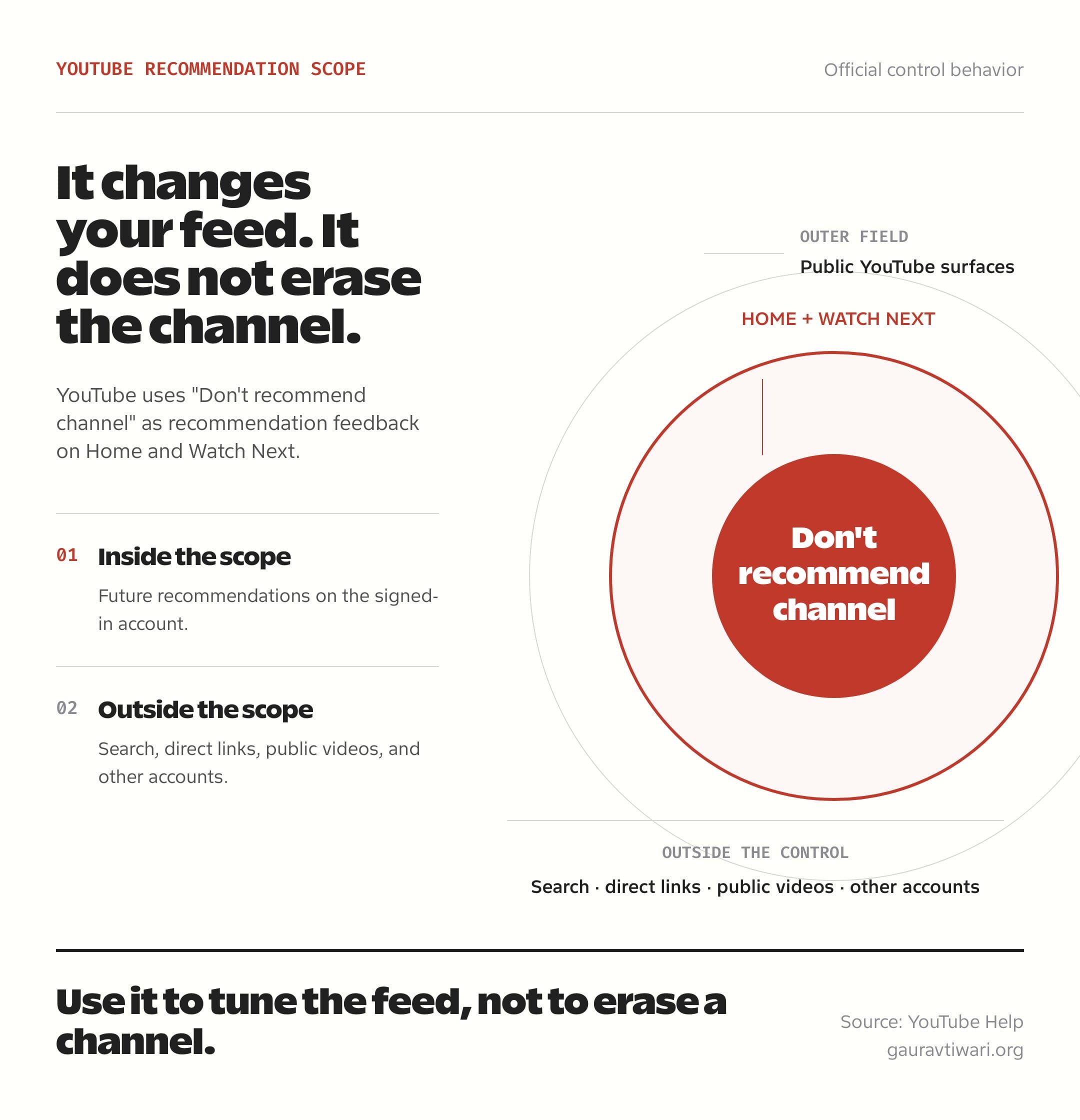
If the goal is concentration rather than safety, pausing or clearing watch history may change recommendations more effectively than blocking channels one by one. If the problem is playback or sound, blocking will not help. Use my YouTube audio renderer error guide for that issue.
FAQs
These short answers cover the limits that cause most confusion.
Can I completely block a YouTube channel?
YouTube Kids and supervised accounts can block a channel for a child’s profile. On regular YouTube, recommendation feedback, user blocking, and creator moderation have narrower scopes.
Why does a blocked channel still appear in search?
Because Don’t recommend channel tunes recommendations rather than search results. The public channel and direct links can still work.
Will a creator know I selected Don’t recommend channel?
No. YouTube treats this as private recommendation feedback and does not notify the creator that you selected it.
Can I block a YouTube channel on a smart TV?
You can stop recommendations by selecting Not interested, Tell us why, and Don’t recommend channel when the TV app offers those options.
How do I block a channel for my child?
Use YouTube Kids or a linked parent account. You can block a video or an entire channel for the child’s signed-in profile.
Does reporting a channel remove it?
Not automatically. YouTube reviews reports against its policies and removes or restricts content only when reviewers find a violation.
Tell Google you want more of this.
Add Gaurav Tiwari as a preferred sourceOne tap, and this site shows up more often in your own Top Stories, AI Overviews and AI Mode. Remove it any time.