
How to Record Mac Screen with Sound?
Apple’s built-in media application QuickTime Player is the most popular and easy-to-use screen recording solution for Mac devices. It allows the user to record full or partial screens, edit screen recordings, and record voice-overs using the built-in microphone.
However, if you need to record audio along with your screen recording for professional needs, QuickTime cannot produce satisfying output on its own. You need a tool like SoundFlower to record the Mac screen with quality sound.
This post discusses exactly how you can record your screen with the audio input on Mac computers like iMac & Macbooks using QuickTime and SoundFlower.
Table of Contents
Step 1: Install and Setup SoundFlower
To record both screen and audio on Mac, you need to install SoundFlower on your Mac.
SoundFlower is a Free MacOS kernel extension that allows routing audio from one application to act as input for another app.
Suppose you are playing your favorite song on iTunes, and you want to record it in a screen record. SoundFlower can make the iTunes song act as the input to QuickTime screen recording without relying on a microphone or speakers.
This application is an extension to Macbooks that allow the passing of information from one program to another, making receiving and sending audio conveniently.
How to use Soundflower?
- Once you download and install SoundFlower on your Mac, restart your system. It will refresh all the controls to avoid troubles during the recording session.
- Now, go to the System Preferences and select the Sound tab.
- Choose the Output tab and select SoundFlower(2ch) as active output for the current recording. It will restrict the transmission of audio signals to speakers and directly transfer them to SoundFlower.
Step 2: Start Recording with QuickTime Player
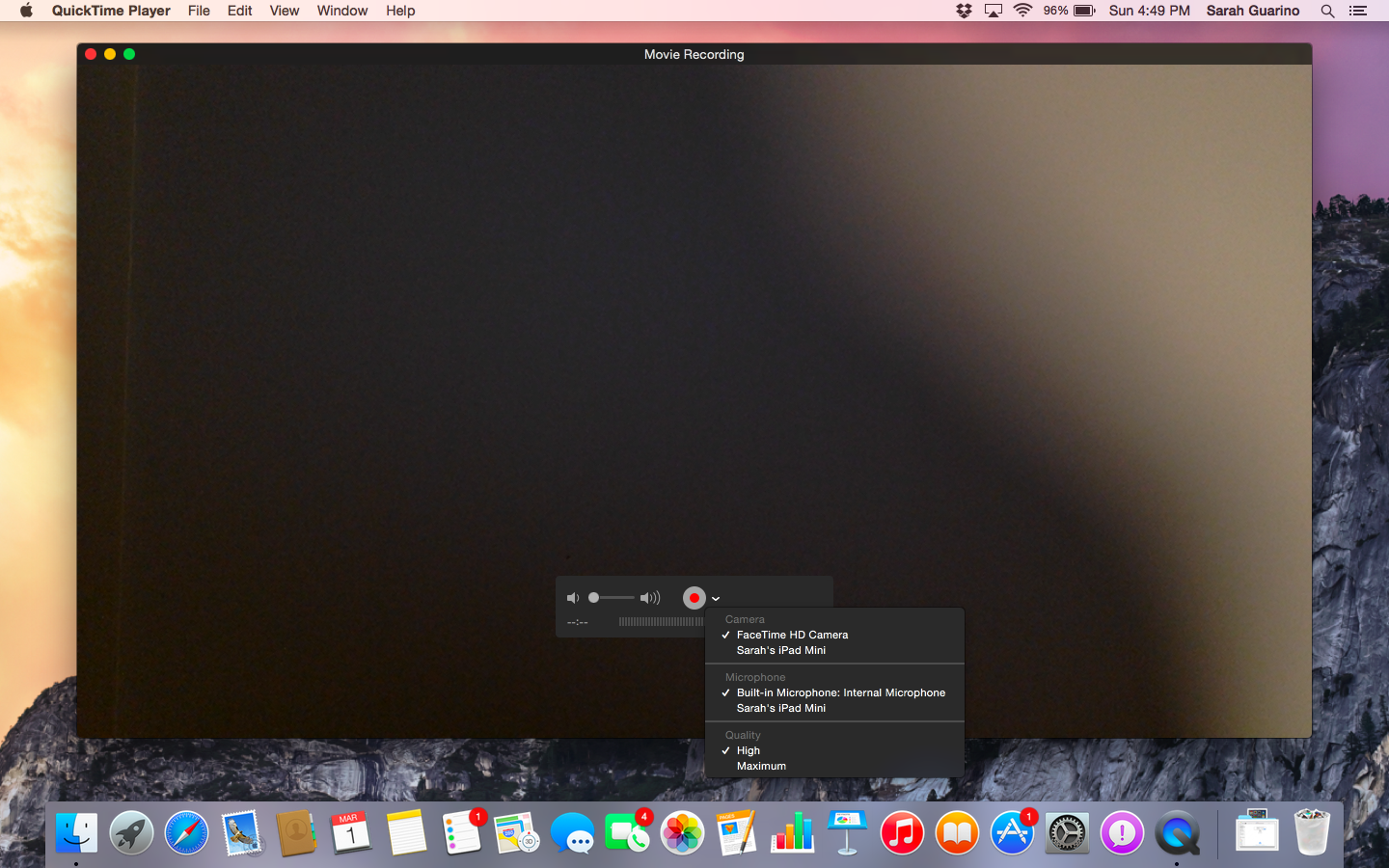
Once you are done with adjustment for sound recordings, head towards the QuickTime window to start the recording process.
- Click on File tab available on the top bar and select New Screen Recording from the drop-down menu. You will have a small box in front of you having a red button in the center.
- Tap on the little arrow placed on the right side of that red button.
- It will open a new drop-down menu letting you choose the quality and audio source.
- Select SoundFlower (2ch) as an audio source and keep the quality high. Now click on the red button.
- The QuickTime will ask you whether you want to record the whole screen, whole window or a particular area of the screen.
- You can select the screen area you want to be recorded.
- After making the selection of the screen for recording, tap on the Start Recording button.
- Once your recording is complete, click on the QuickTime icon in the menu bar or select Stop Screen Recording.
Step 3. Get it done!
Once you get your screen and audio recording, disconnect SoundFlower from the audio input so you can get back the audio on the speakers. Go to System Preferences and select the Sound tab. Click on the Output tab and select Internal Speakers as a source for producing sounds.
Apple’s default audio and video player QuickTime also allows easy editing of video and audio files.
Its basic video-editing features allow trimming video files, merging multiple multimedia files, and splitting and rearranging video clips. This software is extremely handy for those who make desktop screen recording videos for uploading to YouTube or sharing on other platforms.
Those who make tutorials for gameplay usually use video and audio recording to make the video engaging and give the viewer a full and exciting experience to watch the video.
However, it is not designed for long and more complex video recordings and you need to take the support of SoundFlower to record the screen with audio.
Best Macs for Screen Recording
Screen recording with audio eats CPU cycles. If your Mac stutters during recording, that stutter gets captured in your video. I’ve had to re-record entire tutorials because my older Mac couldn’t keep up.
Any M-series Mac handles screen recording flawlessly. The hardware encoder means you can record at 4K 60fps while running other apps without the fan even turning on. If you’re doing this professionally, the MacBook Pro M2 Pro is worth it for the extra cores. I covered this in my Mac performance guide.
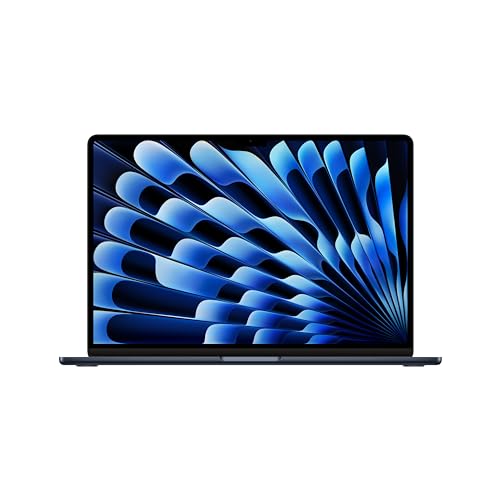
- LEAN. MEAN. M3 MACHINE — With a powerful 8-core CPU and up to 10-core GPU, the blazing-fast MacBook Air with M3 chip is a superportable laptop that sails through work and play.
- BUILT FOR APPLE INTELLIGENCE—Apple Intelligence is the personal intelligence system that helps you write, express yourself, and get things done effortlessly. With groundbreaking privacy protections, it gives you peace of mind that no one else can access your data—not even Apple.*
- PORTABLE DESIGN — Lightweight and under half an inch thin, so you can take MacBook Air anywhere you go.
- UP TO 18 HOURS OF BATTERY LIFE — Amazing, all-day battery life so you can leave the power adapter at home.
- MORE ROOM FOR WHAT YOU LOVE — The 15.3-inch Liquid Retina display supports 1 billion colors.
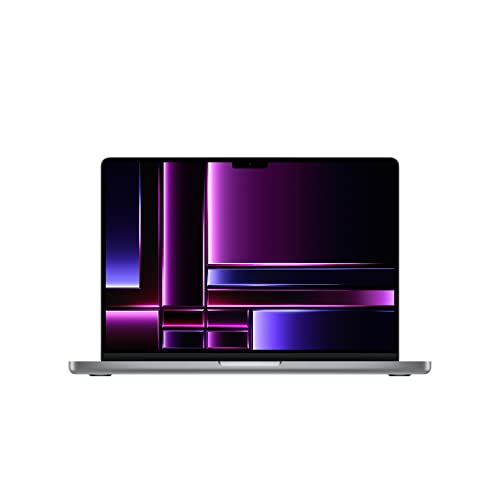
- SUPERCHARGED BY M2 PRO OR M2 MAX — Take on demanding projects with the M2 Pro or M2 Max chip. M2 Pro has up to 12 CPU cores, up to 19 GPU cores, and up to 32GB unified memory. M2 Max has 12 CPU cores, up to 38 GPU cores, and up to 96GB unified memory.
- UP TO 18 HOURS OF BATTERY LIFE — Go all day thanks to the power-efficient design of the M2 Pro or M2 Max chip. And the MacBook Pro laptop delivers exceptional performance whether it’s running on battery or plugged in.
- FULLY COMPATIBLE — All your pro apps run lightning fast — including Adobe Creative Cloud, Xcode, Affinity Designer, Microsoft 365, and many of your favorite iPhone and iPad apps.
- BEAUTIFUL PRO DISPLAY — The 14.2-inch Liquid Retina XDR display features Extreme Dynamic Range, over 1000 nits of brightness for stunning HDR content, and pro reference modes for doing your best work on the go.
- ADVANCED CAMERA AND AUDIO — Look sharp and sound great with a 1080p FaceTime HD camera, a studio-quality three-mic array, and a six-speaker sound system with Spatial Audio.