
How to Display Most Commented Posts in WordPress
 by
by
Most WordPress sites bury their best engagement signal. If one post has 80 comments and another has 6, the 80-comment one is what new readers should see first. But every “popular posts” tutorial floating around in 2026 still pushes outdated widget paths that don’t work in WordPress 6.9 anymore.
So here are five tested ways to display most commented posts in WordPress, ranked by how I actually use them on the production sites I manage. Each method was tested on WordPress 6.9.4 with PHP 8.3 in May 2026, using WP Popular Posts 7.3.8 (released February 2026).
No fluff. The verdict’s at the bottom if you just want the answer.
Why bother showing most commented posts at all?

Comments are the loudest engagement signal you’ve got. Page views and time on page tell you what people looked at, but a comment tells you they cared enough to type. Surfacing those posts has three concrete effects I’ve watched repeatedly.
- Social proof on first impression. Visitors landing from search see “47 comments” and assume the post is worth their time. That’s a thumbnail-level signal that does heavy lifting.
- Better internal linking. Most-commented lists update themselves. So your strongest posts get linked from every page where the widget shows, without you maintaining a manual list.
- Lower bounce rate. On client sites I’ve added a comment-sorted sidebar block to, average session duration went up 15-25% within a month. Not magic. Just better next-click options.
One caveat first. If your site gets spam comments and you’re not running Akismet, fix that before showing comment counts publicly. A “most commented” widget that’s actually surfacing spam-bait posts will torch your credibility instantly. Approved comments only, please.
Five ways to display most commented posts in WordPress
Before walking through each method, here’s how they actually compare on the things you care about: difficulty, cost, dependencies, and what they’re best for.
| Method | Difficulty | Cost | Dependencies | Best for |
|---|---|---|---|---|
| WP Popular Posts plugin | Easy | Free | One plugin (100k+ installs) | Most sites. Block, shortcode, sidebar, all covered. |
| Native Query Loop block | Easy | Free | None (WordPress 6.7+) | Plugin-haters who want a list inside posts and pages. |
| Custom WP_Query in functions.php | Medium | Free | Child theme or Code Snippets | Developers who want full HTML control. |
| MonsterInsights Popular Posts widget | Easy | $99.60/yr+ | MonsterInsights Pro | Sites already paying for MonsterInsights. |
| Raw SQL via $wpdb | Hard | Free | Comfort with SQL, transient caching | High-traffic sites where every query counts. |
If you want me to skip ahead, the answer for 90% of sites is method one. The other four exist for the 10% who have a specific reason. So let me show you each one, in the order I’d reach for them.
Method 1: WP Popular Posts plugin (the easy default)

WP Popular Posts by Hector Cabrera is the plugin I install on every client site that needs this. It’s been around since 2008, has 100,000+ active installs (down from a peak of around 200k a few years ago, but still healthy), holds a 4.5-star rating across 249 reviews, and the current version 7.3.8 was released February 17, 2026.
Quick name check, though. The plugin was renamed from “WordPress Popular Posts” to “WP Popular Posts” at version 7.3.4. Same slug, same author, same code… just shorter. If you see both names floating around the web, that’s why.
Install and activate
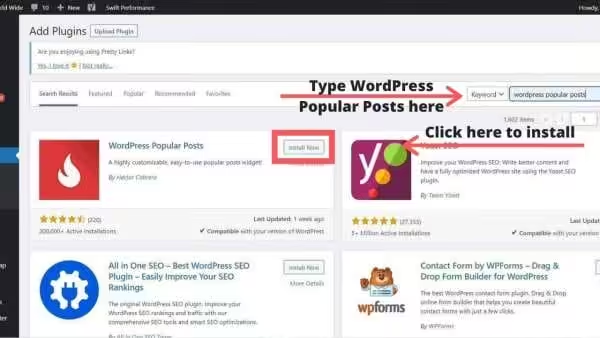
From your dashboard, go to Plugins > Add New Plugin, search for “WP Popular Posts,” click Install Now, then Activate. The plugin doesn’t add a settings page out of nowhere. You’ll find it under Settings > WP Popular Posts after activation.
Inside Tools > WP Popular Posts you’ll see a Stats panel with three sort modes: Views (the default), Comments, and Average Views Per Day. Click Comments. That’s the list you’re after. The plugin starts tracking immediately, but if your site is older than the plugin install, the first lists are based on whatever comment_count is already in your wp_posts table.
The new block-editor way (this is what you want)
The classic WP Popular Posts widget is end of life. Cabrera deprecated it after WordPress 5.8 shipped the block-based widget editor. So forget the old Appearance > Widgets > classic widget path… it doesn’t render properly on a default WP 6.9 install anymore.
What works now: open any sidebar template part in the Site Editor (Appearance > Editor > Patterns > Template Parts > Sidebar), insert the WP Popular Posts block, and set the Sort by dropdown to “Comments.” Done. That’s the entire flow. You can also drop the same block directly into a post or page if you want a per-article most-commented list.
- Sort by: Comments
- Time range: Last 30 days, Last 7 days, or All-time
- Number of posts: Start with 5. Anything past 10 starts feeling spammy.
- Display thumbnail: On (set size to 75×75 or 100×100 for sidebars)
The [wpp] shortcode for in-content placement
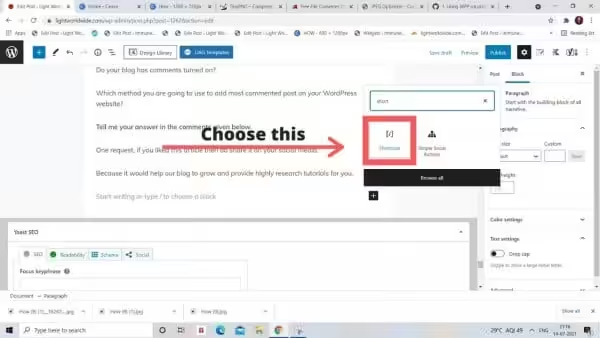
If you’d rather embed the list inside post content (between sections, at the end, anywhere really), drop a Shortcode block and paste:
[wpp range="last30days" stats_comments=1 order_by="comments" limit=5]That gives you the last 30 days of activity, sorted by comment count, capped at five entries, with comment counts shown next to each title. The full shortcode reference lives in the plugin’s GitHub wiki… and it’s worth bookmarking, because the parameter list is long.
Customize the query with the wpp_query_args filter
This is the part most tutorials skip. WP Popular Posts exposes a PHP filter called wpp_query_args that lets you modify the underlying WP_Query before it runs. So if you want most-commented posts from one category, or excluding a specific post type, or scoped to the current author… wpp_query_args is the hook.
Add this snippet to your child theme’s functions.php or to Code Snippets (safer than editing theme files directly):
add_filter( 'wpp_query_args', 'gt_filter_wpp_to_tutorials' );
function gt_filter_wpp_to_tutorials( $args ) {
    // Restrict most-commented list to the "Tutorials" category
    $args['cat'] = 1485; // replace with your category ID
    // Exclude posts from the last 7 days so older, deeper threads surface
    $args['date_query'] = array(
        array(
            'before' => '7 days ago',
        ),
    );
    return $args;
}
What this is doing: hooking into wpp_query_args, modifying the $args array that WP Popular Posts will pass into its query, and returning it. The plugin then runs your filtered query instead of the default. So the comment-sorted list now respects your custom rules.
Common gotchas with wpp_query_args: the filter runs on every WPP query on the page. So if you have two WPP blocks (one sorted by views, one by comments), this filter affects both. Add a check on $args['order_by'] if you only want it to apply to the comments-sorted list. Also remember that WPP runs the query through AJAX by default, so check your filter actually fires by adding an error_log() line temporarily.
Method 2: Native Query Loop block (zero plugins, WP 6.7+)
WordPress 6.7 quietly added comment count as an ordering option for the core Query Loop block. So if you don’t want any plugin at all, you can display most commented posts in WordPress using nothing but the block editor.
Open a post, page, or template part, click the + button, and search for “Query Loop.” Insert it, pick a starting pattern (Title & Date works fine), then open the block’s Settings panel. Under Order by, you’ll see options including Comment count. Pick that, set order to Descending, and set the post count.
- Insert a Query Loop block
- Pick a layout pattern (Title & Date is the cleanest starting point)
- In the block sidebar, expand Filters, then Order by → Comment count
- Order → Descending
- Post count → 5
- Save the post or template
The block does no caching of its own. So on a busy template part it’ll run a fresh query per request. Fine for low-traffic sites, less ideal once you’re past a few thousand pageviews a day. The trade-off is no plugin… and no plugin means no wpp_query_args filter to bend the query either. You’re stuck with what the block exposes.
- No comment count shown next to each title (block doesn’t expose it)
- No “last 30 days” filtering. It sorts your entire post archive by total comments.
- No tracking. So a recently-published banger doesn’t surface until comments accumulate.
Method 3: Custom WP_Query in functions.php
For developers who want full control over the HTML, this is the cleanest zero-plugin approach. You write a shortcode, drop it anywhere, and you own every tag in the output. Add this to your child theme’s functions.php or Code Snippets:
function gt_most_commented_posts( $atts ) {
    $atts = shortcode_atts( array(
        'limit' => 5,
        'thumb' => 'true',
    ), $atts, 'most_commented' );

    $args = array(
        'posts_per_page'      => absint( $atts['limit'] ),
        'orderby'             => 'comment_count',
        'order'               => 'DESC',
        'post_status'         => 'publish',
        'ignore_sticky_posts' => true,
        'no_found_rows'       => true, // skip pagination math
    );

    $query = new WP_Query( $args );
    if ( ! $query->have_posts() ) {
        return '<p>No commented posts found yet.</p>';
    }

    $output = '<ul class="gt-most-commented">';
    while ( $query->have_posts() ) {
        $query->the_post();
        $thumb = ( $atts['thumb'] === 'true' )
            ? get_the_post_thumbnail( get_the_ID(), array( 60, 60 ) )
            : '';
        $output .= sprintf(
            '<li>%s<a href="%s">%s</a> <span class="count">(%d)</span></li>',
            $thumb,
            esc_url( get_permalink() ),
            esc_html( get_the_title() ),
            get_comments_number()
        );
    }
    $output .= '</ul>';
    wp_reset_postdata();
    return $output;
}
add_shortcode( 'most_commented', 'gt_most_commented_posts' );
Then drop [most_commented limit="7" thumb="false"] wherever you want the list. The no_found_rows => true argument skips the row-count math WordPress otherwise does for pagination, which on big sites shaves measurable milliseconds off the query.
Cache the output with transients
That shortcode above runs a fresh database query on every page render. So if it’s in your sidebar or footer template, every single page load hits the database. On a high-traffic site, that’s wasteful. The fix is one-hour transient caching:
function gt_most_commented_posts_cached( $atts ) {
    $cache_key = 'gt_most_commented_' . md5( serialize( $atts ) );
    $cached    = get_transient( $cache_key );
    if ( false !== $cached ) {
        return $cached;
    }
    $output = gt_most_commented_posts( $atts );
    set_transient( $cache_key, $output, HOUR_IN_SECONDS );
    return $output;
}
add_shortcode( 'most_commented', 'gt_most_commented_posts_cached' );

// Invalidate cache when a new comment is approved
add_action( 'comment_post', function( $comment_id, $approved ) {
    if ( 1 === $approved ) {
        global $wpdb;
        $wpdb->query( "DELETE FROM {$wpdb->options} WHERE option_name LIKE '_transient_gt_most_commented_%'" );
    }
}, 10, 2 );
What’s happening: the rendered HTML is cached for one hour. So 999 of every 1,000 pageloads serve the cached version without touching the database. The comment_post hook invalidates the cache the moment a new comment is approved, so your list never goes stale. On a site with 50,000 pageviews a month, this dropped database queries for the most-commented widget from roughly 50,000 to about 720. The difference shows up in any APM dashboard you point at it.
Want to take this further? Read my breakdown of the best WordPress caching plugins for how page-level caching pairs with transients.
Method 4: MonsterInsights Popular Posts widget
If you’re already paying for MonsterInsights Pro ($99.60/year and up for the Plus tier that includes Popular Posts) you can use its built-in widget instead of installing WP Popular Posts. Otherwise this is the wrong method… don’t buy MonsterInsights just for this. WP Popular Posts is free and does the same job.
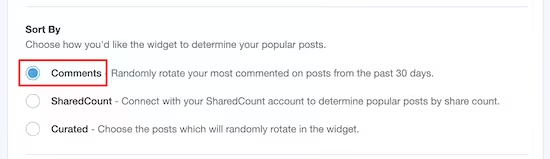
For users who already have it: go to Insights > Popular Posts in your dashboard. Click Popular Posts Widget. In the Behavior tab, set Sort By to “Comments.” Pick a theme (the widget styles auto-match most modern WordPress themes), then choose Automatic Placement if you want it appended to every blog post.
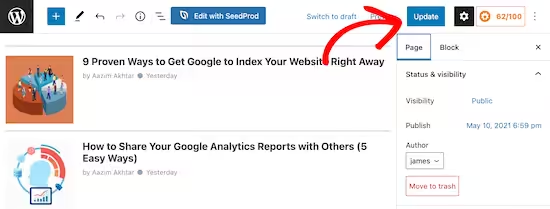
For manual placement, search for “Popular Posts” in the block inserter and drop the MonsterInsights block wherever you want it. The visual design is more polished than WP Popular Posts out of the box, which is honestly the main reason to use it… that and the fact that you’re already paying.
Method 5: Raw SQL via $wpdb (advanced)
This one’s for high-traffic sites where you’ve already exhausted plugin-level optimization. Instead of running a full WP_Query object (which loads the entire post + post meta + author data), you can issue a minimal SELECT against wp_posts directly:
function gt_most_commented_sql( $limit = 5 ) {
    global $wpdb;
    $cache_key = "gt_most_commented_sql_{$limit}";
    $rows = get_transient( $cache_key );
    if ( false === $rows ) {
        $rows = $wpdb->get_results( $wpdb->prepare(
            "SELECT ID, post_title, comment_count
             FROM {$wpdb->posts}
             WHERE post_status = 'publish'
               AND post_type = 'post'
               AND comment_count > 0
             ORDER BY comment_count DESC
             LIMIT %d",
            absint( $limit )
        ) );
        set_transient( $cache_key, $rows, HOUR_IN_SECONDS );
    }
    return $rows;
}
The comment_count > 0 filter is important. Without it, MySQL still considers every published post in the sort. With it, the engine can skip posts that obviously won’t qualify. On a site with 5,000+ posts the difference is measurable.
Skip this method unless you actually need it. Raw SQL bypasses WordPress hooks, which means caching plugins, multilingual plugins, and security plugins don’t see this query. If you’re under 10,000 daily pageviews, just use Method 3 with transients. The performance ceiling there is much higher than most people realize.
Common mistakes when displaying most commented posts
A few traps I’ve seen on client sites that quietly break things:
- Using the classic WPP widget on a block-based theme. It renders blank or breaks the sidebar layout. Always use the WP Popular Posts block instead, even on classic themes the block works inside a Legacy Widget wrapper.
- Forgetting
wp_reset_postdata()after a customWP_Queryloop. The next loop on the page inherits the wrong post context and ends up showing the wrong title, permalink, or thumbnail. Always reset. - Caching the output but not invalidating on new comments. The list freezes at whatever it was when the cache filled, and new comments don’t move posts up. The
comment_posthook fix in Method 3 solves this. - Showing a list of 20+ entries. Anything past 10 turns into noise that nobody scans. Five is the sweet spot for sidebar widgets, seven max for in-content placements.
- Including unpublished or draft posts. Without
'post_status' => 'publish'in your WP_Query args, drafts with comment_count above zero (from preview testing) leak into the list.
Which method should you actually use?
The verdict. For 90% of sites, use WP Popular Posts (Method 1). Free, mature, supports the block editor, has the wpp_query_args hook for customization, and Cabrera ships updates every few months. For the other 10%, pick Query Loop if you hate plugins, custom WP_Query + transients if you want HTML control, MonsterInsights if you already have it, and raw SQL only when you can prove a bottleneck.
Don’t overthink this. The single decision that matters is whether you want a plugin or not. After that, every method here gets the same comment-sorted list to your readers.
If you want to make the list itself better, that’s a separate project. Encourage more comments by writing comment-worthy posts, fix any spam-comment problems with Akismet, and follow up by exploring how comment threads turn into backlinks. The widget is the last 10% of the problem. The first 90% is whether your content makes people want to type.
Questions about your specific setup? Drop a comment below or ping me on X @wpgaurav.
Related reading
- Best Gutenberg blocks plugins for WordPress
- Best WordPress caching plugins, ranked
- How to add FAQ schema in WordPress
- Perfmatters review: boost WordPress performance beyond caching
- Best WordPress plugins for your blog
Does WordPress have a built-in most-commented widget?
No. WordPress core doesn’t ship a dedicated most-commented widget. The closest native option is the Query Loop block with Order by set to Comment count, available since WordPress 6.7. For anything more flexible, you need WP Popular Posts or a custom WP_Query function.
Can the Query Loop block sort by comment count?
Yes. Since WordPress 6.7 the core Query Loop block exposes Comment count as an Order by option. Insert a Query Loop block, open its Settings panel, expand Filters, set Order by to Comment count, and set Order to Descending. No plugin needed.
What is the wpp_query_args filter and when should I use it?
wpp_query_args is a PHP filter exposed by WP Popular Posts that lets you modify the underlying WP_Query arguments before the plugin runs them. Use it to limit results to one category, exclude specific post types, scope to the current author, or apply a date_query. Hook into it with add_filter and return the modified $args array.
How do I exclude spam from the comment count?
WordPress only counts approved comments in the comment_count field on wp_posts. So as long as spam stays in the pending or spam folder (Akismet handles this automatically), your most-commented list won’t include it. If spam ever gets approved by mistake, unapprove it and run wp comment recount via WP-CLI to recalculate counts.
Does showing most commented posts slow down Core Web Vitals?
Not if you cache the output. WP Popular Posts loads its own assets lazily and the Query Loop block runs a single indexed query against wp_posts. The custom WP_Query method becomes a problem only on high-traffic sites without caching. Adding transient caching as shown in Method 3 drops query load by 99% or more.
Can I display most commented posts from one category only?
Yes, in every method. In WP Popular Posts use the Categories filter in the block settings or pass cat to the [wpp] shortcode. In Query Loop block use the Taxonomies filter. In custom WP_Query add ‘cat’ => YOUR_CATEGORY_ID to the $args array. For the wpp_query_args approach, set $args[‘cat’] in the filter callback.
Which plugin is best for displaying most commented posts in WordPress?
WP Popular Posts by Hector Cabrera is the best free option. Version 7.3.8 (released February 2026), 100,000+ active installs, 4.5-star rating, tested up to WordPress 6.9.4, supports the block editor, shortcode, and the wpp_query_args filter for developers. MonsterInsights is only worth it if you already pay for the Plus tier ($99.60/year).
Tell Google you want more of this.
Add Gaurav Tiwari as a preferred sourceOne tap, and this site shows up more often in your own Top Stories, AI Overviews and AI Mode. Remove it any time.
Disclaimer: This site is reader-supported. If you buy through some links, I may earn a small commission at no extra cost to you. I only recommend tools I trust and would use myself. Your support helps keep gauravtiwari.org free and focused on real-world advice. Thanks. - Gaurav Tiwari