
How to Fix Missing or Broken Images in WordPress?
Nothing exists forever. Including those images you embedded in blog posts years ago from external sources, old CDNs, or domains that no longer exist.
If you’ve been blogging for any length of time, you know this pain. One day you’re checking an old post and instead of your carefully chosen image, there’s a broken icon staring back at you. Or worse, nothing at all. Just empty space where your content should be.
I’ve managed sites with 1,000+ posts. Trust me, broken images accumulate faster than you’d expect. Corrupt files, incorrect links, expired domains, deleted resources, migrated servers, changed permalink structures. The causes are endless. The result is the same: 404 errors on images, negative SEO signals, and a reading experience that makes your site look abandoned.
The obvious solution is to find and replace those broken image links one by one. But if you’ve got hundreds of posts, that’s not a solution. That’s a nightmare.
Let me show you several ways to fix this problem, from quick band-aids to proper database-level fixes.
Why Images Break in the First Place
Before we fix the problem, let’s understand it. Images break for a few common reasons:
External hotlinking gone wrong. You linked to an image on someone else’s server. They deleted it, moved it, or blocked hotlinking. Now you’ve got a broken link.
Domain or URL changes. You migrated from HTTP to HTTPS. Or changed domains. Or switched permalink structures. Your image URLs didn’t update with everything else.
CDN issues. Your old CDN expired, you switched providers, or the CDN configuration changed. All those optimized image URLs now point nowhere.
Plugin conflicts. Some image optimization or lazy loading plugins rewrite image URLs. When you deactivate them, the original URLs are gone.
Server migrations. You moved hosts but the uploads folder didn’t transfer correctly. Or file permissions got scrambled.
I’ve seen all of these. The CDN one is particularly nasty because it can break thousands of images overnight.
Finding Broken Images First
You can’t fix what you can’t find. Before throwing solutions at the problem, figure out the scope.
Manual spot-checking works for small sites. Open a few old posts, scroll through, look for missing images. But this doesn’t scale.
Broken Link Checker plugin is the classic solution. It scans your entire site and reports broken links, including images. Fair warning: it’s resource-heavy and can slow down your site while scanning. Run it during low-traffic hours, then deactivate it.
Screaming Frog (desktop app) crawls your site like a search engine and reports all 404s. The free version handles up to 500 URLs. For larger sites, it’s $259/year. Worth it if you do this professionally.
Google Search Console also reports crawl errors. Check the Coverage report for 404s. It won’t catch everything, but it shows what Google has noticed.
For quick database-level detection, you can run this SQL query in phpMyAdmin:
SELECT ID, post_title, post_content
FROM wp_posts
WHERE post_content LIKE '%<img%'
AND post_status = 'publish'
AND (post_content LIKE '%http://%' OR post_content LIKE '%broken-domain.com%')
ORDER BY post_date DESC;
Replace broken-domain.com with whatever old domain or CDN you’re looking for. This helps you identify which posts need attention.
The JavaScript Fallback Method
This is the quick fix. It doesn’t repair your broken images. It just displays a placeholder when an image fails to load. Your visitors see something instead of nothing.

If you’re running a WordPress site, and have jQuery enabled. Add this JavaScript to a Code Snippets manager plugin like Code Snippets Pro or Perfmatters or Functionalities.
$('img').on('error', function(){
  $(this).attr('src', '/wp-content/uploads/2018/08/placeholder.png');
});
Or better yet, skip jQuery entirely and use vanilla JavaScript:
document.addEventListener('DOMContentLoaded', function() {
  document.querySelectorAll('img').forEach(function(img) {
    img.addEventListener('error', function() {
      this.src = '/wp-content/uploads/2018/08/placeholder.png';
    });
  });
});
This runs without jQuery dependencies. Faster, cleaner, more reliable.
To add this to your WordPress site, use a plugin like WPCode, Code Snippets, or Header and Footer Scripts. Or add it directly to your theme’s JavaScript file if you’re comfortable with that.
One important note: This only works for images that fail to load after the page renders. If an image URL returns a 200 status but displays a broken image (rare but possible), this won’t catch it.
The PHP Method
If you prefer keeping everything in PHP, add this to your theme’s functions.php file:
function gt_broken_image_fallback() { ?>
<script>
document.addEventListener('DOMContentLoaded', function() {
  document.querySelectorAll('img').forEach(function(img) {
    img.addEventListener('error', function() {
      this.src = '<?php echo get_template_directory_uri(); ?>/images/placeholder.png';
    });
  });
});
</script>
<?php }
add_action('wp_footer', 'gt_broken_image_fallback');
I’ve modified this from the original to use wp_footer instead of wp_head. JavaScript that manipulates the DOM should load after the content, not before. Small optimization, but it matters.
Also notice I’m using get_template_directory_uri() to dynamically get the theme path. Hardcoding paths works until you change themes or move servers.
The CSS-Only Fallback
Here’s a trick most people don’t know. You can use pure CSS to style broken images:
img {
  position: relative;
}

img::after {
  content: "Image not available";
  display: block;
  position: absolute;
  top: 0;
  left: 0;
  width: 100%;
  height: 100%;
  background: #f5f5f5;
  color: #666;
  font-size: 14px;
  text-align: center;
  padding-top: 40%;
}
This displays a message when images break. No JavaScript required. The catch: browser support is inconsistent. Chrome handles this well. Safari less so. I use this as a progressive enhancement alongside the JavaScript method, not a replacement.
The Plugin Approach
If code isn’t your thing, plugins exist for this.
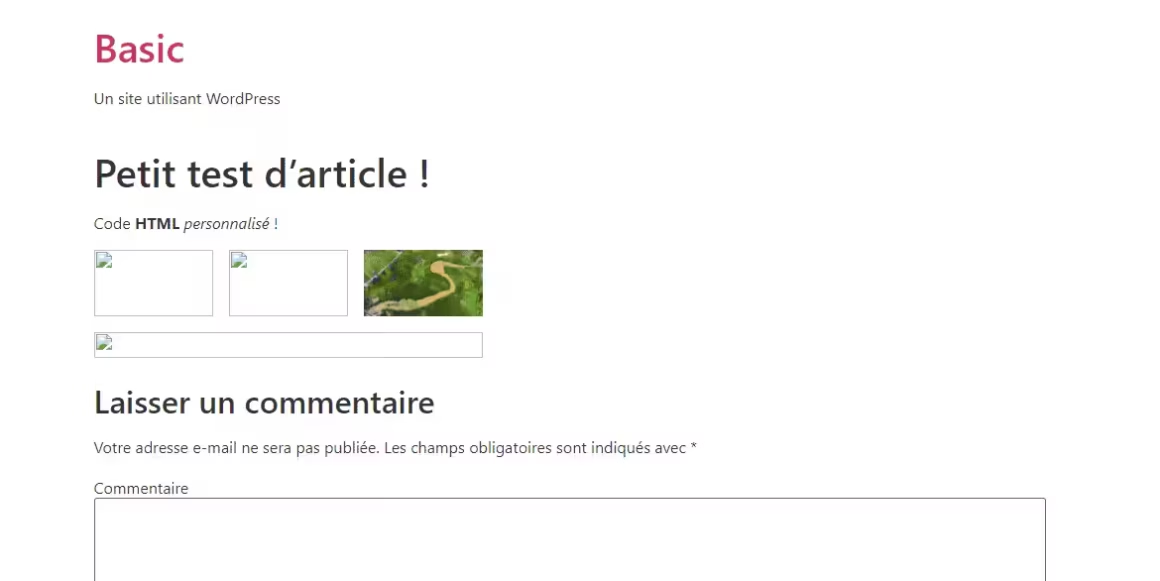
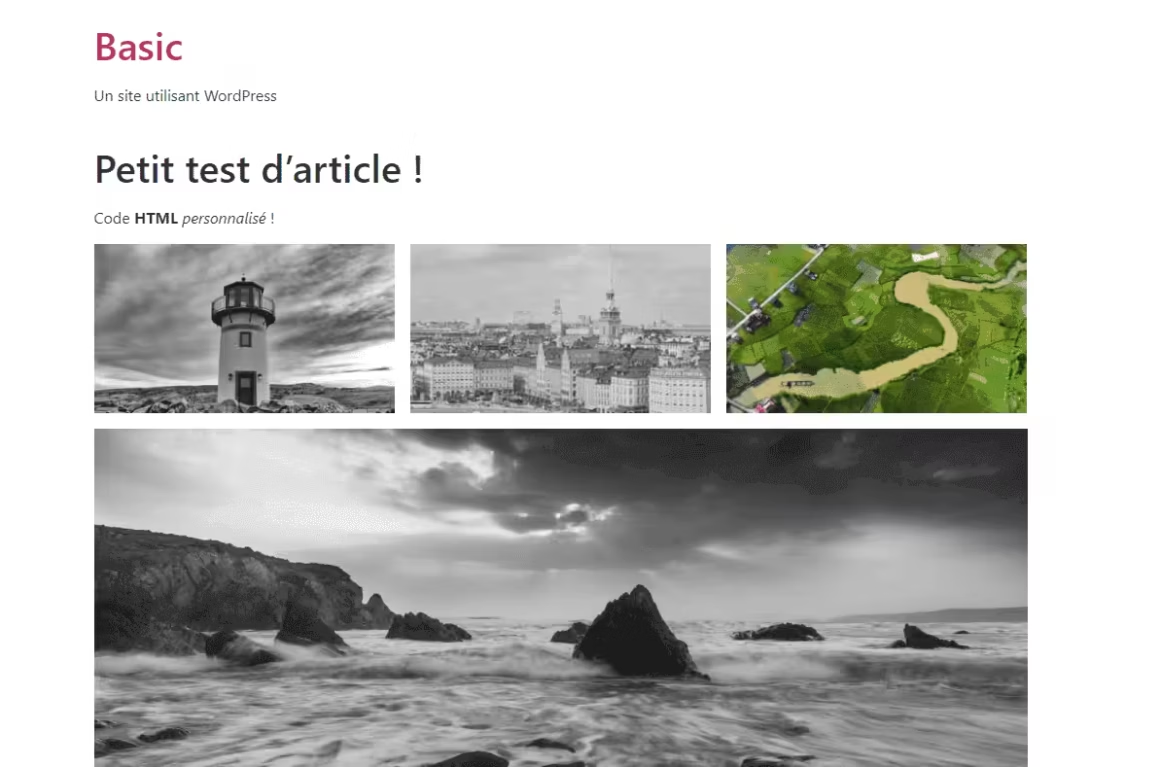
Placehodor (wordpress.org/plugins/placehodor/) does exactly what we’ve been discussing. It substitutes missing images with a default placeholder. Install, configure your placeholder image, done.
Jeronimo Image Repair takes a different approach. It actually scans your content and attempts to fix broken image references in the database.
Media Cleaner helps identify unused media files that might be causing issues. Good for cleanup but won’t fix existing broken links.
My honest take: plugins are fine for non-technical users, but they add overhead. If you’re comfortable with code, the JavaScript or PHP methods are lighter and faster.
The Database Fix (The Real Solution)
Fallbacks hide the problem. They don’t fix it. If you want to actually repair broken images, you need to work at the database level.
Search and Replace in the Database
The most common scenario: you changed domains, switched from HTTP to HTTPS, or moved your CDN. All your old image URLs need updating.
The safest way is using the Better Search Replace plugin or WP-CLI.
With Better Search Replace:
- Install and activate the plugin
- Go to Tools → Better Search Replace
- In “Search for,” enter your old URL (like
http://old-domain.com/wp-content/uploads/) - In “Replace with,” enter the new URL (like
https://new-domain.com/wp-content/uploads/) - Select all tables (especially
wp_postsandwp_postmeta) - Run as a dry run first to see what would change
- If the results look right, run for real
With WP-CLI (faster for large databases):
wp search-replace 'http://old-domain.com' 'https://new-domain.com' --all-tables --dry-run
Remove --dry-run when you’re ready to commit.
Important: Always backup your database before running search-replace operations. I’ve seen people accidentally replace strings that appeared in places they didn’t expect. One wrong search term can break your entire site.
Preventing Future Broken Images
Fixing broken images once is painful. Fixing them repeatedly is unacceptable. Here’s how to prevent this:
Never hotlink external images. If you want to use an image, download it and upload it to your own media library. External URLs are outside your control.
Use relative URLs when possible. Instead of https://yourdomain.com/wp-content/uploads/image.jpg, use /wp-content/uploads/image.jpg. Relative URLs survive domain changes.
To force WordPress to use relative URLs in content, add this to your functions.php:
function gt_relative_image_urls($content) {
  $home_url = home_url();
  $content = str_replace($home_url . '/wp-content/uploads/', '/wp-content/uploads/', $content);
  return $content;
}
add_filter('the_content', 'gt_relative_image_urls');
Set up proper redirects after migrations. If you change domains or URL structures, configure 301 redirects for your old image URLs. This gives you time to update references without breaking everything immediately.
Regular backups that include uploads. Most backup plugins handle this, but verify. I’ve seen backups that captured the database but missed the uploads folder.
Document your CDN setup. If you use a CDN for images, keep notes on the configuration. Future you (or your successor) will thank you.
Bulk Downloading External Images
If you’ve been hotlinking images and want to fix that, there’s a plugin called External Images to Media Library. It scans your posts, finds external image URLs, downloads them to your media library, and updates the references.
Works well for small to medium sites. For large sites with thousands of external images, it can timeout. Run it in batches if that happens.
Alternatively, here’s a WP-CLI command to find all external images in your content:
wp db query "SELECT ID, post_title FROM wp_posts WHERE post_content REGEXP 'src="https?://(?!yourdomain.com)' AND post_status='publish'" --allow-root
This lists posts containing images from external domains. Replace yourdomain.com with your actual domain. Then you can manually review and fix the worst offenders.
What to Do Right Now
If you’ve got broken images on your site, here’s your action plan:
First, run Broken Link Checker or Screaming Frog to understand the scope. How many broken images? Are they all from one source, or scattered?
Second, if it’s a URL change issue (domain, protocol, CDN), use Better Search Replace to fix them in bulk. This is the real fix.
Third, add the JavaScript fallback as a safety net. Even after fixing known issues, new broken images can appear. The fallback ensures visitors never see empty boxes.
Fourth, audit your workflow. Are you hotlinking external images? Using a CDN that might change? Fix the process so this doesn’t happen again.
Broken images look unprofessional and hurt your SEO. Google notices when your pages return 404s for resources. But more importantly, they erode trust with readers. A site with broken images looks abandoned, even if the content is still valuable.
Take an hour this week to run a scan and fix what you find. Your future self will appreciate it.
FAQs
Why do images break in WordPress?
u003cpu003eImages break for several common reasons: external hotlinking when the source site deletes or moves the image, domain or URL changes during migrations, CDN issues when switching providers or configurations expire, plugin conflicts that rewrite image URLs, and server migrations where the uploads folder doesn’t transfer correctly.u003c/pu003e
How can I find broken images on my WordPress site?
u003cpu003eUse the Broken Link Checker plugin to scan your entire site (run during low-traffic hours as it’s resource-heavy). For larger sites, Screaming Frog crawls your site and reports all 404s. Google Search Console also reports crawl errors in the Coverage report. You can also run SQL queries in phpMyAdmin to find posts with potentially broken image references.u003c/pu003e
What’s the quickest way to hide broken images from visitors?
u003cpu003eAdd a JavaScript fallback that displays a placeholder image when an image fails to load. Use vanilla JavaScript with an error event listener on all img elements to swap the src attribute to your placeholder image. This can be added via plugins like WPCode or Code Snippets.u003c/pu003e
Does the JavaScript fallback method actually repair broken images?
u003cpu003eNo, the JavaScript fallback only hides the problem by displaying a placeholder instead of a broken image icon. It doesn’t fix the underlying broken URLs in your database. For a permanent fix, you need to use search-replace tools to update the actual image URLs in your database.u003c/pu003e
How do I fix broken images caused by domain or URL changes?
u003cpu003eUse the Better Search Replace plugin or WP-CLI to update URLs in your database. Enter your old URL pattern in the search field and your new URL in the replace field, select all tables (especially wp_posts and wp_postmeta), run a dry run first to preview changes, then execute the replacement. Always backup your database before running search-replace operations.u003c/pu003e
Should I use a plugin to fix broken images?
u003cpu003ePlugins like Placehodor work well for non-technical users who want to display placeholder images. For actually fixing broken URLs, Better Search Replace is effective. If you’re comfortable with code, the JavaScript or PHP fallback methods are lighter and faster than dedicated plugins.u003c/pu003e
How can I prevent images from breaking in the future?
u003cpu003eNever hotlink external images. Always download and upload to your own media library. Use relative URLs instead of absolute URLs when possible. Set up proper 301 redirects after migrations. Ensure your backups include the uploads folder. Document your CDN setup for future reference.u003c/pu003e
Will broken images affect my SEO?
u003cpu003eYes, broken images hurt your SEO. Google notices when your pages return 404 errors for resources and this sends negative signals. Beyond SEO, broken images erode trust with readers and make your site look abandoned, even if your content is still valuable.u003c/pu003e
Disclaimer: This site is reader-supported. If you buy through some links, I may earn a small commission at no extra cost to you. I only recommend tools I trust and would use myself. Your support helps keep gauravtiwari.org free and focused on real-world advice. Thanks. - Gaurav Tiwari