
The Best Video Editing Software for Mac, Windows and Online
Were you searching for a video editing software that actually fits your workflow and not just a shiny marketing page? I get it. Choosing the right video editing app today feels harder than editing the video itself.
The market is crowded. Really crowded. From beginner-friendly tools to professional-grade timelines, every video editor for Mac and Windows claims to be the best.
That is where the confusion starts. And honestly, that is normal.
If you are a creator, editor, animator, or even a marketer, you have likely tried more than one video editing software already. Some felt too basic. Others felt like overkill.
Take Adobe Premiere Pro as an example. It is powerful, flexible, and widely used. But then Adobe also offers Adobe Premiere Elements, which targets beginners and casual editors. Same brand. Very different intent.
Now add After Effects into the mix. It is not a traditional video editor, yet many creators rely on it for motion graphics, effects, and compositing. If you have the skills, it can take your videos to a different level.
Apple users face a similar dilemma. Final Cut Pro is often called the best video editing software for Mac, thanks to its speed and optimization. At the same time, tools like iMovie exist for quick edits and basic projects.
Then there is the online side of things. Tools like Canva have made online video editing software mainstream. You do not need a powerful machine or years of experience to create something that looks good.
All these options sound great on paper. In reality, they make the decision harder.
The truth is simple. There is no single “best” video editing software for everyone. There is only the best one for your needs, your skill level, and your goals in 2026.
Some editors prioritize performance and color grading. Others care about ease of use, templates, and speed. Many creators want a balance between professional features and a gentle learning curve.
That is exactly why this guide exists.
In this article, I break down the best video editing software for Mac, Windows, and online platforms in 2026. Not just features, but real-world usability, who each tool is for, and where it makes sense.
If you want clarity instead of confusion, you are in the right place. Keep reading.
In this article →
Best Video Editing Software
“Intro music, please. “
In this article, I compare, rate, and break down the best video editing software for content creators, YouTubers, video editors, and movie makers who actually care about results.
I am not just listing tools. I am reviewing each video editor based on real-world use, performance, learning curve, and value in 2026.
You will find Mac video editing software, Windows video editors, and online video editing tools clearly grouped by use case, not hype.
Some tools are built for professional video editing, color grading, and timelines that can handle serious workloads. Others focus on easy video editing, templates, and speed for creators who just want to publish faster.
I also cover AI-powered video editors, cloud-based platforms, and beginner-friendly apps that have matured a lot by 2026.
Each tool is reviewed one by one, with honest pros, limitations, and who it is actually for.
If you are tired of marketing fluff and want clarity on choosing the right video editing software in 2026, this section sets the foundation.
Why Videos and Video Editors?
A video is still the fastest way to explain, persuade, and connect. People do not just watch videos. They feel them. That emotional pull is why video content consistently outperforms text and images across platforms.
Today, videos are everywhere. From movies and web series to reels, ads, tutorials, and online courses, video has quietly become the default language of the internet.
What changed in the last few years is scale. In 2026, businesses, creators, and educators are producing more videos than ever before, and they are doing it faster. That shift has pushed massive demand for video editors, motion designers, and visual effects artists.
Short-form platforms like YouTube Shorts and Instagram Reels have made quick editing a daily habit. Long-form content still relies on professional video editing software for color grading, sound design, and storytelling.
Even education has transformed. From recorded lectures to animated explainers, educational videos now drive engagement and retention better than slides or PDFs ever did.
From movies to web series to tutorials and brand videos, video is no longer optional. It is essential.
That is where video editing software becomes critical. A good editor does more than cut clips. It saves time, improves quality, and helps ideas land clearly.
In 2026, choosing the right video editor is not about trends. It is about workflow, speed, and getting real results.
What to look for in a Video Editor Software?
If you are an experienced campaigner, I think you already know this. But if you are just starting, let me tell you what you must expect from your video editing software.
- First of all the app should be fast. Video editing is heavy work and rendering things take hours, even days or weeks. So an app should be as fast as possible. Online video editors are fast because all their processing happens on the cloud or virtual servers. But in reality, you cannot rely on these for heavy projects.
- You will be working offline and you will have to choose amongst those who work totally offline. Online video editors are great for quick and lighter marketing & YouTube projects though.
- The video editing software that you’re using must be compatible with the latest file formats, especially MKV, MP4.H265, WEBM etc. All products in this list support popular and latest video formats.
- Customer support or community support must be readily accessible. Most of the best video editing software (except Blender ) are commercial and come with dedicated support. So not many worries here as well.
Alright. Enough now. Let’s skip to the main material. In the next section, I will list and review the popular video editing software.
The Best Video Editing Software in 2026 (Reviewed)
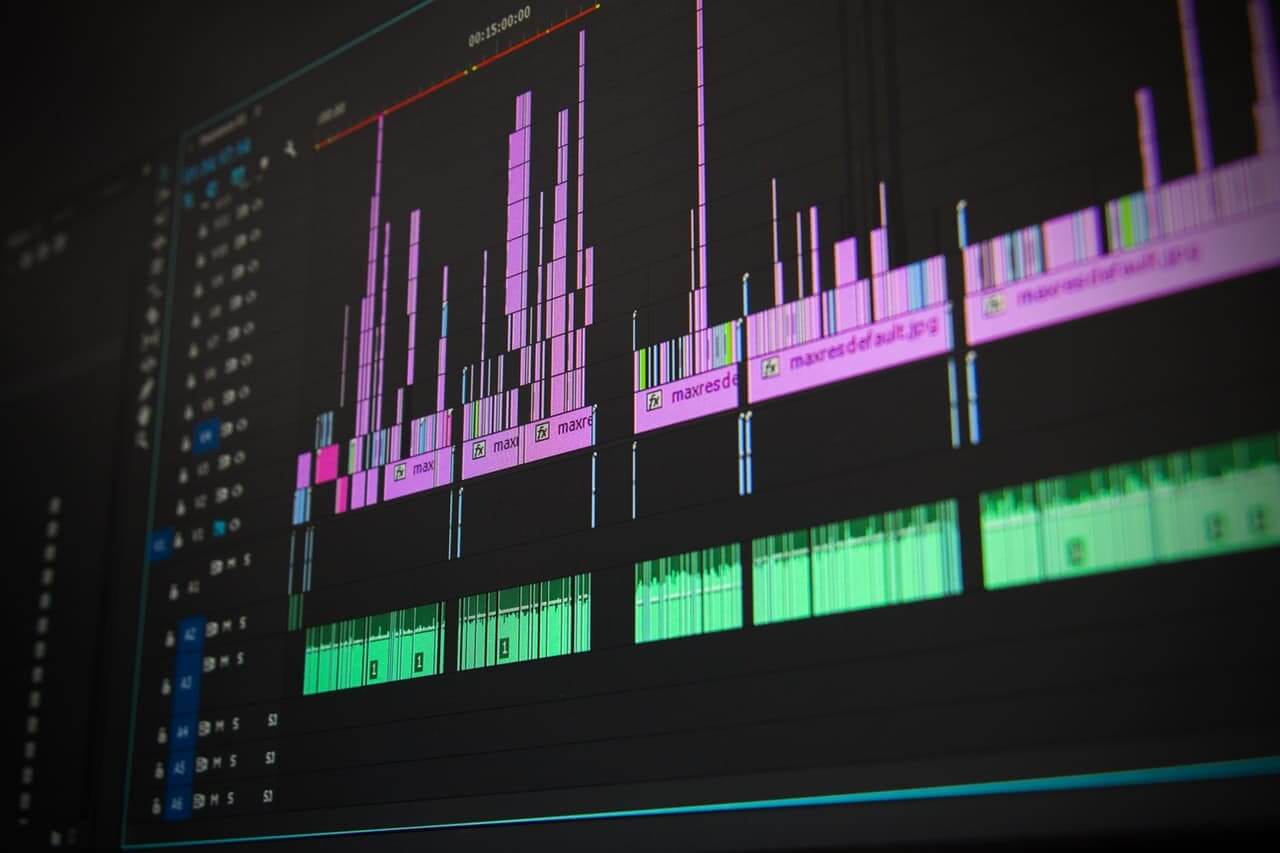
In this part, I have included the best video editing software and programs ranging from creating simple videos consisting of pictures and music, to making more advanced videos, and making professional adjustments like color grading using LUTs & visual effects. I will consider adding both free & paid best video editing software for Windows and macOS.
DaVinci Resolve
DaVinci Resolve is my top pick for video editing. It works great for beginners and power users alike. The best part? The core version is completely free. You can upgrade to the Studio version for a one-time $295 fee, and yes, it is genuinely worth it if you need advanced tools.
At first glance, DaVinci can feel overwhelming. The interface has a lot going on. Tabs, panels, timelines, scopes. It looks intimidating. But once you spend a little time with it, things click. The workflow starts to feel logical, even elegant. Very few editors feel this polished once you get comfortable.
Where DaVinci truly shines is color grading. This is its DNA. You get professional-grade color correction tools that many editors can only dream of. On top of that, you can edit video, add visual effects, work with motion graphics, and handle post-production audio, all inside the same app. No jumping between tools.
Beyond that, it covers all the essentials and then some. Audio capture, speed control, collaboration features, a solid media library, split and merge tools, stabilization, trimming, compositing, and effects. It runs smoothly on Windows, macOS, and Linux. For a free editor, it is honestly ridiculous how much you get.
Download or buy DaVinci Resolve
Adobe Premiere Pro
Adobe Premiere Pro is one of the best video editing software options for Mac and Windows, and it still dominates the professional space in 2026. It is widely used by YouTubers, content creators, film editors, and even full-scale production houses. If video editing is more than a hobby for you, this tool deserves serious attention.
Premiere Pro is part of Adobe Creative Cloud, which means it integrates smoothly with After Effects, Photoshop, Audition, and Media Encoder. That ecosystem matters. It saves time, reduces friction, and keeps your workflow tight when projects grow complex.
What makes Premiere Pro shine is control. You get frame-level editing, advanced color grading, precise audio mixing, multi-cam timelines, proxy workflows, and deep format support. From short-form Reels to long YouTube videos and full films, it handles everything without breaking a sweat.
In 2026, Adobe has pushed hard on AI-powered features. Tools like text-based editing, auto captions, speech enhancement, and smart object selection genuinely save hours. This is not gimmicky AI. It is practical, production-ready help that improves speed and consistency.
Yes, the learning curve exists. I will not sugarcoat it. Premiere Pro expects you to think like an editor. But once it clicks, the software gets out of your way. That is why so many professionals stick with it for years.
If you are unsure, the free 30-day trial is the smartest way to decide. Test it on real projects. Stress it a little. If your goal is to make money from videos, build a channel, or deliver client work, the subscription cost makes sense long term.
Download or buy Adobe Premiere Pro
Adobe Premiere Elements
Not ready to deal with the full weight of Adobe Premiere Pro yet? Go with Premiere Elements. It strips away the complexity and keeps the parts most people actually use. The interface is cleaner, the tools are easier to understand, and you can start editing without feeling lost. For beginners and YouTubers, this makes a lot of sense. The learning curve is gentle, results come fast, and you still get solid, polished videos without fighting the software.
You can download and buy it here.
Final Cut Pro X
Final Cut Pro is built exclusively for macOS, and it shows in day-to-day use. If you live inside the Apple ecosystem, this editor feels fast, fluid, and almost invisible once you get going. Everything is tightly optimized for Mac hardware, so even complex timelines with heavy effects stay smooth and responsive.
Color grading is one of its strongest cards. You get powerful color wheels, clean curves, smooth gradients, and excellent noise reduction right out of the box. No plugin hunting. No extra setup. It also supports native 360-degree video editing, which still matters if you work with immersive, VR, or experimental formats.
Pricing is refreshingly simple. Around $300 as a one-time purchase. No subscriptions. No recurring fees. For professional Mac users who care about speed, stability, and a distraction-free workflow, Final Cut Pro is a long-term investment that quietly pays for itself.
Here is the download and purchase link.
Blender
Blender specializes in creating 3D videos. It is an open source app — that means it is free and extensible. Using Blender you can create great 3D and 2D animation videos. It comes with advanced design features. The learning curve for Blender may not be as easy but once you get used to it, you will fall in love with this app.
Blender is undoubtedly the best video editing software for 3D animators, plus it is free.
You can download Blender using this link.
iMovie
iMovie is a free video editing software for Mac, designed exclusively by Apple for MacOS. It is one of the easiest professional video editing apps and hands down the best free video editor. You can use it to make, edit and share videos for your personal as well as professional needs. As the name suggests, this is directed to be a movie maker for MacOS, an alternative for Windows Movie Maker.
iMovie comes with great templates and even greater effects. You can slow and fasten things and do even more. It is easy to learn and master.
It is a great choice for anyone who wants to make short videos of high quality, either for personal use or for marketing purposes.
Here is the download link.
Animoto
Animoto is a versatile video editing tool that is ideal for creating professional-quality videos quickly. It offers a drag-and-drop interface, making it accessible for beginners and those without extensive editing experience.
Animoto provides a range of templates, music tracks, and text overlays, allowing users to produce engaging videos for social media, marketing, or personal projects. The software is cloud-based, meaning you can access and edit your projects from any device. Pricing plans cater to different needs, from basic personal use to advanced business features.
For more information, visit the Animoto website.
Windows Movie Maker
If you want a simple and easy program to make a video, Windows Movie Maker is what you specifically need. It has a good number of features that enable you to create a high-quality video, and it contains major video editing features such as cutting, merging or converting videos.
Excellent if your videos are a photo slideshow with music in the background. There are many options for how to display the images continuously. You can add any text to each image separately. There are also a lot of options for how to display the text on the images.
The program is easy to use and represents an excellent choice for beginners in the world of video design and editing. The official support for Windows Movie Maker has ended but you can download it from DownloadCrew.com page.
ssemble
ssemble is a state-of-the-art online video editing tool. It provides various functions such as trimming, zooming, rotating, and adding music, sound effects, and text to videos. It has powerful plugins for enhanced editing. Moreover, ssemble also has a feature that allows you to download your edited video in your preferred format and quality for easy sharing on other platforms.
Here’s the link to ssemble from where you can use it.
Type Studio
Type Studio is a new and easy way to edit your content-focused videos. You can edit your video without having any video editing skills. Upload your video in Type Studio and your spoken words will be transcribed into text. After that, you edit your video by just editing the transcribed text. It is as easy as editing in Google Docs.
It is an online text-based video editor that lives in your browser. So you can use it on Windows as well on a Mac PC without downloading anything.
Since everything runs online, you can store all your footage online in Type Studio’s Content Hub. This provides a performance advantage because the rendering will also be done in the cloud. So you don’t need any specific hardware or high-end PC.
Additionally, you can use Type Studio to add subtitles automatically to your video. All this can be done with just one click because your video is already transcribed. Optionally, you can also download the transcript of the video or SRT files.
Type Studio offers a free version that includes a certain monthly upload limit. The paid plan starts at 14$ per month and includes all features.
Filmora9
Filmora 9 is designed for people who want more control than basic editors but do not want the complexity of pro-grade software. It feels approachable on day one and still leaves enough headroom as your editing needs grow.
The editing workflow is smooth. Simple tasks like cutting clips, stacking layers, adding transitions, or applying effects take just a few clicks. The interface plays a big role here. Media files, preview, and timeline are clearly separated, so you are not hunting for tools while working.
A practical feature I like is choosing the aspect ratio before editing starts. Whether you are making YouTube videos, Instagram reels, or vertical content, this avoids unnecessary resizing later.
Filmora 9 also goes beyond the basics with a solid set of extras:
- Fast cut tools for quick edits
- A wide collection of clean, modern transitions
- Visual effects with color adjustment controls
- Built-in tools for text, titles, and audio tweaks
- A large library of stock music tracks and easy sharing options
Exporting is flexible and beginner-friendly. You can save videos in popular formats like MP4, MOV, MKV, and GIF. Quality settings let you control output size without guesswork. Direct uploads to platforms such as YouTube, Facebook, and Vimeo are included, along with DVD burning and 4K export support using the H.265 codec.
Pricing is simple and predictable. Filmora 9 is available on monthly, yearly, and lifetime plans, so you can pick what fits your workflow instead of locking yourself into long-term commitments.
Here is the download link.
VEED.io
VEED is a simple, browser-based video editor made for speed and ease. If you want to trim clips, rotate footage, crop frames, add text, draw on videos, or apply quick filters without dealing with complex tools, VEED fits the bill. It is built for creators who just want things done. Social media managers, meme creators, educators, and first-time editors can jump in without a learning curve. The core idea is clear. Video editing should feel effortless, not intimidating.
One area where VEED really shines is subtitles. You can generate subtitles automatically in a few clicks, add them manually if you want more control, or upload subtitle files like SRT. This makes it especially useful for social videos, tutorials, and accessibility-friendly content where captions are non-negotiable.
Here is the download link.
Camtasia Studio
Camtasia is a powerful video editing app developed by Techsmith which is available for both Windows and macOS. It is great for beginners as well as professional video editors. Camtasia Studio lets you make visually appealing videos easily and quickly.
Also, it has a free mobile version for Android and iOS, so you can quickly transfer content from your mobile to desktop and vice versa. Furthermore, it gives you direct sharing options to platforms like Youtube, Vimeo, Google Drive, and Screencast.com after you complete your editing. Also, Camtasia is very to learn to use as a tutorial is pre-provided by TechSmith. So, people who know nothing about video editing can also edit a video in no time.
Camtasia studio is preferred because it offers complete effect control, a professional set of features, tutorial support, easy sharing options, and mobile-friendly. But there are a few things that make the editor less likable. It is expensive compared to what it has to offer and also has a limited preset media library.
Overall, Camtasia is a good video editor and gets the job done with occasional crashing and bugs. Camtasia has a 30 day free trial with a watermark. After that, it has a $249 one-time purchase fee.
Camtasia Studio is a paid tool and one of the best video editing software, but you can get a full month free trial here.
Canva Video Maker
Video editing doesn’t need to be complicated. Working on it can be made fun and easy with Canva. In just a couple of minutes, publish your desired video outcome with results that will leave your audience wanting more.
Canva’s simple drag-and-drop tool allows you to add images, illustrations, and other elements to get your video rolling. You may also easily upload your media files or browse through millions of highly-curated stock photos and videos made available directly from their library. There are also music, fonts, graphics, and animations you could use with free or premium access.
If you are looking for options to quickly bring your vision to life, you may pick a ready-made video template from their library’s collection that best suits your theme. Then, you can customize it by adding your flair.
Craft your videos seamlessly on your desktop or through the app via the Play Store and App Store. Get your custom video for free and without watermarks, then share it with the world.
Canva is free to use and it can be used online. It is possibly the best online video editing app. Start creating with Canva here.
FlexClip
Flexclip is an online video editor and is best suited for people just getting into video editing. It lets you create awesome videos in just a few steps. Flexclip is a free editor, and you can use it without any monthly or yearly charges. Flexclip also offers various video editing tools and features that any basic editor provides.
You can create, convert, edit, trim and compress videos instantly with Flexclip. You can trim your videos without degrading the video quality. Flexclip also lets you add captions, texts, and titles to your video. You can also merge multiple videos or photos into a single video clip with its help.
Another exciting feature of Flexclip is that it offers voice recording. You do not have to pre-record any audio, and you can directly narrate while editing your video. You can even create a video from scratch just by using templates provided in the editor. It also gives you pre-included free videos, photos, and audio that you can use while creating videos.
Flexclip is very easy to navigate through and use and a great choice for beginners. It also offers three more pricing plans other than its free version viz. Basic ($5.99/month, $71.88 paid annually), Plus ($9.99/month, $119.88 paid annually), and Business ($19.99/month, $239.88 paid annually).
FlexClip is a great option for anyone who wants to make a modern video for marketing purposes or social events.
Promo
Promo is an excellent video editor that offers tools and content to its users to create or edit awesome video clips. Whether for vlogging or business campaigns, Promo is dedicated to creating engaging videos for its users. With its easy-to-use and intuitive UI, create astonishing videos in no time.
The editor comes with a library of 12 million templates and video clips that you can use to create new videos or enhance existing ones. It also lets you create custom text and logos. Promo comes with tons of features, including audio capture, brand overlay, closed captions, tools for collaboration, customizable branding, animation, drag and drop features, huge media library, split/merge, speed adjustment, and more.
It is also compatible with mobiles and has strict privacy options. Also, you can check out the analytics here. Promo lets you create videos with HD resolution, and after creating, you can directly share your videos to social platforms. It has three priced annual plans. Those are annual starter ($12 per month, $144 paid annually), annual business ($29 per month, $348 paid annually), and annual agency($99 per month, $1188 paid annually). Choose a plan that suits your needs and get started.
Regarding learning to use, Promo has a set of articles that explain how to use the program in a clear and simple way. It is an excellent choice for every brand that wants to invest in making professional promotional videos.
Biteable
Biteable is an easy-to-use, browser-based platform for business owners who want to reap the benefits of professional video marketing without a significant time investment. Make a video from scratch with personal photos and footage, or take advantage of 1.8 million stock images and clips included in all plans.
Biteable also has hundreds of professional-quality video templates designed for a wide variety of use-cases, including sales, internal comms, explainers, and more. Visit the Biteable template library to see for yourself.
Minitool moviemaker
MiniTool MovieMaker is a free video editing tool built for beginners who want quick results without a learning curve. The interface is clean and simple, so you can start editing right away without watching tutorials or reading long guides. And if you ever feel stuck, the built-in Manual option is there to help.
You get all the essential editing tools you actually need. Trim, split, merge, rotate, adjust speed, add or remove audio, and apply basic video effects. You can also add animated text, subtitles, and end credits to personalize your videos. Creating slideshows is easy too. Just combine images with audio, then add transitions and filters to polish things up.
On the quality front, MiniTool MovieMaker does a solid job. It supports HD and 4K exports and includes features like muting clips, an advanced timeline, a speed controller, and a small transition library for finer control. It is a great pick for beginners and casual creators, especially since it is completely free. That said, professional editors may find it too limited. Also worth noting, occasional glitches can pop up, which can be a bit annoying during longer editing sessions.
VSDC free video editor
VSDC is a free non-linear video editing software compatible with Windows. Non-linear software means you can merge video and image files in any order. Thus it gives you more flexibility compared to other linear editors like that of Movie Maker. VSDC lets you work with layers, place various objects in a single scene, overlap objects, blend fragments, and control any scene’s transparency. There are other features included, such as:
- you can put pictures in another picture
- keep pictures side by side, color correct
- split-screen videos
- put a video in text effect
- add double exposure
- remove the green screen (Chroma Key) and many more.
You can even edit 4k videos with it. It is also very easy to use so that someone without any prior knowledge of video editing can also edit with it. Thus, it is suitable for both beginners and professionals. The video editor also supports all audio, video, and image formats and codecs.
VSDC also lets you record vice commentaries directly and screen capturing. VSDC is especially good for people such as YouTubers, video gamers, and action cameramen. VSDC has many features you won’t find in other free video editors and thus lets you create and edit unique videos with more control over what you do. It is fantastic software and entirely free to use!
InVideo
Invideo is another awesome video editing software that allows you to create stunning videos of all kinds. Invideo offers three types of templates: blank templates, preconfigured templates, and premium templates, which you can use to make videos. The editor is very easy to use and does not require any professional editing skills. Thus it is beginner-friendly. With Invideo, you can also create videos with blog posts.
Before editing, it also offers specific dimensions that you can choose from to create videos that are well suited for Facebook stories, YouTube landscape, Instagram Story, Instagram Post, LinkedIn Newsfeed, Facebook Newsfeed, Twitter timeline, IGTV, Facebook Carousel Ad, Snapchat story, and YouTube story.
Invideo offers lots of features which include:
- audio tools and pre-made templates
- vast media library
- speed customization
- split/merge tools, text overlay, numerous existing fonts
- article to video conversion
- video capture and stabilization
- unlimited length of character
- 1000+ sticker collection
- visual effects, insertable shape collection
- copyright-free music and much more.
InVideo also has a 60-day money-back guarantee. In addition, the invoice offers three pricing plans viz. Free ($0 per month, no payment required ever), Business ($10 per month, $120 paid annually), and unlimited ($30 per month, $360 paid annually).
Openshot
Openshot is an amazing and professional video editing software. The most important thing about the software is that it is entirely free. This software has a really easy-to-use and understand interface. So, it is suitable for beginners who have zero experience in video editing. The user interface is minimal and sleek, which is great as it helps you navigate through the software while using it without being confusing.
You can change between the Simple and Advanced views depending on your need. The ‘advanced view’ does not offer more tools or features but displays more tools on the screen for easier access. The user interface is also highly customizable. Openshout lets you work with all major file formats for audio files, video files, and images. It also supports 4k and has an impressive library of
transitions to choose from. OpenShot is available in 70+ languages, and it can be translated into many more languages using LaunchPad. Though it only offers 14 effects. One most prominent drawback of Openshot is that it can not open AVCHD files which are pretty backdated considering this day and age. But unlike many other editors, Openshot allows 3D video editing even though it is entirely free.
Videopad video editor
Videopad video editor is a video-making and editing desktop software available for both Mac and Windows computers. Videopad video editor helps you make flawless and professional videos in no time. You can also add visual effects and transitions and work with 3D videos too. The editor lets you add copyright-free music tracks, captions and customize video playback speed.
You can also create GIFs with its help. VideoPad offers other numerous features like audio capture, video capture, brand overlay, split and merge, drag and drop, huge media library, playback speed customization, numerous templates, text overlay, text to video, and more. You get all your videos in fine HD and 4k resolutions.
Also, VideoPad enables direct social sharing after you complete your editing, and thus you can directly share your final product to popular social media platforms like Facebook, YouTube, etc. The software is quite stable, and therefore, users get less blurry and shaking effects in their clips.
VideoPad also lets you save your files in Android and iPhone. Videopad offers two editions which are VideoPad Home Edition and VideoPad Masters Edition. The home edition pricing starts at $39.95 (one time), and the master’s edition pricing is at $69.95 (one time).
Shotcut
Shotcut is a free video editing and creating software available for all Windows, Mac, and Linux devices. It is open-source software and a great choice, especially for Linux users, as they have limited options. Being open-source software gives you the liberty to change its source code to create an even better version and use it to your needs. It is a highly professional video editor considering it is cross-platform and free. It is a great editor for freelancers and small to medium businesses to create engaging content. Shotcut offers a wide variety of features.
Besides the basic editing, it features:
- trimming, overlaying, transitions, merge, split, and more
- The Shotcut supports the wide-format
- provides video effects, is cross-platform
- It has multiple audio features
- It comes with Codec independence with hardware support
- It has excellent display and monitoring.
Shotcut offers a fine 4k resolution, so you get the best premium quality videos. Shotcut is free software, so you do not need to commit to it by paying for it. Simply download and see whether it suits your needs or not. Shotcut even integrates with The Qt Company, Webm, and FFmpeg. It also supports popular image formats like GIF, PNG, JPEG, BMP, TGA, SVG, TIFF, and image sequences. Overall it is pretty good and gets the job done for free.
Lightworks
Lightworks is another video-making and editing software that is quite popular nowadays. It is an excellent choice mostly because though it has two versions – free and premium, you get most of the tools and features in the free version itself. The video editor’s user interface is divided into four tabs viz edit, log, audio, and VFX.
Lightworks is very easy to use and an incredible tool to start video editing if you are new. It offers its users excellent editing tools, video cuts, audio, images, and a union of videos. It also supports all major video, image, and audio formats. Lightworks also keeps the video quality great after the editing. It offers several formats like 2k, 4k, NTSC, PAL, and HD qualities. Lightworks is quite professional, and no matter what format your raw clips are off, it will support the clip.
It supports NLE. MXF, AVI, ProRes, Avid DNxHD, Quicktime, AVC-Intra, DVCPRO HD, H.264, XDCAM EX / HD 422, DPX, AVCHD, RED R3D, and so much more. So, you do not need to go through the hassle of converting your video formats before uploading them to the software. Lightworks’ premium version pricing starts from $24.99 /month (monthly). It also has a yearly ($174.99/year) and a one-time payment plan ($437.99).
Power director
Power director by CyberLink is a flexible video editing software that comes with a phenomenal user interface and unique features. Power director provides a fully equipped tool kit so that you can edit your videos without any issues. However, you want.
The plus point of Power director is its flexibility, and it has four different interface mods viz. It features Full mode, Storyboard mode, Slideshow creator, and the newer Auto mode. It also lets you select the aspect ratio of your videos like 16:9 (default), 1:1, 9:16, 4:3, or 360. It also gives you free access to plugins and effects offered by CyberLink. It provides other features like mask and blend (layer, shape, and blend), keyframing, Green screen, motion tracking, audio capture, vast media library, split/merge, video capture, and video stabilization.
The edited videos are supported by HD resolution so that you do not have to compromise on the quality. The software pricing starts at $19.99 /month. Power director is affordable and has good reviews all across from users. At first glance, the tool may be a bit overbearing, but it grows on you while you use it. It is one of the finest video editing tools out there in the market.
Vegas Pro
Vegas Pro is a video editing software for professional use and beginners, YouTubers, and vloggers. It has an easy-to-use universal interface and comes with numerous features.
Some of its features include:
- Basic editing tools like trim, merge, overlay and transition
- audio capture, video capture, color customization
- huge media library to choose from
- video stabilization
- It supports almost all major video and audio formats
- various creative effects
- sync link
- multi-camera video editing and much more.
It provides HD resolution to its products so that you do not have to compromise on video quality. Also, do not fret if using the software feels tricky, as Vegas Pro offers many tutorials to guide you. It is great software, but sadly it is not available on Mac OS. Also, a massive downside of the software is that it cannot save videos in AVCHD format, which is almost used everywhere in today’s world.
Vegas Pro offers a subscription-based use or a one-time payment basis. The subscription basis usage offers two plans – Monthly plan ($23.99 per month) and Yearly plan ($19.99 per month, total amount billed annually). The one-time payment billing depends on the version of Vegas Pro you want to buy. The VEGAS Pro Edit costs $399, the Vegas Pro costs $599, and the Vegas Pro Suite costs $799.
Motionbox
Remote work is so common today that we need to find new and interesting ways to collaborate. Now you can do so with video content thanks to, Motionbox, an online video editing tool. Think of it as the far more advanced version of a collaborative word processing tool like Google Docs.
You can create videos, add aminated text, slide in headings and subtitles, cut and adjust them, and do so much more. It’s an ideal all-in-one solution for those needing a cost-effective media manipulator for their marketing materials.
Conclusion
| Software | Platform | Key Features | Ease of Use | Pricing |
|---|---|---|---|---|
| DaVinci Resolve | Mac, Windows | Advanced color correction, Fusion effects, Fairlight audio | Intermediate | Free and Paid Versions |
| Adobe Premiere Pro | Mac, Windows | Professional editing tools, integration with Adobe products | Intermediate to Advanced | Subscription-based |
| Adobe Premiere Elements | Mac, Windows | Simplified version of Premiere Pro, guided edits, automatic features | Beginner to Intermediate | One-time purchase |
| Final Cut Pro X | Mac | Optimized for Mac, magnetic timeline, advanced color grading | Intermediate to Advanced | One-time purchase |
| Blender | Mac, Windows | 3D modeling and animation, free and open-source | Advanced | Free |
| iMovie | Mac | User-friendly, basic editing tools, integration with Apple devices | Beginner | Free |
| Animoto | Web-based | Drag-and-drop interface, templates, cloud-based | Beginner | Subscription-based |
| Windows Movie Maker | Windows | Basic editing tools, user-friendly, no longer supported | Beginner | Free |
| Assemble | Web-based | Collaboration tools, cloud-based, intuitive interface | Beginner to Intermediate | Subscription-based |
| Type Studio | Web-based | Automatic transcription, subtitle generation, browser-based | Beginner | Subscription-based |
| Filmora9 | Mac, Windows | Wide range of effects, user-friendly, cost-effective | Beginner | One-time purchase |
| VEED.io | Web-based | Simple interface, online editing, collaboration features | Beginner | Subscription-based |
| Camtasia Studio | Mac, Windows | Screen recording, built-in assets, interactive quizzes | Intermediate | One-time purchase |
| Canva Video Maker | Web-based | Drag-and-drop interface, templates, social media integration | Beginner | Subscription-based |
| FlexClip | Web-based | Templates, easy to use, online editing | Beginner | Subscription-based |
| Promo | Web-based | Marketing-focused, customizable templates, easy sharing | Beginner | Subscription-based |
| Biteable | Web-based | Simple drag-and-drop, customizable templates, online editing | Beginner | Subscription-based |
| Minitool Moviemaker | Windows | Basic editing tools, user-friendly, free | Beginner | Free |
| VSDC Free Video Editor | Windows | Professional features, free, user-friendly | Intermediate | Free |
| InVideo | Web-based | Templates, text-to-video, cloud-based | Beginner | Subscription-based |
| OpenShot | Mac, Windows, Linux | Simple interface, open-source, cross-platform | Beginner to Intermediate | Free |
| VideoPad Video Editor | Mac, Windows | User-friendly, effects and transitions, cost-effective | Beginner to Intermediate | One-time purchase |
| Shotcut | Mac, Windows, Linux | Open-source, cross-platform, customizable interface | Intermediate | Free |
| Lightworks | Mac, Windows, Linux | Professional-grade tools, free and paid versions, multi-format support | Intermediate to Advanced | Free and Paid Versions |
| PowerDirector | Mac, Windows | Wide range of features, 360-degree editing, fast rendering | Intermediate to Advanced | Subscription-based |
| Vegas Pro | Mac, Windows | Professional editing tools, advanced features, robust performance | Intermediate to Advanced | One-time purchase |
| Motionbox | Web-based | Collaboration tools, cloud-based, intuitive interface | Beginner | Subscription-based |
| Feature | Adobe Premiere Pro | Filmora | Camtasia | InVideo AI | VEED | DaVinci Resolve |
|---|---|---|---|---|---|---|
| Price | $22.99/mo | $49.99/yr | $179.88/yr | $25/mo | $18/mo | Free (Resolve 19) |
| Skill Level Fit | Professional | Beginner-Intermediate | Beginner (screen recording) | Beginner (AI-powered) | Beginner (browser-based) | Professional |
| Platform | Desktop (Win/Mac) | Desktop (Win/Mac) | Desktop (Win/Mac) | Browser | Browser | Desktop (Win/Mac/Linux) |
| AI Features | Generative fill, speech-to-text | AI tools, auto-beat sync | No | Full AI video creation | AI subtitles, eye contact | AI tools (Studio version) |
| Screen Recording For Tutorials | No | Yes | Yes (best for this) | No | Yes | No |
| Auto Subtitles | Yes | Yes | Yes | Yes | Yes | No (free version) |
| Stock Media | Adobe Stock (paid) | Built-in library | Some assets | Built-in (iStock) | Built-in library | No |
| 4K Export | Yes | Yes | Yes | Yes (Business plan) | Yes (paid) | Yes |
| Color Grading | Advanced (Lumetri) | Basic | Basic | No | Basic | Industry-best |
| Best For | Pro editors, agencies | YouTubers, social media | Course creators, tutorials | Quick AI video creation | Browser-based quick edits | Pro editing (free) |
| Visit Premiere Pro | Visit Filmora | Visit Camtasia | Visit InVideo AI | Visit VEED | Visit DaVinci |
Whether you are a beginner or a professional, if you need to create a video from scratch or edit a video, you will find one in this list of the best video editing software for Mac and Windows. Some may have many GBs of downloads while others run in your browser. Depending on your requirements, you can choose what you really need.
Best Laptops and Monitors for Video Editing
Video editing software is only as good as the hardware running it. I’ve watched people try to edit 4K footage on a laptop with integrated graphics, and it’s an exercise in frustration. Timeline scrubbing alone can bring a weak machine to its knees.
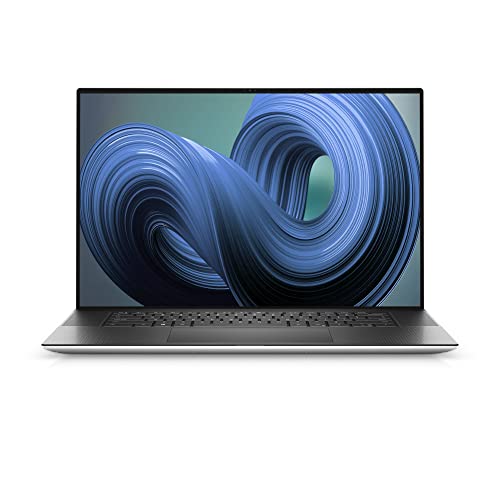
For serious video editing, you need either a MacBook Pro (the M5 Pro handles 4K ProRes like butter) or a high-end Windows laptop with a dedicated GPU. Pair it with a color-accurate monitor. The Dell 27″ 4K USB-C at $315 is the affordable choice. For the full setup, check my home office setup guide.
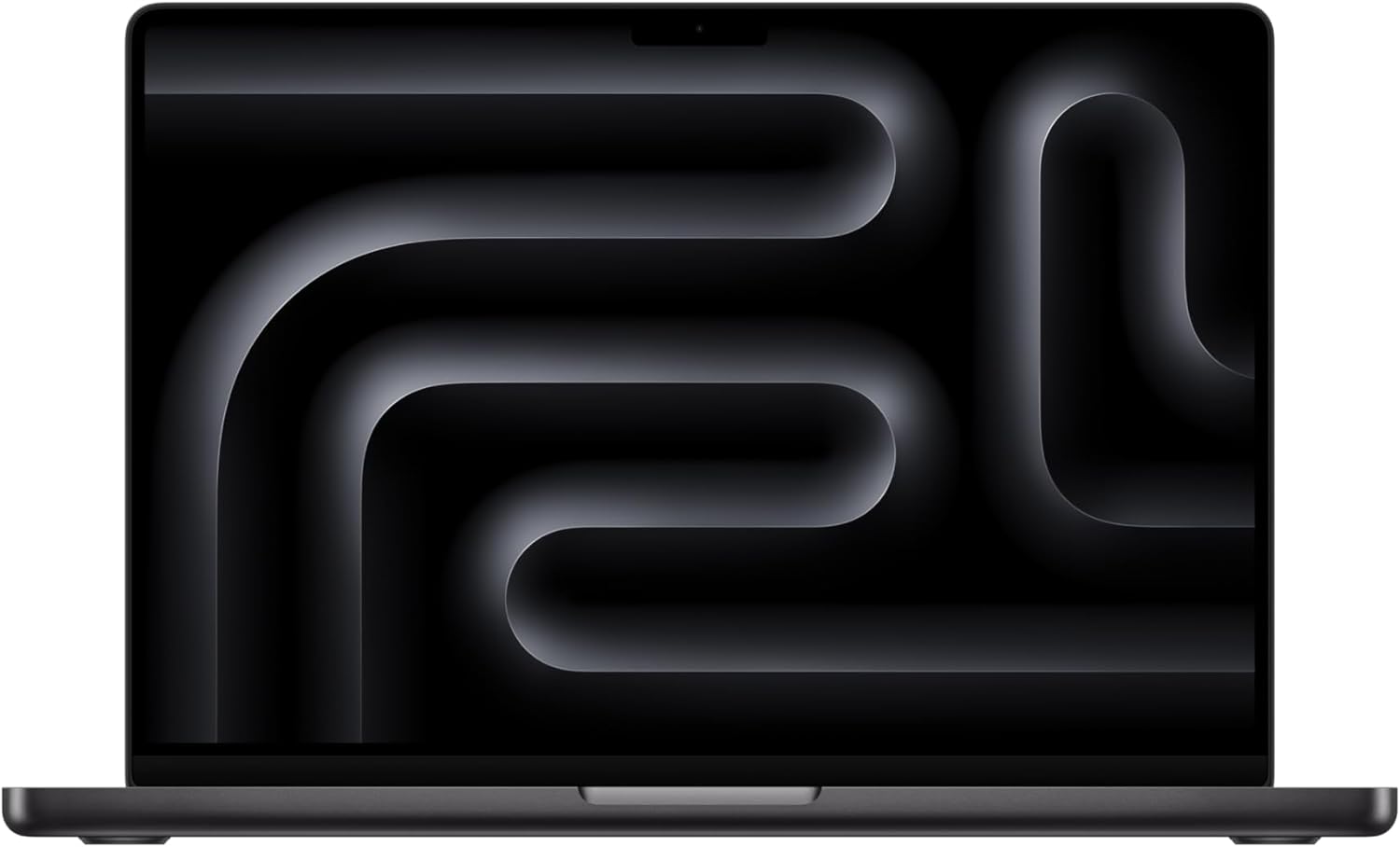
- SUPERCHARGED BY M5 PRO OR M5 MAX — Take on demanding projects with the M5 Pro or M5 Max chip. M5 Pro has up to 12 CPU cores, up to 19 GPU cores, and up to 32GB unified memory. M5 Max has 12 CPU cores, up to 38 GPU cores, and up to 96GB unified memory.
- UP TO 18 HOURS OF BATTERY LIFE — Go all day thanks to the power-efficient design of the M5 Pro or M5 Max chip. And the MacBook Pro laptop delivers exceptional performance whether it’s running on battery or plugged in.
- FULLY COMPATIBLE — All your pro apps run lightning fast — including Adobe Creative Cloud, Xcode, Affinity Designer, Microsoft 365, and many of your favorite iPhone and iPad apps.
- BEAUTIFUL PRO DISPLAY — The 14.2-inch Liquid Retina XDR display features Extreme Dynamic Range, over 1000 nits of brightness for stunning HDR content, and pro reference modes for doing your best work on the go.
- ADVANCED CAMERA AND AUDIO — Look sharp and sound great with a 1080p FaceTime HD camera, a studio-quality three-mic array, and a six-speaker sound system with Spatial Audio.
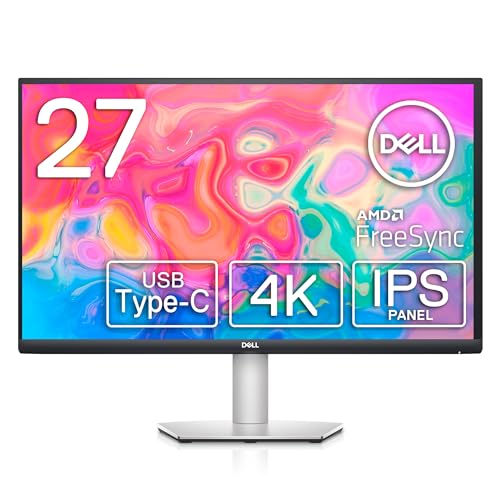
- SUPERIOR SCREEN: With a three-sided ultrathin bezel design that lets you to see more without interruptions, high functionality meets superb style. Enjoy crisp visuals with an impressive 4.0ms response time. Specific uses for product – Business. Pixel per inch (PPI) : 163. Operating Temperature: 0°C to 40°C (32°F to 104°F)
- COMFORT COMES FIRST: Customize your views with a height-adjustable stand and a monitor that tilts, swivels and pivots so you look your best and feel your best during work sessions or movie binges.
- VERSATILE CONNECTIVITY: Easily charge and connect your laptop on this USB-C monitor. This single-cable solution reduces clutter on your desktop and transmits power, video, audio and data—all at once.
- INTEGRATED SPEAKERS: This usb-c monitor comes equipped with everything you need including built-in dual 3W integrated speakers.
- PERSONALIZED COMFORT: Customize your views with a height-adjustable stand that tilts, swivels and pivots allowing you to view at your most optimal position.
FAQs
What are some popular video editing software options for Mac and Windows?
DaVinci Resolve, Adobe Premiere Pro, Final Cut Pro X, Blender, and iMovie are some of the best video editing software options for both Mac and Windows.
Which video editing software is recommended for professional video creators?
DaVinci Resolve and Adobe Premiere Pro are highly recommended for professional video creators due to their advanced features and capabilities.
What is the advantage of using DaVinci Resolve for video editing?
DaVinci Resolve stands out for its powerful color grading capabilities, making it a preferred choice for professionals who require precise color correction in their videos.
Can iMovie be used as a beginner-friendly video editing software?
Yes, iMovie is an excellent option for beginners as it offers a user-friendly interface and intuitive tools for basic video editing tasks.
Is Blender suitable for both video editing and 3D animation?
Absolutely, Blender is a versatile software that combines video editing and 3D animation capabilities, making it a valuable choice for video creators interested in both aspects.
Disclaimer: This site is reader-supported. If you buy through some links, I may earn a small commission at no extra cost to you. I only recommend tools I trust and would use myself. Your support helps keep gauravtiwari.org free and focused on real-world advice. Thanks. - Gaurav Tiwari