
 by
by
There is no native Microsoft Access for Mac app. If you need the full Access designer, VBA, forms, and reports, run the Windows version in Parallels or connect to a Windows computer. If you only need to run an existing database application, the free Microsoft 365 Access Runtime may be enough.
I tested the Runtime route on an Apple Silicon Mac. The x64 Access Runtime installed in Windows 11 ARM, its ACE database engine created a real .accdb file, inserted and read a row, and Access opened that database. My recommendation is still Parallels for regular full Access work, remote Windows for occasional use, and migration only when the database already needs a redesign.
Is Microsoft Access available for Mac?
Microsoft Access is available for Windows, not as a native macOS application. Microsoft includes Access in several Microsoft 365 plans, but installing Microsoft 365 on a Mac gives you the Mac apps, not the Windows-only Access desktop app.
For anyone searching for Microsoft Access for Mac, the practical choices are:
- Run full Microsoft Access in Windows 11 through Parallels Desktop.
- Install the free Access Runtime in a Windows virtual machine to run an existing app.
- Remote into an existing Windows PC that already has Access.
- Use a managed Windows 365 Cloud PC.
- Migrate the database to a Mac-friendly or web-based system.
Those routes solve different problems. A person who needs to change a report or debug VBA needs full Access. A person who clicks a form to enter orders may need only Runtime. A manager who opens the database twice a month may be better off remoting into the office PC.
What did I actually test on Apple Silicon?
I confirmed that Microsoft 365 Access Runtime and the x64 Access Database Engine can work inside Windows 11 ARM on an Apple M5 Pro Mac. I did not test the full Access design environment because I did not have a qualifying full Access entitlement available in the VM.
My test environment was:
- Apple M5 Pro with 24 GB unified memory
- macOS 27.0 beta build 26A5378j
- Parallels Desktop 26.4.0 build 57513
- Windows 11 Pro ARM64 build 26200.8653
- 4 vCPU and 8 GB RAM assigned to Windows
- Microsoft 365 Access Runtime x64 version 16.0.20131.20126
- .NET 10 x64 test process
The test sequence was:
- Downloaded the official 64-bit Runtime bootstrapper
- Confirmed the Microsoft digital signature
- Installed the
AccessRuntimeRetailproduct - Verified
MSACCESS.EXEand the installed version - Confirmed Access, Excel, Text, and dBASE ODBC drivers
- Created
CodexAccessEngineTest.accdbthroughMicrosoft.ACE.OLEDB.12.0 - Created a table named
TestResults - Inserted
ID=1,Item=Parallels ARM VM, andAmount=1000 - Queried the row and read the same values back
- Opened the
.accdbin Access Runtime
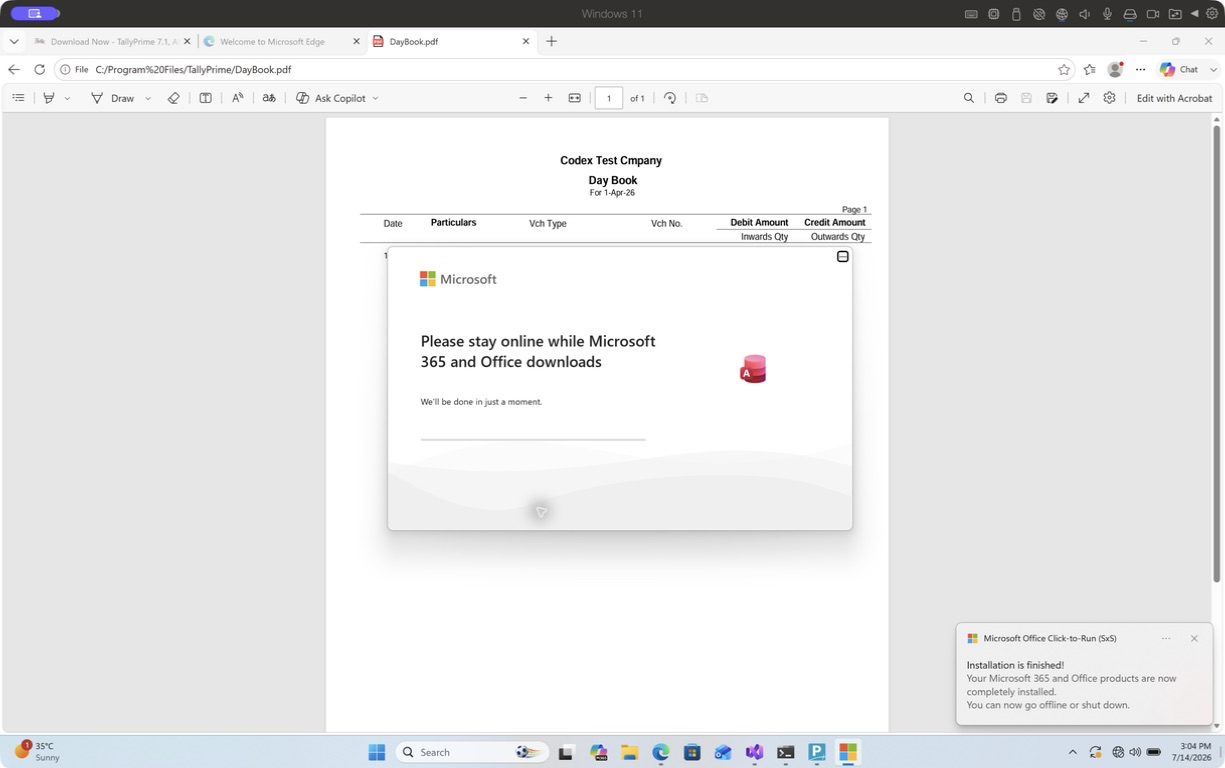
The Runtime process used about 160 MiB working memory and 65 MiB private memory when measured. Those figures exclude Windows, Parallels, and macOS. The point isn’t that Access needs exactly 160 MiB. The point is that the Access process wasn’t the resource bottleneck in this 8 GB VM.
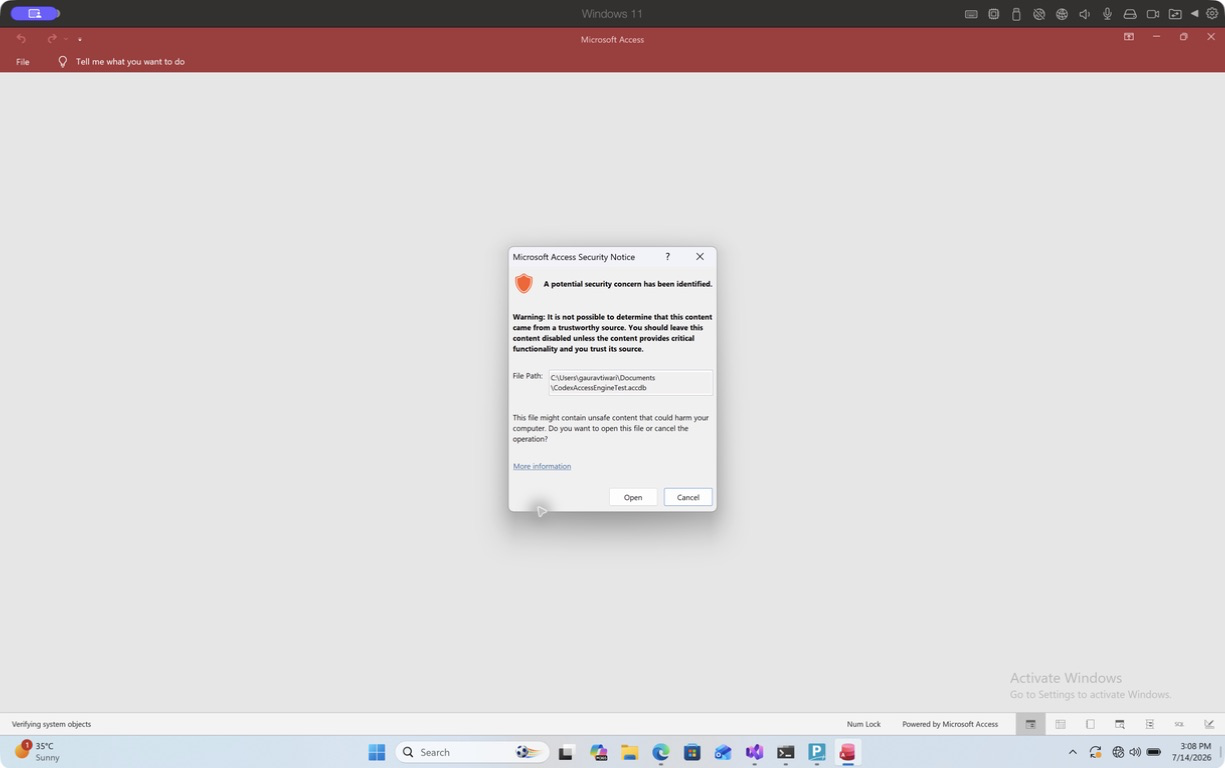
The security notice is expected for an untrusted database location. It also proves something narrower than a glossy “Access runs on Mac” claim: the actual Access executable recognized and opened the generated .accdb.
Option 1: Run full Microsoft Access in Parallels
Parallels is the best route when you need to design, edit, or debug an Access database regularly. It gives the Mac a complete Windows 11 environment where the supported Windows version of Access can run.
Choose Parallels Desktop when you need:
- Table, query, form, and report design
- VBA editor and debugging
- Macros and startup logic
- Linked tables and ODBC data sources
- Add-ins or Office automation
- Offline access to the database
- A repeatable environment you control
The setup is straightforward:
- Install Parallels Desktop and Windows 11 ARM.
- Give Windows 4 vCPU and 8 GB RAM on a Mac with at least 16 GB memory.
- Finish Windows Update.
- Sign in with the Microsoft account that owns a qualifying Access license.
- Install the 64-bit Office build unless an old dependency requires 32-bit.
- Copy a duplicate of the database into the Windows VM.
- Add its folder as a Trusted Location only after you trust the file.
- Test forms, reports, VBA, printers, ODBC connections, and exports.
Parallels Standard is enough for this VM size. Pro raises the vCPU and vRAM limits, but Access itself rarely justifies that upgrade. A large SQL Server development stack beside Access might.
The tradeoff is maintenance. You now own Windows updates, Office updates, VM storage, backups, and activation. My Windows VM grew to about 72 GB after several application tests and a snapshot. That is a more honest storage budget than the tiny Access installer size.
Option 2: Use the free Microsoft 365 Access Runtime
Access Runtime is the right free option when someone built an Access application for you and you only need to run it. Runtime is not a free copy of the full Access designer.
Microsoft says the Runtime:
- Is available as a free 32-bit or 64-bit download
- Lets users run distributed Access applications without full Office or Access
- Includes the Access Database Engine
- Exposes OLE DB, ODBC, and DAO interfaces in supported configurations
- Matches an existing Click-to-Run Office installation when one is present
Download it from the official Microsoft Access Runtime page. Choose the bitness that matches the application and Office environment, not the Mac’s processor label.
Runtime can be enough for:
- Opening a locked-down front end
- Entering or reviewing data through existing forms
- Running existing reports
- Using an
.accdeapplication - Supporting a line-of-business tool built by another developer
- Using ACE from a compatible x86 or x64 process
Runtime is not enough for:
- Designing a new form or report
- Editing table or query definitions through the full UI
- Writing and debugging VBA comfortably
- Treating Access as a general database development tool
- Repairing an application whose menus and startup form are broken
I could open the database, but Runtime did not expose the full design surface. That is by design, not an Apple Silicon compatibility bug.
Why did the Access Database Engine say “Class not registered”?
The error was a process-architecture mismatch. Native ARM64 PowerShell could not instantiate the installed x64 ACE provider, while an x64 .NET 10 process could use the same provider successfully through Windows 11 ARM’s x64 emulation.
This is the technical detail most generic guides miss.
The failed path was:
- Windows 11 ARM
- Native ARM64 PowerShell
Microsoft.ACE.OLEDB.12.0- Result:
Class not registered
The working path was:
- Windows 11 ARM
- x64 .NET 10 process
- The same x64 ACE OLE DB provider
- Result:
.accdbcreated, table created, row inserted, row read
That means the provider wasn’t absent or corrupted. The caller had the wrong architecture.
If an existing Access-related tool fails, check:
- Whether Office or Runtime is 32-bit or 64-bit
- Whether the calling application is ARM64, x86, or x64
- Which ACE provider is registered
- Whether old Office MSI and Click-to-Run products conflict
- Whether the application hardcodes an obsolete provider string
Do not randomly install both 32-bit and 64-bit engines. Microsoft documents coexistence limits, and mixed Office installation technologies can create a worse problem than the original error.
Option 3: Remote into an existing Windows PC
Remote access is the cheapest sensible route for occasional Microsoft Access on Mac use when a maintained Windows PC already exists. The database, drivers, printers, and Access license stay on the computer where they already work.
This route is good when:
- You open Access a few times per month
- An office Windows PC already hosts the database
- The database depends on local ODBC drivers or network shares
- IT already manages remote access and backups
- You don’t want a 70 GB virtual machine on the Mac
The weaknesses are equally real:
- The Windows PC must stay powered and reachable
- Office internet and power become dependencies
- Printing to the Mac can be awkward
- Copy and paste or file transfer may be restricted
- Poor remote-access security can expose business data
- A consumer remote tool may not satisfy compliance requirements
Use a business-approved remote access product, require multifactor authentication, and avoid publishing Remote Desktop Protocol directly to the internet. A VPN, Remote Desktop Gateway, or properly managed remote-access service is safer than forwarding port 3389 and hoping nobody notices.
Option 4: Put Access on a Windows 365 Cloud PC
Windows 365 is the managed route for teams that want each user to receive a cloud-hosted Windows desktop. It can deliver Access to a Mac without storing the Windows VM on the Mac itself.
Choose Windows 365 when:
- IT wants centralized provisioning and policy
- Staff use a mixture of Macs, PCs, and thin clients
- Company data should remain in a managed Microsoft environment
- Users need a persistent desktop rather than a shared office PC
- The monthly per-user cost is easier to support than local VMs
This route still needs an Access entitlement, database architecture, and secure connectivity to any back-end data. A Cloud PC doesn’t magically make a split Access database safe over a slow wide-area link. Put the front end and the data source in an architecture designed for that location.
For one person with one Mac, Windows 365 is usually more infrastructure than the job needs. For a managed team, it can be cleaner than teaching every employee to maintain Parallels.
Option 5: Migrate the Access database
Migration is the right answer when the database has outgrown Access, not when someone merely bought a Mac. Rebuilding a working application is a software project, and forms, reports, VBA, permissions, and business rules are often more valuable than the tables.
Consider migration when:
- Multiple remote users need concurrent browser access
- The back-end file is approaching operational limits
- VBA and ActiveX dependencies are becoming unmaintainable
- The organization needs stronger auditing and role-based access
- Mobile access is a real requirement
- A redesign budget already exists
Possible destinations include:
- SQL Server or Azure SQL for the data layer while keeping an Access front end temporarily
- Microsoft Power Apps with Dataverse for a Microsoft-centered low-code rebuild
- PostgreSQL with a custom web application
- FileMaker for a cross-platform desktop and mobile workflow
- A purpose-built SaaS product for the business process
None is an automatic one-click conversion. Even moving tables to SQL Server leaves queries, forms, reports, macros, VBA, and user habits to handle.
I would first split the problem:
- Inventory tables, relationships, saved queries, forms, reports, macros, VBA modules, external links, and scheduled jobs.
- Identify which components people actually use.
- Move the data layer only if it solves concurrency, reliability, or access problems.
- Replace the front end section by section.
- Run old and new reports in parallel until totals reconcile.
A migration justified only by “we use Macs now” often burns budget without improving the business. A migration justified by remote access, auditing, concurrency, and maintainability can be worth it.
Which Microsoft 365 plans include Access?
Microsoft lists Access with several consumer and business subscriptions, but the Access app still runs on Windows. The subscription can give you the license while Parallels, a remote PC, or a Cloud PC supplies Windows.
Microsoft currently names these plans:
- Microsoft 365 Family
- Microsoft 365 Personal
- Microsoft 365 Business Standard
- Microsoft 365 Business Premium
- Microsoft 365 Apps for business
Plan names, regional availability, and prices can change, so check Microsoft’s current comparison page before buying. Do not buy an old Office key from a marketplace because a listing happens to include the word Access. Activation rights, update channel, bitness, and commercial-use terms matter.
The free Runtime is different. It doesn’t grant the full design application. It is for distributing and running Access applications.
How should you handle Access files between macOS and Windows?
Keep the active .accdb in Windows or on a properly designed Windows-accessible data location. Use the Mac shared folder for copies, exports, and backups, not as an untested multi-user database back end.
I confirmed a Mac-to-Windows-to-Mac round trip with the generated .accdb. That proves file exchange. It does not prove safe concurrent editing from a synced folder.
Use these rules:
- Work on a duplicate until forms, reports, and totals reconcile
- Back up the file before opening it with a newer Access version
- Avoid simultaneous editing through Dropbox, OneDrive, or iCloud Drive
- Split multi-user databases into front end and back end
- Give each user a local front-end copy
- Back up the back end with versioning and tested restores
- Treat
.laccdblock files as part of normal Access behavior - Compact and repair only with a verified backup available
For a wider view of Windows-only tools, use my Windows apps on Mac guide. If Access sits beside reporting work, the Power BI for Mac test explains the same local-versus-cloud decision. The Visual Studio on Mac comparison covers the developer side of the Windows 11 ARM stack.
What does each route really cost?
The cheapest route is the one that matches how often you use Access and what you need to change. Runtime is free, but only when the application already exists and works without design changes.
| Route | Software cost | Best for | Main tradeoff |
|---|---|---|---|
| Access Runtime in Parallels | Runtime free, Windows and Parallels separate | Running an existing app | No full designer |
| Full Access in Parallels | Microsoft 365 or Access license, Windows, Parallels | Regular design and VBA work | Local VM maintenance and storage |
| Existing Windows PC | Often no new Access cost | Occasional use | Depends on office PC and network |
| Windows 365 | Monthly per user plus Access entitlement | Managed teams | Recurring cost and internet dependence |
| Migration | Project cost | Strategic redesign | Highest effort and risk |
There is no honest universal dollar total because Microsoft 365 and Windows 365 prices vary by country, billing term, business plan, and Cloud PC size. Parallels pricing also changes by edition and promotion. I would price the exact three-year route, including support time and storage, rather than compare one monthly number with one perpetual-looking number.
If you already own a qualifying Microsoft 365 plan and use Access every week, Parallels is usually the cleanest purchase. If you need one report once a quarter, remote access wins. If ten employees need a controlled desktop, Windows 365 deserves the spreadsheet.
How do you test a legacy Access database before moving it?
Test the application, not just the file extension. An .accdb that opens can still fail when a user presses a button that calls VBA, loads an ActiveX control, connects to a 32-bit ODBC driver, or prints through an unavailable device.
Start with a duplicate and record the old Windows environment:
- Access version and build
- Office bitness, 32-bit or 64-bit
- Windows version
- Trusted Locations
- References shown in the VBA editor
- ODBC data sources and driver bitness
- Mapped drives and UNC paths
- Printers used by reports
- ActiveX controls and COM add-ins
- Scheduled tasks, command-line switches, and startup shortcuts
Then run a task-based acceptance test:
- Open the database while holding Shift if you need to bypass startup logic.
- Compile the VBA project and note any missing references.
- Open every form used in a normal week.
- Add, edit, find, and delete a disposable record.
- Run saved queries with parameters and date filters.
- Preview, print, and export critical reports.
- Exercise import and export routines.
- Test linked tables after reconnecting them to the intended back end.
- Close and reopen the application to confirm saved state.
- Compare record counts and business totals with the old PC.
Apple Silicon adds one more test: identify the process architecture for every external component. Windows 11 ARM can emulate x86 and x64 application code, but an ARM64 process cannot load an x64 in-process COM provider. My ACE experiment exposed exactly that boundary. The database engine worked after I moved the caller from native ARM64 PowerShell to an x64 .NET process.
This is why a clean home screen is weak proof. The test is complete when the real users can finish their real tasks and the numbers match. If a legacy control has no supported path, keep the old Windows environment available while you replace that dependency. A VM snapshot helps you roll back the environment, while a separate database backup protects the data. You need both.
Document the result in plain language: which workflows passed, which dependency failed, who owns the fix, and whether the old PC must remain available. That small handoff prevents a future support call from becoming archaeology. It also turns a one-person Microsoft Access for Mac experiment into a setup another employee can operate without guessing. A dependable Microsoft Access for Mac workflow is documented, tested, and recoverable.
Frequently asked questions
Can I download Microsoft Access for Mac?
No. Microsoft does not provide a native Access installer for macOS. You can download the Windows application or free Access Runtime, then use it inside Windows through Parallels, a remote PC, or a Cloud PC.
What is the Microsoft Access equivalent for Mac?
There is no exact equivalent because Access combines a relational database, forms, reports, queries, macros, and VBA. FileMaker is a closer cross-platform application builder, while PostgreSQL and web frameworks are stronger database platforms but require a rebuild.
Can I get Microsoft Access for free?
The Microsoft 365 Access Runtime is free for running distributed Access applications. Full Access design features require a qualifying Microsoft 365 subscription or Access license.
Can Access Runtime edit data?
Yes, an existing Runtime-compatible application can allow data entry and edits through its forms and queries. Runtime removes or limits design tools. The application developer controls what users can do.
Can Microsoft Access run on Apple Silicon?
The Windows x64 Runtime and ACE engine worked in my Windows 11 ARM Parallels test through x64 emulation. That does not guarantee every old ActiveX control, add-in, 32-bit driver, or VBA integration.
Will an .accdb file open directly in macOS?
macOS can store and copy the file, but it cannot run the full Access application natively. Third-party tools may inspect tables, yet they do not reproduce forms, reports, macros, and VBA reliably.
Is Parallels or Windows 365 better for Access?
Parallels is better for one regular Mac user who wants local control and offline access. Windows 365 is better for an organization that values centralized provisioning, policy, and predictable user desktops.
Should I move an Access database to SQL Server?
Move the back end when concurrency, reliability, size, security, or remote access justify it. SQL Server does not automatically replace Access forms, reports, VBA, and business rules, so plan the front-end work separately.
What I would choose
For weekly design work, I would use full Microsoft Access for Mac through Parallels and keep the database inside Windows with backups outside the VM. The test proved the x64 engine path on Apple Silicon, and Parallels keeps the supported Windows application intact.
For an occasional report, I would remote into the existing Windows PC. For a locked-down line-of-business app, I would try Runtime first. I would approve a migration only after the business case names a problem bigger than the laptop logo.
Tell Google you want more of this.
Add Gaurav Tiwari as a preferred sourceOne tap, and this site shows up more often in your own Top Stories, AI Overviews and AI Mode. Remove it any time.
Disclaimer: This site is reader-supported. If you buy through some links, I may earn a small commission at no extra cost to you. I only recommend tools I trust and would use myself. Your support helps keep gauravtiwari.org free and focused on real-world advice. Thanks. - Gaurav Tiwari