
How to Track Affiliate Clicks in GA4
GA4 can tell you which posts get traffic, but not which affiliate links people click. Its automatic outbound click tracking ignores links to your own domain, so a /go/ link never shows up, and you’re left guessing which product boxes earn their space.
To track affiliate clicks in GA4, you send an event from the server each time a branded link redirects. The event carries the link’s slug and destination, so GA4 can report clicks per link next to your page views, with no extra JavaScript on the page.
GT Link Manager runs the redirect, and it fires a hook called gtlm_before_redirect just before it sends the visitor on. A small must-use plugin listens to that hook and posts the event to GA4 through the Measurement Protocol, Google’s API for sending events from a server.
Before you write any code, it is wise to check whether you need GA4 for this at all. GT Link Manager has its own click reports, and for many sites they answer the question faster.
Pick GA4 or the Built-In Reports
Both routes count clicks on your branded links. The difference is where the data lives and what it sits next to.
| Need | Built-in Analytics | GA4 event |
|---|---|---|
| Setup | One checkbox | API secret, a PHP file and a custom dimension |
| Where reports live | GT Links → Analytics in wp-admin | Your GA4 property |
| Referring post for each click | Yes, in Clicked from | Only if you add it as a parameter |
| Bots and your own clicks | Excluded automatically | Excluded by the code below |
| Joins with sessions, conversions and ads data | No | Yes |
I’d start with the built-in reports. Turn them on under GT Links → Analytics → Settings with Enable advanced analytics. They need no cookies or visitor scripts, and they keep individual clicks for 7 days and daily reports for 90 days by default.
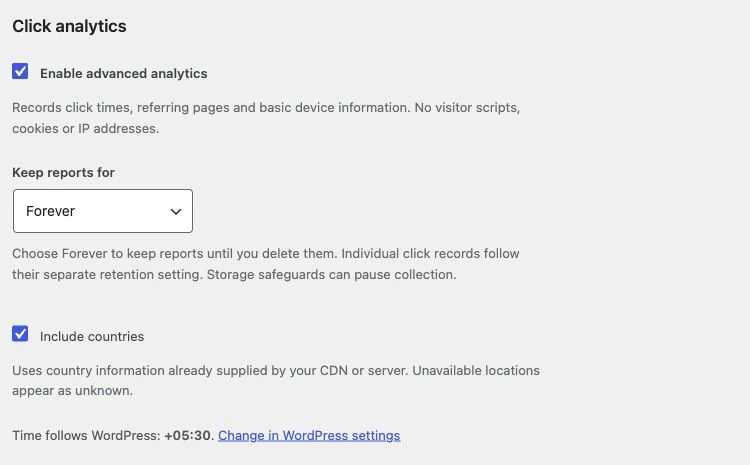
Choose GA4 when you need clicks inside the same reports as your sessions and conversions, or when a team already lives in GA4.
Before You Start
For the GA4 route, you need:
- A GA4 property with a web data stream, and its Measurement ID, which starts with
G-. - A Measurement Protocol API secret. In GA4, go to Admin → Data streams, open your web stream and create one under Measurement Protocol API secrets.
- File access to your site, through SFTP or your host’s file manager, to add a file to
wp-content/mu-plugins.
Add the Tracking Code
A must-use plugin loads on every request and can’t be switched off by accident from the Plugins screen. That suits tracking code.
- Create the folder
wp-content/mu-pluginsif it doesn’t exist. - Create a file in it named
gtlm-ga4.php. - Paste the code below and replace the 2 placeholder values at the top.
- Save the file. WordPress loads it straight away, with nothing to activate.
<?php
/**
 * Plugin Name: GT Link Manager to GA4
 * Description: Sends a link_click event to GA4 for each branded link redirect.
 */

defined( 'ABSPATH' ) || exit;

const GTLM_GA4_MEASUREMENT_ID = 'G-XXXXXXXXXX';
const GTLM_GA4_API_SECRET     = 'your-api-secret';

add_action( 'gtlm_before_redirect', function ( $link, $target_url ) {
	// Skip HEAD checks, logged-in editors and obvious bots.
	if ( 'GET' !== ( $_SERVER['REQUEST_METHOD'] ?? '' ) || current_user_can( 'edit_posts' ) ) {
		return;
	}
	$agent = strtolower( (string) ( $_SERVER['HTTP_USER_AGENT'] ?? '' ) );
	if ( '' === $agent || preg_match( '/bot|crawl|spider|slurp|preview|monitor/', $agent ) ) {
		return;
	}

	// Reuse the visitor's GA4 client ID when the _ga cookie exists.
	$client_id = wp_generate_uuid4();
	if ( isset( $_COOKIE['_ga'] ) && preg_match( '/^GA\d\.\d\.(\d+\.\d+)$/', (string) $_COOKIE['_ga'], $m ) ) {
		$client_id = $m[1];
	}

	$event = array(
		'client_id' => $client_id,
		'events'    => array(
			array(
				'name'   => 'link_click',
				'params' => array(
					'link_slug'   => (string) $link['slug'],
					'link_name'   => mb_substr( (string) $link['name'], 0, 100 ),
					'destination' => (string) wp_parse_url( $target_url, PHP_URL_HOST ),
				),
			),
		),
	);

	// Send the event after the visitor has been redirected.
	add_action( 'shutdown', function () use ( $event ) {
		if ( function_exists( 'fastcgi_finish_request' ) ) {
			fastcgi_finish_request();
		}
		$url = add_query_arg(
			array(
				'measurement_id' => GTLM_GA4_MEASUREMENT_ID,
				'api_secret'     => GTLM_GA4_API_SECRET,
			),
			'https://www.google-analytics.com/mp/collect'
		);
		wp_remote_post(
			$url,
			array(
				'headers' => array( 'Content-Type' => 'application/json' ),
				'body'    => wp_json_encode( $event ),
				'timeout' => 5,
			)
		);
	} );
}, 10, 2 );
A few parts of this code are doing important work:
- The shutdown step.
gtlm_before_redirectruns before the redirect headers go out, so anything slow inside it makes the visitor wait. The code only queues the event there. The request to GA4 runs atshutdown, after GT Link Manager has sent the redirect. fastcgi_finish_request(). On PHP-FPM, which most hosts run, this closes the connection to the visitor before the GA4 request starts. On other setups, the request still runs after the redirect is written, but the browser may wait for it to finish.- The filters at the top.
curl -Ichecks, link checkers, crawlers and your own test clicks never reach GA4, so the numbers stay close to real people.
The GT Link Manager Google Analytics 4 (GA4) Integration reference lists more event parameters, such as the referrer and category ID.
Make the Parameters Show in Reports
GA4 records the link_slug and destination parameters, but its standard reports won’t show them until you register them.
- In GA4, go to Admin → Custom definitions.
- Click Create custom dimension.
- Name it “Link slug”, set the scope to Event and enter
link_slugas the event parameter. - Repeat for
destinationif you want clicks grouped by store.
Custom dimensions apply only to events received after you create them, so create them on day 1.
Check It Works
Google offers a validation endpoint that checks an event without recording it. Run this in a terminal with your own ID and secret:
curl -s -X POST "https://www.google-analytics.com/debug/mp/collect?measurement_id=G-XXXXXXXXXX&api_secret=your-api-secret" -H "Content-Type: application/json" -d '{"client_id":"123.456","events":[{"name":"link_click","params":{"link_slug":"test"}}]}'An empty validationMessages list means GA4 accepts the event shape. Then test the real path:
- Log out, or use a private window, because the code skips logged-in editors.
- Click a branded link from one of your posts.
- Look for
link_clickunder Reports → Engagement → Events. Standard reports can take a day to fill in.
When Events Don’t Arrive
| Symptom | Likely cause | Fix |
|---|---|---|
| Nothing in GA4 after a day | Wrong Measurement ID or API secret | Check both, then run the validation command again |
| Your own clicks don’t show | You were logged in | Test from a private window |
| Clicks appear but the slug column is empty | The custom dimension was created after the clicks | Wait for new clicks, since GA4 doesn’t backfill |
| Redirects feel slow | The host doesn’t run PHP-FPM | Keep the GA4 call at shutdown and keep the timeout short |
| A PHP error after adding the file | A paste error, often a missing <?php line | Fix the file, or rename it to .txt to switch it off |
What It Won’t Do
This setup counts redirects. It doesn’t see what happens on Amazon or any other store:
- No sales or commissions. Those stay in your affiliate dashboard. GA4 sees the click, not the purchase.
- Not unique people. A visitor without a
_gacookie gets a fresh ID on each click. - No perfect bot filter. The user-agent check catches the common crawlers, not every script.
- No history. Events start from the day you add the file.
If the same click should also ping your team, How to Get a Slack Message When a Link Gets Clicked uses the same hook and the same shutdown pattern.