
How to Change an Affiliate Link Everywhere with One Edit
An affiliate program changes its tracking format, or a product you recommended in 30 posts gets discontinued. If those posts link straight to the store, you’re in for an afternoon of search, open, edit and update, and you will still miss one.
To change an affiliate link everywhere with one edit, your posts need to link to a branded address, such as /go/standing-desk/, instead of the store. Then you change the destination on that one link, and every post, button and newsletter that uses it sends readers to the new place on the next click.
GT Link Manager works this way by design. The block editor button writes the branded URL into your posts, and the real destination lives only in the plugin’s own table. Nothing in your posts needs to change when the destination does.
This guide covers finding the right link, editing it and the few edits that don’t carry through. If your posts still link straight to stores, start with How to Cloak and Manage Amazon Affiliate Links in WordPress.
Before You Start
- Your posts use branded links. One edit only reaches posts that link to
/go/your-slug/, not posts that link straight to the store. - You can edit posts. Links need the
edit_postscapability. Settings need an administrator. - You know the new destination, with your tracking tag already in it.
Find the Link to Change
The list under GT Links → All Links is faster than it looks, because its search reads more than the name.
- Go to GT Links → All Links.
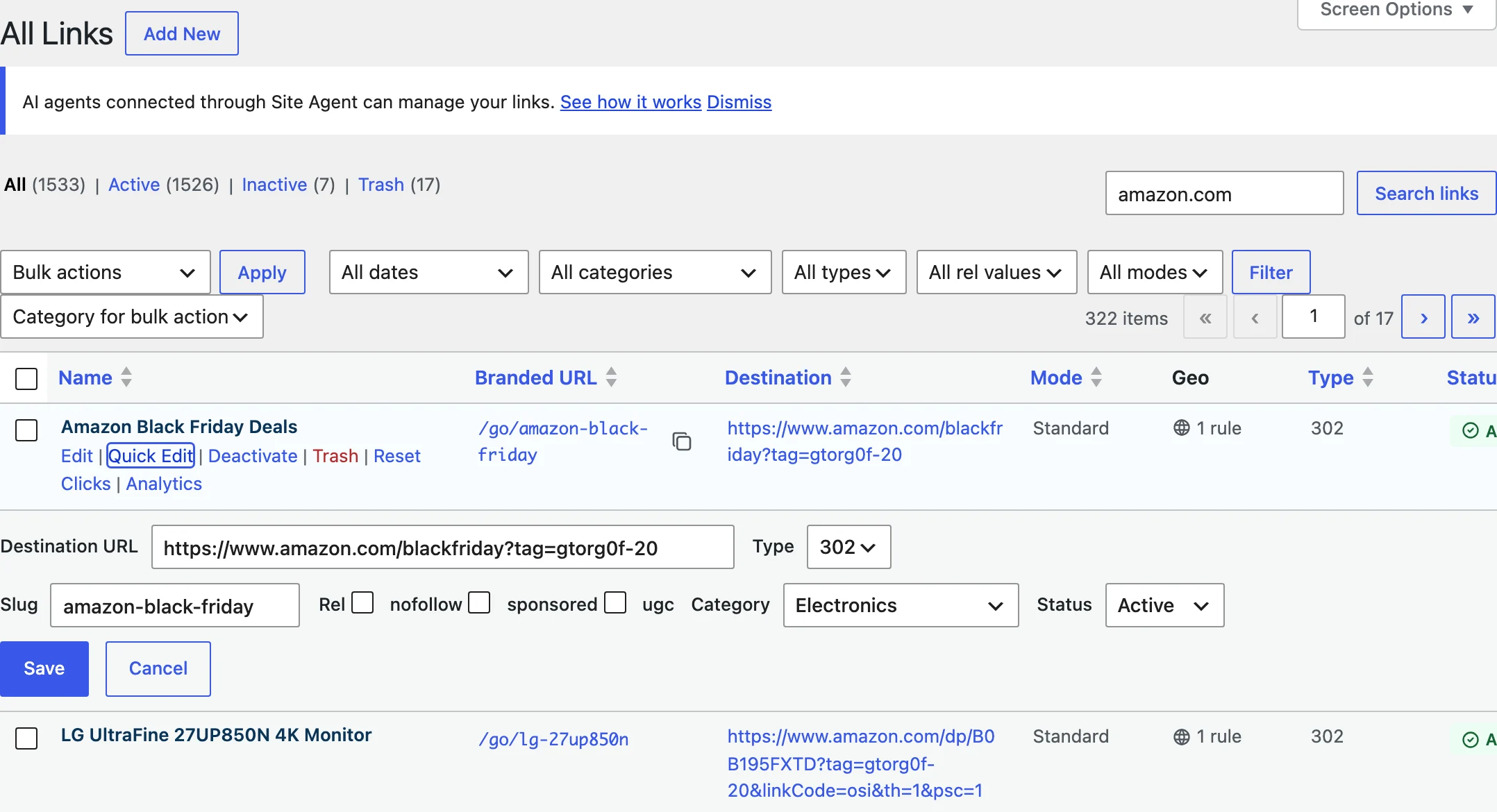
- Type in Search links. It matches the link name, the slug and the destination URL.
- To find every link for one store or program, search its domain, such as
amazon.comorshareasale.com. - Use the filters to narrow it down by category, redirect type, rel value or mode, then click Filter.
Searching the destination is the trick here. When a program changes its link format, a search for its old domain or a piece of the old tag lists every link that still needs updating.
Change the Destination
Quick Edit is the fastest way to change one link.
- Hover over the link and click Quick Edit.
- Paste the new address into Destination URL.
- Change Type, Rel, Category or Status while you’re here, if needed.
- Click Save. The row shows “Saved” when the change is stored.
For noindex, tags, notes or country rules, click Edit to open the full form instead. Quick Edit doesn’t show those fields.
The new destination works on the very next click. GT Link Manager clears its cached copy of a link when you save it, so there’s no cache to purge on your side.
Bulk Changes
The bulk actions change settings across many links at once. Tick the links, pick an action and click Apply:
- Activate and Deactivate
- Set 301, Set 302 and Set 307
- Clear rel, Set rel: nofollow, Set rel: sponsored and Set rel: ugc
- Set category, with a category picker beside it
- Move to Trash
Move to Trash, Activate and Deactivate show an undo link in the notice after they run. There’s no bulk find-and-replace for destinations, so each destination still takes one edit. With 20 links to change, Quick Edit on a filtered list is the fastest way through.
Edits That Don’t Carry Through
The destination is the only part of a link your posts don’t contain. Three other edits behave differently:
- The slug. Your posts contain
/go/old-slug/. Rename it to/go/new-slug/and every old post points at a 404. GT Link Manager doesn’t create a redirect from the old slug. - The prefix. Changing Link prefix in Settings moves every link at once. Posts that use
/go/break until you change it back. - Rel attributes. The GT Link button writes rel into the post’s HTML when you insert the link. Changing rel later updates the redirect’s
Linkheader, but not the anchors already in your posts.
It is wise to treat slugs and the prefix as permanent once a link is in use. Change the destination as often as you like.
Check It Works
- Open a private window and visit the branded URL. You should land on the new destination.
- Open one older post that uses the link and click it there too.
- If you still see the old destination, check the link’s Type. A browser that cached an older 301 may skip your site. Test in another private window, and switch links you expect to change to
302.
Run curl -I on the branded URL to see the raw answer. The Location header shows the destination GT Link Manager sends right now.
Common Messages
| Message | What it means | Fix |
|---|---|---|
| Save failed | Quick Edit couldn’t store the change, often because the slug is taken | Change the slug back, or open the full Edit form for the exact error |
| Save failed. Please check values. | The full form hit a duplicate slug or an invalid value | Use a unique slug and a full https:// destination |
| Please enter required fields. | The name or destination is empty | Fill in both |
| A real 404 on the branded URL | The link is inactive or in the trash | Activate or restore it from All Links |
What It Won’t Do
- It doesn’t edit post content. Direct store links pasted into posts stay as they are. Only branded links follow your edits.
- It doesn’t check destinations. A dead product page keeps getting traffic until you change it.
- It doesn’t keep a change history. Note the old destination in Notes if you might want it back.
Every list column, row action and filter is described in Managing Links in GT Link Manager. If your old links live in another plugin, How to Move from Pretty Links or ThirstyAffiliates brings them over without breaking their addresses.