
How to Cloak and Manage Amazon Affiliate Links in WordPress
A raw Amazon affiliate link is long, full of tracking parameters and easy to break when you paste it into a post. Once you have 50 of them spread across your articles, finding the one with an old tag or a dead product means searching every post by hand.
To cloak and manage Amazon affiliate links in WordPress, you give each product one short branded link, such as /go/standing-desk/, and use that link in your posts. The long Amazon URL lives in one place, so you can check it, fix it or swap it without opening a single post.
GT Link Manager is my free link manager for WordPress. It stores links in its own database tables and sends the redirect before your theme loads, so a branded link costs almost nothing on each click.
I’ll walk you through creating the first link, setting the defaults that suit affiliate links and inserting links from the block editor. Every setting on the link form is listed in Managing Links in GT Link Manager.
Before You Start
You need 3 things:
- GT Link Manager installed and active. It’s free and needs no account.
- Your Amazon affiliate links, copied from SiteStripe or Associates Central with your tracking tag in them.
- A user who can edit posts. Any role with the
edit_postscapability can create links. The Settings screen needs an administrator.
One policy note before you start. Amazon’s Associates program terms say a short link shouldn’t hide the fact that it goes to Amazon.
A branded link works when the reader can still tell where it leads. So name Amazon in the link text, such as “Check the price on Amazon”, and keep the slug readable. Read the current Operating Agreement yourself, because Amazon changes it from time to time.
Set Defaults for Affiliate Links
Every new link copies its redirect type, rel attributes and indexing choice from the defaults. Setting them once saves you from ticking the same boxes 50 times.
- Go to GT Links → Settings.
- Under Link defaults, leave Link prefix as
go, or change it. Your links will look likeyoursite.com/go/your-slug. The prefix accepts lowercase letters, numbers and hyphens. - Set Redirect type to
302. Amazon links change often: products go out of stock, you switch to a different seller and tags get replaced. A 302 tells browsers and search engines the destination may change. - Under Link attributes, tick
nofollowandsponsored. Google asks forsponsoredon paid and affiliate links. - Under Search engines, tick Keep new short links out of search results. This sends an
X-Robots-Tag: noindex, nofollowheader with each redirect. - Click Save settings.
Existing links keep their own settings. These defaults apply only to links you create from now on.
Create Your First Amazon Link
- Go to GT Links → Add New.
- Type a Link Name you will recognize later, such as “Standing desk – Amazon US”. The slug fills in from the name as you type.
- Paste the full Amazon URL into Destination URL, tag and all.
- Shorten the Slug if you like. Keep it lowercase with hyphens, such as
standing-desk. - Check Branded URL Preview. It shows the exact address readers will see, and Copy URL puts it on your clipboard.
- Confirm Redirect Type and Rel Attributes match your defaults.
- Pick a Category, such as “Amazon” or “Office gear”, and add Tags if you sort products by campaign.
- Use Notes for anything your future self needs, such as the ASIN or the date you checked the price.
- Click Save Link, or Save & Add Another when you’re entering a batch.
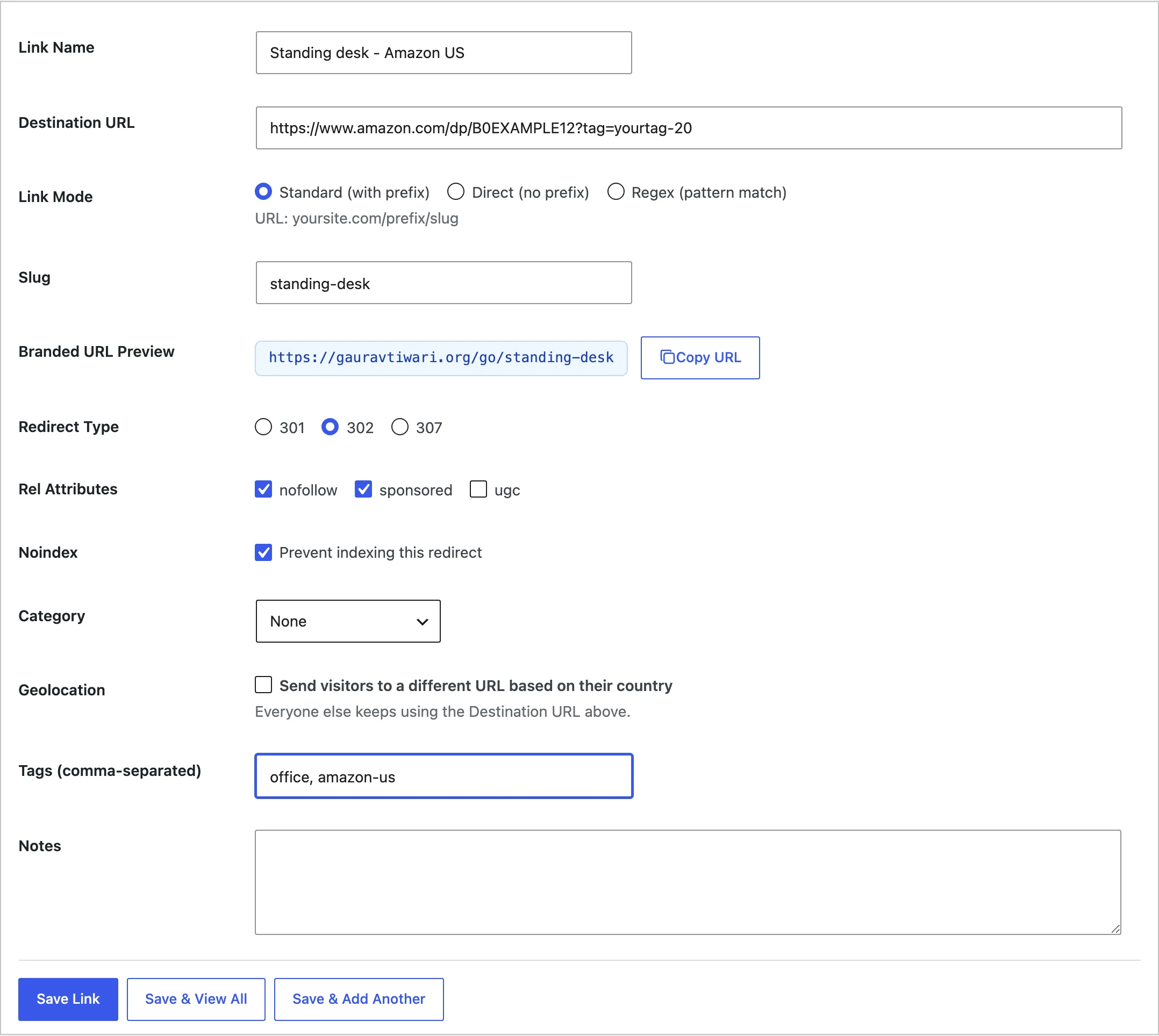
Every slug must be unique across all your links. If you reuse one, the form shows “Save failed. Please check values.” Pick a different slug and save again.
Insert Links in Your Posts
You can paste the branded URL anywhere, but the block editor button does more for you.
- In a paragraph, select the words you want to link, such as “Check the price on Amazon”.
- Click the GT Link button in the block toolbar.
- In Search GT Links, type part of the link name, the slug or even the Amazon URL. Results show the name with the slug beside it.
- Click the link you want.
The button writes the branded URL into the post, along with the link’s rel attributes, so the anchor gets rel="nofollow sponsored" in the HTML. The same GT Link button appears when you select a Button block, and it sets the button’s URL and rel for you.
A branded URL pasted by hand gets no rel attribute in the post. GT Link Manager still sends the rel values as a Link header on the redirect, but the anchor in your HTML is what most crawlers read first. So the GT Link button is the better habit.
The full editor walkthrough is in GT Link Manager Block Editor Integration.
Organize Links as the List Grows
GT Links → All Links is where you manage everything after the first few links:
- Search links matches the name, the slug and the destination URL. Searching
amazon.comlists every Amazon link you have. - Filters narrow the list by category, redirect type, rel value and mode.
- Quick Edit changes the destination, type, slug, rel, category and status without leaving the list.
- Deactivate stops a link without deleting it. Visitors get a 404 until you activate it again.
- Trash keeps a deleted link restorable. By default, trash empties itself after 30 days on a new install.
Categories are covered in Link Categories in GT Link Manager.
Check It Works
Open a private browser window and visit your branded URL, such as yoursite.com/go/standing-desk/. You should land on the Amazon product page with your tag still in the address bar.
To check the headers, run this in a terminal:
curl -I https://yoursite.com/go/standing-desk/You should see your redirect status, X-Redirect-By: GT Link Manager, a Location header with the full Amazon URL and, if you turned on noindex, X-Robots-Tag: noindex, nofollow.
Then view the source of a post where you used the GT Link button. The anchor should carry the branded URL and rel="nofollow sponsored".
Common Messages
| Message | What it means | Fix |
|---|---|---|
| Please enter required fields. | The name or the destination URL is empty | Fill in both and save again |
| Save failed. Please check values. | Usually a slug another link already uses | Change the slug |
| No links found. | The editor search found nothing for what you typed | Try part of the name or slug |
| Could not load links. | The editor couldn’t reach the plugin’s REST route | Check that you’re still logged in, then reload the editor |
| A real 404 on the branded URL | The link is inactive, trashed or has a typo in the slug | Find it under All Links and check its status |
What It Won’t Do
GT Link Manager manages the link. It doesn’t know anything about Amazon, so a few jobs stay with you:
- It doesn’t add or check your tracking tag. Paste the full affiliate URL with the tag included.
- It doesn’t check prices or stock. A link to a dead product keeps redirecting until you change it.
- It doesn’t update rel in old posts. If you change a link’s rel later, posts keep the rel they were inserted with. Only the redirect header changes.
- It doesn’t rename links inside posts. Changing a slug or the prefix breaks every post that uses the old address, so pick slugs you can live with.
- Bulk rel actions set one value. Set rel: sponsored replaces whatever rel a link had, so set the nofollow and sponsored pair through the defaults or Quick Edit instead.
When readers come from several countries, the next step is How to Send Visitors to Their Local Amazon Store, which adds country rules to the same link.