
How to Show an Age or Years of Experience That Updates Itself
“10 years of experience” on an About page was true once. Then a year passed, and nobody remembered that the number lived in 4 places: the About page, the author bio, the services page and a sales page.
An age that updates itself removes that chore. You give WordPress the start date once, and it prints the number of full years since then on every page that asks.
Dynamic Month & Year into Posts is my free date plugin, and its [age] shortcode does this calculation. I use it on this site wherever the years since I started blogging in 2008 appear, so those numbers change every January 1 without an edit.
Before You Start
Check 2 things:
- Dynamic Month & Year into Posts 1.8.1 or newer is active.
- Settings → General → Timezone is right. The number ticks over at midnight in that time zone on the anniversary.
You also need the exact start date: a birth date, the day a business opened or the year you started a job. When you only know the year, use January 1 of that year.
Add the Age Shortcode
Type the shortcode where the number belongs, inside any paragraph, heading or list:
I have been building websites for [age date="2008-01-01"] years.The date value is the start date in YYYY-MM-DD form. The shortcode prints the count of completed years, so it changes on the anniversary, not on January 1, unless the start date is January 1.
Shortcodes work in post and page content, excerpts and titles. For a theme’s author box or a widget, check that the area runs shortcodes before you rely on it.
Pick a Format
The format attribute changes how much detail you show:
| Shortcode | Prints | Use it for |
|---|---|---|
[age date="2016-04-01"] | 10 | “10 years of experience” |
[age date="2016-04-01" format="ym"] | 10 years, 6 months | Tenure on a team page |
[age date="2016-04-01" format="ymd"] | 10 years, 6 months, 18 days | A precise age, such as a pet or a baby |
[age date="2016-04-01" ordinal="true"] | 10th | “Our 10th year in business” |
These outputs are what the shortcodes would print on October 19, 2026.
A few details matter when you write around them:
- The default format,
y, prints a bare number. Put “years” in your own sentence. ymandymdwrite their own words, including “1 year” and “1 month” in the singular. A part that equals zero is left out.ordinal="true"ignoresformat. It handles 11th, 12th and 13th correctly.rank="true"does the same thing.
Use the Dynamic Date Block Instead
When you’d rather click than type, the block gives the same results:
- Add a Dynamic Date block from the inserter.
- In Date Settings, set Date Type to Age (Years), Age (Ordinal), Age (Years and Months) or Age (Years, Months and Days).
- Pick the start date in Birth Date.
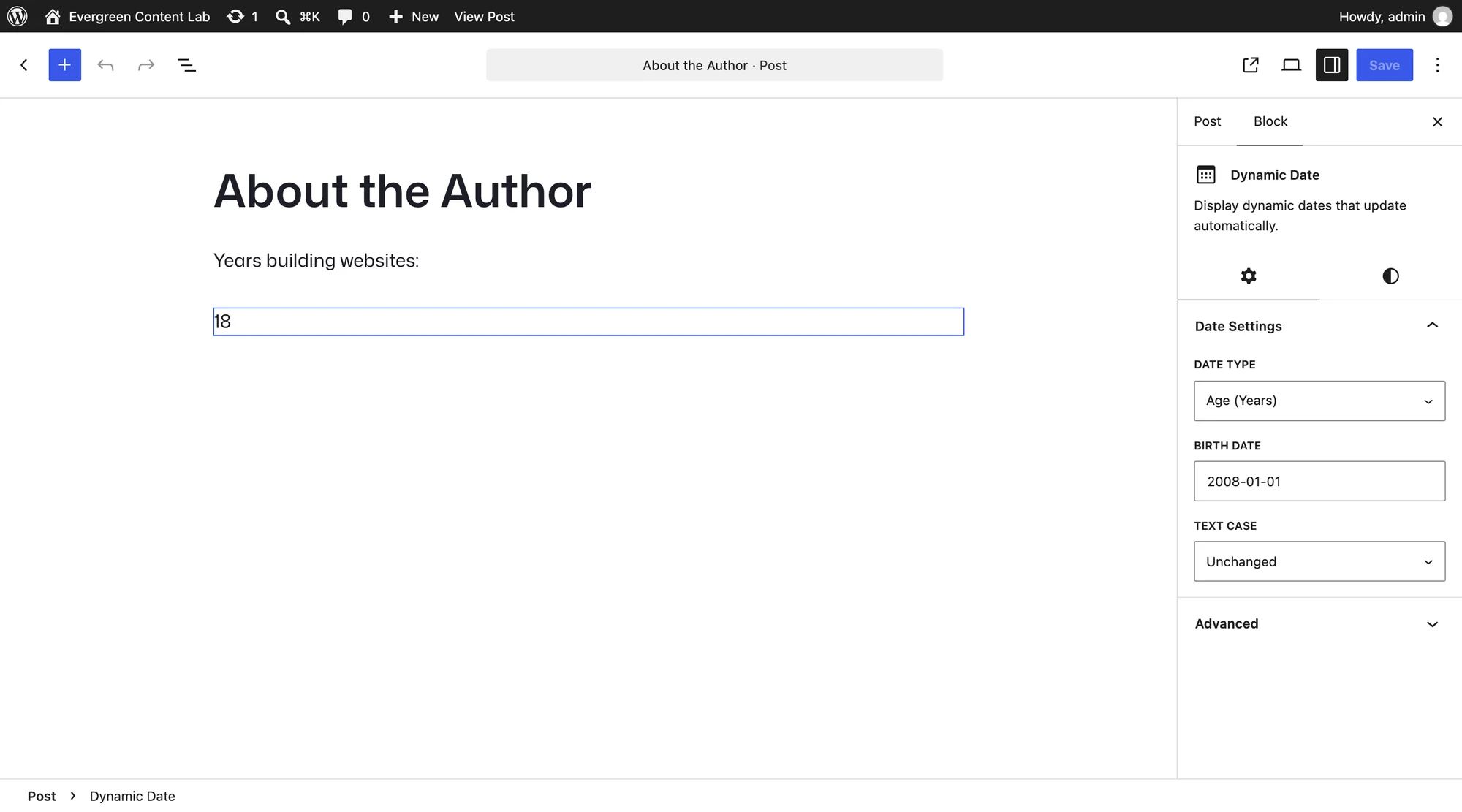
The block prints its result as its own paragraph. For a number inside a sentence, the shortcode is the better fit.
Check It Works
Preview the page and compare the number with a quick count on a calendar. With WP-CLI, the plugin prints the same value the page will show:
wp dmyip shortcode '[age date="2008-01-01"]'When the Number Is Missing or Wrong
| What you see | Why it happens | Fix |
|---|---|---|
| Nothing where the number should be | The date is in the future or isn’t a real date | Use a past date in YYYY-MM-DD form |
| One year less than expected | The anniversary hasn’t come yet this year | Nothing to fix. It ticks over on the anniversary |
[age date=...] printed as text | The area doesn’t run shortcodes | Move it into post content or a block that runs shortcodes |
| Last year’s number on a cached page | A page cache served an old copy | Purge the page after the anniversary |
What It Won’t Do
The shortcode does one calculation, and these limits come with it:
- February 29 birthdays move to March 1 in years without a leap day, because that’s when a full year has passed.
- It doesn’t refresh cached pages. The number renders on the server, so a cached copy keeps the old value until it’s purged.
- It doesn’t write the words around it. “Years of experience” in one place and “years old” in another are your sentences, not the plugin’s.
To count days until an event instead, read How to Add a Sale Countdown Inside a Post. Every attribute is listed in the shortcode reference.