
How to Add a Sale Countdown Inside a Post
A deal post that says “the sale ends in 5 days” is only true on one day. Readers who land on it a week later see a promise that already expired, and a deal page loses trust fast when its numbers don’t add up.
A days-left counter fixes that. You set the end date once, and the post shows the right number of days to every reader, every day, without an edit.
Dynamic Month & Year into Posts is my free plugin for dates that update themselves. It has 2 ways to count down:
- the Live Countdown block, which recalculates in the reader’s browser
- the
[daysuntil]shortcode, which fits in the middle of a sentence
Before You Start
A few things decide which route fits:
- Dynamic Month & Year into Posts 1.8.1 or newer is active.
- Settings → General → Timezone is set to the time zone your sale runs in. “Today” means midnight in that time zone.
- You know the sale’s last day, in
YYYY-MM-DDform, such as2026-11-30.
The countdown counts whole days. It has no hours, minutes or seconds. For a flash sale that ends at 6 p.m. today, a days counter is the wrong tool.
Add the Live Countdown Block
The block is the safer choice on a site with page caching, because it fixes its own number in the browser.
- In the block editor, click the + inserter and search for “Live Countdown”. It sits in the Widgets category.
- Put a short paragraph above it, such as “The sale ends in”, so the number has context.
- Select the block and open Countdown Settings in the sidebar.
- Leave Mode on Days Until.
- Pick the sale’s last day in Target Date. The help text below it reads “The site timezone is used on the frontend.”
- Keep Show Label on. With Label Text left as “days”, the block writes “1 day” and “5 days” correctly on its own.
- Leave Repeat every year off for a one-time sale.
- Update the post.
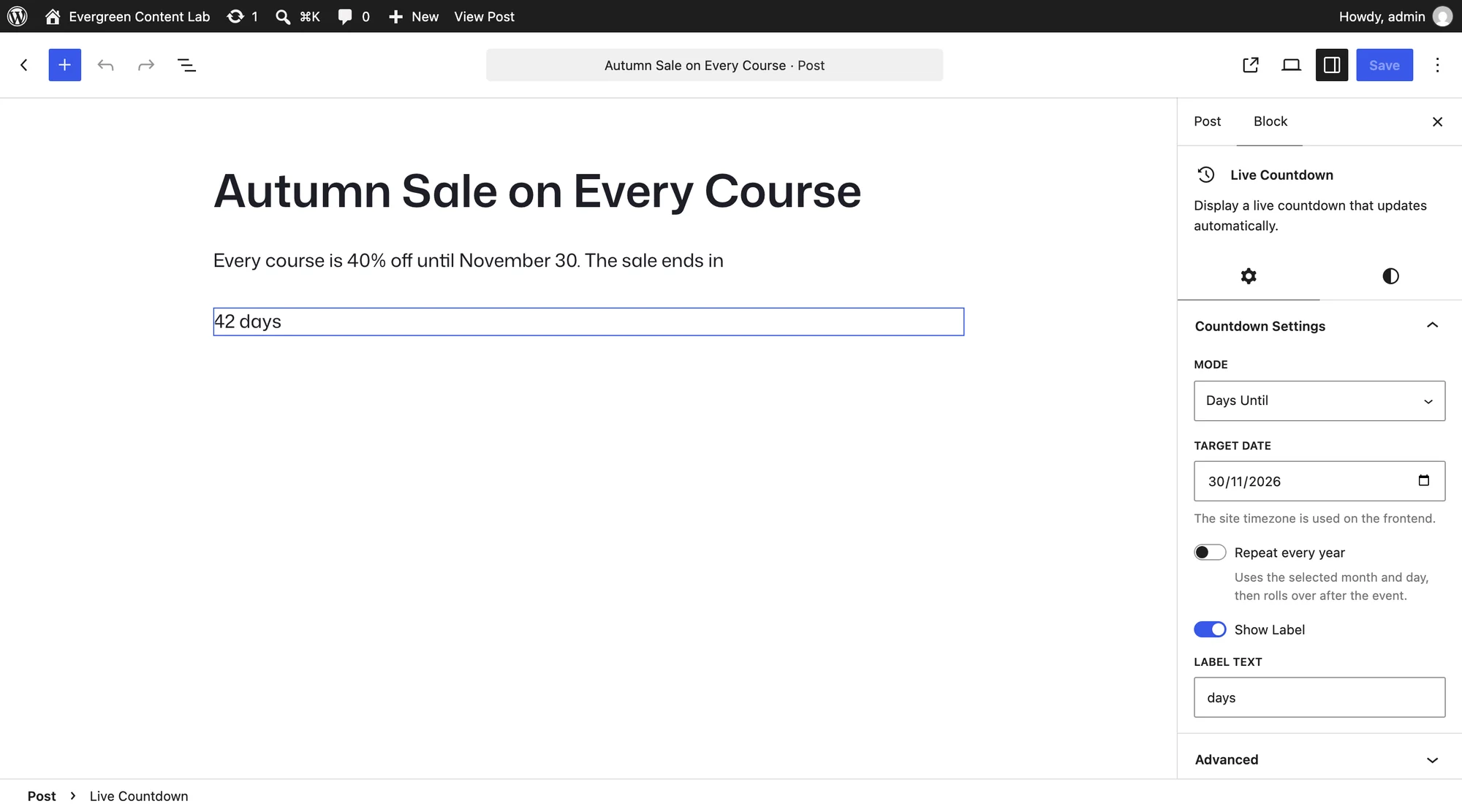
The block prints the server’s count when the page loads, then recalculates in the browser and again every minute. A page cache that saved yesterday’s HTML still shows today’s number to the reader.
The 30-Day Countdown pattern sits under “Dynamic Dates” in the inserter’s Patterns tab. It gives you the same block in a bordered box, with the target date set 30 days from the day you insert it.
Use the Shortcode in a Sentence
The shortcode suits a line of text, such as a deal summary:
Only [daysuntil date="2026-11-30" clamp="true"] days left at this price.The two attributes:
datetakes the end date.YYYY-MM-DDis the safest format. An impossible date such as2026-02-30returns nothing.clamp="true"stops the number at 0. Without it, the count goes negative after the date: -1, -2 and so on.
The shortcode prints a bare number with no “days” label, so the label belongs in your sentence. It renders on the server, so a cached page shows the number from the moment it was cached. On a cached site, purge the post daily during the sale or use the block.
Count Down to Black Friday
The plugin knows when Black Friday and Cyber Monday fall each year:
[blackfriday]prints the date of Black Friday, such as “November 27” in 2026.[cybermonday]prints Cyber Monday, “November 30” in 2026.
These print a date, not a countdown. Pair one with a Live Countdown block set to the same day:
Black Friday is on [blackfriday]. The early-access prices end then.Both shortcodes keep showing this year’s date after November ends. They move to next year’s date only when the calendar year changes.
Check It Works
Preview the post. The block and the shortcode should show the same number, and that number should match a calendar count from today to the last day.
With WP-CLI, you can check the shortcode against your site’s time zone:
wp dmyip shortcode '[daysuntil date="2026-11-30"]'If the number is off by one, the site time zone is the first thing to check.
When the Count Looks Wrong
| What you see | Why it happens | Fix |
|---|---|---|
| “Set a valid target date.” in the editor | The block has no target date yet | Pick a date in Target Date |
| Nothing on the page | The date is empty or impossible | Use a real date in YYYY-MM-DD form |
| A negative number | The shortcode passed its date without clamp | Add clamp="true" or remove the line after the sale |
| The shortcode’s number is a day behind | A page cache served yesterday’s copy | Purge the post, or switch to the Live Countdown block |
| Off by one near midnight | The site time zone differs from the sale’s | Fix Settings → General → Timezone |
What It Won’t Do
Know these limits before the sale goes live:
- It doesn’t count hours or minutes. Every count is in whole calendar days.
- It doesn’t hide itself after the sale. The block shows “0 days” from the last day onward. Remove it or swap the paragraph above it when the sale ends.
- It doesn’t end the sale. Prices, coupons and checkout rules stay with your store.
- Annual rules can’t express Black Friday. Repeat every year uses a fixed month and day, which suits birthdays and New Year, not a sale that moves each November.
For a count in the other direction, such as years since a launch, How to Show an Age or Years of Experience That Updates Itself uses the same date engine. The Gutenberg blocks reference covers every block setting.