
How to Keep the Year in Post Titles Current Without Editing Posts
A title like “Best Laptops for Students in 2025” starts to look old on January 1. If you run a few dozen of these posts, every New Year means opening each one, changing one number and hoping you didn’t miss any.
A dynamic year in the post title fixes that for good. You type [year] into the title once, and WordPress prints the current year on the page, in the browser tab, in the RSS feed and in the admin post list.
Dynamic Month & Year into Posts is my free WordPress plugin that adds date shortcodes such as [year], [month] and [monthyear] to titles, content, excerpts and SEO fields. It has no settings page. You install it, and the shortcodes work.
Before You Start
You need 3 things in place:
- Dynamic Month & Year into Posts 1.8.1 or newer, installed from Plugins → Add New Plugin by searching for its name.
- The right site time zone under Settings → General → Timezone. Every date the plugin prints comes from that setting, so a site set to UTC flips to the new year at UTC midnight.
- A plan for your page cache, if you run one. The plugin renders the year on the server, so a cached page keeps last year’s number until the cache is cleared.
Add the Year to a Title
The shortcode goes straight into the title field, the same way you’d type any other word.
- Open the post in the block editor.
- In the title, replace the hardcoded year with
[year]. For example:Best Laptops for Students in [year]. - Open the post settings, find the URL slug and remove the year from it. WordPress builds the slug from the title, so the example above becomes
best-laptops-for-students-in-yearunless you change it. A slug likebest-laptops-for-studentsis the one you want. - Save or update the post.
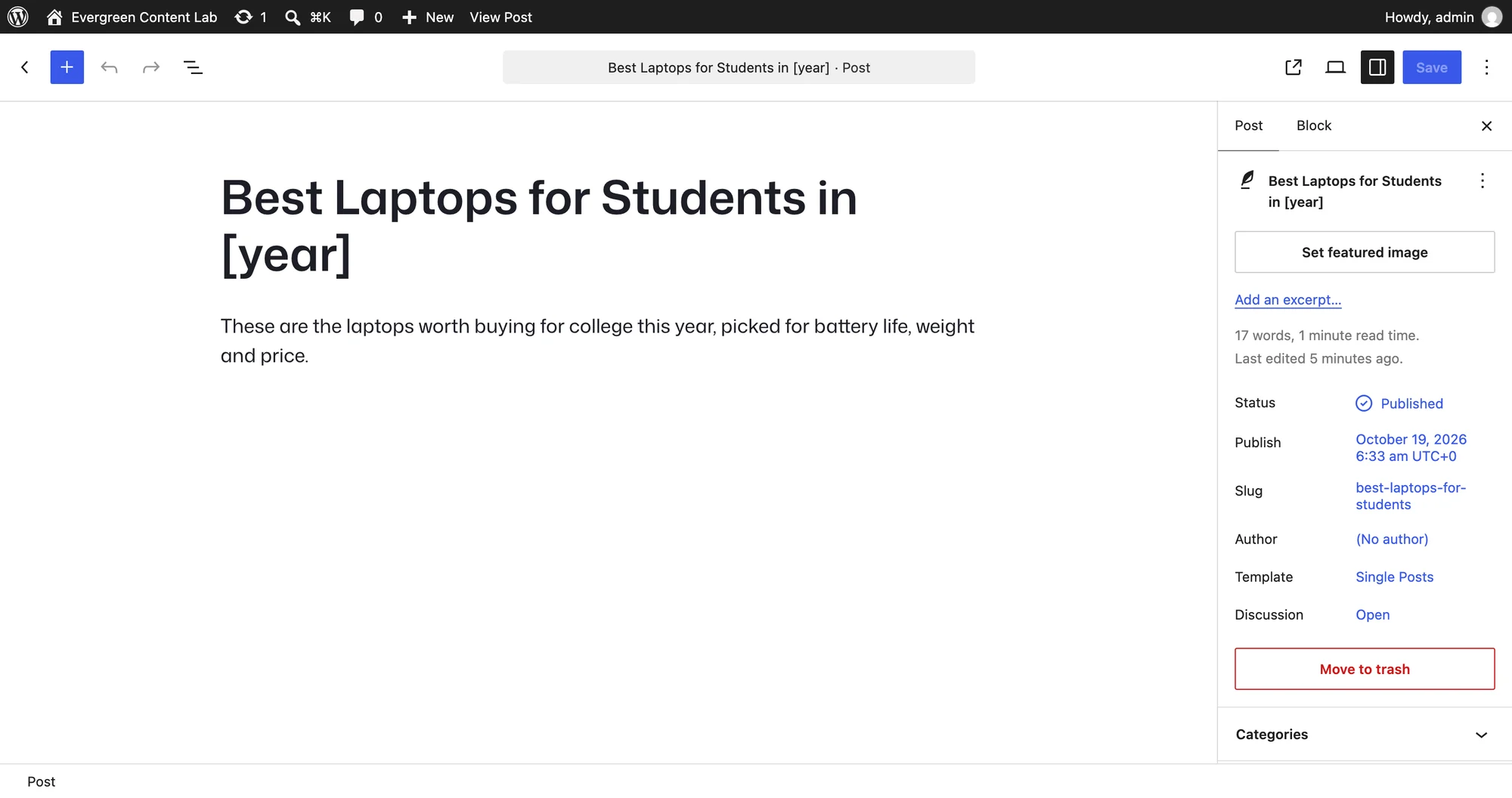
The title on the page now reads “Best Laptops for Students in 2026”, and it changes to 2027 on January 1 without anyone touching the post.
Shortcode names are lowercase. [Year] with a capital Y stays as plain text, because WordPress matches shortcode names exactly.
Pick the Right Shortcode
[year] covers most titles, but a few others are useful in headlines:
| Shortcode | Shows | Good for |
|---|---|---|
[year] | 2026 | “Best X in 2026” |
[nyear] | 2027 | Planners and calendars for the coming year |
[pyear] | 2025 | “What changed since 2025” |
[monthyear] | October 2026 | Monthly deal and coupon pages |
[month] | October | “October Deals” |
[year n=1] gives the same result as [nyear], and [year n=-1] the same as [pyear]. The n value can be any whole number, positive or negative.
The full list of 36 shortcodes, including seasons, weekdays and Black Friday dates, is in the shortcode reference.
Where the Year Shows Up
The plugin renders its shortcodes in these places:
- The title on the page, through
the_titleandsingle_post_title. - The browser tab title on single posts and pages.
- Excerpts, including excerpts WordPress generates from the content.
- Archive titles on category, tag and date archives.
- The RSS feed, because feed titles use the same title function.
- The Posts screen in wp-admin, so the list reads “2026” instead of
[year]. - The REST API, in
title.rendered. Thetitle.rawvalue keeps[year], which is what the editor needs. - Elementor, Bricks and Contextual Related Posts, each through its own hook.
Search snippets and social shares use your SEO plugin’s title fields. How to Put Dynamic Dates in Rank Math or Yoast SEO Titles covers those.
Check It Works
Open the post on the front end. The title, the browser tab and the post list in wp-admin should all show the current year.
With WP-CLI on the server, these 2 commands confirm the plugin and its time zone:
wp dmyip shortcode "[year]"
wp dmyip test
The first prints the current year in your site’s time zone. The second runs a set of sample shortcodes and ends with “All representative shortcode checks passed.”
When the Title Shows the Shortcode
| What you see | Why it happens | Fix |
|---|---|---|
[Year] or [YEAR] in the title | Shortcode names are case sensitive | Type [year] in lowercase |
[year] in the theme’s title area only | The theme prints the raw title without the title filter | Ask the theme author to use the_title(), or switch to the theme’s standard title template |
[year] in a category or tag <title> | Term names in the browser tab don’t pass through the archive title filter | Keep the year out of category and tag names |
[year] in search results or social shares | The SEO plugin’s own title template is used there | Add the shortcode to the SEO title as well |
| Last year’s number after January 1 | A page cache is serving an old copy | Purge the page cache on January 1 |
What It Won’t Do
The plugin changes the words on the page and nothing else:
- It doesn’t change the slug. WordPress keeps whatever slug you saved, which is why a year-free slug matters.
- It doesn’t change the modified date. The post’s “last updated” date, the
dateModifiedin your schema and the sitemap date all stay as they were. - It doesn’t refresh cached pages. Cached HTML holds the old year until your cache expires or you purge it.
- It doesn’t update the content for you. A title that says 2026 over a list last checked in 2024 is a promise the page doesn’t keep.
That last point matters more than the other three. When Not to Use Dynamic Years explains where a dynamic year helps and where it hurts.