
Best Writing Apps for Mac (2026)
Thousands of articles. Countless drafts. Dozens of Mac writing apps tested over the years. Here’s what I’ve learned: there’s no single best writing app for Mac. There’s only the best app for how you actually write.
Blog posts need different tools than novels. Quick notes need different apps than research papers. A journal entry is nothing like a technical manual. The tool that works for morning pages will frustrate you when you’re organizing a 60,000-word manuscript.
This guide matches writing types to tools based on actual use across thousands of published pieces. Everything that I use or have used. No theory. Just the best writing apps for Mac that work.
Distraction-Free Editors
Most guides recommend feature-packed writing suites. I’ve found the opposite. When the goal is getting words on the page without friction, features become obstacles. Toolbars steal attention. Sidebars create decision fatigue. Notifications break flow. These minimal apps strip everything away except you and your words. There’s nowhere to hide from the blank page. That’s the point.
Typora
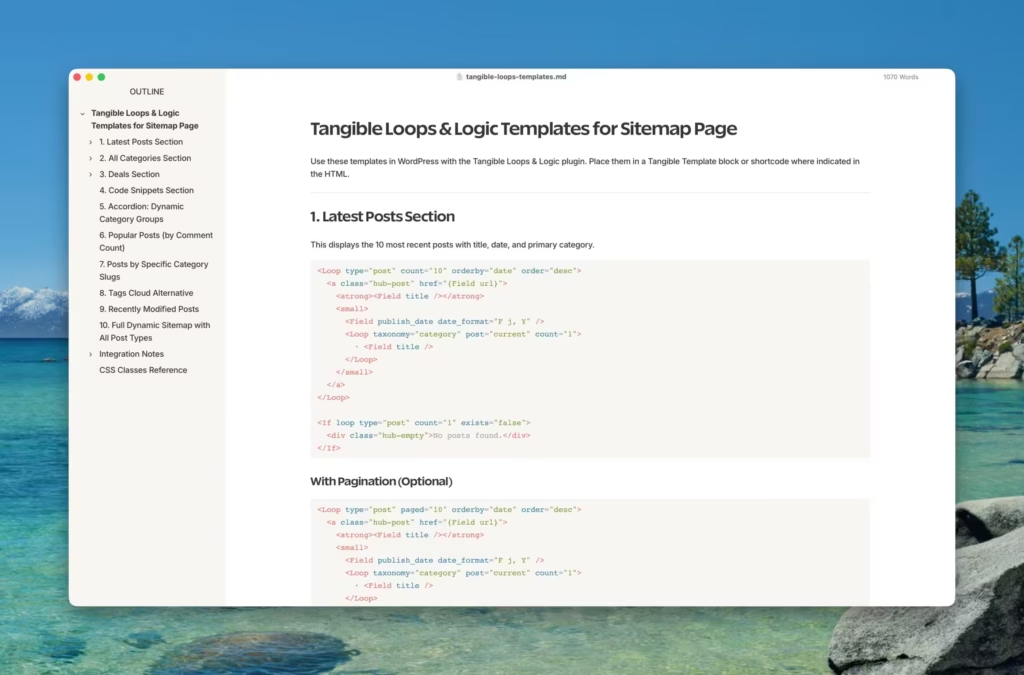
Typora is my daily driver for final article writing. It’s a minimal markdown editor with live preview. Markdown is a plain text format that uses simple symbols for formatting, like **bold** for bold and # for headings. No split pane showing raw markdown on one side and rendered text on the other. You write, and the formatting happens as you type.
I’ve written hundreds of articles in Typora. The WYSIWYG markdown approach means the output looks exactly like what you see while typing. Tables render instantly. Code blocks have syntax highlighting. Images display inline. The experience feels like writing in a polished document rather than editing code.
What makes Typora work: speed. It opens in under a second, doesn’t try to organize your life, and gets out of the way. Open, write, export, done. No folder systems, no syncing requirements, no account creation. When an article is ready for final editing, it goes into Typora. The clean interface helps focus on polish rather than structure. Themes change the visual mood, light for daytime, dark for late nights, sepia when you want something softer.
One-time purchase around $15. Worth every penny for the distraction-free focus.
Best for: Writers who think in markdown and want minimal friction.
iA Writer
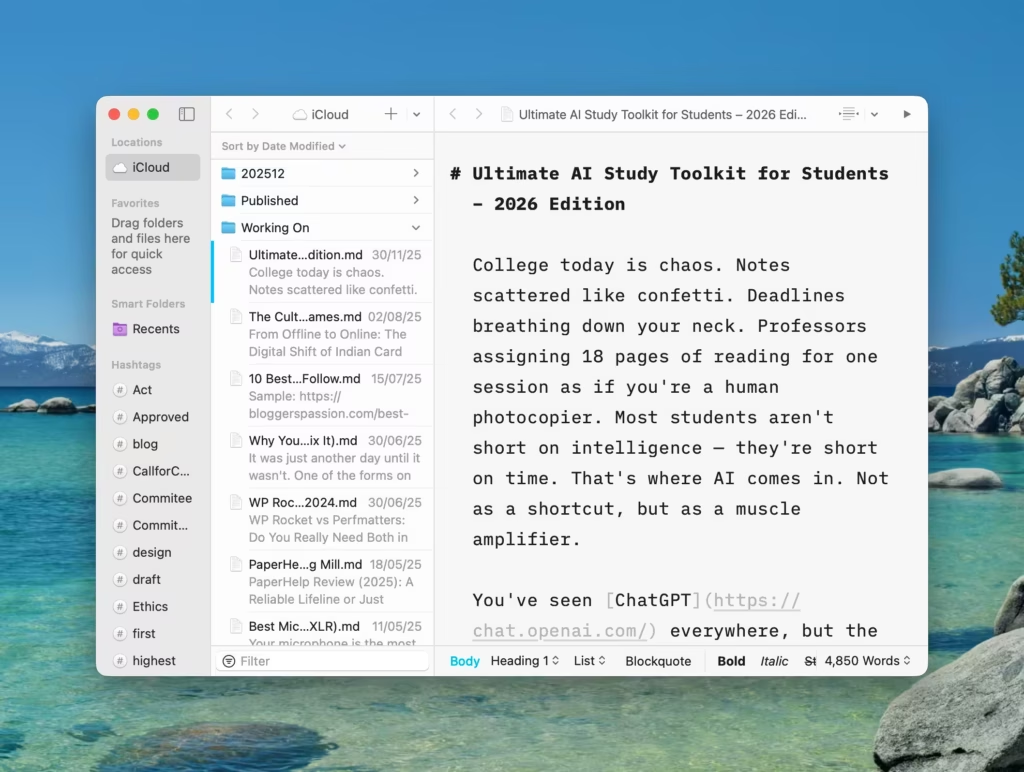
iA Writer pioneered the distraction-free writing movement back in 2010. Focus mode highlights the current sentence while fading everything else. The typography is beautiful, using a custom mono-spaced font designed specifically for sustained reading and writing. Cross-platform sync means you can write on Mac, continue on iPad, finish on iPhone.
The simplicity is intentional. iA Writer doesn’t want to be your notes app, your project management tool, or your research database. It wants to be where you write. That singular focus makes it excellent at one thing.
One-time purchase around $50. Worth it if the focus mode clicks with your brain.
Best for: Writers who need help focusing, cross-device workflows.
Ulysses
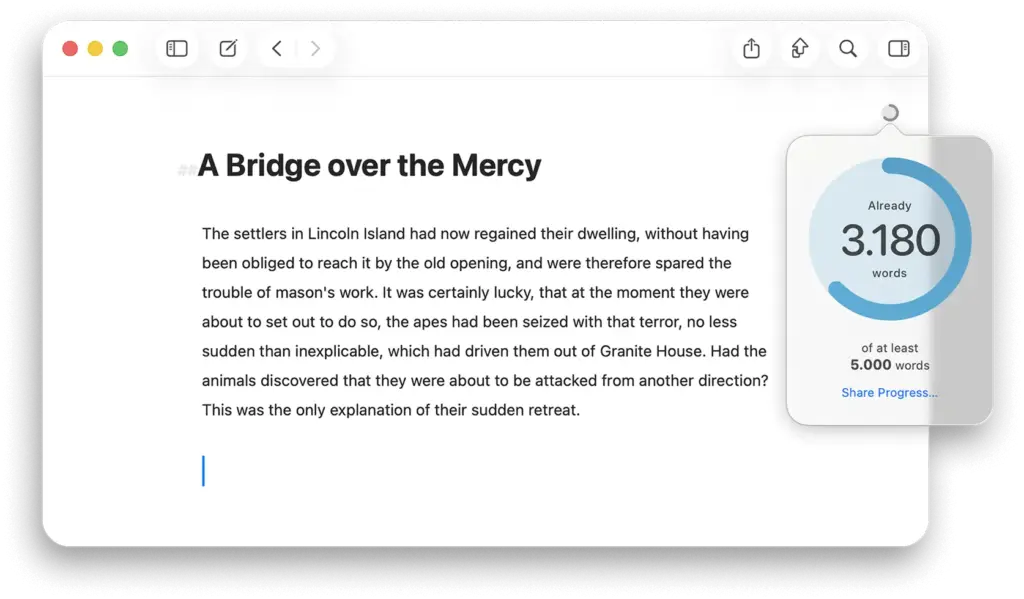
Ulysses goes further than Typora or iA Writer. It’s a full writing environment with library organization, publishing integrations for WordPress and Medium, and goals tracking. Word count targets, writing streaks, progress indicators. For prolific writers managing dozens of ongoing pieces, Ulysses provides structure everything lives in the app.
Organization, writing, and publishing happen in one place. You don’t jump between apps. Some writers love this unified approach. Others find it overwhelming, preferring simpler tools that do less.
Subscription model around $50/year. This bothers some people – it bothered me and I moved away. The functionality justifies it if you use the organizational features daily.
Best for: Prolific writers managing many pieces, those who want publishing integrations.
Bear
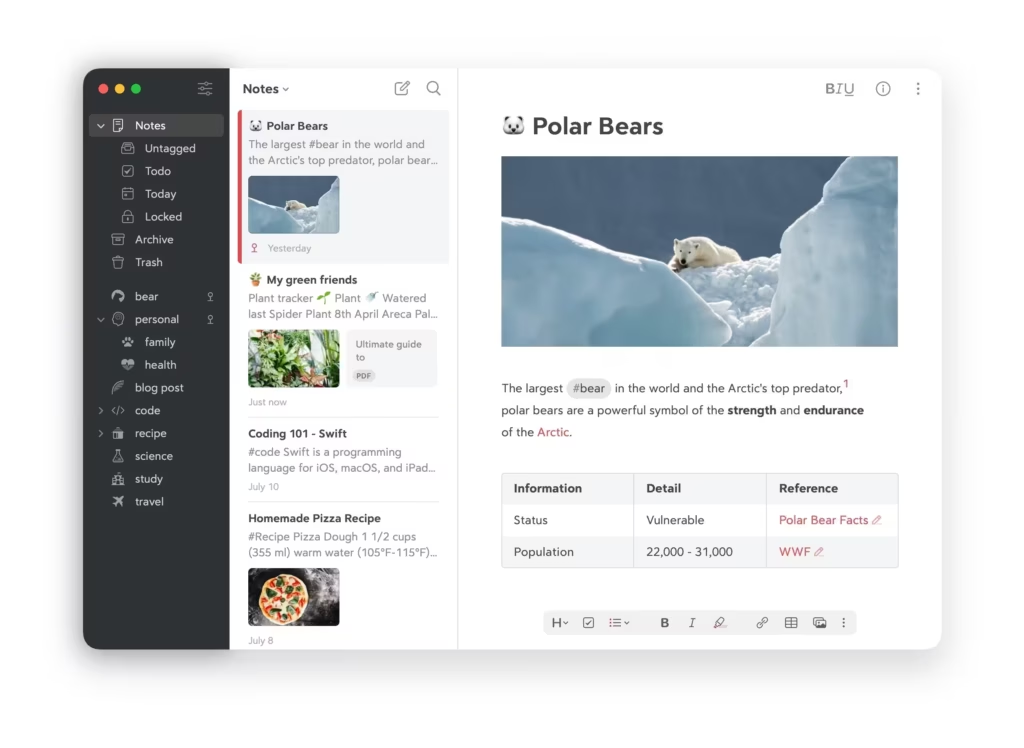
Bear is technically a notes app, but it’s excellent for writing. Beautiful markdown support with a distinctive visual style. Tagging system for organization instead of folders, which works better for content that belongs in multiple categories. Apple ecosystem sync through iCloud that just works.
Bear sits between pure notes and serious writing apps. The free tier handles basic writing well. Pro adds sync across devices and visual themes for $30/year.
Best for: Writers already in the Apple ecosystem, note-to-article workflows.
Which Distraction-Free Editor?
| Your Situation | Best Choice |
|---|---|
| Final article editing, clean markdown | Typora (my pick) |
| Focus problems, cross-device | iA Writer |
| Many ongoing pieces, publishing | Ulysses |
| Mixed notes and writing | Bear |
| Complete writing system | Obsidian + Typora combo |
Long-Form Writing Tools (Books, Theses, Large Projects)
Blog posts are one thing. Writing a book is another. The tools that work for 2,000-word articles break down at 80,000 words. The problem isn’t writing, it’s organization. You need to see structure at a glance, move chapters without copy-pasting, and keep research accessible without losing your place in the text.
Scrivener
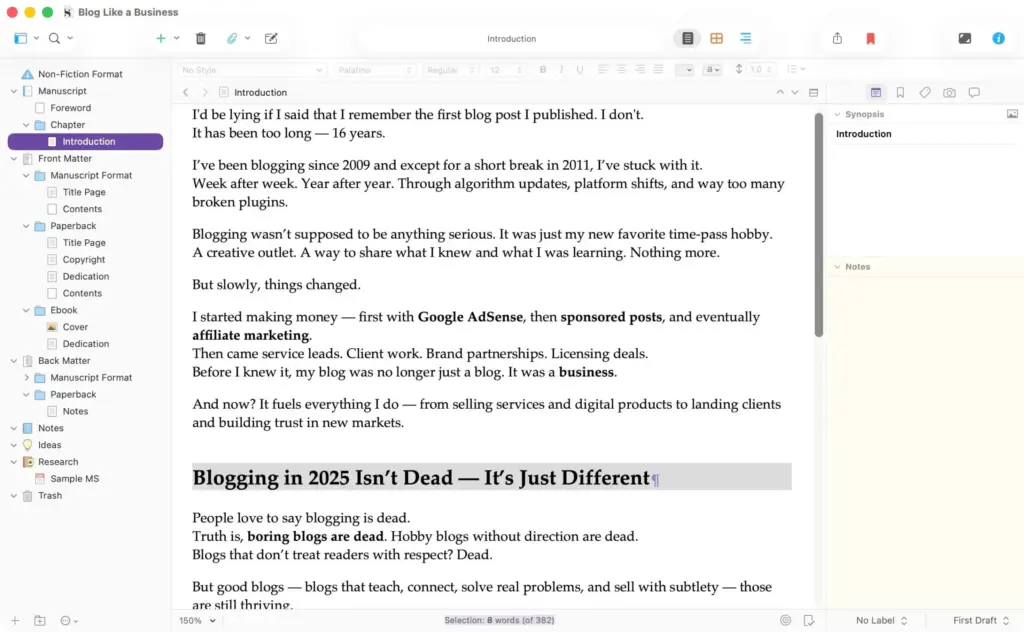
Scrivener is the standard for book writers. Nothing else comes close for managing complex long-form work. The reason is the Binder, a sidebar that treats your manuscript as a folder structure rather than one long document.
What makes Scrivener work:
- Binder organization: Your manuscript as a folder structure. Chapters, scenes, sections. Move things around by dragging. See the whole structure at a glance. This matters because rearranging chapters in a word processor means selecting thousands of words, cutting, scrolling, pasting, and hoping you didn’t break anything. In Scrivener, it’s a drag operation.
- Research alongside writing: Import PDFs, images, web pages, notes. Everything for your project lives in one place. Character sketches sit next to the chapter they appear in. No switching between apps to reference your research.
- Compile to anything: One manuscript, multiple outputs. Kindle format, print PDF, Word document, ePub. Write once, compile to whatever format you need. The compile system handles formatting differences automatically.
The learning curve is real. Budget a weekend to understand how Scrivener thinks. The investment pays off for any project over 20,000 words. Once it clicks, you’ll wonder how you ever organized long work without it.
One-time purchase around $49. For what it does, this is remarkably cheap.
Best for: Book writers, thesis projects, anything requiring heavy organization.
Ulysses for Long-Form
Ulysses handles long-form through sheets and groups. It’s simpler than Scrivener but less powerful. Think of it as Scrivener with training wheels. You miss some features, but you also miss the complexity.
When to choose Ulysses over Scrivener: You prefer simplicity over features. You don’t need research management in your writing app. You’re already using Ulysses for shorter work and want to stay in one tool. The learning curve matters more to you than the power ceiling.
Storyist
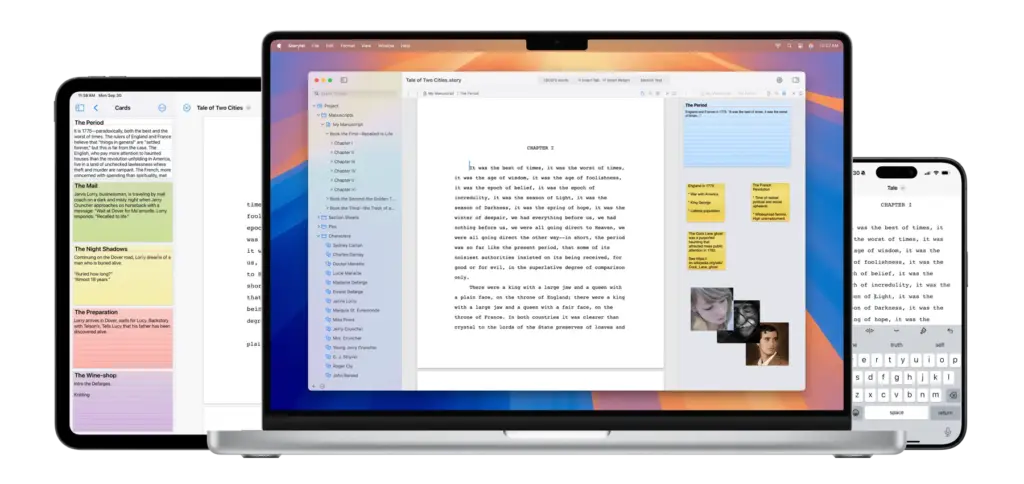
Storyist is novel-focused with character development tools and plot management. Mac-native design means it follows Apple conventions, looks like a Mac app, feels like a Mac app. Less complex than Scrivener. It hits a middle ground between too simple and too much.
Best for: Fiction writers who want character/plot tools without Scrivener’s complexity.
Vellum
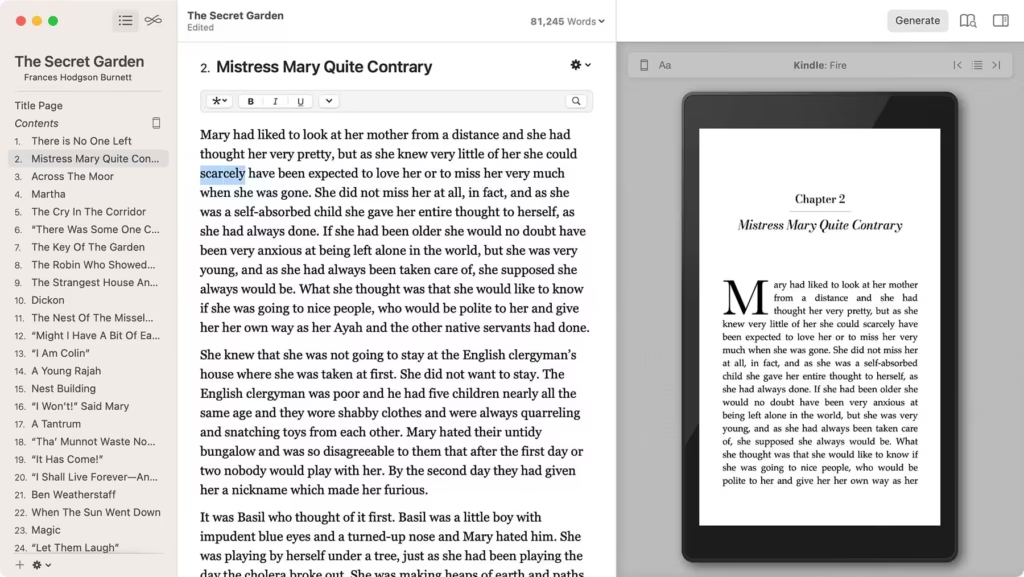
Vellum isn’t for writing. It’s for finishing. Take your completed manuscript and produce beautiful ebooks and print-ready PDFs. The output quality rivals professional book designers because Vellum handles the typographic details most writers don’t even know exist: proper em-dashes, smart quotes, chapter drop caps, and widow/orphan control.
Mac-only, around $250 for the full version. Worth it if you’re self-publishing and want professional-looking books without hiring a designer. The price pays for itself after one or two books when you compare it to professional formatting services.
Best for: Self-publishers who want beautiful book formatting.
Note-Taking Apps (Where Ideas Become Drafts)
Great writing often starts as notes. A fragment of an idea at 2am. A connection you make while reading. A rant you need to get out of your system. These apps bridge the gap between scattered thoughts and structured drafts. The key feature isn’t how notes look. It’s how easily notes become something more.
Craft
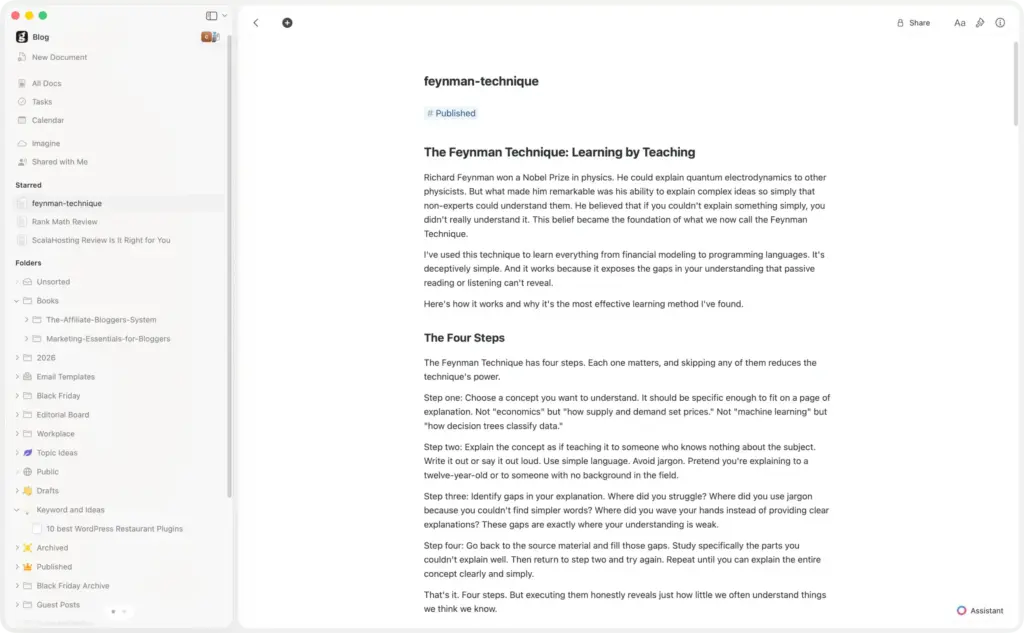
Craft is beautiful document creation with backlinks and daily notes. Backlinks mean when you mention a concept in one note, it automatically connects to other notes about that concept. Collaboration works smoothly. Sharing is friction-free. It looks good enough that you could send a Craft doc directly to a client.
Craft works well for documentation that might become content, research that needs organization, and anything requiring visual polish before sharing. The free tier is generous. Premium adds more sync and collaboration features.
Best for: Writers who value design, collaborative documentation.
Obsidian
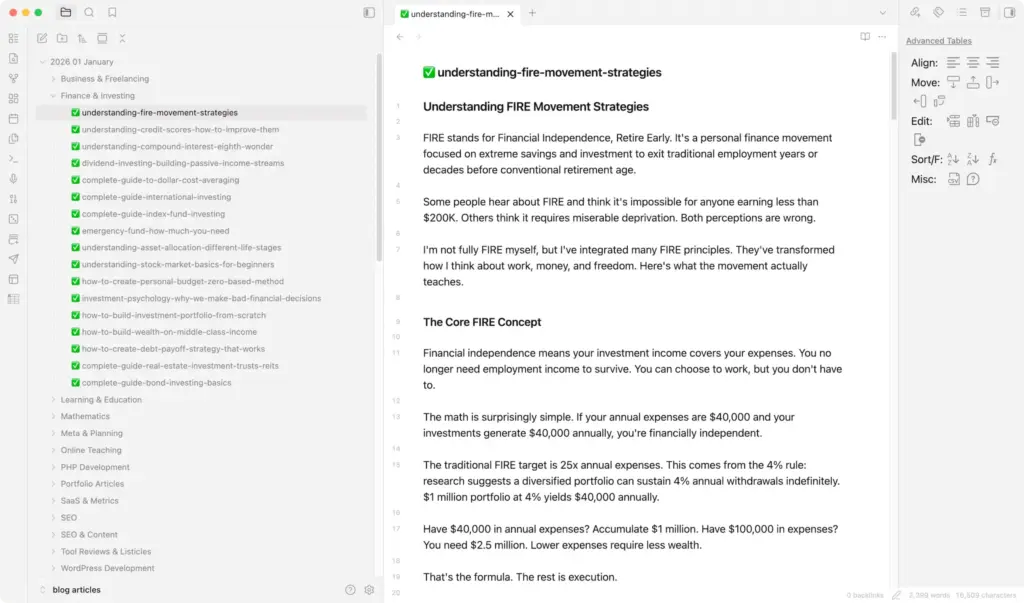
Obsidian is where all my thinking happens. Every article starts as an Obsidian note. Research, outlines, rough drafts, ideas that might become something. Everything lives here.
The key insight: Obsidian stores everything as plain markdown files on your computer. Plain text files that any editor can open. No proprietary format, no lock-in. If Obsidian disappeared tomorrow, all the files would still exist in a format that works everywhere. That matters more than most features because your notes outlive any individual app.
My Obsidian setup includes daily notes for quick capture and journaling, article drafts organized by publication status, research notes linked to source materials, and a knowledge base of concepts that get referenced repeatedly. The plugin ecosystem transforms Obsidian into whatever you need. Plugins exist for task management, templates, better markdown tables, and hundreds of other functions. Graph view shows connections between notes visually, which occasionally surfaces unexpected links between ideas.
Free for personal use. The learning curve exists but rewards investment. A weekend spent setting up a solid system pays dividends for years.
My workflow: Ideas captured throughout the day go into Obsidian. When something has enough substance, it develops into a draft. When the draft is ready for final polish, it moves to Typora.
Best for: Writers who want data ownership, second-brain methodology, or anyone managing lots of interconnected ideas.
Notion
- Docs, databases, and wikis in one
- Powerful template gallery
- AI-powered writing assistant
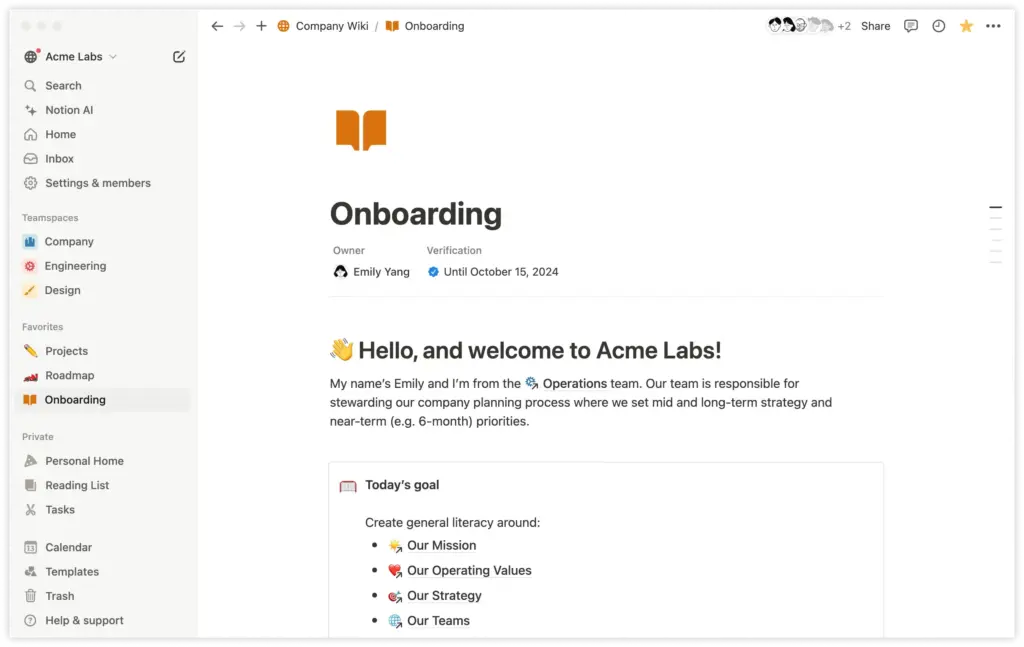
Notion is the all-in-one workspace that can do almost anything. Databases for organizing content, pages for writing, templates for structure. It’s the Swiss Army knife of productivity apps.
Most guides recommend Notion for everything. Here’s the problem: writing in Notion is possible but not optimized. The editor has noticeable lag on longer documents. Export options are limited. The block-based structure that makes Notion flexible also makes it slower than purpose-built writing tools. If you’re already using Notion for project management, writing there keeps everything together. If writing is your primary need, dedicated tools are better.
Best for: Teams already in Notion, writers who want everything in one place.
Apple Notes
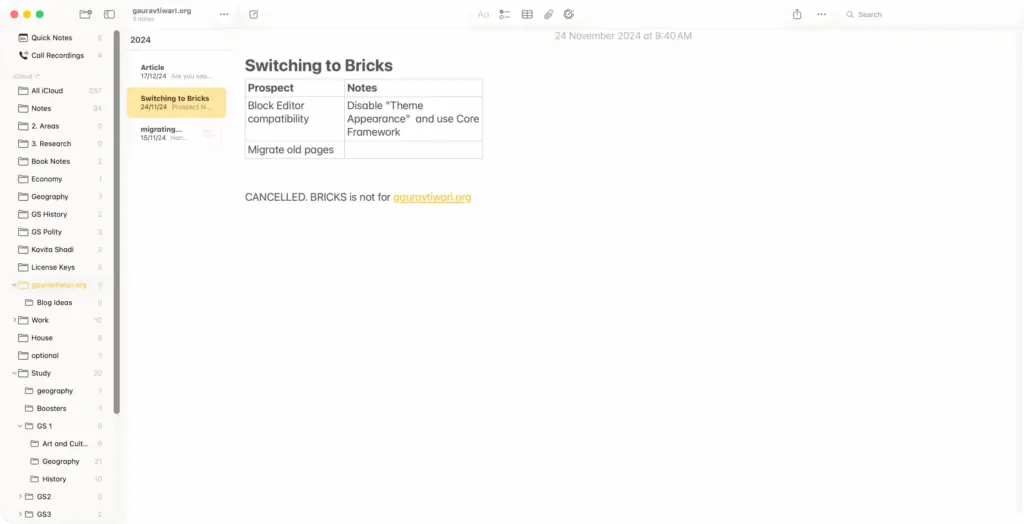
Already installed. Surprisingly capable for basic note-taking. Quick capture works from any device. iCloud sync is reliable. You don’t need to download, configure, or pay for anything.
Limitations emerge with heavy usage, complex formatting, or organizational needs. No markdown support. Limited export options. Search works but isn’t powerful. But for many writers, Apple Notes is genuinely sufficient. Don’t dismiss the simple solution just because fancier options exist.
Best for: Simple needs, Apple ecosystem, quick capture.
Research and Academic Writing
When writing requires managing sources, citations, and extensive research, specialized tools matter. You can’t handle 200 PDFs and proper citation formatting with a basic notes app. These tools exist because academic writing has requirements regular writing apps don’t address.
DEVONthink
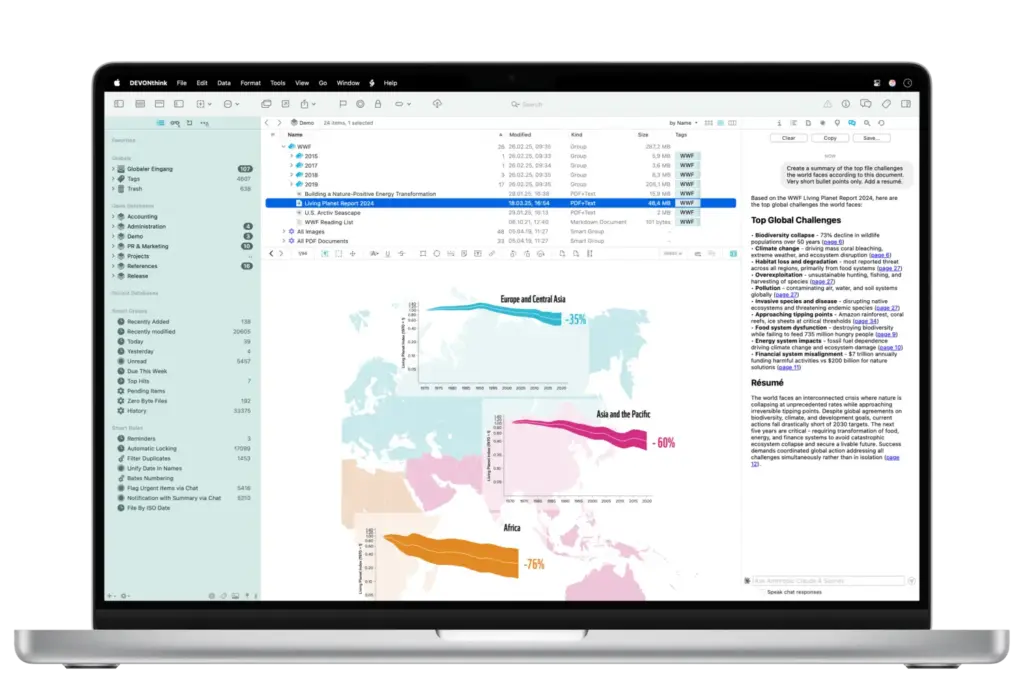
DEVONthink is a research organization powerhouse. AI-powered classification learns how you categorize things over time, suggesting where new documents belong based on your existing organization. PDF annotation is built in. Search finds anything instantly across thousands of documents using fuzzy matching and boolean operators.
For academic work, legal research, or any project involving hundreds of sources, DEVONthink handles complexity that would overwhelm other tools. It’s not pretty. The interface looks like it was designed by engineers for engineers. But it’s powerful in ways that matter when you’re writing a dissertation.
Steep learning curve. Huge payoff for research-heavy work.
Best for: Academic research, complex projects with many sources.
Zotero
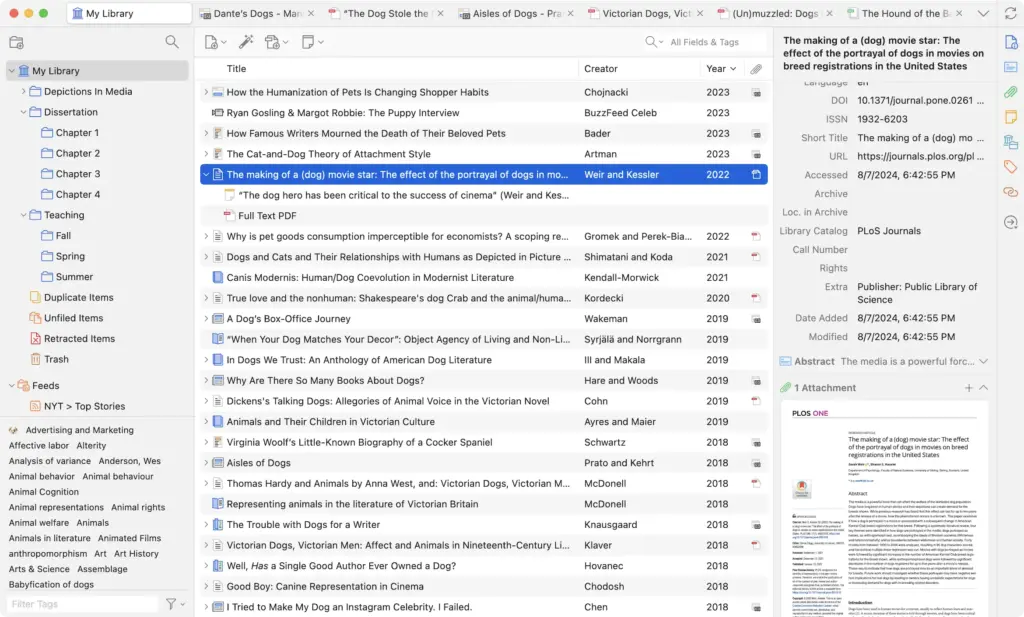
Zotero manages citations for academic writing. Citations are the formatted references that appear in academic papers, and getting them wrong can fail a thesis defense. Zotero tracks your sources, formats citations automatically in whatever style your professor requires, and integrates with Word and Google Docs. Free, open source, actively maintained.
Essential for anyone writing papers with citations. Not a writing tool itself, but a critical companion to one.
Best for: Academic writing with citations.
Research Workflow
My approach for research-heavy pieces: DEVONthink (or even just organized folders) for source collection, Obsidian for notes and connections, Scrivener or Typora for the actual writing. Different tools for different phases. Trying to do everything in one app usually means doing everything poorly. The handoff between tools takes seconds. The organizational clarity saves hours.
Grammar and Editing Tools
After writing comes editing. These tools catch what tired eyes miss. Four reads through an article won’t catch every typo, especially the ones your brain autocorrects because it knows what you meant to write. Grammar tools provide a second perspective that isn’t your own.
Grammarly
- Real-time grammar and tone detection
- Works in browsers and desktop apps
- Generative AI writing assistance
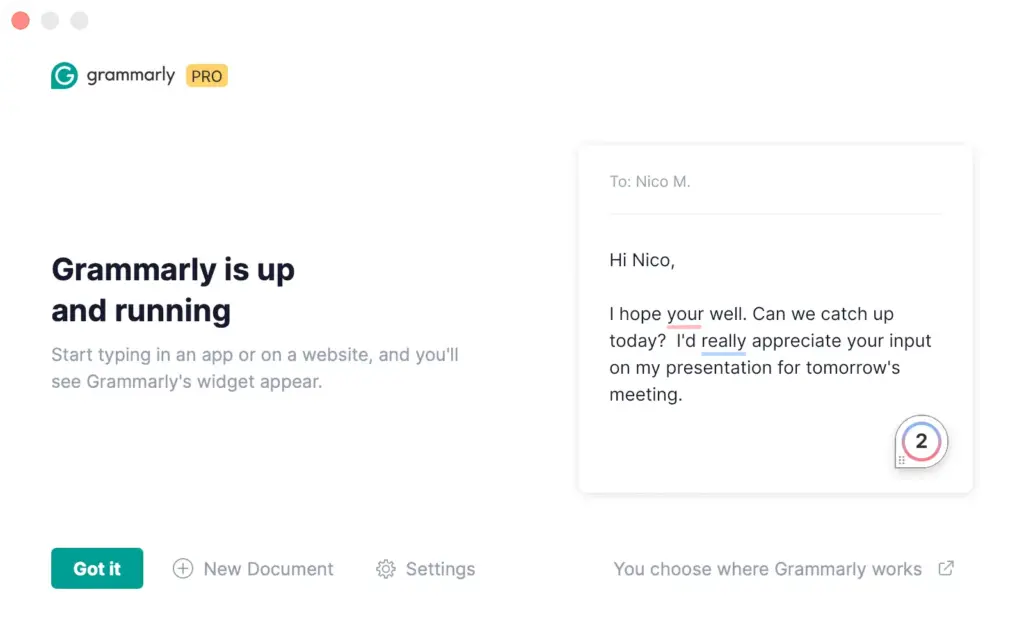
Grammarly is the industry standard. Real-time suggestions across most writing apps, tone detection, and vocabulary improvements. It works everywhere you write through browser extensions and a Mac keyboard.
Free tier catches basic errors: spelling, obvious grammar issues, punctuation. Premium adds clarity suggestions, tone adjustments, and more sophisticated analysis. The analysis shows whether your writing sounds confident, friendly, formal, or unclear. Works across apps via keyboard or browser extension. The ubiquity is convenient.
Best for: Everyone who writes. The free tier is worth installing today.
LanguageTool
- 30+ languages supported
- Open-source and privacy-focused
- Browser, Word, and Google Docs integration
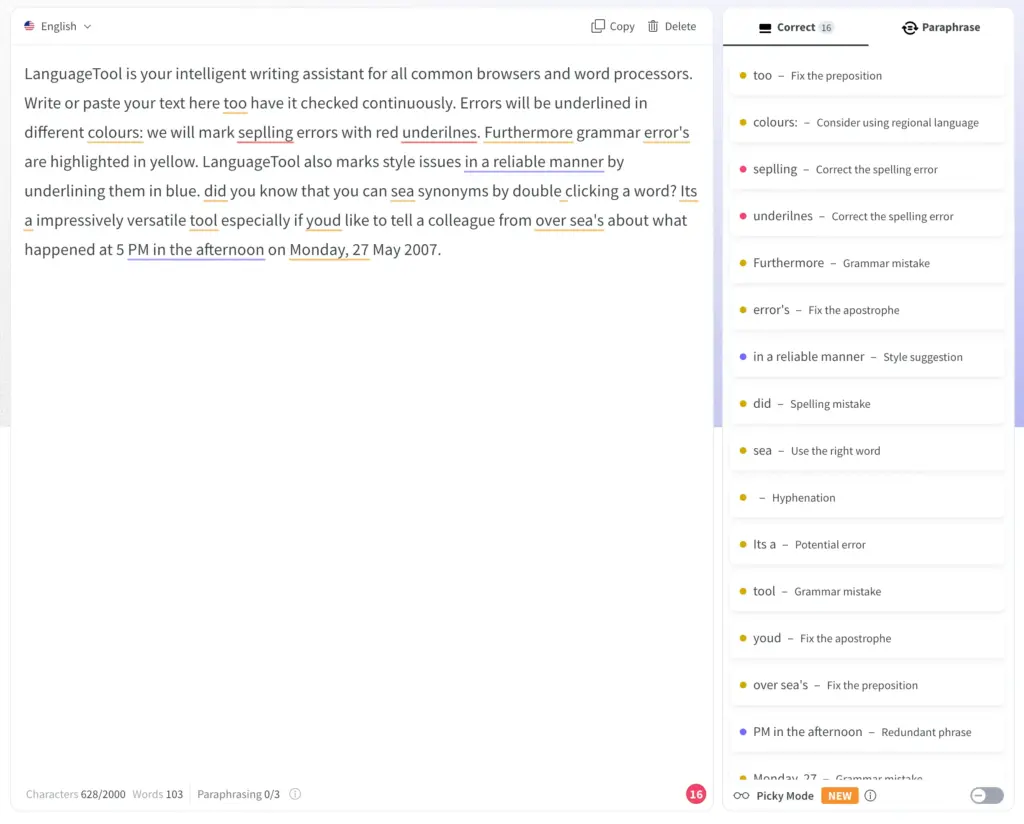
LanguageTool is the open source alternative for grammar and editing. Privacy-focused because it can run entirely on your computer without sending text to external servers. Good for non-English languages with strong support for German, French, Spanish, and others. Generous free tier.
If Grammarly‘s data practices concern you, LanguageTool is the answer. Same basic function, different approach to your privacy.
Best for: Privacy-conscious writers, non-English languages.
ProWritingAid
- 20+ detailed writing reports
- Style and readability analysis
- Integrations with Word, Chrome, and Scrivener
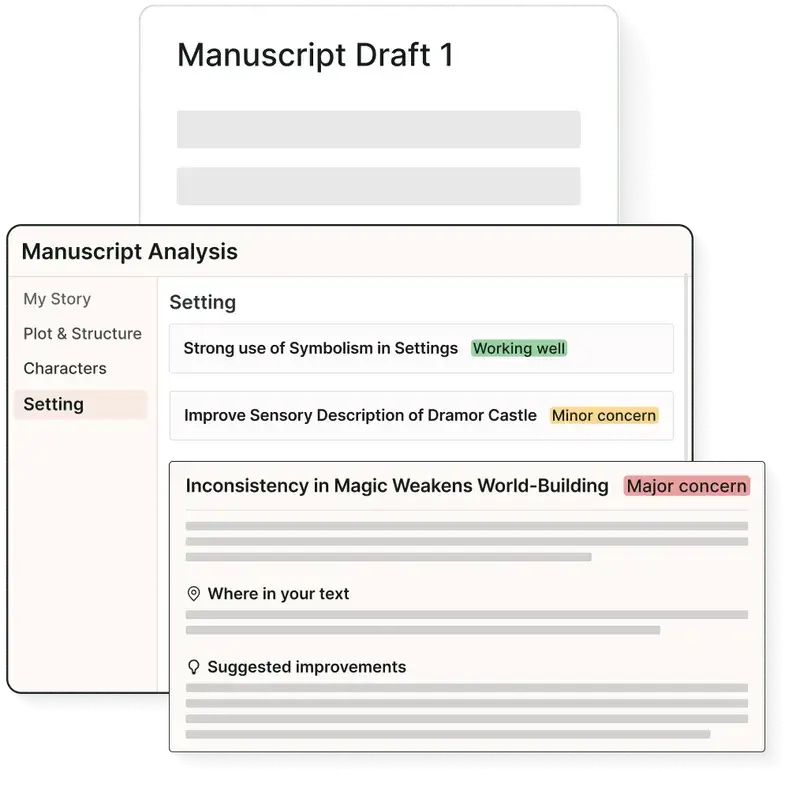
ProWritingAid goes deeper than grammar. Reports analyze your writing patterns across an entire document. Overused words get flagged. Sentence structure variety gets measured. Pacing issues become visible. It tells you things about your writing you didn’t know.
One-time purchase option available (unlike Grammarly’s subscription). Better for long documents where pattern analysis matters. Less useful for quick blog posts where you just need a spelling check.
Best for: Long-form writers, those wanting style analysis.
Hemingway Editor
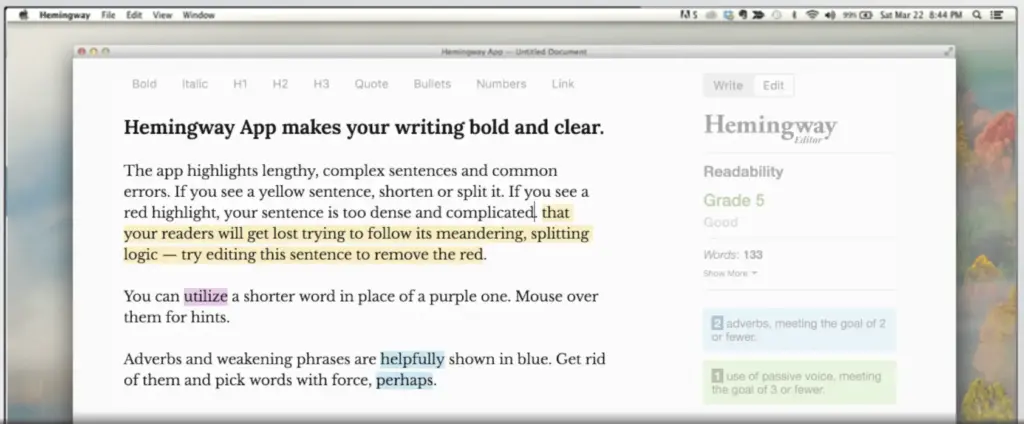
Hemingway Editor focuses on readability. Highlights complex sentences, passive voice, adverb overuse. Shows grade level for your text. The goal is simpler, clearer prose.
Web-based with a Mac app available. Paste finished drafts into Hemingway for a readability check before publishing. It’s particularly good at finding sentences that made sense when they were written but don’t make sense to anyone else. Named after Ernest Hemingway, whose spare prose style the app encourages.
Best for: Writers targeting clear, accessible prose.
Problem: Not updated much. Falls behind in development and features.
Do You Need Grammar Tools?
Honest question. Grammar checkers help with catching typos tired eyes miss, maintaining consistency in long documents, writing in a second language, and technical or complex content where clarity matters.
They’re less necessary for short casual writing, writers with strong editing skills, and content where voice matters more than correctness.
Grammar tools work best as a final check, not a crutch. Writing with Grammarly constantly active can disrupt flow. Better to write freely, then run a check before publishing.
AI Writing Assistants (Use With Care)
AI tools are everywhere now. Used well, they accelerate writing. Used poorly, they produce generic content that sounds like everyone else. The difference is how you use them.
Most guides either hype AI as revolutionary or dismiss it entirely. Both miss the point. AI is a tool with specific strengths and weaknesses. Understanding those specifics determines whether it helps or hurts your writing.
ChatGPT (Mac App)
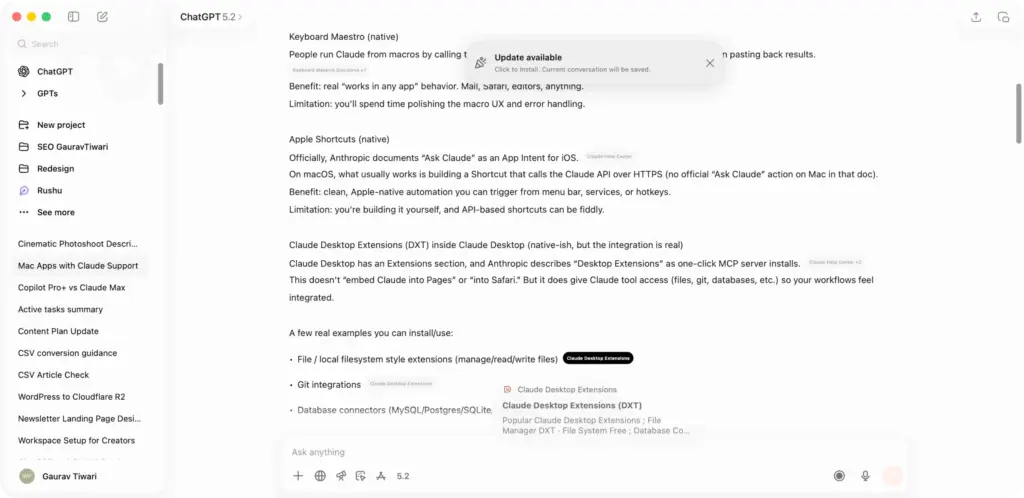
ChatGPT handles brainstorming, outlining, research starting points, and draft feedback. The Mac app provides quick access without browser tabs. Command-Space and you’re talking to it.
What AI is good for: Breaking through blank page paralysis. Generating outline options to react to (your reaction often clarifies what you actually want to say). Research starting points (always verify because AI confidently states false information). Getting feedback on drafts. Rephrasing awkward sentences you can’t fix yourself.
What AI is bad for: Writing that represents your voice. Factual content without verification. Anything requiring genuine expertise (AI doesn’t have experience, just patterns). Final content (always edit heavily).
Claude (Mac App)
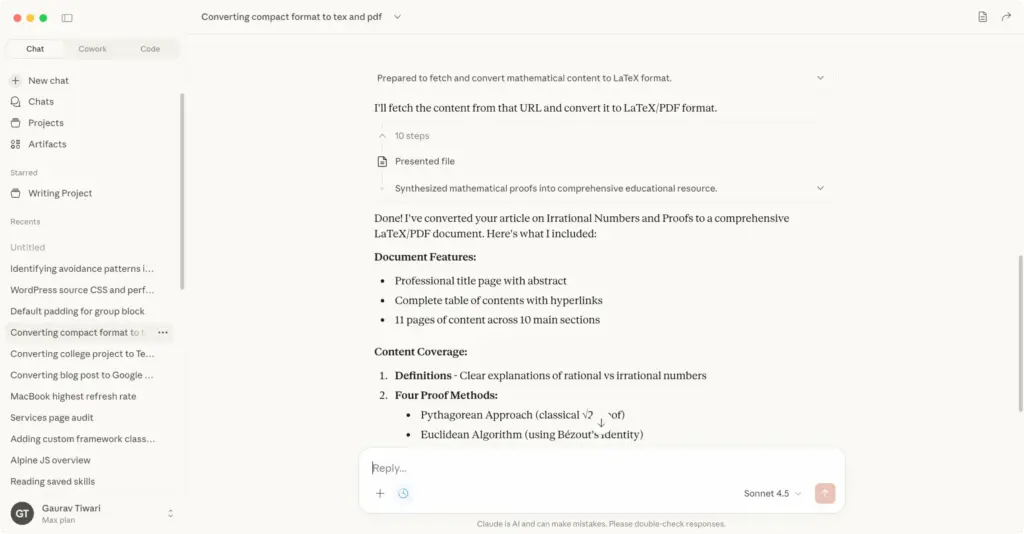
Claude handles longer documents better than ChatGPT. Claude’s context window, the amount of text it can consider at once, is larger. Paste an entire article for feedback. Analyze long research papers without truncation. Work with extensive context without running out of memory.
Different strengths than ChatGPT. Claude tends toward more nuanced responses. ChatGPT tends toward punchier ones. Both have their place.
AI Principles
- AI as assistant, not replacement
- Never publish AI output directly
- Verify any facts AI provides
- Use AI to accelerate, not substitute, thinking
- Heavy editing transforms AI drafts into your voice
The writers who get value from AI treat it like a research assistant and first-draft collaborator. The writers who get burned treat it like an author. It’s not an author. It’s a tool that doesn’t understand what it’s saying. That distinction matters.
Compare AI Writing Tools
| Feature | ChatGPT Plus | Jasper AI | Grammarly | ProWritingAid | NeuronWriter |
|---|---|---|---|---|---|
| Free Plan | Yes (GPT-3.5) | No (7-day trial) | Yes (basic) | Yes (limited) | No |
| Price | $20/mo | $49/mo | $12/mo | $10/mo | $23/mo |
| Best For Standout | General AI assistant | Marketing copy | Grammar + style | Long-form editing | SEO content |
| Content Generation | Yes (advanced) | Yes (templates) | Yes (GrammarlyGO) | Limited | Yes (SEO-focused) |
| Grammar Checking | Basic | Basic | Excellent | Excellent | No |
| SEO Optimization | No | Yes (SurferSEO integration) | No | No | Yes (NLP-based) |
| Tone Detection | Yes | Brand voice | Yes | Yes | No |
| Plagiarism Check | No | Yes | Yes (pro) | Yes | No |
| WordPress Plugin | No | No | Yes | No | Yes |
| Best For | Versatile AI tasks | Marketing teams | Writers, professionals | Authors, novelists | SEO content writers |
| Visit ChatGPT | Visit Jasper | Visit Grammarly | Visit ProWritingAid | Visit NeuronWriter |
My Writing Stack
The Mac apps that I actually use after all these years:
| Writing Type | Tool | Why |
|---|---|---|
| Everything (thinking, drafts, research) | Obsidian | Data ownership, connections, flexibility |
| Final article editing | Typora | Clean WYSIWYG markdown, fast export |
| Quick capture on mobile | Apple Notes | Already there, always synced |
| Grammar check | Grammarly | Integrated, catches typos |
| Client docs | Google Docs | Collaboration required |
| AI assistance | Claude | Long context, writing feedback |
Current Workflow (Obsidian + Typora):
- Capture – Ideas go into Obsidian daily notes throughout the day
- Develop – Promising ideas get their own note, linked to related concepts
- Draft – First drafts written in Obsidian with templates
- Polish – When structure is solid, move to Typora for final editing
- Check – Grammarly catches typos tired eyes miss
- Publish – Export and upload to WordPress
This two-app system works because each tool does one thing well. Obsidian handles thinking and organizing. Typora handles clean final output. No single app does both perfectly.
The specific tools matter less than having a workflow. Know where ideas go, where writing happens, and how pieces reach publication. A system you use beats a system that’s theoretically perfect.
Choosing Your Writing Stack
By writing type:
- Blogging (my recommendation): Obsidian for drafts + Typora for final editing. This combination gives you the organizational power of a notes app with the clean output of a focused editor. Both use plain markdown, so files move between them with no friction.
- Blogging (simpler): Typora or iA Writer alone plus Grammarly. Fast drafting, clean output. Works if you don’t need heavy organization. Start here and add complexity only when you feel specific pain.
- Books: Scrivener. No serious alternative for long-form organization. The learning curve is worth it if you’re writing anything book-length.
- Research-heavy: DEVONthink for sources, Scrivener or Typora for output.
- Notes to writing: Obsidian if you value file ownership and connections. Craft if you value design and polish. Both work well.
- Quick and simple: Bear or Apple Notes. Don’t overcomplicate what doesn’t need complicating.
Don’t over-tool. Start with one writing app and one notes app. Add complexity only when specific pain points emerge. Resisting Obsidian for years seemed smart since it looked like overkill. Turns out having a proper thinking tool changed how ideas develop. But that realization only came after simpler tools stopped being enough.
Frequently Asked Questions
Best PDF Editors for Mac
Writing apps handle creation, but you also need solid PDF tools for editing contracts, annotating research papers, and filling forms. Here are the best options.
PDFelement
PDFelement by Wondershare is the best value PDF editor on Mac. It handles editing, annotations, form creation, OCR, and digital signatures. The interface feels modern and it opens large files faster than Acrobat. One-time purchase option available, which makes it significantly cheaper long-term.
PDF Expert
- Blazing-fast PDF rendering
- Edit text and images in PDFs
- Form filling and e-signatures
PDF Expert is built specifically for Mac and it shows. The UI is clean, fast, and feels native. It excels at annotation, form filling, and basic editing. If you primarily read and mark up PDFs rather than create them from scratch, PDF Expert is the best Mac-native option.
Nitro PDF
Nitro PDF is a full Acrobat alternative with document conversion, e-signatures, and team collaboration features. It is popular with businesses that need PDF workflows but do not want to pay Adobe’s per-user pricing. The batch processing is particularly strong.
pdfFiller
pdfFiller is a cloud-based PDF editor that works entirely in your browser. No installation needed. It handles editing, e-signatures, form creation, and document sharing. The collaboration features make it useful for teams that pass documents back and forth.
PDFLiner
- Browser-based PDF editing
- Electronic signatures
- PDF form builder and templates
PDFLiner focuses on fillable forms and document workflows. If you regularly deal with tax forms, contracts, or applications, PDFLiner makes it easy to fill, sign, and share them without printing anything. It also has a library of pre-built form templates.
PDF Reader Pro
PDF Reader Pro is a lightweight PDF reader with annotation and conversion tools. It handles the basics well: reading, highlighting, adding notes, and converting to Word or Excel. Good choice if you do not need heavy editing but want more than Preview offers.
Gamma takes a different approach to documents. Instead of writing in a text editor, you describe what you need and it generates a polished document, presentation, or web page. I use it for client proposals and reports where design matters as much as the content.
Is Scrivener really necessary for writing a book?
Not strictly necessary. People have written books in Word, Google Docs, and plain text editors. But Scrivener makes the organizational challenge of long-form work dramatically easier. The Binder alone saves hours of file management. For $49 one-time, it’s an easy recommendation for anyone writing 20,000+ words.
Should I use Notion or Obsidian for notes?
Notion if you want one app for everything and value polish over control. Obsidian if you want to own your files as plain markdown and build exactly the system you need. Notion is easier to start. Obsidian rewards long-term investment. For writers specifically, Obsidian’s local files mean your notes exist forever regardless of company decisions.
Is Grammarly worth paying for?
Free Grammarly catches obvious errors. Premium adds clarity suggestions, tone detection, and more sophisticated analysis. For professional writers or non-native English speakers, Premium provides real value. For casual writing and strong editors, free is sufficient. Try free first, upgrade if you find yourself wanting the suggestions it hides behind the paywall.
Can I write a blog with just Apple Notes?
Technically yes. Apple Notes handles basic text editing and syncs everywhere. The limitations are markdown support (none), export options (limited), and organization at scale. For occasional blogging, Apple Notes works. For serious content creation, purpose-built tools like Typora, Bear, or Ulysses provide better workflows and formatting control.
How do you avoid AI writing sounding generic?
Never publish AI output directly. Use AI for outlines, research, and rough drafts. Then rewrite heavily in your voice. Add specific examples from your experience. Include opinions AI wouldn’t have. Delete anything that sounds like it could apply to anyone. The goal is AI-accelerated writing, not AI-generated content.
What is the best free writing app for Mac?
For distraction-free writing, Typora ($14.99 one-time) is the cheapest dedicated option. For truly free, Apple Notes handles basic writing and Obsidian is free for personal use with powerful markdown editing. Bear offers a solid free tier with limited export. If you need grammar checking, LanguageTool’s free plan is more generous than Grammarly’s.
What writing app do most professional authors use on Mac?
Scrivener dominates among book authors. Its Binder, corkboard, and compile features are built specifically for managing manuscripts. Ulysses is popular with journalists and bloggers who publish frequently. Many screenwriters use Final Draft or Highland. For shorter content like articles and newsletters, iA Writer and Typora have loyal followings among professionals.
Do I need both a writing app and a grammar checker?
They solve different problems. A writing app (Typora, Scrivener, Ulysses) gives you a focused environment to get words on the page. A grammar checker (Grammarly, ProWritingAid, LanguageTool) catches errors and improves clarity after you’ve written. Most professional writers use both. Write first in your preferred editor, then run the draft through a grammar tool before publishing.
Disclaimer: This site is reader-supported. If you buy through some links, I may earn a small commission at no extra cost to you. I only recommend tools I trust and would use myself. Your support helps keep gauravtiwari.org free and focused on real-world advice. Thanks. - Gaurav Tiwari